What does a CSV to Excel converter do?
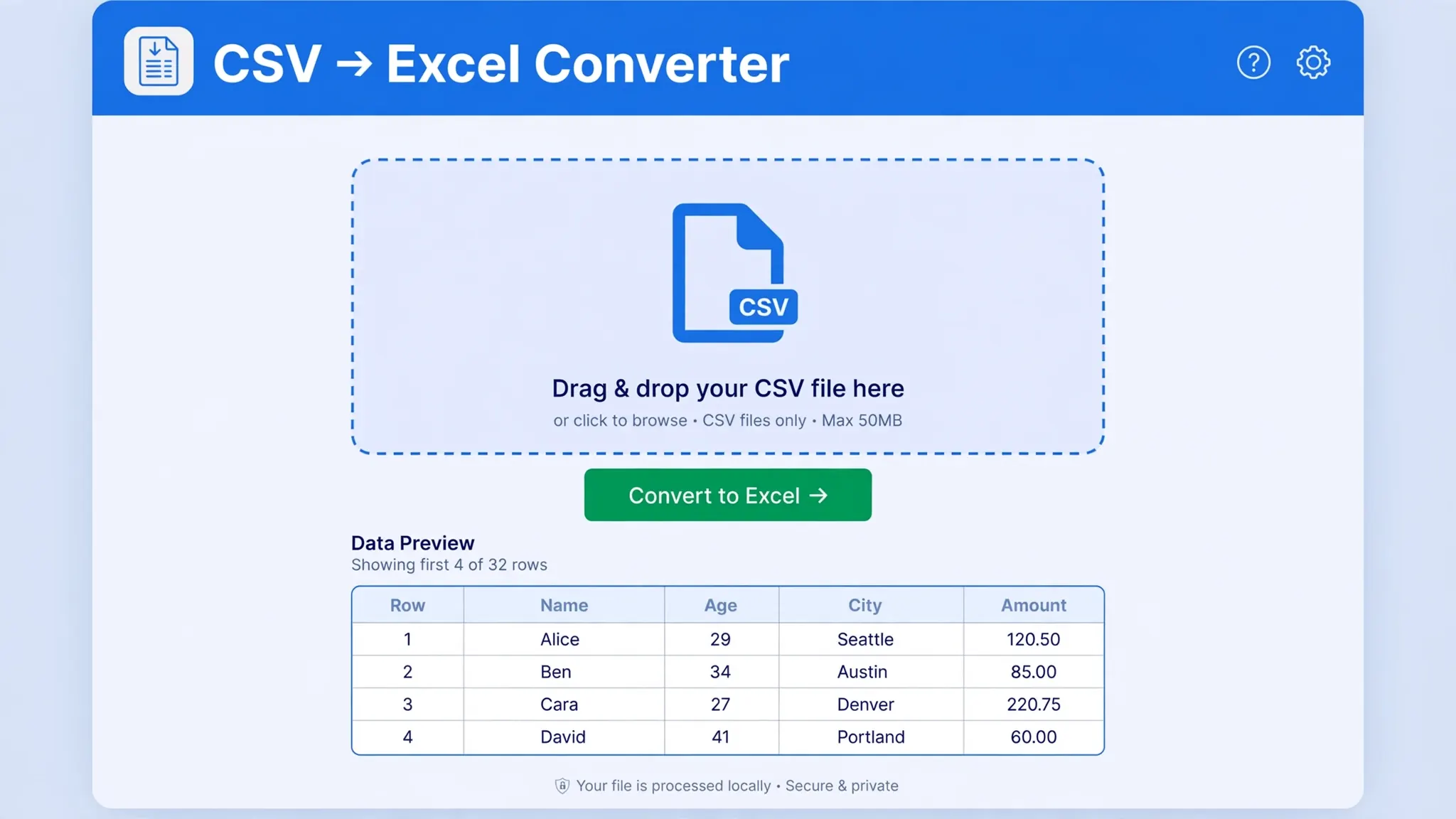
A CSV to Excel converter takes a plain-text CSV file — rows of values separated by commas (or semicolons, tabs, or pipes) — and produces a genuine Microsoft Excel workbook (.xlsx). That means your flat text becomes a structured spreadsheet with proper columns, headers, and data you can sort, filter, format, and chart. (Some people search for a "csv to excel convertor" — same tool, same result; it's just a common spelling variant.)
Why not just open the CSV in Excel directly? You can — but double-clicking a CSV lets Excel guess everything: the delimiter, the encoding, and every column's data type. Those guesses cause the classic disasters: everything landing in one column, leading zeros vanishing from zip codes, dates flipping between US and European formats, and special characters turning to gibberish. A purpose-built converter sidesteps all of that with delimiter auto-detection, UTF-8 handling, and a data preview before anything is finalized.
Why use our CSV to Excel converter
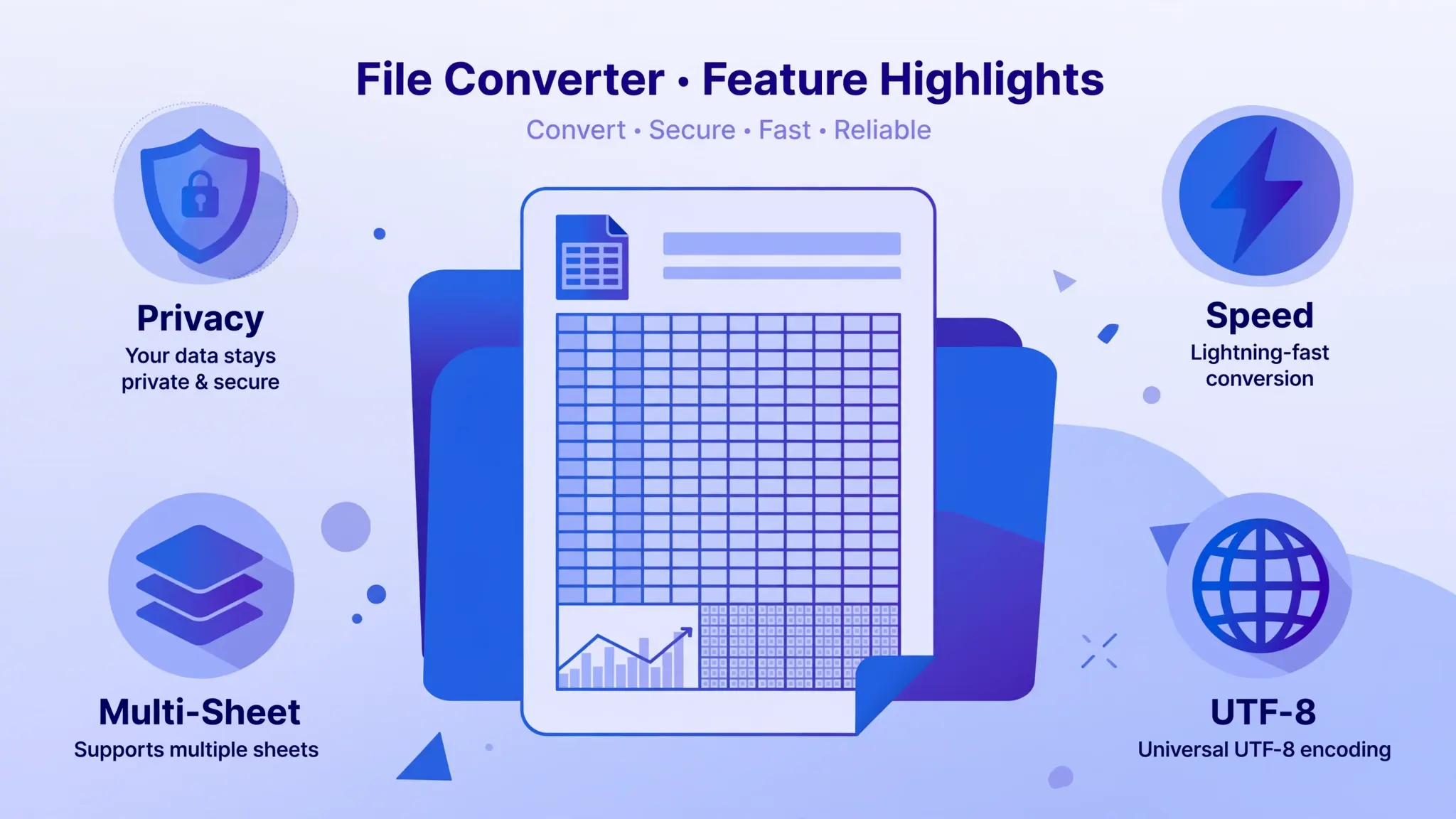
There are dozens of CSV to Excel converters online. Most share the same flaws: they upload your file to a server (and keep it for 24 hours), they choke on semicolon-separated European files, they mangle non-English characters, and they throttle you after a few conversions unless you pay. Ours was built to avoid every one of those traps:
- 100% client-side. The conversion runs in your browser with JavaScript. There is no server, so there is nothing to leak, breach, or subpoena. Bank statements and payroll exports stay on your machine.
- Smart delimiter detection. Commas, semicolons, tabs, and pipes are detected automatically from the file's content.
- Multi-file to multi-sheet. Drop in twelve monthly CSVs; get one workbook with twelve tabs.
- UTF-8 with BOM handling. Accented characters, Hindi, Arabic, Chinese — preserved correctly.
- Live data preview. See the first 10 rows as a table before you convert, so surprises are impossible.
- Free forever, no signup. No accounts, no watermarks, no "premium unlock" on basic features.
How the converter works (3 steps)
- Drop in your file. Drag a .csv (or .txt/.tsv) onto the upload zone above, or click to browse. Add several files at once if you like.
- Check the preview. The tool shows the first 10 rows as a table. Confirm the columns split correctly, set your worksheet name, and tick whether the first row holds headers.
- Convert and download. One click builds a real .xlsx workbook on your device and downloads it. Open it in Excel, Google Sheets, Numbers, or LibreOffice.
Converter types compared: online vs desktop vs Excel built-in
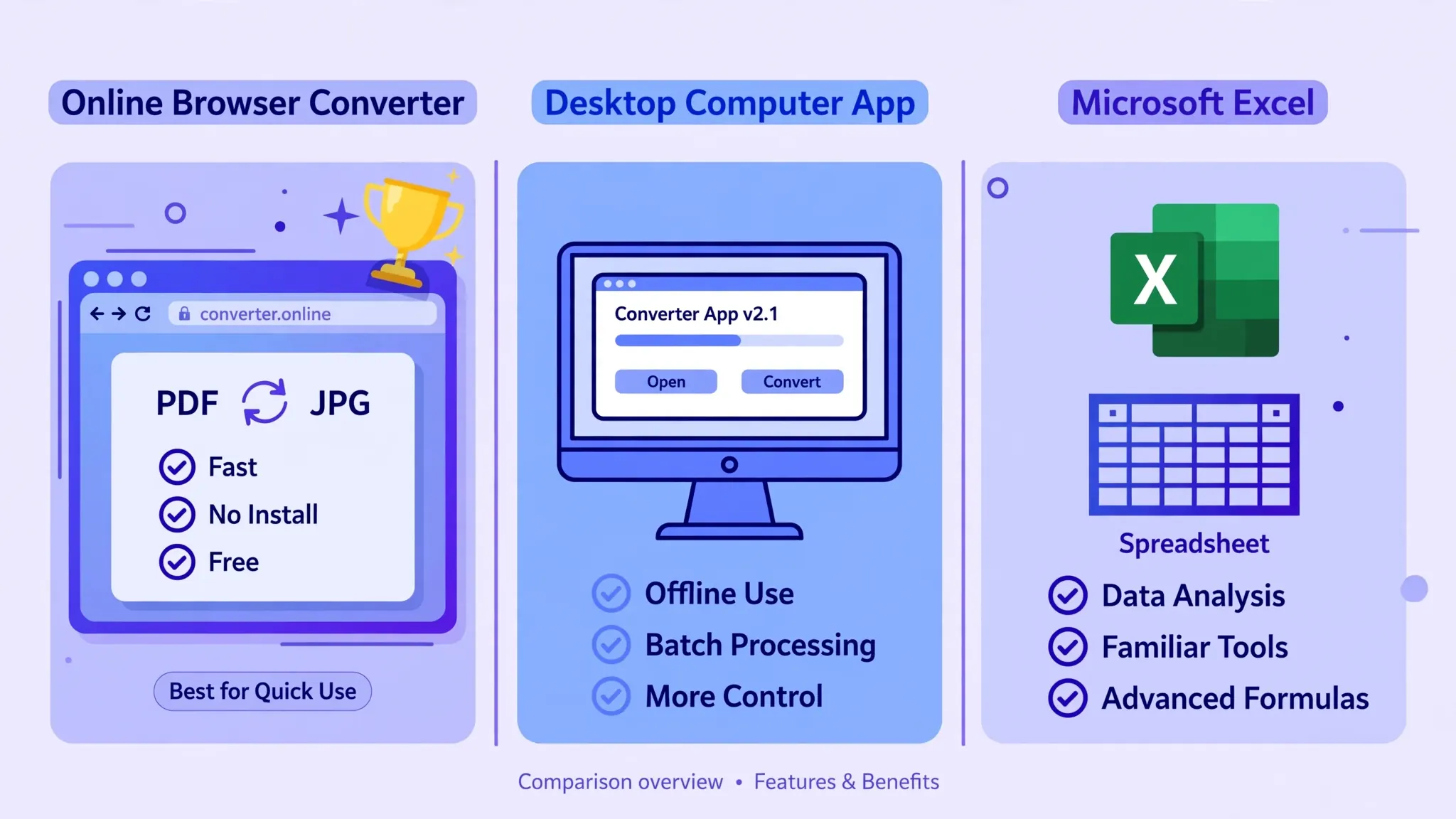
Not every conversion job needs the same tool. Here's how the options stack up:
| Method | Best for | Watch out for |
|---|---|---|
| Online converter (this site) | Quick jobs, no Excel installed, sensitive files | Needs internet for the page itself |
| Excel: Data → From Text/CSV | Maximum control over types and delimiters | Requires Excel; slower for many files |
| Desktop software | Offline batch jobs | Installs, updates, often paid |
| Python / scripts | Automated recurring conversions | Needs coding skills |
For one-off and occasional conversions — which is 95% of real-world use — a good online CSV to Excel converter is simply the fastest path. Our pillar guide to converting CSV to XLSX walks through all five methods in depth if you want the full picture.
Privacy: what happens to your files

Short version: nothing happens to your files — they never leave your computer. The converter is a static web page; the "server" only delivers the page itself. All parsing and XLSX generation happen in your browser's memory, and closing the tab wipes everything. Compare that with typical online converters, which upload your file, process it server-side, and retain it for 24 hours "for your convenience." For personal or regulated data, the difference matters.
Data issues our converter handles for you
Two problems cause the majority of CSV pain, and both are handled automatically here:
Delimiter confusion. A "CSV" from Germany or France often uses semicolons; exports from databases may use pipes or tabs. Our converter samples the file and picks the delimiter that actually structures the data, so columns split correctly without you touching a setting. If you want to understand the mechanics, see why CSV delimiters break in Excel.
Encoding mangling. Files are read as UTF-8 with byte-order-mark handling, which fixes the classic "José → José" mojibake in most cases. (One caveat: if the source file was saved in a legacy encoding like Windows-1252 without any marker, no converter can perfectly guess it — our UTF-8 encoding guide covers the edge cases.)
Who uses a CSV to Excel converter
Accountants converting bank statements, e-commerce sellers wrangling supplier feeds, marketers turning analytics exports into reports, developers previewing API dumps, students formatting survey data, HR teams cleaning roster exports — anyone whose work arrives as a CSV and needs to become a spreadsheet. If that sounds like your Tuesday, bookmark this page.
Frequently Asked Questions
Is this CSV to Excel converter free?
Yes — free forever, no signup, no watermarks, and no daily limits for normal use.
Do my files get uploaded anywhere?
No. Conversion runs 100% in your browser; your files never leave your device.
Can it handle semicolon-separated CSV files?
Yes. Commas, semicolons, tabs, and pipes are auto-detected from the file content.
Can I convert several CSV files at once?
Yes — each file becomes its own worksheet inside a single downloaded workbook.
What is the difference between a converter and Excel's Save As?
Excel's Save As requires Excel and lets Excel guess data types by double-clicking. A dedicated converter previews data, detects delimiters, and works with no Excel installed.
Will special characters survive the conversion?
Files are read as UTF-8 with BOM handling, so accented and non-Latin characters convert correctly in the vast majority of cases.