You should never have to pay — or hand over your email address — just to convert CSV to Excel free. Yet half the “free” converters on the internet greet you with a signup wall, a download that requires an account, or a suspicious request for your email before they will release your own file. This guide cuts through that: every method below is genuinely free, and most need no signup at all.
Whether you are a student in India converting a dataset for a college project, a small-business owner in the US turning Shopify exports into proper workbooks, or an accountant in the UK who just needs this month’s bank CSV in XLSX format, there is a free route that fits your situation — with or without Microsoft Excel, on desktop or on your phone.
I will show you the five best free csv to excel converter options, explain the privacy traps to avoid (because “free” sometimes means “we keep your data”), and give you a no-signup checklist so you can spot an honest tool in ten seconds. By the end, converting CSV to Excel free — with csv to excel no signup friction — will be a thirty-second habit.
What “Free” Really Means (and What It Costs You)
Not all free is equal. Before picking a method, it helps to know the three ways “free” tools actually make their money — because the price is sometimes your data.
- Truly free, no strings. Open-source software (LibreOffice), Google Sheets (ad-supported ecosystem), and client-side browser tools that do all the work on your device. Nothing leaves your machine; nobody emails you later.
- Free with an account. The conversion works, but you must register first. Your email becomes the product — expect marketing emails and “upgrade to Pro” nudges. Some of these also store your uploaded files on their servers.
- Free trial disguised as free. “Convert your first 3 files free!” then a paywall. Fine for a one-off emergency, useless as a habit.
The methods in this guide are all in the first category: genuinely free, and every one of them lets you convert CSV to Excel with no signup. I will flag the privacy behavior of each, so you can match the method to the sensitivity of your file. A public dataset and a payroll export deserve different treatment.
Convert CSV to Excel Free Online: No Signup, No Install
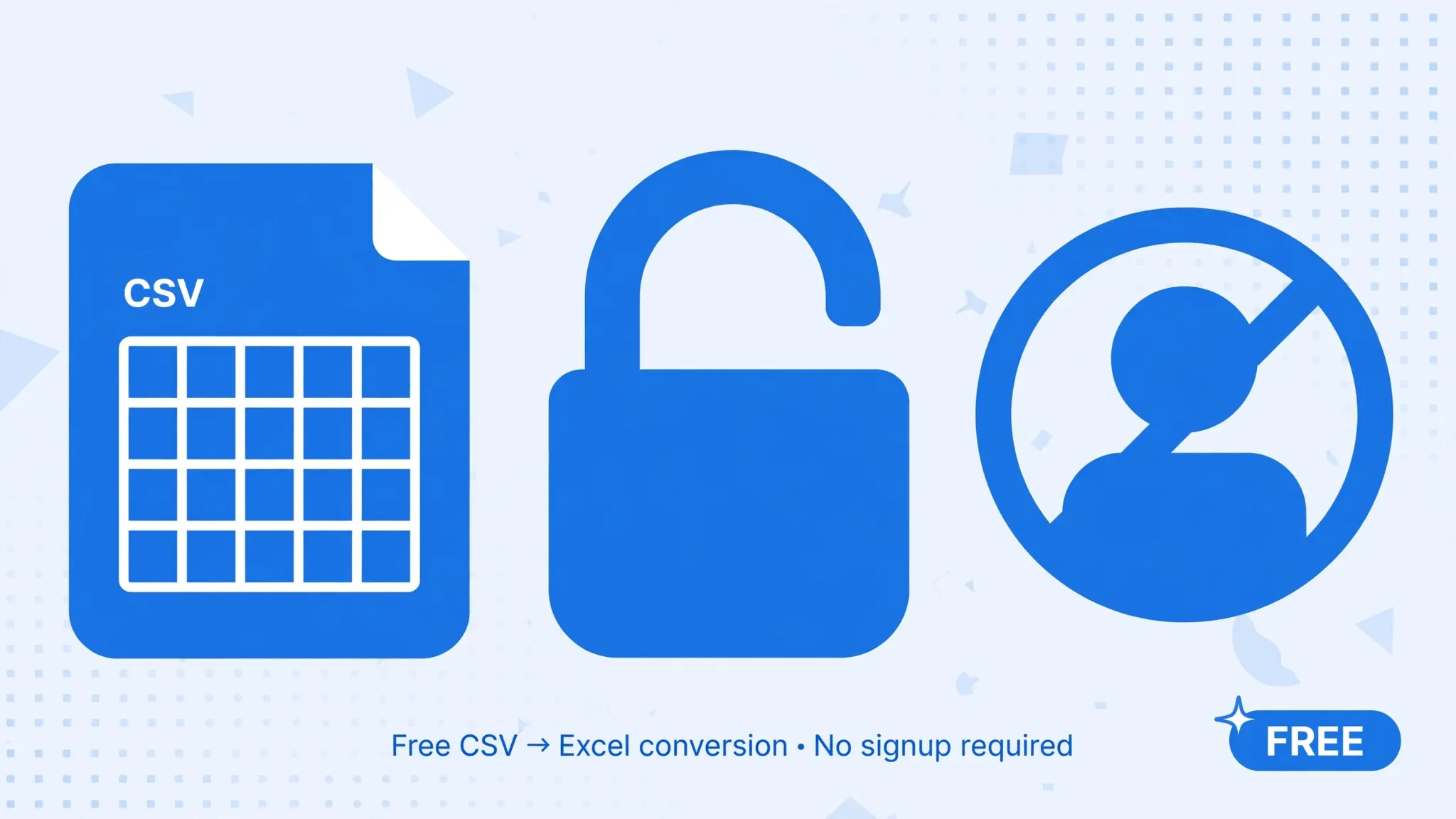
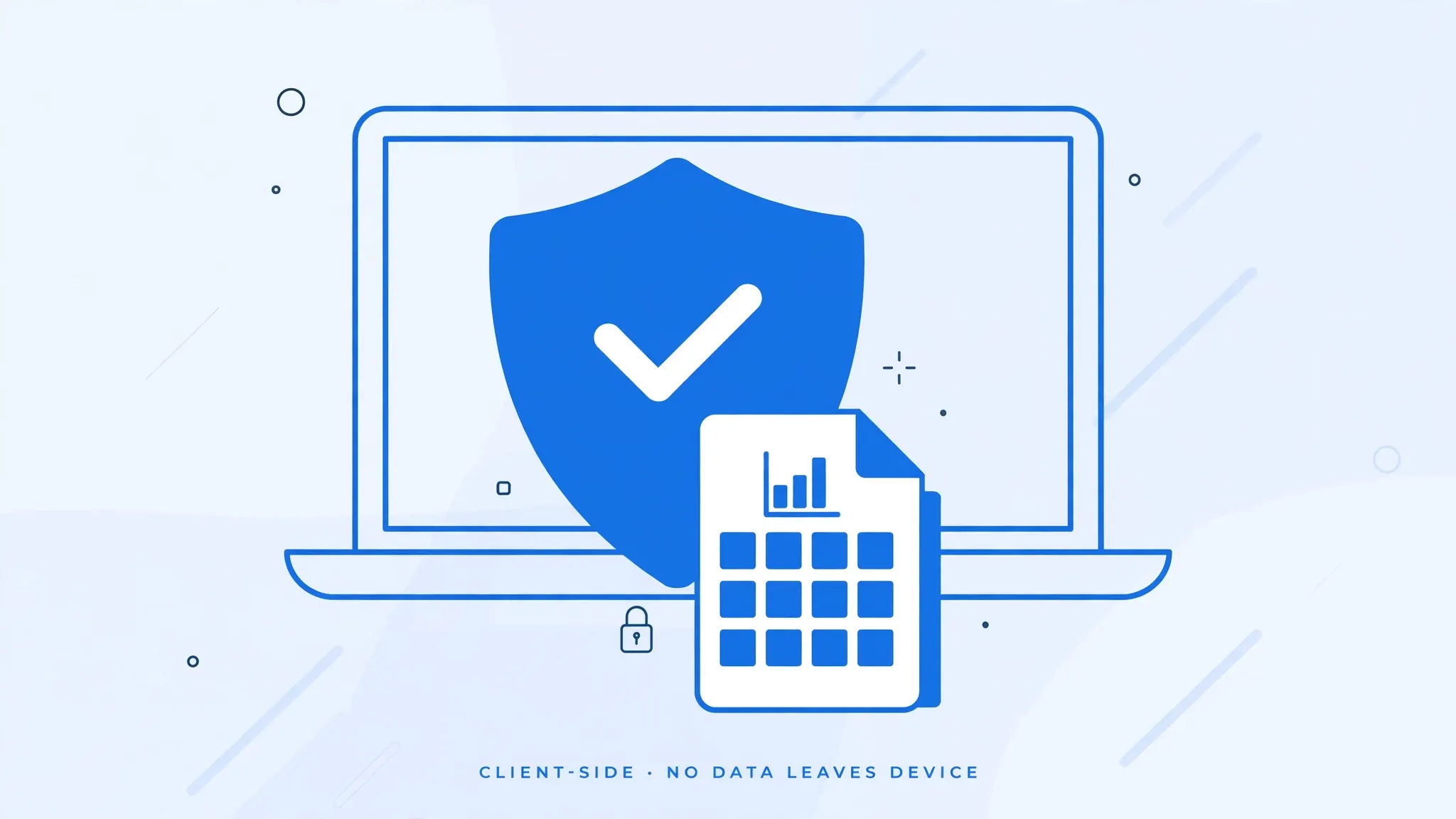
The fastest free csv to excel converter is a browser-based tool. Our own converter at csvtoexcel.site/ is free with no signup: open the page, drop in your CSV, download the XLSX. It runs entirely client-side — your file is parsed by JavaScript inside your browser and never uploaded to any server.
- Open the converter in any browser — Chrome, Edge, Firefox, Safari, on desktop or mobile.
- Drag and drop your CSV (or tap to browse). The tool reads it instantly.
- Check the preview grid. If columns are merged into one, switch the delimiter — comma, semicolon, tab, or pipe — until it looks right.
- Download the XLSX. No account, no email, no watermark. The file is yours.
This is the method I recommend for one-off conversions and for anyone who does not want to install anything. A 50,000-row sales export converts in seconds. It also works on locked-down work computers where you cannot install software — the browser is all you need.
Method 2: Google Sheets (Free Forever)
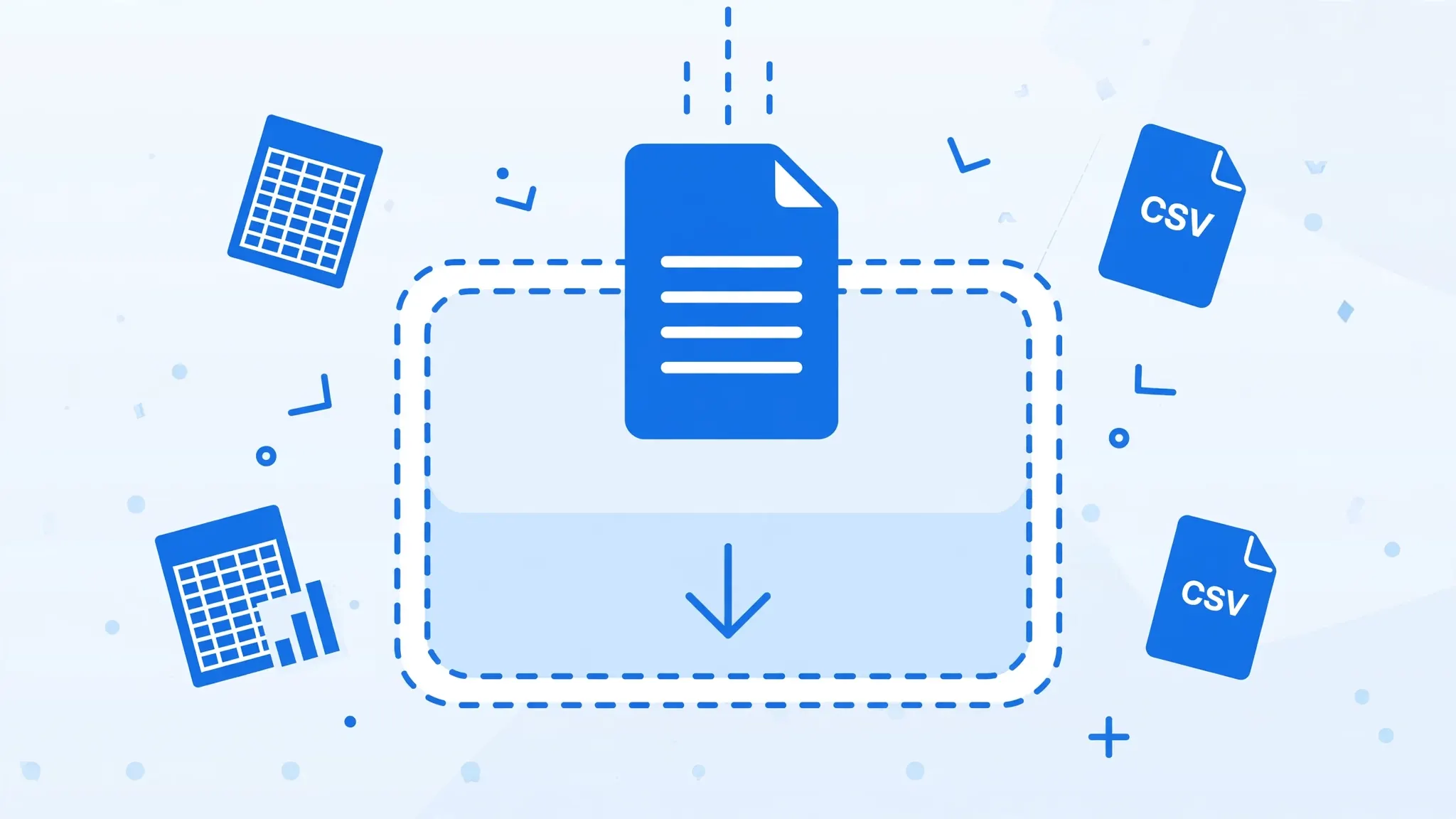
If you have a Google account, you already own a free CSV-to-Excel converter. Google Sheets opens CSVs cleanly and exports genuine XLSX files.
- Upload the CSV to Google Drive (New → File upload).
- Right-click → Open with → Google Sheets. Sheets parses the file into a spreadsheet.
- Check delimiters. If everything lands in one column, use File → Import instead and set the separator explicitly.
- File → Download → Microsoft Excel (.xlsx). Done — a real XLSX, free.
Sheets is particularly strong with UTF-8 files — Hindi, Arabic, accented European names, and emoji all survive the trip. The trade-off: your file passes through Google’s servers (it is their product, after all), so skip this method for highly confidential data. Also, Sheets slows down noticeably past a few hundred thousand rows; for big files, prefer LibreOffice or Python.
Method 3: LibreOffice Calc (Free Desktop Excel Alternative)
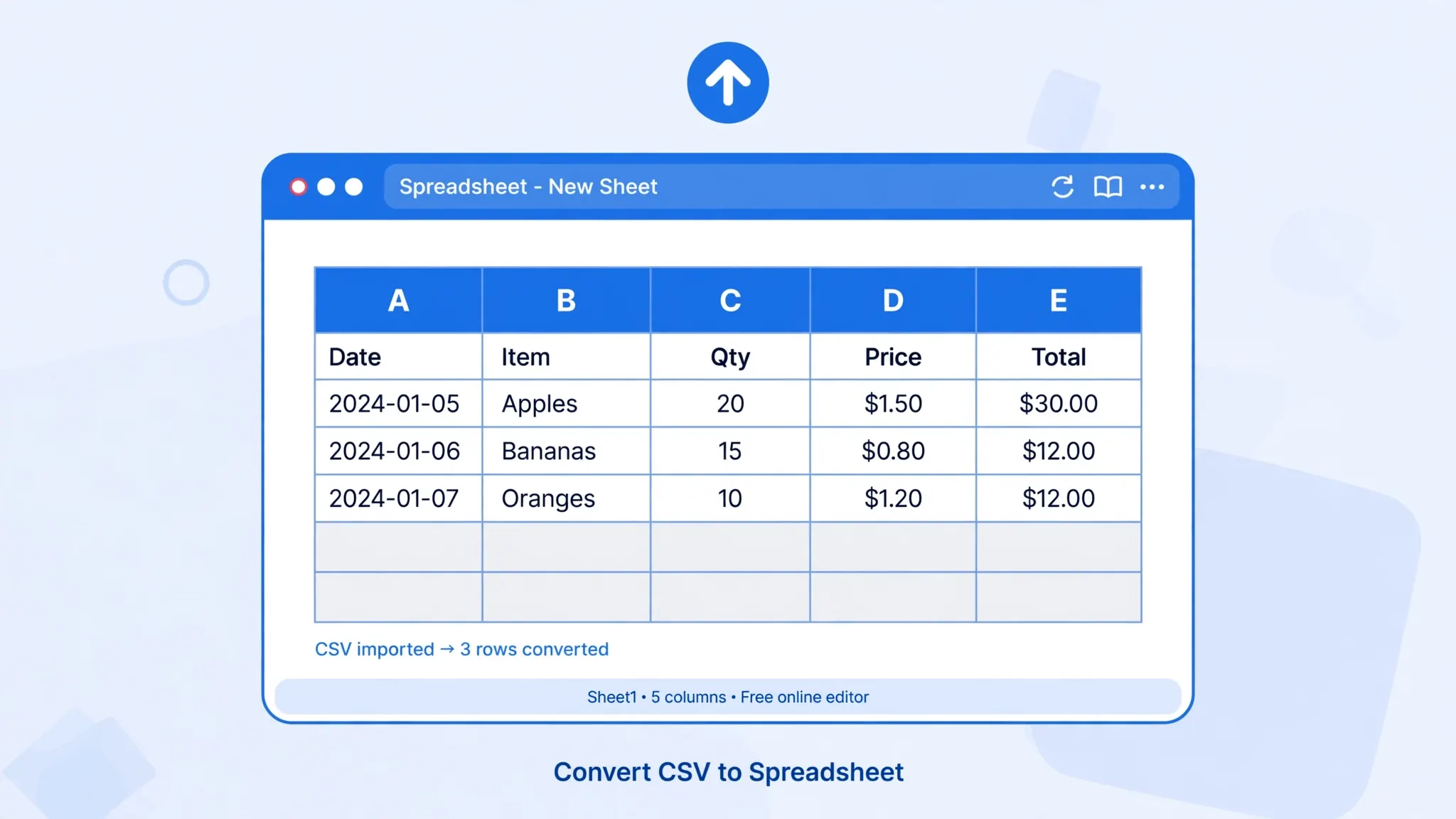
LibreOffice is free, open-source, and runs on Windows, Mac, and Linux. Its spreadsheet app, Calc, is arguably the best free desktop tool for converting CSV to Excel — because unlike Excel’s double-click behavior, Calc always asks you how to interpret the file.
- Download LibreOffice from libreoffice.org (free, no account).
- Open Calc, then open your CSV. The Text Import dialog appears automatically.
- Set the character set (UTF-8), language, and separator. The live preview shows exactly how columns will split — adjust until it is perfect.
- Set column types. Click a column header in the preview and mark code/ZIP columns as Text to protect leading zeros.
- File → Save As → Excel 2007–365 (.xlsx).
Calc’s import dialog is the gold standard for tricky files: semicolon-delimited European exports, mixed encodings, quoted fields with embedded line breaks. Everything stays on your computer, nothing is uploaded, and there is no row-count anxiety until you hit the same 1,048,576-row XLSX ceiling that Excel has. If you convert CSVs regularly and want a free desktop workflow, install LibreOffice once and never think about it again.
Method 4: Excel You Already Own
If Microsoft Excel is already installed — through work, school, or a Microsoft 365 subscription — conversion costs you nothing extra. The key is the import-first technique: never double-click the CSV.
- Open a blank workbook in Excel.
- Data → From Text/CSV, select your file.
- In the preview, confirm the delimiter and set File Origin to 65001: UTF-8 if characters look garbled.
- Click Transform Data to open Power Query; set code columns to Text type.
- Close & Load, then File → Save As → Excel Workbook (*.xlsx).
Students: check whether your university provides Microsoft 365 free — most do, in the US, UK, Canada, and Australia. That makes this method free for you too.
Method 5: Convert Free on Your Phone
Stuck with only a phone? You can still convert CSV to Excel free.
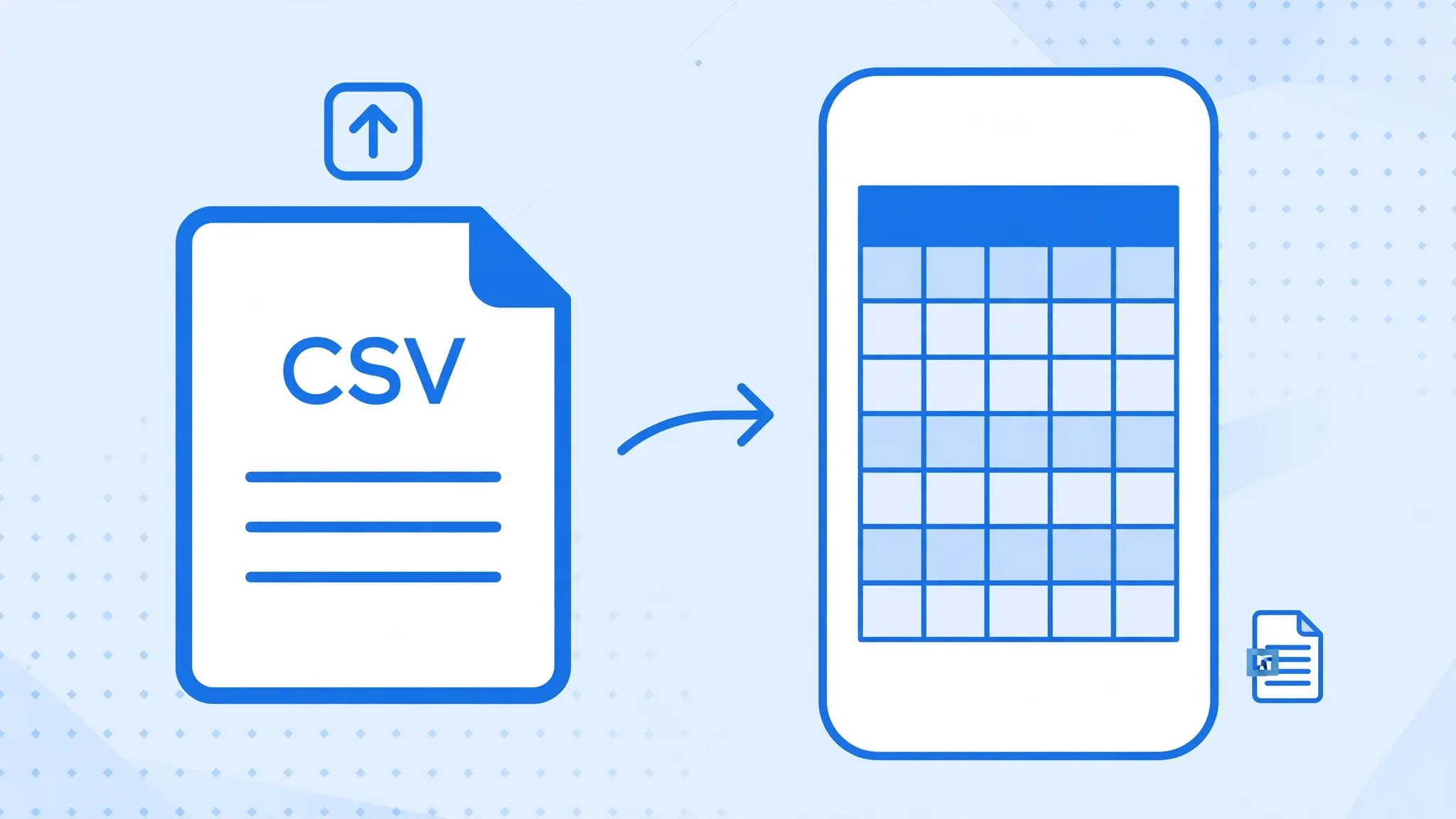
- Browser converter (easiest): open csvtoexcel.site/ in Chrome (Android) or Safari (iPhone), upload the CSV from your files or email attachment, and download the XLSX. Works with no app install and no signup.
- Google Sheets app: upload the CSV to the Drive app, open with Sheets, then ⋮ menu → Share & export → Save as → Excel.
- WPS Office (free tier): the mobile app opens CSVs and can save as XLSX. The free version shows ads; the conversion itself costs nothing.
Mobile Excel (free for basic use on phones under 10.1 inches) can also do it: open the CSV from OneDrive or local storage, then save a copy as XLSX. Just be careful with delimiter issues on small screens — the preview is harder to inspect, so verify the result on a desktop afterward if the data matters.
Privacy Comparison: Which Free Methods Keep Your Data?
“Free” means nothing if your customer list ends up on someone’s server. Here is the honest privacy breakdown:
| Method | Where your file goes | Account needed? | Safe for sensitive data? |
|---|---|---|---|
| Client-side online converter | Stays in your browser | No | Yes — nothing is uploaded |
| Server-side online converter | Uploaded to their servers | Sometimes | No — avoid for private data |
| Google Sheets | Google’s servers | Yes (Google) | Only if you trust Google with it |
| LibreOffice Calc | Stays on your computer | No | Yes |
| Excel (desktop) | Stays on your computer | No* | Yes |
| Python script | Stays on your computer | No | Yes |
*Excel itself needs no account for local conversion, though Microsoft 365 may sign you in for licensing.
My rule: bank statements, payroll, medical data, or anything with customer personal information → use a client-side tool, LibreOffice, or desktop Excel. Public datasets, product catalogs, and practice files → any free method is fine.
The No-Signup Checklist
Before trusting any “free” converter, run through this ten-second check:
- Can you download without an account? If the download button demands registration, it is not really free.
- Does it ask for your email? A download should never require an email address.
- Is there a file-count paywall? “3 free conversions” is a trial, not a free tool.
- Does it say where processing happens? “Converted in your browser” = your data stays private. Silence on this = assume upload.
- Are there watermarks or locked features? A proper XLSX needs none of that.
The converter at csvtoexcel.site/ passes all five: no account, no email, unlimited conversions, client-side processing, clean XLSX output. Bookmark it and you will never google "free csv to excel converter" again.
Getting Pro-Quality Results from Free Tools
Free does not mean sloppy. The difference between a clean conversion and a mangled one is never the price of the tool — it is the three import decisions: delimiter, encoding, and column types. Nail these and a free converter beats an expensive tool used carelessly.
1. Confirm the delimiter before anything else
Open your CSV in a plain text editor (Notepad, TextEdit) and look at the raw characters. Commas between values? Standard. Semicolons? Very common in exports from Germany, France, Brazil, and much of continental Europe, where the comma is the decimal separator. Tabs? Typical of database dumps. Pipes? Common in logs. Set the matching delimiter in your converter or import dialog before converting — this single step fixes the majority of “broken” conversions, including the classic everything-in-one-column symptom.
2. Force UTF-8 when characters look wrong
If names like “José” show up as “José”, the file is UTF-8 but was read as Windows-1252. In LibreOffice Calc’s Text Import dialog, set Character set to Unicode (UTF-8); in Excel’s From Text/CSV, set File Origin to 65001: UTF-8; in Google Sheets, use File → Import and check the encoding option. If you generate the CSV yourself, export it with a UTF-8 BOM and Excel will detect the encoding automatically.
3. Protect text-like numbers at import time
ZIP codes, phone numbers, SKUs, and long account numbers must be imported as Text, or Excel will strip leading zeros and flip long numbers into scientific notation (losing precision past 15 digits). In Calc, click the column in the import preview and set its type to Text. In Excel, use the Transform Data step in Power Query. This is the step most people skip — and the one that actually destroys data.
4. Verify with a row count
After every free conversion, compare row counts: the XLSX should have exactly as many data rows as the CSV has lines minus the header. A mismatch means the parser choked — usually on an unescaped quote or a line break inside a quoted field. Catching it now takes ten seconds; catching it after you have built a report on the file takes hours.
Follow those four habits and your free conversions will be indistinguishable from anything a paid tool produces — because under the hood, the parsing logic is the same. The paid tools just charge you for the confidence.
Troubleshooting Free Conversions
The output has everything in one column
Delimiter mismatch — your CSV uses semicolons or tabs. In an online converter, switch the delimiter setting; in Calc or Excel, re-import and pick the right separator. Common with exports from Tally (India), DATEV (Germany), and many EU accounting tools.
Characters look broken (é, ’)
Encoding issue. Choose UTF-8 explicitly in the import dialog, or if you control the export, save the CSV with a UTF-8 BOM. Google Sheets handles this automatically in most cases.
Leading zeros vanished
Set the column to Text during import — in Calc’s Text Import dialog, in Power Query’s Transform step, or in a converter that supports column types. US ZIP codes like 00501 and product SKUs are the classic victims.
The file is huge and the browser struggles
Browser converters handle tens of thousands of rows easily, but a million-row file can exhaust a tab’s memory. For very large CSVs, use LibreOffice Calc or Python locally — both free, both far more capable.
My phone downloaded the file but I cannot find it
Check your Downloads folder (Android: Files → Downloads; iPhone: Files app → Downloads). Then open it with Google Sheets, WPS Office, or Apple’s Numbers.
One last habit worth building: keep the original CSV alongside the converted XLSX. Storage is cheap, and the CSV is your source of truth — if a number ever looks suspicious in the workbook, you can reconvert in seconds and compare. Free tools make reconversion painless, so there is no reason to treat the first conversion as irreversible.
And remember: the best free method is the one you will actually use consistently. If a browser converter saves you five minutes every week, that is over four hours a year — for zero dollars and zero signups. Pick your method, bookmark it, and make clean CSV-to-Excel conversion a reflex rather than a chore.
Running into a weird edge case not covered here? join the discussion in our community forum — readers post their trickiest free-conversion problems there, from mangled encodings to stubborn delimiters.
Frequently Asked Questions
Is there a truly free CSV to Excel converter with no signup?
Yes. The converter at csvtoexcel.site/ is completely free, needs no account, and processes your file inside your browser so nothing is uploaded. Google Sheets and LibreOffice Calc are also free forever and convert CSV to Excel without any signup. Be wary of tools that show "free" in the headline but demand an email or account before download — those are trials or lead-generation funnels, not free tools.
Can I convert CSV to Excel free on my phone?
Yes. Open csvtoexcel.site/ in your mobile browser, upload the CSV from your files or an email attachment, and download the XLSX — no app install, no signup. Alternatively, use the Google Sheets app: upload the CSV to Drive, open it with Sheets, then use the menu to save a copy as Excel (.xlsx).
Are free online CSV to Excel converters safe for bank statements?
Only client-side converters are safe for sensitive files, because your data never leaves your device — the conversion happens in your browser’s memory. Converters that upload your file to a server should be avoided for bank statements, payroll, or customer data. When in doubt, convert locally with Excel, LibreOffice, or a client-side tool.
Why do free converters ask for my email?
Usually to build a marketing list or to gate downloads behind an account. A genuinely free converter lets you download immediately with no email. If a tool demands your address for a one-off CSV conversion, close it and use a no-signup alternative — your inbox will thank you.
Can I convert CSV to Excel free without Microsoft Excel?
Absolutely. LibreOffice Calc, Google Sheets, WPS Office, Apple Numbers, and browser-based converters all produce real, standards-compliant XLSX files without Microsoft Excel. The output opens identically in Excel later, with formatting, formulas, and multiple sheets intact.
Do free methods preserve my data as well as paid tools?
Yes. Conversion quality depends on how the CSV is parsed — delimiter, encoding, and column types — not on what you paid. Free tools that let you control the delimiter and encoding (Calc’s import dialog, Excel’s From Text/CSV, a good online converter) produce results identical to paid software. The expensive part of conversion is getting the import right, and that knowledge is free.