
Every month, finance teams produce the same artifacts: a P&L nobody reads past page one, a cash-flow spreadsheet only its author understands, and a budget variance report that arrives too late to change anything. The problem is rarely the numbers — it is the presentation. An excel finance dashboard fixes the last mile: one page where revenue, margins, cash, and variances tell a coherent story that a CEO can absorb in ninety seconds and a department head can drill into for an hour.
This guide builds a complete financial dashboard Excel template from the ground up: the clean P&L data foundation, a finance dashboard in Excel with KPI tiles and executive layout, cash-flow forecasting charts, slicer-driven interactivity, and the formula kit behind every tile. It is an Excel dashboard for finance teams that cannot justify BI software — or that can, but want the analysis layer to stay flexible. Whether you run finance for a SaaS startup in San Francisco, a manufacturer in Manchester, or a retail chain in Mumbai, the structure is the same.

What a CFO actually wants from an Excel finance dashboard
CFOs do not want data; they want decisions, pre-digested. A dashboard earns its place by answering five questions in under two minutes: Are we growing? Are we profitable? Do we have cash? Are we on budget? What needs attention? Everything on the page must serve one of those questions, or it is decoration.
This imposes a ruthless design discipline. One page, landscape. If it does not fit, you have too much — move detail to drill-down sheets. Tiles on top, trends in the middle, variances at the bottom. The eye reads top-left first; put the four headline KPIs there. Every number paired with context: a value without its target, prior period, or trend is trivia. Red means action: reserve red/amber/green strictly for variance status, never for branding. When the CFO opens the file at 7 AM before the board meeting, the page must read itself.
The data foundation: a clean P&L table
Dashboards fail at the foundation, not the finish. Before any tile or chart, build one immaculate table — tbl_GL — with every financial transaction as a row: Date, Account, Department, Region, Amount (signed: revenue positive, expenses negative), and Source. This is your general-ledger extract, and everything downstream reads from it.
The chart of accounts needs design attention: group accounts into the standard income statement hierarchy — Revenue, Cost of Goods Sold, Gross Profit, Operating Expenses (by department), Other Income/Expense, Net Income. A mapping table translates your accounting software’s 200 account codes into these ~25 reporting lines; the dashboard reads the reporting lines, never the raw codes. Get this mapping right once and every report forever is consistent.
Budget data lives beside actuals
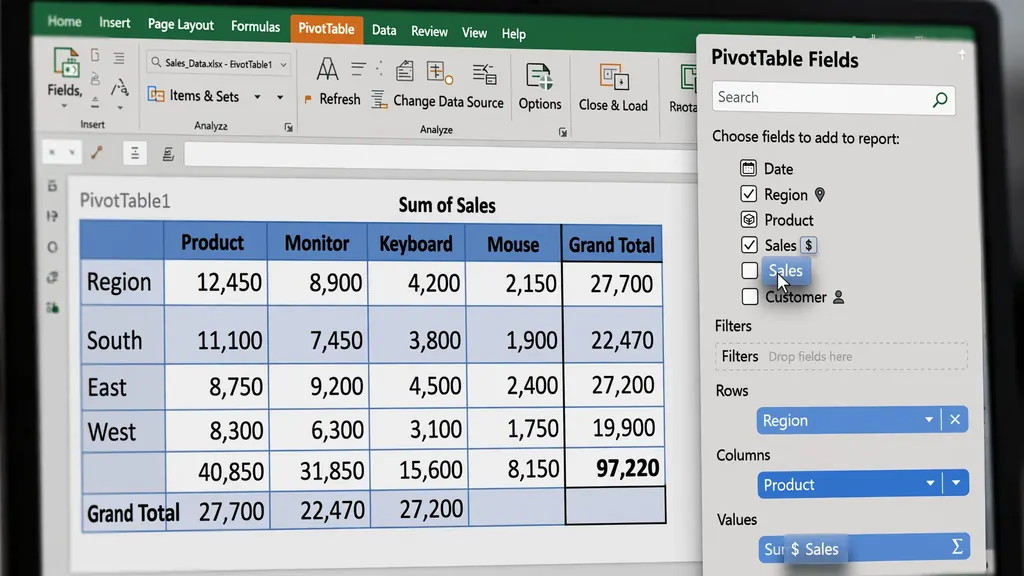
A dashboard without budget comparison is just history. Maintain a tbl_Budget with the same structure — Account, Department, Month, Budgeted Amount — entered once per year (or per quarter for volatile businesses). Every variance formula then reads =Actual − Budget from parallel SUMIFS. The single most valuable habit in FP&A is keeping budget and actuals in identical structures; do that and variance analysis becomes free.
Building the finance dashboard in Excel: layout executives read
Design the Dashboard sheet as a fixed canvas: print area set to one landscape page, a title band with the company name and period (“October 2026 — Actuals vs Budget”), and four zones.
- Zone 1 — KPI tiles (top): four to six large numbers: Revenue, Gross Margin %, Operating Expenses, Net Income, Cash Balance, and Headcount. Each tile shows the value, the vs-budget or vs-prior variance, and a red/amber/green indicator. Tiles are the 90-second read.
- Zone 2 — Trends (middle left): 12-month revenue and net income lines; the trajectory story.
- Zone 3 — Composition (middle right): expense breakdown bars by department and a waterfall from revenue to net income — the “where did the money go” story.
- Zone 4 — Variances (bottom): top 5 favorable and unfavorable budget variances with one-line explanations. This is the action list.
Formatting rules: one font family, two font sizes (tiles large, everything else small), a restrained palette (dark navy headers, one accent color, grays for the rest), thin borders or none, and no 3D anything. The dashboard should look boring and read instantly — excitement belongs in the results, not the design. This is the same visual discipline behind our sales tracking dashboard, applied to company financials.
P&L summaries: revenue to net income in one view
The P&L summary is the dashboard’s anchor table: reporting lines in rows, periods in columns (current month, year-to-date, and full-year forecast), with actual, budget, and variance sub-columns. Build it with SUMIFS against tbl_GL and tbl_Budget:
=SUMIFS(tbl_GL[Amount], tbl_GL[AccountGroup], $A2, tbl_GL[Date], ">="&month_start, tbl_GL[Date], "<="&month_end)
Each reporting line (Revenue, COGS, Gross Profit…) is a row; subtotal rows use SUM of their components rather than re-querying, which keeps the arithmetic transparent. Variance columns show absolute and percentage differences with conditional formatting: green for favorable (revenue over budget, expenses under), red for unfavorable — note that “favorable” depends on the line, so apply the color logic per row, not blindly.

The waterfall chart: profit, visualized
A waterfall chart walking from revenue down through COGS, opex lines, and taxes to net income is the single most illuminating P&L visual — it shows exactly where margin leaks. Build it from the summary rows (Insert → Waterfall chart in modern Excel). Executives who glaze over at tables consistently engage with this chart; it makes the cost structure tangible in a way rows of numbers never do.
Cash-flow charts: the 13-week view
Profit is opinion; cash is fact. The cash-flow forecast is the dashboard component that prevents existential surprises — the “we’re profitable but can’t make payroll” crisis that kills healthy-looking companies.
Building the 13-week forecast
- Create columns for the next 13 week-ending dates across the top of a
CashFlowsheet. - Inflows section: rows for receivables due (from your aging report), expected cash sales, loan drawdowns, other income. Pull receivables with SUMIFS on due dates falling in each week.
- Outflows section: payroll (the big one — usually 2–4 dates/month), payables due, rent, loan payments, tax payments, capex.
- Net flow row: inflows minus outflows per week.
- Closing balance row: opening balance + cumulative net flow — the line that matters.
Chart the closing-balance row as a line with a horizontal “minimum buffer” line (say $50k or one payroll). Any week the forecast dips below the buffer is a decision point now: accelerate collections, delay discretionary spend, or draw the credit line — while you still have options. Update actuals weekly and roll the window forward; a forecast updated monthly is a historical document.
Slicers and interactivity: slicing by department, region, month
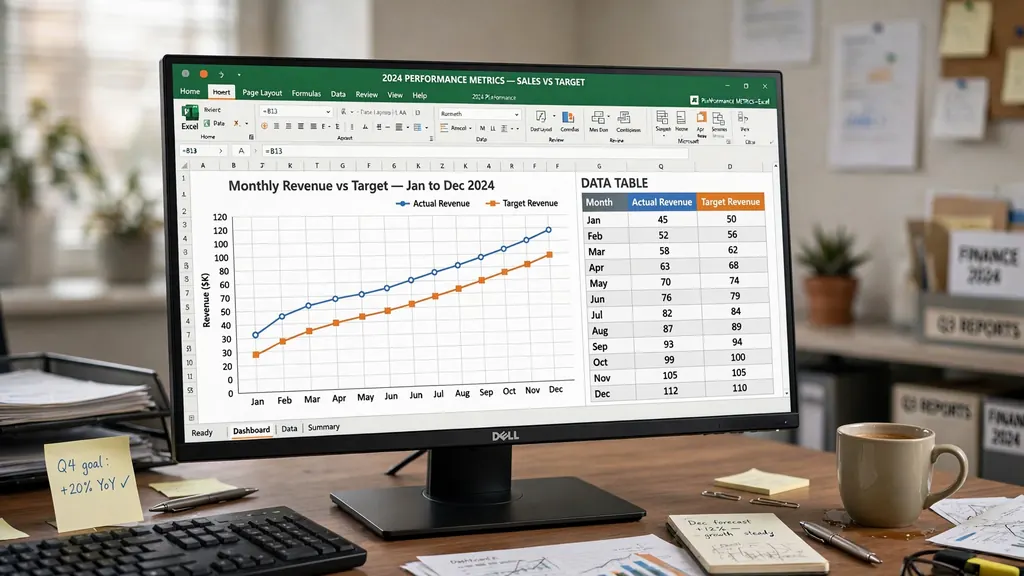
Static dashboards answer the questions you predicted; slicers let executives ask their own. The setup from our sales guide applies directly: build dashboard visuals on pivot tables, then Insert Slicer for Month, Department, and Region, connecting each slicer to all pivots via Report Connections.
The effect is transformative in review meetings. “Show me just EMEA” — one click, every tile and chart refilters. “What drove the marketing variance?” — click Marketing, and the waterfall, trends, and variance table all respond. The meeting shifts from “let me get back to you on that” to live exploration, and finance’s reputation shifts from scorekeeper to strategic partner.

One caution: slicers filter visuals, not the underlying tables — which is exactly right for exploration, but means the printed PDF captures only the current selection. For board packs, set the slicers to the desired view (e.g., All regions, YTD) before exporting, and note the selection in the title band (“All Regions · YTD Oct 2026”) so the PDF is self-documenting.
KPI tiles: the formulas behind the numbers
Every tile on an Excel dashboard for finance is a SUMIFS with a time window. The standard kit:
- Revenue (MTD/YTD):
=SUMIFS(tbl_GL[Amount], tbl_GL[AccountGroup], "Revenue", tbl_GL[Date], ">="&period_start, tbl_GL[Date], "<="&period_end) - Gross margin %:
=(Revenue − COGS)/Revenue— the single best health metric for most businesses. - EBITDA-ish operating result: revenue minus all operating lines; label it honestly (“Operating profit before X”) rather than claiming a formal EBITDA.
- Net income: the bottom line, with vs-budget and vs-prior-year variances beside it.
- Cash balance: from the cash-flow sheet’s latest actual — never stale, always the current week.
- Burn multiple / runway: for startups —
=CashBalance / MonthlyBurngives months of runway, the number every founder meeting revolves around. - DSO (days sales outstanding):
=Receivables / Revenue × 365— rising DSO means collections are slipping, a leading indicator of cash trouble.
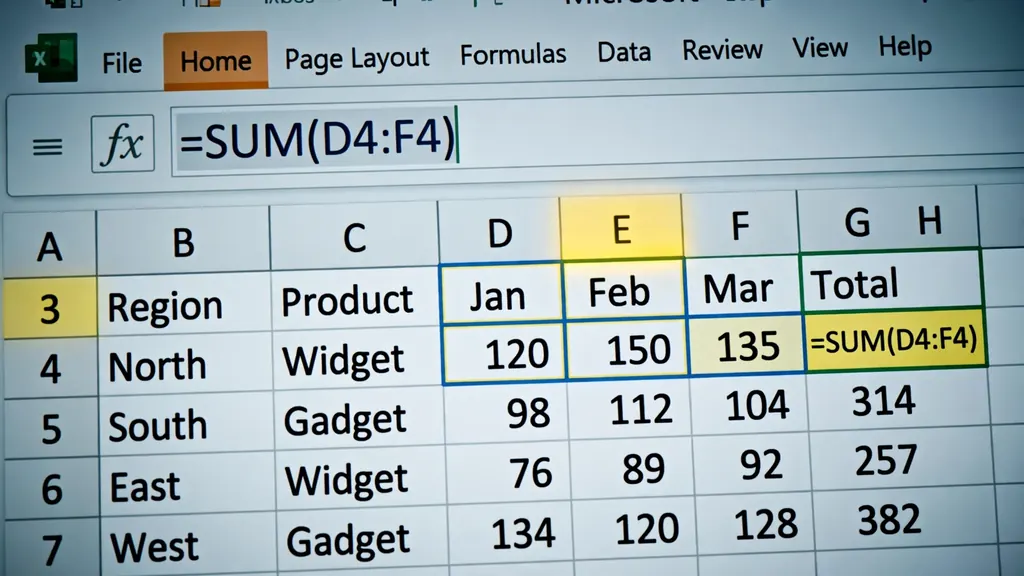
Each tile follows the same micro-layout: big value, small label, variance vs budget (or prior period) with an arrow and color. Build one tile perfectly, then copy the pattern — consistency lets readers parse six tiles as fast as one. And wrap divisions in IFERROR: a new department with zero revenue should show “—”, not an error, on the shared screen.
Feeding the dashboard: accounting CSV exports
The dashboard is only as fresh as its data feed. Every accounting system — QuickBooks, Xero, Sage, Zoho Books, Tally — exports the general ledger or trial balance as CSV. The monthly routine: export, convert with our free CSV to Excel converter (client financials stay on your device, never uploaded), map the export’s columns to tbl_GL, and append the month’s rows.
Power Query makes this a true pipeline: point a query at the export folder, encode the column mapping and account-group translation as transformation steps, and each month’s refresh appends cleanly. The account-mapping table (software code → reporting line) is the critical piece — maintain it as a proper Excel Table so new accounts get mapped once and flow correctly forever. Unmapped accounts should surface as an explicit “Unmapped” group on the dashboard rather than vanishing silently; visibility forces the mapping to stay complete.
Timing discipline matters more than tooling: close the books by the 5th, refresh the dashboard by the 7th, review variances by the 10th. A dashboard refreshed on the 25th informs nothing — the month is already decided. The same refresh rhythm recommended for marketing reports in Excel applies here: small, regular, automated.
Scenario planning: base, best, and worst cases
A dashboard that only shows what happened is half a tool; the best finance teams use the same workbook to model what might happen. Add a Scenarios sheet with three columns beside your forecast: Base (your realistic plan), Best (revenue +15%, costs flat), and Worst (revenue −20%, key customer churns, hiring freeze). Each scenario is just a set of assumption cells — growth rates, margin shifts, headcount changes — feeding the same P&L structure via a scenario selector dropdown.
The mechanics are simple: build the forecast P&L once with formulas referencing a Scenario selector cell (Data Validation: Base/Best/Worst), and use CHOOSE or XLOOKUP to pull the right assumption set. =XLOOKUP($B$1, Scenarios[Scenario], Scenarios[RevenueGrowth]) in the growth cell, for example, re-cuts the entire forecast the moment the selector changes. Put the three scenario outcomes — revenue, net income, year-end cash — side by side in a small comparison table on the Dashboard, and the board conversation shifts from “what are the numbers?” to “what do we do if the worst case materializes?”
Scenario planning earns its keep in volatile periods: funding rounds, market downturns, or major hiring pushes. Update the scenarios quarterly, not monthly — they are strategic, not operational. And keep the assumptions visible and dated on the sheet itself (“Worst case assumes loss of top client, modeled Oct 2026”); a scenario nobody can audit is just a guess with formatting. Combined with the 13-week cash forecast, this gives leadership both the telescope (annual scenarios) and the microscope (weekly cash) — the full planning stack in one workbook, maintained with the same monthly rhythm as every other dashboard in this guide.
7 dashboard mistakes finance teams make
- Too many KPIs. Twenty tiles means zero priorities. Six tiles maximum on the executive page; detail lives on drill-down sheets.
- Numbers without context. Every value needs its budget, prior period, or trend. A naked number is trivia.
- Stale data presented as fresh. Put the “data as of” date in the title band. Trust dies the first time someone spots last quarter’s numbers.
- Manual month-end heroics. If refresh takes two days of copy-paste, the pipeline is broken. Power Query the imports once.
- Vanity precision. Reporting revenue to the cent on a dashboard ($4,231,847.32) signals you do not understand materiality. Round to thousands.
- Red used decoratively. Reserve red/amber/green for variance status only. A red company logo on the dashboard trains eyes to ignore red.
- No variance commentary. Numbers show what happened; the one-line explanations say why. The “top 5 variances” box is mandatory, not optional.
Finance does not operate in isolation: the revenue tiles trace back to the sales tracker, the marketing spend to marketing reports, and the household-scale version of all of this is the budgeting guide. Same SUMIFS, same discipline, different scale.
Frequently Asked Questions
What should an Excel finance dashboard include?
A strong finance dashboard includes KPI tiles (revenue, gross margin, net income, cash balance), a P&L summary with budget-vs-actual, a cash-flow trend chart, expense breakdowns, and slicers for period, department, and region. Everything must trace to one clean data table — a dashboard is only as trustworthy as its source.
How do I build a P&L dashboard in Excel?
Structure a profit-and-loss table with accounts in rows and months in columns, fed by SUMIFS formulas from your transaction data. Build the dashboard on top with tiles for revenue, gross profit, operating expenses, and net income, plus variance columns (actual vs budget) with conditional formatting. Pivot tables make the account drill-down instant.
How do I create a 13-week cash flow forecast in Excel?
List 13 week-ending dates as columns, then forecast cash inflows (receivables due, expected sales) and outflows (payroll, payables, loan payments) per week. The running cash balance row — opening balance plus inflows minus outflows — reveals pinch points weeks ahead. Update actuals weekly and roll the window forward.
How do I add slicers to a finance dashboard in Excel?
Build your dashboard visuals from pivot tables, then select a pivot and use PivotTable Analyze > Insert Slicer for fields like Month, Department, or Region. Use Report Connections to link one slicer to multiple pivots so a single click filters every chart and tile together.
Can Excel handle a real company’s financial reporting?
Yes, for small to mid-size companies. Excel handles P&L reporting, cash-flow forecasting, budgeting, and KPI dashboards for businesses with thousands of monthly transactions. Enterprises with complex consolidations eventually need dedicated FP&A software, but most companies never outgrow a well-built Excel model.
How often should a finance dashboard be updated?
KPI tiles and P&L monthly (after close), cash-flow forecast weekly, and budget-vs-actual with each close. The refresh itself should take minutes via Power Query or paste-into-table workflows — if updating takes days, the data pipeline needs rebuilding, not the dashboard.