
If you have ever wondered how to concatenate in Excel, you are about to learn a skill you will use weekly for the rest of your spreadsheet life. Concatenation is simply the joining of text pieces into one cell: first names and last names become full names, street + city + postcode become mailing addresses, and scattered product codes become clean SKUs. It sounds trivial until you inherit a 40,000-row export from your CRM with names split across three columns and a deadline in an hour.
This guide covers four reliable ways to join text in Microsoft Excel: the ampersand (&) operator, the classic CONCATENATE function, its modern replacement CONCAT, and the powerhouse TEXTJOIN. You will learn how to add spaces, commas, and line breaks between joined pieces, how to keep dates and currency looking right, and which method to reach for in each situation. Whether you are on Microsoft 365, Excel 2021, or an older copy of Excel 2016, there is a method here that works for you.
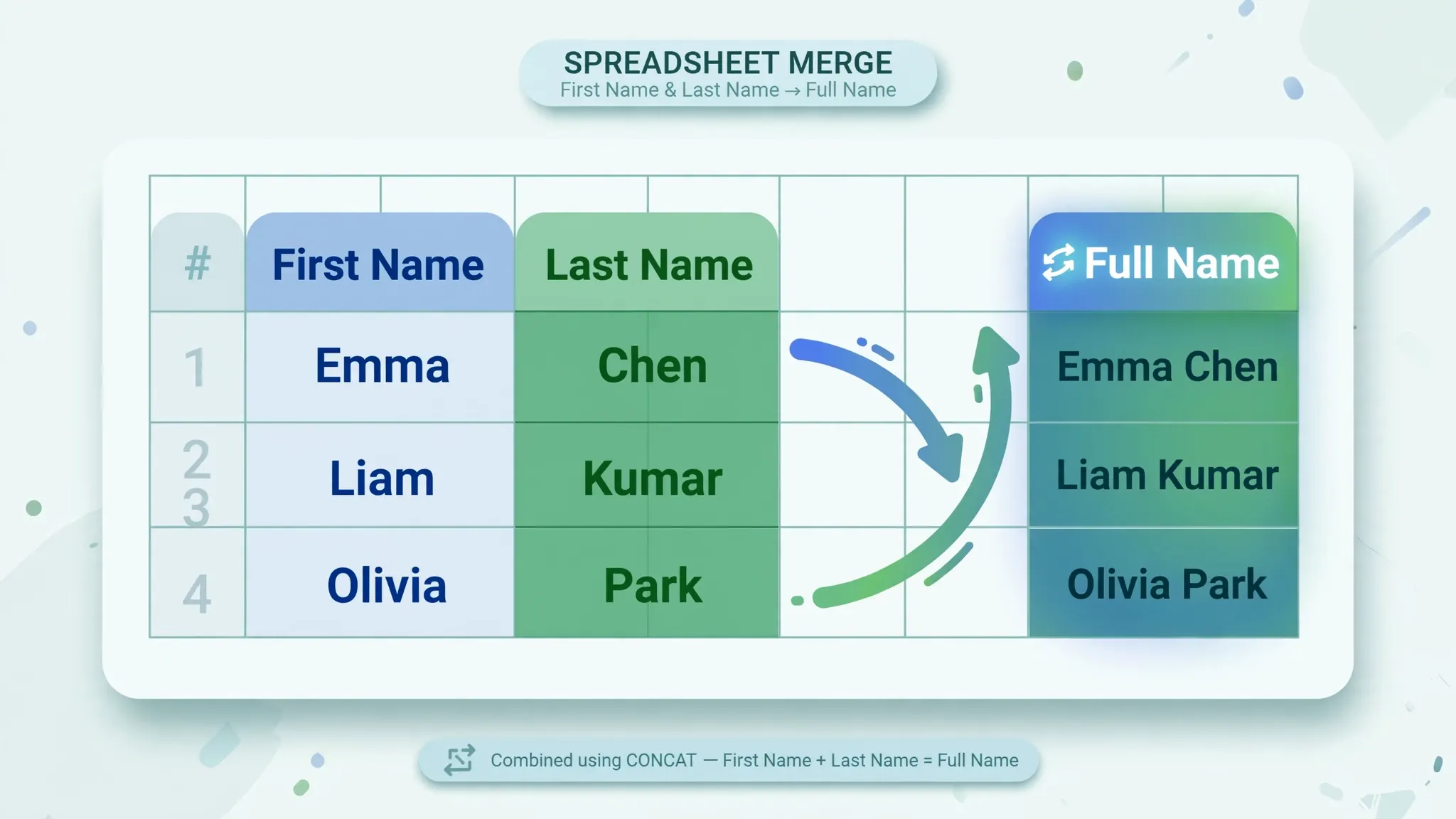
What “concatenate” means for your spreadsheet
“Concatenate” is a programmer’s word for a simple idea: gluing strings of text together end to end. In a spreadsheet, each cell holds one string, and joining combines them into a single new string in a single cell. The originals stay exactly where they are; you are creating a new value, not destroying anything. That non-destructive quality is what makes the technique safe to experiment with — you can always delete the joined column and start over.
The everyday use cases are endless. HR teams join first and last names for email lists. E-commerce sellers build product titles from brand + model + color columns. Analysts in the US, UK, India, Canada, and Australia all face the same chore after exporting data from a CRM or accounting package: fields that arrived neatly separated need to be presented as one readable line. A support agent in Toronto merging ticket subjects, a marketer in Sydney building UTM-tagged URLs, a bookkeeper in Mumbai assembling addresses for courier labels — all of them are concatenating, whether or not they know the word.
One thing to internalize early: joining produces text, always. Even if you join two numbers, the result is a text string that looks like a number. That matters when the joined result feeds another formula — a joined “42” will not sum until you convert it back with VALUE(). Keep that in mind and you will avoid the most common head-scratcher beginners hit.
Method 1: Combine cells in Excel with the ampersand (&) operator
The fastest way to combine cells in Excel is the ampersand operator. No function names to memorize, no arguments to count — just place & between the pieces you want joined. To join first name in A2 and last name in B2 with a space between them:
- Click the cell where the joined result should appear (say, C2).
- Type
=A2&" "&B2and press Enter. - C2 now shows the full name. Double-click the fill handle (the small square at the cell’s bottom-right corner) to copy the formula down the whole column.

The ampersand works in every version of Excel ever shipped, which makes it the safest choice for workbooks you share with colleagues on old software. It also mixes freely with literal text: =A2&", "&B2&" ("&C2&")" builds “Smith, John (Sales)” from three columns in one expression. The only real downside is readability — a formula with six ampersands and five quoted separators gets hard to scan, which is where the dedicated functions earn their keep.
=A2&" "&B2 is right; ="A2"&" "&"B2" would literally print “A2 B2”.Method 2: The CONCATENATE function (the classic)
Before the ampersand became popular, the CONCATENATE function was the standard way to join text, and it remains the version most tutorials and older colleagues will show you. The syntax is straightforward:
=CONCATENATE(A2," ",B2)
Each argument is one piece: a cell reference, or literal text in quotes. CONCATENATE accepts up to 255 arguments, so long joins are possible, though they get unwieldy. It behaves exactly like the ampersand — no automatic spaces, no separators, blanks included as empty strings.
Microsoft now labels CONCATENATE a legacy compatibility function, which sounds alarming but means only one thing: it is kept working so old workbooks never break. It is not being removed. If you inherit a workbook full of CONCATENATE formulas, leave them alone — they work fine. For brand-new work, though, the next two methods are better choices, and most modern guides to the Excel CONCATENATE formula mention its successors alongside it.
Method 3: The CONCAT function (the modern replacement)
CONCAT arrived in Excel 2016 as the direct successor to CONCATENATE, and it fixes the old function’s biggest limitation: it accepts ranges, not just individual cells. Where CONCATENATE forces you to list A2,B2,C2,D2,E2, CONCAT lets you write:
=CONCAT(A2:E2)
That joins the entire row in one short expression. Like its predecessor it adds no separators and does not skip blanks — an empty cell in the middle simply contributes nothing, so “New”, “”, “York” becomes “NewYork” with no gap. CONCAT is available in Excel 2016 and later, Microsoft 365, and Excel for the web, but not in Excel 2013 or earlier, so check your audience before using it in shared files.
Method 4: The TEXTJOIN function (delimiters and blank skipping)
TEXTJOIN is the method professionals reach for once they know it exists. Instead of repeating the separator between every pair of items, you declare it once, hand over a whole range, and optionally tell it to ignore empty cells:
=TEXTJOIN(", ",TRUE,A2:E2)
- Type
=TEXTJOIN(in your result cell. - Enter the delimiter in quotes —
", "for comma-space," "for a plain space,"-"for a dash. - Enter
TRUEto skip empty cells (orFALSEto keep them, which preserves placeholder gaps). - Select the range to join, close the parenthesis, and press Enter.
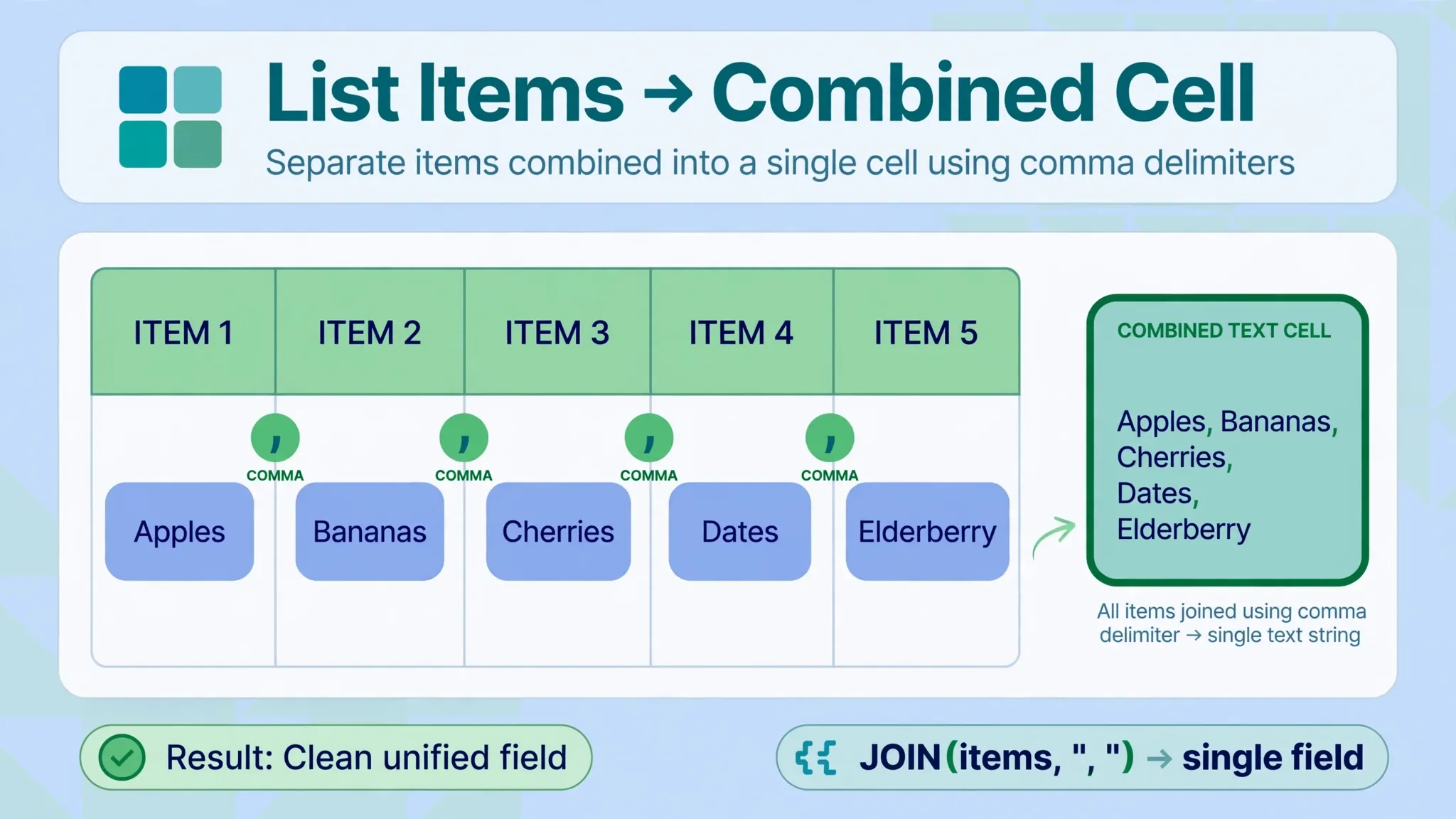
Once you understand how to concatenate in Excel with TEXTJOIN, long joins become one-liners. Joining twelve monthly columns with commas is a single short formula instead of eleven ampersands. The function needs Excel 2019, Excel 2021, or Microsoft 365 (it is not in Excel 2016 or earlier), which is the only real catch. Microsoft’s own documentation for the TEXTJOIN function confirms the syntax and the 32,767-character result limit.
=TEXTJOIN(", ",TRUE,A2:I2). Same result, readable at a glance, and empty apartment-number cells vanish instead of leaving double commas.TEXTJOIN vs CONCATENATE in Excel: which one should you use?
The TEXTJOIN vs CONCATENATE debate in Excel circles has a clear winner for most jobs, but the details matter. Here is the honest comparison:
Separators. CONCATENATE has none — you insert ", " between every pair yourself. TEXTJOIN takes the delimiter once and applies it everywhere. For three items the difference is cosmetic; for ten it is night and day.
Ranges. CONCATENATE wants individual cells (A2,B2,C2). TEXTJOIN happily takes A2:J2. When your data grows a column, the TEXTJOIN formula often needs no edit at all.
Empty cells. CONCATENATE treats blanks as empty strings, which can leave stray separators (“Boston,, MA”). TEXTJOIN’s ignore_empty argument removes them cleanly.
Compatibility. This is CONCATENATE’s one lasting advantage: it works in every Excel version since 2007. TEXTJOIN needs Excel 2019 or Microsoft 365. If your workbook travels to clients on Excel 2016, CONCATENATE (or the ampersand) is the safe pick.
Bottom line: use TEXTJOIN for new work in modern Excel, use the ampersand for quick one-off joins, and keep CONCATENATE for compatibility with older files. You will find all three functions catalogued in Microsoft’s Excel functions by category reference.
How to concatenate in Excel with spaces, commas, and line breaks
Joining without separators gives you “JohnSmith” — technically joined, practically useless. Here is how to get the punctuation right.
Adding a space
The classic need: first and last names. Insert " " (quote-space-quote) between the references: =A2&" "&B2 or =CONCATENATE(A2," ",B2). With TEXTJOIN it is even simpler — the space is the delimiter: =TEXTJOIN(" ",TRUE,A2:B2).
Adding commas and dashes
For “City, State ZIP” style results, put the punctuation in quotes: =A2&", "&B2&" "&C2. Product codes often want dashes: =TEXTJOIN("-",TRUE,A2:C2) turns three code columns into “US-8842-BLK”. Any characters work — slashes for dates, colons for times, pipes for system imports.
Adding line breaks inside a cell
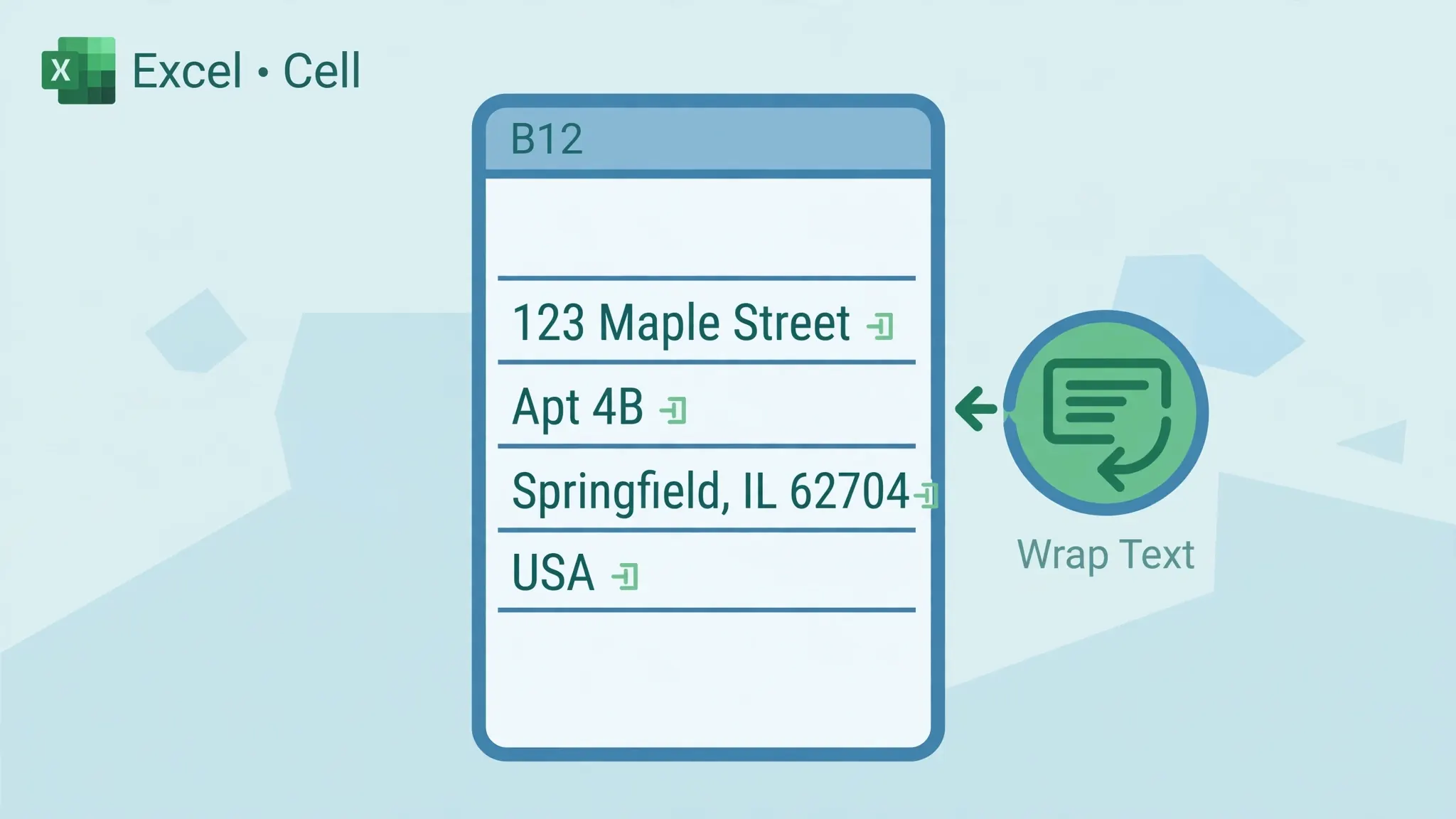
Sometimes you want the joined pieces stacked vertically in one cell, like a mailing address. Use CHAR(10) as the separator and turn on Wrap Text:
- Write
=A2&CHAR(10)&B2&CHAR(10)&C2(or=TEXTJOIN(CHAR(10),TRUE,A2:C2)). - With the cell selected, go to Home › Wrap Text.
- The pieces now stack on separate lines inside the single cell. Without Wrap Text, the line breaks exist but stay invisible — the number-one reason this “doesn’t work” for beginners.
A caution for CSV workflows: line breaks inside cells are legal in CSV files, but some older importers choke on them. If you plan to export the joined data, test the round trip first — or keep line breaks for display-only sheets. Our free CSV to Excel converter preserves multi-line cells correctly when you bring such files back into a workbook.
The Excel CONCATENATE formula, piece by piece
Let us dissect a full example so the syntax becomes second nature: =CONCATENATE(A2," ",B2,", ",C2)
= tells the sheet this is a formula, not text. CONCATENATE names the function. Inside the parentheses, arguments are separated by commas (or semicolons, if your regional settings use semicolons as the list separator — common across continental Europe). A2 and B2 are cell references, evaluated to their contents. ” “ and “, “ are literal strings: a space, and a comma followed by a space. The function walks the arguments left to right, gluing each piece onto the result.
The anatomy is identical for CONCAT and TEXTJOIN, except TEXTJOIN’s first two arguments are the delimiter and the ignore-empty flag. Once you can read one of these formulas aloud — “take A2, then a space, then B2, then comma-space, then C2” — you can read them all, and writing your own becomes a matter of listing pieces in order.
Joining dates, numbers, and currency without losing their formatting
Here is the trap every beginner falls into: =A2&" joined "&B2 where B2 holds 12-Mar-2026 produces “Priya joined 45712”. The date became its serial number because joining strips formatting and exposes the raw value underneath. The fix is the TEXT function, which formats a value before it gets joined:
=A2&" joined "&TEXT(B2,"DD-MMM-YYYY") → “Priya joined 12-Mar-2026”
The same applies to money and percentages. =TEXT(C2,"$#,##0.00") keeps “$1,250.00” looking like money; =TEXT(D2,"0%") keeps 0.15 as “15%”. Build the habit: whenever a joined piece is a date, currency, or percentage, wrap that reference in TEXT with the format you want to see. Numbers you intend to calculate with later should stay unjoined in their own column — join a display copy, not your source of truth.

One more formatting-adjacent tip: joined results inherit the destination cell’s number format, which is usually General — fine for text. But if you join into a cell formatted as a date, the sheet may try to reinterpret your text. When results look bizarre, check the destination cell’s format first; setting it to General or Text usually clears the confusion.
Concatenate mistakes that break spreadsheets (and the fixes)
Missing spaces. “JohnSmith” means you forgot the " " separator. Add it between the references.
Double spaces. “John Smith” usually means one source cell already had a trailing space. Wrap the pieces in TRIM: =TRIM(A2)&" "&TRIM(B2). Our guide to cleaning text in Excel covers this family of fixes in depth.
Dates turning into serial numbers. Covered above — use the TEXT function on date references before joining.
#VALUE! errors. Rare with pure joining, but they appear if an argument is an error value. Wrap risky references in IFERROR: =IFERROR(A2,"")&" "&B2.
Formulas showing as text. If the cell displays =A2&B2 literally, the cell was formatted as Text before you typed. Change the format to General, click the cell, and press Enter to recalculate.
Results not updating. Joined cells are live formulas — they update when sources change. If yours don’t, calculation may be set to Manual (Formulas › Calculation Options › Automatic).
Too many characters. A cell holds 32,767 characters. TEXTJOIN returns #VALUE! past that limit; the ampersand and CONCATENATE silently truncate in some versions. If you are joining huge ranges, join in chunks.
Concatenate vs Merge Cells: don’t confuse the two
Beginners often reach for Merge & Center when they want text combined. Merging is a formatting trick: it stretches one cell’s display across several columns but keeps only the top-left cell’s value — the other cells’ contents are discarded (Excel warns you). Concatenation is a data operation: it builds a new value from all the pieces and loses nothing.
Rule of thumb: merge for headings and layout; join with formulas for data. Merged cells also break sorting, filtering, and copy-paste in annoying ways, while a joined column behaves like any other column. If someone sends you a sheet where “combining” was done with Merge, unmerge it and rebuild with TEXTJOIN — your future self will thank you.
What to learn next
You now know how to concatenate in Excel four different ways, with proper separators and formatting intact. The natural next skills: cleaning messy text with TRIM and CLEAN before you join it, bulk-fixing typos with Find and Replace across the joined results, and flipping rows to columns when your data arrives in the wrong orientation. Together these four techniques handle the vast majority of text-wrangling chores in any analyst’s week.
Frequently Asked Questions
What is the simplest way to learn how to concatenate in Excel?
Start with the ampersand operator: type =A2&” “&B2 to join two cells with a space between them. It works in every version of Excel, needs no function names to memorize, and teaches you the core idea — pieces of text joined in order — before you move on to CONCATENATE, CONCAT, or TEXTJOIN.
What is the difference between CONCATENATE and TEXTJOIN?
CONCATENATE joins individual items one at a time with no built-in separator and no way to skip blanks. TEXTJOIN takes a delimiter once, applies it across a whole range, and can ignore empty cells automatically. For joining more than a few cells, TEXTJOIN is faster to write and easier to maintain.
How do I add a space when I concatenate in Excel?
Put the space in double quotes between the items: =A2&” “&B2 or =CONCATENATE(A2,” “,B2). For commas use “, “, and for a line break use CHAR(10) with Wrap Text turned on.
Why does my concatenated date show as a number like 45658?
Joining converts everything to plain text, and Excel stores dates as serial numbers, so the formatting is stripped. Wrap the date cell in the TEXT function first, for example =A2&” “&TEXT(B2,”MM/DD/YYYY”), to keep the date looking like a date.
Can I concatenate a whole column at once?
Yes. In Microsoft 365 or Excel 2019 and later, use =TEXTJOIN(“, “,TRUE,A2:A100) to join an entire range with commas in one formula. In older versions, join the first two cells with & and double-click the fill handle to copy the formula down the column.
Is CONCATENATE being removed from Excel?
No. Microsoft lists CONCATENATE as a legacy compatibility function, but it still works in every current version of Excel and is not going away. For new work Microsoft recommends CONCAT or TEXTJOIN, which handle ranges more gracefully.