
Knowing how to clean text data in Excel is the unglamorous superpower behind every reliable report. Data never arrives clean: CRM exports carry double spaces, web scrapes hide non-breaking spaces, PDFs inject line breaks mid-field, and three different people typed the same customer name three different ways. Dirty text breaks lookups, corrupts pivot tables, defeats Find and Replace, and makes “West” and “West ” look identical while behaving differently.
This guide covers the complete text-cleaning toolkit: TRIM to remove extra spaces, CLEAN for invisible control characters, the CHAR(160) non-breaking-space trap that defeats TRIM, SUBSTITUTE for surgical replacements, PROPER/UPPER/LOWER for case chaos, and a repeatable cleaning pipeline you can apply to any messy import. Whether you’re scrubbing survey responses in Chicago, standardizing vendor names in London, or fixing product catalogs in Mumbai, the grime is the same — and so are the fixes.

Why imported text is always dirty
Every data source adds its own grime. Web pages pad cells with non-breaking spaces and hide HTML entities. PDFs insert line breaks wherever the page broke, splitting “Johnson” across two lines. CSV exports from old systems pad fields to fixed widths with trailing spaces. Manual entry adds the human classics: double spaces between words, a stray space before the text, inconsistent capitalization, and creative spelling of the same value (“St.”, “Street”, “ST”, “st”).
The damage is disproportionate to the cause. A single trailing space makes VLOOKUP miss: “West ” doesn’t equal “West”, so the lookup returns #N/A and the analyst spends an hour questioning the lookup instead of the data. Pivot tables split “New York” and “New York ” into two rows, doubling apparent regions. COUNTIF undercounts, SUMIFS misses rows, and duplicate-removal leaves “duplicates” that differ only invisibly. The first rule of data work: clean before you compute. Ten minutes of cleaning routinely saves hours of debugging formulas that were never broken — the data was.
How do you know text is dirty? The symptoms: lookups that should match but don’t, pivot tables with near-duplicate labels, LEN() returning more characters than you can see (compare =LEN(A2) against what your eyes count), and Find failing to find visible text. When any of these appear, assume invisible characters until proven otherwise.
The business cost of skipping this step is real and measurable. Industry studies on data quality consistently find that analysts spend a huge share of their time — often cited as the majority of a data project’s hours — just preparing data before analysis can begin, and dirty text is the largest single contributor. A marketing team in Sydney once sent a campaign to 40,000 “unique” emails that contained 6,000 invisible duplicates; a finance team in Toronto misstated regional revenue for a quarter because “West ” and “West” split the pivot. Cleaning isn’t janitorial work — it’s the difference between numbers you can defend and numbers you can’t.
TRIM: remove extra spaces in Excel
The Excel TRIM function does one job perfectly: =TRIM(text) strips leading and trailing spaces and collapses every run of multiple spaces between words down to a single space. ” Acme Corp ” becomes “Acme Corp”. That’s it — but that one job fixes the most common text defect in existence.
- In a helper column beside your messy data, type
=TRIM(A2). - Double-click the fill handle to copy the formula down the whole column.
- Select the helper column, Copy (Ctrl+C).
- Right-click the original column › Paste Special › Values. This freezes the cleaned text, replacing the formulas with their results.
- Delete the helper column. Your data is now space-normalized.
To remove extra spaces in Excel at scale, that five-step pattern — helper column, fill, paste-values, delete — is the universal workflow, and it applies to every function in this guide. TRIM specifically handles the 7-bit ASCII space (character 32). It does not remove single spaces between words (those are legitimate), and it does not touch non-breaking spaces — the CHAR(160) trap covered below. Microsoft’s TRIM documentation is explicit about both limitations.
CLEAN: stripping non-printing characters
Where TRIM handles spaces, CLEAN handles the invisible control characters: line breaks, tabs, and the ASCII codes 0–31 that sneak in from PDFs, mainframes, and copy-paste from web pages. =CLEAN(A2) removes them all, leaving printable text behind. A cell that looks like “AcmeCorp” with a mysterious gap in the middle often contains a line break — CLEAN joins it properly.
The two functions nest naturally: =TRIM(CLEAN(A2)) — CLEAN first (removing control characters, which can leave fresh space-runs behind), then TRIM (normalizing the spaces). Order matters here: reversing them can leave artifacts CLEAN would have caught. For text imported from PDFs — the dirtiest common source — this nested pair is the mandatory first pass, and it resolves a remarkable fraction of “my data looks fine but nothing works” mysteries.
CLEAN has a blind spot symmetric to TRIM’s: it removes codes 0–31 but leaves the non-breaking space (160) and other Unicode whitespace alone. Truly thorough cleaning needs the CHAR(160) handling from the next section too. The full battle-tested nesting is =TRIM(CLEAN(SUBSTITUTE(A2,CHAR(160)," "))) — intimidating to read, but each layer has a job: convert nbsp to normal space, strip control characters, normalize spacing.
The CHAR(160) problem: non-breaking spaces TRIM can’t touch
Here’s the trap that defeats everyone once: you run TRIM, the spaces look gone, but lookups still fail. The culprit is the non-breaking space — character 160, the HTML — which web pages use for padding and which Excel imports faithfully. TRIM was designed for character 32 and ignores 160 entirely, so the “spaces” survive cleaning and remain invisible to the eye.
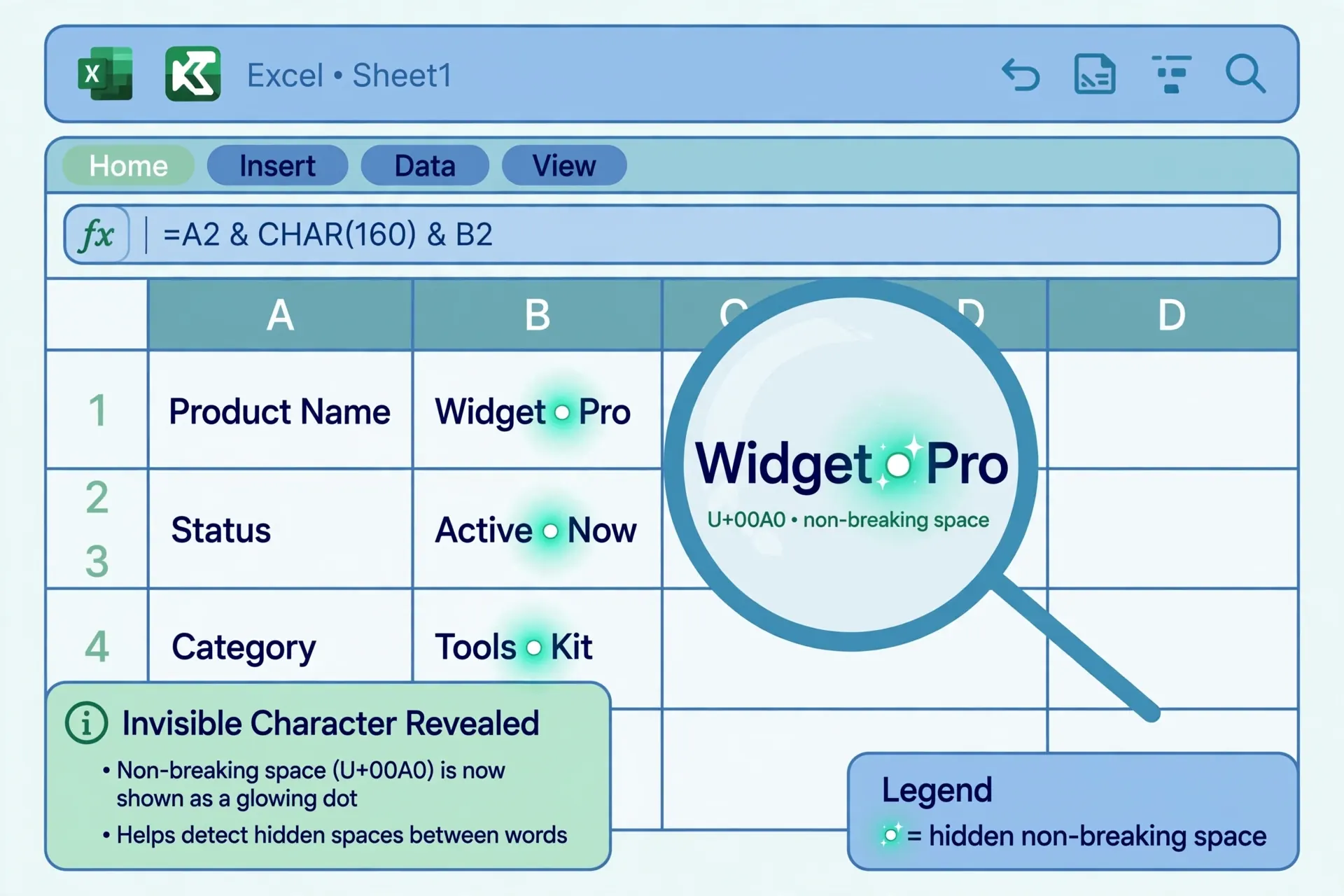
How to confirm: =CODE(RIGHT(A2,1)) returns the character code of the last character — 160 means nbsp, 32 means normal space. Or compare lengths: =LEN(A2)-LEN(TRIM(A2)) showing a difference after TRIM means un-trimmable characters remain. The fix converts nbsp to normal spaces before trimming: =TRIM(SUBSTITUTE(A2,CHAR(160)," ")). For heavy web-scrape cleaning, some analysts run SUBSTITUTE twice — once for CHAR(160), once for CHAR(32) doubles — before the TRIM/CLEAN layers. It’s ugly and it works, which is the highest praise in data cleaning.
SUBSTITUTE: surgical text replacement
While TRIM and CLEAN remove categories of grime, the SUBSTITUTE function in Excel targets specific text: =SUBSTITUTE(text, old_text, new_text, [instance_num]). Replace every “Ltd.” with “Limited”: =SUBSTITUTE(A2,"Ltd.","Limited"). Strip thousand separators that arrived as text: =SUBSTITUTE(A2,",",""). Remove a recurring prefix: =SUBSTITUTE(A2,"REF-","").
The optional fourth argument is SUBSTITUTE’s superpower: =SUBSTITUTE(A2,"-","/",2) replaces only the second dash, leaving others intact. Cleaning product codes like “US-44-90210” where only one separator is wrong becomes precise instead of approximate. And unlike Find and Replace, SUBSTITUTE is a live formula — change the source and the cleaned result follows, which makes it the right choice for recurring reports where the same replacements apply every cycle.
SUBSTITUTE is case-sensitive (“ltd” won’t match “LTD”), which is either exactly what you want or a nasty surprise — test before assuming. For case-insensitive replacement, wrap with UPPER/LOWER or fall back to Find and Replace with match-case off. Nest SUBSTITUTEs for multi-target cleaning: =SUBSTITUTE(SUBSTITUTE(A2,"Ltd","Limited"),"Inc","Incorporated") standardizes two abbreviations in one pass, reading inside-out like all nested formulas. SUBSTITUTE and its text-function siblings are listed in Microsoft’s Excel functions by category reference.

PROPER, UPPER, LOWER: fixing inconsistent case
Three functions, one purpose — normalizing capitalization. =UPPER(A2) forces ALL CAPS (standard for codes and IDs), =LOWER(A2) forces lowercase (standard for emails and URLs), and =PROPER(A2) produces Title Case, capitalizing the first letter of every word — the right choice for names and titles.

PROPER has quirks worth knowing: it capitalizes after any non-letter, so “O’Brien” becomes “O’Brien” (correct) but “McDonald” becomes “Mcdonald” (wrong — the D should stay capital), and “AT&T” becomes “At&T”. For names with internal capitals, PROPER gets you 90% of the way and manual review handles the McDonalds and MacArthurs. A common pipeline: =PROPER(TRIM(A2)) — clean spaces first, then fix case, so ” JOHN SMITH ” becomes “John Smith” in one expression.
Case normalization isn’t cosmetic — it’s functional. Deduplication, grouping, and matching are all case-sensitive in some contexts and not in others; normalizing case before those operations removes a whole class of “why are there two John Smiths” mysteries. Pick one case convention per column (names in Proper, emails in lower, codes in UPPER) and enforce it at import time, every single time.
How to clean text data in Excel: the repeatable pipeline
Individual functions are tools; the pipeline is the craft. Here’s how to clean text data in Excel as a repeatable five-stage process you can apply to any messy import:
- Inspect. Before touching anything, run diagnostics:
=LEN(A2)down a helper column to spot invisible characters (lengths that exceed visible text), and a quick pivot or COUNTIF on key columns to see the distinct values — duplicates-that-aren’t and unexpected blanks reveal themselves immediately. - Normalize whitespace. Apply
=TRIM(CLEAN(SUBSTITUTE(A2,CHAR(160)," ")))across text columns. This single mega-formula handles nbsp, control characters, and space runs in one pass. - Fix case. Apply PROPER/UPPER/LOWER per column convention. Names → PROPER, emails → LOWER, codes → UPPER.
- Standardize values. Use SUBSTITUTE (or Find and Replace for one-offs) to unify variants: “St.” → “Street”, “Ltd” → “Limited”, “N/A” → blank. For long mapping lists, build a two-column lookup table and use XLOOKUP instead of nested SUBSTITUTEs.
- Freeze the results. Copy the helper columns, Paste Special › Values over the originals (or into final columns), and delete the helpers. Validate with a second diagnostic pass — the distinct-value counts should now be clean.

For files you clean every week — the same export, the same grime — graduate from formulas to Power Query (see next section), which records the pipeline as replayable steps. And keep a “cleaning checklist” note in the workbook: which columns got which treatment. Six months later, when someone asks why the vendor names changed format, the checklist is your audit trail.
Removing duplicates — after cleaning, not before
Excel’s Remove Duplicates (Data › Remove Duplicates) is a cleaning tool in its own right, but it has a strict prerequisite: run it after the whitespace and case normalization, never before. “Acme Corp”, “Acme Corp “, and “ACME CORP” are three distinct values to the deduplicator — clean first, and all three collapse into one before deduplication runs. Teams that dedupe first invariably discover phantom duplicates later and have to redo the whole job.
The dialog lets you choose which columns define a duplicate: select just the Email column to dedupe contacts by email, or Name + Phone together for a stricter match. It reports how many duplicates it removed and how many unique values remain — sanity-check those numbers against your expectations. And like sorting, it’s destructive in the sense that rows are deleted: duplicate the sheet (or at least the key columns) before running it on data you can’t re-import. For fuzzy duplicates — “Jon Smith” vs “John Smith” — Excel has no built-in fuzzy matching; that’s a Power Query (with its clustering options) or manual-review job.
Audit pattern: before removing, add a COUNTIF helper — =COUNTIF($A$2:$A$10000,A2) — and filter for values greater than 1. Eyeball the flagged rows to confirm they’re true duplicates rather than legitimate repeats (two different people can share a name; they rarely share an email). Only then run Remove Duplicates. The five minutes of verification prevents the much worse outcome of deleting real records.
Power Query and Flash Fill: cleaning without formulas
Formulas aren’t the only path. Power Query (Data › From Table/Range) offers point-and-click cleaning: select columns, Transform › Format › Trim, Clean, UPPERCASE/lowercase/Proper, and the steps record themselves in the Applied Steps pane. Refresh the query when new data arrives and the entire pipeline replays — no helper columns, no paste-values dance. For recurring CSV imports, this is the professional standard: our Power Query CSV import guide shows the setup.
Flash Fill (Ctrl+E) is the AI-ish shortcut for one-off reshaping: type the desired result for two or three rows (“John Smith” from “SMITH, JOHN”), press Ctrl+E, and the sheet infers the pattern for the rest. It handles case-fixing, reformatting, and splitting surprisingly well. But Flash Fill produces static values with no formula behind them — if the source changes, you re-run it manually — and it occasionally guesses wrong on ambiguous patterns, so always eyeball the results. Think of it as brilliant for one-time cleanup, formulas and Power Query for anything recurring.
Troubleshooting text-cleaning formulas
TRIM changed nothing. Non-breaking spaces (see CHAR(160) section) or the “spaces” are actually another character. Diagnose with CODE().
CLEAN removed needed line breaks. CLEAN strips CHAR(10) too. If your addresses legitimately use line breaks, use targeted SUBSTITUTE instead of blanket CLEAN — or CLEAN first, then re-add breaks deliberately.
PROPER mangled names. McDonald → Mcdonald, O’Neil edge cases. PROPER is a starting point for names with internal capitals, not a finish line — keep an exceptions list.
Paste-values pasted formulas. You used Paste instead of Paste Special › Values. Undo, re-copy, and use Alt+E, S, V (or right-click › Paste Special › Values).
Numbers turned to text. Cleaning a numeric column with TRIM converts numbers to text strings. Convert back with VALUE() or multiply by 1 — or restrict cleaning to genuinely textual columns.
Helper column references broke after deleting. You deleted the helper before pasting values. The order is sacred: formula → copy → paste-values → then delete.
SUBSTITUTE replaced too much. Remember it’s literal and global within the cell: replacing “St” also hits “Street” and “First”. Anchor with more context (“St.” with the period, or ” St ” with spaces) or use the instance argument to target one occurrence.
Accented characters got mangled. CLEAN only touches codes 0–31, so é and ü survive it — but some “cleaning” macros and older tools strip everything above 127. If names like “José” or “Müller” lose their accents after your pipeline, the culprit is an overzealous step, not CLEAN itself. Keep Unicode text intact and handle encoding at import instead.
What to learn next
Clean text unlocks everything downstream: concatenating the cleaned pieces into full names and addresses, Find and Replace for the value-standardization pass, and transposing data that arrived sideways. Since most dirty text arrives via CSV, our free CSV to Excel converter gets it into a workbook cleanly — then this guide’s pipeline takes it the rest of the way to trustworthy.
Frequently Asked Questions
How do I remove extra spaces in Excel?
Use =TRIM(A2). It removes leading and trailing spaces and collapses multiple spaces between words to a single space. For non-breaking spaces from web pages, combine it: =TRIM(SUBSTITUTE(A2,CHAR(160),” “)).
What is the difference between TRIM and CLEAN in Excel?
TRIM normalizes spaces (leading, trailing, and multiples between words). CLEAN removes non-printing characters like line breaks and tabs (character codes 0–31). They solve different problems and are often nested: =TRIM(CLEAN(A2)).
Why won’t TRIM remove all the spaces in my cell?
Because they’re non-breaking spaces (CHAR 160), common in web and PDF imports, which TRIM ignores by design. Replace them first: =TRIM(SUBSTITUTE(A2,CHAR(160),” “)).
How do I fix inconsistent capitalization in Excel?
Use =PROPER(A2) for Title Case, =UPPER(A2) for ALL CAPS, or =LOWER(A2) for lowercase. PROPER capitalizes the first letter of every word, which suits names and titles.
Can I clean an entire column at once in Excel?
Yes. Put the cleaning formula in a helper column, double-click the fill handle to copy it down, then Copy and Paste Special > Values over the original column (or replace it). For recurring files, Power Query applies the same cleaning automatically on refresh.
What does the SUBSTITUTE function do in Excel?
SUBSTITUTE(text, old_text, new_text, [instance]) replaces occurrences of old_text with new_text. Unlike Find and Replace, it’s a live formula, and the optional fourth argument lets you replace only the Nth occurrence.