Knowing how to freeze panes in Excel is one of those tiny skills that pays for itself every single day. You open a 50,000-row sales export, scroll down to row 800, and suddenly the column headers are gone — is column G “Revenue” or “Refunds”? Scroll back up, lose your place, scroll down again. Freeze Panes ends that loop permanently: it pins your header row (or column, or both) in place while the rest of the sheet scrolls freely underneath.
This guide covers every variation: freezing just the top row, freezing just the first column, locking multiple rows and columns at once, the freeze panes shortcut keys that make it instant, how to unfreeze everything, and how Freeze Panes differs from Split. You will also get troubleshooting for the classic “it froze the wrong rows” moment and tips for keeping headers readable in genuinely enormous worksheets.
What freezing panes actually does
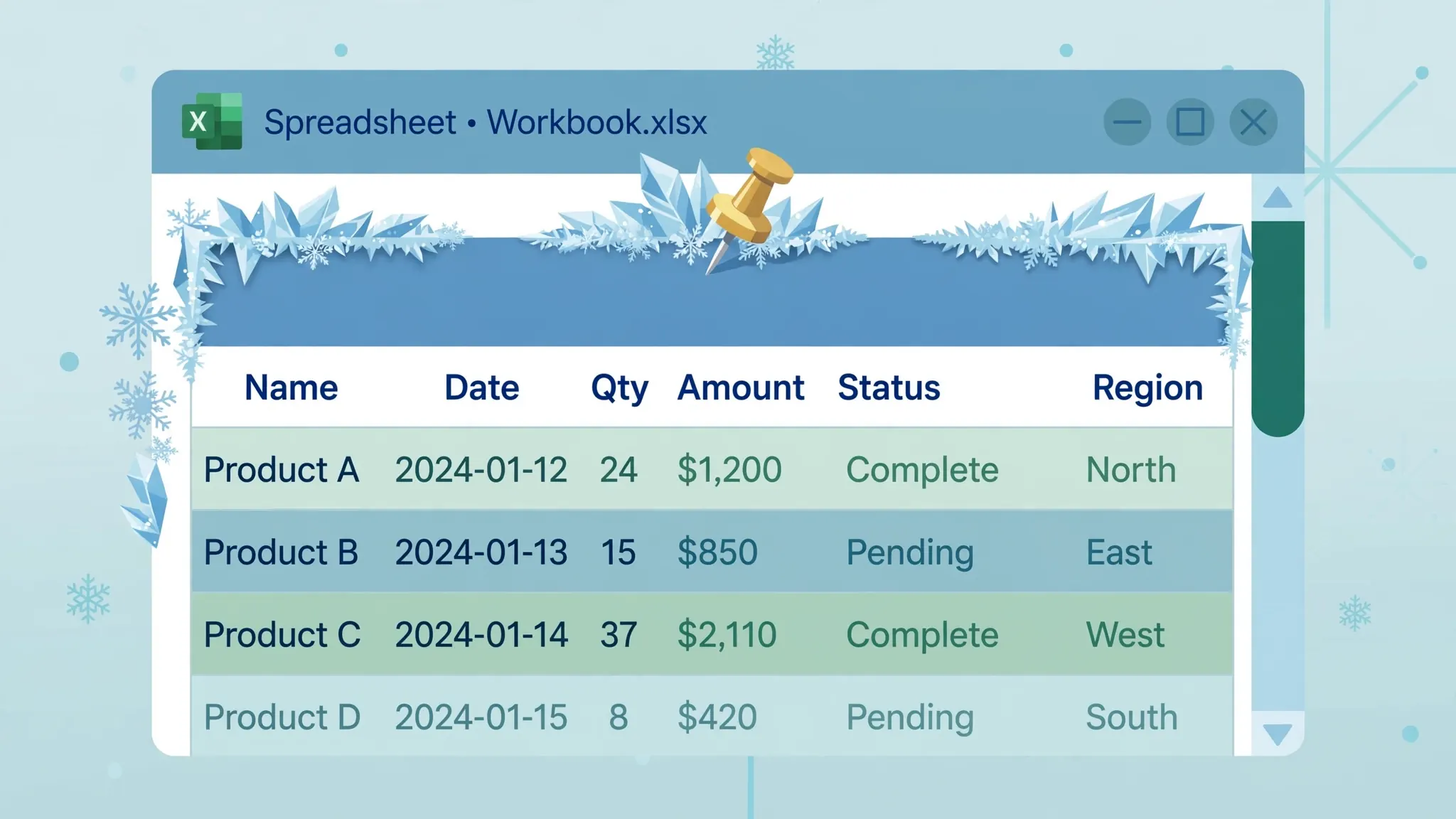
Freeze Panes locks a set of rows at the top and/or columns at the left of your window so they never scroll out of view. Everything else moves normally. A thin dark line marks the boundary between the frozen and scrolling areas — once you know to look for it, you will always be able to tell at a glance what is pinned.
What it does not do is equally worth knowing. It does not lock cells against editing — frozen cells remain fully editable. It does not affect printing; a frozen header will not repeat on page two of a printout (that needs Print Titles, covered in troubleshooting). And it does not change your data in any way — it is purely a viewing aid, which means there is zero risk in experimenting with it. Accountants reviewing ledgers in London, warehouse managers scanning inventory in Dallas, and analysts auditing survey data in Sydney all rely on the same three-click feature.
There is also a subtle behavior worth understanding: freezing is window-relative, not data-relative. If you freeze row 1 and then hide row 1, the frozen area collapses — nothing visible is pinned, because the frozen rows themselves are hidden. Similarly, inserting a new row above the frozen boundary shifts the boundary with the original rows, not with row number 1. In practice this means you should finalize your header layout before freezing, especially on shared templates where colleagues might insert rows. And if a frozen header ever seems to “disappear”, check for hidden rows first — it is the most common explanation and the quickest fix.
How to freeze the top row in Excel
This is the 90% use case: one header row, thousands of data rows. To freeze the top row in Excel:
- Go to the View tab on the ribbon.
- Click Freeze Panes in the Window group.
- Choose Freeze Top Row.
- Scroll down — row 1 stays visible no matter how far you go.
That is the whole operation. It works identically in Microsoft 365, Excel 2021, 2019, 2016, Excel for Mac, and Excel for the web — the button lives on the View tab everywhere. One habit worth building: freeze the header row before you start working, not after you get lost. It takes three seconds and saves the context-switching that eats concentration.
How to freeze the first column in Excel
Wide sheets have the mirror-image problem: you scroll right to column Z and can no longer tell which row you are looking at because the names in column A disappeared. The fix is the sibling command:
- Go to View › Freeze Panes › Freeze First Column.
- Scroll right — column A stays pinned on the left edge.
This is a lifesaver for financial models with months stretching across dozens of columns, or product catalogs where the SKU column must stay in view while you compare attributes. Note that Freeze Top Row and Freeze First Column are one-click presets — if you need both a frozen row and a frozen column, or more than one of either, use the general method in the next section instead.
How to freeze panes in Excel: multiple rows and columns at once
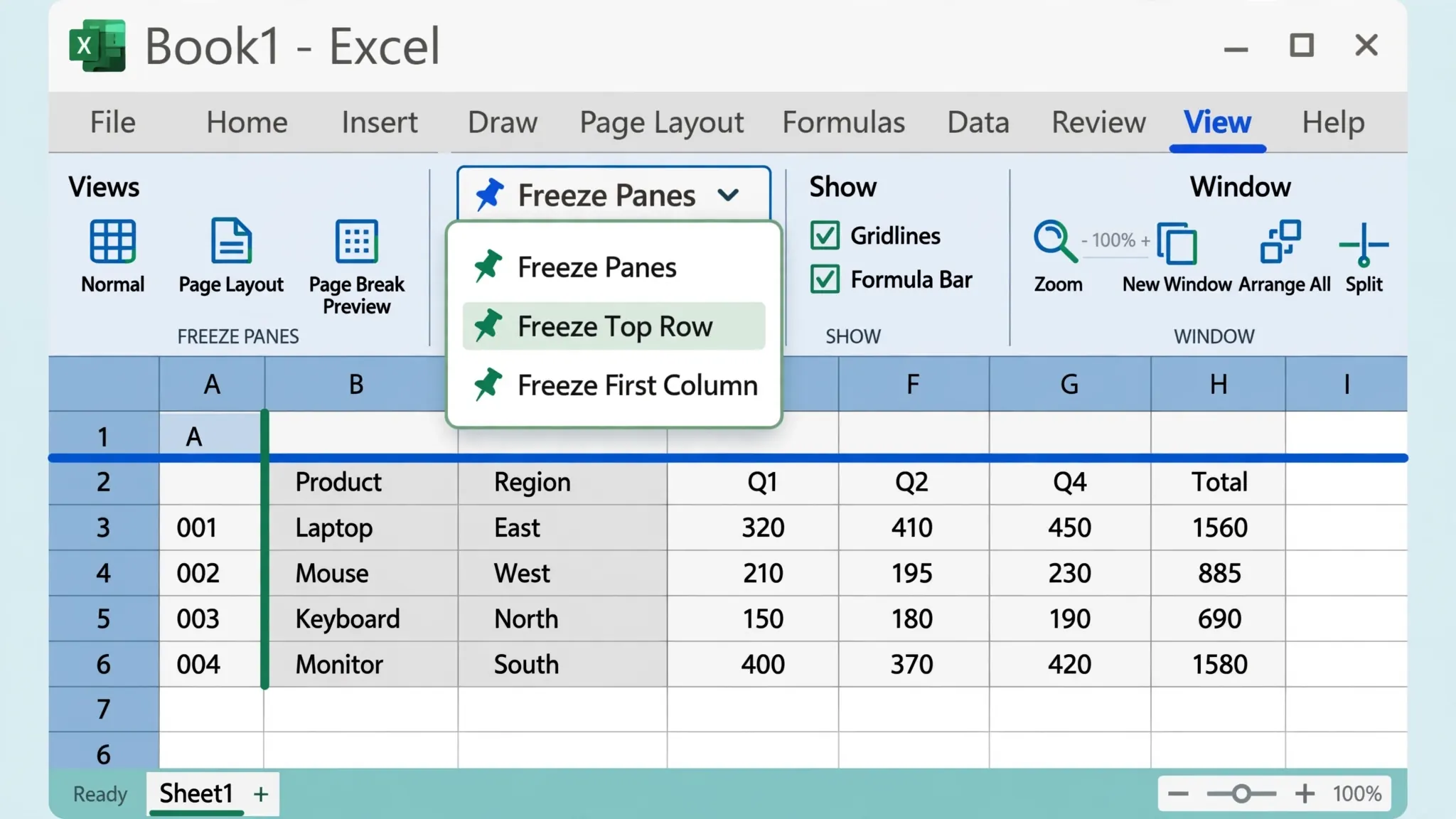
Real-world sheets are messier than the presets assume: a title in row 1, headers in row 2, and an ID column A you want pinned too. Here is how to freeze panes in Excel with full control over exactly what locks:
- Select the cell below the last row and to the right of the last column you want frozen. To freeze rows 1–2 and column A, select cell B3.
- Go to View › Freeze Panes › Freeze Panes (the first option in the menu).
- Everything above and to the left of your selection is now locked.
The rule to memorize: freeze happens above and left of the selected cell. Want the first three rows frozen? Select row 4 (or any cell in row 4) first. Want columns A and B frozen? Select column C first. Want rows 1–2 plus columns A–B? Select C3. Microsoft’s own Freeze Panes documentation illustrates the same selection rule with examples.
Freeze panes shortcut keys for keyboard users
There is no single dedicated freeze panes shortcut key in the Ctrl+letter style, but the ribbon accelerator sequence is fast once learned. Press these keys in sequence (not held together):
Alt, W, F, F — applies Freeze Panes to your current selection.
Alt, W, F, R — Freeze Top Row.
Alt, W, F, C — Freeze First Column.
On a Mac, the sequence is different: with the sheet active, it is typically done through the ribbon, or you can add the command to the Quick Access Toolbar and reach it with Option-based shortcuts. Excel for the web supports the same View › Freeze Panes menu, though the Alt sequences behave differently in browsers — there, the menu clicks are the reliable path.
Power users who freeze panes dozens of times a day often record a one-line macro and bind it to a personal shortcut. It is overkill for most people, but if your job is opening a fresh 30-sheet export every morning, automating the freeze is a legitimate time saver. One more keyboard gem: pressing Alt+W, F opens the Freeze Panes menu itself, so you can arrow down to the exact option you want when you cannot remember the final letter.
How to unfreeze panes in Excel
To unfreeze panes in Excel, go to View › Freeze Panes › Unfreeze Panes. Note the menu item changes: when nothing is frozen it reads “Freeze Panes”; when something is frozen, the same menu offers “Unfreeze Panes” instead. One click releases everything — there is no way to unfreeze just the rows while keeping the columns; you unfreeze all and re-freeze what you want.
Two situations confuse people here. First, if Unfreeze Panes is missing from the menu, nothing is currently frozen on that sheet (each sheet has its own freeze state — freezing Sheet1 does not freeze Sheet2). Second, a sheet can look frozen when it is actually split — if Unfreeze Panes does nothing, check whether Split is active (View › Split toggles it off).
Freeze Panes vs Split: which one do you need?
Split (View › Split) divides your window into two or four independently scrollable panes of the same worksheet, with draggable divider bars. Unlike freezing, both sides scroll — you might park the top pane on your totals row while scrolling the bottom pane through detail rows, then scroll the top pane elsewhere when done.
Use Freeze Panes when headers must stay visible permanently — the everyday case. Use Split when you need to compare two distant areas of the same sheet side by side, like checking January’s figures against December’s without losing either. They can even combine: freeze your headers, then split below them for a three-zone view. Most users will use Freeze a hundred times for every one Split, but knowing both means never being stuck.
Keeping headers visible while scrolling 50,000 rows
Freezing is step one for big data; these habits complete the job. First, convert your data to a proper Table (Ctrl+T) — tables keep headers visible during scrolling in a different way and add filter dropdowns automatically, which pairs beautifully with our filter data guide. Microsoft’s guide to reapplying and clearing filters covers how filters behave on Tables versus plain ranges.
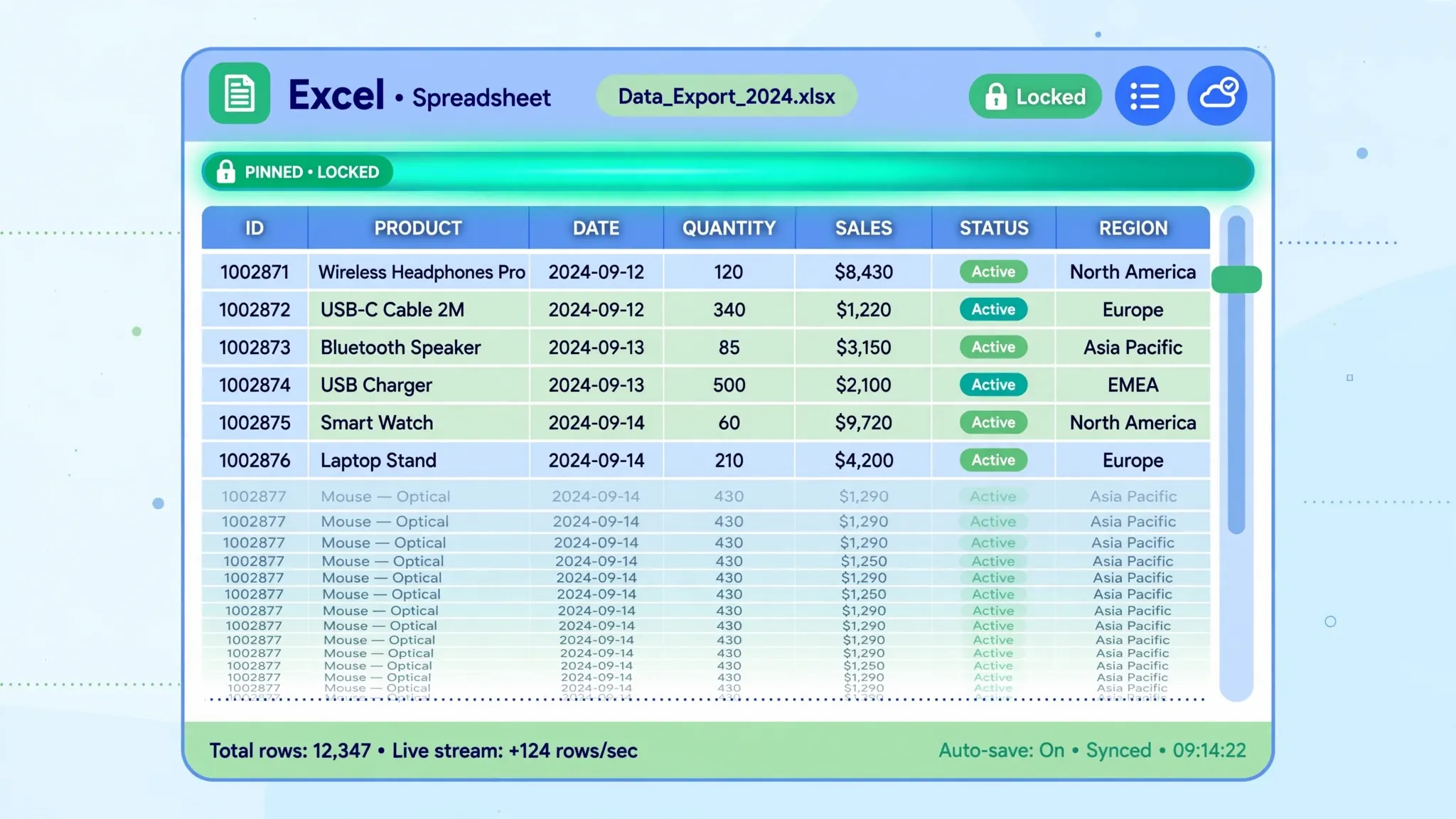
Second, for sheets so large that scrolling itself becomes the bottleneck, pair frozen headers with sorting to bring the rows you care about to the top, or filter down to a subset before you start reading. Third, remember that frozen panes are per-sheet and saved with the workbook — set them once on a template and every future export pasted into that template inherits the setup. Teams in the US, UK, India, Canada, and Australia that process weekly CSV dumps often keep a “template” workbook with frozen headers, filters, and print titles preconfigured; new data gets pasted in and the sheet is instantly navigable.
Performance note: freezing itself costs nothing — it is just a view setting. If a 50k-row sheet feels sluggish while scrolling, the culprits are usually volatile formulas, conditional formatting across whole columns, or full-column references like A:A. Freeze Panes will never be the reason a sheet is slow.
Freeze panes on Mac, Excel for the web, and mobile
The feature exists everywhere, but the clicks differ slightly by platform. On Excel for Mac, the command lives in the same place — View › Freeze Panes — with identical Freeze Top Row and Freeze First Column presets. The ribbon accelerator sequences from Windows do not apply; Mac users either click the menu or add Freeze Panes to the Quick Access Toolbar for one-click access. If you share workbooks between a Windows PC and a Mac, freeze states travel with the file, so a sheet frozen on one platform stays frozen on the other.
In Excel for the web, open the View tab and choose Freeze Panes from the ribbon — the presets work the same, though the general “freeze above and left of selection” command can be fussier about the current selection. One web-specific quirk: very large sheets may render the frozen boundary a beat behind while scrolling fast; the headers catch up within a moment and nothing is lost.
On Excel for iPhone, iPad, and Android, freezing is available but buried: on iPad, tap View › Freeze Panes and pick an option; on iPhone, tap the ribbon switcher, go to View, and scroll to Freeze Panes. Mobile freezing is best reserved for viewing — set up your frozen panes on desktop, save the workbook, and the mobile app respects them when you open the file on the go.
Google Sheets users: the equivalent feature
If you collaborate in Google Sheets rather than Excel, the equivalent is View › Freeze — with separate submenus for rows and columns (“1 row”, “2 rows”, “up to current row”). The concept is identical, and Sheets also marks the frozen boundary with a thicker grey line. Teams that pass files between Sheets and Excel should know that freeze states generally survive a Sheets › Download as XLSX round trip, though it is worth a visual check on important templates.
Five real-world freeze setups, ready to copy
1. The standard data table. Headers in row 1, data below. Select A2, View › Freeze Panes › Freeze Panes. The universal default — if you only memorize one setup, make it this one.
2. Title + headers. A report title in row 1, column headers in row 2. Select A3, then Freeze Panes. Both rows lock, so the title never scrolls away while you audit the data.
3. The wide financial model. Account names in column A, months stretching to column AA. Select B2, then Freeze Panes — row 1 and column A both lock, and you can scroll months while always seeing which account each row belongs to.
4. The dashboard sheet. KPI summary in rows 1–4, detail table starting row 5. Select A5, then Freeze Panes. Executives scrolling the detail always keep the headline numbers in view.
5. The frozen corner for data entry. Entering data into columns F onward while referencing IDs in column A and dates in row 1? Select B2, Freeze Panes, and both reference axes stay visible no matter where you type. Data entry teams processing invoices in the UK and payroll in Canada use this layout to cut mis-keyed rows dramatically.
Troubleshooting frozen panes
It froze the wrong rows. Unfreeze and reselect — remember, freezing locks everything above and left of the selected cell. Select one row lower / one column further right than your instinct says.
Freeze Panes is greyed out. You are probably editing a cell (press Esc), the sheet is protected (Review › Unprotect Sheet), or you are in Page Break Preview. Exit the mode and try again.
Frozen headers don’t print on every page. Freezing is screen-only. For printed headers, use Page Layout › Print Titles › Rows to repeat at top, and select your header row there.
Headers vanish when I filter. They shouldn’t — but if your “headers” are actually row 2 with a title in row 1, the filter dropdowns attach to row 2 while row 1 scrolls. Freeze both rows (select A3 before freezing) to keep the title visible too.
Freeze works on one sheet but not another. Freeze state is per worksheet. Set it on each sheet that needs it, or group-select sheets (Ctrl+click tabs) before applying — grouped sheets share the command.
Weird lines appeared after unfreezing. Those are likely Split bars left behind. Go to View › Split to toggle them off.
What to learn next
Now that you know how to freeze panes in Excel, the natural companions are filtering data (slice 100k rows to the ones that matter, with headers frozen), sorting data (bring key rows to the top), and Find and Replace for bulk fixes. If your data arrives as CSV exports, our free CSV to Excel converter turns them into clean workbooks in seconds — paste into your frozen-header template and start working immediately.

Frequently Asked Questions
How do I freeze the top row in Excel?
Go to the View tab, click Freeze Panes, and choose Freeze Top Row. Row 1 stays visible while you scroll down through the rest of the worksheet.
What is the keyboard shortcut to freeze panes in Excel?
Press Alt+W, F, F in sequence to apply Freeze Panes to your current selection. For Freeze Top Row specifically, the sequence is Alt+W, F, R, and for Freeze First Column it is Alt+W, F, C.
How do I unfreeze panes in Excel?
Go to View > Freeze Panes > Unfreeze Panes. The option only appears when panes are currently frozen; selecting it releases all frozen rows and columns at once.
Can I freeze more than one row in Excel?
Yes. Select the row below the last row you want frozen — for example, select row 3 to freeze rows 1 and 2 — then choose View > Freeze Panes > Freeze Panes. Everything above your selection locks in place.
Why is Freeze Panes greyed out in Excel?
The most common cause is being in cell-editing mode (press Esc to exit) or having the worksheet protected. It is also unavailable while you are editing a cell’s contents or in Page Break Preview in some versions.
Does freezing panes affect printing in Excel?
No. Frozen panes only affect the on-screen view while scrolling. To repeat headers on printed pages, use Page Layout > Print Titles and set Rows to repeat at top instead.