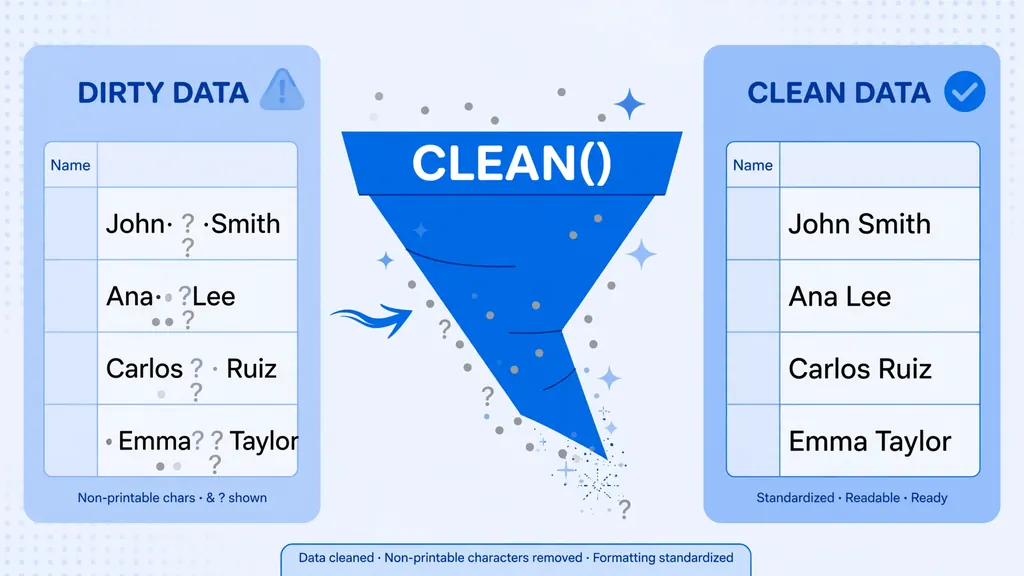
The Excel CLEAN function is the closest thing spreadsheets have to a power washer. Import data from a database, a mainframe, a web scrape, or a PDF copy-paste, and it arrives carrying invisible passengers: tabs, line breaks, bell characters, and control codes that you can’t see but Excel can feel. Lookups fail, LEN counts come back wrong, and trailing junk breaks your exports. CLEAN strips all of it in one formula.
Yet most Excel users have never touched it. TRIM gets all the fame, but TRIM only handles spaces — CLEAN handles the other 31 invisible characters that cause the truly baffling problems. If you’ve ever stared at two “identical” cells that refuse to match, or a CSV import that looks clean but behaves dirty, the Excel CLEAN function is probably the fix you were missing.
This guide is a complete tour: what CLEAN removes (and what it doesn’t), how to use CLEAN in Excel step by step, how it compares with TRIM and SUBSTITUTE, real-world formulas for the messiest imports, the famous TRIM+CLEAN+SUBSTITUTE stack, and the Power Query equivalent for recurring files. By the end, invisible characters will hold no terror for you.
What the Excel CLEAN function removes
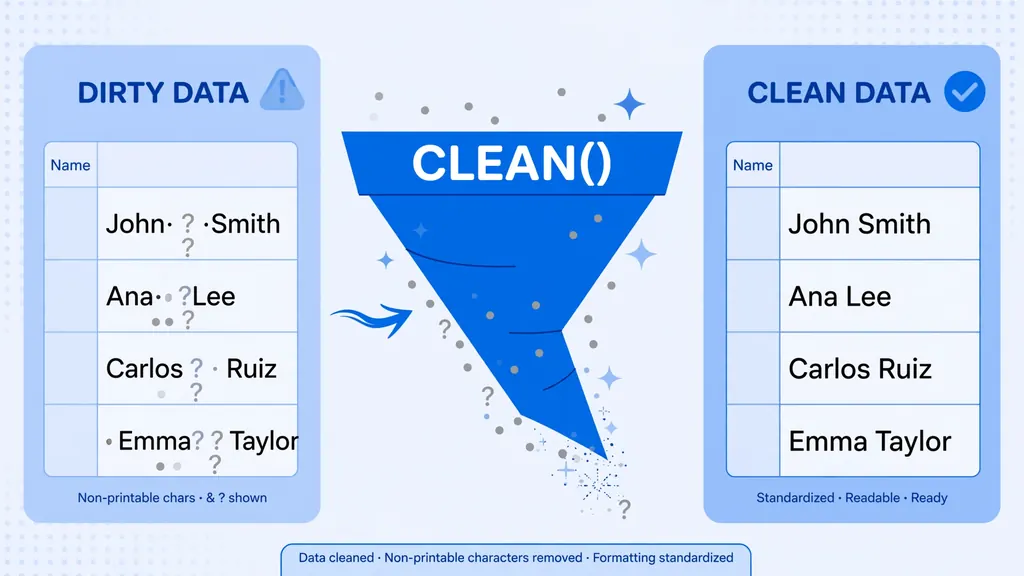
CLEAN removes the first 32 non-printing characters in the 7-bit ASCII code — characters 0 through 31. That includes the usual suspects: CHAR(9) tab, CHAR(10) line feed, CHAR(13) carriage return, and a rogues’ gallery of control codes (CHAR(0) null, CHAR(7) bell, and friends) that hitchhike in data from older systems, serial devices, and database exports.
Microsoft’s own CLEAN function documentation puts it plainly: use CLEAN on text imported from other applications that contains characters which may not print with your operating system. A textbook example is =CLEAN(CHAR(9)&"Monthly report"&CHAR(10)), which returns just “Monthly report” — the tab and line break vanish.
Here’s the mental model that makes CLEAN click: every text string is a sequence of character codes, and codes 0–31 are instructions for ancient hardware (move the carriage! ring the bell!) rather than visible glyphs. Modern apps mostly ignore them, but Excel stores them faithfully — and then trips over them during matching, sorting, and exporting. CLEAN deletes codes 0–31 and leaves everything else untouched: letters, digits, punctuation, spaces (code 32), and accented characters all survive.

How to use CLEAN in Excel: syntax and steps
The syntax couldn’t be simpler: =CLEAN(text), where text is any cell reference or string you want scrubbed. Here’s the standard workflow for cleaning an imported column:
- Insert a helper column next to the dirty data and enter
=CLEAN(A2)in the first cell. - Fill down by double-clicking the fill handle.
- Spot-check with LEN: compare
=LEN(A2)against=LEN(B2). If the cleaned version is shorter, invisible characters were removed — CLEAN did its job. - Copy the helper column and Paste Special > Values over the originals.
- Delete the helper column.
Learning how to use CLEAN in Excel is mostly about learning when to use it: reach for it whenever data came from outside Excel and behaves strangely — failed exact matches, wrong character counts, exports with mystery blank lines. If the data was typed by a human directly in Excel, CLEAN rarely finds anything; humans don’t type CHAR(7).
=CODE(MID(A2,1,1)) reveals the character code at any position. Codes under 32 are CLEAN’s prey. If you see 160, that’s a non-breaking space — CLEAN won’t touch it (see the limits section).CLEAN vs TRIM vs SUBSTITUTE: which to use when
These three functions form Excel’s text-cleaning trio, and mixing them up wastes time. Here’s the decisive comparison:
| Function | Removes | Leaves alone | Use when |
|---|---|---|---|
CLEAN |
Non-printable chars (codes 0–31) | Spaces, punctuation, letters | Imported data with invisible junk |
TRIM |
Leading/trailing/double spaces | Single spaces between words, all other characters | Irregular spacing from copy-paste |
SUBSTITUTE |
Exactly the text you specify | Everything else | You know the offending character (e.g. CHAR(160)) |
The key insight: TRIM and CLEAN are complementary, not competitors. TRIM fixes spacing; CLEAN fixes invisible control characters. Messy real-world data usually needs both — which is why =TRIM(CLEAN(A2)) is one of the most-written formulas in data analysis. Microsoft’s TRIM documentation even uses =TRIM(CLEAN(B5)) as an example of combining the two. SUBSTITUTE is the sniper for specific targets CLEAN can’t hit. If you’re also battling visible junk like # and @ symbols, see our guide on removing special characters in Excel.
Real-world CLEAN examples for messy imports
Theory is nice; here are the formulas analysts actually write. Each assumes dirty data in A2:
Strip tabs from a tab-polluted export
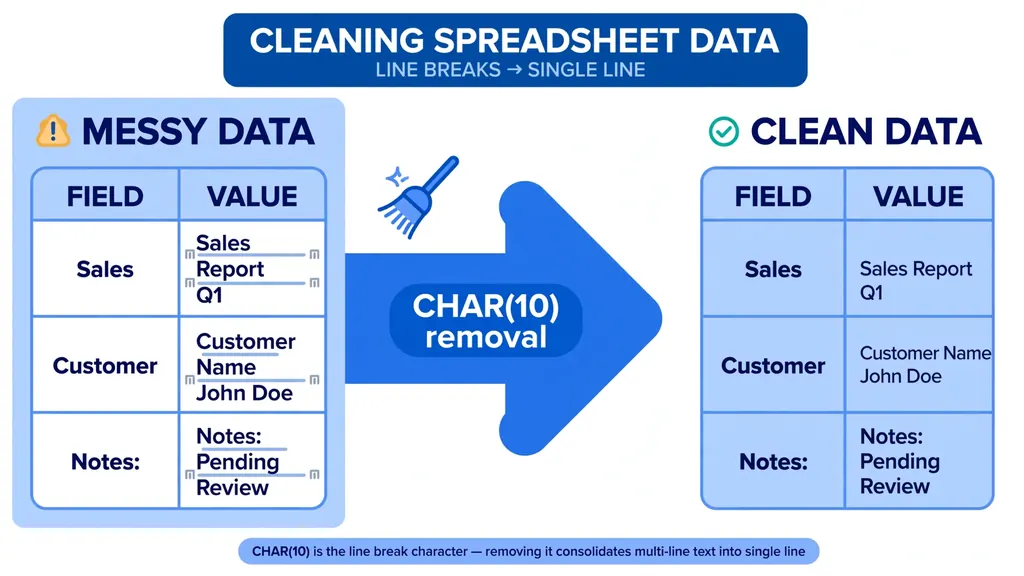
Some systems separate fields with tabs inside what should be one cell: =CLEAN(A2) removes every CHAR(9). If you actually want the tab-separated bits as separate columns, use Text to Columns first, then CLEAN each piece.
Fix “identical” cells that won’t match
=EXACT(CLEAN(A2),CLEAN(B2)) — cleaning both sides before comparing eliminates invisible-character mismatches. This is the number-one use of CLEAN in reconciliation work: two customer lists, one from your CRM and one from a vendor, that should join but don’t.
Clean an entire imported table at once
In Microsoft 365, =CLEAN(A2:D500) spills a fully cleaned array — no fill-down needed. In older Excel, fill =CLEAN(A2) across and down, then paste as values. Either way, do it once right after import, before any analysis.
Scrub before converting text to numbers
=--CLEAN(A2) or =VALUE(CLEAN(A2)) — invisible characters are a top reason VALUE throws #VALUE! errors. Cleaning first makes conversion reliable, a pattern we cover in our guide on converting text to numbers in Excel.
What CLEAN can’t remove (and the workarounds)
CLEAN is powerful but not omnipotent. Knowing its blind spots saves you from the “but I already cleaned it!” frustration:
- Non-breaking spaces (CHAR(160)) — the most common blind spot, arriving via web copy-paste. Workaround:
=SUBSTITUTE(CLEAN(A2),CHAR(160)," ")or=SUBSTITUTE(CLEAN(A2),CHAR(160),""). - Unicode non-printables (codes 127, 129, 141, 143, 144, 157) — CLEAN was designed for 7-bit ASCII. Workaround: targeted SUBSTITUTE chains, e.g.
=SUBSTITUTE(A2,CHAR(127),""). - Regular spaces (code 32) — CLEAN leaves all spacing alone. That’s TRIM’s job.
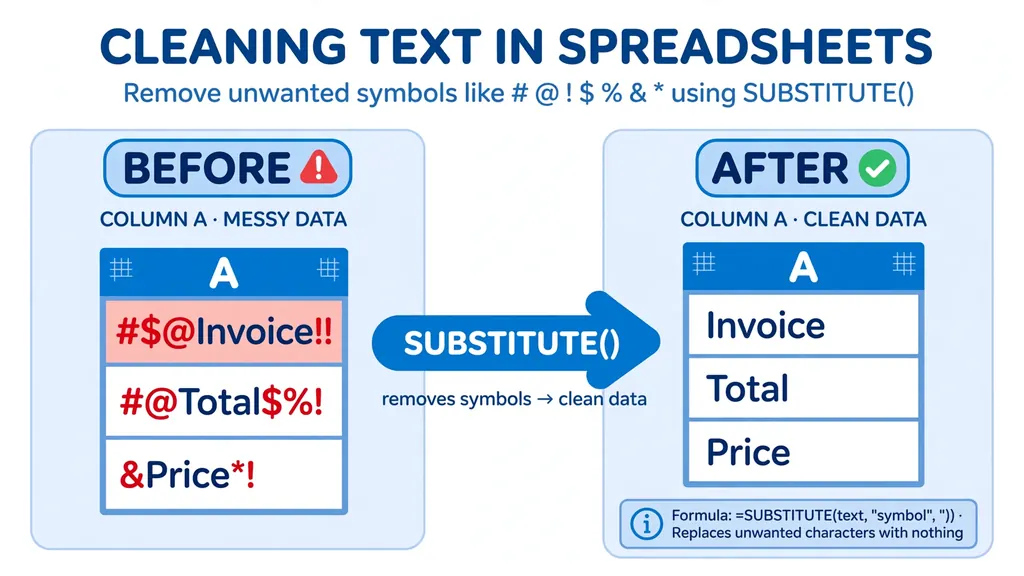
- Visible junk — # @ ! $ and friends are printable characters. SUBSTITUTE handles those.
The pattern to remember: remove non printable characters in Excel with CLEAN first, then handle its blind spots with SUBSTITUTE, then tidy spacing with TRIM. Each function covers what the others can’t.
The TRIM + CLEAN + SUBSTITUTE stack
For data of unknown provenance — the weekly vendor file nobody can explain — analysts reach for the full stack:
=TRIM(CLEAN(SUBSTITUTE(A2,CHAR(160)," ")))
Reading inside-out: SUBSTITUTE converts non-breaking spaces to regular spaces (so TRIM can see them), CLEAN strips control characters, TRIM normalizes spacing. This single formula resolves the large majority of “dirty text” problems in one pass. It’s the formula equivalent of a dishwasher’s heavy cycle — use it on imports, not on data you typed yourself.
For the full standardization routine — casing, formats, and all — see our guide on how to standardize data in Excel, which builds this stack into a repeatable workflow. And if your source is a CSV, consider converting with a free CSV to Excel converter that preserves clean types from the start, reducing how much scrubbing you need at all.
The Power Query equivalent
For files that refresh weekly, bake the cleaning into Power Query instead of re-running formulas. In the Power Query Editor, select your text columns and use Transform > Format > Clean (the CLEAN equivalent) and Transform > Format > Trim. These steps record in the query and replay on every refresh.
Power Query’s Clean is actually slightly more thorough than the worksheet function in some edge cases, and combining it with Replace Values for CHAR(160) — typed as #(00A0) in Power Query’s M language — covers the non-breaking-space blind spot too. One setup, clean data forever.

When not to use CLEAN
CLEAN is a bulk eraser; don’t use it where the “dirt” is intentional. It will destroy deliberate line breaks in address blocks and comment fields (use targeted SUBSTITUTE instead), strip tabs that are actually field separators you meant to split on, and remove control characters from data you’re passing through to another system that expects them. Rule of thumb: CLEAN the copy you analyze, and keep the raw import untouched on a separate sheet. The US Institute of Education Sciences’ data-cleaning function guide makes the same point: clean systematically, but always preserve the source.

Troubleshooting
CLEAN changed nothing but the data is still dirty
The dirt is outside codes 0–31: non-breaking spaces (160), Unicode oddities, or plain double spaces. Diagnose with =CODE(MID(A2,n,1)) at suspicious positions, then target what you find with SUBSTITUTE or TRIM.
CLEAN removed breaks I wanted to keep
Convert intentional breaks to a placeholder first (=SUBSTITUTE(A2,CHAR(10),"|")), CLEAN, then convert back (=SUBSTITUTE(result,"|",CHAR(10))). Or skip CLEAN for that column and use targeted SUBSTITUTE for the specific junk characters.
My formulas got slower after cleaning whole columns
CLEAN over hundreds of thousands of rows recalculates on every change. Paste as values after cleaning, or move the step into Power Query where it runs once per refresh instead of on every recalculation.
The Excel CLEAN function in Google Sheets and LibreOffice
CLEAN isn’t Excel-exclusive — Google Sheets and LibreOffice Calc both implement =CLEAN(text) with the same codes-0–31 behavior, so the Excel CLEAN function knowledge transfers directly. In Google Sheets, =CLEAN(A2) works identically, and Sheets even pairs it with the same TRIM. One Sheets-specific note: data imported via IMPORTDATA or pasted from web pages in Sheets tends to carry non-breaking spaces (CHAR(160)) rather than control characters, so the =SUBSTITUTE(CLEAN(A2),CHAR(160)," ") variant gets more use there than in desktop Excel.
In LibreOffice Calc, CLEAN behaves the same way for the 0–31 range. The bigger cross-app lesson: invisible characters are a property of the data source, not the spreadsheet app. A vendor export that needs CLEAN in Excel needs CLEAN in Sheets too. If your team works across Excel and Sheets, document the cleaning formula once and share it — the syntax is portable even when the files aren’t.
Building a data-cleaning formula toolkit
Beyond the basic stack, a few composed formulas cover nearly every dirty-text situation. Keep these in a personal reference sheet:
| Goal | Formula |
|---|---|
| Full scrub (spaces, controls, NBSP) | =TRIM(CLEAN(SUBSTITUTE(A2,CHAR(160)," "))) |
| Scrub + title case | =TRIM(PROPER(CLEAN(A2))) |
| Scrub + uppercase codes | =UPPER(TRIM(CLEAN(A2))) |
| Remove line breaks, keep spaces | =TRIM(CLEAN(SUBSTITUTE(SUBSTITUTE(A2,CHAR(13)," "),CHAR(10)," "))) |
| Keep only letters, digits, spaces | Power Query: Text.Select([Col], {"a".."z","A".."Z","0".."9"," "}) |
| Flag unprintable characters | =LEN(A2)<>LEN(CLEAN(A2)) → TRUE means junk was present |
The last row is a diagnostic gem: comparing LEN before and after CLEAN tells you whether a column had invisible characters at all. Run it as a spot check on every new import — if the flag column stays FALSE throughout, you can skip cleaning that column entirely and save the recalculation overhead.
Case study: cleaning a real vendor export
Let’s walk a typical mess end to end. You receive vendor_products.csv: 4,000 rows, columns SKU, Name, Price. The Name column has inconsistent casing, random double spaces, and — discovered via the LEN diagnostic — invisible characters in about 300 rows. The Price column has “$” prefixes on some rows and trailing spaces on others.
- Import properly: Data > From Text/CSV, verify the preview shows three clean columns. (Or convert first with our free CSV to Excel converter.)
- Diagnose: add
=LEN(B2)<>LEN(CLEAN(B2))next to Name — 300 TRUEs confirm the invisible junk. - Clean Name:
=TRIM(PROPER(CLEAN(SUBSTITUTE(B2,CHAR(160)," "))))in a helper column. Spot-check the 300 flagged rows. - Clean Price:
=--SUBSTITUTE(TRIM(CLEAN(C2)),"$","")— clean, strip the symbol, coerce to a number. Verify the status bar shows Sum. - Standardize SKU:
=UPPER(TRIM(CLEAN(A2)))— codes uppercase, always. - Paste as values over the originals, delete helpers, and log what you did.
Total time: under fifteen minutes for 4,000 rows — versus hours of manual fixing, and a result you can defend. Save the five formulas as your starter toolkit; they handle the large majority of real-world vendor messes. For the full pre-analysis routine this fits into, see our data cleaning checklist.
Automating CLEAN across workbooks with VBA and Office Scripts
When cleaning is a daily job across dozens of workbooks, clicking through helper columns gets old. Two automation paths cover the spectrum. For desktop Excel, a small VBA macro applies the full stack to every text cell in the used range:
Sub DeepClean()
Dim c As Range
For Each c In ActiveSheet.UsedRange
  If VarType(c.Value) = vbString Then
    c.Value = WorksheetFunction.Trim(WorksheetFunction.Clean(Replace(c.Value, Chr(160), " ")))
  End If
Next c
End Sub
This loops the sheet’s used range, and for every text cell applies SUBSTITUTE (non-breaking space to regular space), CLEAN, and TRIM — writing the result back in place. Run it on a copy first: in-place macros can’t be undone with Ctrl+Z. For a gentler version, have the macro write to a new “Cleaned” sheet instead, preserving the raw import untouched.
For Microsoft 365 on the web, Office Scripts are the modern equivalent — TypeScript that runs in Excel for the web and in Power Automate flows:
function main(workbook: ExcelScript.Workbook) {
  const sheet = workbook.getActiveWorksheet();
  const range = sheet.getUsedRange();
  range.replaceAll(String.fromCharCode(160), " ", { completeMatch: false, matchCase: false });
}
Pair that with a Power Automate flow (“when a file lands in SharePoint, clean it, save a copy”) and the entire scrub happens before a human ever opens the workbook. The honest trade-off: macros and scripts are powerful but opaque — document what they do in the workbook, because the next analyst inherits your automation along with your data. For most teams, Power Query remains the sweet spot between manual formulas and code: visible steps, no programming, replayable on refresh.
Three myths about the CLEAN function
Myth 1: “CLEAN fixes all invisible characters.” It fixes ASCII 0–31. Non-breaking spaces, Unicode control characters, and zero-width spaces sail through untouched — which is why the SUBSTITUTE layer exists.
Myth 2: “TRIM makes CLEAN unnecessary.” TRIM handles spaces; CLEAN handles everything else invisible. They’re complements — the most common real-world formula uses both.
Myth 3: “If CLEAN changed nothing, the data is clean.” CLEAN only reports on its own territory. Double spaces, wrong casing, placeholder text like “N/A”, and mojibake all survive CLEAN perfectly. Invisible-character cleanliness is one check among many — run the full data cleaning checklist rather than declaring victory after one function.
The 60-second dirty-data diagnosis
Before cleaning anything, run this triage on a suspect column: =LEN(A2)<>LEN(TRIM(A2)) flags spacing issues, =LEN(A2)<>LEN(CLEAN(A2)) flags invisible characters, and =CODE(MID(A2,1,1)) identifies the first character’s code. Sixty seconds tells you whether you need TRIM, CLEAN, SUBSTITUTE — or nothing at all. Diagnose first, clean second, verify third.
Frequently Asked Questions
What does the Excel CLEAN function do?
The Excel CLEAN function removes all non-printable characters (ASCII codes 0–31) from text — including tabs, line breaks, carriage returns, and control codes. It’s designed for text imported from other applications that contains invisible characters your operating system can’t print.
How do I use CLEAN in Excel to clean a whole column?
Enter =CLEAN(A2) in a helper column, double-click the fill handle to fill down, then copy and Paste Special > Values over the originals. In Microsoft 365 you can use =CLEAN(A2:A500) to spill the entire cleaned range at once.
What’s the difference between CLEAN and TRIM in Excel?
CLEAN removes non-printable characters (codes 0–31) like tabs and line breaks; TRIM removes extra spaces — leading, trailing, and double spaces between words. They complement each other, and =TRIM(CLEAN(A2)) is the standard combined formula for dirty imported text.
Does CLEAN remove non-breaking spaces?
No. CLEAN only removes ASCII codes 0–31, and the non-breaking space is CHAR(160). Remove it with =SUBSTITUTE(A2,CHAR(160),” “) — commonly combined as =TRIM(CLEAN(SUBSTITUTE(A2,CHAR(160),” “))).
Can CLEAN remove line breaks in Excel?
Yes — line feeds (CHAR(10)) and carriage returns (CHAR(13)) are non-printable characters, so CLEAN removes them. Note it deletes breaks entirely rather than replacing them with spaces; use =SUBSTITUTE(A2,CHAR(10),” “) first if you need word separation.
Is there a Power Query equivalent of the CLEAN function?
Yes. In the Power Query Editor, select text columns and choose Transform > Format > Clean. The step is recorded in the query and replays automatically on every refresh — ideal for recurring imports.