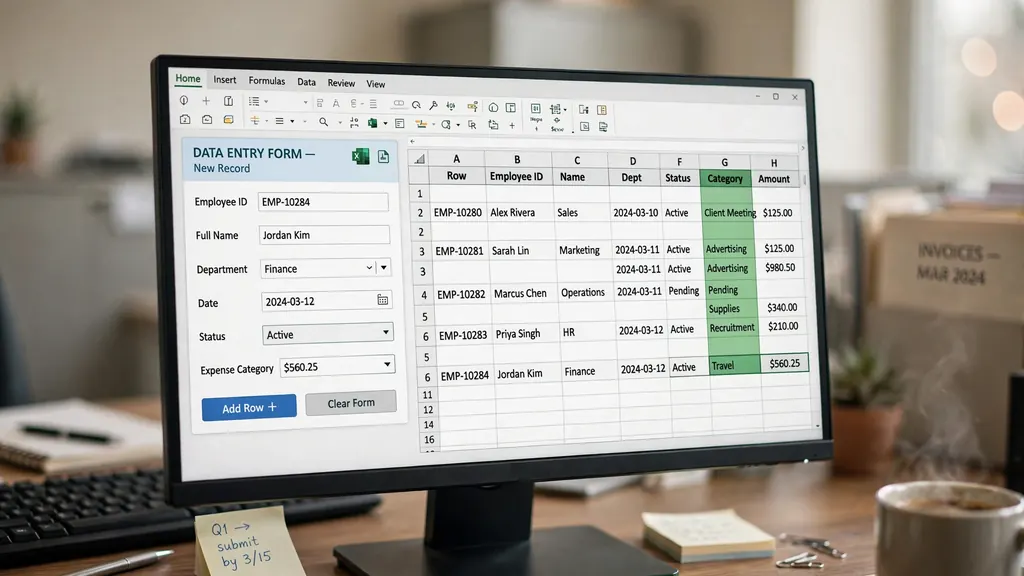
“Data entry” sounds simple until you do it professionally. The job is not typing — typing is the easy ten percent. The real work is judgment at speed: reading messy source documents, deciding what goes where, catching the inconsistencies, and producing a spreadsheet someone can actually use. Data entry jobs in Excel reward people who combine fast, accurate typing with spreadsheet craftsmanship — forms, validation rules, and shortcuts that turn hours of work into minutes.
This guide is the honest tour: what Excel data entry jobs actually involve day to day, the skills employers test for, how to build an Excel data entry form that prevents errors, the validation techniques that make data entry in Excel accurate by design, the keyboard shortcuts that double your throughput, and — crucially — how to find legitimate work while dodging the scams that infest this corner of the job market. Whether you are in Manila, Mumbai, Manchester, or Memphis, the skills are the same and the work is global.
What data entry jobs in Excel actually involve
Forget the image of mindless typing. A professional data entry assignment typically looks like this: a client sends 2,000 scanned invoices, a shoebox of receipts, a decade of PDF bank statements, or access to a legacy system — and needs it all in a clean, structured, analyzable spreadsheet by Friday. Your job spans four phases:
- Interpretation: understanding what the source documents contain and how they map to the target columns. A “customer ref” on an invoice might be the account number the spreadsheet calls “Client ID.” Getting the mapping right is half the job.
- Transcription: the actual typing — fast, but with constant micro-decisions about ambiguous handwriting, inconsistent formats, and missing fields.
- Standardization: “St.”, “Street”, and “ST” become one value; dates become real dates; phone numbers get one format. This is what separates usable data from a typed mess.
- Verification: reconciling totals, spot-checking samples, and documenting exceptions (the three invoices that made no sense and what you did about them).
The work splits into two flavors. Transcription work (forms, surveys, invoices, medical records) is volume-driven: speed and accuracy are everything. Cleaning and enrichment work (deduplicating customer lists, standardizing product catalogs, researching missing fields) is judgment-driven and pays better because it cannot be fully automated. The best-paid data professionals do both: they type fast and they build the validation that makes the data trustworthy.
The core skills employers test
When employers hire for Excel data entry jobs, they test a predictable skill stack. Here is what to master, in order of hiring impact:
- Typing speed + accuracy: 40–60 WPM with 98%+ accuracy is the standard bar; numeric keypad (10-key) fluency is tested separately for finance roles. Practice with free online tests until the numbers are boring.
- Excel fundamentals: navigating large sheets, filters, sorting, freeze panes, find & replace, text-to-columns. The unglamorous basics that employers assume.
- Data validation: dropdowns, input restrictions, error alerts. Employers love candidates who prevent errors, not just fix them.
- Text functions: TRIM, UPPER/LOWER/PROPER, LEFT/RIGHT/MID, TEXTSPLIT, CONCAT — the cleaning toolkit for messy source data.
- Lookup functions: XLOOKUP/VLOOKUP to cross-reference and verify entries against master lists.
- Conditional formatting: highlighting duplicates, outliers, and blanks for visual quality control.
- Basic formulas: SUM, COUNT, AVERAGE for reconciliation — proving your entered totals match source totals.
Most hiring tests are practical: “here is a messy CSV and a target template — produce the clean file in 60 minutes.” The candidates who pass are not the fastest typists; they are the ones whose output needs no corrections. Build a small portfolio demonstrating exactly this: take a messy public dataset, clean it, document your steps, and show the before/after. Three such samples outperform any certificate.
Excel data entry forms: built-in and custom
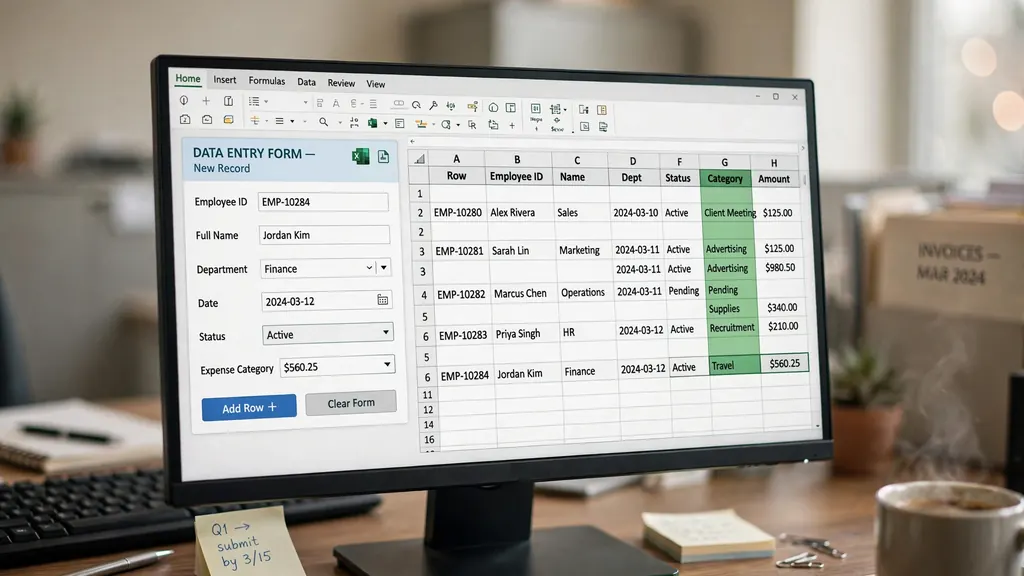
Typing directly into a wide table is error-prone: eyes jump columns, data lands in the wrong field, and horizontal scrolling hides mistakes. An Excel data entry form solves this by presenting one record at a time, one labeled field after another — the way paper forms work, with digital guardrails.
The built-in form (30 seconds to enable)
- Select any cell in your table, then File → Options → Customize Ribbon → add the Form command to a tab.
- Click the Form button: a dialog appears with one labeled field per column, plus New/Delete/Find navigation.
- Tab through fields, type values, press Enter — a new validated row is appended to the table.
It is ugly and it is wonderful: data validation rules apply, you cannot misalign columns, and Find lets you locate and correct records without scrolling. For internal team use, this built-in form beats most custom solutions on reliability.

Custom input sheets (when the built-in form is not enough)
For prettier or more controlled entry, build a dedicated Entry sheet: one input cell per field (B2, B3, B4…), each with data validation, labels in column A, and a big “Add Record” button running a tiny macro — or, macro-free, a formula row that the operator copies into the table. Add dependent dropdowns (select Country → City list filters via INDIRECT or XLOOKUP-driven validation) for hierarchical data. This pattern — structured input feeding a clean table — is the same one behind the entry sheets in our teacher gradebook guide.
Data validation: accuracy by design
The professional’s mindset shift: do not trust yourself; constrain yourself. Data Validation (Data tab) turns each column into a gate that rejects bad entries at the moment of typing — infinitely cheaper than finding them later. The essential rule set for data entry in Excel:
- Dropdowns for categories: Data → Data Validation → List, pointing at a reference sheet. Rep names, product codes, regions, statuses — anything from a fixed set. This single rule eliminates the most common error class: spelling variants.
- Date windows: Validation → Date → between start and end. Invoice dates cannot be in the future; birth dates cannot be last week. Impossible dates get rejected instantly.
- Numeric ranges: Whole number or Decimal between sensible bounds. Quantities cannot be negative; discount percentages cannot exceed 100.
- Text length: phone numbers, ZIP/postal codes, ID numbers — exact or maximum lengths catch truncation and typos.
- Custom formulas: the power tool — e.g.,
=COUNTIF($A:$A,A1)=1rejects duplicate IDs;=ISNUMBER(SEARCH("@",A1))requires an @ in emails. - Input messages & error alerts: write clear guidance (“Format: YYYY-MM-DD”) as the input message, and use the Stop style alert so violations cannot be ignored.
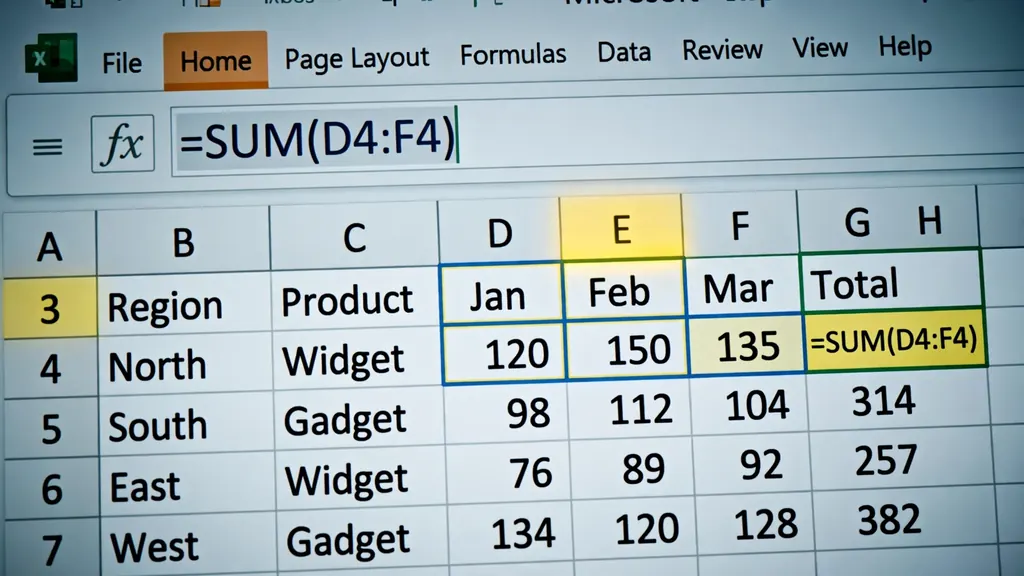
Layer validation with conditional formatting as a second net: highlight duplicates (=COUNTIF(range,cell)>1), flag blanks in required columns, and color outliers (values beyond 3 standard deviations deserve a look). Validation prevents; formatting reveals. Together they catch ~99% of entry errors before delivery.
Speed: keyboard shortcuts that double your throughput
Speed in data entry comes from never touching the mouse. These shortcuts are the highest-ROI learning in the profession — memorize them in this order:
- Enter / Shift+Enter: move down/up after entry. Tab / Shift+Tab: move right/left — the core rhythm of form-style entry.
- Ctrl+; (semicolon): insert today’s date. Ctrl+Shift+; : current time. Used dozens of times daily.
- Ctrl+D / Ctrl+R: fill down / fill right from the cell above/left — for repeated values across rows.
- Alt+Down Arrow: open the dropdown picklist in a validated cell — no mouse needed for dropdown selection.
- Ctrl+Enter: fill the same value into all selected cells at once — perfect for stamping a batch with today’s date or a common code.
- F2: edit the active cell; Esc: cancel an edit without committing (saves countless accidental overwrites).
- Ctrl+Shift+L: toggle filters; Alt+A+S+S: sort dialog — for navigating and checking large tables.
- Ctrl+1: format cells dialog — quick number/date formatting without ribbon hunting.
Beyond shortcuts, two techniques multiply speed: batch similar work (enter all dates, then all amounts — context-switching between field types is slow), and use the numeric keypad for number-heavy work with Num Lock on. Touch-typists on the keypad enter figures 2–3× faster than top-row typists. If your laptop lacks a keypad, a $20 USB keypad is the best investment a data professional makes.
Handling real-world source files: PDFs, scans, and CSVs
Source material is never as clean as the target template. Here is the triage for each format:
CSVs and Excel files (the easy ones)
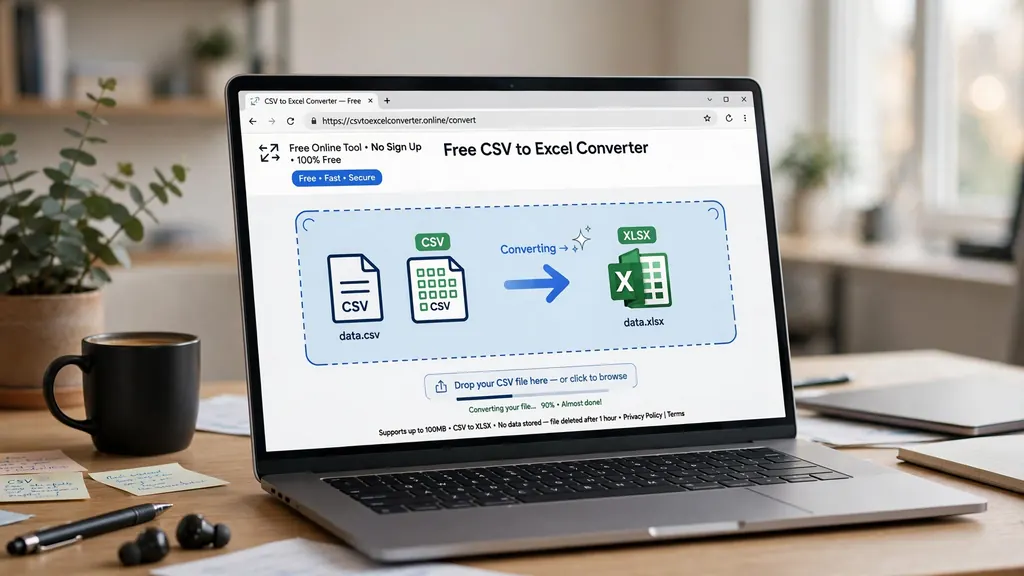
Do not open-and-retype CSVs — convert and transform them. Our free CSV to Excel converter turns any CSV into a real workbook in your browser; then Text to Columns, TRIM, PROPER, and DATEVALUE do the standardization in bulk. A 10,000-row CSV cleans in minutes with formulas; retyping it takes days. Knowing when not to type is a professional skill.
PDFs (the common ones)
For text-based PDFs, try Power Query’s From PDF import or copy-paste into Excel first — tabular PDFs often extract cleanly. For scanned/image PDFs, run OCR (even free tools work), then treat the output as guilty-until-proven-innocent: OCR confuses 0/O, 1/l, 5/S systematically, so a find-and-replace pass plus spot-checking against the scans is mandatory. Budget verification time at ~20% of transcription time for OCR’d material.

Paper and handwriting
Photograph or scan everything before typing a word (your backup if the paper vanishes), then transcribe in batches with the source beside the entry form — dual monitors or a split screen, never alt-tabbing between windows. For handwriting, establish ambiguous-character conventions up front with the client (“their 7s look like 1s — confirm?”) rather than guessing silently. Document every judgment call in a README sheet; the client would rather see “3 records flagged as illegible” than discover silent guesses.
Quality control: catching your own errors
Delivering unchecked work is how beginners lose clients permanently. A professional QC pass has five steps and takes a fraction of the entry time:
- Reconcile totals: sum numeric columns and compare against source totals (invoice batch totals, statement balances). A mismatch means missing or duplicated rows — find it now.
- Count check: row count in vs records out. “2,000 invoices in, 2,000 rows out” is the first line of every delivery note.
- Duplicate scan: conditional formatting for duplicate IDs/keys across the full table, not just visually — sort by the key column and eyeball the boundaries.
- Sample audit: randomly check 5% of rows against sources (use
=RANDBETWEENto pick row numbers honestly). Zero errors in the sample suggests a clean file; any error triggers a wider check. - Exception log: a README sheet listing every ambiguous record and the decision made. This document is what separates professionals from typists — it proves judgment, not just throughput.
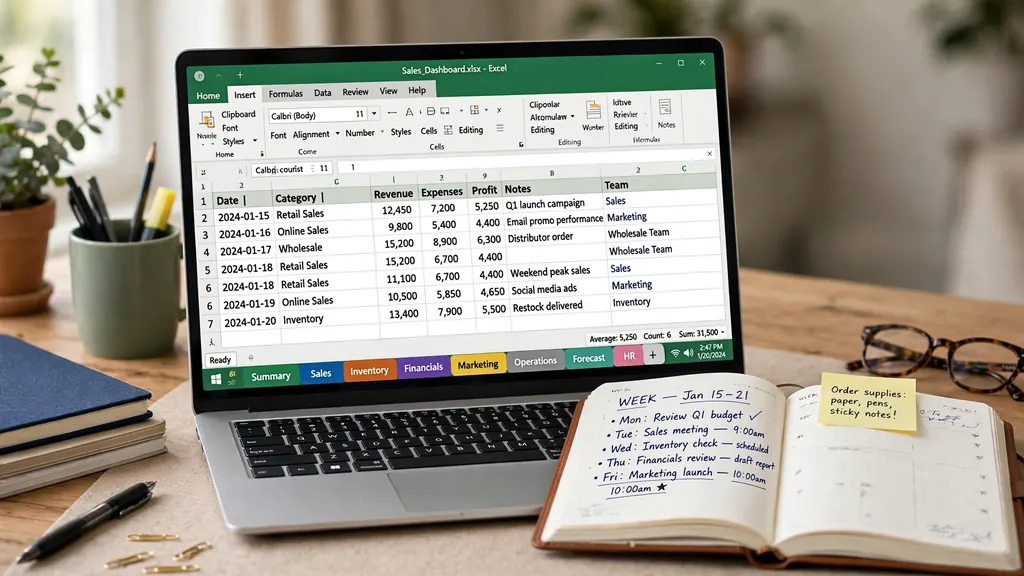
Build QC into your pricing: quote the verification pass as part of the job, not as an optional extra. Clients who have been burned by sloppy data will pay a premium for documented accuracy — and the README sheet becomes your testimonial material.
Finding legitimate work (and avoiding scams)
Data entry is genuinely global remote work — but the field attracts scams precisely because the barrier to entry looks low. Here is the honest map.
Where real work lives
Freelance marketplaces (Upwork, Fiverr, Freelancer): competitive but real; your profile needs the portfolio samples and test scores described above. Microtask platforms (Clickworker, Amazon MTurk, Remotasks): low pay per task, but legitimate and good for building a work history. Direct outreach: local accountants, medical practices, law firms, and real-estate offices all drown in paperwork — a short email offering a free 50-record sample converts surprisingly well. Staffing agencies: temp data-entry placements that often convert to permanent roles. Specialize as soon as you can: medical, legal, and financial data entry pay 30–50% more because the accuracy bar and domain knowledge are higher.
Scam detection checklist
- Upfront fees = scam. “Pay $49 for the software/training/list” — no legitimate employer charges you to work.
- Cheque cashing = scam. Any job involving receiving cheques and forwarding money is money laundering, full stop.
- No interview = suspicious. Real employers at least do a video call and a skills test.
- Too-good pay = bait. “$5,000/month for 2 hours daily” does not exist. Market rates are public; check them.
- Vague task specs = red flag. Professionals define deliverables precisely. “Just type stuff” is not a job description.
7 mistakes beginners make
- Typing what should be transformed. Retyping a 10,000-row CSV instead of converting and cleaning it with formulas wastes days.
- No validation on entry. Building the table without dropdowns and rules, then “checking at the end” — by which time errors have compounded.
- Ignoring the source format. Entering US dates (MM/DD) into a UK-format sheet corrupts thousands of rows silently. Confirm locale first.
- Skipping reconciliation. Delivering without matching totals to sources. The one step clients actually verify.
- Guessing at illegible data. Silent guesses become someone else’s bad decisions. Flag, document, ask.
- Mouse-only workflow. Every mouse trip costs seconds; over 5,000 rows it costs hours. Learn the shortcuts.
- No backup discipline. Versioned saves (ProjectName_2026-10-08_v2.xlsx) after every session. One corrupted file without a backup ends a contract.
These same disciplines — structured tables, validation, reconciliation — are the foundation of every tracker on this site, from teacher gradebooks to project trackers. Data entry is not a lesser skill; it is the first skill everything else is built on.
Frequently Asked Questions
What do data entry jobs in Excel involve day to day?
Typical tasks include transcribing information from PDFs, scans, emails, or paper into structured spreadsheets; cleaning and standardizing messy data; validating entries against rules; and reconciling totals. Accuracy matters more than speed — most employers test both with a timed sample task.
How fast should I type for Excel data entry jobs?
Most employers look for 40-60 words per minute with 98%+ accuracy; numeric keypad speed (10-key) matters as much for finance-related roles. Speed improves with practice, but accuracy is the metric that gets you hired — a fast typist with errors is worse than a steady one without.
What is an Excel data entry form and how do I make one?
An Excel data entry form is a dialog that lets you add or edit one table row at a time without scrolling across columns. Enable it via File > Options > Customize Ribbon (add the Form button), select your table, and click Form. For prettier custom forms, use the Developer tab’s UserForm builder or a structured input sheet with data validation.
How can I get data entry work with no experience?
Build a small portfolio: clean a messy public dataset, build a validated entry form, and document your process. Take free typing and Excel skills tests to get certified scores, then start with microtask platforms and freelance marketplaces. Accuracy samples and testimonials beat credentials at the entry level.
Are online data entry jobs legitimate or scams?
Both exist. Legitimate jobs never ask you to pay upfront fees, buy software, or cash cheques for “supplies”. Real employers interview you, give clear task specs, and pay through normal channels. Treat any “job” requiring payment from you as a scam, no exceptions.
How much do Excel data entry jobs pay?
Rates vary widely: US roles typically pay $15-25/hour, UK £11-15/hour, while freelance platforms see $5-15/hour depending on complexity and location. Specialized work — medical, legal, or financial data entry — pays premiums for domain knowledge and accuracy requirements.