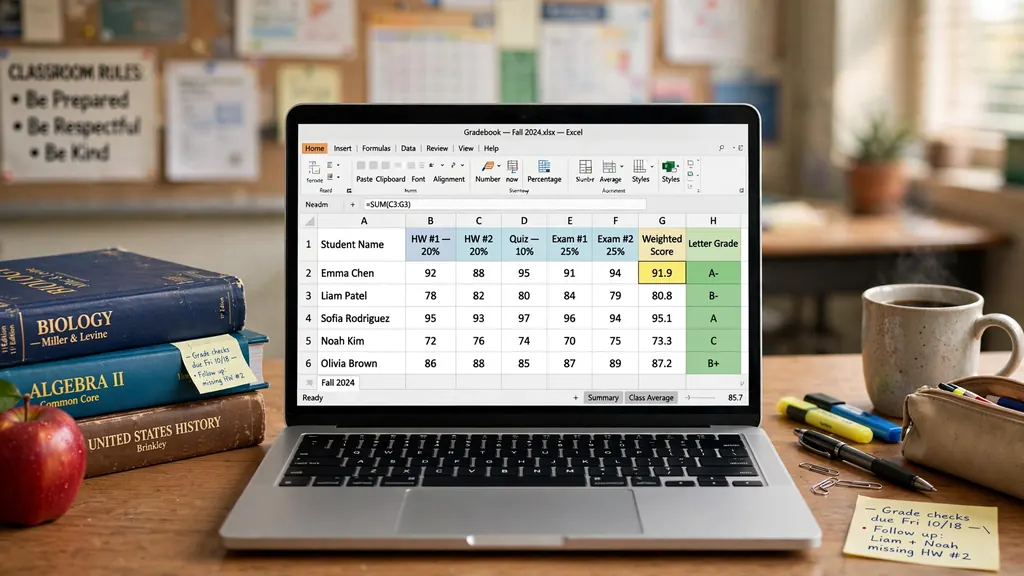
Grading is the part of teaching nobody warns you about in training: thirty students, six assignment categories, a midterm, a final, attendance policies, and a report-card deadline that does not move. Paper gradebooks turn this into an arithmetic marathon; school information systems turn it into a fight with rigid software that computes weights differently than your syllabus promises. An excel gradebook for teachers is the middle path — a workbook that implements your grading scheme exactly, updates every average the moment you type a score, and keeps attendance beside grades where it belongs.
This guide builds a complete teacher gradebook Excel template from first principles: a gradebook spreadsheet with weighted categories, automatic letter grades, dropped lowest scores, and a linked attendance sheet — everything a student grade tracker Excel file needs for one class or six. You will learn the SUMPRODUCT weighting pattern, the lookup-table trick for letter grades, class analytics that flag struggling students early, and how to import rosters from your school’s system via CSV. Whether you teach Year 9 maths in London, high-school chemistry in Ohio, or primary classes in Sydney, the structure adapts to your grading scale.
Why an Excel gradebook for teachers beats paper and rigid school systems
School information systems are built for administrators, not teachers. They enforce one grading model, bury the controls three menus deep, and go down exactly during report-card week. Paper gradebooks are honest but punishing: one changed weight means re-adding a column of thirty numbers by hand, and one coffee spill means re-creating a term’s work.
A spreadsheet gradebook gives you the two things that matter: your exact scheme and instant recalculation. If your syllabus says homework 20%, quizzes 20%, midterm 25%, final 25%, participation 10%, the workbook computes precisely that — not the system’s nearest approximation. Type a score and every average, letter grade, and class statistic updates before you lift your finger. That immediacy changes grading from a dreaded batch chore into something you can do in five spare minutes between classes.
The offline argument matters too. Classrooms have unreliable Wi-Fi; web gradebooks do not. An Excel file opens on any school computer, works on the bus home, and syncs through whatever drive your school provides. And unlike cloud gradebooks that charge per student or lock features behind tiers, a workbook you build is free forever and fully yours — including the understanding of how every number is computed, which is invaluable when a parent questions a grade.
Designing the gradebook spreadsheet: students, categories, weights
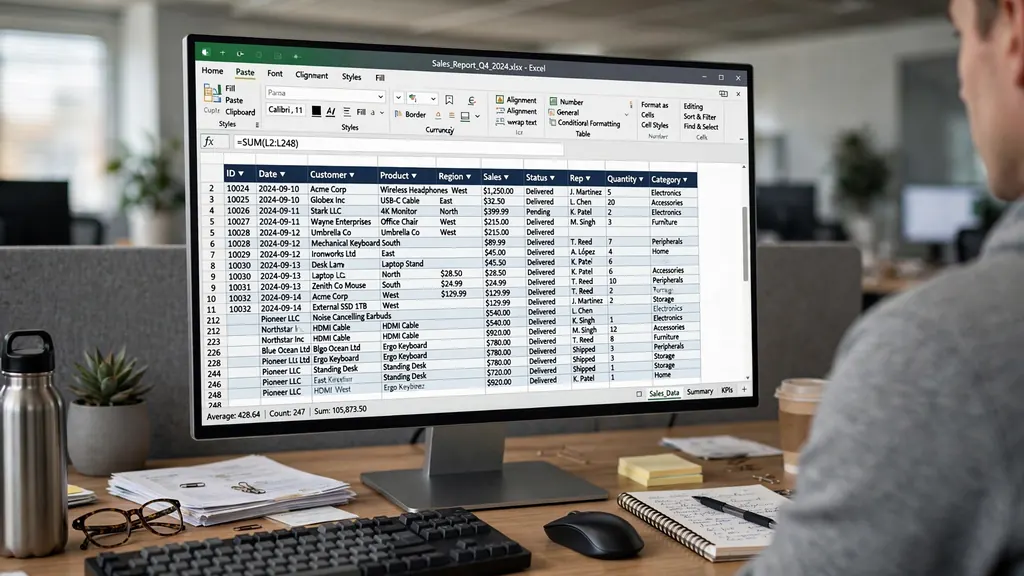
A clean gradebook has a predictable geography. Columns A–C hold student identity (ID, Last Name, First Name); the wide middle holds one column per assignment, grouped under merged category headers; the rightmost columns hold computed results (category averages, weighted total, letter grade). Freeze panes below row 2 and right of column C so names and headers stay visible while you scroll through scores.
- Row 1: category headers spanning their assignments (Homework, Quizzes, Exams, Project, Participation), each with its weight (20%, 20%, 40%, 10%, 10%).
- Row 2: assignment names with max points (HW1 /20, Quiz1 /15, Midterm /100…). Max points in the header row make percentage math uniform.
- Rows 3+: one per student, scores entered as raw points earned. Blank = not yet graded; 0 = earned zero (crucial distinction — see mistakes).
- Right block: per-category averages, weighted percentage, letter grade, absences count.
- A check cell at the top: =SUM of weights, which must equal 100%. If it does not, something is misconfigured.
Weight design: match the syllabus, then sanity-check
Weights encode your teaching philosophy. Heavy exams reward cramming; heavy homework rewards consistency. Whatever you choose, publish the weights on day one and implement them exactly — students notice discrepancies, and “the spreadsheet says so” is only defensible if the spreadsheet matches the syllabus. A good teacher gradebook Excel template puts the weights in visible cells (not buried in formulas) so any audit takes seconds. Common patterns: traditional (Homework 20 / Quizzes 20 / Exams 40 / Final 20), project-based (Projects 40 / Homework 20 / Participation 20 / Exams 20), and skills-based variants — the structure below handles all of them identically.
Weighted grades: the math, made automatic
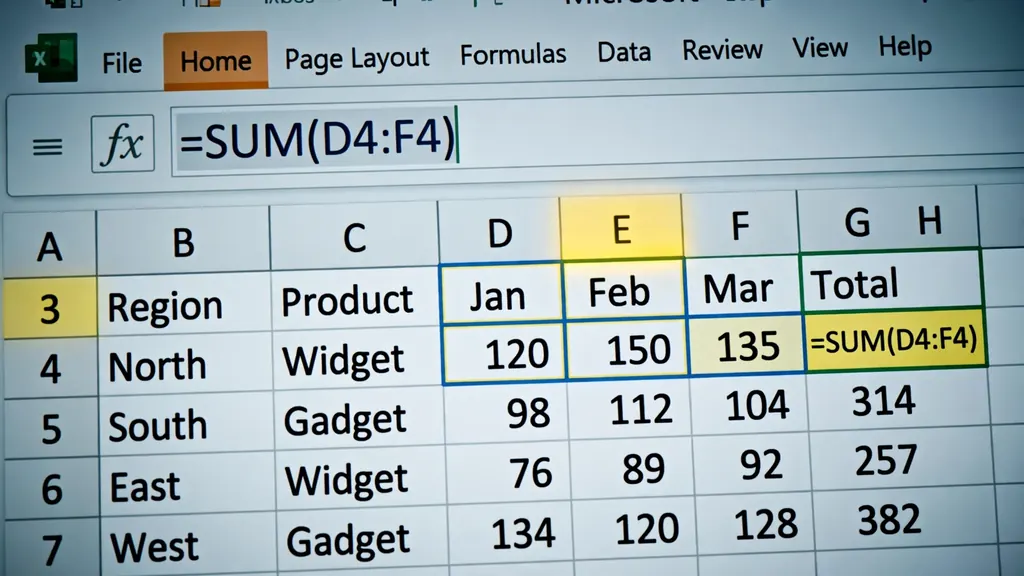
The weighted total is the heart of the gradebook. For each student, you need each category’s average as a percentage, multiplied by its weight, summed across categories. Excel’s SUMPRODUCT does this in one elegant formula:
=SUMPRODUCT(category_averages_range, weights_range) / SUM(weights_range)
In concrete terms, if a student’s category averages sit in cells AA3:AE3 (as decimals like 0.85) and the weights are in $AA$1:$AE$1 (0.2, 0.2, 0.4, 0.1, 0.1), the weighted percentage is =SUMPRODUCT($AA$1:$AE$1, AA3:AE3). Dividing by the weight sum guards against weights that do not quite total 100% during setup. Copy down the column and the entire class is computed.
Each category average itself needs care. The straightforward version is =SUM(points_earned)/SUM(points_possible) across that category’s assignments — this correctly weights a 100-point exam more than a 10-point quiz within the category. But two refinements matter enormously in practice.
Dropping the lowest score
Most syllabi drop the lowest quiz or homework. For a category range like D3:H3 (points earned) with max points in D$2:H$2: =(SUM(D3:H3)-MIN(D3:H3))/(SUM(D$2:H$2)-MIN(D$2:H$2)). This drops the lowest score and its corresponding max points together — important, because dropping a 5/10 quiz is not the same as dropping a 45/50 test. For dropping two, use SMALL(range,1) and SMALL(range,2). Blank cells (ungraded) must be excluded from COUNT-based logic; use the SUM-of-max-points approach above rather than AVERAGE, which mishandles blanks.
Excused absences and missing work
An excused assignment should not count as zero. The cleanest method: leave the cell blank and compute the category average over only graded assignments — the SUM(points)/SUM(max) pattern handles this automatically since blanks contribute to neither. For unexcused missing work, enter 0 explicitly. Add a data-validation note or cell comment marking excused blanks so a co-teacher does not “fix” them into zeros. This blank-vs-zero discipline is the single most important data habit in any gradebook spreadsheet.
Letter grades, grading scales, and GPA
Percentages compute; letters communicate. The lookup-table method converts percentages to letters with zero nested IFs and total flexibility. Build a small table on a Scales sheet:
Column A (threshold): 0, 60, 63, 67, 70, 73, 77, 80, 83, 87, 90, 93, 97 — Column B (grade): F, D-, D, D+, C-, C, C+, B-, B, B+, A-, A, A+. Then each student’s letter grade is =VLOOKUP(weighted_pct, grade_table, 2, TRUE) — the TRUE (approximate match) finds the largest threshold at or below the percentage. Prefer XLOOKUP? =XLOOKUP(pct, thresholds, grades, , -1) does the same with exact-match-then-next-smaller semantics.
The beauty of the table: changing your scale is editing cells, not formulas. Switching from A=90 to A=93 mid-term policy change? One edit, whole class updated. Running UK-style classifications (First, 2:1, 2:2, Third) or Indian percentage bands instead of A–F? Same table, different labels. Keep the scale table visible and labeled with the term — “Fall 2026 scale” — so next year’s you knows what was used.
GPA the honest way
If you need grade points, add a third column to the scale table (A=4.0, A-=3.7, B+=3.3 …) and VLOOKUP the points the same way. For multi-class GPA, weight each class’s points by its credit hours with — you guessed it — SUMPRODUCT. The pattern from the weighted-grades section recurs everywhere in education math.
Attendance tracking in the same workbook
A student grade tracker Excel file earns its keep when attendance lives beside grades. Create an Attendance sheet: student names down column A (in the same order as the gradebook), dates across row 1, and single-letter codes in the grid — P (present), A (absent), T (tardy), E (excused). Data validation dropdowns keep codes consistent; conditional formatting colors them (green/gray/amber/blue) so patterns jump out visually.
Link it back with COUNTIF: on the gradebook sheet, an Absences column holds =COUNTIF(Attendance!B3:ZZ3,"A") and a Tardies column counts “T”. If your policy docks participation after N absences, a formula applies it automatically: =IF(absences>3, participation_score*0.9, participation_score) — transparent, consistent, and auditable. No more reconstructing attendance from memory during report-card week.
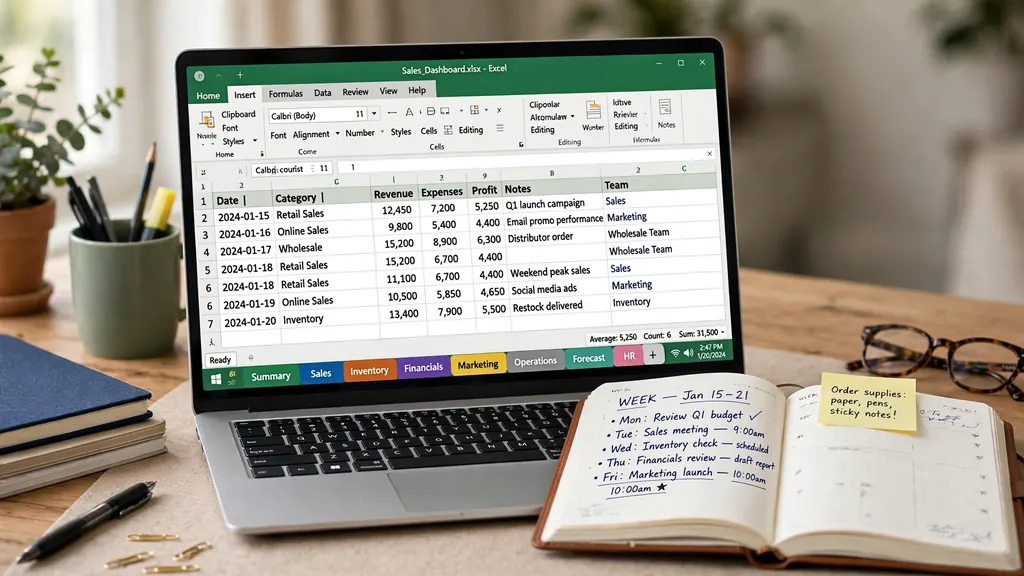
For daily entry speed, keep the attendance sheet as the leftmost tab and enter codes row by row right after taking roll — thirty seconds per class. At month’s end, the absence totals are already on the gradebook; at term’s end, the same sheet documents every absence for parent conferences. Teachers running multiple sections should duplicate the workbook per class (same structure, different roster) rather than cramming sections into one file — the pattern mirrors the multi-sheet discipline of any serious data entry in Excel workflow.
Class analytics: averages, distributions, at-risk students
A gradebook that only records is half a tool; one that reveals is a teaching assistant. Add a Dashboard sheet with these analytics, all formula-driven:
- Class average per assignment (
=AVERAGEdown each column, in a summary row): instantly shows which quiz was too hard — a 52% average is a test-design signal, not a student signal. - Grade distribution chart: a histogram or bar chart of A/B/C/D/F counts. A healthy class clusters B–C; a bimodal split (many As, many Fs) suggests the middle is being lost.
- At-risk list:
=FILTER(students_range, weighted_pct<0.7, "None")— every student below 70%, the intervention list for tutoring or parent contact. Update it the day before progress reports, not after. - Category weakness view: average per category across the class. If Homework averages 88% but Exams average 64%, the class understands daily work but not synthesis — that is curriculum feedback, free of charge.
- Correlation check: a scatter plot of attendance (x) vs grade (y). The visual correlation is usually striking and makes an excellent, data-backed slide for parent evenings.
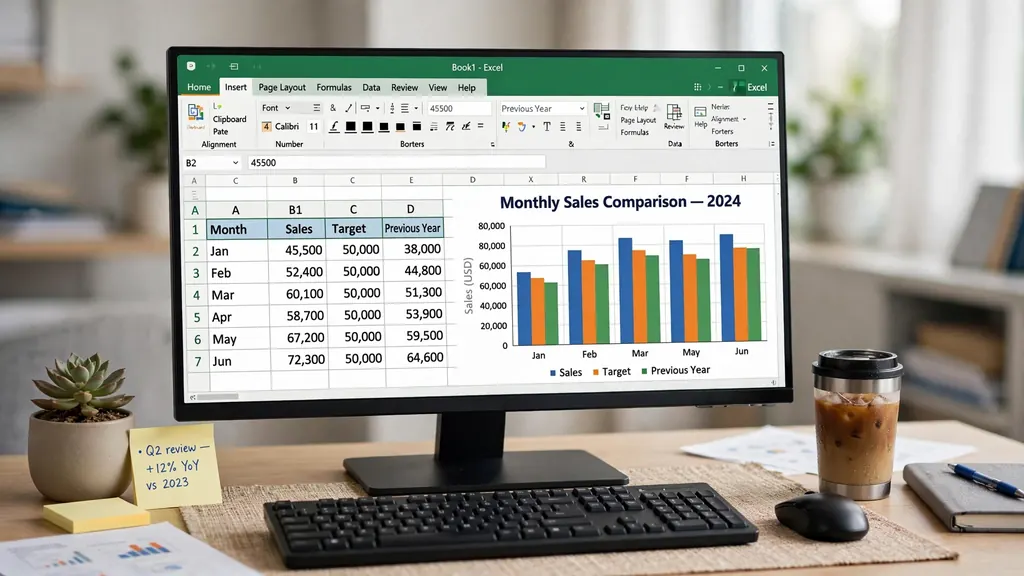
Use these analytics formatively, not punitively. The at-risk list exists so you can intervene in week six, when tutoring still helps — not to justify failures in week sixteen. Many teachers share anonymized versions (class average per assignment, no names) with students; seeing “the class averaged 68% on Quiz 4” normalizes struggle and motivates without shaming anyone.
Importing rosters and LMS exports via CSV
Typing thirty names is nobody’s idea of a good evening. Your school’s system — whether it is PowerSchool in the US, SIMS in the UK, or a local LMS — exports class rosters as CSV. Convert the file with our free CSV to Excel converter in your browser, then copy the name columns into your gradebook’s student block. The same pipeline handles LMS grade exports mid-term: download from the LMS, convert, and paste scores into the matching assignment columns.
Two practical warnings. First, sort order must match: pasting scores against the wrong students is the nightmare scenario. Sort both the import and your gradebook by student ID (never by name — names duplicate, IDs do not), paste, then verify with a spot check of three students. Better yet, use XLOOKUP to pull scores by ID instead of pasting positionally: =XLOOKUP([@ID], import[ID], import[Quiz3]) is immune to sort-order errors entirely.

Second, mind the encoding: rosters with accented or non-Latin names (common in diverse classrooms from Toronto to Mumbai) can arrive garbled if the CSV’s encoding is misread. If names show as mojibake, re-convert ensuring UTF-8 handling — our converter preserves it — and verify a few names before pasting. Student names deserve to be spelled right; it is a matter of respect as well as accuracy.
Protecting student data: privacy done right
Gradebooks contain sensitive personal data, and teachers are its custodians. The rules are straightforward but non-negotiable. Store the workbook on your school’s managed drive or encrypted device — never on a personal USB stick, never as an email attachment, never in a personal cloud account. In the US, FERPA restricts disclosure of education records; the UK’s GDPR and similar laws in Canada and Australia impose equivalent duties. Your school’s IT policy is the final authority — read it.
Technical measures, in order of importance: password-protect the workbook (File → Info → Protect Workbook → Encrypt with Password — use a strong, unique password stored in a password manager); minimize identifying data (student ID is enough — you do not need addresses or phone numbers in a gradebook); lock formula cells (Review → Protect Sheet, allowing edits only in score-entry cells) so a stray keystroke cannot corrupt the weighting logic; and never share the live file — export a PDF or a values-only copy when grades must be communicated. When emailing individual results, send only that student’s row.
7 gradebook mistakes to avoid
- Confusing blank with zero. Blank = not yet graded (excluded from averages); 0 = earned nothing (included). Mixing them up is the #1 gradebook error.
- Weights that do not sum to 100%. Always keep a visible check cell. A 95% or 105% total silently warps every grade.
- Hardcoded thresholds in formulas. Nested IFs for letter grades become unmaintainable. Use the lookup-table method — one table, endless flexibility.
- One mega-sheet for six classes. Duplicate the workbook per class. Cross-class comparisons, when needed, go in a separate summary file.
- No backup. Save dated copies before report-card week (Gradebook_Fall2026_2026-10-08.xlsx). Cloud sync is not a backup strategy by itself.
- Sharing the live file. Co-teachers get values-only copies or PDFs. One editor per live gradebook, always.
- Rebuilding every term. Save a blank master as your personal teacher gradebook Excel template: weights, scales, and formulas ready — each term you only add names and assignments.
Once the gradebook habit is set, the same spreadsheet thinking transfers surprisingly well: the weekly review rhythm mirrors project tracking in Excel, and the budget-style category math will feel familiar if you have ever run a household budget spreadsheet in Excel.
Frequently Asked Questions
How do I create a weighted gradebook in Excel?
Create one column per assignment grouped under weighted categories (e.g., Homework 20%, Quizzes 20%, Exams 40%, Participation 10%, Project 10%). Compute each student’s category average, multiply by the category weight with SUMPRODUCT, and divide by total weight. Verify the weights sum to 100% in a check cell.
How do I convert percentages to letter grades automatically in Excel?
Use a lookup table with grade thresholds and =VLOOKUP(percentage, grade_table, 2, TRUE) or XLOOKUP with match_mode -1. One table drives every student’s letter grade, and changing the scale (A=90 vs A=93) updates the whole class instantly.
Can I track attendance and grades in the same Excel file?
Yes. Add an Attendance sheet with dates as columns and P/A/T codes per student, then use COUNTIF formulas to total absences onto the gradebook sheet. Keep attendance and grades on separate sheets of the same workbook so each stays clean and printable.
How do I drop the lowest quiz score in Excel?
For a category average that drops the lowest score, use =(SUM(range)-MIN(range))/(COUNT(range)-1). This automatically excludes each student’s worst quiz. For dropping the lowest two, subtract the two smallest with SMALL(range,1) and SMALL(range,2).
Is it safe to keep student grades in an Excel file?
Yes, with basic precautions: store the file on an encrypted school drive (not personal email), password-protect the workbook, never include more identifying data than needed, and follow your school’s policy and regulations like FERPA in the US. Never email gradebooks as attachments.
Excel or Google Sheets — which is better for a teacher gradebook?
Excel is stronger for large classes, complex weighting formulas, and offline use; Google Sheets is better when co-teachers need simultaneous access. Most teachers keep the master gradebook in Excel for its formula power and share read-only PDFs or exports with others.