

You open a CSV and café reads café, naïve reads naïve, and your customer’s name in Hindi is a row of black diamonds with question marks. The data isn’t corrupted — you’re looking at a CSV encoding problem in Excel, the infamous mojibake: the file was saved as UTF-8, but Excel decoded it as ANSI (Windows-1252), so every multi-byte character turned into the wrong symbols. It’s one of the most common CSV complaints in the world, and it’s a two-minute fix once you understand what’s happening.
Character encoding is simply the agreement between a file and a program about which number means which letter. UTF-8 is the modern universal agreement — it covers every script on earth. ANSI/Windows-1252 is the old Windows regional agreement — fine for basic English, hopeless for everything else. When the two sides disagree, you get mojibake. In this guide you’ll learn how UTF-8 differs from ANSI, what the CSV UTF-8 BOM does, how to fix Excel CSV garbled characters on Windows and Mac, how to save CSVs correctly so the problem never comes back, and how to handle Hindi, Arabic, Chinese, and accented European text.
What Encoding Problems Look Like (Mojibake Gallery)
Mojibake has a distinctive look. Once you’ve seen it, you’ll recognize it instantly:
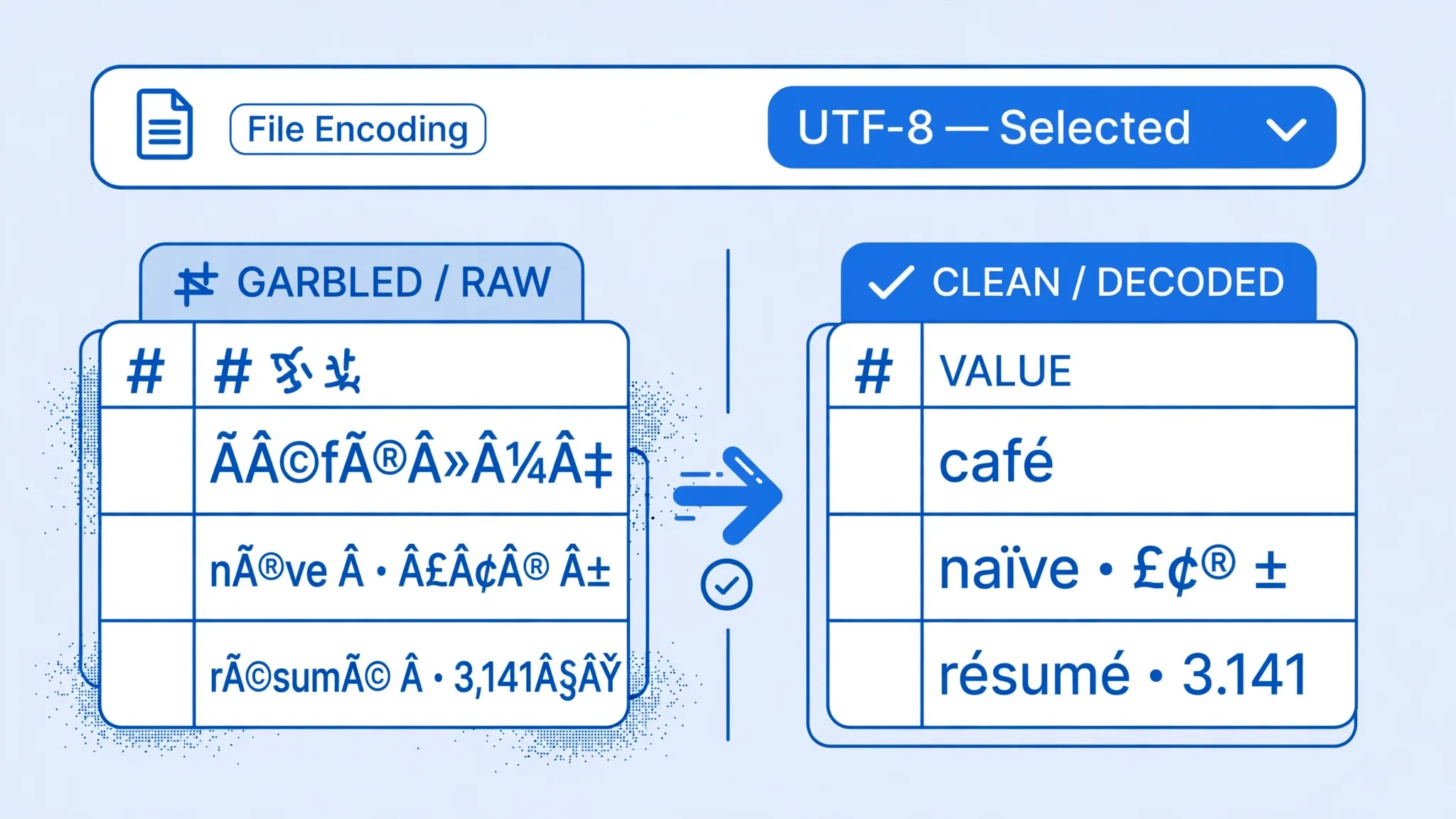
café→café— the UTF-8 bytes for é decoded as two ANSI characters.naïve→naïve,Zürich→Zürich— same pattern, every accented letter doubled into gibberish.€→€— the euro sign becomes three junk characters.“smart quotes”→“smart quotes‗ curly quotes explode.- Hindi, Arabic, or Chinese text →
������or rows of?— multi-byte scripts collapse entirely. - A stray
at the very start of the first cell — that’s actually a BOM displayed as ANSI text (more on that below).
The telltale sign it’s encoding (not corruption): the pattern is consistent. Every é becomes é, every € becomes €. The underlying bytes are fine — Excel is just reading them with the wrong decoder ring. Change the decoder and the text snaps back to normal, which is exactly what the import fixes do.
One more diagnostic: open the CSV in Notepad. If the text looks correct there but wrong in Excel, it’s 100% an Excel decoding issue — Notepad auto-detects UTF-8, Excel’s double-click path often doesn’t.
UTF-8 vs ANSI: The 3-Minute Explanation
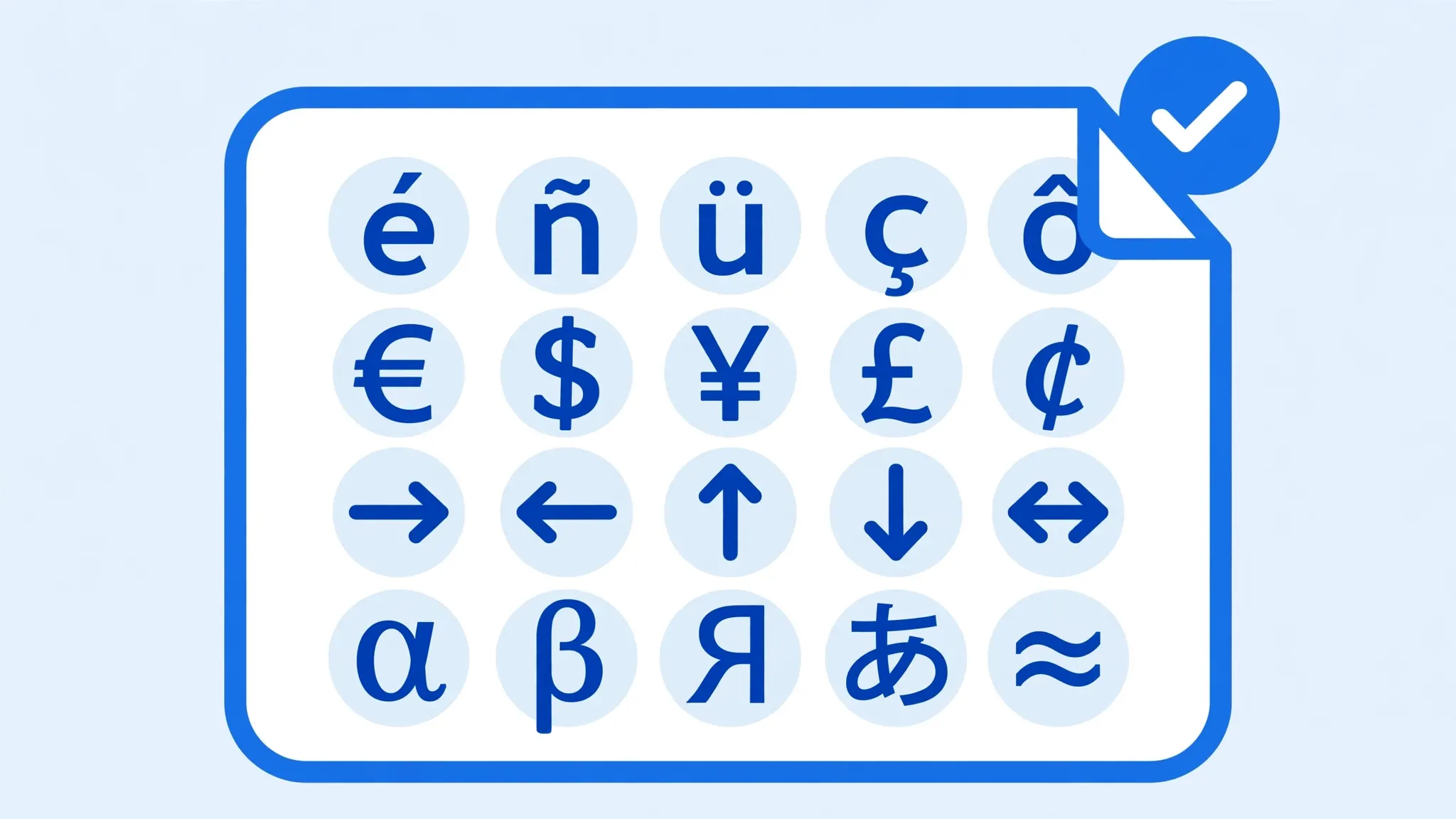
Every text file is just numbers; an encoding maps numbers to characters. ANSI (on Windows, usually Windows-1252) uses one byte per character: 256 possible characters — enough for English plus Western European accents, and nothing else. UTF-8 uses one to four bytes per character: the first 128 characters are identical to basic English ASCII, and everything else — é, €, Devanagari, Arabic, CJK — gets multi-byte sequences. UTF-8 can represent every character in Unicode; ANSI can’t.
Here’s where Excel goes wrong. When you double-click a CSV, Excel must guess the encoding, and on many Windows setups it defaults to the system’s ANSI codepage unless the file carries a BOM hint. A UTF-8 file without a BOM gets decoded as ANSI: the two bytes that mean é in UTF-8 (0xC3 0xA9) get read as two separate ANSI characters (à and ©). That’s your café.
The reverse mismatch happens too: an ANSI file (say, exported from an old accounting system in Windows-1252) opened as UTF-8 can show replacement characters or fail outright. But 95% of real-world cases are UTF-8 files misread as ANSI, because the modern world writes UTF-8 and legacy Excel defaults to ANSI.
CSV Encoding UTF-8 Excel: How Auto-Detection Works
Why does Excel sometimes open a UTF-8 CSV perfectly and garble an identical-looking one? Because its encoding detection is a short checklist, not intelligence. When Excel opens a CSV by double-click, it runs roughly this logic: first, look for a BOM — if the file starts with EF BB BF, decode as UTF-8. Second, check for obvious UTF-8 byte patterns in the first chunk of the file. Third, give up and use the system’s ANSI codepage (Windows-1252 on Western machines).
Step two is where it gets unreliable. UTF-8 detection heuristics work well on files with lots of non-ASCII text but fail on files where only a few cells contain accents — there isn’t enough signal, so Excel falls back to ANSI and those few cells turn to mojibake while the rest looks fine. That’s why a mostly-English customer list with three French names shows exactly three garbled rows: not enough UTF-8 evidence for the heuristic.
Mastering CSV encoding UTF-8 Excel handling really means removing the guesswork: either give Excel the BOM hint (save with BOM), or bypass detection entirely by importing with File Origin 65001. Both approaches in this guide do one of those two things — there’s no third option, because detection-by-guessing is the thing that’s broken.
UTF-8 CSV Encoding in Excel: Issues by File Source
Where the file came from predicts which encoding problem you’ll hit:
Web applications and SaaS exports
Modern web apps export UTF-8 almost universally — usually without BOM. These are the files that garble on double-click but heal instantly with a UTF-8 import. If you regularly pull the same export, save a Power Query with File Origin 65001 and refresh instead of re-importing.
ERP and database dumps
Enterprise systems vary wildly: SAP often emits UTF-8 or UTF-16, older Oracle exports may be in a regional codepage, and some mainframe extracts use EBCDIC-derived encodings that Excel can’t read at all (convert those with a proper ETL tool first). Check with the system owner what encoding the export uses — then match it in File Origin instead of guessing.
Files saved from Excel itself
Excel’s plain “CSV (Comma delimited)” save type writes ANSI — so a colleague’s “clean” CSV is an ANSI file that will garble for anyone expecting UTF-8. If you receive such a file, import it with File Origin 1252 (Western European), not UTF-8. Then re-save correctly as CSV UTF-8 to stop the cycle.
Email attachments and downloads
Email doesn’t change encodings, but download managers and “helpful” middleware sometimes do — a file that was UTF-8 on the server can arrive re-encoded. When a previously-working workflow suddenly garbles, compare the file’s bytes (Notepad’s Save As dialog shows the encoding) against what the source claims to send.
The BOM Explained: CSV UTF-8 BOM in Plain English
BOM stands for Byte Order Mark: three invisible bytes (EF BB BF) placed at the very start of a text file. Despite the grand name, for UTF-8 it’s really just a signature that says “this file is UTF-8.” Programs that understand it use it to pick the right decoder automatically.
Why it matters for Excel: a CSV saved as UTF-8 with BOM will usually open correctly in Excel by double-click, because Excel sees the BOM and decodes as UTF-8. The same file saved as UTF-8 without BOM often opens as mojibake, because Excel falls back to ANSI guessing. So the BOM is the difference between “just works” and “garbled” for double-click openers.
The BOM’s quirks: it’s invisible in most editors but shows as  if an ANSI-decoding program reads the file. A few older systems (some Unix tools, older database loaders) choke on it or treat it as data — if your CSV feeds such a system, save UTF-8 without BOM. For Excel-to-Excel workflows, BOM is your friend.
Practical summary: for files humans open in Excel, save CSV UTF-8 with BOM. For files machines consume, check what the machine expects. Excel 2016+ on Windows offers “CSV UTF-8 (Comma delimited)” as a Save As type — that’s the with-BOM option (see Fix 3).

Fix 1: Import with the Right File Origin (Windows)
The reliable Windows fix: stop double-clicking and import the file, declaring UTF-8 explicitly. This works in every desktop Excel version.
- Open a blank workbook.
- Data → Get Data → Legacy Wizards → From Text (Legacy) and select your CSV. (Or Data → From Text/CSV for the Power Query route — step 3 differs slightly, see below.)
- Step 1 — set File Origin to 65001: Unicode (UTF-8). This is the fix. The preview pane should immediately show
caféinstead ofcafé. If it doesn’t, try 1252: Western European (Windows) — your file might genuinely be ANSI. - Continue the wizard: Delimited → tick your delimiter → set column types (Text for code columns!) → Finish.
With Power Query (Data → From Text/CSV), the same control is the File Origin dropdown in the preview window — change it from the default to 65001: Unicode (UTF-8) and watch the preview heal. Power Query remembers the choice, so recurring reports stay fixed.
How to tell which origin your file needs: if the wizard preview shows correct text at 65001 UTF-8, the file is UTF-8 (the common case). If UTF-8 shows worse mojibake — boxes or lone question marks — the file is probably ANSI/Windows-1252, and 1252 is the right choice. When in doubt, check the file in Notepad: File → Save As shows the current encoding in the dialog.
Fix 2: Mojibake Fixes on Mac
Excel for Mac handles encoding a little differently, and Mac users have an extra ally: the OS itself is UTF-8 native.
Option A: Import in Excel for Mac
Use Data → From Text/CSV (Microsoft 365) — the preview window has a File Origin selector just like Windows. Choose UTF-8. The legacy Text Import Wizard doesn’t exist on Mac, so this is your import path.
Option B: Detour through Numbers or TextEdit
Apple Numbers opens UTF-8 CSVs correctly by default. Open the file in Numbers, then File → Export To → Excel — the resulting .xlsx carries clean Unicode text into Excel. Similarly, opening the CSV in TextEdit (which auto-detects UTF-8) and re-saving won’t change the encoding, but it confirms the file itself is fine.
Option C: Convert with a text editor
For a stubborn file, open it in VS Code or Sublime Text, check the encoding indicator in the status bar, use Save with Encoding → UTF-8 with BOM, and reopen in Excel. The BOM then triggers Excel’s auto-detection on double-click. Our CSV to Excel on Mac guide covers the full Mac workflow.
Fix 3: Save CSV Files Correctly as UTF-8
Fixing incoming files is half the battle — don’t create encoding problems for the next person. When you save a CSV from Excel:
- File → Save As and open the file-type dropdown.
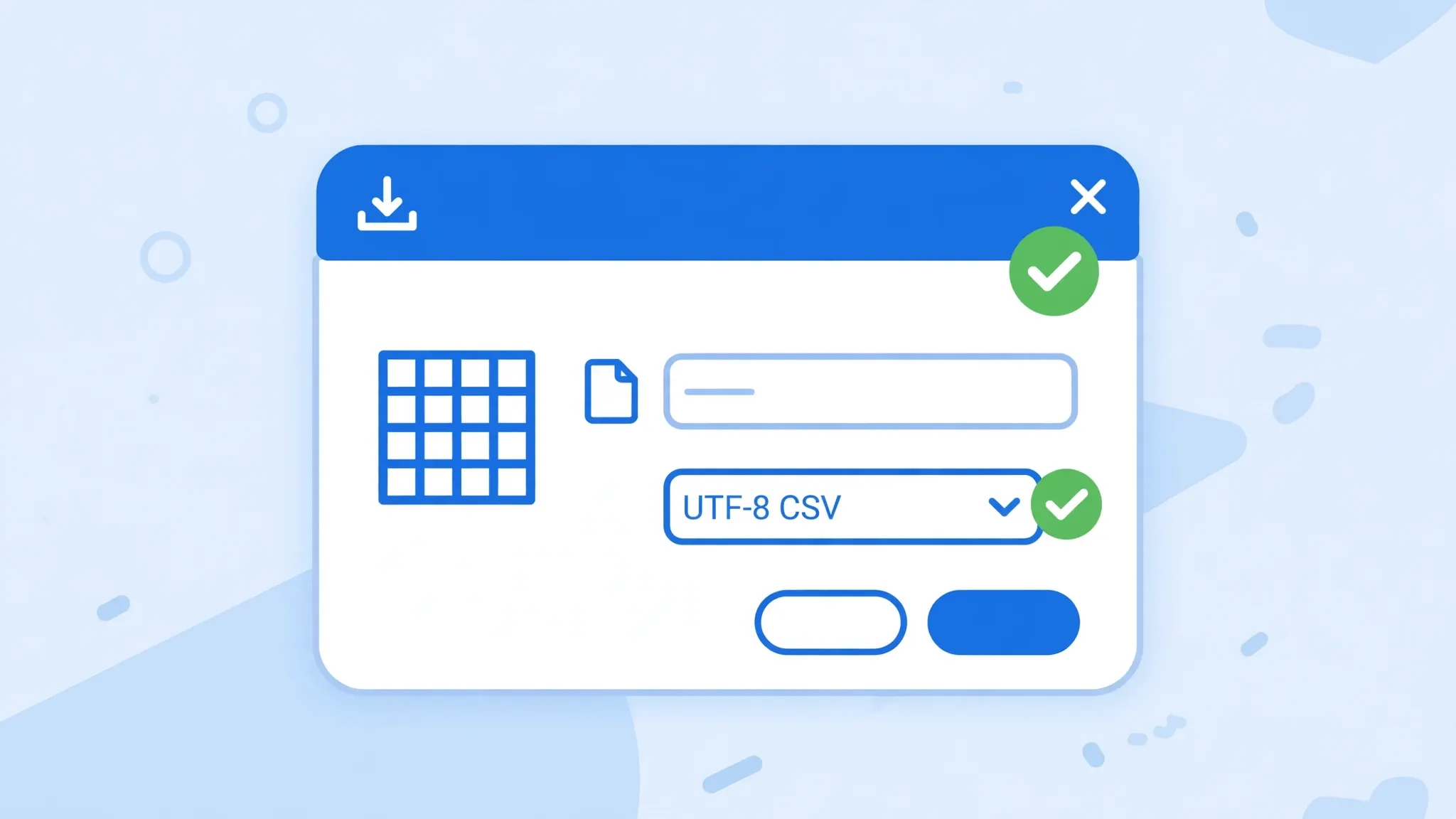
- On Excel 2016+ for Windows, choose CSV UTF-8 (Comma delimited) (*.csv). This writes UTF-8 with BOM — the double-click-friendly option.
- Avoid plain CSV (Comma delimited) for anything beyond basic English — it writes your system’s ANSI encoding, which mangles international text for recipients.
- On Mac Excel, the UTF-8 CSV option exists in recent versions; otherwise export via Numbers or save from a text editor with UTF-8 encoding.
Warning: Excel’s CSV UTF-8 export uses commas regardless of your locale — if your recipients need semicolons (see our semicolon guide), you’ll need to handle the delimiter separately. And remember that saving as CSV discards all formatting — for sharing with Excel users, .xlsx is almost always the better choice.
Multilingual Data: Hindi, Arabic, Chinese, Accents
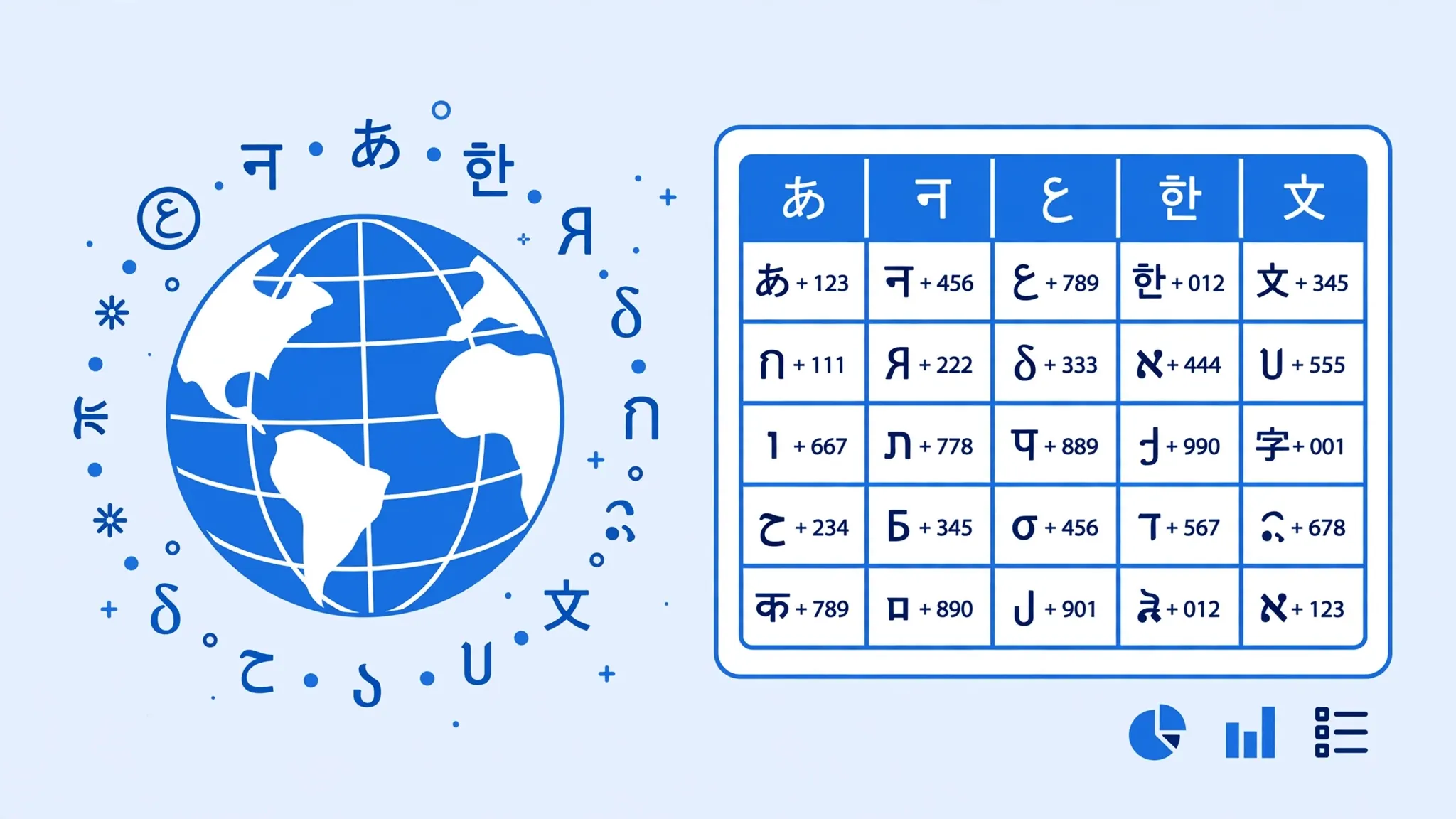
Encoding problems hit hardest outside the Latin script, so here’s the specific playbook:
Hindi and other Indic scripts
Devanagari is fully covered by UTF-8. The mojibake pattern (diamonds/question marks) means the file was decoded as ANSI. Import as UTF-8 and set a font that supports Devanagari (Mangal, Nirmala UI on Windows; most Mac fonts work). If conjunct characters break apart, the font — not the encoding — is the culprit; switch fonts before blaming the file.
Arabic, Hebrew, and right-to-left text
Same UTF-8 import fix, plus one Excel setting: right-to-left languages need the sheet’s display direction set (Page Layout → Sheet Right-to-Left) or the text runs the wrong way even when the characters are correct. Our special characters guide goes deeper.
Chinese, Japanese, Korean
CJK characters are three bytes each in UTF-8 — maximum mojibake when misdecoded. UTF-8 import fixes it; ensure a CJK-capable font (Microsoft YaHei, MS Gothic, Malgun Gothic). Note: files from mainland Chinese systems are sometimes GB2312/GBK encoded — if UTF-8 import still shows garbage, try File Origin 936 (Simplified Chinese).
European accents and the euro sign
French, German, Spanish, Portuguese text with accents plus €/£ signs is the most common mojibake case worldwide. UTF-8 import resolves it; no font changes needed since Western fonts cover these glyphs.
Fix 4: Convert Once, End Encoding Issues
The free CSV to Excel converter decodes your file as UTF-8 (with BOM detection) and writes a native .xlsx workbook. XLSX stores text as Unicode — there is no encoding to guess, no File Origin to set, no mojibake possible. Convert once and the characters are safe forever, on every machine, in every locale. It runs entirely in your browser, so sensitive multilingual data never leaves your computer.
Prevent It Forever
- Standardize on UTF-8 with BOM for every CSV your team produces or receives.
- Save from Excel as “CSV UTF-8” — never plain “CSV” — when international text is involved.
- Share .xlsx instead of .csv with Excel users; it eliminates encoding questions entirely.
- Document the encoding for machine-consumed files (a README note: “UTF-8, no BOM”) so downstream systems decode correctly.
- When receiving files, check Notepad’s Save As dialog to confirm the encoding before troubleshooting anything else.
Wrapping Up
CSV encoding problems in Excel are a decoding mismatch, not data corruption: your file speaks UTF-8 and Excel listened in ANSI. Getting CSV encoding UTF-8 Excel imports right comes down to two moves: import with File Origin set to 65001 (UTF-8), and save outgoing files as CSV UTF-8 with BOM. and convert to .xlsx with our free converter when you want the question closed permanently. Learn the mojibake pattern once — é for é, € for € — and you’ll diagnose encoding issues in seconds for the rest of your career. And if you hit a file that resists every encoding setting here, join the discussion in our community forum with a screenshot of the raw bytes — encoding puzzles are our favorite kind.
Frequently Asked Questions
Why does my CSV show garbled characters in Excel?
The file is saved as UTF-8 but Excel opened it as ANSI (Windows-1252). Multi-byte UTF-8 characters then decode into the wrong symbols — the classic mojibake. Fix it by importing the file and setting File Origin to 65001: Unicode (UTF-8) instead of double-clicking.
What is BOM in a CSV file?
BOM stands for Byte Order Mark: three invisible bytes (EF BB BF) at the very start of a file that signal it is UTF-8 encoded. A UTF-8 BOM helps Excel auto-detect the encoding when you double-click a CSV. It is harmless to data, though a few older systems dislike it — for those, save UTF-8 without BOM.
How do I fix garbled characters in an Excel CSV?
Do not double-click the file. Import it with the Text Import Wizard or Power Query (Data → From Text/CSV) and set File Origin to 65001: Unicode (UTF-8) before loading. The characters will decode correctly. On a Mac, the same File Origin control exists in Power Query’s preview.
How do I save a CSV as UTF-8 with BOM in Excel?
Use File → Save As and choose the type CSV UTF-8 (Comma delimited) (*.csv), available in Excel 2016 and later on Windows. This writes a UTF-8 file with a BOM, so it opens correctly elsewhere. On a Mac, save via Numbers or a text editor like VS Code with UTF-8 encoding.
Why do Hindi or Arabic characters break in my CSV?
Hindi, Arabic, Chinese and other non-Latin scripts are multi-byte in UTF-8. Opened as ANSI, every character becomes mojibake. Import the file as UTF-8 and make sure the font supports the script — then the text renders correctly. See our special characters guide for script-specific tips.
Does converting CSV to XLSX fix encoding problems?
Yes, when done correctly. The XLSX format stores text as Unicode natively, so there is no encoding to guess. Convert the CSV with UTF-8 decoding once — for example with the free converter at csvtoexcel.site/ — and the workbook keeps every character intact forever.