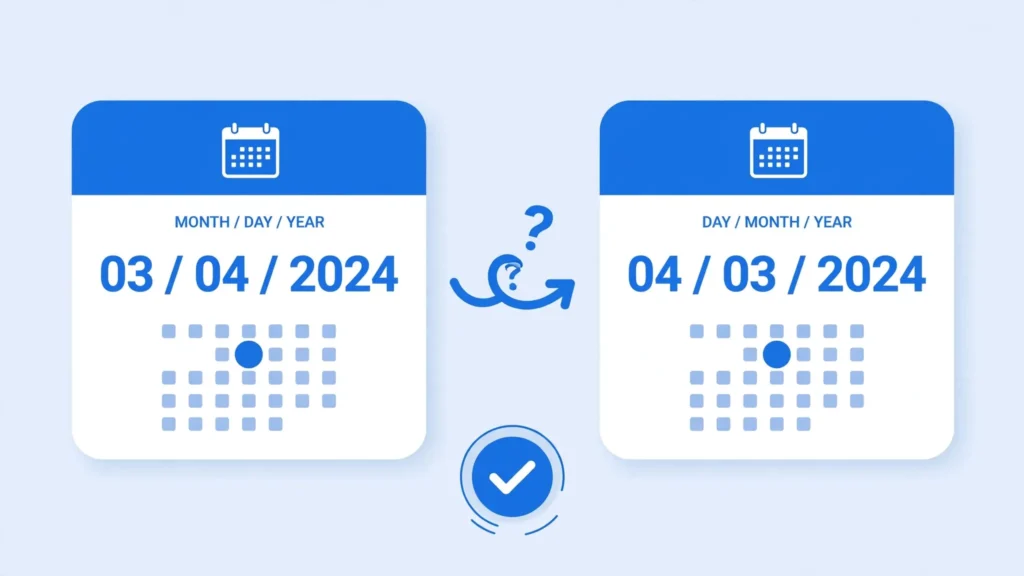
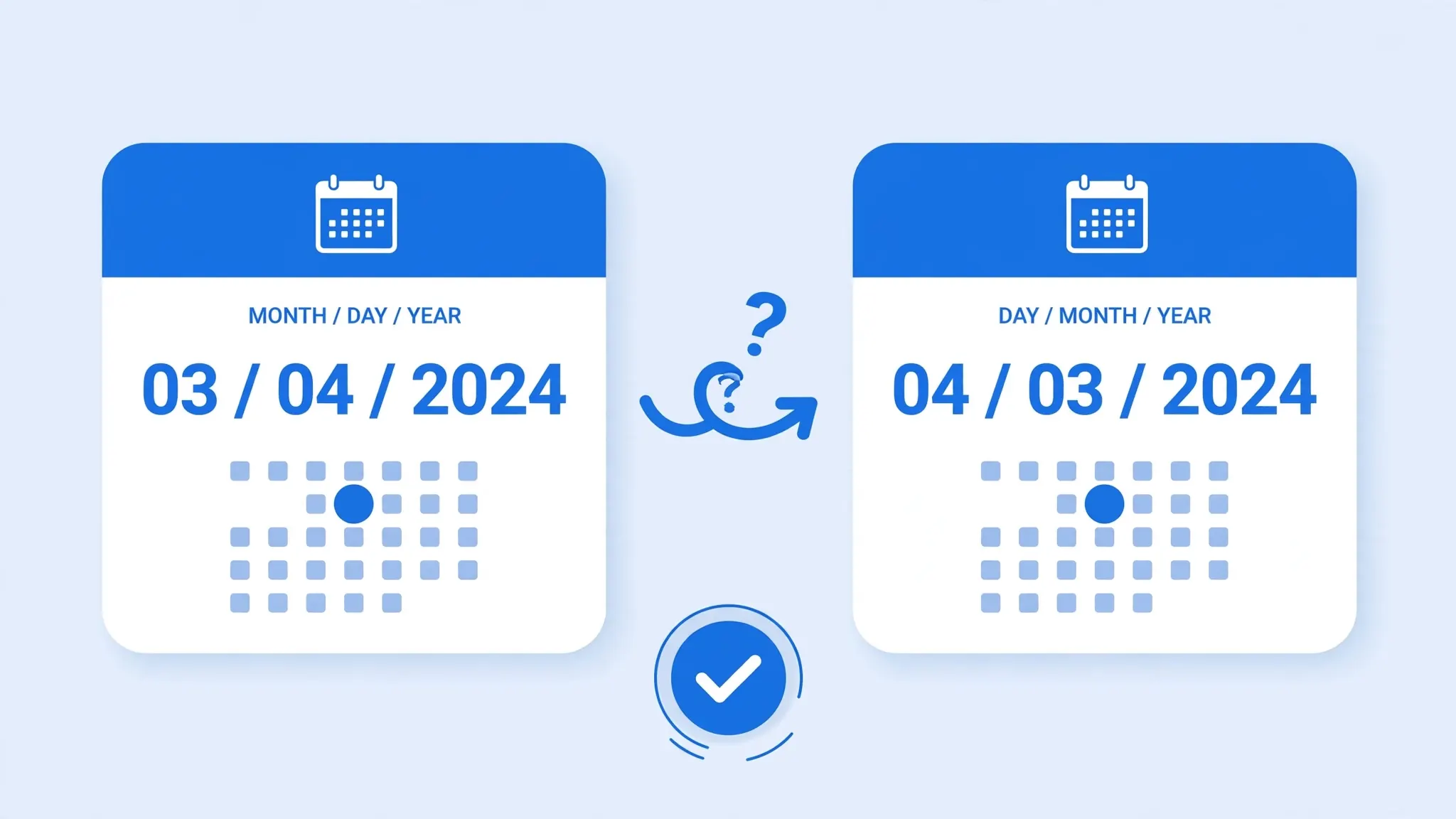
Your CSV says 03/04/2026. You open it in Excel and it’s April 3rd — but the sender meant March 4th. Or worse: half your dates flipped and the other half stayed as text, and now nothing sorts. When Excel changes the date format in a CSV, the file isn’t wrong — Excel reinterpreted it. A CSV stores dates as plain text with no format attached, so Excel parses them using your Windows locale’s date order: month-day-year in the US, day-month-year in the UK, India, Australia, and most of the world. A file written in one order and read in the other silently swaps days and months.
This is the most dangerous CSV problem because it’s silent: unlike garbled characters or one-column layouts, swapped dates look perfectly plausible. In this guide you’ll learn why CSV date format Excel misreads happen, how to spot the ambiguous-date trap, how to diagnose text-vs-real dates, the Text Import Wizard date-column fix, the Power Query locale method, TEXT/DATEVALUE repairs for already-imported files, and how to handle CSV date mm/dd/yyyy vs dd/mm/yyyy across US, UK, and Indian locales.
CSV Date Format Excel: Why Excel Misreads Your Dates
Inside Excel, a real date is a number — the count of days since December 30, 1899 (the infamous date serial). What you see (03/04/2026, 3-Apr-2026, 2026-04-03) is just a display format applied to that number. But a CSV has no numbers-with-formats — it has text. So on import, Excel must convert text to date serials, and to do that it has to decide which number is the month.
That decision comes from your Windows Region settings. On a US machine, 03/04/2026 parses as March 4, 2026 (MDY). On a UK, Indian, or Australian machine, the identical text parses as 3 April 2026 (DMY). Neither is “wrong” locally — but when a London analyst sends a CSV to a New York colleague, every ambiguous date flips. Dates like 25/12/2026 can’t flip (there’s no 25th month), so Excel leaves them as text — producing the classic mixed column: some real dates (wrong), some text (unparsed).
The CSV date format Excel problem is therefore really two problems: swapped dates (silently wrong) and unparsed dates (visibly text). The fixes below handle both, but the swapped ones are why you should never trust a date column you haven’t verified.
The Ambiguous-Date Trap: 03/04/2026
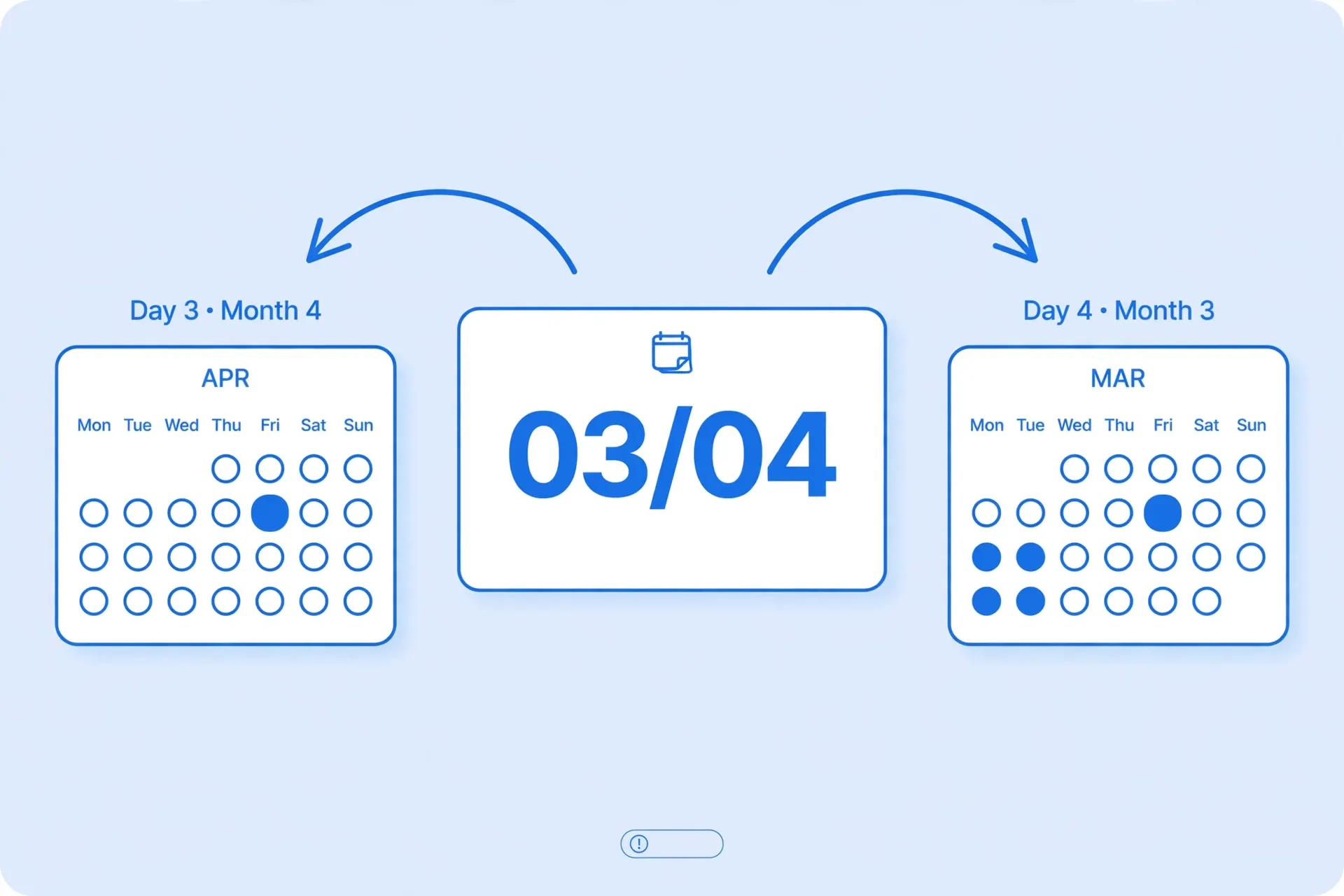
Any date where the day is 12 or less is ambiguous: 03/04/2026, 07/08/2025, 01/02/2026. Excel resolves the ambiguity using your locale and moves on — no warning, no flag. In financial data this is catastrophic: an invoice dated March 4th booked as April 3rd shifts revenue between months; an expiry of 05/06 becomes June 5th instead of May 6th.
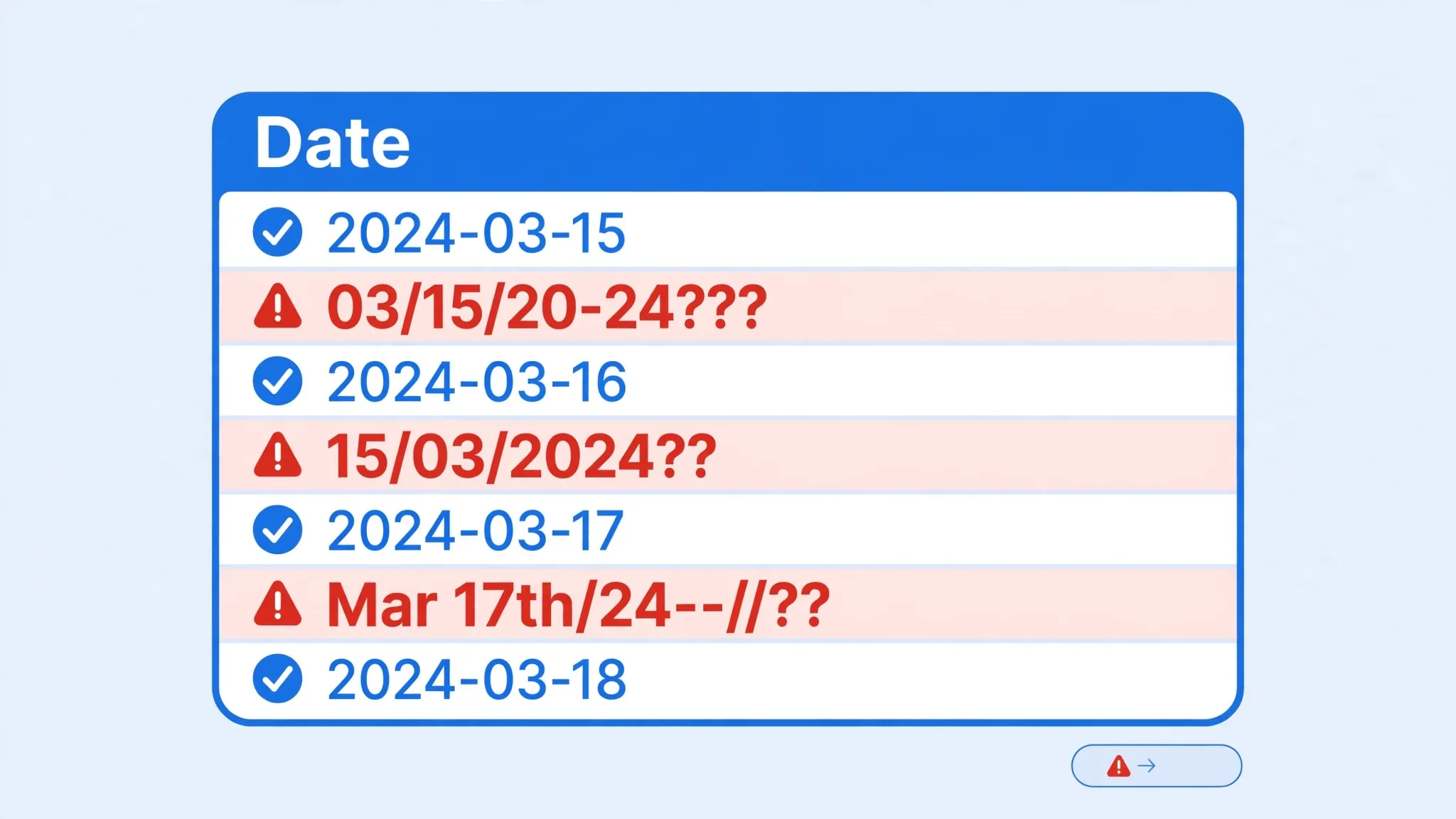
How to spot past damage: sort the date column. If March dates appear where April should be, or a pivot table shows activity in months that make no business sense, suspect a locale flip. Another tell: the file’s unambiguous dates (day > 12) stayed as left-aligned text while ambiguous ones became right-aligned dates — a mixed column is the fingerprint of a locale misread.
Diagnose: Text Dates vs Real Dates
Before fixing, determine what you’re dealing with. Click a date cell and check:
- Alignment: real dates right-align by default; text dates left-align. (Unless someone formatted otherwise — so confirm with the next tests.)
- Formula bar: a real date shows in the formula bar in your system format regardless of the cell’s display format. Text shows exactly as typed.
- =ISTEXT(A2): TRUE means text — needs conversion. FALSE with =ISNUMBER(A2) TRUE means a real date serial.
- Sorting: select the column and sort A→Z. Real dates sort chronologically; text dates sort alphabetically (all the
01/..together, then02/..). - Filter dropdown: real dates offer a hierarchical date tree (Year → Month → Day); text dates offer a flat checkbox list of strings.
If the column is text, you need conversion (Fix 3). If it’s real dates but wrong dates (swapped), you need re-import with the right order (Fix 1) — no formula can reliably un-swap ambiguous dates, because the information about which was intended is gone. This quick CSV date format Excel diagnosis takes under a minute and tells you exactly which fix to apply.
Fix 1: Text Import Wizard Date Column Types
The correct fix at import time: tell Excel the file’s date order before it parses anything.
- Open a blank workbook — don’t double-click the CSV.
- Data → Get Data → Legacy Wizards → From Text (Legacy), select the file.
- Steps 1–2: Delimited → tick your delimiter → Next.
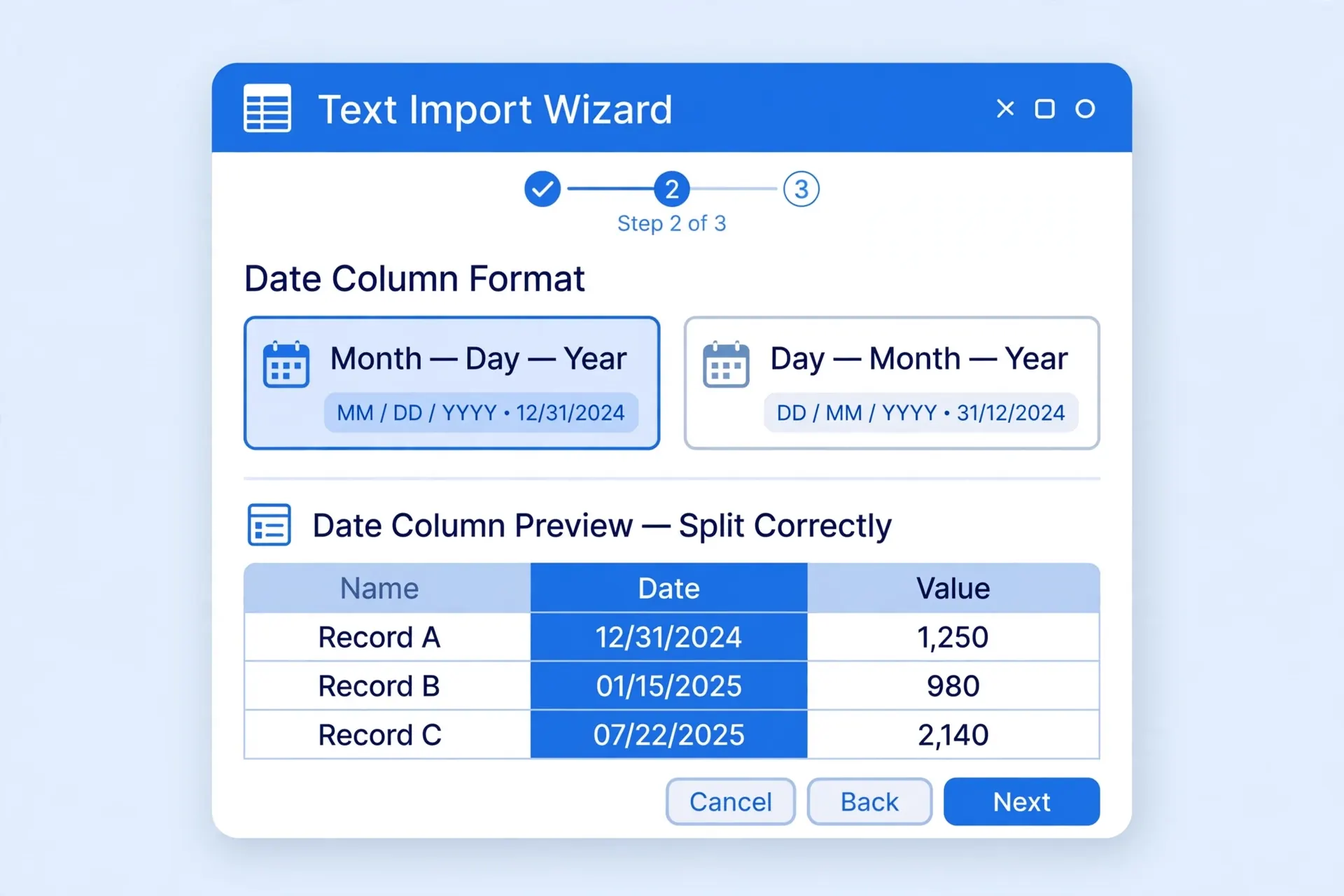
- Step 3 — the key step: click the date column’s header in the preview, then under Column data format choose Date and pick the order matching the file: DMY for UK/Indian/European files, MDY for US files, YMD for ISO files. Repeat for every date column.
- Finish → OK. Every date parses in the file’s order, regardless of your Windows locale.
This is the single most reliable CSV date format Excel fix because it removes locale guessing entirely. The dates arrive as true serials, so sorting, filtering, and date math all work immediately.
Fix 2: Power Query Locale Date Type
For Excel 2016+ and recurring reports, Power Query’s locale-aware typing is the cleanest method:
- Data → From Text/CSV, select the file.
- Click Transform Data to open the Power Query Editor.
- Select the date column → Transform → Data Type → Date → Using Locale.
- In the dialog, choose Date and set the locale to match the file’s origin — e.g., English (United Kingdom) for DMY files, English (United States) for MDY files.
- Home → Close & Load.
Power Query shows conversion errors explicitly — any value that doesn’t parse under the chosen locale gets flagged, so you see exactly which rows are problematic instead of discovering them months later. The locale choice is saved with the query, making this the best option for monthly reports. See our Power Query CSV guide for the full workflow.
Fix 3: TEXT, DATEVALUE, and Text to Columns Repairs
When the file is already imported and the dates sit as text, convert them in place:
DATEVALUE for consistent text dates
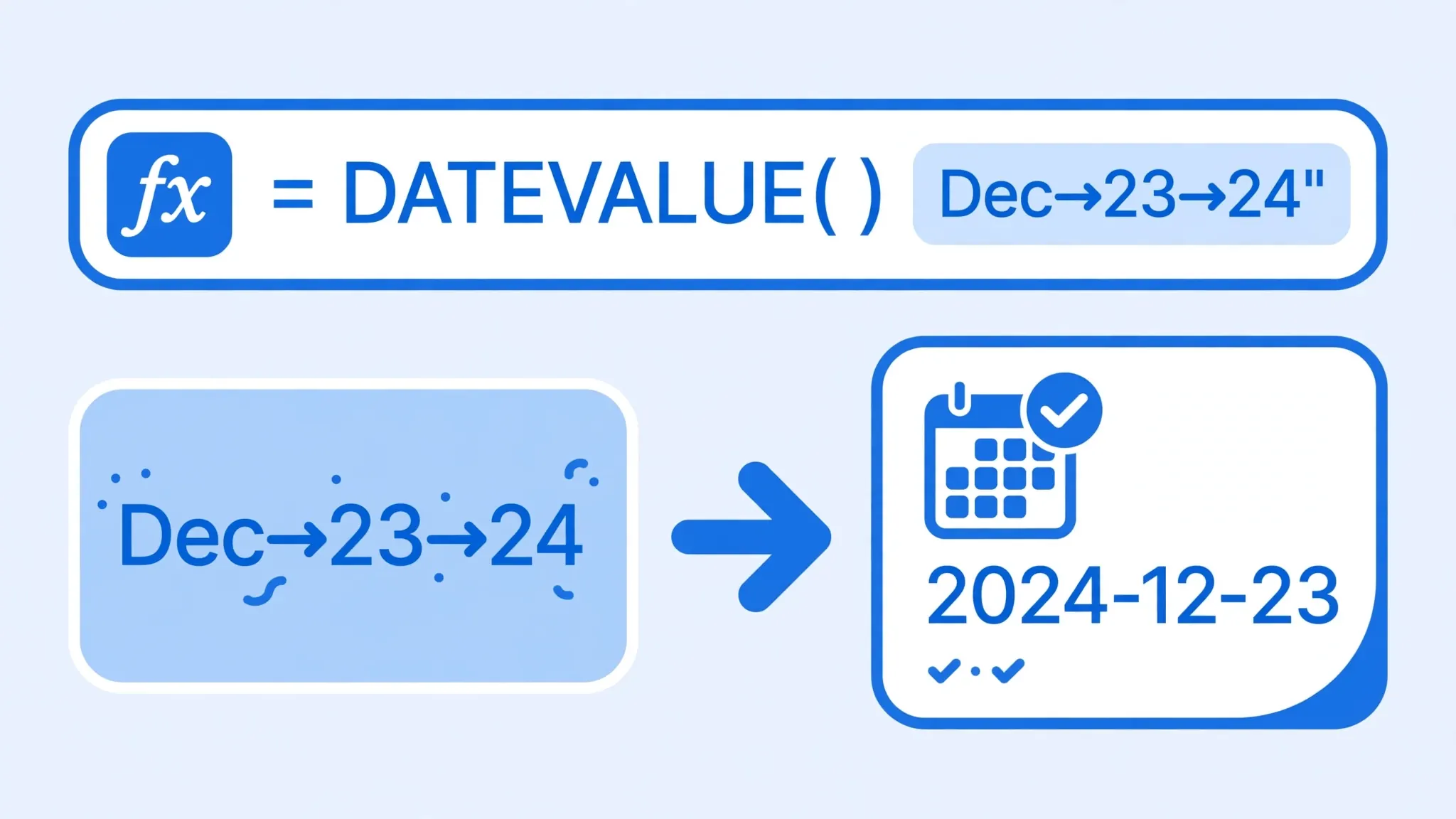
If the text dates are in a consistent order your locale understands, =DATEVALUE(A2) converts text to a real serial. Format the result column as a date. For DMY text on a US machine, DATEVALUE misreads — so first normalize with a formula. For dd/mm/yyyy text in A2: =DATE(RIGHT(A2,4),MID(A2,4,2),LEFT(A2,2)) rebuilds the date explicitly, immune to locale.
Text to Columns with date type
Select the text-date column → Data → Text to Columns → Delimited → Next → untick all delimiters → Next → choose Date with DMY/MDY matching the text → Finish. This converts the whole column in place — fast and reliable.
TEXT function for display control
Once you have real dates, the TEXT function controls how they look: =TEXT(A2,"dd/mm/yyyy") forces day-first display regardless of locale. Note TEXT returns text — great for labels and exports, but don’t use TEXT results in further date math; keep a real-date column for calculations and a TEXT column for display.
Fix 4: Repairing Mixed Correct/Wrong Dates
The nastiest case: a column where ambiguous dates got swapped (now wrong real dates) and unambiguous dates stayed text. You can’t fix this with one formula because the swapped dates are indistinguishable from legitimately-correct ones. The honest repair:
- Go back to the source CSV — you need the original text. (If you don’t have it, the unambiguous rows at least tell you the file’s order.)
- Re-import with Fix 1, setting the date column to Date with the file’s order. This is the only fully reliable repair.
- If re-import is impossible, triage: convert the text rows with Text to Columns (Date, file’s order), and for the already-swapped date rows, swap day and month back with
=DATE(YEAR(A2),DAY(A2),MONTH(A2))— but only apply it to rows you can verify were ambiguous (day ≤ 12 in the stored value).
Sorting and Filtering Dates Correctly
Once dates are real serials, everything works: sort A→Z goes chronological, filters show the Year→Month→Day tree, and pivot tables group by month automatically. If sorting still misbehaves after your fix, some cells are still text — select the column, check for left-aligned stragglers, and run Text to Columns on just those. A quick verification: =COUNT(A:A) counts real dates (numbers); =COUNTA(A:A)-COUNT(A:A) counts the text stragglers. Zero stragglers means a clean column.
US vs UK vs India: Date Formats by Locale
The geography of date order, and what it means for your imports:
- United States (MDY):
03/04/2026= March 4. Files from US systems (QuickBooks, US bank exports) are MDY. If you’re outside the US importing them, set the wizard to Date: MDY. - UK, India, Australia, most of Europe (DMY):
03/04/2026= 3 April. Tally, Indian bank statements, and UK government data are DMY. US importers must set Date: DMY. - ISO 8601 (YMD):
2026-04-03— unambiguous and locale-proof. If you control the export, this is the format to choose; Excel parses it correctly everywhere. - The US↔India corridor deserves special care: both countries trade enormous CSV volumes, and their orders are opposite. When in doubt, ask the sender which order the file uses — one question prevents a month of wrong reports.
Timestamps in CSV: Date + Time Complications
Many CSVs carry datetimes like 2026-04-03 14:30:00 or 03/04/2026 2:30 PM — and they add two extra failure modes. First, the date half can misread by locale exactly as described above, while the time half usually parses fine, producing a correct time on the wrong day. Second, ISO-style timestamps with a T separator (2026-04-03T14:30:00) or timezone offsets (+05:30) often import as pure text because Excel doesn’t recognize the format.
The fixes: for T-separated stamps, a quick find-and-replace of T with a space (in a text editor, before import) makes them parseable. For timezone offsets, strip the offset during import — Excel has no timezone concept, so decide which zone the times represent and document it. In Power Query, the Date/Time/Timezone type can parse offsets properly before you convert to local time. And when splitting date from time matters, =INT(A2) extracts the date part and =MOD(A2,1) the time part from a real datetime serial.
Excel Date System Gotchas: 1900 vs 1904
Here’s a subtle one: Excel has two date systems. Windows Excel counts from December 30, 1899 (the 1900 system); Mac Excel historically counted from January 1, 1904 (the 1904 system). A workbook created on an old Mac opened on Windows shows every date shifted by 1,462 days — about four years. Modern Excel for Mac defaults to 1900, but files converted from old Mac workbooks or Apple Numbers can still carry the 1904 flag.
Symptoms: every date in the file is wrong by exactly four years and one day. Fix: File → Options → Advanced → When calculating this workbook → uncheck “Use 1904 date system” (Windows) — the dates snap back. Check this setting whenever a CSV-turned-workbook shows systematically offset dates, especially in cross-platform teams.
Two-Digit Years and the 2029/1930 Windowing
CSVs with two-digit years (03/04/26) trigger Excel’s century windowing: years 00–29 become 2000–2029, years 30–99 become 1930–1999. So 15/06/35 becomes 1935, not 2035 — a nasty surprise for expiry dates and long-range forecasts. The rule is fixed and undocumented in most training, so the defense is simple: expand to four-digit years at the source if you can, and eyeball the century on every two-digit-year import. A quick check column — =YEAR(A2) — reveals any date that landed in the wrong century instantly.
Quick Reference: Which Date Fix Do I Need?
- File not opened yet → import with the Text Import Wizard (Fix 1) or Power Query (Fix 2), declaring the file’s date order. Best option, always.
- Dates are text, order is consistent → Text to Columns with Date type (Fix 3). Two minutes.
- Dates are text, order is mixed/unknown → examine the unambiguous rows (day > 12) to determine the file’s order, then Text to Columns.
- Dates are real but swapped → re-import from the source CSV (Fix 4). Formulas can’t reliably un-swap.
- Dates look right but won’t sort → stragglers are text; convert the leftovers.
- Same report every month → Power Query with locale date type, then Refresh forever.
- Just need it done now → convert with the free converter (Fix 5).
Fix 5: Convert Once with Dates Parsed
The free CSV to Excel converter parses date columns into real Excel dates during conversion, so the resulting .xlsx carries true serials — no locale reinterpretation on later opens, no text stragglers. For one-off files where the wizard feels like overkill, it’s the fastest path to a clean date column.
Prevent It Forever
- Export in ISO 8601 (yyyy-mm-dd) whenever you control the source — unambiguous everywhere.
- Always import; never double-click date-heavy CSVs, and set the date order explicitly.
- Document the file’s date order in the filename or a README (
sales_DMY.csv). - Verify after import: sort the column and eyeball the first and last rows against known values.
- Share .xlsx, not .csv, once dates are parsed — serials can’t be reinterpreted.
Wrapping Up
CSV date format problems in Excel are locale misreads: text dates parsed in the wrong day/month order, silently. The definitive fix is declaring the file’s date order at import — Text Import Wizard step 3 or Power Query’s locale date type. For already-imported files, DATEVALUE and Text to Columns convert text to real serials, and the TEXT function controls display. Verify with sorting, share as .xlsx, prefer ISO dates at the source, and double-check every import. If you’re untangling a particularly gnarly date column — mixed locales, timestamps, fiscal calendars — join the discussion in our community forum with a sample of the raw text; date puzzles get solved fast there.
Frequently Asked Questions
Why does Excel change the date format in CSV files?
A CSV stores dates as plain text with no format information. When Excel imports them, it parses the text using your Windows locale’s date order — MDY in the US, DMY in the UK, India, and most of the world. This CSV date format Excel behavior means a file written in one order and read in the other gets its days and months swapped.
How do I fix mm/dd/yyyy vs dd/mm/yyyy confusion in CSV?
Import the file with the Text Import Wizard and, on step 3, set the date column to Date with the order matching the file (DMY or MDY). Excel then parses every date correctly regardless of your system locale. For accountants juggling multi-region files, our accountants’ guide has more locale tips.
How do I convert text dates to real dates in Excel?
Use =DATEVALUE(A2) on the text, or select the column and run Data → Text to Columns, choosing Date with the right order on step 3. In Power Query, set the column type to Date using the file’s locale — see our Power Query guide.
Why won’t my CSV dates sort correctly?
Because they are text strings, not real date values — Excel sorts text alphabetically, so 03/04/2026 lands near 03/11/2025. Convert the column to true dates first (Fix 3), then sorting works chronologically.
How do I display dates as dd/mm/yyyy in Excel?
Select the date cells, press Ctrl+1, choose Custom, and type dd/mm/yyyy. This changes only the display format — the underlying date value stays the same, which is exactly what you want. Display and storage are separate things in Excel.
Does converting CSV to XLSX preserve dates?
Yes, once the dates are parsed correctly. XLSX stores real date serial numbers, so the dates survive every future open, sort, and share without reinterpretation. The free converter at csvtoexcel.site/ parses dates during conversion.