
Every morning, a fresh CSV lands in your inbox — yesterday’s orders, last night’s signups, the latest sensor readings — and it needs to join the master workbook where all the previous days already live. Knowing how to append CSV data to existing Excel file workbooks without nuking what’s there is one of the most practical Excel skills there is, and it’s also one of the easiest to get subtly wrong: a pasted header row in the middle of your data, a column order that drifted, a duplicate batch that doubled your revenue numbers. The mechanics take a minute to learn; the discipline around them is what this guide is really about.
Below you’ll find three reliable methods to add CSV rows to an existing XLSX — the careful manual paste, the refreshable Power Query append, and the Python script that does it while you sleep — plus the essential defenses against the three things that corrupt appended datasets: stray headers, duplicates, and schema drift. Whether your drops arrive daily from a Shopify store in the US, a bank feed in the UK, or a logistics system in India, you’ll have a workflow that absorbs them cleanly.

The core problem: why appending CSVs goes wrong
Appending sounds trivial — new rows go under old rows — until you consider what can differ between the incoming CSV and the waiting workbook. The destination has formatting, formulas, maybe an Excel Table with a Total Row; the CSV has none of that, just raw values in whatever order the source system felt like today. Every append is a small data-integration project, and the failures are always the same three: the header row gets pasted as data, the column order doesn’t match, or yesterday’s rows get appended twice.
The single most important habit: never append into your only copy. Keep a versioned master — master_2026-10-08.xlsx before the append, or better, a proper backup routine — because a bad append is easy to prevent and annoying to undo. Excel’s Undo (Ctrl+Z) covers you within a session, but a Python script that ran at 3 AM won’t. Professionals treat the master workbook like a database table: append-only, backed up, and never hand-edited in the middle.
Second habit: make the destination an Excel Table (Ctrl+T) before you start appending regularly. Tables auto-expand to swallow new rows, carry formulas and formatting down automatically, and give every append a clean, visible boundary — the new rows land inside the Table’s banded region, so a glance confirms success. Our Table format guide covers the setup; for append workflows, the Table is close to mandatory.
Method 1: Copy-paste append — the manual way, done right
For occasional appends, the manual method is perfectly fine — if you follow the checklist instead of winging it.
- Open the master workbook and the new CSV side by side.
- Compare the column headers and order between the CSV’s first row and the master’s header row. If they differ, rearrange the CSV columns to match (cut/insert entire columns) before copying anything.
- In the CSV, select all data rows only — click row 2’s number, then Ctrl+Shift+End to extend to the last row. Do not include row 1 (headers).
- Copy (Ctrl+C). In the master, click the first empty row below the data (or the first empty row of the Table — the Table will expand).
- Paste with Ctrl+V for values+formatting, or Paste Special › Values (Alt+H,V,V) to bring only values and let the Table’s formatting rule.
- Spot-check: row count increased by the expected amount, no header text mid-data, dates and numbers look right.
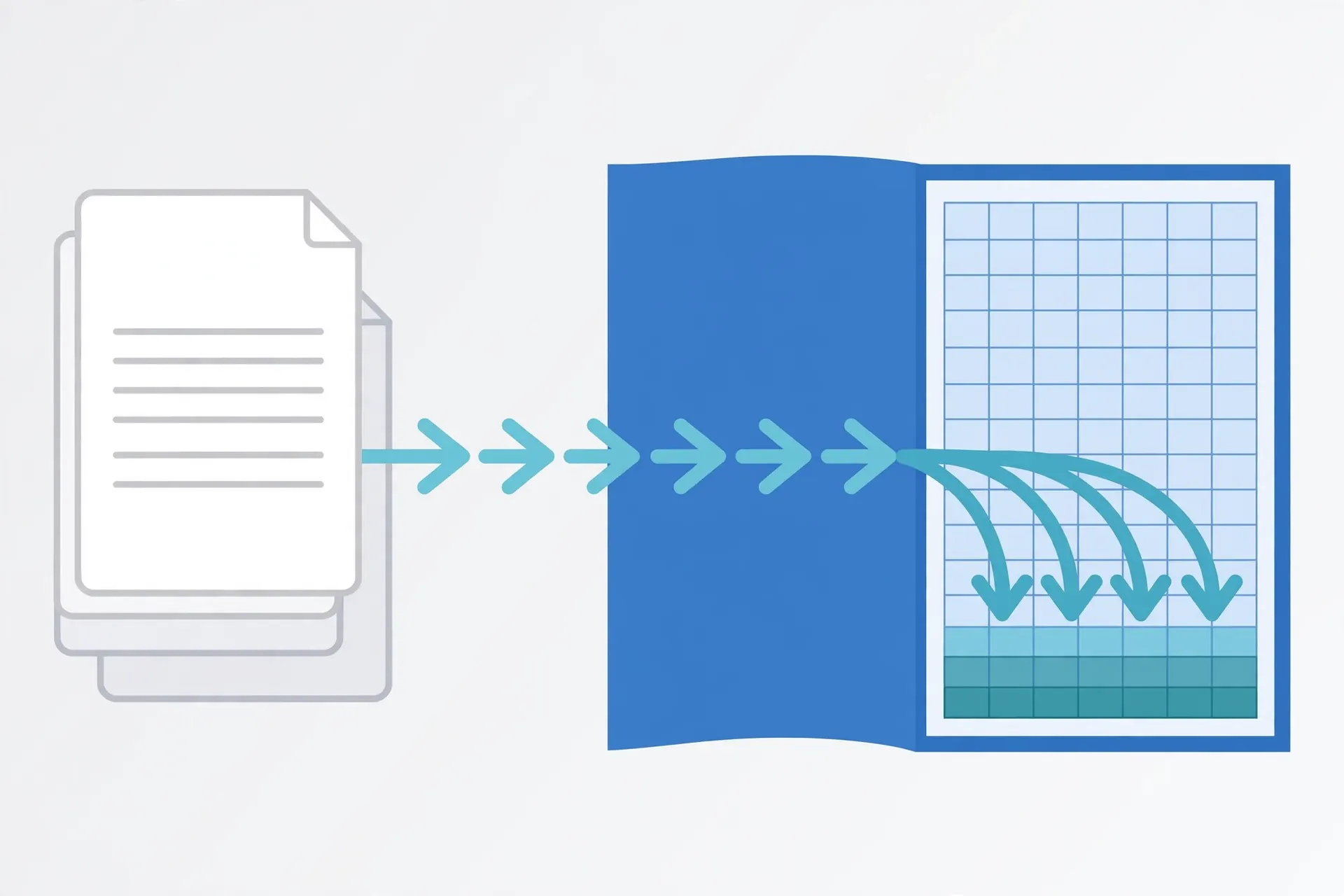
The Paste Special › Values choice deserves emphasis: pasting full formatting from a CSV (which has none) is harmless, but pasting from another workbook can carry number formats that fight your Table’s. Values-only keeps the destination’s formatting authoritative. And the spot-check isn’t paranoia — it’s the cheapest data-quality gate in existence. Thirty seconds of scrolling the seam where old meets new catches the header-row paste, the shifted column, the duplicated batch before they fossilize into your numbers.
Method 2: Import CSV into an existing Excel sheet with Power Query
When the same-shaped CSV arrives repeatedly, stop pasting and build a query. Power Query turns “append this file” into a refreshable operation: you define the append logic once, and every new drop is a single click.
- In your master workbook, go to Data › Get Data › From Text/CSV and select the new CSV.
- Click Transform Data. In the Power Query Editor, remove the header-promotion issues: ensure the first row is headers, set each column’s data type (dates as Date, IDs as Text), and remove any junk rows.
- If your master data also lives in a query/table, use Home › Append Queries to stack the new CSV under the existing data. If the master is a plain Table, you can instead Close & Load To › Existing worksheet at the first empty row — but the Append Queries route is cleaner for repeats.
- Close & Load. The combined data lands as a Table.
- Next time: drop the new CSV over the old file (same name, same folder), right-click the Table › Refresh. Done.

Two Power Query append superpowers worth knowing. First, From Folder: instead of pointing at one CSV, point the query at a folder — every CSV in it gets combined automatically, so “append” becomes “drop the file in the folder and refresh.” Second, the query records every transformation step, which means column-order changes and type fixes apply identically to every future file. For teams in the US, UK, Canada, and Australia processing daily operational exports, the folder-based append query is the closest thing to a free ETL pipeline Excel offers.
Method 3: Append CSV to Excel workbook with Python
For scheduled or large-scale appends, Python with openpyxl is the workhorse: it opens the existing workbook, finds the end of the data, and writes the new rows beneath — no Excel installation required, which means it runs on servers and in CI pipelines.

import csv
from openpyxl import load_workbook

wb = load_workbook("master.xlsx")
ws = wb["Data"]  # the sheet holding your running dataset

seen = {row[0] for row in ws.iter_rows(min_row=2, values_only=True)}  # existing IDs

added = 0
with open("daily_drop.csv", newline="", encoding="utf-8") as f:
    reader = csv.reader(f)
    header = next(reader)  # skip the CSV header row — destination has its own
    id_idx = header.index("order_id")
    for row in reader:
        if row[id_idx] not in seen:   # duplicate guard
            ws.append(row)
            seen.add(row[id_idx])
            added += 1

wb.save("master.xlsx")
print(f"Appended {added} new rows.")
What’s doing the heavy lifting here: ws.append() always writes after the last used row, so you never compute the insertion point yourself. The seen set gives you idempotent appends — run the script twice on the same CSV and the second run adds zero rows, which is exactly the safety net scheduled jobs need. Adjust min_row, the key column, and the sheet name to your layout; for very large masters (100k+ rows), building the seen set takes a few seconds but saves you from the far worse fate of silent duplicates.
This script is also the natural core of a scheduled Task Scheduler job: save it, point a daily trigger at it, and the master absorbs each morning’s drop before you’ve had coffee. And if you’re building this into a product rather than a script, the same logic ports directly to a CSV to Excel API endpoint.
Headers, duplicates, and schema drift: the three append killers
Every corrupted append dataset in history was killed by one of these three. Here’s how each strikes and how to defend.
1. The stray header row
Symptom: the text “order_id, customer, total” appears as a data row in the middle of your numbers; SUMs break or silently exclude text. Cause: the CSV’s header row got pasted with the data. Defense: the Method 1 checklist (select from row 2), the Python script’s next(reader) skip, and a post-append filter for rows where the ID column equals the header text — a one-line canary that catches it instantly.
2. Duplicates from re-processed drops
Symptom: revenue doubles overnight; row counts jump by exactly one batch. Cause: the same CSV appended twice — a re-sent email, a re-run script, a refreshed query over an un-replaced file. Defense: unique-key dedup (the seen set in Python, Remove Duplicates in Power Query), plus a “last processed” log — even a text file noting which CSV filenames were consumed. Idempotent append logic means re-runs are harmless by construction.
3. Schema drift
Symptom: a new column appears mid-dataset, or columns silently reorder — “total” values land in the “quantity” column. Cause: the source system changed its export format (it happens more than vendors admit). Defense: validate headers before appending — in Python, compare the CSV’s header row against the expected list and abort loudly on mismatch; in Power Query, the append step will surface new columns explicitly rather than misaligning. Never silently coerce a mismatched schema; fail fast and fix the mapping deliberately.

How to append CSV data to an existing Excel file daily: the scheduled method
Once the append logic is solid, the last step is removing yourself from the loop. The pattern: the source system (or a download script) places each day’s CSV in a watched folder with a predictable name — drop_2026-10-08.csv — and a scheduled job appends it to the master.
On Windows, that’s Task Scheduler running your Python script each morning (our scheduling guide walks through the exact trigger setup). The script should: pick up the newest unprocessed CSV, validate headers, append with dedup, move the processed file to an archive subfolder, and write a one-line log entry. The archive-and-log discipline is what makes the system debuggable — when October’s numbers look odd in December, you can trace exactly which file contributed which rows.
A lighter-weight alternative for Excel-centric teams: the Power Query From Folder append with Refresh on open (Data › Queries & Connections › right-click query › Properties › Refresh on open). Drop the CSV in the folder, open the workbook, and the append happens during load. No scheduler, no script — just a folder convention the whole team follows.

Append vs merge vs consolidate: picking the right pattern
People say “append” for three different operations, and using the wrong one corrupts data quietly. Appending stacks rows: same columns, new records underneath — the daily-drop pattern this guide covers. Merging joins columns: matching rows from two sources side by side on a key (orders + customer details on customer_id) — that’s a lookup/VLOOKUP/XLOOKUP or Power Query Merge operation, not an append. Consolidating combines multiple same-shaped files into one dataset in a single operation — technically a multi-file append, usually via Power Query’s From Folder.
The confusion bites when someone “appends” a file that actually needed merging: pasting customer-detail columns as new rows creates garbage rows instead of enriched ones. Before any append, ask the one diagnostic question: does the new file have the same columns as the master? Yes → append (stack rows). No, but it shares a key column → merge (join columns). Several same-shaped files at once → consolidate via From Folder, then treat the result as one append. Getting this taxonomy right is the difference between a dataset that grows cleanly for years and one that needs forensic surgery every quarter.
Troubleshooting CSV appends
New rows landed in the wrong columns. Column order mismatch between CSV and master. Reorder the CSV columns to match before appending; add a header-validation step so it fails loudly next time.
Dates turned into numbers (or vice versa) at the seam. The new rows imported with different type inference than the old. In Power Query, set explicit column types; in Python, parse dates with datetime.strptime before writing.
Formulas didn’t extend to new rows. The destination isn’t an Excel Table, or rows were pasted below a blank row. Convert to a Table (Ctrl+T) and paste into the row directly beneath it.
openpyxl says the workbook is corrupted after append. Usually the file was open in Excel during the script run — Excel locks workbooks. Close it before running, or copy to a temp file, append, and swap.
Duplicates after a Power Query refresh. The source file wasn’t replaced — the query re-appended the same CSV. Use the From Folder pattern with an archive step, or add Remove Duplicates on the key column.
Append is extremely slow. ws.append() in a loop over 100k+ rows is fine; what’s slow is usually per-row styling or formula recalculation. Append values only, save, and let Excel calculate on open.
The master has grown past 1,048,576 rows. Excel’s hard row ceiling applies to every format — XLSX, XLSM, and XLSB alike. When the running dataset approaches the limit, it’s time to archive: move older years to a separate archive workbook (or a database), keep the rolling window in the master, and document the split so reports know where history lives. Appending forever into one file was never the plan; plan the archive before the ceiling forces it.
Someone edited the middle of the master. Hand-edits inside an append-only dataset — a corrected value here, a deleted row there — silently break the “source of truth” contract and make future dedup unreliable. Lock it down: protect the data sheets (Review › Protect Sheet), keep a changelog tab for corrections, and make the rule explicit that the master is written only by the append process.
Frequently Asked Questions
How do I add CSV data to an existing Excel file without deleting old data?
Open both files, copy the CSV rows excluding its header row, then paste into the first empty row below your existing data. Better: use Power Query (Data > Get Data > From Text/CSV) to create a refreshable append, or a Python script with openpyxl that finds the last used row and writes new rows beneath it.
Can Power Query append a CSV to an existing table automatically?
Yes. Import the CSV with Power Query, then use Home > Append Queries to combine it with your existing table. When a new CSV arrives, replace the source file and click Refresh — Power Query re-runs the append with the fresh data.
How do I append CSV rows with Python and openpyxl?
Load the workbook with openpyxl, read the CSV with Python’s csv module, skip its header row, and ws.append() each data row — openpyxl writes after the last used row automatically. Save the workbook and the new rows land below the existing data.
Should I keep the CSV header row when appending?
No — skip it. The destination sheet already has headers, so pasting the CSV’s header row would insert a bogus data row mid-table. Always append data rows only, and verify the column order matches before pasting.
How do I avoid duplicate rows when appending daily CSVs?
Add a unique key (order ID, timestamp+ID) and check new rows against existing keys before appending — in Power Query with a Merge/anti-join, or in Python with a set of seen keys. Alternatively, have the source system export only new rows since the last run.
Can I schedule automatic CSV appends every day?
Yes. Save your Python append script and run it via Windows Task Scheduler on a daily trigger, or set up a Power Query refresh on file open. The workbook then absorbs each day’s CSV drop with no manual work.