
Learning how to add filter to CSV data in Excel is the moment a raw data dump becomes an actual working tool. You open the export — ten thousand rows of orders, transactions, or signups — and without filters it’s just a wall of text you scroll through hoping to spot something. Add AutoFilter, and suddenly every column header grows a dropdown: sort the revenue column largest-first, show only last month’s rows, hide every blank, find the one customer in seconds. The whole transformation takes about three seconds, yet most people who work with CSV files daily have never been shown the right way to do it — or why their filters keep vanishing every time they save.
In this guide you’ll learn four methods to add AutoFilter to CSV data in Excel, from the instant keyboard shortcut to the Python script that bakes filters in at conversion time. You’ll understand why CSV files can’t store filters (and what to save as instead), when a plain AutoFilter is enough versus when you should turn your CSV into a filterable Excel Table, and how to fix the classic gotchas — dates that filter as text, numbers that sort alphabetically, and header rows Excel refuses to recognize. By the end, every CSV that lands on your desk will be sortable, searchable, and actually useful within a minute of opening.

Why CSV files arrive with no filters (and no formatting at all)
Here’s the foundational fact that explains half of all CSV frustration: a CSV file is plain text. It stores characters — letters, digits, commas, line breaks — and absolutely nothing else. No fonts, no colors, no column widths, no formulas, and no filter settings. Microsoft’s own documentation on filtering data in Excel describes AutoFilter as a worksheet feature, and worksheets live in workbooks — which a CSV simply isn’t.
This is why the same thing happens to everyone: you open orders.csv, spend ten minutes setting up perfect filters, hit Ctrl+S, close the file feeling productive — and tomorrow the filters are gone. Excel even warns you on save (“some features may be lost”), and it’s telling the truth: when you save back to CSV, Excel writes out only the raw cell values and discards everything else. The filter arrows, the frozen panes, the column widths — all abandoned at save time.
The fix is a habit change, not a trick: never save your working copy as CSV. Convert once with the free CSV to Excel converter (or File › Save As › XLSX in Excel), and do all your filtering in the workbook. Keep the original CSV as the untouched source of truth, and let the XLSX be where the analysis lives. Every method below assumes you’ve made that switch — it’s the single decision that makes filters permanent instead of disposable.
Method 1: How to add filter to CSV data in Excel in 3 seconds
AutoFilter is Excel’s built-in dropdown filtering, and it’s the fastest way to make imported data explorable. No setup, no dialog boxes — one shortcut and every column becomes sortable and filterable.
- Open your CSV in Excel (or convert it first with the online converter for a cleaner start).
- Click any single cell inside your data — don’t select the whole range, Excel finds the boundaries itself.
- Press Ctrl+Shift+L (Windows) or ⌘+Shift+F (Mac). Alternatively: Data › Filter on the ribbon.
- Dropdown arrows appear on each header. Click one to sort A→Z / Z→A, filter by value checkboxes, or use Text/Number/Date Filters for conditions like “greater than” or “contains”.
- File › Save As › Excel Workbook (*.xlsx) — this is the step that makes the filters permanent.

A few power moves once the arrows are up: filter by color after you’ve highlighted cells, search inside the dropdown (start typing in the filter menu’s search box to find values in long lists), and stack filters across columns — filter Region to “West” and Status to “Overdue” and Excel applies both. The status bar shows “X of Y records found” so you always know how much of the data you’re looking at. To clear everything at once without removing the arrows: Data › Clear.
When AutoFilter is all you need
Quick one-off analysis is AutoFilter’s home turf: exploring this week’s export, answering “which customers ordered X in March”, or sanity-checking data quality before a report. It’s instant, it’s obvious, and it requires zero commitment. Where it falls short is anything recurring — paste next week’s CSV rows below and the filter range won’t expand on its own, new columns won’t inherit the dropdowns, and your carefully set filters need re-doing. That’s the cue for Method 2.
Method 2: Turn CSV data into a filterable Excel Table
If Method 1 is a sticky note, an Excel Table is a filing cabinet. Converting your imported range into a proper Table (not just a range with filters) gives you the dropdowns plus a bundle of behaviors that make recurring CSV work dramatically smoother. Our full walkthrough of converting CSV to Excel Table format goes deeper; here’s the essential version:
- With your CSV data open in Excel, click any cell in the data.
- Press Ctrl+T (or Home › Format as Table, or Insert › Table).
- Confirm “My table has headers” is checked — your CSV’s first row becomes the header row.
- Filter arrows appear automatically, plus banded rows for readability.
- Save as XLSX. Done — and the Table remembers everything.
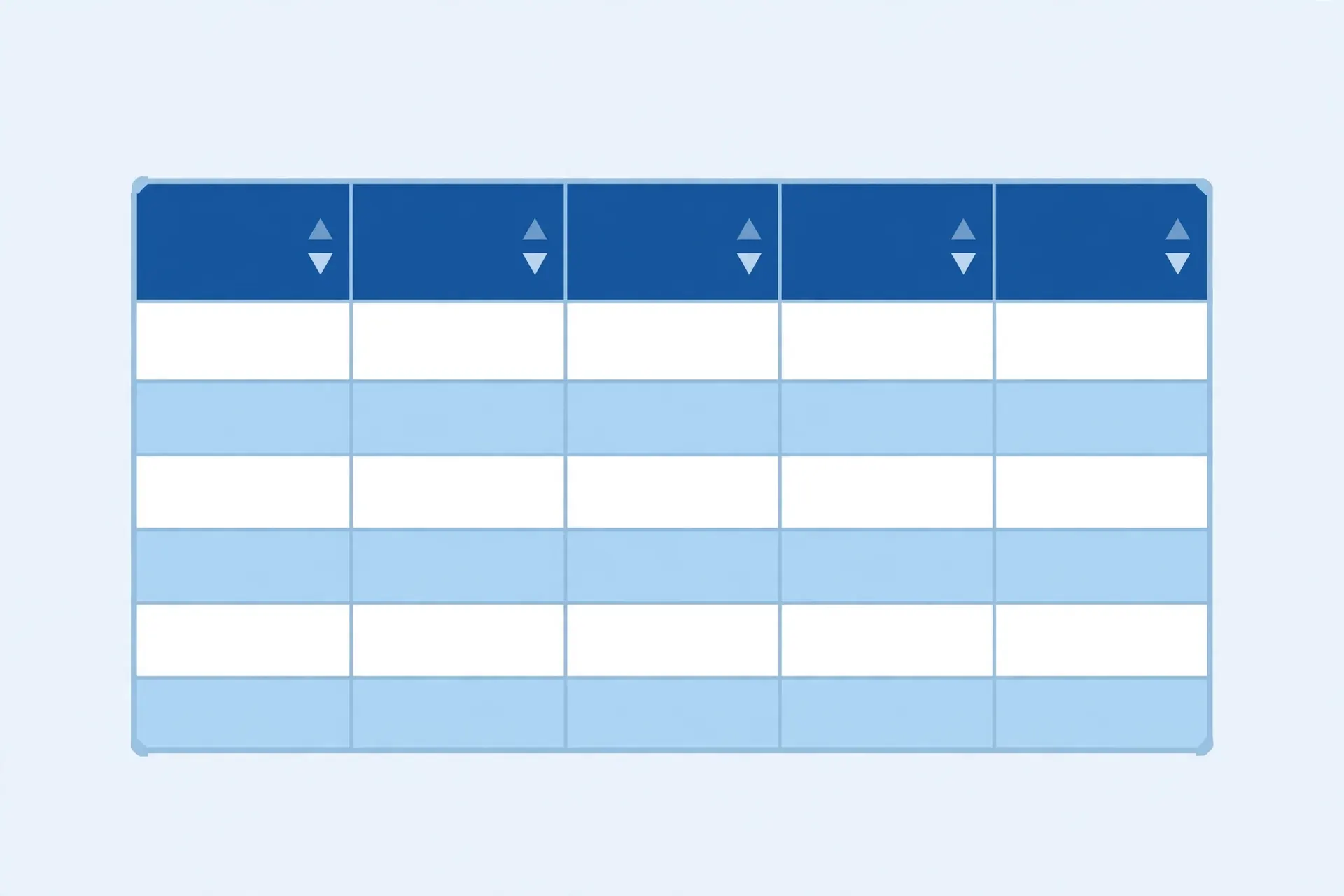
Why bother with the Table instead of plain AutoFilter? Three reasons that compound over time. Auto-expansion: paste next month’s CSV rows directly below the Table and it grows to include them — filters, formatting, and formulas extend automatically. Structured references: formulas use readable names like =SUM(Sales[Amount]) instead of =SUM(D2:D10432), and they survive row insertions. Total row: one click adds a footer with SUM, AVERAGE, COUNT that respects your active filters — filter to one region and the totals recalculate for just that region. For anyone in the US, UK, Canada, India, or Australia running weekly or monthly CSV reports, the Table is the single highest-ROI Excel habit to build.
Method 3: Add filters to CSV data with Power Query
Power Query (Data › Get Data › From Text/CSV) is Excel’s professional import engine, and it’s the right choice when your CSV needs cleaning before filtering — the file arrives with junk rows, mixed date formats, or columns that import as the wrong type. Instead of fixing the mess by hand every time, you build the cleanup once as a repeatable query.
- In a blank workbook, go to Data › Get Data › From Text/CSV and pick your CSV.
- Click Transform Data to open the Power Query Editor.
- Fix the foundations: remove top junk rows (Home › Remove Rows), set each column’s data type with the icon left of the column name (dates as Date, IDs as Text — this is what makes filters behave later).
- Apply any permanent filters here if some rows should never load (e.g., filter Status ≠ “Test”).
- Click Close & Load. The clean data lands as an Excel Table — with filter dropdowns ready.

The killer feature: when next week’s CSV arrives with the same name in the same folder, you right-click the Table and hit Refresh. The query re-runs every cleanup step and reloads fresh, filterable data. No re-importing, no re-typing, no re-filtering. Teams that process recurring exports — Shopify orders, ad spend, bank statements — routinely cut a 20-minute weekly chore to a single click this way. And because the output is a Table, everything from Method 2 applies on top.
Method 4: Add AutoFilter with Python when converting the CSV
When conversions happen in code — a scheduled job, a data pipeline, a web app generating downloads — you can bake the filter arrows into the workbook at creation time with openpyxl. The recipient opens the XLSX and the dropdowns are already there, no shortcut required.

import csv
from openpyxl import Workbook

wb = Workbook()
ws = wb.active
ws.title = "Orders"

with open("orders.csv", newline="", encoding="utf-8") as f:
    for row in csv.reader(f):
        ws.append(row)

# Enable AutoFilter over the full used range (header row + all data)
ws.auto_filter.ref = ws.dimensions
# Freeze the header row so it stays visible while scrolling
ws.freeze_panes = "A2"

wb.save("orders.xlsx")
ws.dimensions returns the bounding box of your data (e.g. A1:F10432), so the filter covers exactly the imported range however big the CSV is. Two refinements worth adding in real pipelines: set column data types during the write (dates as real dates, not strings — see our guide on keeping CSV dates intact) because filters are only as smart as the underlying types, and consider writing an actual Excel Table via openpyxl.worksheet.table.Table instead of plain AutoFilter if the file will be extended later — our Table format guide shows that pattern too.
Filtering dates, numbers, and text like a pro
Filters are only as clever as the data types underneath them. Excel gives each type a specialized filter menu — but only if the column actually contains that type, which CSV imports frequently get wrong.
Dates: the tree vs the flat list
A real date column gets the beautiful hierarchical filter: Years expand into Months expand into Days, with checkboxes at every level. A text-that-looks-like-dates column gets a flat alphabetical list (“01/02/2026”, “01/03/2026″…) that’s nearly useless. If you see the flat list, select the column and use Data › Text to Columns › Finish (which re-parses text into real dates using your locale), or wrap values in =DATEVALUE(). Then the tree appears.
Numbers: ranges instead of checkboxes
Numeric columns offer Number Filters: greater than, less than, between, top 10. But if the CSV imported numbers as text (common with currency symbols or thousand separators baked into the export), you get Text Filters instead — “greater than” does alphabetical comparison and 100 sorts below 20. Fix: Text to Columns, or multiply by 1 in a helper column.
Text: search and wildcards
Text Filters support Contains, Begins With, and wildcards (* for any characters, ? for one). Filtering customer names containing “Ltd” across 50,000 rows takes seconds. Combine with the search box at the top of the dropdown for the fastest ad-hoc lookups.
Bonus: a keyboard-only workflow for filter power users
If you live in CSV exports all day, the mouse is slowing you down. Here’s a keyboard-driven loop that takes you from raw import to answered question without touching the trackpad. First, Ctrl+Shift+L enables the filters. Then Alt+Down Arrow opens the filter menu for the currently selected column — no clicking the tiny arrow. Inside the menu, type to search, use Space to toggle checkboxes, and hit Enter to apply. Alt+A+C clears all filters in one chord (that’s Alt, then A, then C in sequence), and Ctrl+Shift+L again removes the arrows entirely when you’re done.
Sorting is keyboard-accessible too: with the filter menu open, S jumps to Sort A to Z and O to Sort Z to A (mnemonics from the underlined letters). For date columns, the same menu offers This Week, Last Month, and Year to Date presets — two keystrokes to answer “what sold last quarter” from a raw Shopify or Amazon export. Practice the loop — Ctrl+Shift+L, Alt+Down, type, Space, Enter — for a week and it becomes muscle memory. Analysts who process daily CSV drops in the US, UK, and India consistently name this sequence the highest-leverage Excel skill they learned, precisely because it compounds: ten seconds saved per filter, dozens of filters per day, every working day of the year.
Troubleshooting filters on imported CSV data
Filter arrows appear on the wrong row. Excel guessed your header row incorrectly — usually because of blank rows above the data. Delete the junk rows, re-select the true header row, and re-apply with Ctrl+Shift+L.
Newly pasted rows aren’t included in the filter. Plain AutoFilter ranges don’t auto-expand. Either re-apply the filter after pasting, or upgrade to an Excel Table (Ctrl+T) which grows automatically.
Numbers sort like text (1, 10, 2). The column imported as text. Convert with Text to Columns or the “Convert to Number” error-checking option, then re-filter.
Dates show a flat list instead of the year/month tree. Text-dates again — see the pro section above. Real dates get the tree; text gets the list.
Filters vanished after saving. You saved back to CSV. Re-open, re-apply, and this time File › Save As › XLSX. Consider it a rite of passage — everyone does it once.
AutoFilter is greyed out. The sheet is protected (Review › Unprotect Sheet) or the workbook is shared in a way that disables it. Unprotect first, then filter.
Hidden rows from a previous filter confuse my counts. After heavy filtering it’s easy to forget a filter is active — your SUM covers 200 visible rows, not 10,000. Glance at the row numbers: blue row numbers mean a filter is hiding rows. Use SUBTOTAL instead of SUM for totals that respect filters, and make Data › Clear part of your muscle memory.
Blank header cells break the filter range. If your CSV’s first row has empty column names, Excel may treat the second row as headers or refuse to place arrows correctly. Give every column a name in row 1 before applying the filter — even placeholder names like Column_A beat blanks, because Excel Tables outright require unique headers.
Frequently Asked Questions
How do I add a filter to a CSV file in Excel?
Open the CSV in Excel, click any cell in the data, and press Ctrl+Shift+L (or go to Data > Filter). Dropdown arrows appear on every column header, letting you sort and filter. Save the file as XLSX if you want the filters to persist — CSV files cannot store them.
Why does my CSV lose its filters when I save it?
Because a CSV file stores only plain text — no formatting, no filter settings, no column widths. Filters are an Excel feature, not data. To keep them, save the workbook as XLSX (or XLSM/XLSB) instead of back to CSV.
What is the shortcut to add AutoFilter in Excel?
Ctrl+Shift+L toggles AutoFilter on the current data range. On a Mac, use Command+Shift+F. The same shortcut removes the filter when pressed again.
Should I use AutoFilter or an Excel Table for CSV data?
For quick analysis, AutoFilter is enough. For anything recurring, convert the range to an Excel Table (Ctrl+T): you get filters plus banded rows, automatic range expansion when new CSV rows are pasted in, and structured references in formulas.
Can I add filters to a CSV with Python?
Yes. When converting with openpyxl, call worksheet.auto_filter.ref = worksheet.dimensions after writing the rows, then save as XLSX. The downloaded workbook opens with filter dropdowns already enabled on every column.
Why are my date filters showing as text instead of a date tree?
Excel only offers the hierarchical date filter (Year > Month > Day) for real date values. If your CSV dates imported as text, the filter shows a flat alphabetical list instead. Convert the column with Text to Columns or DATEVALUE first, then the date tree appears.