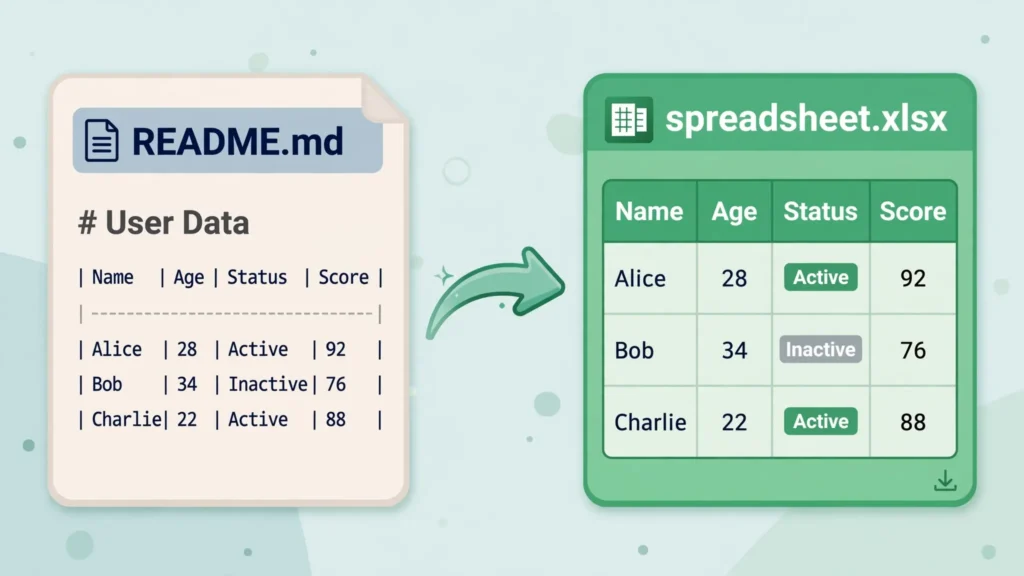
Documentation is full of tables that were never meant to stay in documentation. Pricing comparisons in a README, API parameter lists in a wiki, feature matrices in a GitHub repo, benchmark results in a blog post — sooner or later someone needs that data in a spreadsheet. Knowing how to convert a Markdown table to Excel with proper columns (not one mangled column, not a screenshot) is a small skill with an outsized payoff. A Markdown table is just text with pipes and dashes, which means every conversion method in this guide is fast, free, and works on any device.
This guide covers five methods, from the 20-second paste trick to a Python script that converts every table in a document at once. You’ll learn why pasting directly into Excel usually fails (and the two-click fix), how to strip alignment rows and escaped pipes cleanly, how to handle links, code spans, and emoji inside cells, and which method fits a one-off README table versus a whole documentation site. Whether you’re a developer in the US pulling tables out of GitHub, a technical writer in the UK, or a student in India working with course notes, the techniques are identical.
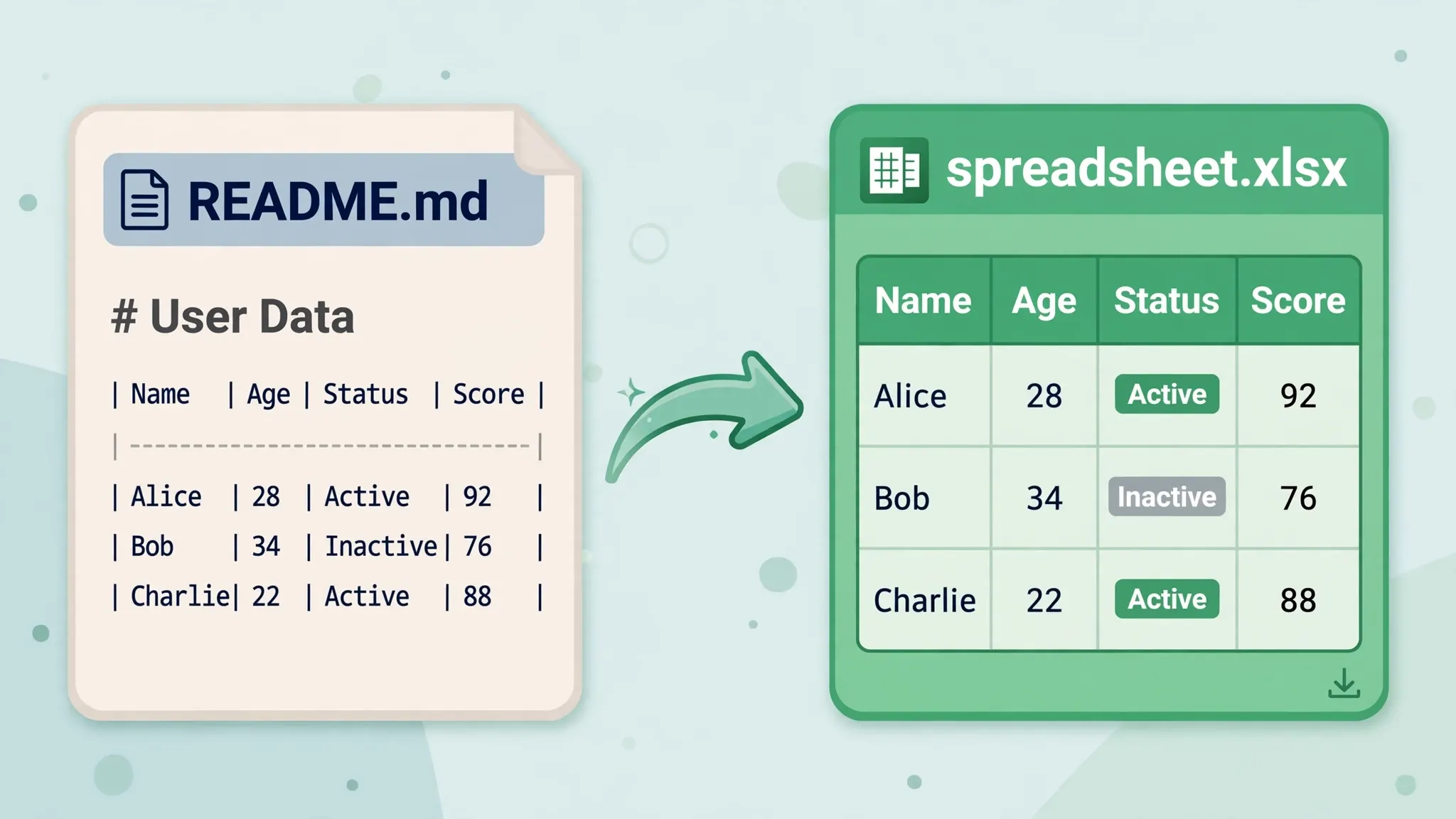
Where Markdown tables live (and why they end up in Excel)
Markdown tables — the GitHub-Flavored Markdown kind with pipes and a dash row — show up in more places than most people realize. README files on GitHub and GitLab, documentation sites built with MkDocs or Docusaurus, Notion pages exported as Markdown, Obsidian vaults, Stack Overflow answers, AI chat transcripts, and static-site blog posts. Anywhere technical people write, tables accumulate, because the pipe syntax is the fastest way to jot down structured data in plain text.
They migrate to Excel for equally predictable reasons. A product manager wants the competitor comparison table in a deck. Finance wants the pricing tiers as a worksheet they can model against. A researcher wants benchmark numbers they can chart. A support team wants the troubleshooting matrix as a filterable sheet. In each case the Markdown table is the source of truth and Excel is where the work happens — sorting, filtering, charting, sharing with people who’ll never open a .md file. The conversion is almost always one-directional: Markdown for authoring, Excel for analysis.
Here’s what a typical Markdown table looks like under the hood, so the methods below make sense:
| Plan       | Price | Users |
|------------|------:|:-----:|
| Starter    | $9    | 5     |
| Growth     | $29   | 25    |
| Enterprise | $99   | ∞     |
Three structural facts matter for conversion. First, pipes (|) separate columns — including leading and trailing pipes that produce empty phantom columns if you’re not careful. Second, the second row (|---|---|, optionally with colons like :---:) is an alignment header, not data — it must be stripped, or your spreadsheet gets a row of dashes. Third, cells can contain escaped pipes (\|), inline code, links, bold/italic markers, and emoji, all of which need decisions during cleanup. Every method below handles the first two facts; the cleanup section handles the third.
Markdown Table to Excel: five methods compared
Paste + Text to Columns (20 seconds): copy the table, paste into Excel, split on the pipe delimiter. Fastest for a single table; needs the two-click fix described below.
Python script (5 minutes to write, instant forever): parse the Markdown, write XLSX with pandas. Best for many tables, recurring docs, or tables with tricky escaping.
CSV intermediate: convert the table to CSV text (pipes → commas), then use Excel’s From Text/CSV import. Good when you want Excel’s type preview and encoding control.
Google Sheets: paste the Markdown table into Sheets — it often auto-splits pipe tables — then File › Download › Microsoft Excel. Great on Chromebooks or machines without Excel.
Online converter: paste Markdown, download XLSX. Fastest for a one-off on an unfamiliar machine.
|---|---| line) first or handle it in the tool — it’s the single most common cause of “why is there a row of dashes in my spreadsheet.”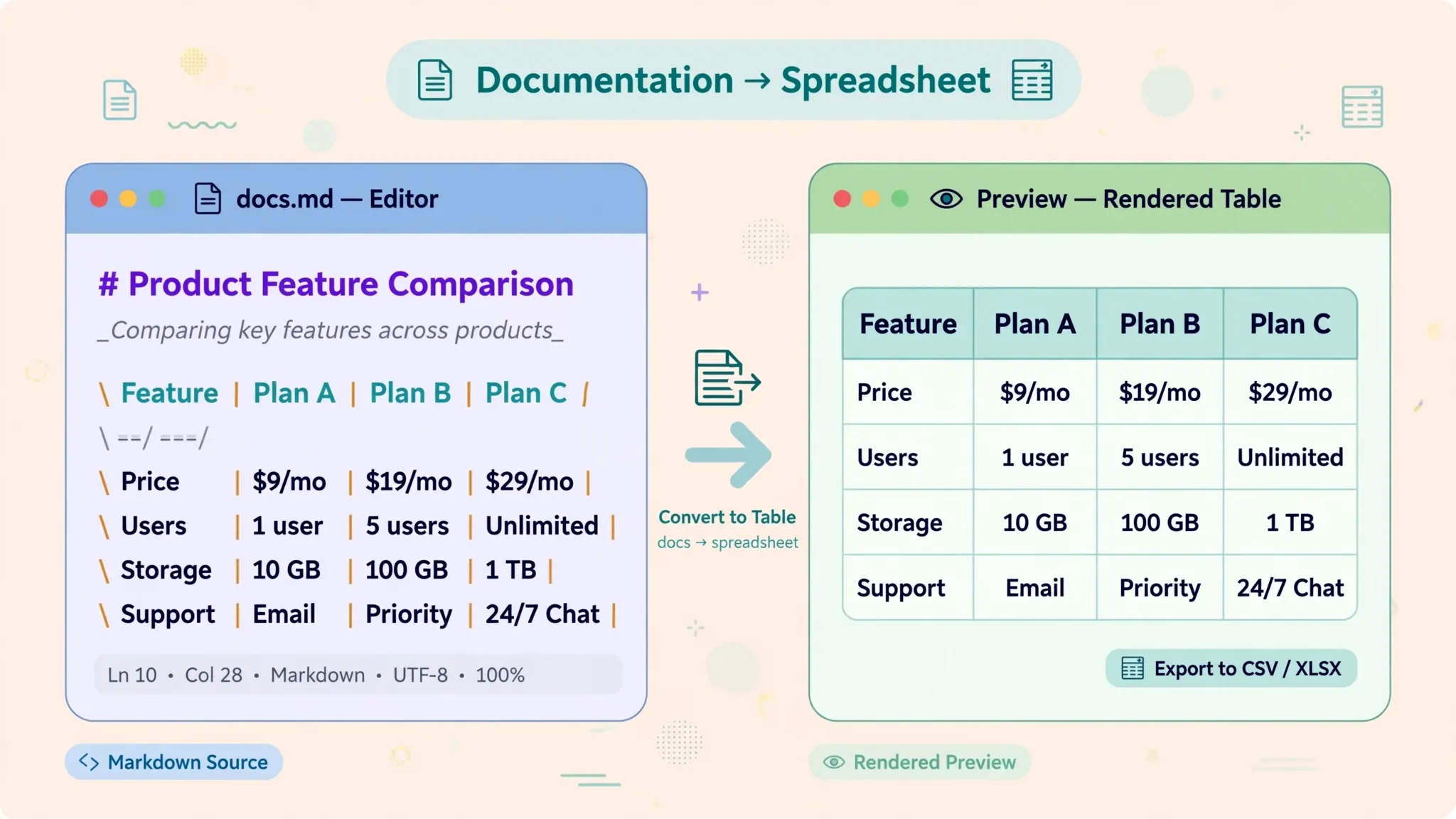
Method 1: Paste a Markdown table into Excel with proper columns
This is the method you’ll use 90% of the time. The naive version — copy the table from GitHub, paste into Excel — dumps everything into column A with pipes intact. The trick is telling Excel that the pipe character is your column separator, which takes two clicks via Text to Columns.
- Copy the Markdown table from the README, wiki, or doc (select from the first
|to the last). - Paste it into cell A1 of a blank Excel worksheet. It lands as one column — that’s expected.
- Select column A, then go to Data › Text to Columns.
- Choose Delimited, click Next, tick Other, and type
|(the pipe character, usually Shift+\ on US keyboards) in the box. - Click Finish. The single column splits into proper columns instantly.
- Delete the alignment row (the one full of dashes and colons) and the empty first/last columns created by the leading and trailing pipes.
On Excel for Mac the flow is identical (Data › Text to Columns lives in the same place), and in Excel for the web you’ll find it under Data › Text to Columns as well. If you’d rather skip Text to Columns entirely, do the delimiter swap before pasting: paste the table into a plain-text editor, find-and-replace | with a tab character, then paste into Excel — tab-separated text splits into columns automatically on paste. Both routes take under half a minute once you’ve done them once.
Fixing alignment rows and escaped pipes
Two details separate a clean conversion from a messy one. The alignment row (|:---|---:|:---:|) carries the author’s intent — left, right, or center alignment — encoded as colons. After deleting the row, reproduce the intent: select numeric columns and align right, text columns left, headers center. It takes ten seconds and the spreadsheet instantly looks intentional instead of accidental.
Escaped pipes (\| inside a cell, meaning “a literal pipe character, not a column break”) are rarer but nastier: Text to Columns splits on them anyway, breaking the row. If your table contains them, do a pre-pass in a text editor replacing \| with a placeholder like %%PIPE%%, run the conversion, then replace the placeholder back with | in Excel. For tables with heavy escaping, skip the manual route and use the Python method below, which handles escaping correctly by design.

Method 2: Convert a Markdown table to XLSX with Python
When you’re converting tables regularly — documentation sprints, weekly benchmark reports, a whole wiki — a script beats manual pasting. The logic is simple: split the Markdown into lines, keep the ones that look like table rows, drop the alignment row, split each row on unescaped pipes, and hand the result to pandas.
import pandas as pd
import re

def md_table_to_excel(md_text, out="table.xlsx"):
    # Keep lines that look like table rows
    rows = [l.strip() for l in md_text.splitlines()
            if l.strip().startswith("|")]
    # Drop the alignment row (dashes, colons, pipes only)
    rows = [r for r in rows
            if not re.fullmatch(r"\|[\s:\-|]+\|", r)]
    # Split on unescaped pipes, strip whitespace and edge empties
    data = [[c.strip() for c in re.split(r"(?
To convert every table in a document to its own worksheet, split the Markdown into table blocks first (consecutive lines starting with | form one block), run the parser on each block, and write them with pd.ExcelWriter — the same multi-sheet pattern from our Python Excel guide. Libraries like tabulate or markdown-it-py can do the parsing for you if you'd rather not maintain regexes; but the hand-rolled version above is short enough to own, and owning it means you can add project-specific cleanup (renaming columns, dropping junk rows) in the same pass.
Method 3: Go through CSV: Markdown to CSV to Excel
The CSV hop shines when the table contains dates, numbers with leading zeros, or international characters — cases where Excel's type guessing causes trouble. Converting Markdown to CSV first lets you use Excel's Data › From Text/CSV import dialog, with its preview, encoding selector, and per-column type settings.
- Paste the Markdown table into a text editor and delete the alignment row.
- Replace each
|with a comma — but first protect any commas inside cells by wrapping those cells in quotes (or use the Python script from Method 2 and callto_csv()instead ofto_excel(), which handles quoting automatically). - Save as
.csv, then in Excel use Data › From Text/CSV to import it. - In the preview, set the encoding to UTF-8, set ID-like columns to Text, and click Load. Save as
.xlsx.
This is also the right route when the destination isn't Excel at all but Google Sheets or Apple Numbers — CSV is the lingua franca every spreadsheet tool imports cleanly (the RFC 4180 spec defines the format). Our CSV to Excel on Mac guide covers the import dialog's quirks on macOS specifically, including the semicolon-delimiter trap for European locale files.
Method 4: Use Google Sheets as a Markdown table middleman
Google Sheets has a quiet superpower: paste a Markdown table into a cell range and it frequently auto-detects the pipes and splits the table into columns on its own. When it works, the flow is: paste into Sheets, glance at the result, File › Download › Microsoft Excel (.xlsx). No Excel install needed, works beautifully on Chromebooks, and the whole thing happens in under a minute.
When Sheets doesn't auto-split (it depends on the table's exact formatting), fall back to the same Text-to-Columns logic: paste into one column, then Data › Split text to columns and choose Custom with | as the separator. One Sheets-specific tip: if the table is long, paste it into a new spreadsheet rather than an existing one with data below — the split can overwrite cells underneath. And remember the privacy trade-off from our other guides: pasting into Sheets means the data passes through Google's servers, so keep sensitive tables to the offline methods.
Method 5: The instant online Markdown table converter
For a single table on an unfamiliar machine — a library computer, a client's laptop, your phone — an online converter is the path of least resistance. Paste the Markdown (alignment row and all; good converters strip it automatically), preview the detected columns, and download the workbook.
- Open the free online converter in any browser.
- Paste your Markdown table into the input box.
- Check the preview: columns split, alignment row gone, no phantom empty columns.
- Download the
.xlsxand open it to verify.

As with all browser tools, match the method to the data: public benchmark tables and README comparisons are perfect candidates; customer data and internal pricing are not. The five minutes you spend with Method 1 or 2 on sensitive data is cheap insurance.

Cleaning up: merged cells, links, code spans, and emoji
A converted table is rarely finished — Markdown cells carry formatting that needs decisions. Here's the quick cleanup pass that turns a raw conversion into a professional spreadsheet.
Links ([text](url)) paste as raw Markdown syntax. Decide per column: keep just the visible text (find-and-replace with a regex, or the Python script can strip them), or convert to real Excel hyperlinks with the HYPERLINK() function. For reference tables people actually click through, real hyperlinks are worth the effort.
Code spans and bold/italic (backticks, **) are visual noise in a spreadsheet. Strip the markers but keep the text — `--verbose` becomes --verbose. If the distinction mattered (say, commands vs descriptions), put commands in their own column during conversion rather than preserving backticks.
Emoji (✅ ❌ ⚠️) survive conversion fine in modern Excel and actually work well as status indicators — but they can break older systems and some CSV pipelines. For maximum compatibility, replace them with text labels (Yes/No/Warning) during cleanup.
Numbers and alignment. Markdown tables often right-align numeric columns (---:). After conversion, select those columns and apply right alignment plus proper number formats (currency, percentages, thousands separators). This single step is what makes a converted table look designed rather than dumped.
Headers. Bold the header row, add filters (Data › Filter), and freeze the top row (View › Freeze Panes). Thirty seconds of polish that every recipient notices.
Troubleshooting: when the paste goes wrong
Everything is in one column. The delimiter step was skipped. Select the column and run Data › Text to Columns with | as the custom delimiter.
Phantom empty columns on the edges. Leading and trailing pipes create empty first/last columns. Delete them, or strip the edge pipes in a text editor before converting.
A row of dashes in the data. The alignment row survived. Delete it — it's metadata, not data.
One row split into two. A cell contained a line break (common in multi-line Markdown cells). In the source, join the cell's lines first, or in Excel merge the fragments back manually.
Columns misalign halfway down. Inconsistent pipe counts — some rows have more cells than the header. Count pipes per row in a text editor; the usual culprit is an unescaped | inside a cell.
GitHub renders the table but my copy is broken. Copy from the raw Markdown view (the .md file or "Raw" button), not the rendered page — copying rendered HTML tables brings different problems (see our HTML table to Excel guide for that path).
Which Markdown-to-Excel method should you use?
The decision is simple. One table, right now? Paste + Text to Columns (Method 1) — twenty seconds, no tools. Many tables or recurring docs? The Python script (Method 2) — write once, reuse forever. Tricky types or encodings? The CSV hop (Method 3) for Excel's import preview. No Excel installed? Google Sheets (Method 4). Unfamiliar machine? The online converter (Method 5).
However you convert, the non-negotiables are the same: strip the alignment row, watch for escaped pipes, and spend thirty seconds on headers and number formats. Do that, and your Markdown table to Excel conversion lands as a spreadsheet that looks like it was built in Excel from the start. For tables coming from other text formats, our guides to TXT to Excel and JSON to Excel cover the neighboring techniques.
Frequently Asked Questions
How do I paste a Markdown table into Excel with proper columns?
Copy the Markdown table, paste it into a text editor, replace the pipe characters with tabs (or commas), then paste into Excel — the columns split correctly. Alternatively, paste directly into Excel and use Data › Text to Columns with the pipe | as a custom delimiter.
Can I convert a Markdown table to XLSX without installing software?
Yes. Paste the Markdown table into a free online Markdown-to-Excel converter and download the XLSX, or paste it into Google Sheets (which auto-splits pipe tables) and download as Excel from File › Download.
How do I convert a Markdown table with Python?
Parse the pipe-delimited rows with Python (strip the alignment row of dashes and colons), load them into a pandas DataFrame, and call df.to_excel('out.xlsx', index=False). The tabulate or markdown-it libraries can also parse tables for you.
Why does my pasted Markdown table land in a single Excel column?
Because Excel doesn't know the pipe | is your delimiter. Select the column, go to Data › Text to Columns, choose Delimited, tick Other, enter |, and Finish — the single column splits into proper columns instantly.
Do Markdown table alignments (colons) survive the conversion to Excel?
Not automatically — the :---: alignment row is Markdown-only metadata. Strip it during conversion, then apply Center/Left/Right alignment to the Excel columns yourself to reproduce the intended layout.
How do I convert many Markdown tables at once?
Use a Python script that scans the Markdown file for table blocks (lines starting with |), converts each block to a DataFrame, and writes each one to its own worksheet in a single workbook with pd.ExcelWriter.