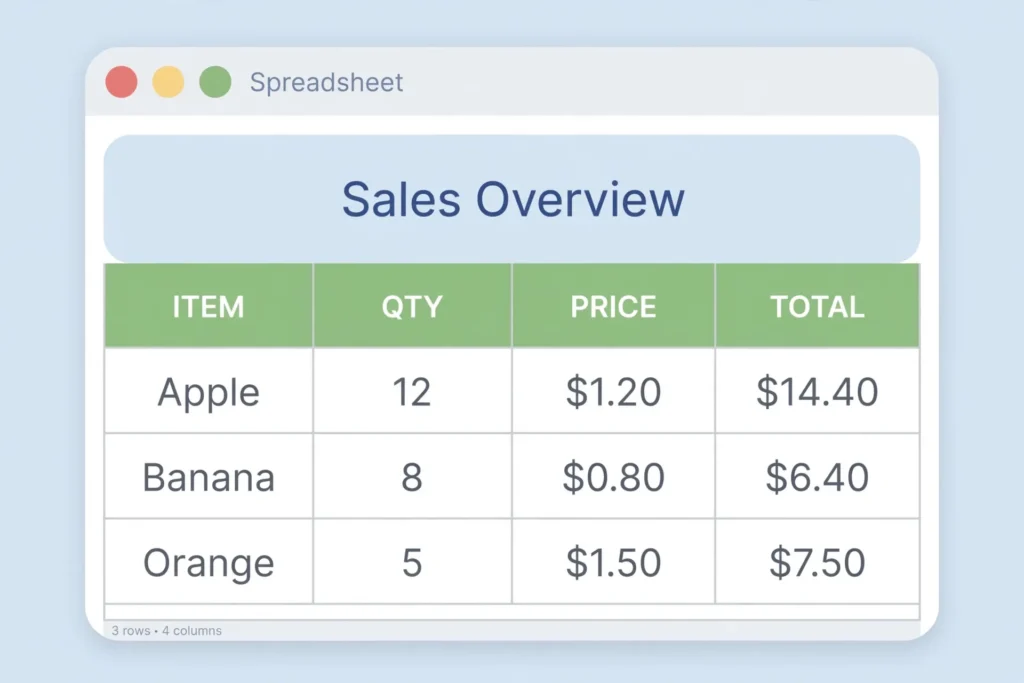
Merging cells is one of the first formatting tricks every Excel user learns — and one of the most dangerous. This guide shows you how to merge cells in Excel the safe way: which button to press, how to keep every bit of your data, and when to skip merging entirely in favor of a smarter alternative the pros use. Whether you are building a report title in Microsoft 365, polishing an invoice in Excel 2021, or tidying a sheet in Excel for the web, the steps below work the same.
Here is the short version for readers in a hurry. Select the cells you want to combine, go to the Home tab, and click Merge & Center in the Alignment group. Done — but with one enormous catch: Excel keeps only the contents of the upper-left cell and silently deletes everything else in the selection. If two or more of your selected cells contain data, you must combine that data first (we will show you the 30-second TEXTJOIN trick), and only then merge. That single habit is the difference between a beautiful title row and an afternoon spent retyping lost figures.
In this guide you will learn the four merge options on the ribbon and what each one does, the exact safe workflow to merge cells without losing data, why Center Across Selection is usually the better choice for titles, how merging works in Google Sheets for comparison, and what merged cells do to sorting, filtering, formulas, and CSV exports. By the end, merging will be a deliberate formatting decision — never a data-loss accident.

What “merge cells” actually does in Excel
When you merge a range like A1:D1, Excel does not glue four cells together into a bigger container. It does something subtler and more destructive: it keeps the top-left cell (A1) as the only real cell, stretches its display area across the whole selection, and deletes the contents of B1, C1, and D1. The other three cells still exist in the grid — you can see this if you unmerge later — but their values are gone for good. There is no undo once you save and close, and even with undo available, most people do not notice the loss until much later.
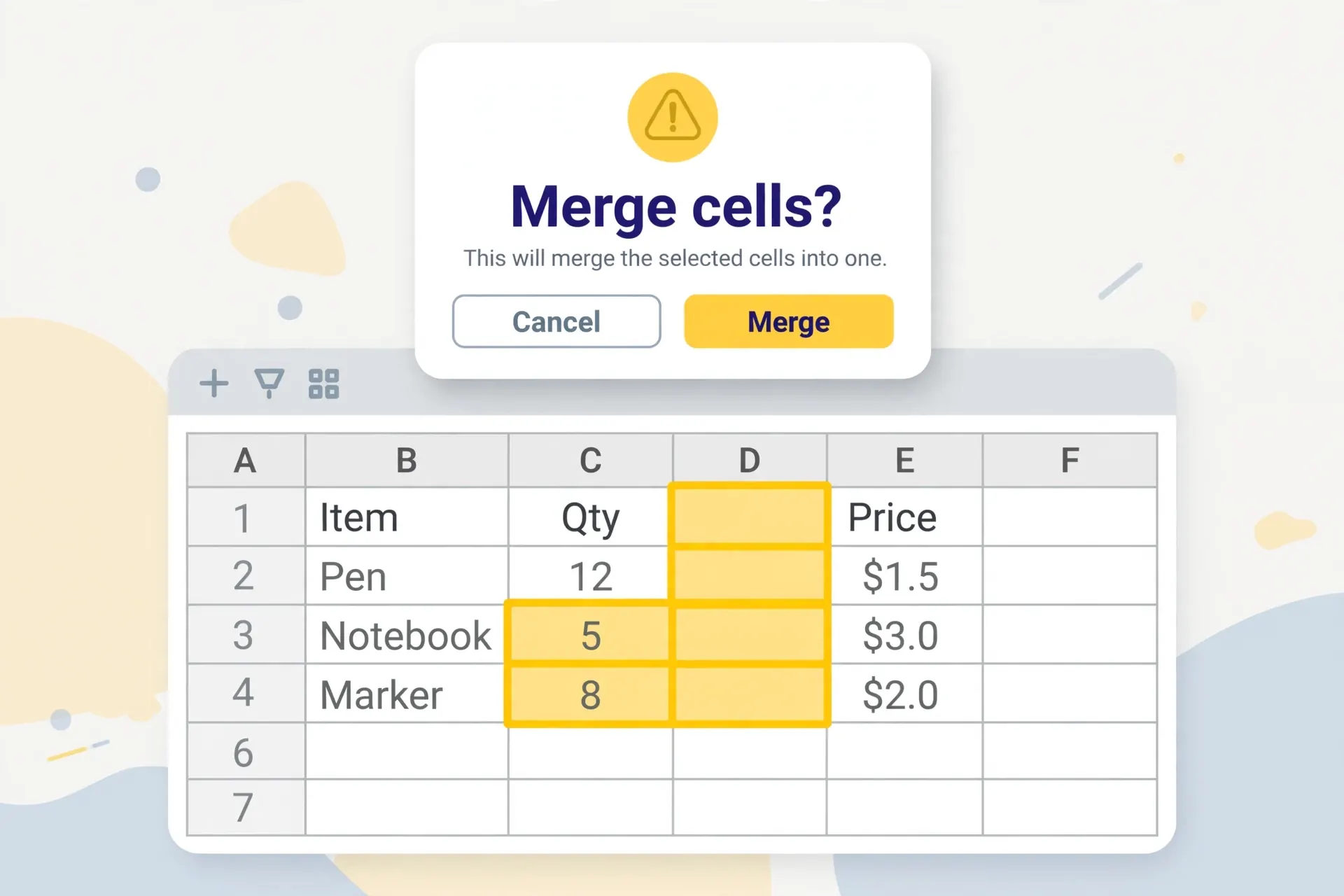
This is why Excel shows you a warning dialog — “Merging cells only keeps the upper-left value, and discards the other values” — whenever more than one selected cell contains data. Microsoft documents this behavior on its official Excel support pages, and it has worked this way in every version from Excel 2007 through today’s Microsoft 365. Understanding this single fact explains almost every merge-related horror story: vanished totals, broken VLOOKUPs, and CSV exports full of holes.
It also helps to know what merging does not do. It does not add the numbers together. It does not concatenate text. It does not create a new kind of cell that formulas treat specially — most functions simply see the upper-left cell and ignore the rest of the merged area. And it does not travel well: paste a merged range into another program, export it, or sort it, and the merge either disappears or causes errors. Keep all of this in mind and you will use merging sparingly and deliberately, which is exactly how the experts use it.
How to Merge Cells in Excel: the four merge options
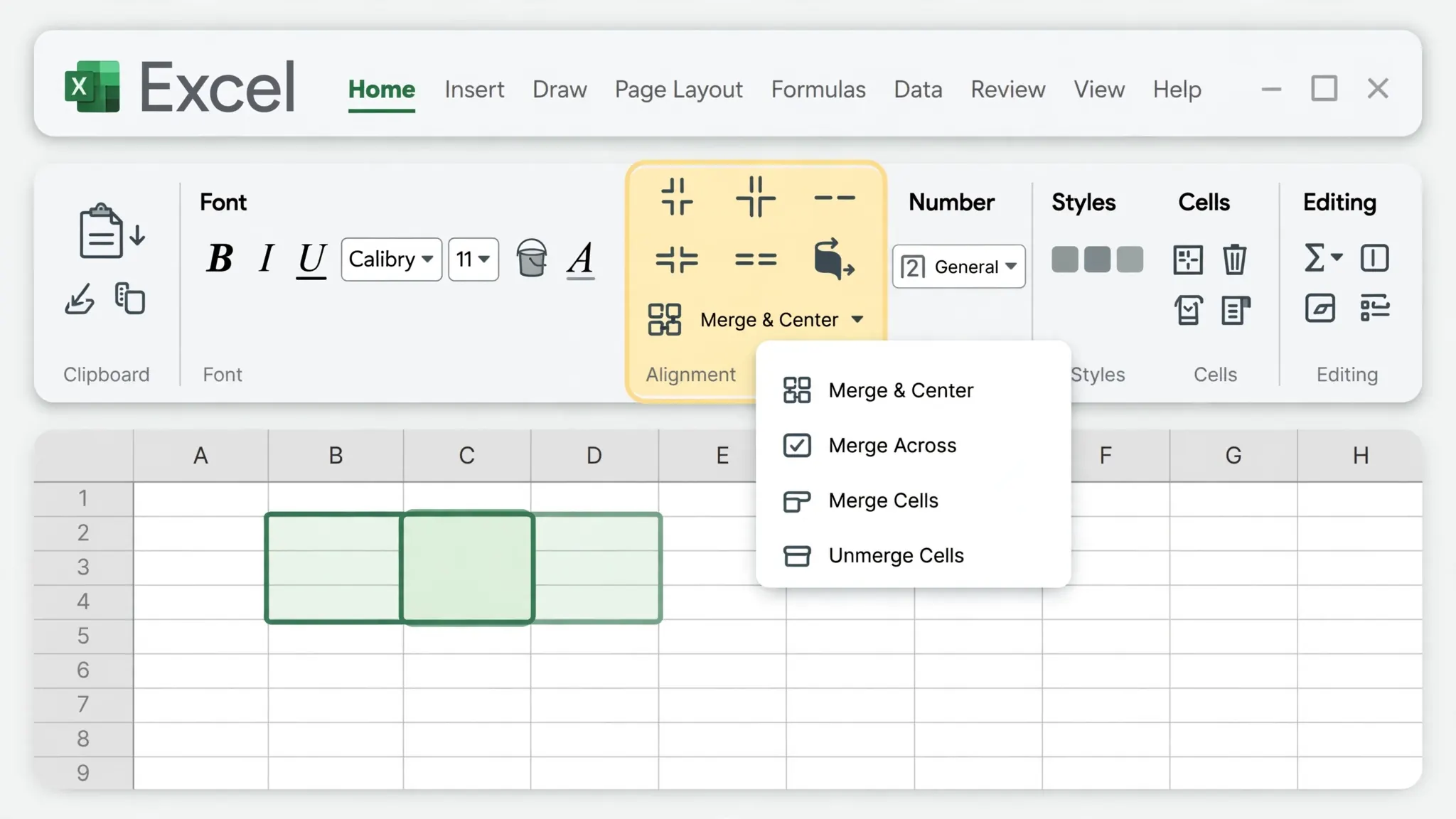
Once you know how to merge cells in Excel at the basic level, it is worth learning all four options hiding behind that ribbon button, because each behaves differently. Select any range of two or more cells first — the options only make sense on a multi-cell selection.
- Select the cells you want to merge by clicking and dragging, or with Shift + arrow keys.
- Go to the Home tab on the ribbon and find the Alignment group (roughly center of the ribbon).
- Click the small arrow next to Merge & Center to open the dropdown with all four options.
- Choose the option that fits your layout — details on each below.
- Confirm the warning if Excel shows one. If you see the data-loss warning and you were not expecting it, click Cancel and combine your data first (see the safe workflow below).
Merge & Center
This is the default and the one most tutorials teach. It merges the selected cells into one and centers the surviving content both horizontally and vertically. It is perfect for a report title spanning columns A through F, or a section header across a table. One click, one shortcut (Alt, H, M, C), and your title looks professionally centered. Just remember the data-loss rule: only the top-left cell’s value survives.
Merge Across
Merge Across merges each row of your selection independently. Select A1:D3 and choose Merge Across, and you get three merged rows (A1:D1, A2:D2, A3:D3) instead of one giant block. This is the right choice when you have several rows of labels — for example, category names in column A that should each span to column D — and you want them merged row by row rather than into a single slab.
Merge Cells
This merges the whole selection into one cell but without centering — the content keeps whatever alignment it already had (usually left-aligned). Use it when you want the merged look but the text should stay left- or right-aligned, such as a merged address block or a notes area where centered text would look odd.
Unmerge Cells
The escape hatch. Select any merged cell and choose Unmerge Cells (or press Alt, H, M, U) to split it back into individual cells. The surviving value stays in the top-left cell; the others come back empty. Unmerging never restores data that merging deleted — that is gone — but it does restore the grid structure, which fixes sorting and filtering problems.
How to Merge Cells in Excel Without Losing Data: the Safe Workflow
The number-one search behind this topic is not really “which button” — it is how to merge cells without losing data. The answer is a two-step habit: combine first, merge second. Excel’s merge only preserves one cell, so you do the combining yourself with a formula, lock the result in as a value, and then merge the display. It takes about thirty seconds once you know it.
Why Excel warns you before merging
That warning dialog — “Merging cells only keeps the upper-left value” — appears whenever Excel detects content in more than one cell of your selection. It is not a formality; it is a data-deletion confirmation. Clicking OK is telling Excel “yes, throw away everything except the top-left cell.” Power users in the US, UK, India, Canada, and Australia all report the same painful discovery: the warning is easy to click through on autopilot, and the missing numbers only surface weeks later during an audit. Treat the warning as a stop sign, not a speed bump.
Step 1 — combine first with TEXTJOIN or CONCAT
Say cells A1:C1 contain “Q1”, “Sales”, “Report” and you want one merged title. In a spare cell (or the destination cell itself), enter:
=TEXTJOIN(" ", TRUE, A1:C1)
TEXTJOIN joins the range with a space delimiter and ignores blanks (the TRUE argument). On older Excel versions without TEXTJOIN (pre-2019), use =CONCAT(A1," ",B1," ",C1) or the classic ampersand chain =A1&" "&B1&" "&C1. For numbers, wrap in TEXT to control formatting first, e.g. =TEXTJOIN(", ",TRUE,TEXT(A1:C1,"0.00")) so currency does not lose its decimals.
Step 2 — lock the value, then merge
- Copy the cell with your TEXTJOIN formula (Ctrl + C).
- Right-click the top-left cell of your intended merge range and choose Paste Special → Values (Alt, E, S, V, Enter on Windows).
- Delete or clear the now-redundant helper cells if they sit inside the merge range.
- Select the range and click Merge & Center. This time only one cell holds data, so no warning appears and nothing is lost.
The Smarter Alternative: Center Across Selection
Here is the secret that separates casual Excel users from professionals: for titles and headers, you usually should not merge at all. Center Across Selection gives you the exact same centered-title look while leaving every cell intact, independent, and fully functional. Sorting works. Filtering works. Copy-paste works. Formulas that reference those columns keep working. It is strictly better for anything except a final printed report.
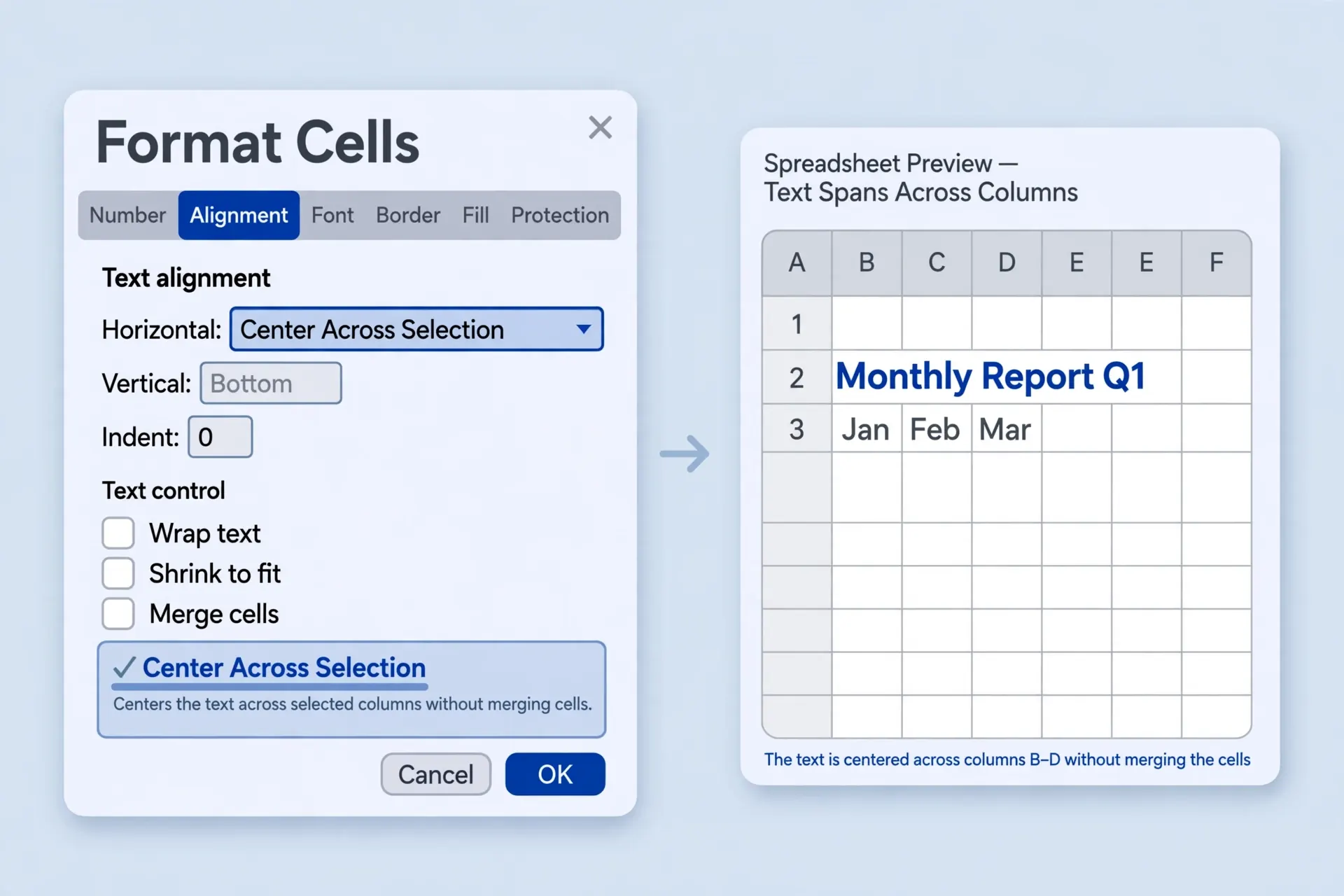
- Type your title in the leftmost cell of the range (e.g. A1 for a title spanning A1:F1).
- Select the full range the title should visually span (A1:F1).
- Press Ctrl + 1 to open the Format Cells dialog.
- Go to the Alignment tab. Under Horizontal, choose Center Across Selection from the dropdown.
- Click OK. The title now appears centered across all six columns — but A1:F1 are still six separate, fully functional cells.
The only trade-off: Center Across Selection is a display effect, so if you later merge those cells for real, or if someone selects the range and presses Delete expecting one cell, behavior can surprise beginners. For shared workbooks, add a brief note in a comment or a “README” sheet. But for 95% of title-formatting jobs, Center Across Selection is the answer that Microsoft’s own support documentation quietly recommends, and it is what most financial modelers in London, New York, Toronto, Sydney, and Mumbai use in production models.
How to Merge Cells in Google Sheets
Google Sheets handles merging a little differently, and it is worth knowing if you collaborate across both platforms. In Sheets, select your cells and go to Format → Merge cells, where you get three choices: Merge all (one big cell), Merge horizontally (row by row, like Excel’s Merge Across), and Merge vertically (column by column — something Excel cannot do directly).

Two important differences from Excel. First, Sheets does not center the text automatically when you merge — you must apply center alignment yourself with the toolbar button. Second, Sheets is equally destructive: only the top-left cell’s value survives the merge. The same “combine first, merge second” habit applies, using =TEXTJOIN(" ",TRUE,A1:C1), which works identically in Sheets. If you are moving data between the two apps, note that merged cells survive a Sheets→Excel download and an Excel→Sheets import, but Center Across Selection does not survive either direction — it converts to plain left alignment. Our Google Sheets conditional formatting guide covers more formatting that behaves differently across platforms.
What Merged Cells Break: Sorting, Filtering, and Formulas
Merged cells are the number-one cause of “Excel won’t let me do this” errors in shared workbooks. The most famous is sorting: try to sort a column that contains merged cells of different sizes and Excel refuses outright — “This operation requires the merged cells to be identically sized.” Filters misbehave too, because a filter needs one value per row and a merged area spanning rows gives it ambiguity. Copy-paste of merged ranges into unmerged areas throws “cannot change part of a merged cell” errors that confuse beginners.
Formulas suffer quietly. A VLOOKUP or XLOOKUP whose table array includes merged cells may return the value from the wrong row, because the lookup sees the top-left cell of each merged block and blanks elsewhere. If your lookup results look mysteriously shifted by a row or two, merged cells in the lookup range are the prime suspect — our VLOOKUP tutorial shows how lookup ranges should be structured. PivotTables and charts simply refuse merged source data in many cases, and VBA macros that loop through ranges often crash on merged areas unless the code explicitly handles them.
How to Unmerge Cells and Fix a Merged-Cell Mess
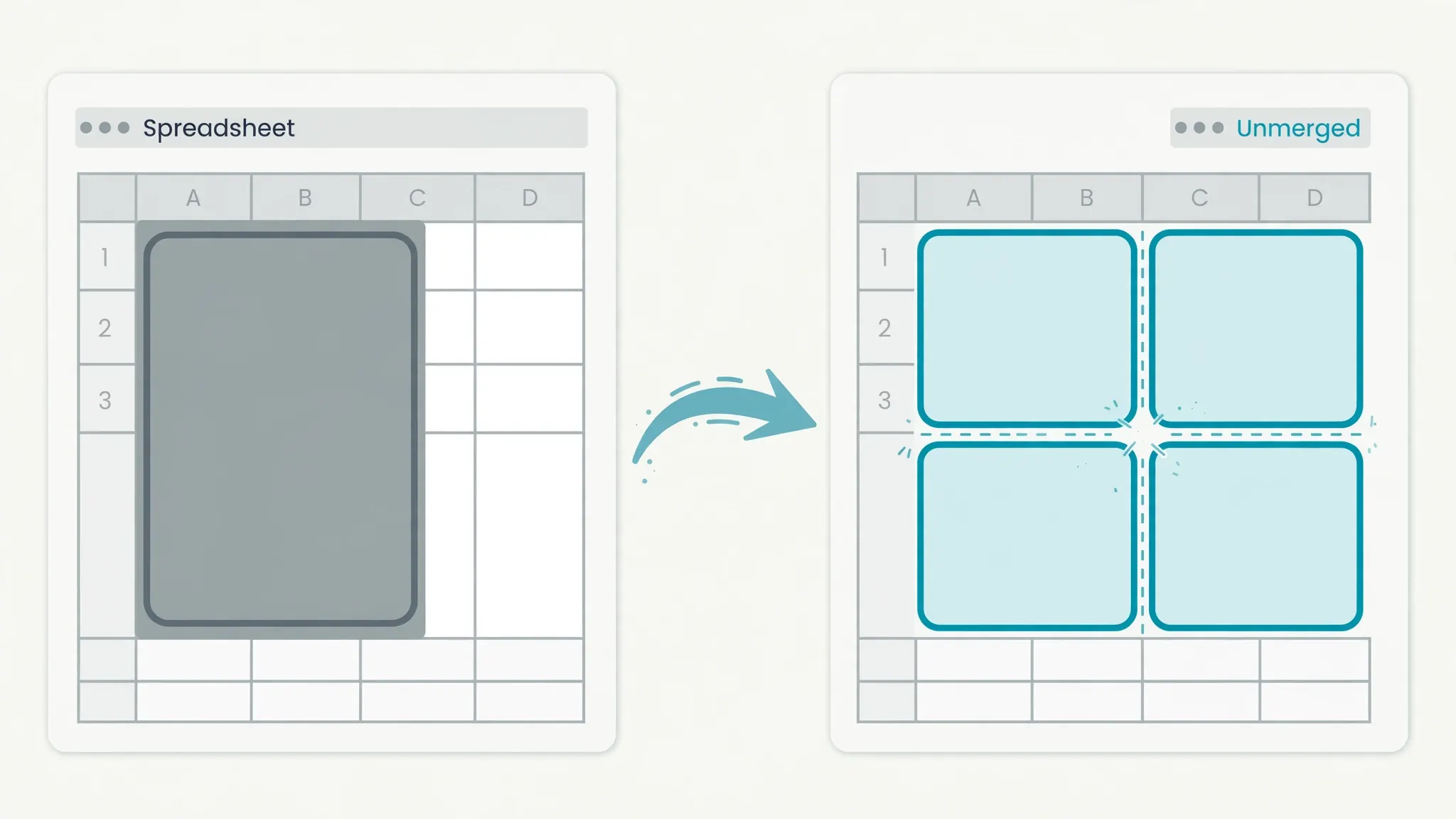
Inherited a workbook riddled with merges? Here is the cleanup routine. First, find them all: press Ctrl + F, click Options, then Format, go to the Alignment tab, check Merge cells, and click Find All. Excel lists every merged cell in the workbook. Select them all from the results (Ctrl + A in the results pane), close the dialog, and click Unmerge Cells on the ribbon. The whole workbook is merge-free in seconds.
After unmerging, you will often find values stranded in top-left cells with blanks beside them — the classic “merged header” pattern. To fill the blanks down or across, select the range, press Ctrl + G → Special → Blanks, type =, press the ↑ arrow, and confirm with Ctrl + Enter. Every blank fills from the cell above. Then copy → Paste Special → Values to lock them in. Your data table is now clean, sortable, and ready for a pivot table or a CSV export — and if you need to remove duplicates afterward, that works on clean grids too.
Merged Cells and CSV Files: the Export Trap
Here is the trap that brings many readers to our site: CSV is a plain-text format defined by RFC 4180 — it stores values and delimiters, nothing else. There is no way to record “these four cells are merged” in a CSV file. When you save a sheet with merged cells as CSV, Excel writes the surviving value once, followed by empty fields for the rest of the merged area. Reopen that CSV and your beautiful title row is one lonely value in column A.
Worse, if the merged area sat in the middle of a data table, the export shifts the visual structure: rows that looked aligned in Excel now have gaps. Anyone importing that CSV — a colleague in Excel, a Python script with pandas, a database loader — sees a ragged file. The fix is simple: unmerge before you export. Use the Find All trick above, unmerge everything, fill blanks if needed, and then save as CSV. Better yet, build the CSV cleanly from the start: import your raw data with our free CSV to Excel converter, do your analysis on unmerged grids, and only merge on a separate presentation sheet that never gets exported.
This is also why data teams in the US, UK, India, Canada, and Australia increasingly ban merged cells in shared templates outright — a single merged title row can silently corrupt an automated CSV pipeline. If you control a template others fill in, use Center Across Selection for the titles and protect the sheet. Future you (and your data pipeline) will be grateful.
Keyboard Shortcuts for Merging Cells
Mouse-free merging is faster once the sequences are in your fingers. On Windows Excel: Alt, H, M, C for Merge & Center; Alt, H, M, A for Merge Across; Alt, H, M, M for Merge Cells; Alt, H, M, U to unmerge. (Tap the keys in sequence — do not hold them.) On Mac, the ribbon shortcuts differ: use ⌃ + ⌥ + M in newer Excel for Mac builds, or add Merge & Center to the Quick Access Toolbar and press ⌥ plus its position number.
Excel for the web supports merging through the Home tab too, though the dropdown options are slightly reduced. And remember: no shortcut bypasses the data-loss warning. That is by design — Microsoft would rather slow you down for half a second than let you vaporize a column of figures.
Frequently Asked Questions
How do I merge cells in Excel without losing data?
Combine the contents first with =TEXTJOIN(" ",TRUE,A1:C1), paste the result as a value into the top-left cell, then merge. Excel only keeps the upper-left cell’s value when you merge, so pre-combining is the only way to merge cells without losing data.
Where is the Merge & Center button in Excel?
On the Home tab, in the Alignment group, near the middle of the ribbon. Click the small arrow beside it to access Merge Across, Merge Cells, and Unmerge Cells. The keyboard shortcut is Alt, H, M, C.
What is Center Across Selection and why is it better than merging?
Center Across Selection (Format Cells → Alignment → Horizontal → Center Across Selection) centers text across columns visually without joining the cells. Sorting, filtering, copying, and formulas all keep working, which is why professionals prefer it over merged cells for titles.
Why does Excel show a warning when I merge cells?
Because merging permanently deletes the contents of every selected cell except the upper-left one. The warning is Excel’s last chance for you to cancel. If you see it unexpectedly, click Cancel and combine your data with TEXTJOIN first.
Can I merge cells in Google Sheets the same way?
Yes — select the cells, then Format → Merge cells and choose Merge all, Merge horizontally, or Merge vertically. Sheets does not auto-center merged text, so apply center alignment separately, and note that only the top-left value survives, just like Excel.
Do merged cells cause problems when I export to CSV?
Yes. CSV files cannot store merge formatting, so the merged area exports as one value plus empty fields. Unmerge before exporting, or rebuild the file cleanly with our free CSV to Excel converter before doing your analysis.