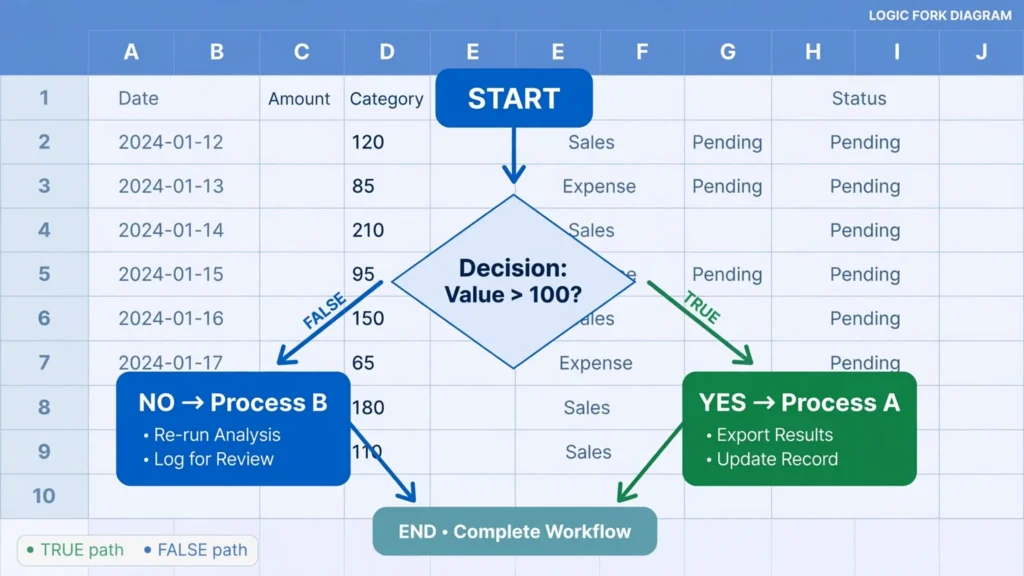
Understanding how to use IF function in Excel unlocks the single most important idea in spreadsheets: making a cell decide. Every other formula calculates; IF chooses. “If the score is above 60, show Pass, otherwise show Fail.” “If the order total exceeds $500, apply free shipping, otherwise charge $9.99.” “If this invoice is overdue, flag it red.” Once a cell can branch on a condition, your worksheets stop being calculators and start being decision engines.
This Excel IF formula tutorial starts with the basic three-argument syntax, then climbs the ladder most learners actually need: nested IFs built on a realistic student-grading example, the IFS function that flattens nesting, combining IF with AND and OR for multi-condition logic, and the error-handling cousins IFERROR and IFNA. No programming background required — if you can follow “if this, then that”, you can follow this guide from start to finish.

What the IF function does: a decision inside a cell
IF evaluates a logical test — any expression that resolves to TRUE or FALSE — and returns one of two results. The syntax never changes:
=IF(logical_test, value_if_true, value_if_false)
Three arguments, always in this order: the question, the answer for “yes”, the answer for “no”. =IF(A2>100,"Big","Small") asks “is A2 greater than 100?” and writes “Big” or “Small” accordingly. The two result branches can be text in quotes, numbers, cell references, or entire other formulas — IF doesn’t care what they are, only which one the test selects.
The comparison operators are the vocabulary of the logical test: = equal, <> not equal, > greater than, < less than, >= and <= for at-least/at-most. Text comparisons are case-insensitive (“yes”=”YES”), and you can compare text alphabetically too (=IF(A2>"m","late alphabet","early") works, though it’s rarely needed). Teachers in Manchester grading coursework, warehouse staff in Ohio flagging low stock, and analysts in Sydney categorizing survey responses all start from this same three-argument shape.
Your first IF formula, step by step
Let’s build a pass/fail flag for a score in A2:
- Click the cell where the result goes (B2).
- Type
=IF(— the sheet shows the argument hints. - Type the test:
A2>=60,(note the comma separating arguments). - Type the true-branch:
"Pass",— text always in double quotes. - Type the false-branch:
"Fail")and press Enter. - Double-click the fill handle to copy the formula down the class list.
Change a score and watch the flag flip — that live recalculation is the whole point. Now try variations to cement the pattern: =IF(B2="","Missing",B2*1.1) adds 10% only when B2 isn’t blank; =IF(C2>TODAY(),"Upcoming","Due") labels deadlines against today’s date. Each follows the same skeleton: test, true-result, false-result. When a formula feels confusing, read it aloud as a sentence — “if C2 is after today, then Upcoming, otherwise Due” — and the logic almost always clarifies itself.
Comparing text in the logical test
The test doesn’t have to be numeric. =IF(D2="Paid","✓","Outstanding") branches on a status word, and text comparisons are case-insensitive, so “paid”, “PAID”, and “Paid” all match. Watch out for invisible trailing spaces though — “Paid ” with a space fails the equality test, which is why cleaning text data matters before you build logic on it. You can also test for blanks directly: =IF(E2="","Not started","In progress") treats an empty cell as “not started”, a pattern project trackers use constantly. And when the “text” is really a code, LEFT/RIGHT/MID can feed the test: =IF(LEFT(F2,3)="VIP","Priority","Standard") routes rows by their ID prefix.
=IF(A2>10,"Big") with no third argument returns the word FALSE when the test fails. That’s not an error — it’s the documented default — but it’s rarely what you want. Always write all three arguments until omitting one becomes a deliberate choice.Nested IFs in Excel: a real grading example
One IF handles two outcomes. Real grading needs five: A, B, C, D, F. The classic solution is nesting — putting an IF inside the false-branch of another IF, so each failure falls through to the next test:
=IF(A2>=90,"A",IF(A2>=80,"B",IF(A2>=70,"C",IF(A2>=60,"D","F"))))
Read it as a waterfall: 90+ gets A; anything else drops to the next test, where 80+ gets B; and so on down to F. The order matters critically — tests must run from the strictest threshold downward. Reverse them (=IF(A2>=60,"D",IF(A2>=70,"C"...))) and every score above 60 grabs “D” before the higher tests ever run. When a nested IF misbehaves, check the threshold order first.

Nested IFs in Excel get hard to read past three or four levels — the parenthesis count alone becomes a hazard. Two survival techniques: build the formula incrementally, testing each new level before adding the next; and use Alt+Enter inside the formula bar to put each nested IF on its own line, which turns a wall of parentheses into a readable staircase. Modern releases allow up to 64 nestings, but if you’re approaching double digits, the next section’s IFS function (or a lookup table) will serve you far better.
The IFS function: nested logic without the nesting
IFS (Excel 2019, 2021, Microsoft 365) flattens the waterfall into a single list of test/result pairs:
=IFS(A2>=90,"A",A2>=80,"B",A2>=70,"C",A2>=60,"D",TRUE,"F")
Each pair is “test this, return that”, evaluated left to right; the first true test wins. The final TRUE,"F" pair is the catch-all — TRUE always passes, so anything reaching the end gets F. No nesting, no parenthesis pyramids, and adding a new grade band means inserting one pair instead of rebalancing parentheses.
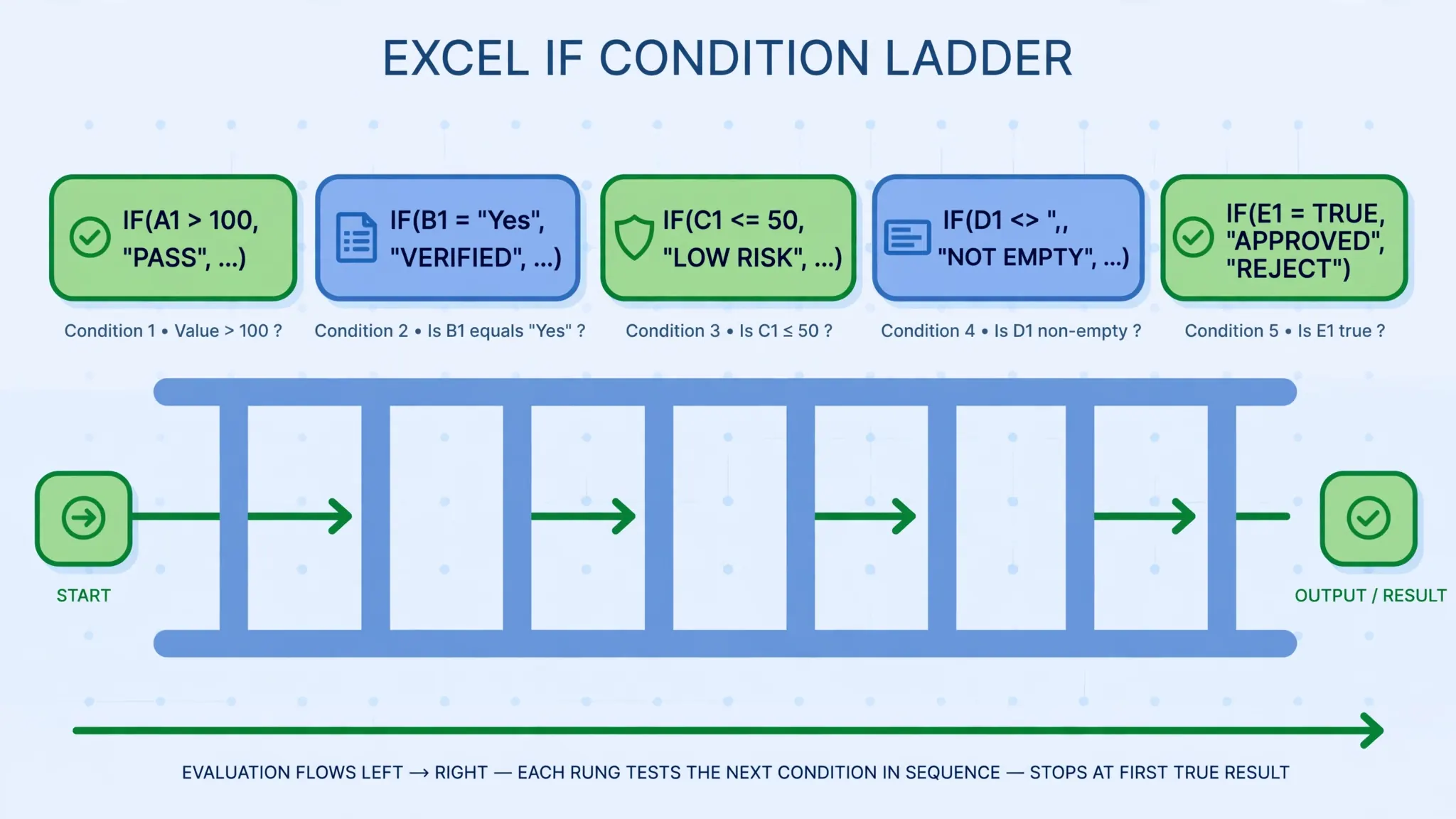
Two IFS gotchas to know. First, if no test is true and there’s no TRUE catch-all, IFS returns #N/A — always include the catch-all in production formulas. Second, every test must return TRUE or FALSE; a test that errors (like comparing text with >) produces #VALUE! instead of skipping ahead. Microsoft’s IFS documentation covers these edge cases with examples. For Excel 2016 and earlier where IFS doesn’t exist, the nested-IF form from the previous section remains the compatible choice.
IF with AND and OR: combining conditions
Single conditions only go so far. “Approve the loan if income exceeds $50k and credit score exceeds 700″ needs two tests in one IF — which is where AND and OR slot into the logical_test position:
=IF(AND(A2>50000,B2>700),"Approved","Review") — both must be true.
=IF(OR(A2>90000,B2>800),"VIP","Standard") — either one suffices.
AND returns TRUE only when every argument is true; OR returns TRUE when at least one is. Each accepts up to 255 conditions, and they nest freely: =IF(AND(A2>50,OR(B2="Yes",C2="Yes")),"Pass","Fail") reads as “score above 50 AND (either flag is Yes)”. Build complex tests inside-out — get the AND/OR part returning the right TRUE/FALSE first (you can see it in the formula bar’s evaluation), then wrap it in IF.

NOT flips a test (=IF(NOT(A2=""),"Filled","Empty")), completing the logical toolkit. A practical pattern from operations teams: =IF(AND(D2<TODAY(),E2<>"Paid"),"OVERDUE","") flags unpaid invoices past their due date — two conditions, one flag column, zero manual scanning. The full logical family is catalogued in Microsoft’s functions by category reference.
The most common AND/OR mistake is mixing up which one you need. “Flag orders that are late or damaged” is OR — either condition alone justifies the flag. “Approve discounts for members with orders over $200″ is AND — both must hold. When in doubt, test with a tiny truth table: write out the four combinations of two TRUE/FALSE inputs and check which should produce TRUE. If it’s only the TRUE/TRUE row, you want AND; if it’s any row with a TRUE in it, you want OR. Five minutes with a truth table has resolved more logic arguments than any amount of staring at the formula bar.
IF meets lookups: VLOOKUP and XLOOKUP patterns
IF becomes dramatically more useful when its branches call lookup functions. The classic pattern guards a lookup against missing keys: =IF(A2="","",VLOOKUP(A2,Products,2,FALSE)) skips the lookup entirely when the key cell is blank, instead of throwing #N/A down a whole column of empty rows. It’s a small courtesy that makes reports dramatically cleaner.
A subtler pattern uses IF to choose between lookups: =IF(B2="US",VLOOKUP(A2,US_Prices,2,FALSE),VLOOKUP(A2,EU_Prices,2,FALSE)) pulls the price from the right table based on the region flag. With XLOOKUP the same idea reads even cleaner, and you can nest the choice inside the lookup’s fallback: =XLOOKUP(A2,SKUs,Prices,"Not found") already handles the missing case, but wrapping it — =IF(C2="Discontinued","—",XLOOKUP(A2,SKUs,Prices,"Not found")) — adds a business rule on top of the mechanical lookup.
The pattern generalizes: IF decides which calculation applies, and the branches do the calculating. =IF(D2="Hourly",E2*F2,E2/2080*F2) computes pay differently for hourly versus salaried staff in one column. Whenever you catch yourself maintaining two parallel columns “for the two cases”, that’s a sign one IF column would do the job — half the columns, half the maintenance, and the rule is visible in the formula instead of hidden in your process.
Graduating from nested IFs to lookup tables
There’s a point where even IFS becomes the wrong tool: when your thresholds live in someone else’s head. A commission table with seven tiers, a tax bracket schedule, a shipping matrix by zone and weight — encoding these as nested tests buries business rules inside formulas where nobody can audit them. The professional alternative is a lookup table: put the thresholds in cells, and let a formula consult them.
Take the grading example. Instead of hard-coding 90/80/70/60 in the formula, list the cutoffs in E2:E6 (0, 60, 70, 80, 90) and the grades in F2:F6 (F, D, C, B, A). Then =VLOOKUP(A2,$E$2:$F$6,2,TRUE) — with TRUE for approximate match — returns the right grade for any score. When the school changes the B cutoff from 80 to 82, you edit one cell instead of hunting through parentheses. Auditors love this: the rules are visible, versionable, and separate from the machinery.
In Microsoft 365, XLOOKUP with match_mode -1 (exact or next smaller) does the same job more readably: =XLOOKUP(A2,$E$2:$E$6,$F$2:$F$6,,-1). The rule of thumb: fewer than four outcomes with stable thresholds — IF or IFS is fine. Four or more outcomes, or thresholds that change — build the table. Your formulas get shorter, your logic gets auditable, and the next person who inherits the workbook might actually understand it.
IFERROR and IFNA: failing gracefully
Formulas fail — lookups miss, divisions hit zero — and raw #N/A or #DIV/0! errors in a client-facing report look broken even when they’re expected. IFERROR wraps any formula and substitutes a fallback: =IFERROR(VLOOKUP(A2,Products,2,FALSE),"Not found"). If the lookup works, you see the result; if it errors, you see your message instead of the error code.
IFNA is the surgical version: it catches only #N/A, letting genuine errors (like #VALUE! from bad inputs) surface so you can fix them. =IFNA(VLOOKUP(...),"Not found") is the better habit for lookup formulas, because a blanket IFERROR can mask real problems — a mistyped range name, a deleted column — that you actually want to see. Reserve IFERROR for cases where any error genuinely means “show the fallback”, like division guards: =IFERROR(A2/B2,0).
Putting it together: how to use IF function in Excel on real data
Let’s assemble a realistic mini-system: an orders table where column F should show each order’s shipping tier. Rules: orders over $500 ship free; orders $100–$500 cost $9.99; under $100 cost $4.99; but VIP customers (column G = “Yes”) always ship free.
=IF(G2="Yes","Free",IF(C2>500,"Free",IF(C2>=100,"$9.99","$4.99")))
The VIP test comes first because it overrides everything — order of tests encodes priority. Or with IFS: =IFS(G2="Yes","Free",C2>500,"Free",C2>=100,"$9.99",TRUE,"$4.99"). Same logic, flatter shape. Add a second column for handling time: =IF(AND(C2>500,H2="Fragile"),"2-day","Standard"). Stack a few of these labeled columns and a plain order dump becomes a fulfillment worksheet that tells the warehouse exactly what to do — which is the real payoff of learning how to use IF function in Excel beyond textbook examples.

Five IF patterns you’ll reuse forever
1. The flag column. =IF(D2<TODAY(),"Overdue","") — a column that stays blank until something needs attention. Filter the column for non-blanks and you have an instant exception report. Support teams in Toronto and ops teams in Sydney build whole morning routines around flag columns.
2. The bonus calculator. =IF(C2>100000,C2*0.1,IF(C2>50000,C2*0.05,0)) — tiered rates in one cell. Sales comp, overtime premiums, and volume discounts all follow this shape: thresholds on the outside, rates on the inside.
3. The safe divider. =IF(B2=0,"—",A2/B2) — never show #DIV/0! again. Dashboards full of per-unit calculations use this defensively; a dash reads as “not applicable” while an error reads as “broken”.
4. The category mapper. =IF(LEFT(A2,2)="US","Domestic","International") — derive a category from a code prefix. Combined with COUNTIF, the mapped column becomes the basis for every downstream summary.
5. The stale-data guard. =IF(MAX(DateRange)<TODAY()-7,"WARNING: data is stale","") — a single cell at the top of a dashboard that screams when the underlying data hasn’t been refreshed. It has saved more Monday meetings than any other formula in this list.
Notice how each pattern pairs IF with something else — a comparison, a text function, an aggregate. IF is rarely the whole solution; it’s the decision layer on top of the calculation layer. Learn to spot “this cell should show X when… otherwise Y” in a requirements doc, and you’ll reach for IF before you finish reading the sentence.
Keeping long logic readable
Long IF formulas rot quickly when nobody can read them. Three habits keep logic maintainable: name your key cells (Formulas > Define Name) so =IF(Threshold>Sales,"Bonus","—") reads like English; break monster formulas into helper columns, one decision per column, so each step is visible and testable; and add a comment (right-click cell > New Comment) explaining why the thresholds are what they are. Future maintainers — including you in six months — will be grateful.
Troubleshooting IF formulas
Returns FALSE unexpectedly. Missing third argument — add the value_if_false.
Wrong branch chosen. In nested IFs, check threshold order (strictest first). In AND/OR, evaluate the logical test alone to see what it actually returns.
#VALUE! errors. Comparing incompatible types, or an IFS test that doesn’t resolve to TRUE/FALSE. Check each test’s inputs.
Text never matches. Extra spaces (“Yes ” vs “Yes”) or case issues in exact-match contexts — clean the text data first, then compare.
Numbers stored as text. =IF(A2>100,...) misbehaves when A2 holds text-“100”. Convert to numbers before comparing.
Formula shows as text. The cell was formatted as Text before typing. Change to General, click in the formula bar, press Enter.
Circular reference warning. Your IF refers to its own cell, directly or through a chain. Trace the precedents and break the loop.
What to learn next
IF handles row-by-row decisions; SUMIF and COUNTIF aggregate the results of those decisions across the whole dataset — the two skills are a natural pair. Date functions give you time-based tests (“is this overdue?”), and concatenation builds the labels your IF branches display. When the raw material arrives as a CSV export, our free CSV to Excel converter gets it into a workbook in seconds so you can start building logic immediately.
Frequently Asked Questions
What is the basic syntax of the IF function in Excel?
The syntax is =IF(logical_test, value_if_true, value_if_false). For example, =IF(A2>=60,”Pass”,”Fail”) checks whether A2 is at least 60 and returns ‘Pass’ if so, ‘Fail’ otherwise.
How many nested IFs can I use in Excel?
Modern Excel allows up to 64 nested IFs, but readability collapses long before that. For more than 3–4 levels, switch to the IFS function, SWITCH, or a lookup table — your future self will thank you.
What is the difference between IF and IFS in Excel?
IF tests one condition with a true/false branch. IFS tests a list of conditions in order and returns the result for the first true one, so =IFS(A2>89,”A”,A2>79,”B”,TRUE,”F”) replaces a whole nest of IFs with one flat formula.
How do I use IF with AND and OR in Excel?
Put AND() or OR() inside the logical test: =IF(AND(A2>50,B2=”Yes”),”Approved”,”Review”) needs both conditions true, while =IF(OR(A2>90,B2>90),”Star”,”Standard”) needs just one. AND and OR can each take up to 255 conditions.
Why does my IF formula return FALSE instead of my text?
You probably omitted the value_if_false argument: =IF(A2>10,”Big”) returns FALSE when the test fails because the third argument defaults to FALSE. Always supply all three arguments unless FALSE is genuinely what you want.
Can IF return a formula result instead of text?
Yes. The true/false branches can hold any value or expression: =IF(B2=””,””,B2*1.1) returns a calculation, a cell reference, or even another function. IF is routinely nested inside SUM, AVERAGE, and VLOOKUP this way.