
Need to convert ODS to XLSX? You’ve run into one of the quiet format wars of the spreadsheet world. ODS (OpenDocument Spreadsheet) is the native format of LibreOffice Calc and Apache OpenOffice — free, open-source office suites used by millions of people, schools, governments, and businesses worldwide. XLSX is Microsoft Excel’s format — the one your clients, colleagues, and web upload forms actually expect. The files hold the same kind of data, but hand an .ods file to an Excel-only user and you’ll get a confused reply. To convert “ods to xlsx”, LibreOffice Calc’s Save As dialog is the fastest free route — full steps below.
This guide shows you every practical way to turn ODS into XLSX: the built-in LibreOffice Calc Save As flow (free, perfect fidelity for everyday files), a browser-based converter for when LibreOffice isn’t installed, the command-line batch method for converting whole folders at once, and an honest rundown of the formatting caveats — what transfers cleanly and what needs a second look. Whether you’re on Windows, Mac, or Linux in London, New York, Berlin, or Bangalore, you’ll have genuine Excel files in minutes.

ODS to XLSX: What ODS Is and Why It Persists
ODS stands for OpenDocument Spreadsheet, an open ISO standard (ISO/IEC 26300) maintained independently of any single vendor. It’s the default format of LibreOffice Calc — the free office suite that ships with most Linux distributions and is a popular Microsoft Office alternative on Windows and Mac — and of Apache OpenOffice before it. Because it’s an open standard, no company controls it, no license is required to implement it, and files remain readable decades from now regardless of what happens to any vendor. That’s why governments and public institutions across Europe, India, Brazil, and elsewhere standardized on it: long-term access to public records shouldn’t depend on a subscription.
In practice, ODS files behave like XLSX files for everyday work: multiple sheets, formulas, formatting, charts, and data validation all work. LibreOffice users often don’t think about the format at all — they just save, and the file happens to be .ods. The friction appears at the boundary: emailing the file to an Excel user, uploading it to a portal that only accepts .xlsx, or opening it on a phone with only the Excel app installed. Modern Excel can open ODS files (Microsoft added support years ago), but the experience isn’t perfect — Calc-specific features may render slightly differently, and some corporate Excel installations have ODS support disabled by policy.
So the pragmatic move is conversion: keep your ODS masters in LibreOffice, and export XLSX copies whenever the file needs to travel into Excel territory. The conversion is free, fast, and — for typical business spreadsheets — essentially lossless. Let’s walk through the methods.
Method 1: LibreOffice Calc Save As (.xlsx)
The canonical method — free, offline, and built into the software that created the file:
- Open your
.odsfile in LibreOffice Calc (double-click it, or File › Open). - Go to File › Save As… (or Save a Copy if you want to keep working in ODS).
- In the Save as type dropdown, choose Excel 2007–365 (.xlsx).
- Pick your location, name the file, and click Save. LibreOffice may show a warning that some formatting might not be saved — for typical spreadsheets this is harmless (more on what it means below).

Save As vs Save a Copy: “Save As” switches your working document to the new XLSX (subsequent saves go to the Excel file); “Save a Copy” leaves your ODS as the active document and just exports an XLSX snapshot. If the ODS is your master, prefer Save a Copy.
About that warning dialog: LibreOffice shows it whenever you save to a non-native format. For everyday files — data tables, basic formulas, standard formatting — you can safely tick “use Excel format” and continue. It’s flagging edge cases (macros, exotic features), not predicting doom.
Method 2: Convert ODS Online (No Install Needed)
No LibreOffice installed? On a Chromebook, a work computer, or a phone? A browser-based converter handles ODS files too:
- Open the free converter in your browser.
- Upload your
.odsfile. - Check the preview, then download the converted
.xlsx.

Online conversion is ideal for one-off files and locked-down machines. For sensitive documents or batch jobs, prefer the offline Calc method — it keeps everything on your machine and handles volume better.
Method 3: Opening ODS directly in Excel
Strictly speaking, this isn’t conversion — modern Excel (2016 and later, including Microsoft 365) can open .ods files via File › Open. If you just need to view the data, this works. But for anything you’ll edit or share onward, immediately do File › Save As › Excel Workbook (.xlsx) — otherwise you’re one accidental Ctrl+S away from saving back to ODS and confusing the next person. Also note: some corporate Excel deployments disable ODS support via policy, in which case you’ll get an error and need Method 1 or 2 anyway.
Formatting caveats: what transfers and what doesn’t
For the spreadsheets most people actually convert — data tables, invoices, budgets, reports — ODS→XLSX conversion is essentially lossless. Here’s the honest breakdown:
Transfers cleanly: cell values, fonts, colors, borders, fills, number formats, merged cells, multiple sheets, standard formulas (SUM, AVERAGE, IF, VLOOKUP), data validation lists, frozen panes, print settings, and standard charts.
Check after converting: complex conditional formatting rules (usually fine, occasionally simplified), pivot tables (structure transfers; refresh against the new file), array formulas, and intricate charts with custom formatting.
Doesn’t transfer: LibreOffice Basic macros (Excel uses VBA — fundamentally different), Calc-specific functions with no Excel equivalent (rare, but they exist), and some form controls. If your ODS relies on macros, plan to rebuild that logic in the Excel version rather than expecting it to ride along.
Batch conversion: whole folders via command line
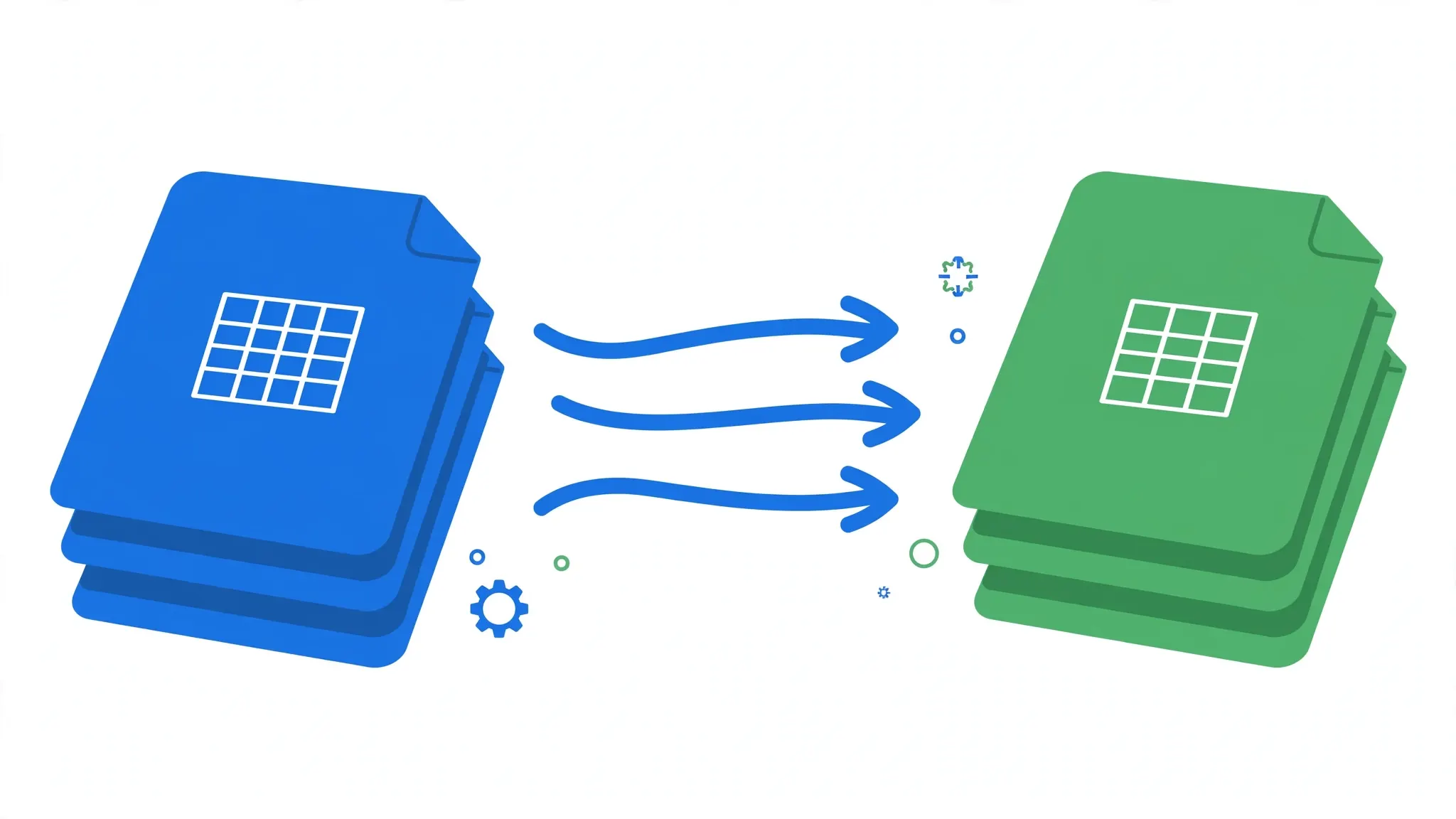
Converting one ODS is trivial; converting two hundred (a migrated file server, an archive of old reports) calls for automation. LibreOffice’s headless mode converts files without opening the GUI:
- Close all LibreOffice windows (headless mode needs a free instance).
- Open a terminal (Linux/Mac) or Command Prompt/PowerShell (Windows, navigating to LibreOffice’s program folder).
- Run:
soffice --headless --convert-to xlsx *.ods - LibreOffice converts every ODS in the folder, placing fresh
.xlsxfiles alongside them. Add--outdir converted/to send output to a subfolder.
This works identically on Windows, macOS, and Linux — the soffice binary ships with every LibreOffice install. For scheduled jobs (nightly conversions of incoming files), wrap it in a cron job or Task Scheduler task. Filters can be added too: --convert-to "xlsx:Calc MS Excel 2007 XML" selects the exact export filter if the default ever misbehaves.
Troubleshooting ODS conversion
Excel says the converted file is corrupt. Rare, but it happens with files containing exotic Calc features. Re-save from Calc using Save a Copy instead of Save As, or route through Google Sheets (upload ODS to Drive, open, download as XLSX) as an intermediary.
Formulas show as text in Excel. Usually a locale issue — formula separators differ (semicolons vs commas) between Calc locales. Check that the formulas recalculate (Ctrl+Shift+F9 in Calc before saving) and verify in Excel afterward.
Charts lost their formatting. Rebuild the chart in Excel if presentation matters, or simplify the chart in Calc before converting.
Headless conversion fails on Windows. Make sure no LibreOffice process is running (check Task Manager for soffice.bin), and run the command from LibreOffice’s program directory or add it to PATH.
File size exploded. Embedded images are the usual culprit — compress them in Calc before converting.
Password-protected ODS? You’ll need to open it in Calc with the password first; headless mode can’t prompt for one. Save an unprotected copy, then batch-convert.
Stuck on a stubborn spreadsheet? join the discussion in our community forum — describe the file’s features (macros? pivot tables? what version of Calc made it?) for targeted help.

Converting ODS on Mobile and Chromebook
No desktop computer handy? ODS conversion still works — with the right expectations.
On Android
Several Android office apps open ODS natively: Google Sheets (upload the ODS to Drive, open it, then download as XLSX), WPS Office, and Collabora Office (the mobile LibreOffice sibling, which saves directly to XLSX). The Sheets route is the most reliable: Drive’s conversion engine handles everyday spreadsheets well, and you get a genuine Excel file out.
On iPhone and iPad
iOS is thinner here: neither Numbers nor Excel for iOS opens ODS directly. Your options are the Google Sheets/Drive route (upload via the Drive app, open in Sheets, export as Excel) or a browser-based converter in Safari — upload the ODS from the Files app, download the XLSX back to Files. Both work fine for typical files; skip them for macro-heavy spreadsheets, which need desktop LibreOffice anyway.
On Chromebook
Chromebooks are the sweet spot for the online route: upload the ODS to Google Drive, open with Sheets, File › Download › Microsoft Excel. Alternatively, install the Linux version of LibreOffice via Crostini if your Chromebook supports Linux apps — then you have the full desktop Save As flow offline.
Mobile conversion caveat: always verify on a bigger screen before sending an important file. Phone screens hide layout issues, and mobile converters occasionally simplify complex sheets more aggressively than desktop Calc does.
Migrating a Whole Archive from ODS to XLSX
Individual conversion is easy; organizational migration — years of ODS reports that now need to live in Excel — deserves a plan. Here’s the playbook that actually works:
1. Inventory first. Before converting anything, catalog what you have: how many files, how large, which ones contain macros, pivot tables, or external links. A quick script listing filenames, sizes, and modification dates beats discovering surprises mid-migration. Flag the complex 5% for manual handling; the simple 95% can go through batch conversion untouched.
2. Batch-convert with headless LibreOffice. The soffice --headless --convert-to xlsx command from the batch section handles the volume. Run it on copies, never originals, and keep the directory structure mirrored (--outdir with matching subfolders) so nothing gets lost.
3. Spot-check systematically. You can’t eyeball a thousand files, but you can sample: check every file with macros (they won’t transfer — rebuild or document them), every file over 5MB (likely image/chart heavy), and a random 5% of the rest. Open each sample’s XLSX in Excel, compare sheet counts and row counts against the ODS, and glance at charts.
4. Keep the ODS masters. Storage is cheap; institutional memory isn’t. Archive the original ODS files read-only alongside the new XLSX versions. If a conversion artifact surfaces in two years, you’ll want the source of truth — and in regulated industries, you may be required to keep originals.
5. Document the exceptions. Maintain a simple log: which files needed manual fixes, which macros were rebuilt in VBA, which charts were recreated. Future you — or your successor — will consider this log the most valuable output of the whole migration.
ODS vs XLSX: Technical Differences That Matter
Both formats store the same kinds of spreadsheet data, but under the hood they’re quite different animals — and the differences explain most conversion quirks.
Standards and governance. ODS is an OASIS/ISO open standard (ISO/IEC 26300) maintained independently of any vendor; XLSX is ECMA-376/ISO 29500, standardized but Microsoft-driven, with “transitional” vs “strict” conformance flavors that cause subtle interop differences. In practice: ODS prioritizes long-term openness, XLSX prioritizes Excel fidelity. Neither is going away.
File internals. Both are ZIP packages containing XML, but their schemas differ: ODS uses a single content.xml with style families; XLSX splits content across xl/worksheets, xl/styles.xml, shared strings, and more. This is why conversion is translation, not copying — every element gets mapped from one schema to the other, and edge-case features (exotic conditional formats, custom data validations) are where mappings get lossy.
Formulas. ODS uses OpenFormula; XLSX uses Excel’s formula grammar. The common functions map 1:1, but locale-specific separators differ (some locales use semicolons in formulas), and a handful of functions have no counterpart. After conversion, spot-check formula-heavy sheets — a silent #NAME? in row 4000 is the classic migration landmine.
What this means for you: for data interchange, these differences are trivia — convert and move on. They only matter when you’re debugging a weird conversion result (now you know where to look) or choosing an archival format (ODS for openness, XLSX for ubiquity — or keep both, since storage is cheap).
Validating Converted Files Automatically
When you’re converting tens or hundreds of files, manual spot-checking doesn’t scale. Build lightweight validation into your batch workflow:
Row and sheet counts. The simplest meaningful check: for each converted file, compare the number of sheets and the used-row count per sheet against the source. A Python one-liner with openpyxl (for the output) and odfpy or LibreOffice’s Python bridge (for the source) catches the most common failures — truncated conversions, dropped sheets — in seconds across a whole folder.
Checksum the values. For critical data, hash the cell values (not formatting) of source and converted files and compare. Mismatches point at formula-evaluation differences or type coercion (dates becoming text, text becoming numbers) — exactly the issues worth human review.
Render testing. For files where appearance matters (client-facing reports), automate screenshot comparison: render both versions to PDF (LibreOffice headless does this too: --convert-to pdf) and diff them visually or with an image-comparison tool. It’s overkill for internal data, but cheap insurance for anything with your logo on it.
Even a 20-line validation script transforms migration from “hope it worked” to “prove it worked” — and the log it produces doubles as your audit trail. Start validating from the very first batch, not after converting everything: catching a systematic issue (say, a date-format misfire affecting every file) on batch one saves you from reconverting hundreds of files later. And keep the validation scripts themselves in version control next to the migration log — six months from now, when someone asks “are you sure these are accurate?”, the scripts are your proof. That proof is often worth more than the converted files themselves — especially when stakeholders or regulators come asking questions later. Document your validation approach alongside the migration log so anyone can reproduce the checks independently.
Frequently Asked Questions
How do I convert ODS to XLSX in LibreOffice?
Open the .ods file in LibreOffice Calc, go to File › Save As, choose “Excel 2007-365 (.xlsx)” from the file type dropdown, and save. Your data becomes a genuine Excel workbook.
Is ODS to Excel conversion free?
Yes. LibreOffice is free and open-source, and browser-based converters also turn ODS files into Excel workbooks at no cost.
Will I lose formatting converting ODS to Excel?
Basic formatting — fonts, colors, borders, number formats — transfers well. Complex features like LibreOffice macros, some conditional formatting rules, and very intricate charts may need checking after conversion.
How do I batch convert ODS files to XLSX?
Use LibreOffice in headless mode: soffice –headless –convert-to xlsx *.ods converts every ODS file in a folder to XLSX without opening the GUI. It works on Windows, Mac, and Linux.
Can Excel open ODS files directly?
Modern Excel versions can open .ods files via File › Open, but saving back to .xlsx explicitly is safer for sharing, since some Calc-specific features don’t round-trip perfectly.
What is the difference between ODS and XLSX?
ODS (OpenDocument Spreadsheet) is an open ISO standard used by LibreOffice and OpenOffice; XLSX (Office Open XML) is Microsoft’s format. Both store the same kinds of spreadsheet data, but Excel users expect XLSX.