
If you opened ReVanced YouTube Music or Morphe YouTube Music and hit a sign-in wall, the missing piece is almost always MicroG. These apps are not the official YouTube Music app, so they cannot talk to Google Play Services on your phone. MicroG stands in for those services: it handles your Google sign-in, keeps your library and playlists in sync, and delivers push notifications. Get MicroG right once, and both apps just work.
Short answer: Install a MicroG companion app before you install the music app, add your Google account inside MicroG’s own settings, then open YouTube Music and sign in. ReVanced users should use the ReVanced team’s GmsCore; Morphe users should use MicroG RE. On a non-rooted phone you do not need signature spoofing for either app — that Self-Check box can stay unchecked and everything still works.
ReVanced or Morphe: pick your route first
Both routes end at the same place — ad-free background music with your own library — but the setup is different. Picking the wrong companion app for your route is the single most common cause of the “MicroG not installed” error, so decide here and follow only one set of steps.
| Route | What you install | Best for |
|---|---|---|
| ReVanced | ReVanced Manager + patched YouTube Music APK + ReVanced GmsCore | Users who want to choose their own patches and keep up with ReVanced updates |
| Morphe | Morphe YouTube Music APK + MicroG RE | Users who want a ready-made app with no patching step |
Do not install both companion apps and hope the music app picks the right one. One route, one MicroG variant, installed before the music app. If you already have a different MicroG variant on your phone, uninstall it first — two variants fighting over the same job is how you get the package-conflict error covered in our MicroG “App Not Installed” fix.
Before you start: the 4-item checklist
- Uninstall the official YouTube Music app’s updates or leave it alone — but never install a patched app over it. A patched YouTube Music APK must be a fresh install, not an update to the official app. If you already have YouTube Music from the Play Store, the patched version installs as a separate app; do not try to overwrite the original.
- Allow installs from unknown sources for your browser or file manager. Go to Settings > Apps > Special app access > Install unknown apps, and allow it for the app you will download the APKs with. On Android 14, 15 and 16, a blocked install is often the system, not a bad file — our Android 14/15/16 blocked-install guide covers the ADB and Shizuku workarounds.
- Have your Google account password (and second-factor method) ready. You will sign in through MicroG’s own screen, not inside the music app first. If you use 2-Step Verification, keep your phone nearby for the prompt.
- Charge above 20% and stay on Wi-Fi for the downloads. Patching downloads the stock APK plus patches; on a Jio or Airtel mobile connection with Data Saver on, large downloads can stall halfway and produce a corrupt APK. Download on Wi-Fi where you can.
Route 1: ReVanced YouTube Music setup, step by step
- Install ReVanced GmsCore first. Get it from the ReVanced Manager’s own links (Manager > the GmsCore download it points to). Install it and open it once — you should see the MicroG settings screen. Do not skip this: installing the music app first is exactly what triggers the “MicroG not installed” message inside the app.
- Install ReVanced Manager, then patch YouTube Music. In Manager, choose Patcher, select the YouTube Music APK, and pick your patches. For most listeners the defaults plus background play are enough; every extra patch is another thing that can break on the next YouTube Music update, so keep the list short.
- Install the patched APK from Manager. Tap Install when patching finishes. If Android blocks it, allow the install for ReVanced Manager under Install unknown apps and retry — do not sideload the same file from a second source.
- Sign in through MicroG, not through the app’s first-run screen. Open MicroG Settings (the GmsCore app) > Google accounts > Add account, and complete the Google sign-in there. Then open ReVanced YouTube Music — it should recognise the account immediately.
- Turn on background play inside the app. This is a patch feature, not a MicroG feature: in ReVanced YouTube Music, check the ReVanced settings for background playback and make sure it is enabled. If music still stops when the screen goes off, the cause is almost always battery optimisation, covered below.
Route 2: Morphe YouTube Music setup, step by step
- Install MicroG RE first. Morphe’s apps are built to pair with MicroG RE, and our full Morphe setup guide walks through this pairing in detail. You can get the MicroG file from our MicroG download page — the current build there is version 7.2.1.
- Install the Morphe YouTube Music APK. No patching, no Manager. Install it after MicroG RE, from the same source you trust for the Morphe app.
- Add your account in MicroG RE first, then open the app. Open MicroG Settings > Google accounts > Add account, sign in, and only then launch Morphe YouTube Music. Signing in inside the app before MicroG has the account is the most common reason Morphe shows a blank library after install.
- Check background play and downloads. Play a song, lock the screen, and confirm it keeps playing. Then try one download on Wi-Fi to confirm storage permission is granted — a failed first download is usually a permission, not a broken app.
Verify it worked: the MicroG Self-Check
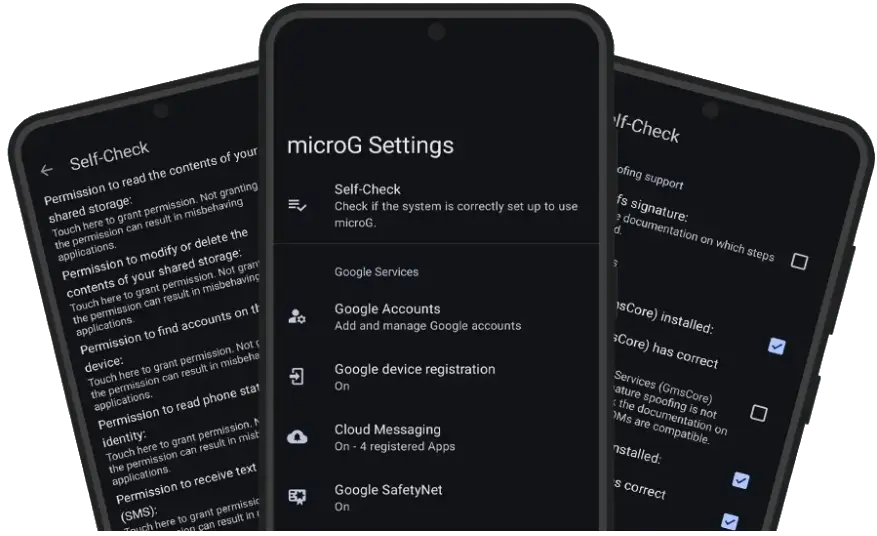
Open MicroG Settings > Self-Check and confirm these boxes are ticked: Google account added, Google Cloud Messaging (GCM/FCM) enabled, and battery optimisation ignored for MicroG. What about “System spoofs signature”? On a normal non-rooted Xiaomi, Samsung or Realme phone it will be unchecked, and that is fine. Signature spoofing is a system-level feature of custom ROMs; ReVanced and Morphe music apps do not need it, because they talk to MicroG as an app, not as system Play Services. If someone tells you to root your phone just for YouTube Music, ignore them — you do not need root for either route in this guide.
Stop the music dying in the background (Xiaomi, Samsung, Realme)
MicroG and the music app both need to be exempt from battery optimisation, or Android will kill them minutes after the screen goes off. This is the fix for “music stops on lock screen” on nearly every Indian budget phone we have tested this on:
- All brands: Settings > Apps > MicroG Services Core > Battery > Unrestricted (wording varies: “Don’t optimise” or “Allow background activity”). Do the same for ReVanced YouTube Music or Morphe YouTube Music.
- Xiaomi / Redmi / POCO (MIUI & HyperOS): Open the Security app > Autostart, and enable autostart for MicroG and the music app. Then Settings > Apps > Manage apps > MicroG > Battery saver > No restrictions.
- Samsung (One UI): Settings > Battery > Background usage limits > Never sleeping apps, and add both apps. Also check Settings > Apps > MicroG > Battery > Unrestricted.
- Realme / OPPO (Realme UI / ColorOS): Settings > Battery > App battery management, set both apps to “Allow background running” / “Don’t optimise”.
- Data Saver: If you run Jio or Airtel with Data Saver on, go to Settings > Network & internet > Data Saver and set both apps to Unrestricted data access, or background playback and downloads will pause the moment you leave Wi-Fi.
Fixes for the errors you will actually meet
| Problem | What is really wrong | Fix |
|---|---|---|
| “MicroG not installed” inside the music app | Wrong companion variant, or music app installed before MicroG | Uninstall the music app, install the matching MicroG variant (ReVanced GmsCore for ReVanced, MicroG RE for Morphe), then reinstall the music app |
| “App not installed” when installing MicroG | Another MicroG variant is already on the phone | Uninstall the old variant first; see our package-conflict fix |
| Sign-in loops or “Something went wrong” | Account added inside the app instead of MicroG, or 2-Step prompt missed | Remove the account, add it in MicroG Settings > Google accounts, approve the 2-Step prompt, then reopen the app |
| Music stops when the screen locks | Battery optimisation killed MicroG or the app | Apply the per-brand battery steps above for both apps |
| Library or playlists are empty after sign-in | App opened before MicroG had the account | Force-stop the music app, clear its cache (not data), reopen it — the library syncs from the MicroG account |
| Downloads fail or never start | Storage permission denied, or Data Saver blocking background data | Grant Files/Media permission to the music app and set it to Unrestricted data access |
Our verdict: which route should you pick?
If you just want music working tonight, take the Morphe route: two installs, one sign-in, done. If you like updating on your own schedule and choosing patches, take the ReVanced route — but accept that every major YouTube Music update means re-patching, and a patch that worked last month can break without warning. Either way, the rule that decides success is the same: matching MicroG variant first, account in MicroG second, battery exemptions third. Skip any one of those and you will be back searching for the same error. And one honest caution: these are unofficial apps. They work well day to day, but they are not Google’s apps, so if your main Google account is precious to you, consider signing in with a secondary account — that is our own recommendation, not a requirement.
Frequently asked questions
Do I need MicroG for ReVanced YouTube Music?
Yes. ReVanced YouTube Music uses MicroG (ReVanced GmsCore) for Google sign-in, library sync and notifications. Without it, you can browse but you cannot sign in, and the app will tell you MicroG is missing.
Can I use the same MicroG for ReVanced and Morphe at the same time?
Use one companion per app and do not mix variants for the same app. ReVanced pairs with ReVanced GmsCore; Morphe pairs with MicroG RE. Installing a second variant to “cover” both apps usually creates a package conflict.
Does MicroG for YouTube Music need root or signature spoofing?
No. Both the ReVanced and Morphe routes in this guide work on non-rooted phones. The Self-Check “signature spoofing” box stays unchecked on stock phones and that is normal — it is only needed for system-level MicroG on custom ROMs.
Why does my music stop when I lock my phone?
Almost always battery optimisation. Set MicroG and your music app to Unrestricted battery use, enable autostart on Xiaomi, add both apps to Samsung’s “Never sleeping apps”, and turn off Data Saver restrictions for both apps.
Is it safe to sign in to MicroG with my Google account?
Sign-in happens through Google’s own sign-in screen inside MicroG’s account settings, and MicroG is open-source software whose code is public (see microg.org). The remaining risk is not the sign-in itself but that ReVanced and Morphe are unofficial apps, so a secondary account is the cautious choice for a primary account you cannot afford to lose.
What do I do after a YouTube Music update breaks ReVanced?
Do not reinstall everything. Wait for updated ReVanced patches, re-patch the new stock APK in ReVanced Manager, and reinstall the patched app. Your MicroG install and account survive this — only the patched app changes.
Related reading: start with the MicroG download page for the current 7.2.1 build, then the Morphe setup guide if you chose that route, and the package-conflict fix if any install refuses with “App not installed”.
This guide is part of our MicroG hub — the MicroG download homepage has the latest verified APK, the full install walkthrough and every fix in one place.
2 thoughts on “MicroG for YouTube Music (ReVanced & Morphe): Full Setup Guide”
Comments are closed.