You charged your phone overnight, used it normally, and by the afternoon the battery is already low — and when you check the battery chart, MicroG is near the top of the list. It feels backwards: MicroG is supposed to be a lightweight stand-in for Google Play Services, not a battery hog. In most cases it is not MicroG itself burning power for fun. Something around it is making it work too hard: an app waking it again and again, a location backend polling in the background, push messages retrying, or — very commonly on Xiaomi, Samsung and Realme phones — the phone’s own battery saver killing MicroG and forcing it to restart over and over.
Quick answer: First check Settings > Battery > Battery usage to confirm MicroG really is the drain and not just the app using it. Then stop your phone’s battery saver from killing MicroG, turn off location backends and push registrations you do not need, and restrict the heavy app itself — not MicroG. On Xiaomi, Samsung and Realme the brand-specific battery settings below matter more than any setting inside MicroG.
Diagnose first: is MicroG really the problem?
Do not change a dozen settings on a guess. Battery charts can mislead, because work done for another app is sometimes charged to MicroG. Spend two minutes on this check before you touch anything.
Open Settings > Battery > Battery usage (on Samsung phones, Settings > Battery and device care > Battery > View details or the battery usage list on your model). Look at which apps sit above MicroG. If YouTube ReVanced, a messaging app or a maps app is high and MicroG is just below it, the app is probably the real drain and MicroG is only delivering its notifications, location or sign-in. If MicroG itself sits at or near the top even on a day you barely used those apps, the fixes below are for you.
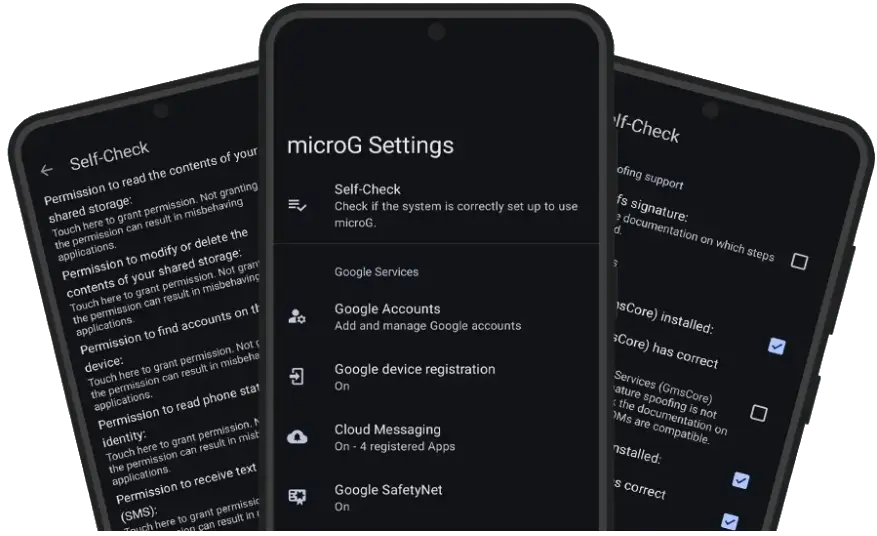
Next, open MicroG Settings and run Self-Check. Self-Check is not a battery tool, but it tells you whether the core pieces are healthy. A phone where signature spoofing, account sign-in or Cloud Messaging keeps failing is a phone where apps keep retrying — and retries cost battery. Fix a failing Self-Check item first, using the guides linked at the end of this article, then judge the battery again over a full day, not over one hour. Battery behaviour after a fresh install, a reboot or a big app update is often temporarily high and settles on its own.
Also check the obvious culprits that get blamed on MicroG: screen brightness, a weak mobile signal, and background video playback. A phone hunting for signal on a train or in a low-coverage area will drain fast no matter what services run on it, and no MicroG setting fixes that.
Why MicroG drains battery on some phones
MicroG replaces Google Play Services, so it takes over jobs that used to belong to Google’s services: keeping you signed in, delivering push notifications through Cloud Messaging, and providing location when an app asks for it. Each of those jobs is cheap when it works cleanly. Each becomes expensive when it keeps failing and retrying.
The most common loop is this: your phone’s battery saver kills MicroG in the background to save power. An app that needs a push notification or a location fix wakes it up again. The battery saver kills it again. Every restart, re-registration and re-check costs more power than simply letting MicroG idle quietly in the background. That is why the central advice in this guide sounds backwards at first: to reduce battery drain, you usually need to stop restricting MicroG, and restrict the greedy app instead.
The other two usual causes are location and push. If a location backend is enabled and an app polls location often, MicroG’s location work runs often. If several apps are registered for push notifications but you never use them, each registration is another connection to maintain. Both are easy to trim once you know where the switches are.
The core fix on every phone: let MicroG run, restrict the app
Open Settings > Apps > MicroG Services Core > Battery (the exact wording varies: “Battery usage”, “Battery optimisation” or “App battery usage”). Set MicroG to Unrestricted, Don’t optimise or Allow background activity — whichever unrestricted option your phone offers. This stops the kill-and-restart loop described above.
Then do the opposite for the app that is actually heavy. If ReVanced YouTube is the app eating battery, its background use — not MicroG’s — is what to limit, for example by turning off background play when you do not need it, or by closing it properly instead of leaving a video paused in the background. If a messaging or shopping app you barely open is waking the phone constantly, restrict that app’s background activity in the same Apps menu. One unrestricted service plus restricted greedy apps beats restricting everything, which just creates retries.
While you are in the Apps menu, check permissions too. MicroG needs the permissions its Self-Check asks for to do its job; removing a permission an app depends on can cause the same retry loop. Only remove permissions for apps you do not use.
Xiaomi and Redmi (MIUI / HyperOS): the settings that matter
Xiaomi phones are the most aggressive battery killers of the three brands, which is why MicroG battery complaints from Xiaomi owners are so common in India. Three switches matter, and you need all three.
- Autostart: Go to Settings > Apps > Manage apps > MicroG Services Core and turn Autostart on. Without it, MicroG may not restart cleanly after a reboot, and apps fall back to repeated wake attempts.
- Battery saver: In the same app page, open Battery saver and choose No restrictions. The “Battery saver” or “Restrict background activity” options are the ones that start the kill-and-restart loop.
- App battery saver list: On some MIUI and HyperOS versions there is also Settings > Battery > App battery saver (or Battery > Battery optimisation). Make sure MicroG Services Core is set to No restrictions there as well, because the two lists do not always stay in sync.
One more Xiaomi trap: the Security app’s cleaner and “Boost speed” button can kill background services. If battery improves for a day and then gets bad again after you run a cleaner, that is the cause — leave MicroG out of the cleaning, or simply do not run the booster while MicroG apps are in use.
Samsung (One UI): sleeping apps are the trap
Samsung’s One UI puts unused apps to sleep automatically, and MicroG can end up on that list even though apps depend on it every day. The result is delayed notifications followed by bursts of catch-up work, which looks like battery drain.
- Go to Settings > Battery and device care > Battery > Background usage limits. Open Never sleeping apps and add MicroG Services Core (and your main ReVanced or Morphe app if it is listed as sleeping).
- Check Deep sleeping apps and Sleeping apps on the same screen. If MicroG or its companion app is there, remove it.
- Go to Settings > Apps > MicroG Services Core > Battery and set it to Unrestricted. On Samsung phones this sits alongside Adaptive Battery, so check that the app is not also limited under Settings > Battery and device care > Battery > More battery settings or your model’s Adaptive Battery screen.
Samsung’s Device Care optimiser, like Xiaomi’s cleaner, can also re-apply restrictions when it runs. If your settings keep reverting, run Device Care manually once, re-apply the steps above, and see whether they stick. Power saving mode itself is fine for a low-battery emergency, but do not leave it on permanently while judging MicroG — it throttles background work across the whole phone and makes every service look inefficient.
Realme, Oppo and OnePlus (ColorOS / OxygenOS): startup and background rules
Realme phones running ColorOS (and closely related Oppo and OnePlus software) manage background apps through a startup manager as well as battery optimisation, so again you need both switches.
- Go to Settings > Apps > MicroG Services Core > Battery usage and choose Allow background activity or Don’t optimise, depending on your version.
- Open Settings > Battery > App battery management (on some models: Settings > Apps > App management > MicroG Services Core > Battery usage) and set MicroG to Allow background running rather than “Intelligently restrict” or “Forbid background running”.
- Check the startup list: Settings > Apps > Startup manager or Phone Manager > Privacy permissions > Startup manager on older ColorOS versions. Allow MicroG to start, so it does not have to be woken from scratch by every app.
Realme’s “App Quick Freeze” and similar freeze features can also park MicroG. If you use Phone Manager’s optimisation tools, check afterwards that MicroG has not been frozen or newly restricted — that is a common reason a fix works for two days and then stops working.
| Brand | Where to look | What to set for MicroG |
|---|---|---|
| Xiaomi / Redmi (MIUI, HyperOS) | App info > Autostart; App info > Battery saver; Battery > App battery saver | Autostart on; No restrictions in both places |
| Samsung (One UI) | Battery and device care > Background usage limits; App info > Battery | Never sleeping apps; Unrestricted |
| Realme / Oppo / OnePlus (ColorOS, OxygenOS) | App info > Battery usage; Battery > App battery management; Startup manager | Allow background running; allow startup |
Trim push and location: the two quiet battery eaters
Once MicroG is allowed to run properly, trim what it is asked to do. Open MicroG Settings > Cloud Messaging and look at which apps are registered. Every registration is an app that can wake the phone with a push. If an app you uninstalled or never use is still registered, deregister it. If an app you rarely open does not need instant notifications, turn its Cloud Messaging off inside that app’s own notification settings instead — you will still get its content when you open it, without the background cost.
Next, open MicroG Settings > Location and review the backends. MicroG supports UnifiedNlp location backends, and having several backends enabled when you only need one means more background lookups. Keep only the backend you actually use, and set the location mode to a battery-friendly option in Settings > Location > Location services (or Location accuracy) if your phone offers one. Apps that genuinely need precise location — maps and ride apps while you are using them — still work, because they ask for location in the foreground; it is the background polling you are cutting.
Finally, check account sync. In MicroG Settings > Google Accounts, open your account and look at what is set to sync. Syncing contacts, calendar and other items you never use on that phone is small work repeated all day. Turn off sync items you do not need; your account itself stays signed in, so ReVanced and other apps keep working.
When a reinstall is actually warranted
Most battery drain does not need a reinstall, and reinstalling carelessly costs you your signed-in accounts. Try this order instead. First, clear only the cache: Settings > Apps > MicroG Services Core > Storage > Clear cache. Cache clearing never signs you out. Second, reboot the phone and use it for a full day before judging — a single afternoon after a change is not a fair test.
Only if drain persists after the brand settings, push trim and a cache clear should you reinstall, and then do it properly: remove the old MicroG build, install the variant that matches your apps from the MicroG APK download page, add your Google account again from inside MicroG Settings, and re-apply the brand battery settings above — a fresh install resets them, which is why people reinstall, see no improvement, and conclude the reinstall failed, when in fact the phone’s battery saver simply re-applied its restrictions. If you are setting MicroG up from scratch, the MicroG setup guide for ReVanced and Morphe walks through the matching variant and account steps, and the MicroG login fix guide covers the sign-in failures that can also cause retry-related drain.
For claims about what MicroG does and does not do, the project’s own pages at microg.org are the official source. If a third-party page promises a “battery saver” MicroG build or a special low-power version, treat it with suspicion: there is no official battery edition, and unofficial builds are a common way to get a mismatched or tampered package.
Self-check: how to know the fix worked
- After a full day of normal use, MicroG no longer sits at the top of Settings > Battery > Battery usage on a day you barely used its apps.
- Notifications from your MicroG apps arrive on time, without a burst of ten old messages when you unlock the phone — that burst is the signature of the kill-and-restart loop.
- MicroG Settings > Self-Check shows its core items passing, and your Google account stays signed in across reboots.
- Battery life is judged over two or three normal days, not over the first hours after changing settings, when the phone is still settling.
If the drain continues after all of this, the cause is very likely outside MicroG: a failing battery, a single heavy app (check its own battery usage, not MicroG’s), or a weak signal area. In that case restricting MicroG further will only break notifications — it will not save the battery.
Frequently asked questions
Does MicroG itself use a lot of battery?
On a healthy setup, no. MicroG is a lightweight replacement for Play Services, and its normal background work — holding a sign-in and delivering push messages — is small. High battery use almost always means something is making it retry, poll or restart, which is what this guide fixes.
Should I set MicroG battery to Restricted to save power?
No, and this is the most common mistake. Restricting MicroG causes the kill-and-restart loop: apps wake it, the system kills it, apps wake it again. Set MicroG to Unrestricted and restrict the heavy app instead.
Why is battery drain worse on Xiaomi phones?
Xiaomi’s MIUI and HyperOS battery management is more aggressive than Samsung’s or Realme’s, and it applies in several places at once — Autostart, Battery saver and the App battery saver list. Missing any one of them can undo the others, so Xiaomi owners need to check all three.
Will turning off Cloud Messaging stop my notifications?
For the apps you deregister, yes — that is the point. Only deregister apps whose instant notifications you do not need. Keep Cloud Messaging on for messaging and mail apps where a delayed message actually matters to you.
Does clearing MicroG data fix battery drain?
Clearing cache sometimes helps and never signs you out, so try it first. Clearing data signs you out of your Google account and forces a full re-setup, so only do it as a last resort before a clean reinstall, and re-apply your brand battery settings afterwards.
Can I use Battery Saver mode with MicroG?
Yes, for emergencies when the battery is low. Just do not judge MicroG’s normal battery use while Battery Saver is on permanently — it throttles background work phone-wide, delays notifications, and makes every service look worse than it is.