Morphe YouTube and Morphe YouTube Music are two of the best patched YouTube clients on Android right now — full ad-blocking, background play, SponsorBlock, and an AMOLED black theme, all without root. But there is one step that trips up almost every first-time installer: without MicroG RE installed first, you cannot sign in to your Google account. The apps will open, but your subscriptions, watch history, and playlists stay locked out.
This guide walks you through the exact working order — which MicroG RE file to download, how to install it before the Morphe apps, how to add your Google account, and the Self-Check and battery settings that keep everything running on Indian phones from Xiaomi, Samsung, and Realme.
The 30-second answer: On a non-rooted phone, install MicroG RE v7.2.2 first (the Morphe team’s GmsCore fork, from github.com/MorpheApp/MicroG-RE), then install Morphe YouTube and Morphe YouTube Music. Open MicroG RE → Accounts → Add account to sign in. If a Morphe app is already installed and login fails, uninstall it, install MicroG RE first, and reinstall the app. If you never sign in, the apps still work — you just get no subscriptions or sync.
Why Morphe apps need MicroG RE at all
Patched apps like Morphe YouTube are re-signed with a different package name (app.morphe.android.youtube instead of Google’s own). The moment the signature changes, Google Play Services refuses to authenticate them — Google only talks to apps signed by their original developers. MicroG RE fills that gap: it is an open-source reimplementation of the Play Services APIs that Morphe apps are built to talk to.
MicroG RE is developed by the Morphe team itself (the same people behind the patches), which is why it is the recommended variant for these apps. It also works fine with ReVanced apps, since it uses the ReVanced GmsCore support patch. I covered how it differs from the older MicroG variants in detail in MicroG RE vs GmsCore vs Vanced MicroG: Which One Do You Actually Need? — the short version is in the table below.
MicroG RE vs the old Vanced MicroG — for Morphe users
| MicroG RE (v7.2.2, Oct 2026) | Old Vanced MicroG | |
|---|---|---|
| Package name | app.revanced.android.gms |
com.mgoogle.android.gms |
| Built for | Morphe apps (also works with ReVanced) | Dead Vanced app (discontinued 2022) |
| Installs next to real Play Services | Yes — own package name, no conflict | Yes, but outdated and unmaintained |
| Interface | Material 3 Expressive, built-in Self-Check screen | Old design, no Self-Check |
| My verdict | Use this for all Morphe apps | Do not use — replace it |
What you need before starting
- An Android phone, Android 5.0 or newer (Android 8+ recommended for the smoothest experience).
- About 200 MB of free space — MicroG RE is ~43 MB universal, each Morphe app ~90–150 MB depending on architecture.
- Permission to install unknown apps: Settings → Apps → Special app access → Install unknown apps, then allow your browser (Chrome) or file manager. Android will ask you to confirm each APK.
- Download MicroG RE only from the official source: the MorpheApp/MicroG-RE GitHub releases page. Do not grab it from random APK mirror sites — the Morphe community has repeatedly warned about repackaged fakes.
Which MicroG RE file to download
The releases page offers six variants. Here is the simple rule from the project’s own docs:
- Not sure which one fits your phone? Download the universal
microg-v7.2.2.apk. It works on every device. - Modern phone (2019 or newer)? The
icon-arm64-v8abuild is less than half the size — nearly every Xiaomi, Samsung, Realme, and Pixel sold in India in the last six years is arm64. -noiconbuilds are identical except the launcher icon is hidden (you open MicroG RE from Settings → Apps). Purely cosmetic — pick whichever you prefer.
You can grab the file from our MicroG APK download page, which links the verified release.
Step-by-step: install MicroG RE, then the Morphe apps
The order matters. MicroG RE must be on the phone before you first open a Morphe app — otherwise the app never registers its account hooks and login fails even after you install MicroG RE later.
- Remove old MicroG/GmsCore variants. If you have Vanced MicroG, ReVanced GmsCore, or any other GmsCore fork installed, uninstall it first. A leftover install is the #1 cause of the “App not installed” error when installing MicroG RE.
- Install the MicroG RE APK. Open the downloaded file, tap Install, then Done (do not open it yet).
- Install Morphe YouTube (
app.morphe.android.youtube) and Morphe YouTube Music. You can patch them yourself with Morphe Manager from morphe.software (Simple mode for defaults, Expert mode to hand-pick patches), or install a trusted prebuilt build — either way, install MicroG RE first. - Open MicroG RE. Work through the Self-Check screen and grant every permission it asks for (details in the next section). A red ✗ here is the root cause of most “login failed” complaints.
- Add your Google account. In MicroG RE, go to Accounts → Add account and sign in with the Google account you use on YouTube. This uses Google’s own authentication — the same login screen you know.
- Open Morphe YouTube. Tap the profile icon — your account should already be there. Repeat for YouTube Music. Your subscriptions, history, and playlists sync exactly like the official apps.
MicroG RE Self-Check: make every tick pass
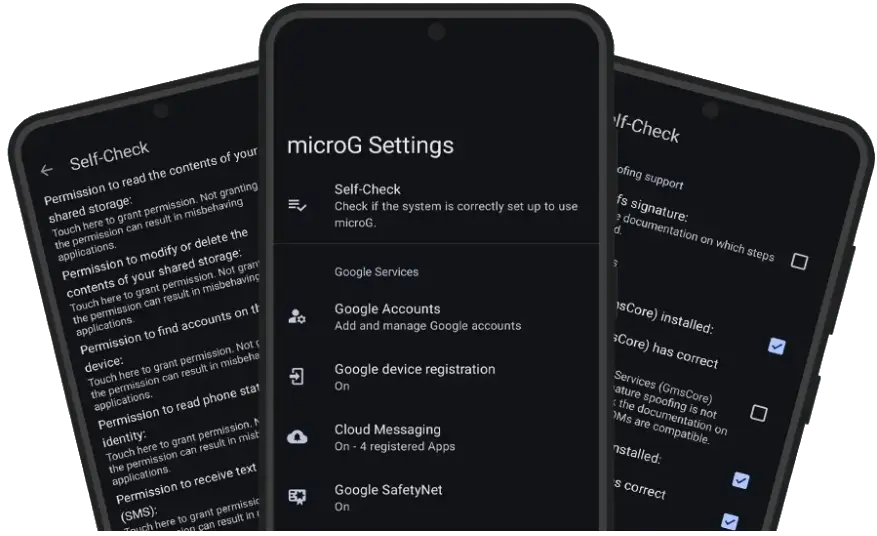
MicroG RE ships a built-in Self-Check screen (open the app → Self-Check) that verifies the permissions and system access it needs. After a fresh install, walk through it once — every item should show a green ✓:
- System grants signature spoofing permission — on non-rooted phones this check may stay unchecked; MicroG RE works without it for account login, so don’t panic if this is the only red item.
- Battery optimizations ignored — tap it and set MicroG RE to Unrestricted. This is critical: if Android kills MicroG RE in the background, your Morphe apps silently lose their login session and notifications stop.
- All permissions granted — location, phone state, and storage as requested. Grant them; MicroG RE only uses what the Self-Check lists.
Battery & background settings for Indian phones
Xiaomi/HyperOS, Samsung One UI, and Realme/ColorOS are all aggressive about killing background apps to save battery — and MicroG RE is exactly the kind of quiet background service they love to kill. If your Morphe login keeps dropping or notifications arrive late, this is almost always why. Set it once:
- Stock Android / Pixel / Motorola: Settings → Apps → MicroG RE → Battery → Unrestricted.
- Xiaomi, Redmi, POCO (HyperOS/MIUI): Settings → Battery → App battery saver → MicroG RE → No restrictions. Also: Settings → Apps → Manage apps → MicroG RE → Autostart → On.
- Samsung (One UI): Settings → Battery → Background usage limits → Never sleeping apps → add MicroG RE.
- Realme / Oppo (ColorOS): Settings → Battery → App battery management → MicroG RE → Allow background activity.
Exact menu names shift slightly between versions — if a path above doesn’t match your phone, search Settings for “battery optimization” and exempt MicroG RE from there.
Common problems and their fixes
“App not installed” when installing MicroG RE
Another GmsCore/MicroG variant is still on the phone. Uninstall every app with “microG”, “GmsCore”, or “Vanced” in the name, restart the phone, and install MicroG RE again.
Google account won’t stay signed in
Add the account inside MicroG RE → Accounts, not from inside the Morphe app. If it still loops: uninstall the Morphe app, reinstall MicroG RE cleanly, add the account, then reinstall the Morphe app. And double-check the battery exemption above — a killed MicroG RE drops the session.
Morphe YouTube buffers or videos won’t play
This is the well-known playback issue with a documented fix: in Morphe YouTube, go to Settings → Morphe → Settings → Miscellaneous and turn on “Spoof video streams”. (Advanced users can instead set an external PoToken provider under the same Miscellaneous menu.)
Notifications from Morphe apps never arrive
In MicroG RE, open Google device registration and Google Cloud Messaging and make sure both are enabled and show as connected. Then apply the battery exemption — on Jio and Airtel this is the usual culprit, not the network.
I’m rooted — do I need MicroG RE?
No. On a rooted phone, install the root variant of the Morphe apps, which plugs into your phone’s real Google Play Services. MicroG RE exists precisely for non-rooted devices.
Frequently asked questions
Can I use Morphe apps without MicroG RE?
Yes — the apps open and play videos without any login. You only need MicroG RE if you want to sign in to a Google account for subscriptions, history, and synced playlists.
Is MicroG RE safe to install?
It is a fork of the microG project, which is free and open-source software (Apache 2.0 license) — the full source is public on GitHub. As with any sideloaded APK, only download it from the official MorpheApp/MicroG-RE releases page.
Can MicroG RE run alongside the real Google Play Services?
Yes. It uses its own package name (app.revanced.android.gms), so it installs next to Play Services without conflict — handy on GMS-certified phones where you want both.
Will my Google account get banned for signing in?
Sign-in goes through Google’s official authentication inside MicroG RE. Using patched clients technically violates YouTube’s terms of service, but the Morphe community does not report account bans tied to simply signing in this way. If you are cautious, use a secondary Google account for patched apps.
Does MicroG RE work on iPhone?
No — MicroG RE and Morphe apps are Android-only. There is no iOS version.
Do I need to update MicroG RE?
Check the GitHub releases page every month or two. The Morphe team bumps the GMS version regularly (v7.2.2 landed 21 October 2026) to stay compatible with the latest YouTube app versions — running an old build against a new Morphe app is a classic cause of login failures.
The bottom line
For Morphe YouTube and Morphe YouTube Music on a non-rooted phone, MicroG RE v7.2.2 is the only MicroG variant you should install — it’s built by the Morphe team for exactly these apps, installs alongside Play Services, and its Self-Check screen tells you precisely what’s wrong when login fails. Install it first, add your Google account inside it, exempt it from your phone’s battery saver, and your Morphe apps will behave like the official ones — minus the ads. Grab the verified APK from our MicroG download page, and if you’re curious how RE compares to every other variant, read the full MicroG version comparison.
Our MicroG homepage has the latest MicroG RE download, the SHA-256 checksum and the rest of the Morphe guides.
1 thought on “Morphe Apps Setup: Install MicroG RE for Morphe YouTube & YouTube Music (2026 Guide)”
Comments are closed.