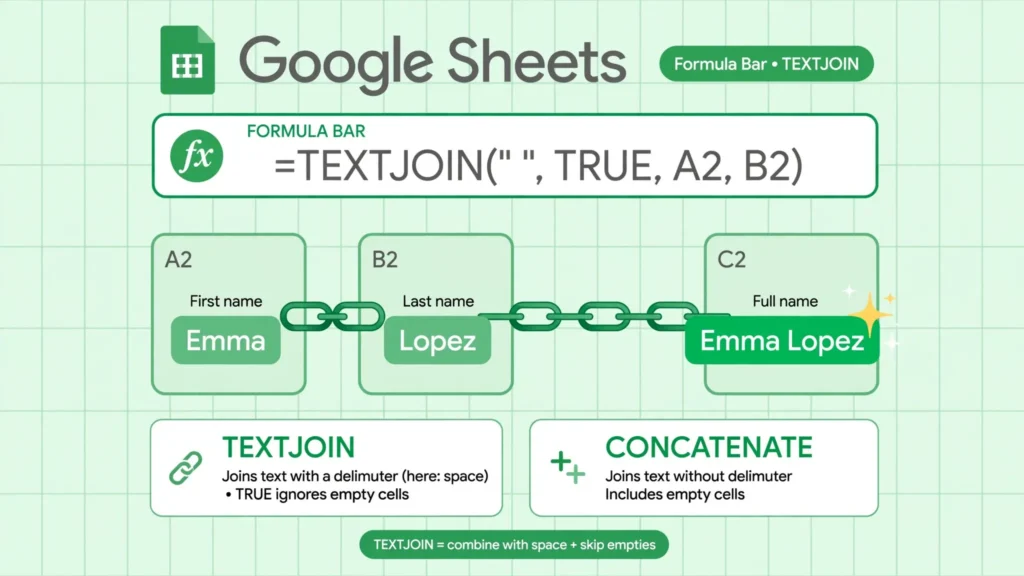
Figuring out how to combine cells in Google Sheets is a rite of passage for anyone who works with imported data. First names live in one column and last names in another; street, city, and postal code arrive as three fields but your mailing labels need one; a CSV export splits what your report must show together. Google Sheets gives you three tools for the job — the & operator, the classic CONCATENATE function, and the modern TEXTJOIN function — and each shines in different situations.
This guide walks through all three: when to reach for the quick &, how concatenate in Google Sheets works for straightforward joins, and why Google Sheets TEXTJOIN is usually the best answer once delimiters and empty cells enter the picture. You will also learn how to add spaces, commas, and line breaks between values, how to keep dates and currency looking right inside combined text, how to combine entire columns at once with ARRAYFORMULA, and the important difference between combining and merging (including why there is no merge cells Google Sheets formula). Real examples throughout — names, addresses, SKUs — drawn from the kind of CSV data that lands in sheets every day in the US, UK, India, Canada, and Australia.
Combine vs merge: which one do you actually want?
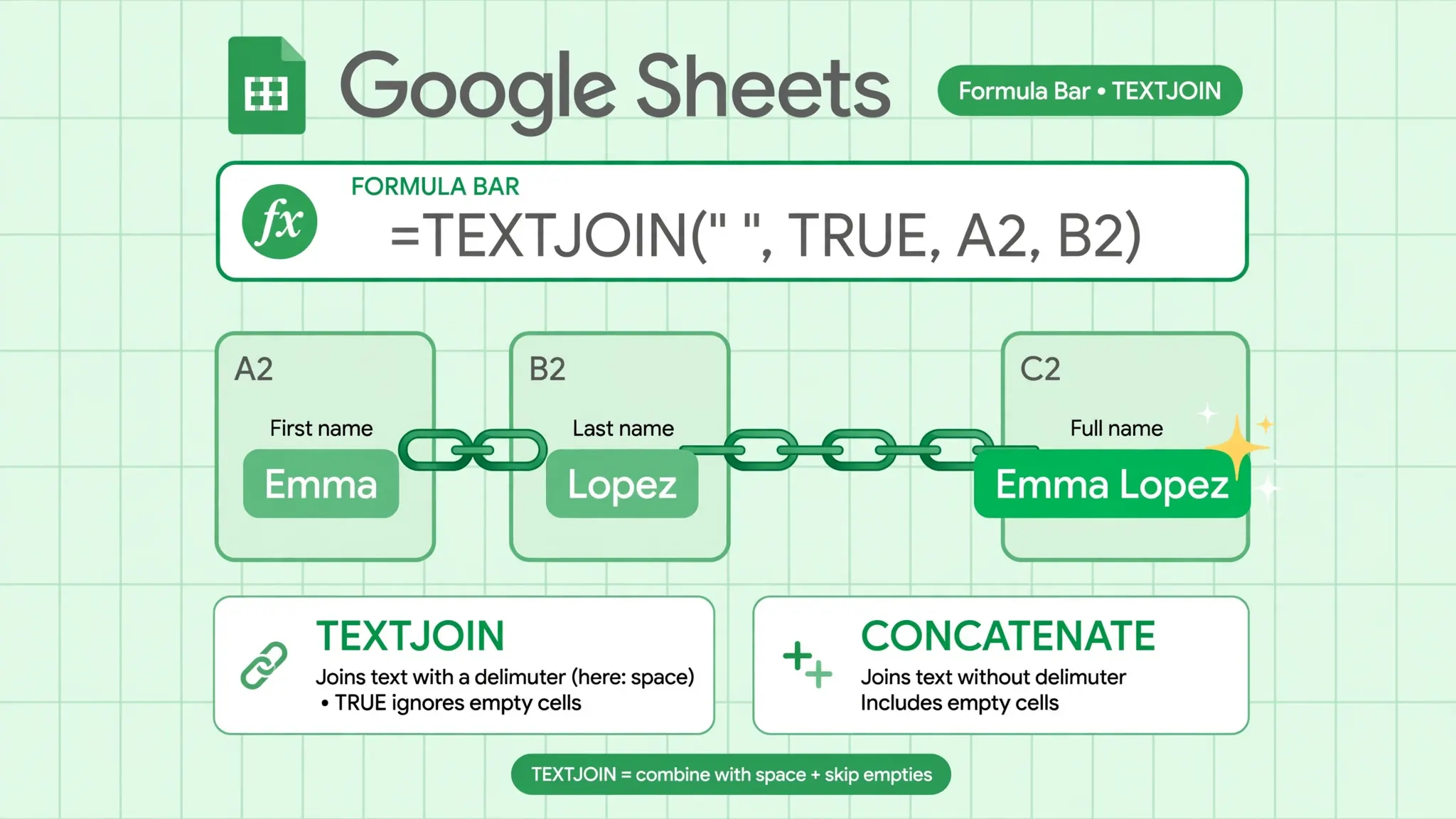
Half the confusion around this topic comes from two different operations sharing one casual verb. Combining joins the values of several cells into one cell as text: A2 holds “Priya”, B2 holds “Sharma”, and the formula produces “Priya Sharma” in C2. The originals stay put; C2 is a formula you can copy, sort, and export. Merging joins the cells themselves into one bigger cell for layout: select A2:C2, Format › Merge cells, and you get one wide cell — keeping only the top-left value and discarding the rest.
The rule of thumb: if you need the joined data (for labels, lookups, exports, dropdown sources), you want to combine with a formula. If you need a title stretched across columns for looks, you want to merge. Never merge cells inside a data table you plan to sort, filter, or pivot — merged cells break all three. Combine instead, and keep the grid intact.
The & operator: the fastest way to combine cells in Google Sheets
The ampersand is concatenation boiled down to one character. =A2&B2 glues the two values with nothing between them; =A2&" "&B2 adds a space. Anything in quotes is literal text, so =A2&", "&B2 gives “Sharma, Priya” and ="Order #"&A2 prefixes every ID in a column.
The & operator shines for short, readable joins — two or three pieces with simple separators. It reads left-to-right exactly like the result, which makes formulas easy to audit at a glance. Power users chain it with functions freely: =UPPER(A2)&"-"&TEXT(B2,"0000") builds a normalized SKU in one pass. Where it gets unwieldy is long lists: joining ten cells means nine ampersands and nine quoted separators, and one missed quote breaks the whole thing. That is the moment to switch to TEXTJOIN.

CONCATENATE in Google Sheets: the classic function
Concatenate in Google Sheets via the CONCATENATE() function does exactly what & does, in function form: =CONCATENATE(A2, " ", B2) produces “Priya Sharma”. Each argument is a value or a quoted string, joined in order with nothing added between them — you supply every separator explicitly as its own argument.
Why does the function exist if & does the same thing? Mostly history and readability: in long formulas, CONCATENATE(...) with named arguments can be easier to scan than a chain of ampersands, and it is the spelling Excel users already know, which matters for teams that move between the two apps. Functionally the two are identical — same result, same performance. The honest modern advice: learn & for quick joins and TEXTJOIN for everything else, and treat CONCATENATE as the compatible middle child you will still see in inherited sheets.
TEXTJOIN in Google Sheets: the modern best choice
Google Sheets TEXTJOIN is the function you should reach for first in 2026. Syntax:
=TEXTJOIN(delimiter, ignore_empty, text1, [text2, ...])
Three things make it better than the alternatives. First, the delimiter is declared once: =TEXTJOIN(" ", TRUE, A2, B2, C2) puts a space between every piece — no repeating &" "& nine times. Second, ignore_empty skips blanks: with TRUE, empty cells vanish from the result instead of leaving double spaces or trailing commas — the bane of address joins where Apartment is often blank. Third, it takes ranges: =TEXTJOIN(", ", TRUE, A2:A20) joins a whole column in one call, something neither & nor CONCATENATE can do.
Real-world patterns: full names =TEXTJOIN(" ", TRUE, A2:C2) (handles missing middle names gracefully); mailing addresses =TEXTJOIN(", ", TRUE, A2:D2) (skips the blank apartment line); multi-line addresses =TEXTJOIN(CHAR(10), TRUE, A2:D2) with text wrapping on (each piece on its own line — see the separators section); keyword lists =TEXTJOIN("; ", TRUE, A2:A).
JOIN(delimiter, values), which is TEXTJOIN’s simpler sibling — same delimiter idea, but it takes exactly one range or array and has no ignore_empty option. If you need to skip blanks or join scattered cells, use TEXTJOIN. Google’s official syntax reference is the TEXTJOIN help article.CONCAT vs CONCATENATE: what is the difference?
Sheets offers both CONCAT() and CONCATENATE(), and the difference is small but real: CONCAT takes exactly two arguments (or ranges, which it joins element-wise), while CONCATENATE takes any number. =CONCAT(A2, B2) works; =CONCAT(A2, B2, C2) errors. In practice, CONCAT exists for compatibility and for one clever trick — joining two ranges element-wise down a column — but for everyday combining, pretend it does not exist and use & or TEXTJOIN.
Spaces, commas, and line breaks between combined values
The separator is where combined text succeeds or looks amateur. The patterns:
Space: =A2&" "&B2 or =TEXTJOIN(" ", TRUE, A2, B2). The classic for names.
Comma-space: =TEXTJOIN(", ", TRUE, A2:C2) gives “Springfield, Illinois, USA”. With ignore_empty TRUE, a missing middle value does not leave a sad “, ,”.
Hyphen / slash: SKUs and codes — =A2&"-"&TEXT(B2,"000") → “WIDGET-042”. Note TEXT(B2,"000") pads the number with leading zeros, which a bare & would drop.
Line break: =TEXTJOIN(CHAR(10), TRUE, A2:D2), then enable Format › Wrapping › Wrap on the cell. Each piece lands on its own line — perfect for address blocks and multi-line labels. Without wrapping enabled, you will see a small box character instead of a break; that is Sheets telling you wrapping is off, not that the formula failed.
Custom multi-character: anything in quotes works — " → ", " | ", " — ". TEXTJOIN accepts the whole string as one delimiter.
Numbers, dates, and currency inside combined text
This is the number-one “why does my result look wrong” topic. When you combine a formatted cell, Sheets joins the cell’s underlying value, not its displayed text. Dates are stored as serial numbers (days since 1899-12-30), so ="Due: "&B2 where B2 shows 10/08/2026 produces “Due: 45931”. Currency loses its symbol and decimals shift; percentages become decimals.
The fix is the TEXT() function, which formats a value as text inside the formula:
="Due: "&TEXT(B2, "mm/dd/yyyy") → “Due: 10/08/2026”
="Total: "&TEXT(C2, "$#,##0.00") → “Total: $1,234.50”
=A2&" ("&TEXT(D2, "0%")&")" → “Priya (15%)”
The format codes match the custom number-format syntax (mm/dd/yyyy, dd-mmm-yyyy, #,##0.00), so whatever you can do in Format › Number › Custom you can do inside TEXT(). For teams spanning the US (mm/dd/yyyy) and the UK/India (dd/mm/yyyy), pick the format explicitly in the formula rather than inheriting the sheet locale — your future self, opening the sheet on a different locale, will thank you. (Our date format guide goes deep on locale-safe dates.)

Combine whole columns at once with ARRAYFORMULA
Dragging a combine formula down 10,000 rows works, but ARRAYFORMULA does it in one cell and keeps working as new rows arrive — ideal for Sheets fed by CSV imports or form responses:
=ARRAYFORMULA(A2:A&" "&B2:B)
Enter that in C2 and the entire column fills. Two refinements for production use. First, suppress the formula’s output on empty rows: =ARRAYFORMULA(IF(A2:A="", "", A2:A&" "&B2:B)) keeps blank rows blank instead of showing stray spaces. Second, remember that TEXTJOIN with a range collapses down a column into one cell rather than working across rows — for row-wise joins inside ARRAYFORMULA, the & form above is the pattern; for column-wise aggregation into a single cell, plain =TEXTJOIN(", ", TRUE, A2:A) (no ARRAYFORMULA needed) is the tool.
“Merge cells Google Sheets formula”: why there isn’t one (and what to use)
Searches for merge cells Google Sheets formula are common enough to address directly: there is no formula that merges cells, because merging is formatting — it changes the grid, and formulas can only change values. To merge, select the cells and use Format › Merge cells (merge all, horizontally, or vertically). The top-left value survives; the rest are discarded, so merge only cells where you are sure of that.
What people usually want when they search this is one of three things. Join the values? That is combining — use TEXTJOIN as this guide describes. A centered title across columns? Select the row range and merge horizontally — but consider “Center across selection” thinking instead: merged title rows break sorting, so many pros just center the title in the first cell and leave the grid intact. Merge via automation? Apps Script’s range.merge() does it programmatically — see our Apps Script tutorial for the macro that merges header rows across a whole workbook in one click.

Troubleshooting: when combining goes wrong
Double spaces or trailing commas. Empty cells in the join. Switch to TEXTJOIN with ignore_empty TRUE, or wrap & joins in TRIM().
Dates show as numbers (45931). Wrap the date in TEXT(cell, "mm/dd/yyyy") as shown above.
Leading zeros vanished (“007” → “7”). The source was numeric. Use TEXT(A2, "000") to force the width, or format the source column as plain text before joining.
#VALUE! errors. Usually a range-size mismatch inside ARRAYFORMULA (A2:A1000 joined with B2:B999) or text where a number was expected. Check that paired ranges start and end on the same rows.
Line breaks show as boxes. CHAR(10) is working — text wrapping is off. Select the cells, Format › Wrapping › Wrap.
Combined text will not sort “correctly.” Text sorts alphabetically, so “Item 10” comes before “Item 2”. Pad numbers with TEXT(n, "000") before joining if sort order matters.
The join looks right but VLOOKUP fails. Invisible trailing spaces from the source data. Wrap the whole join in TRIM(), or clean sources first with Data › Data cleanup › Trim whitespace. Dropdowns built on combined values need the same treatment — see our data validation dropdown guide.
Real-world combining recipes
Theory is nice; recipes are better. Here are the joins people actually look up how to combine cells in Google Sheets for, ready to copy.
Full name, middle-name-safe. First in A, middle in B, last in C: =TEXTJOIN(" ", TRUE, A2:C2). The ignore_empty flag means “Priya Sharma” (no middle name) comes out clean — no double space where the middle name would be. This is the single most-used TEXTJOIN pattern in the wild.
Mailing label block. Name, street, apartment, city/state/ZIP in A2:D2: =TEXTJOIN(CHAR(10), TRUE, A2:D2) with Format › Wrapping › Wrap on. Each piece on its own line, blank apartment skipped automatically. Select the column, set row heights a touch taller, and you have printable labels straight from the sheet.
SKU builder with padding. Category in A2, number in B2: =UPPER(A2)&"-"&TEXT(B2, "0000") → “WIDGET-0042”. The TEXT wrapper keeps the numeric part fixed-width so SKUs sort correctly — “0042” before “0100”, which a naive join would get wrong.
Email address from a name. =LOWER(SUBSTITUTE(A2&"."&B2, " ", ""))&"@company.com" turns “Priya Sharma” into priya.sharma@company.com. The SUBSTITUTE strips spaces from double-barrelled names; LOWER keeps it canonical. Generate a hundred onboarding emails in one fill-down.
URL slugs. =LOWER(SUBSTITUTE(SUBSTITUTE(A2, " ", "-"), "&", "and")) turns “Q3 Report & Analysis” into “q3-report-and-analysis”. Chain SUBSTITUTE calls for each character you want gone — apostrophes, commas, slashes.
Dated filenames. ="Report_"&TEXT(TODAY(), "yyyy-mm-dd")&"_"&A2 → “Report_2026-10-08_Q3”. ISO dates in filenames sort chronologically in Drive — a small habit with a large payoff when you have forty exports.
Notice the pattern across every recipe: the join itself is trivial; the preparation (padding, casing, skipping blanks) is where quality lives. Get the preparation right and learning how to combine cells in Google Sheets pays off in every one of these within seconds.
When not to combine: keep data atomic
Combining is so satisfying that people overdo it. Keep values separate when you need to sort, filter, or calculate on the parts: a “City, State” combined column cannot sort by state alone or feed a state-level pivot — the split columns can. The professional pattern is store atomic, display combined: keep first/last names in their own columns (sortable, validatable, joinable) and add a display column with the TEXTJOIN for labels, exports, and dropdowns. Combining is a presentation step, not a storage step. The one exception: IDs and keys that are defined as combined strings (order numbers, SKUs) — those live combined from birth, built once by a formula and never edited by hand.
Combining values from other sheets (and other spreadsheets)
Joins are not confined to one tab. Reference other sheets directly: =TEXTJOIN(" ", TRUE, Clients!A2, Orders!B2) pulls from two tabs at once — just prefix cell references with the sheet name. For values living in another spreadsheet entirely, wrap the range in IMPORTRANGE: =TEXTJOIN(", ", TRUE, IMPORTRANGE("spreadsheet_url", "Lists!A2:A")). The first run asks you to allow access between the files; after that the join updates live. One caution: IMPORTRANGE is a live dependency — if the source file is deleted or unshared, your combined cells break. For critical reports, paste-values the result periodically so the report survives source changes.
Frequently Asked Questions
How do I combine cells in Google Sheets?
Use the & operator (=A2&B2), the CONCATENATE function (=CONCATENATE(A2,B2)), or TEXTJOIN (=TEXTJOIN(” “, TRUE, A2, B2)) to join cell contents. TEXTJOIN is usually best because it adds a delimiter and skips empty cells automatically.
What is the difference between CONCATENATE and TEXTJOIN in Google Sheets?
CONCATENATE joins values with no separator and includes empty cells as nothing. TEXTJOIN takes a delimiter (space, comma, line break) and an ignore_empty flag, and it accepts whole ranges at once — so =TEXTJOIN(“, “, TRUE, A2:A10) replaces a long chain of CONCATENATE arguments.
How do I combine cells in Google Sheets with a space between them?
Put the space in quotes between the values: =A2&” “&B2, =CONCATENATE(A2,” “,B2), or simplest, =TEXTJOIN(” “, TRUE, A2, B2). For a line break instead of a space, use CHAR(10) and turn on text wrapping.
Is there a merge cells formula in Google Sheets?
No — merging is formatting, not a formula. Select the cells and use Format › Merge cells. If you want the values joined into one cell as text, that is combining, and you use &, CONCATENATE, or TEXTJOIN instead.
Why does my combined date show as a number in Google Sheets?
Dates are stored as serial numbers, so joining a date cell directly exposes the raw number. Wrap it in TEXT first: =A2&” “&TEXT(B2,”mm/dd/yyyy”) to keep the readable date in the combined result.
How do I combine an entire column in Google Sheets at once?
Use ARRAYFORMULA with &: =ARRAYFORMULA(A2:A&” “&B2:B) fills the whole column. Or use TEXTJOIN on the range: =TEXTJOIN(“, “, TRUE, A2:A) joins every non-empty cell in the column into one cell.