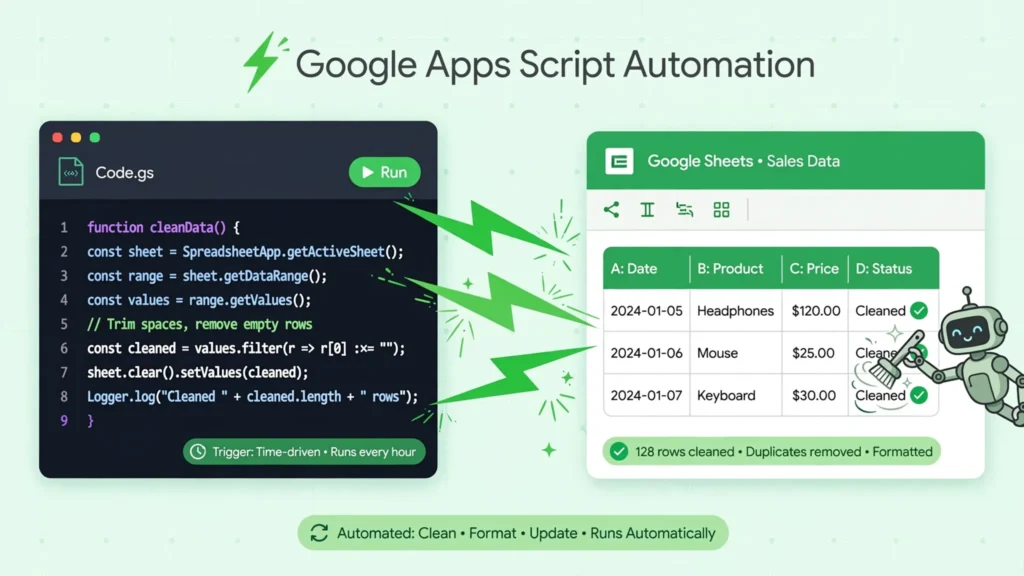
This Google Sheets Apps Script tutorial is built for one kind of reader: the person who does the same spreadsheet cleanup every week and suspects there must be a better way. There is. Apps Script — Google’s JavaScript-based automation for Sheets — turns your repetitive clicks into replayable code. And the beautiful part for beginners: you do not write the first version. You record it, like a macro, then edit the recording. By the end of this guide you will have recorded a macro, understood what it says, modified it, and built a script that auto-cleans CSV imports — trimming whitespace, killing duplicates, fixing dates, freezing headers — in one click.
We will keep the code gentle and the explanations plain: what Apps Script is, how the macro recorder works (absolute vs relative references), how to read recorded code line by line, your first edits, the ten lines that clean any CSV, triggers that automate Google Sheets with script scheduling, custom functions, permissions, and debugging. No programming background required — if you can write a VLOOKUP, you can do this. Whether you are processing weekly reports in the US, monthly reconciliations in the UK, or daily order exports in India, the pattern is identical: record once, clean forever.
What Apps Script is (and what it isn’t)
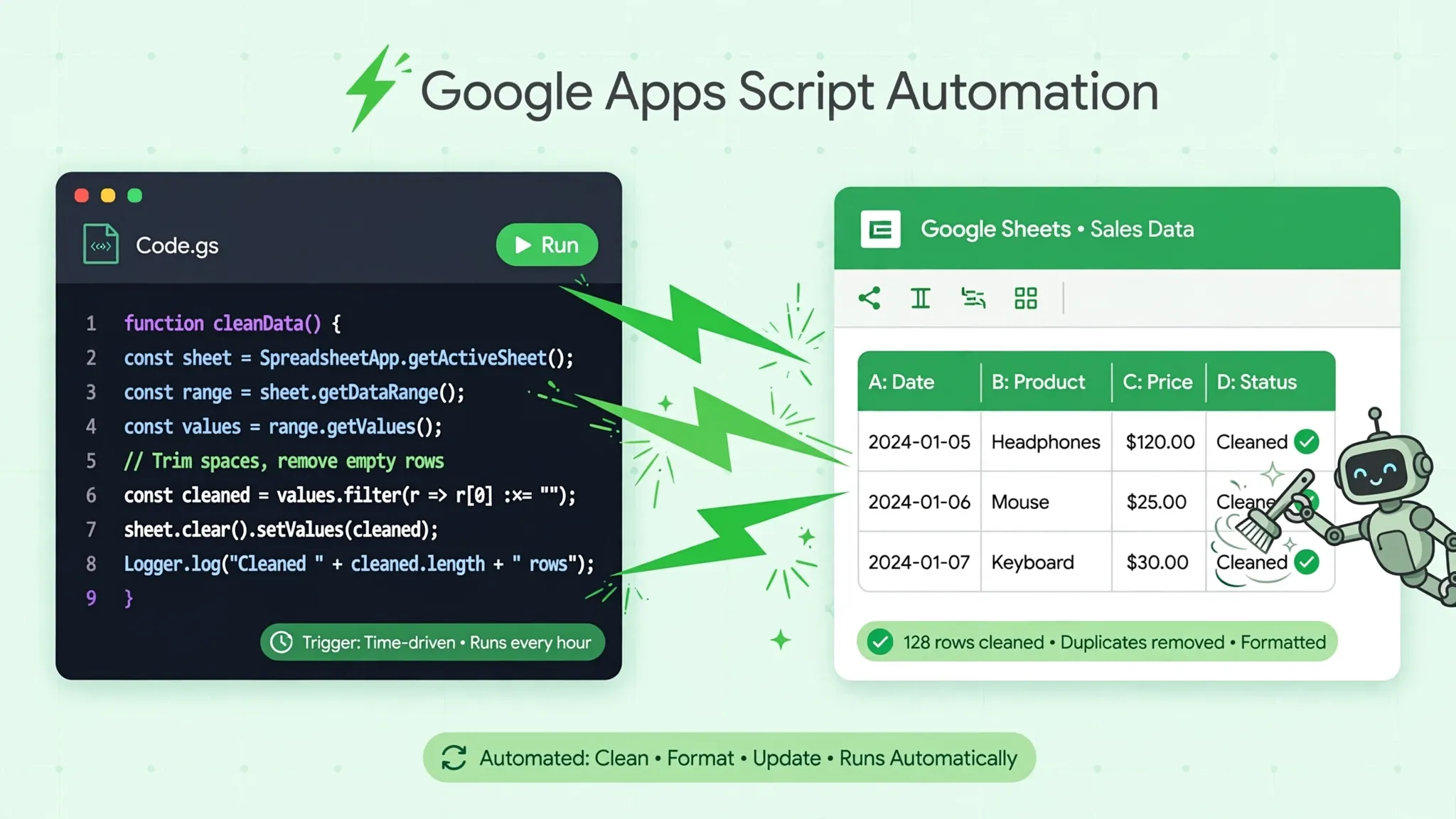
Apps Script is JavaScript with superpowers for Google Workspace: code that runs in Google’s cloud and can read and write your spreadsheets, send emails, create calendar events, and call web APIs. It is not a separate app to install — it lives at Extensions › Apps Script inside every spreadsheet, and every script is automatically saved to your Drive.
What it is not: it is not VBA (Excel’s macro language) — the languages differ, though the ideas transfer. It is not a full application server — quotas limit runtime (generous for spreadsheet work, real for heavy jobs). And it is not required for everyday Sheets use — formulas handle most things. Apps Script earns its place exactly where this tutorial lives: repetitive multi-step cleanups that formulas alone cannot express (“trim everything, dedupe, fix dates, freeze, format, done”).
Your first Google Sheets Apps Script tutorial project: record a macro
Forget code for ten minutes. The macro recorder watches your clicks and writes the script for you:
- Open a spreadsheet with some data (an imported CSV is perfect).
- Go to Extensions › Macros › Record macro.
- Choose Use absolute references (the recording targets exact cells like A1 — best for fixed-layout reports) or Use relative references (targets cells relative to your cursor — best for “do this wherever I am” cleanups).
- Perform your cleanup: freeze the top row, bold the headers, autofit columns, whatever you normally do.
- Click Save, name the macro (“CleanImport”), and optionally assign a Ctrl+Alt+Shift+number shortcut.
- Run it anytime from Extensions › Macros › CleanImport. Your clicks, replayed perfectly.
Absolute vs relative is the one decision that matters here. Cleaning a monthly report with identical layout every time? Absolute — the macro hits the same cells. Cleaning ad-hoc pastes where the data starts wherever your cursor is? Relative — the macro works from the active cell outward. When in doubt, record absolute first; you can see exactly what it does, which makes the next section easier.
Reading your recorded macro: what the code actually says
Open Extensions › Apps Script and find your macro. A typical recording looks like this:
function CleanImport() {

    var spreadsheet = SpreadsheetApp.getActive();

    spreadsheet.getActiveSheet().setFrozenRows(1);

    spreadsheet.getRange('1:1').activate();

    spreadsheet.getActiveRangeList().setFontWeight('bold');

  };
Read it like English: SpreadsheetApp.getActive() means “this spreadsheet.” getActiveSheet() means “the current tab.” setFrozenRows(1) freezes the top row — the same command from our freeze rows guide, now in code. getRange('1:1') selects row 1; setFontWeight('bold') bolds it. Every line is object → action: get something, do something to it. That pattern — get a range, do a thing — is 90% of Apps Script.
The var spreadsheet = ... lines are just nicknames so later lines stay short. And function CleanImport() names the recording — the Macros menu calls it by this name. Nothing here requires “real programming” to understand; it is your clicks, transcribed.
Editing the macro: your first real code changes
Now the fun part — three small edits that teach you the whole game:
1. Change a target. Recorded setFrozenRows(1) but your reports have two header rows? Change the 1 to a 2. Save, run. That is programming: you just parameterized a script.
2. Add a line. After the bold line, add spreadsheet.getActiveSheet().autoResizeColumns(1, 10); — now columns 1–10 autofit every run. You learned this line by reading the autocomplete: type spreadsheet.getActiveSheet(). in the editor and the suggestion list teaches you the vocabulary.
3. Make it loop. Recorded macros act on one sheet; this line targets every tab: wrap your actions in spreadsheet.getSheets().forEach(function(sheet) { ... }); and replace getActiveSheet() with sheet. One conceptual leap — “do this to each sheet” — and your macro scales to whole workbooks.
After each edit: Save (Ctrl+S), then Run — the editor asks you to authorize the script the first time (see the permissions section). Check the sheet, confirm the result, and you have just done the core Apps Script workflow: edit, save, run, verify.

Google Sheets Apps Script for beginners: the 10 lines that clean any CSV
Here is the payoff script — the Google Sheets Apps Script for beginners centerpiece. Paste this into the editor, save, run it on any freshly imported CSV:
function cleanCsvImport() {

    var sheet = SpreadsheetApp.getActiveSheet();

    var range = sheet.getDataRange();

    range.trimWhitespace();   // strip leading/trailing spaces

    range.removeDuplicates();   // drop duplicate rows

    sheet.setFrozenRows(1);   // pin the header

    sheet.getRange(1, 1, 1, sheet.getLastColumn()).setFontWeight('bold');

    sheet.autoResizeColumns(1, sheet.getLastColumn());

    sheet.setName(sheet.getName().replace('Import', 'Clean'));

  };
Ten lines, five cleanups: whitespace trimmed (the invisible killer of VLOOKUPs), duplicates removed, header frozen and bolded, columns autofitted, tab renamed. Run it on next week’s import and the sheet is presentation-ready in two seconds. Extend it as you learn: add range.createFilter() for instant filters, or a date-normalization pass using the techniques from our find and replace guide (regex replacements work in code too, via replaceText-style logic).
Automate Google Sheets with script triggers
Running the script manually is good; not running it at all is better. To automate Google Sheets with script triggers:
Custom menu (one-click): add an onOpen() function that builds a menu — SpreadsheetApp.getUi().createMenu('Cleanup').addItem('Clean this import', 'cleanCsvImport').addToUi(); — and every opener gets a Cleanup menu. This is the friendliest automation: visible, deliberate, one click.
Time-driven trigger (zero-click): in the editor, click the clock icon (Triggers) › Add Trigger, choose your function, “Time-driven”, and a schedule (daily 6 AM, hourly, weekly). The script runs in Google’s cloud whether your laptop is open or not — perfect for sheets fed by overnight imports or form responses.
Event triggers: onEdit runs when cells change (validate-as-you-type logic); form-submit triggers process each new response. Start with time-driven and menu triggers — they are the most predictable — and graduate to event triggers once you are comfortable debugging.

Custom functions: write your own formulas
Apps Script can also create new spreadsheet functions. Define function TRIPLE(x) { return x * 3; } in the editor, and =TRIPLE(A2) works in any cell like a built-in. Practical examples: =PROPERCASE() variants, business-day calculations with your country’s holidays, or a =CLEANTEXT() that strips everything but letters and numbers.
Rules to know: custom functions cannot change other cells (they only return their own value), they recalculate like normal formulas, and they are slower than built-ins — fine for hundreds of rows, not for hundreds of thousands. Name them in ALL_CAPS by convention so they read like native functions.
Permissions and safety: what scripts can touch
The first time you run a script, Google shows an authorization screen: the script wants permission to “view and manage your spreadsheets” (scopes). This is normal and necessary — but read it with adult eyes. Only authorize scripts you wrote or from sources you trust, because a script can read your sheets and send email as you. For scripts you share with a team, keep them in the spreadsheet’s own script project (Extensions › Apps Script) rather than as loose files, so permissions stay scoped to people with sheet access.
Two safety practices: test on copies — scripts that modify data should first run against a duplicated tab; and prefer narrow scopes — if your script only touches the current spreadsheet, it only needs the spreadsheets scope, not your whole Drive. Google’s Apps Script documentation documents every service and its required scopes.
Debugging: when the script breaks
Scripts break; debugging is the skill, not the failure. The workflow: Run the function in the editor and read the red error — it names the line number. Click it. The usual suspects: TypeError: Cannot read properties of null (your getRange or getSheetByName found nothing — check the name/range), and authorization errors (re-run and accept the prompt).
Your best friend is Logger.log(): sprinkle Logger.log('rows: ' + range.getNumRows()); through the code, run, then View › Logs to see what the script actually saw. Nine times out of ten the log reveals the assumption that was wrong (“oh, the data starts at row 3, not row 2”). The editor’s built-in debugger (bug icon) lets you step line by line for the stubborn tenth case.

Google Sheets macro tutorial: where to go next
This Google Sheets macro tutorial got you from zero to a working cleanup script. Natural next steps, in order: (1) parameterize the cleaner — turn hardcoded bits (which columns, how many header rows) into variables at the top; (2) add the custom menu so teammates can run it; (3) schedule it with a time trigger; (4) learn UrlFetchApp to pull data from APIs directly into sheets (currency rates, analytics); (5) explore the official Apps Script guides, especially the Sheets service reference — it is the dictionary for everything the recorder can say.
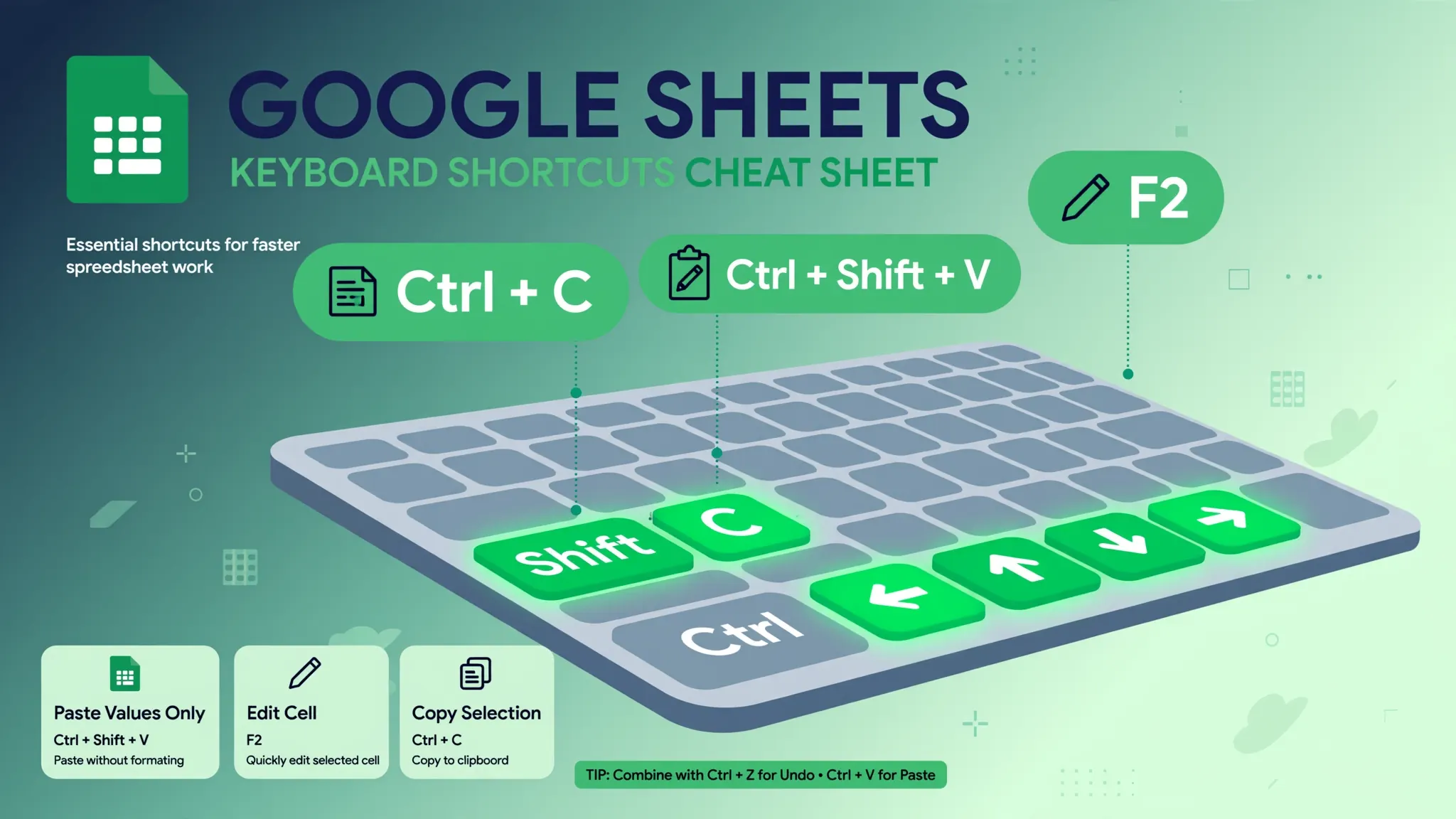
If this Google Sheets Apps Script tutorial gave you the automation itch, the deeper truth is worth stating: every technique in our other guides becomes scriptable. The keyboard shortcuts you memorized become macro steps; the find-and-replace patterns become code; the freeze commands become one-liners. Automation is not a separate skill from spreadsheet skill — it is spreadsheet skill, recorded.
Troubleshooting
“Authorization required” loop. You are signed into multiple Google accounts; the script authorizes against the wrong one. Run it from the account that owns the sheet, or use a fresh profile.
Macro recorder is missing. Extensions › Macros exists on desktop browsers; it is not available in the mobile app. Record on desktop; the macro runs anywhere.
Script runs but nothing changes. It is probably acting on the wrong sheet — getActiveSheet() follows your cursor. Use getSheetByName('Exact Name') for deterministic targeting.
Exceeded execution time. Scripts time out after 6 minutes (consumer accounts). Process in chunks, or split the job across triggers. If you routinely hit this, the workload belongs in BigQuery or Python, not a script.
Trigger didn’t fire. Check the Triggers dashboard for failure notifications and quota errors; also confirm the spreadsheet wasn’t deleted or unshared.
Custom function shows #ERROR!. Custom functions cannot call services requiring authorization (no Gmail, no UrlFetchApp in most cases) and cannot set values elsewhere. Keep them pure calculations.
Five scripts worth stealing
You have the cleaner script; here are five more compact automations that solve recurring spreadsheet chores. Each is a single function you can paste into the editor.
1. Timestamp on edit. Stamp column B with the date whenever column A changes: an onEdit(e) function checking e.range.getColumn() == 1 and writing new Date() next door. The backbone of every “last updated” tracker.
2. Archive old rows. Move rows older than 90 days to an “Archive” tab: read dates, filter, appendRow to the archive, delete from the source — bottom-up so row numbers do not shift mid-loop. Keeps working tabs fast forever.
3. Email a daily summary. A time-driven trigger runs a function that reads today’s totals and sends them via MailApp.sendEmail(). The five-line version of a reporting pipeline — your inbox gets the numbers, nobody opens the sheet.
4. Dedupe across tabs. Collect keys from every tab’s ID column into a Set, flag repeats with conditional formatting or collect them onto a review tab. Catches the duplicates that per-tab dedupe misses.
5. Dated backup. SpreadsheetApp.getActive().copy('Backup ' + new Date().toISOString().slice(0,10)) — one line, run weekly via trigger, and you have versioned backups independent of version history. Cheap insurance for critical sheets.
The pattern across all five: read with getValues(), think in plain JavaScript (loops, conditions, arrays), write back with setValues(). Master that loop and you can automate anything in the sheet.
Quotas and limits: know the guardrails
Apps Script is free but not infinite. The limits that matter for spreadsheet work: scripts time out after 6 minutes per run (consumer accounts) — long jobs must chunk their work or split across triggers. Daily caps cover total runtime, emails sent (100/day for consumer accounts via MailApp), and URL fetches. getValues()/setValues() on whole ranges is fast; reading cell-by-cell in a loop is catastrophically slow — always batch. Triggers have their own failure behavior: a failing time trigger retries, then emails you. None of this bites typical cleanup scripts, but architect with it in mind: idempotent functions (safe to re-run), chunked processing, and a log tab for audit trails. When a job genuinely exceeds script limits, that is the signal to graduate to BigQuery, Python, or a proper ETL tool — Apps Script got you 90% of the way, which was its job.
Your first week with Apps Script: a checklist
Turn this tutorial into a habit with a concrete first week. Day 1: record one macro of your most-repeated cleanup and run it twice. Day 2: open the script editor, read the recording line by line, and change one number. Day 3: paste in the CSV cleaner from this guide and run it on a real import. Day 4: add the custom Cleanup menu via onOpen(). Day 5: set a time trigger and let the script run while you are at lunch — then check the result. By Friday you will have touched every core concept: recording, reading, editing, menus, and triggers. Week two is where it gets fun: custom functions, API pulls with UrlFetchApp, and scripts that email you summaries. The learning curve is front-loaded — the first script takes an hour, the tenth takes ten minutes.
Frequently Asked Questions
How do I record a macro in Google Sheets?
Go to Extensions › Macros › Record macro, choose absolute or relative references, perform your actions, then click Save. Sheets stores the recording as an Apps Script function you can replay from the Macros menu or edit in the script editor.
Is Google Apps Script hard to learn for beginners?
Not for spreadsheet automation. If you can read a formula, you can read a recorded macro — and small edits (changing a range, adding a line) teach you JavaScript gradually. The macro recorder means you never start from a blank page.
Can Apps Script clean a CSV automatically when it arrives?
Yes. A script can trim whitespace, remove duplicates, fix date formats, and freeze headers in seconds. Attach it to a time-driven trigger or run it from a custom menu after each import, and the cleanup becomes one click.
What’s the difference between a macro and Apps Script?
A macro is a recorded sequence of actions that Sheets saves as Apps Script code. Apps Script is the full programming environment — macros are the beginner-friendly doorway into it. Editing a recorded macro is how most people learn Apps Script.
Is Google Apps Script free?
Yes, Apps Script is free with a Google account, within generous daily quotas (script runtime, API calls). Most spreadsheet automation never comes close to the limits.
Can Apps Script replace Excel VBA macros?
For cloud-based automation, yes — and it goes further, reaching Gmail, Calendar, and web APIs. But Apps Script cannot run VBA code directly; macros must be rewritten in JavaScript, and desktop-only VBA features have no equivalent.