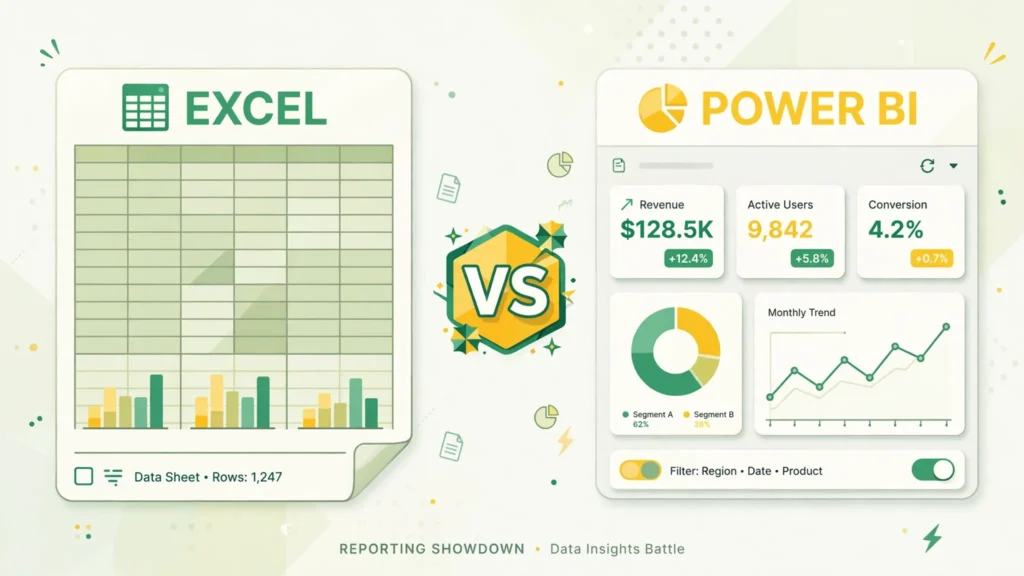
Your monthly sales report has grown from a simple spreadsheet into a monster: twelve tabs, forty thousand rows, five people emailing “final_v3_REALLYFINAL.xlsx” around. Someone suggests Power BI. Someone else says Excel is fine, you just need better discipline. The Excel vs Power BI debate is really a question about how your reporting should work: as flexible files people edit, or as refreshable models people explore. Both are Microsoft products, both speak the same data language under the hood — but they solve fundamentally different problems, and choosing wrong costs real money in licenses, training, and wasted effort.
This guide breaks down the Power BI vs Excel differences that matter, walks through Excel vs Power BI for reporting scenario by scenario, compares pricing honestly, and gives you a migration path if you decide to make the switch. Whether you’re a finance manager in Chicago, a retail analyst in Manchester, or a startup founder in Bangalore deciding where to invest your analytics effort, you’ll know exactly which tool fits which job.
What Excel reporting looks like today
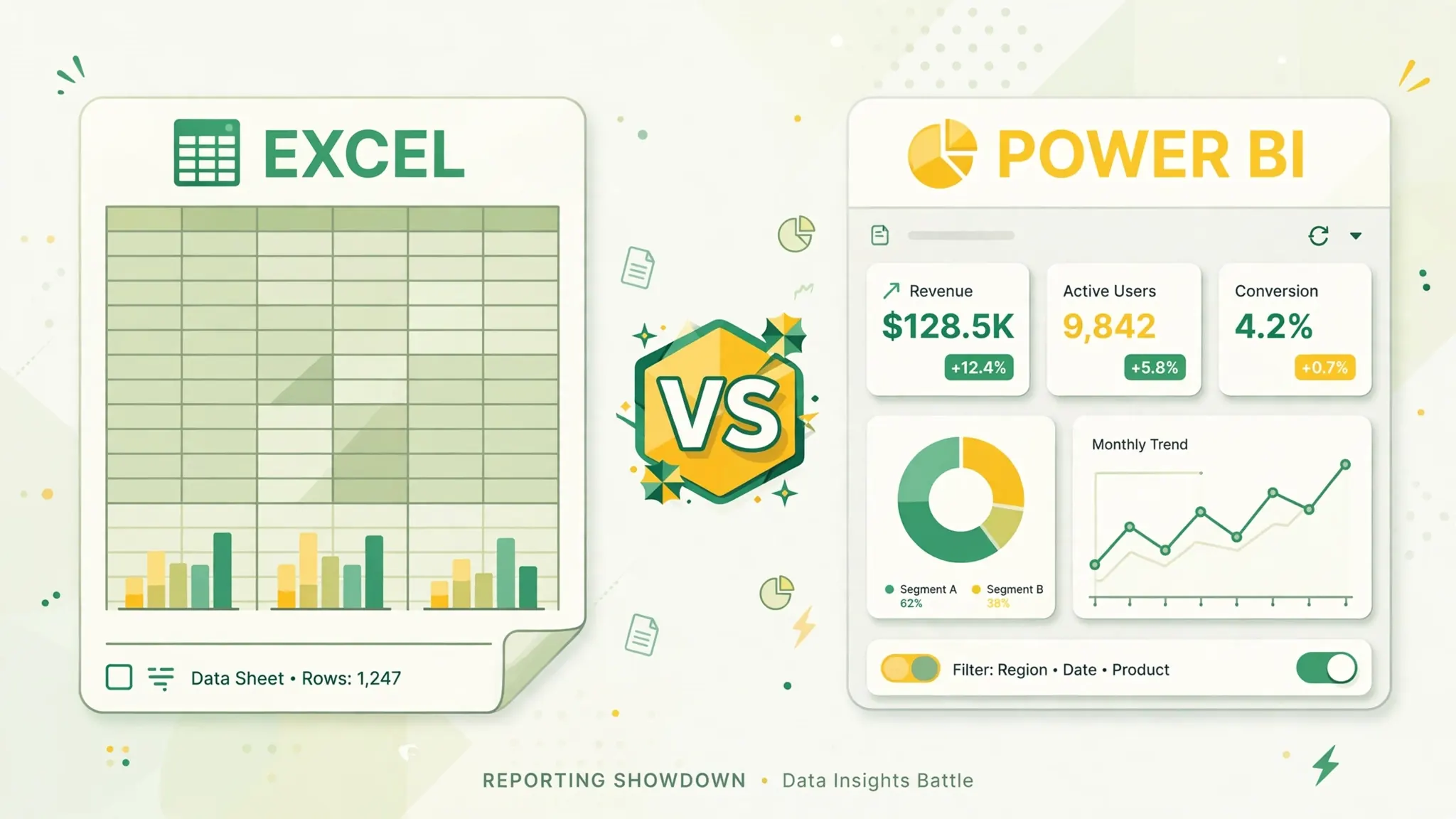
Modern Excel reporting is far more capable than the “spreadsheet” stereotype suggests. Power Query (Get & Transform Data) provides repeatable, refreshable data imports from CSVs, databases, and APIs — the same engine Power BI uses. Power Pivot builds in-memory data models handling millions of rows with relationships between tables. PivotTables, slicers, and timelines create genuinely interactive summaries. For a huge range of reporting — monthly packs, budget trackers, KPI summaries — Excel remains completely sufficient.
Excel’s reporting strengths are flexibility and immediacy. Need a one-off layout for the board meeting? Build it in an afternoon. Want to annotate, adjust, and hand-tweak numbers before publishing? The grid welcomes it. Every stakeholder can open the file, and the analyst who built it can answer questions live by drilling into the data. Finance teams across the US, UK, and Australia run entire reporting cycles on Excel, and for stable, well-understood reports, that works beautifully.
The cracks appear with scale and distribution. Emailing workbooks creates version chaos. Refreshing means someone re-runs the steps (correctly, hopefully). Large datasets strain the grid. And “self-service” for non-analysts usually means “ask the analyst” — the report is interactive only for its creator. These are the exact pains Power BI was built to solve.
What Power BI actually is
Power BI is Microsoft’s business-intelligence platform (overview on Wikipedia): Power BI Desktop (a free Windows app) for building reports, and the Power BI Service (cloud) for sharing them as interactive dashboards. You connect to data sources, shape the data with Power Query, model relationships between tables, write calculations in DAX, and publish visuals — bar charts, maps, KPI cards, decomposition trees — that users explore in a browser or mobile app.
The key conceptual shift: Power BI separates the model from the report. An analyst builds one governed dataset (definitions, relationships, measures), and dozens of users slice it their own way without breaking anything. Refresh is scheduled and automatic — the Monday-morning dashboard simply shows Monday’s data. Row-level security controls who sees what. Usage metrics show which reports people actually open. It’s reporting as a managed service rather than as emailed files.

Power BI’s trade-offs: it’s less flexible than Excel for ad-hoc layout (you build within the visual framework), it requires licenses for sharing, and serious use demands DAX skills. It’s also a Microsoft-ecosystem commitment — deepest value comes with Microsoft 365, Azure, and Teams integration. For organizations already in that ecosystem, the incremental cost is low; for others, it’s a strategic decision, not just a tool swap.
Power BI vs Excel differences: the full breakdown
Here are the Power BI vs Excel differences that actually drive decisions:
Data volume
Excel’s grid caps at 1,048,576 rows, and practical performance degrades well before that. Power BI’s VertiPaq engine compresses and queries tens of millions of rows interactively. If your reporting data already strains Excel, this difference alone settles the debate.
Refresh and automation
Power BI’s scheduled refresh is the headline feature: connect once, and dashboards update on their own — hourly, daily, whatever the business needs. Excel can refresh Power Query connections, but it requires someone to open the file and click refresh (or orchestrate it awkwardly). For recurring reporting, automated refresh is transformative.
Sharing and collaboration
Excel shares via files — email, SharePoint, Teams — with all the version-control hazards that implies. Power BI shares via links to a single live report: one version of the truth, permission-controlled, accessible on any device. When five executives need the same numbers, the dashboard beats the attachment.
Interactivity for consumers
Power BI reports are interactive for everyone: click a bar to cross-filter the whole page, drill through hierarchies, ask questions in natural language (Q&A visual). Excel interactivity (slicers, pivot drill-down) works but requires the consumer to be inside Excel and comfortable with it.
Flexibility and ad-hoc analysis
Excel wins clearly. The grid does anything: custom layouts, manual adjustments, what-if scenarios, annotations. Power BI is a framework — powerful within its bounds, constraining outside them. Analysts keep Excel for the questions nobody predicted.
When to use Power BI instead of Excel
Here’s the practical checklist for when to use Power BI instead of Excel. If several of these are true, it’s time:
- The report is recurring. Weekly, monthly, quarterly — anything rebuilt on a schedule is a Power BI candidate. Automated refresh eliminates the rebuild entirely.
- Multiple people need the same numbers. Three or more consumers, or anyone outside the analyst’s team, favors a shared dashboard over emailed files.
- Data exceeds Excel’s comfort zone. Over ~500k rows, complex multi-table models, or sources Excel can’t query directly.
- “Which version is correct?” is a recurring question. Version chaos is the clearest signal that file-based reporting has failed.
- Consumers want to explore, not just read. If stakeholders constantly ask for “the same report but filtered to my region,” give them slicers instead of fifty file variants.
- Governance matters. Regulated industries, audited metrics, official KPIs — a governed dataset with defined measures beats fifty personal spreadsheet interpretations.
Conversely, stay in Excel when the analysis is exploratory, the audience is one or two people, the layout is bespoke, or the data changes structure frequently. A startup in Toronto doing its first year of financial modeling needs Excel’s flexibility far more than Power BI’s governance. The tool should match the organization’s maturity, not just the data’s size.
Excel vs Power BI for reporting: scenario by scenario
Let’s make Excel vs Power BI for reporting concrete with the scenarios analysts actually face:
Monthly financial close pack
Power BI wins once the pack is standardized. Actuals refresh from the ERP automatically, variance visuals update themselves, and executives explore by department without waiting for the FP&A team. Excel remains for the close process itself — journals, adjustments, commentary — which is workflow, not reporting.
Sales pipeline dashboard
Power BI wins decisively. Live CRM data, rep-level filtering, mobile access for the field team — this is the canonical BI use case. The Excel version (a weekly exported snapshot) feels prehistoric by comparison.

Ad-hoc board request (“why did margin drop in Q2?”)
Excel wins. Unpredicted question, custom analysis, bespoke presentation — the grid’s flexibility is unmatched. (Though a good Power BI model lets the analyst answer it by drilling rather than rebuilding.)
Operational KPI wallboard
Power BI wins. Real-time or near-real-time visuals on a shared screen, automatic refresh, alerts on thresholds. Excel was never meant to be a monitoring tool.
Budget model with scenarios
Excel wins. What-if analysis with interdependent assumptions is the grid’s home turf. Power BI’s what-if parameters exist but can’t match a real model’s flexibility.
Customer-facing reports
Power BI wins (via embedded or shared apps) for interactive client dashboards; Excel wins for simple data deliveries. Many agencies do both: dashboard for exploration, workbook for the raw numbers.
Cost comparison: Excel vs Power BI pricing
Let’s talk money honestly, since licensing drives many Power BI Desktop vs Excel decisions. Excel arrives with Microsoft 365 — Business Standard/Business Premium or E3/E5 plans that most companies already buy for email and Office. The marginal cost of Excel reporting is effectively zero in a Microsoft shop.
Power BI Desktop is free — download it, build reports, no license needed. The cost appears at sharing: Power BI Pro is a per-user monthly license for creators and consumers of shared content, and Premium capacity (dedicated cloud resources) is a significant monthly commitment for larger deployments. A ten-person team sharing dashboards might pay modestly per month; an enterprise rollout is a real budget line.
The hidden costs matter more than licenses: training (DAX and data modeling aren’t free to learn), development time (a governed model takes longer to build than a quick spreadsheet), and maintenance (someone owns the dataset). Against that, weigh the hidden costs of Excel reporting: analyst hours spent rebuilding reports, errors from manual processes, and decisions made on stale or conflicting numbers. A single avoided bad decision can fund a Power BI rollout — but only if the organization actually uses the dashboards. Shelfware dashboards are the BI equivalent of unread reports: expensive either way.
Learning curve: from Excel formulas to DAX
Excel users don’t start Power BI from zero — and that’s the good news. Power Query is identical in both tools: if you can shape data with Get & Transform in Excel, you can shape it in Power BI Desktop. The data-model concepts (tables, relationships, star schemas) formalize what good Excel analysts already do with lookup tables. PivotTable thinking maps directly to Power BI’s matrix and table visuals.
DAX (Data Analysis Expressions) is the real learning curve. It looks like Excel formulas but thinks differently: calculations evaluate in filter context rather than cell by cell, which breaks Excel-trained intuition in fascinating ways. Concepts like CALCULATE, filter propagation, and row vs filter context take weeks to internalize. The payoff is enormous — time intelligence (SAMEPERIODLASTYEAR, running totals, year-to-date) that would be formula nightmares in Excel becomes one-liners — but budget real learning time. Most Excel power users reach basic DAX competence in 4–8 weeks of regular practice.
Practical advice: learn DAX by rebuilding one of your existing Excel reports in Power BI. The familiar logic (“this measure should match that SUMIFS”) gives you a correctness check while you learn, and you’ll finish with a working dashboard instead of tutorial exercises. Microsoft Learn’s Power BI path is the best free curriculum, and the community (forums, user groups, YouTube) is exceptionally generous.
Moving from Excel to Power BI: the migration path
Don’t rip and replace — migrate in stages that deliver value at each step:
- Power-Query-ify your Excel first. Convert manual Excel reporting steps into Power Query transformations inside the existing workbook. This builds the exact skills Power BI needs, with zero new licenses.
- Pick one pilot report. Choose a recurring, high-visibility, medium-complexity report — painful enough that automation matters, simple enough to succeed. Rebuild it in Power BI Desktop.
- Model properly. Resist copying the spreadsheet’s layout into Power BI. Build a clean star schema: fact tables for transactions, dimension tables for customers/products/dates. This is the step Excel veterans find hardest and most valuable.
- Write the core measures in DAX. Start with the KPIs stakeholders already trust, validated against the Excel originals. Add time intelligence once the basics match.
- Publish and parallel-run. Share the dashboard alongside the old Excel report for one cycle. Let users compare, build trust, and surface discrepancies (which are usually Excel errors — a satisfying discovery).
- Retire the spreadsheet. Once the dashboard is trusted, stop producing the file. This step needs management backing — “but I liked the Excel” is a change-management problem, not a technical one.

A final note on coexistence: the healthiest end state is usually both. Power BI owns recurring, shared, governed reporting; Excel owns ad-hoc analysis, modeling, and quick answers. Excel can even consume Power BI datasets directly (Data › Get Data › From Power BI), giving analysts pivot-table freedom against the governed model — the best of both worlds. Analysts who feared Power BI would “replace” Excel typically end up loving it: it takes the boring repetitive reporting off their plate and leaves the interesting analysis. If your data journey continues toward code-based automation, our Excel vs Python pandas guide covers the next frontier — and our CSV editors roundup helps with the large raw files that feed any of these tools.
Feeding both tools: getting CSV data in cleanly
Whatever you choose in the Excel vs Power BI debate, both tools start from the same place: raw data files, most often CSVs. And the quality of everything downstream depends on that first import. A CSV with misdetected delimiters, wrong encoding, or mangled dates will produce a broken Excel report or a broken Power BI model with equal enthusiasm — garbage in, garbage out, regardless of platform.
Build a simple ingestion habit: inspect before importing. Open large or unfamiliar CSVs in a dedicated CSV editor first to verify delimiters, encodings, and column counts. Convert to .xlsx with the free CSV to Excel converter when you need a clean, typed starting point for Excel work. And when importing directly, always use Power Query’s preview (in either Excel or Power BI Desktop) to confirm column splits and data types before loading — the thirty seconds it takes prevents the classic “why are my totals wrong” debugging session three days later.
One more practical tip for teams running both tools: standardize on a shared folder of cleaned source files (or better, a shared Power BI dataset that Excel connects to). When Excel analysts and Power BI developers work from the same governed source, the “my numbers don’t match your dashboard” arguments disappear — and that single alignment is worth more than any feature comparison between the two platforms.
Frequently Asked Questions
Is Power BI better than Excel?
Power BI is better for interactive dashboards, large datasets, and automated refresh across many users. Excel is better for ad-hoc analysis, quick modeling, and one-off reports. They share the same data engine (Power Query, Power Pivot), so skills transfer between them.
When should I use Power BI instead of Excel?
Switch to Power BI when reports are recurring, data exceeds Excel’s comfortable limits, multiple people need the same live view, or you want interactive dashboards instead of static files. If a report is emailed as an attachment every week, it’s a Power BI candidate.
Can Power BI replace Excel completely?
No — and Microsoft doesn’t intend it to. Power BI is for consuming and exploring published data models; Excel remains the tool for flexible ad-hoc analysis, what-if modeling, and quick calculations. Most organizations use both, often with Excel connected live to Power BI datasets.
Is Power BI free?
Power BI Desktop is free to download and build reports with. Sharing and collaboration require Power BI Pro licenses (per user, per month) or Premium capacity, though free sharing is possible within some Microsoft 365 setups. Excel comes with Microsoft 365 subscriptions most businesses already have.
Do I need to learn DAX to use Power BI?
For basic dashboards built on clean data, no — drag-and-drop visuals and automatic aggregations go far. For serious reporting (time intelligence, complex measures, dynamic calculations), DAX is essential, and Excel users will find its concepts familiar but its syntax a genuine learning curve.
Can Excel connect to Power BI data?
Yes. Excel can connect directly to published Power BI datasets via Data > Get Data > From Power BI, letting analysts use pivot tables and formulas against the governed model while keeping one version of the truth.