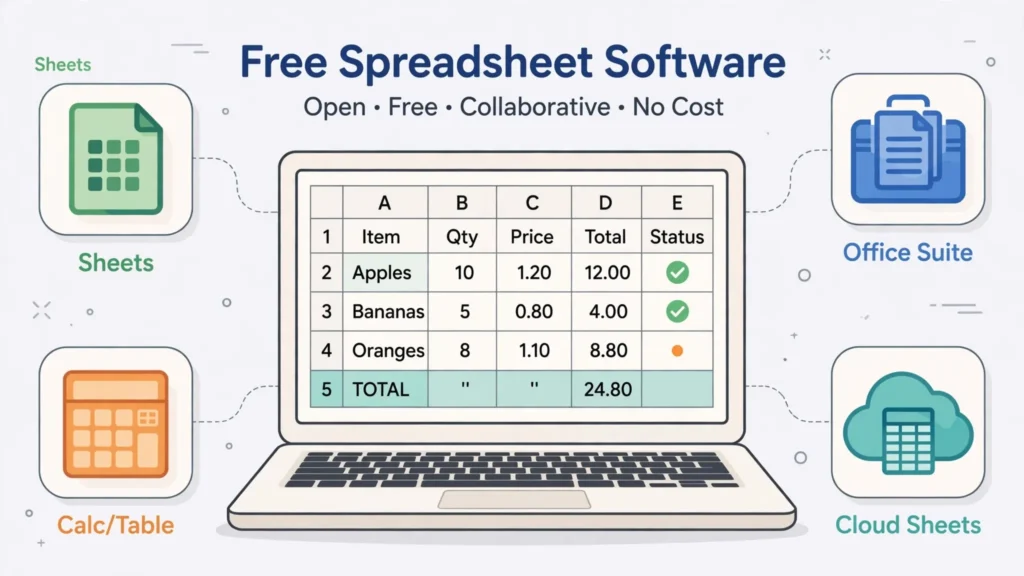
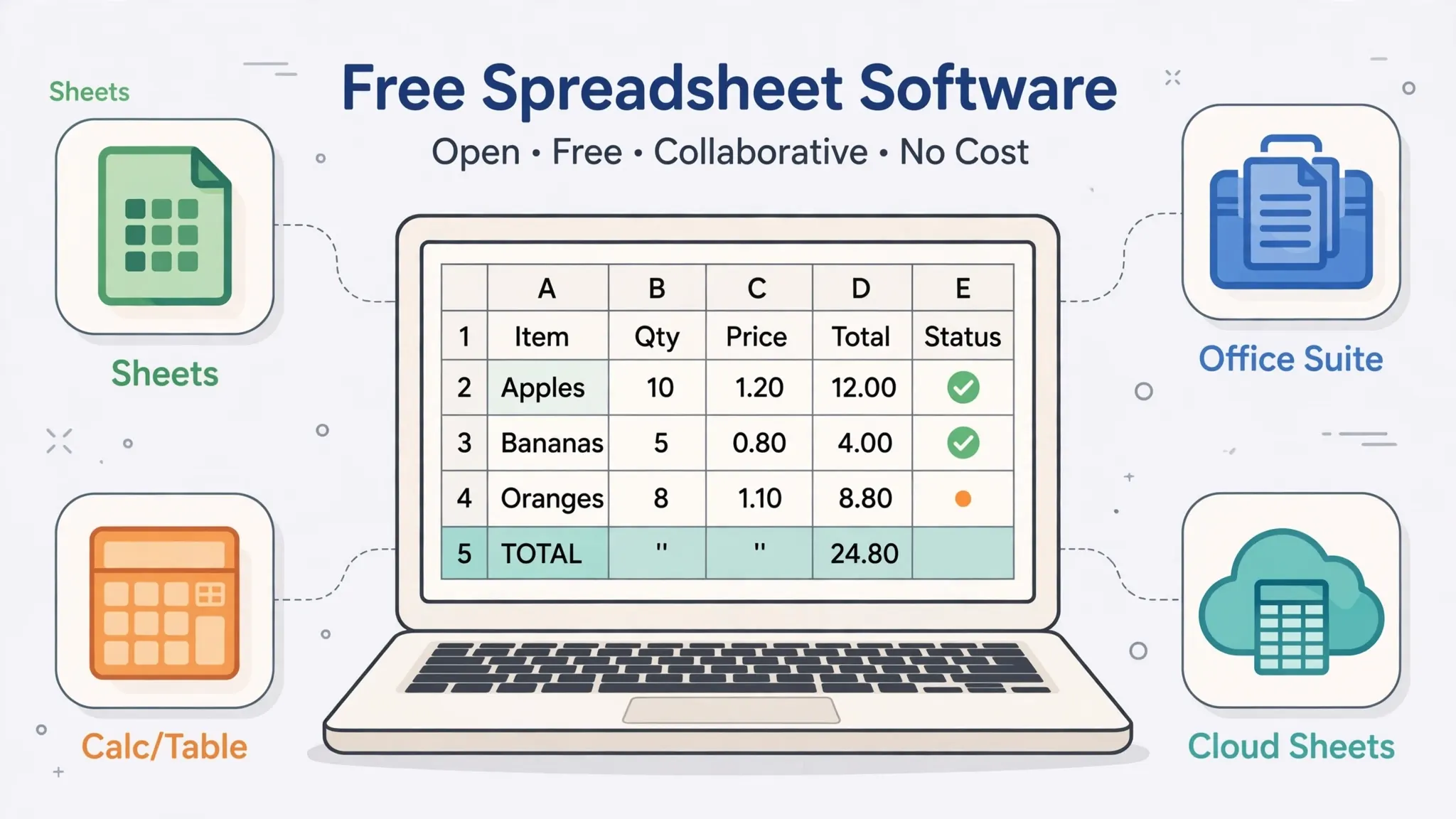
Microsoft Excel is brilliant — and expensive, especially when you need it on five devices or for a whole team. The good news: the best free Excel alternatives in 2026 are genuinely excellent, and for most everyday work you’d never miss the paid version. But “free spreadsheet” covers a wide range, from Google’s cloud juggernaut to open-source desktop apps to Excel lookalikes. The question isn’t just which is free — it’s which one opens your XLSX files without mangling them, handles your CSVs gracefully, and fits how you actually work.
This guide ranks the top free alternatives to Microsoft Excel by the criterion that matters most: Excel compatibility. For each, you’ll get honest strengths, honest limitations, and who it’s actually for. Whether you’re a student in Delhi, a freelancer in London, a small business owner in Sydney, or a nonprofit in Toronto stretching every dollar, there’s a Microsoft Excel free alternative here that fits.
How we rank Excel alternatives: the compatibility test
Every “best spreadsheet” list uses different criteria, so here’s ours, in order. 1. XLSX fidelity — how accurately complex Excel files (formulas, formatting, charts, pivot tables) survive a round trip. This is the dealbreaker criterion: an alternative that mangles your files isn’t an alternative. 2. Feature coverage — pivot tables, key formulas, charts, conditional formatting, data validation. 3. CSV handling — delimiter control, encoding options, large-file tolerance (this site’s home turf). 4. Collaboration — real-time co-editing, commenting, sharing. 5. Platform availability and cost — genuinely free (not trialware), on the devices you use.
We tested with a battery of real-world files: a formatted financial model with charts, a 200k-row CSV export, a pivot-table-heavy sales report, and a macro-free workbook with complex formulas. Each file was opened in every alternative, checked for formula accuracy against Excel’s computed values, inspected for formatting shifts, and then saved back to XLSX and reopened in Excel to measure round-trip damage. No alternative scores perfectly — including, frankly, different versions of Excel itself — but the ranking below reflects which ones kept our test files most intact. Note that Microsoft also offers Excel for the web free with a Microsoft account; we cover how it compares to desktop Excel in our Excel desktop vs online guide.
1. Google Sheets — the collaboration king
Google Sheets is the default Excel alternative free download (well, no download — it’s in your browser) for a reason: it’s genuinely great. Real-time collaboration with cursors, comments, and version history remains the best in the business. The formula set covers ~90% of everyday Excel use, pivot tables are solid, the Explore feature suggests analyses automatically, and add-ons extend it into mail merges, reporting, and more. For teams, classrooms, and anyone who shares constantly, Sheets is the obvious pick.
On compatibility: Sheets imports XLSX well for straightforward files but converts to its native format, which can shift complex formatting, and round-tripping intricate workbooks sometimes reflows layouts. Very large datasets (hundreds of thousands of rows) slow down noticeably — Sheets has cell limits far below desktop Excel’s practical capacity. There’s no VBA, no Power Query equivalent (though the API and Apps Script are powerful in their own way), and offline use requires setup. Privacy-wise, your data lives on Google’s servers — fine for most, a consideration for regulated industries.

Best for: teams, students, anyone who collaborates or lives in a browser. Skip if: you work with huge files offline or need pixel-perfect XLSX fidelity. Our three-way Excel vs Numbers vs Google Sheets comparison goes deeper on how Sheets stacks up against the other giants.
2. LibreOffice Calc — the open-source powerhouse
LibreOffice Calc is the heavyweight champion of free desktop spreadsheets (background on Wikipedia): full-featured, offline, open source, and private — your data never leaves your machine. It handles over a million rows, offers excellent pivot tables (called DataPilots), strong charting, and a formula set that covers nearly all of Excel’s, plus some functions Excel lacks. For a Microsoft Excel free alternative in 2026 that you install once and own forever, Calc is the standard answer.
On compatibility: Calc opens XLSX files well — better than its reputation suggests — though complex formatting occasionally shifts and VBA macros don’t run (it has its own Basic dialect). Its native ODS format is an open standard, which is philosophically lovely but practically means converting when sharing with Excel users. The interface looks dated compared to modern Office, and collaboration is file-based (no real-time co-editing). But for solo desktop work, it’s remarkably capable — see our deep dive in open-source spreadsheet software compared.
Best for: privacy-conscious users, offline work, Linux users, anyone who wants a full desktop suite free forever. Skip if: real-time collaboration is central to your workflow.
3. WPS Spreadsheets — the closest Excel lookalike
WPS Office’s spreadsheet component is uncanny: open it and you’ll swear you’re looking at Excel. The ribbon, the shortcuts, the formula behavior — WPS deliberately clones the Excel experience, which means zero learning curve for Excel users and excellent XLSX fidelity. Complex files that trip up other alternatives usually open correctly in WPS. It also handles PDF conversion and offers a capable free tier on Windows, Mac, Android, and iOS.
The catches: the free version shows ads and nags toward the paid tier; some advanced features are paywalled; and it’s closed-source software from a Chinese vendor (Kingsoft), which gives some organizations and governments pause on privacy grounds. Collaboration features lag Google’s. But purely on the “I want Excel without paying” axis, WPS is the most faithful free alternative to Microsoft Excel available.
Best for: Excel users who want the familiar interface and maximum file fidelity free. Skip if: ads annoy you, or your organization restricts software origins.
4. Zoho Sheet — the quiet overachiever
Zoho Sheet is the spreadsheet world’s best-kept secret: a polished cloud spreadsheet with excellent Excel compatibility, real-time collaboration, and a generous free tier. Its XLSX import/export fidelity is among the best of the cloud options — complex formatting survives better than in Google Sheets — and it includes thoughtful touches like data cleaning tools, 350+ functions, and even AI-assisted insights. If you’re already in Zoho’s ecosystem (CRM, Books, Mail), the integration is seamless.
Why isn’t it ranked higher? Ecosystem gravity: fewer collaborators already have Zoho accounts, the template and add-on library is smaller than Google’s, and offline support is limited. But on pure spreadsheet merit per dollar (zero dollars), Zoho Sheet arguably outperforms its fame. Small businesses in India and Southeast Asia — where Zoho is headquartered and widely adopted — often find it the most natural fit.
Best for: small businesses wanting a polished cloud spreadsheet with strong Excel compatibility. Skip if: your collaborators all live in Google Workspace already.
5. ONLYOFFICE Spreadsheet — the compatibility specialist
ONLYOFFICE takes a different approach: instead of converting XLSX files to a native format, it edits them natively. The result is outstanding fidelity — what you see is genuinely what Excel users will see. The interface mirrors modern Office, collaboration (via Nextcloud, ownCloud, or ONLYOFFICE’s cloud) supports real-time co-editing, and it’s open source at its core with commercial hosting options.
The trade-offs: the formula and feature set, while broad, trails Sheets and Calc in depth (pivot tables exist but are less refined); the ecosystem of templates and integrations is smaller; and self-hosting for full collaboration requires technical setup. But for organizations that need maximum XLSX fidelity without Microsoft licensing — especially in Europe’s public sector, where ONLYOFFICE has real traction — it’s a compelling specialist pick.

Best for: teams needing the highest XLSX fidelity in a non-Microsoft tool, especially self-hosted. Skip if: you need the deepest formula/feature bench.
6. Apple Numbers — the Mac and iPhone native
Apple Numbers comes free on every Mac, iPhone, and iPad, and it’s a genuinely pleasant spreadsheet — arguably the prettiest of the bunch, with canvas-style layouts that make beautiful reports. Its Excel export is excellent for straightforward files, iCloud sync across Apple devices is seamless, and collaboration via iCloud works well within the Apple ecosystem.
The limitations are real, though: the formula set is smaller than Excel’s, there’s no pivot-table equivalent with the same power, large datasets strain it, and outside Apple hardware you’re stuck with the iCloud web version. Numbers is a fantastic personal spreadsheet for Apple users, but it’s the weakest Excel replacement on this list for serious data work — which is why it ranks sixth despite being free and preinstalled. Our three-way comparison examines the Apple vs Google vs Microsoft question in full.
Best for: Apple users doing light-to-medium spreadsheet work who value design. Skip if: you need heavy analysis, Windows compatibility, or advanced features.
Free alternatives to Microsoft Excel: the comparison table
Here’s all six free alternatives to Microsoft Excel side by side on the criteria that matter:

XLSX fidelity (most important)
Best: WPS Spreadsheets, ONLYOFFICE — complex files open with formatting largely intact. Strong: LibreOffice Calc, Zoho Sheet — very good, occasional reflows on intricate layouts. Good enough: Google Sheets, Apple Numbers — fine for straightforward files, converts to native format.
Feature depth
Best: LibreOffice Calc, Google Sheets — the deepest free feature sets (pivot tables/DataPilots, rich formulas, charting). Strong: WPS, Zoho Sheet. Adequate: ONLYOFFICE, Apple Numbers.
Collaboration
Best: Google Sheets — real-time co-editing remains unmatched. Strong: Zoho Sheet, ONLYOFFICE (with setup). Basic: WPS, Apple Numbers (iCloud). File-based: LibreOffice Calc.
Offline and privacy
Best: LibreOffice Calc — fully offline, open source, data stays local. Strong: WPS (desktop), ONLYOFFICE (self-hosted). Cloud-dependent: Google Sheets, Zoho Sheet, Apple Numbers (iCloud).
CSV handling
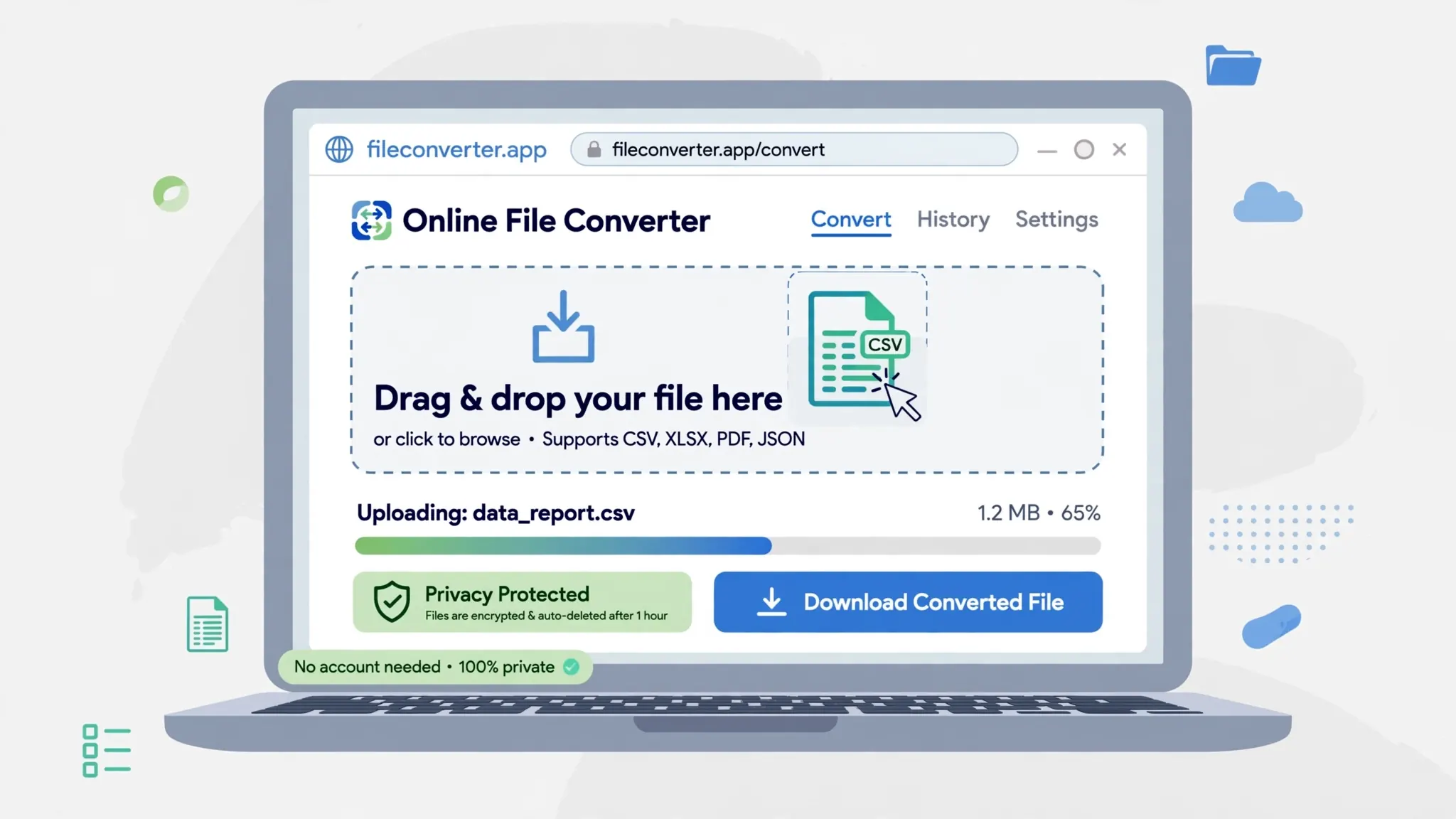
All six open CSVs competently. LibreOffice Calc offers the most explicit delimiter/encoding control on import; Google Sheets auto-detects well; WPS mirrors Excel’s behavior. For quick conversions without opening any app, the free CSV to Excel converter produces XLSX files all six open flawlessly.
Best free Excel alternatives for specific needs
The “best” alternative depends heavily on who you are. Here’s how the ranking shifts by use case:
For students
Google Sheets wins outright. It’s free with the Google account you already have, collaboration makes group projects painless, and your work is accessible from any campus computer. The skills transfer directly to Excel, which you’ll likely encounter in internships and jobs — formulas, pivot tables, and charts work the same way conceptually. Apple users get Numbers free too, but Sheets’ ubiquity in education makes it the safer default from Boston to Bangalore.
For small businesses
Zoho Sheet or Google Sheets, depending on your stack. If you invoice with Zoho Books or manage customers in Zoho CRM, Sheet’s native integration is a genuine workflow advantage. Otherwise, Google Sheets’ sharing and commenting fit how small teams actually operate — the owner in Manchester, the bookkeeper in Leeds, and the accountant in London all looking at the same live numbers. For offline-heavy work (market stalls, field service), LibreOffice Calc’s desktop reliability wins.
For developers and data folks
LibreOffice Calc for desktop inspection of large CSVs (its import dialog gives explicit delimiter and encoding control), Google Sheets for quick sharing and its excellent API. Developers often pair these with script-based tools rather than living in any spreadsheet — but when a spreadsheet is needed, these two cover it. Our CSV editors guide covers the dedicated tools developers reach for when spreadsheets aren’t enough.
For mobile-first users
Google Sheets’ mobile apps are the most capable, with surprisingly good editing on phones. WPS Office also offers strong mobile spreadsheets free. Apple Numbers is excellent on iPhone and iPad if you’re in that ecosystem. Honestly, though, serious spreadsheet work on a phone is an exercise in patience regardless of app — use mobile for viewing and light edits, desktop for real work.
For privacy-focused users and regulated industries
LibreOffice Calc, no contest. Fully offline, open source, auditable code, data never leaves your machine. ONLYOFFICE self-hosted is the team answer when you need collaboration without a third-party cloud. Healthcare, legal, and finance professionals with strict data-handling requirements should default here and justify any cloud alternative explicitly rather than the reverse.
Which of the best free Excel alternatives should you pick?
Here’s the decision shortcut among the best free Excel alternatives:
- You collaborate constantly → Google Sheets. Nothing else touches its real-time co-editing.
- You want Excel itself, free → WPS Spreadsheets (tolerate the ads) or Excel for the web (tolerate the reduced features).
- You value privacy and offline work → LibreOffice Calc. Install once, own forever.
- You run a small business → Zoho Sheet (especially with other Zoho apps) or Google Sheets.
- XLSX fidelity is non-negotiable → ONLYOFFICE or WPS.
- You’re all-Apple and do light work → Apple Numbers is already on your devices.
And a final honest note: if your work involves VBA macros, Power Query at scale, or Power Pivot data models, none of these fully replace desktop Excel — that’s the moat Microsoft built over decades. For those workflows, the real question is Excel desktop vs Excel online (the free web version covers surprising ground). But for the formulas, pivot tables, charts, and CSV wrangling that make up the vast majority of spreadsheet work, the free alternatives in this guide aren’t compromises anymore — they’re choices. Users in the US, UK, India, Canada, and Australia have the same excellent free options; pick by workflow, not by geography. And remember that switching costs are low: your data is yours, XLSX is an open standard in practice, and every tool here imports and exports it. Try two finalists side by side for a week with your real files — the right answer for your work will make itself obvious faster than any ranking can.

Frequently Asked Questions
What is the best free alternative to Microsoft Excel?
Google Sheets is the best free Excel alternative for most people thanks to collaboration, generous free tier, and good XLSX compatibility. LibreOffice Calc is best for offline desktop use and privacy. WPS Spreadsheets looks and feels most like Excel itself.
Is there a completely free version of Excel?
Microsoft offers Excel for the web free with a Microsoft account — it handles everyday spreadsheet tasks in the browser. For the full desktop app you need a Microsoft 365 subscription, but the free alternatives in this guide cover nearly all common use cases.
Can Google Sheets fully replace Excel?
For perhaps 90% of users, yes. Sheets handles formulas, pivot tables, charts, and collaboration brilliantly. It falls short on very large datasets, advanced Power Query/Power Pivot workflows, VBA macros, and pixel-perfect XLSX fidelity for complex workbooks.
Which free spreadsheet is most compatible with XLSX files?
WPS Spreadsheets and ONLYOFFICE lead on XLSX fidelity — complex Excel files usually open with formatting intact. LibreOffice Calc is strong but occasionally reflows complex layouts. Google Sheets converts files to its own format, which can shift intricate formatting.
Are free Excel alternatives safe for business data?
Desktop options like LibreOffice Calc keep data entirely on your machine. Cloud options (Google Sheets, Zoho Sheet) store data on the provider’s servers under their privacy terms — fine for most use, but check compliance requirements for sensitive or regulated data.
Can I open CSV files in these free alternatives?
Yes — every alternative here opens CSV files, most with delimiter and encoding controls. For quick CSV-to-XLSX conversion without installing anything, a free browser-based converter works with all of them.