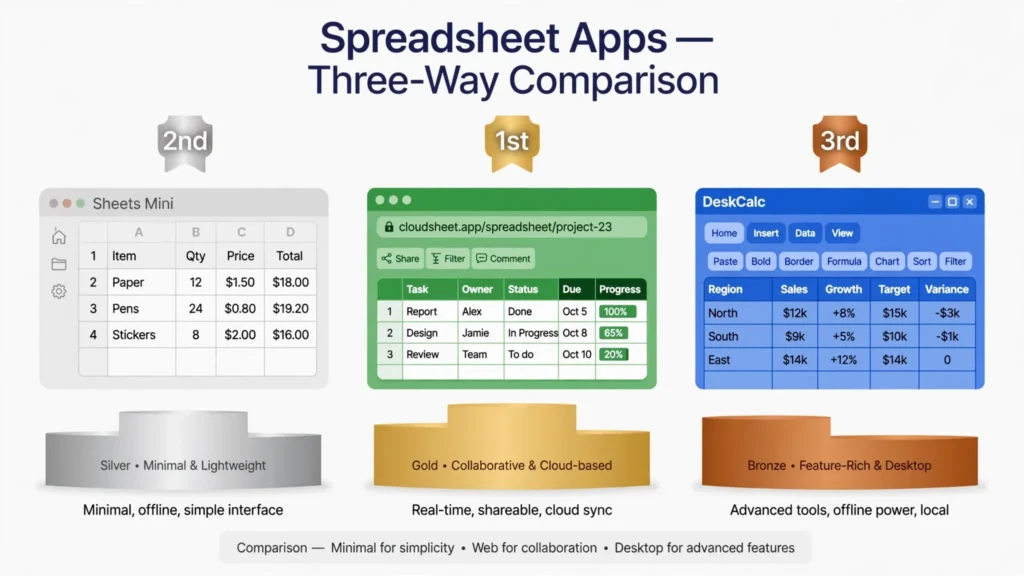
Three tech giants, three spreadsheets, three philosophies. Microsoft Excel is the industry standard — the tool business runs on. Apple Numbers is the elegant freebie on every Mac and iPhone. Google Sheets is the collaboration king living in your browser. The Excel vs Numbers vs Google Sheets question isn’t academic: pick the wrong one and you’ll fight file compatibility, hit feature walls, or pay for power you never use. Pick the right one and spreadsheets fade into the background while your work shines.
This guide compares all three across features, collaboration, pricing, file compatibility, and real-world fit — with honest verdicts for students, businesses, analysts, and Apple loyalists. Whether you’re choosing your first spreadsheet in Delhi, standardizing a team in London, or wondering if you can ditch Excel in Sydney, the numbers vs Excel vs Google Sheets decision gets much clearer after this.

Meet the contenders: Microsoft, Apple, Google
Microsoft Excel (1985–present, history on Wikipedia) is the spreadsheet against which all others are measured: the deepest feature set (Power Query, Power Pivot, VBA, 500+ functions), the business world’s lingua franca, and the default for serious data work. Four decades of dominance means unmatched tutorial coverage, template libraries, and hiring-pool familiarity. It runs on Windows, Mac, web, and mobile, with the desktop Windows version being the most capable. Excel’s moat is institutional: every finance department, every analyst job description, every “advanced Excel required” posting reinforces it.
Apple Numbers (2007–present) is Apple’s free spreadsheet for Mac, iPhone, iPad, and iCloud web. Its philosophy is canvas-first: tables float on a freeform page alongside charts, text, and images, making beautiful reports effortless. The formula set is smaller (~250 functions), there’s no true pivot-table powerhouse, and it’s unapologetically Apple-ecosystem-centric. But it’s free, preinstalled, elegant, and far more capable than its “Numbers is a toy” reputation suggests.
Google Sheets (2006–present, background on Wikipedia) is the browser-native spreadsheet that made real-time collaboration normal. Free with any Google account, it offers a deep formula set, solid pivot tables, the Explore AI assistant, and an enormous add-on ecosystem. Its philosophy is cloud-first: your work lives online, shares with a link, and co-edits in real time. The trade-offs are offline dependence, row/cell limits below desktop Excel, and data residing on Google’s servers.
Excel vs Numbers vs Google Sheets: the head-to-head
The direct Excel vs Numbers vs Google Sheets comparison, dimension by dimension:
Raw power and features
Excel wins decisively. Power Query data transformation, Power Pivot data modeling, VBA automation, the deepest function library, and the best handling of large datasets — no contest. Google Sheets is a strong second with excellent formulas, pivot tables, and Apps Script. Numbers trails on analytical depth but leads on presentation polish.
Ease of use
Numbers wins for beginners — its clean interface and templates make first spreadsheets delightful. Sheets wins for the mainstream — familiar enough for Excel users, simple enough for newcomers. Excel’s power comes with complexity; its ribbon can overwhelm casual users.

Availability
Sheets wins — any browser, any device, nothing to install. Numbers wins for Apple users — preinstalled on every Apple device. Excel wins for ubiquity in business — installed or accessible virtually everywhere work happens, though the full desktop app needs a subscription.
Design and presentation
Numbers wins. Its canvas model produces genuinely beautiful documents — reports that look designed, not computed. Sheets and Excel have improved cosmetically, but they’re grids first; Numbers is a layout tool that happens to calculate.
Apple Numbers vs Excel: the desktop rivalry
The Apple Numbers vs Excel matchup matters most to Mac users deciding whether they need Microsoft’s suite. On pure spreadsheet fundamentals — entering data, basic formulas, sorting, filtering, simple charts — Numbers is genuinely pleasant and fully adequate. Its Excel import/export handles straightforward workbooks well, so collaborating with Excel users on simple files works fine.
The gap opens with analytical work. Numbers has no equivalent to pivot tables’ full power (its categories feature is a lighter take), no Power Query for repeatable data transformation, no VBA/macros, and struggles with large datasets that Excel handles routinely. The function library (~250 vs Excel’s 500+) covers everyday needs but lacks the specialized financial, engineering, and statistical functions analysts rely on. And Numbers’ canvas model, lovely for reports, frustrates users who want a pure grid — tables don’t behave like Excel ranges in every respect.
Practical verdict: if your Mac spreadsheet life is budgets, lists, invoices, and attractive reports, Numbers is free and delightful — save your money. If you do analysis for a living, collaborate with Windows Excel users on complex files, or need pivot tables and Power Query, you need Excel (or Excel for the web, covered in our desktop vs online guide). Many Mac professionals run both: Numbers for quick personal work, Excel for the serious stuff.
Google Sheets vs Excel vs Numbers: collaboration compared
On Google Sheets vs Excel vs Numbers for teamwork, the ranking is clear and the gaps are wide.
Google Sheets is the gold standard. Share a link, and collaborators edit simultaneously with colored cursors, cell-level presence, comments with assignment, suggestion mode, and granular version history (“see who changed what, when, and revert it”). It works identically for everyone because everyone uses the same web app — no version mismatches, no “I can’t open this.” For distributed teams across time zones — say, a startup with staff in San Francisco, London, and Bangalore collaborating daily — Sheets’ real-time collaboration is genuinely transformative.
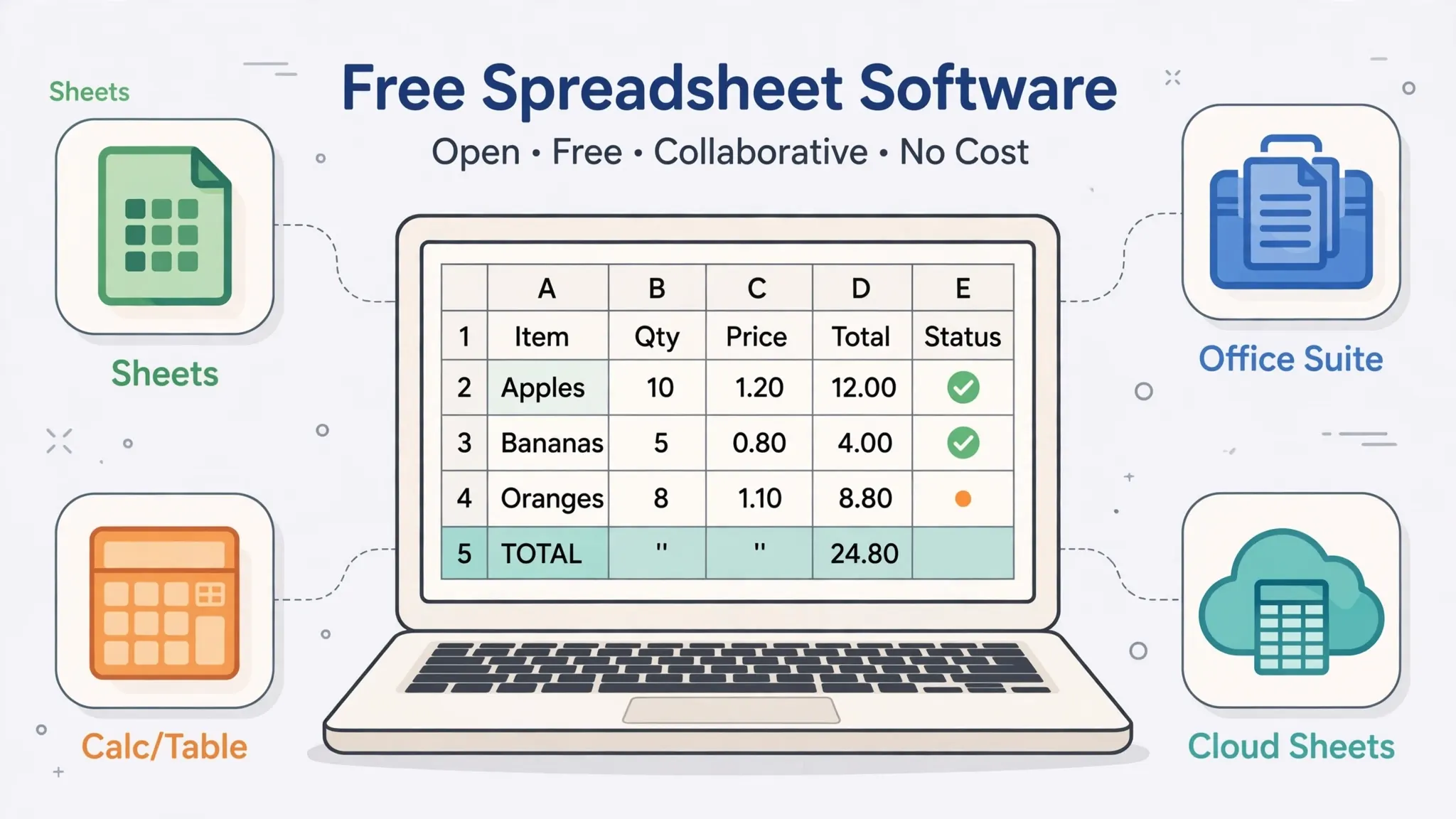
Excel’s co-authoring (via OneDrive/SharePoint) is genuinely good now — simultaneous editing, comments, @mentions — but less fluid than Sheets, with occasional sync conflicts and a dependence on everyone being in the Microsoft ecosystem. Desktop Excel co-authoring still has rough edges; Excel for the web is smoother but less capable. Numbers via iCloud offers real-time collaboration that works well — within Apple’s world. Cross-platform collaborators get the iCloud web version, which is functional but a step down, and enterprise adoption is minimal.
The collaboration decision often overrides everything else: if your team lives in Google Workspace, Sheets wins regardless of Excel’s feature lead; if you’re in Microsoft 365, Excel’s co-authoring is good enough that switching costs dwarf the collaboration gap.
Best spreadsheet app comparison: features that matter
For the best spreadsheet app comparison, let’s score the features people actually use:
Formulas
Excel: 500+ functions, dynamic arrays, XLOOKUP, LAMBDA — the deepest bench. Sheets: broad coverage of everyday functions, plus Google-specific gems (GOOGLEFINANCE, IMPORTHTML, QUERY) that Excel lacks. Numbers: ~250 functions covering the essentials well, with elegant function help. For 95% of users, all three suffice; the differences live in specialized corners.
Pivot tables
Excel’s pivot tables are the best in the business — fast, flexible, with slicers, timelines, and Power Pivot backing. Sheets’ pivot tables are solid and improving, perfectly adequate for standard analysis. Numbers’ categories feature handles basic grouping but isn’t a true pivot-table replacement. If pivots are central to your work, this alone settles it: Excel.
Charts
All three produce good charts. Excel offers the most types and customization; Sheets is clean and quick with easy publishing to the web; Numbers makes the prettiest defaults with minimal effort. Honestly, charting is a three-way tie for most purposes.

Automation
Excel: VBA macros (Windows desktop) plus Office Scripts and Power Automate — the most mature automation story. Sheets: Apps Script (JavaScript-based, excellent for Google Workspace automation). Numbers: AppleScript/Shortcuts support, the least developed. For automating spreadsheet workflows, Excel and Sheets both shine; Numbers trails.
Data import and CSV handling
Excel’s Power Query import is the gold standard for tricky files. Sheets auto-detects delimiters well via File › Import. Numbers sniffs CSVs nicely for simple files. All three benefit from clean inputs — and when a CSV needs converting first, the free CSV to Excel converter produces XLSX files each app opens perfectly. Our free alternatives ranking covers additional options beyond these three.
Large datasets
Excel (especially with Power Pivot): millions of rows manageable. Sheets: slows noticeably past ~100k rows, with hard cell limits. Numbers: the weakest here — large datasets aren’t its design target. Data-heavy users should choose accordingly.
Pricing: what each spreadsheet really costs
Google Sheets: free. Full functionality with any Google account — no tiers, no paywalled features that matter. Google Workspace paid plans add admin controls and storage, not spreadsheet features. For individuals and most small teams, Sheets costs nothing, forever.
Apple Numbers: free. Preinstalled on Mac, iPhone, and iPad; accessible via iCloud.com for everyone else. No subscriptions, no upsells. The only “cost” is the Apple hardware if you want the native apps — but the web version is free regardless.
Excel: freemium. Excel for the web is free with a Microsoft account (reduced features — see our desktop vs online comparison). The full desktop app requires Microsoft 365 (Personal/Family for individuals, Business/Enterprise plans for organizations). Mobile apps are free for viewing with limited editing. For businesses, Excel’s cost is usually bundled into Microsoft 365 licenses they’d buy anyway — the marginal cost is zero, which is why Excel dominates enterprises despite free alternatives.
File compatibility: the XLSX round-trip test
Since XLSX is business’s common currency, compatibility is the practical heart of this comparison. Excel to Sheets: straightforward files transfer cleanly; complex formatting, array formulas, and advanced features may shift. Sheets converts to its own native format — usually perfectly fine, occasionally lossy on intricate workbooks. Excel to Numbers: good for simple-to-medium files; pivot tables, macros, and complex formulas don’t survive. Numbers’ Excel export is similarly clean for straightforward content.
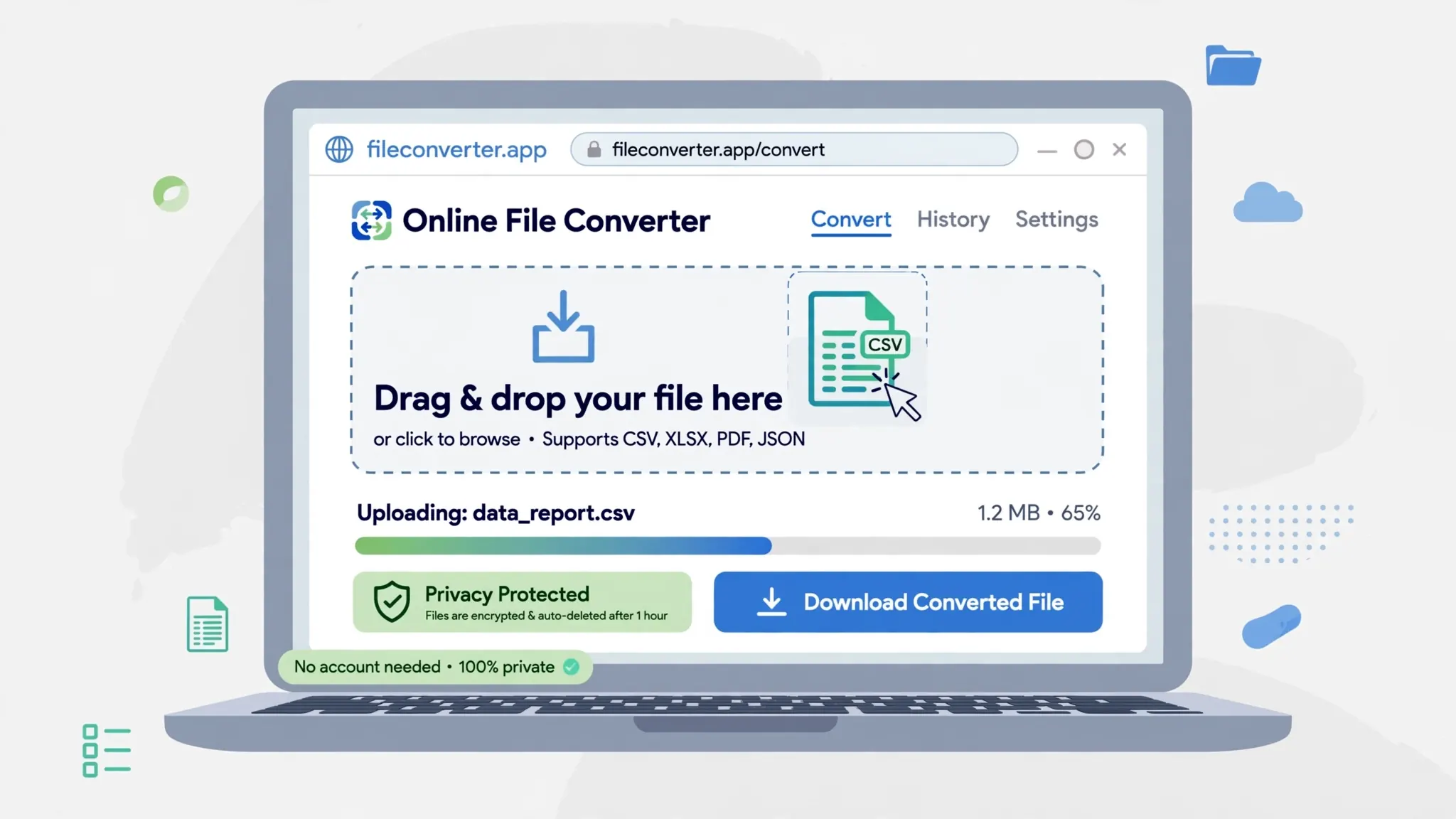
The collaboration compatibility trap: mixed teams (some on Excel, some on Sheets) face constant friction — “it looked different when I opened your file.” Solutions: standardize on one app per workflow, use XLSX as the interchange format with awareness of its limits, or keep the master in one app and export snapshots for the other. CSV as the neutral ground: for pure data exchange, CSV sidesteps all formatting issues — convert with a reliable tool and each app imports cleanly. And remember: macros (VBA) survive in none of the alternatives — if your workflow depends on macros, you’re on Excel, full stop.
Switching between the three: migration tips
Choosing is one thing; switching is another. Whether you’re moving a team from Excel to Sheets, a household from Numbers to Excel, or yourself between all three, these tips smooth the transition.
Excel to Google Sheets
Upload XLSX files to Google Drive and open with Sheets — conversion is automatic. Then audit: check pivot tables (rebuild any that misbehave), verify array formulas and volatile functions, and re-link any external data connections (they won’t transfer — rebuild with Sheets’ IMPORT functions or add-ons). Replace VBA macros with Apps Script equivalents early, since macros are the one thing that simply won’t come along. Run both in parallel for a month on critical files; the side-by-side comparison catches subtle formula differences before they matter.
Excel to Numbers (or back)
Keep files simple during transition: flatten complex formulas, avoid pivot tables in shared files, and use XLSX as the interchange format rather than Numbers’ native format. Numbers’ Excel export is good for straightforward workbooks — verify each export by reopening in Excel before sending to colleagues. For households and small teams, the pragmatic pattern is Numbers for personal work and Excel (or Sheets) for anything shared.
Google Sheets to Excel
Download as XLSX via File › Download, then check Google-specific functions (QUERY, IMPORTHTML, GOOGLEFINANCE) — they become static values or errors in Excel and need rebuilding with native equivalents. Sheets’ named ranges and data validation transfer well; its add-on-powered features don’t. If the move is permanent, it’s also the moment to adopt Power Query for the data connections that Sheets handled via imports.
The universal migration checklist
Regardless of direction: inventory your critical files and rank them by complexity; migrate simple files first for quick wins; document every formula or feature that doesn’t transfer and its replacement; keep the originals archived until the new versions are battle-tested; and train the humans — a one-hour session on “where your favorite features moved” prevents weeks of frustration. Most migrations fail on people, not technology.
Which should you use? Verdicts by user type
The Excel vs Numbers vs Google Sheets decision, personalized:
- Business analysts and finance professionals → Excel. Pivot tables, Power Query, and institutional ubiquity make it non-negotiable. Add Sheets for collaborative side projects.
- Teams that collaborate constantly → Google Sheets. The collaboration advantage outweighs Excel’s feature lead for shared, living documents.
- Students → Google Sheets (free, everywhere, collaborative) — but learn Excel basics too, since employers expect them.
- Apple-only personal users → Numbers for budgets, planning, and beautiful reports; keep Sheets or Excel for the web handy for collaboration.
- Small businesses → Sheets if you’re in Google Workspace; Excel if you’re in Microsoft 365. Match your ecosystem — the suite integration matters more than spreadsheet differences.
- Freelancers → Sheets (free, shareable with any client) plus the ability to deliver XLSX files. Clients shouldn’t need your software to open your work.

And the meta-verdict: learn Excel fundamentals regardless. Even if your daily driver is Sheets or Numbers, Excel literacy is a career asset — it’s what employers test, what clients send, and what the deepest tutorials assume. The good news is that skills transfer: formulas, pivot logic, and chart thinking work the same everywhere. Master the concepts once, and switching apps is just learning new menus. Users across the US, UK, India, Canada, and Australia face the same choice and reach the same conclusion: pick the app that fits your workflow today, but stay fluent enough in the others to collaborate with anyone. Revisit the decision yearly — Sheets and Numbers improve constantly, Excel’s web version gains features every quarter, and the “best” answer in 2026 may not be the best answer in 2028. The spreadsheet wars are over; what remains is choosing the right tool for the work in front of you.
Frequently Asked Questions
Which is better: Excel, Numbers, or Google Sheets?
Excel is best for power users and business analysis, Google Sheets is best for collaboration, and Numbers is best for Apple users doing light, design-focused work. Most professionals benefit from knowing Excel plus one of the others.
Can Apple Numbers replace Excel?
For light to medium spreadsheet work, yes — Numbers is free on Apple devices and exports to Excel well. For heavy analysis, large datasets, pivot tables, or Windows collaboration, Excel remains far more capable.
Is Google Sheets as good as Excel?
For about 90% of everyday tasks, yes — and its collaboration is better than Excel’s. Excel pulls ahead on very large datasets, advanced features (Power Query, Power Pivot, VBA), and pixel-perfect handling of complex workbooks.
Do Numbers and Google Sheets open Excel files?
Yes, both open XLSX files. Google Sheets converts them to its native format (usually cleanly for simple files); Numbers opens them directly with good fidelity for straightforward workbooks. Complex Excel files may lose some formatting in either.
Which spreadsheet is best for collaboration?
Google Sheets, by a clear margin — real-time co-editing with visible cursors, comments, and version history is seamless. Excel’s co-authoring via OneDrive is good but less fluid; Numbers collaborates via iCloud, best within the Apple ecosystem.
Are Numbers and Google Sheets really free?
Yes. Apple Numbers is free on every Mac, iPhone, and iPad (and via iCloud.com for others). Google Sheets is free with any Google account. Excel requires a Microsoft 365 subscription for the desktop app, though Excel for the web is free.