
If you’ve ever wondered how to remove extra spaces in Excel, you’ve met the most invisible bug in spreadsheet work. A customer list where “Priya Sharma” and “Priya Sharma ” (one trailing space) are treated as two different people. A VLOOKUP that returns #N/A on values you can see matching. A pivot table that splits “Chicago” into two cities. Extra spaces don’t look like a problem — that’s exactly why they’re so destructive. They hide in data imported from the web, from databases, from CSV files, and from colleagues who double-tap the spacebar.
This guide covers every reliable way to remove spaces in Excel: the TRIM function (and what it can’t do), the CHAR(160) non-breaking space trap that defeats TRIM, Find & Replace for formula-free cleanup, the Text to Columns trick, and how to handle spaces hiding inside numbers and dates. You’ll also learn how to detect invisible spaces before they cause damage — because the hardest part of this problem is noticing it. And if your spaced-out data arrived as a CSV export, our free online CSV to Excel converter gets it into a workbook first; the cleanup below takes it from there.

Why extra spaces are Excel’s most invisible problem
Excel compares text character by character, and a space is a character. So “Mumbai” (6 characters) and “Mumbai ” (7 characters) are as different to Excel as “Mumbai” and “Delhi.” Every lookup, match, filter, pivot grouping, and duplicate check operates on this strict logic. The human eye, meanwhile, is terrible at seeing trailing spaces — we literally cannot distinguish them at a glance. That gap between human perception and machine comparison is where entire afternoons disappear.
Where do the spaces come from? Web forms pad entries; HTML uses non-breaking spaces for layout that get copied into exports; databases right-pad fixed-width fields; CSV files from legacy systems (common in accounting exports across India and the UK) wrap values in spaces; and people just type inconsistently. The damage shows up as failed VLOOKUPs, doubled categories in pivot tables, “0 duplicates removed” on visibly duplicated lists, and charts with phantom blank categories. Learning to trim whitespace in Excel isn’t a beginner topic — it’s a survival skill at every level.
How to detect invisible spaces
Before fixing, confirm the diagnosis. =LEN(A1) reveals the truth: if “Mumbai” reports 7 characters, something invisible is in there. Compare =LEN(A1) with =LEN(TRIM(A1)) — a difference means trimmable spaces exist. For the exotic kind, =CODE(RIGHT(A1,1)) returns the character code of the last character: 32 is a normal space, 160 is the non-breaking space. And conditional formatting with the rule =A1<>TRIM(A1) highlights every cell containing trimmable spaces across a whole column at once — the fastest audit there is.
How to Remove Extra Spaces in Excel with the TRIM function
TRIM is the purpose-built tool: =TRIM(text) removes all leading and trailing spaces and collapses every run of multiple spaces between words to a single space. =TRIM(" Sales report ") returns “Sales report.” That’s the entire job description, and it does it perfectly — for one specific kind of space.
- In a helper column next to your data, enter
=TRIM(A2)and fill down. - Verify with
=LEN()spot checks that lengths look right. - Copy the helper column, then Paste Special › Values over the original column (or into a new “cleaned” column).
- Delete the helper column. Your data now has normalized spacing.
Two things TRIM does not do: it won’t remove single spaces between words (that’s correct behavior — “New York” keeps its space), and it won’t touch non-breaking spaces (CHAR 160), which is the trap we’ll defuse next. Microsoft’s TRIM function reference documents both the syntax and the CHAR(160) limitation explicitly.

TRIM + CLEAN: the complete whitespace cleanup formula
Real-world dirty data rarely contains just spaces. Web exports add line breaks, tabs, and non-printing characters that TRIM ignores. The professional-grade formula stacks three functions: =TRIM(CLEAN(SUBSTITUTE(A2,CHAR(160)," "))). Reading inside-out: SUBSTITUTE converts non-breaking spaces to normal spaces, CLEAN strips non-printing characters (line breaks, tabs), and TRIM normalizes the remaining spacing. This single formula handles roughly 95% of real-world whitespace mess.
Apply it the same way: helper column, fill down, paste-as-values, delete helper. For a whole table at once, you can array it across columns, but a column-by-column pass with LEN() spot checks catches more problems. If you’re doing this weekly on fresh exports, build the formula into a Power Query step instead (more below) — same logic, zero repetition.
The CHAR(160) trap: non-breaking spaces TRIM cannot remove
Here’s the scenario that defeats experienced users: you’ve TRIMmed everything, LEN() looks right, but VLOOKUP still fails and duplicates still won’t dedupe. The culprit is almost always CHAR(160), the non-breaking space — Unicode U+00A0, the HTML you know from web pages. It looks exactly like a space, behaves like a space when you read the cell, but it is a completely different character that TRIM was never designed to remove (TRIM targets only the 7-bit ASCII space, CHAR 32).
The fix is a two-stage conversion. First turn the exotic spaces into ordinary ones, then trim normally: =TRIM(SUBSTITUTE(A2,CHAR(160)," ")). If SUBSTITUTE seems to do nothing, you may be dealing with a different invisible character — CHAR(127), CHAR(129), or CHAR(141) from legacy encodings. Diagnose with =CODE(MID(A2,n,1)) walking through the string, or use =UNICODE() for characters beyond the old 255 range. The nuclear option for truly stubborn cells: copy the invisible character directly from the cell (select it in the formula bar), paste it into Find & Replace’s “Find what” box, and replace with a normal space — no character codes needed.
Rule of thumb: if TRIM “didn’t work,” it’s CHAR(160) about 80% of the time. Memorize =TRIM(SUBSTITUTE(A2,CHAR(160)," ")) — you’ll use it for the rest of your career.
Remove spaces without formulas: Find & Replace
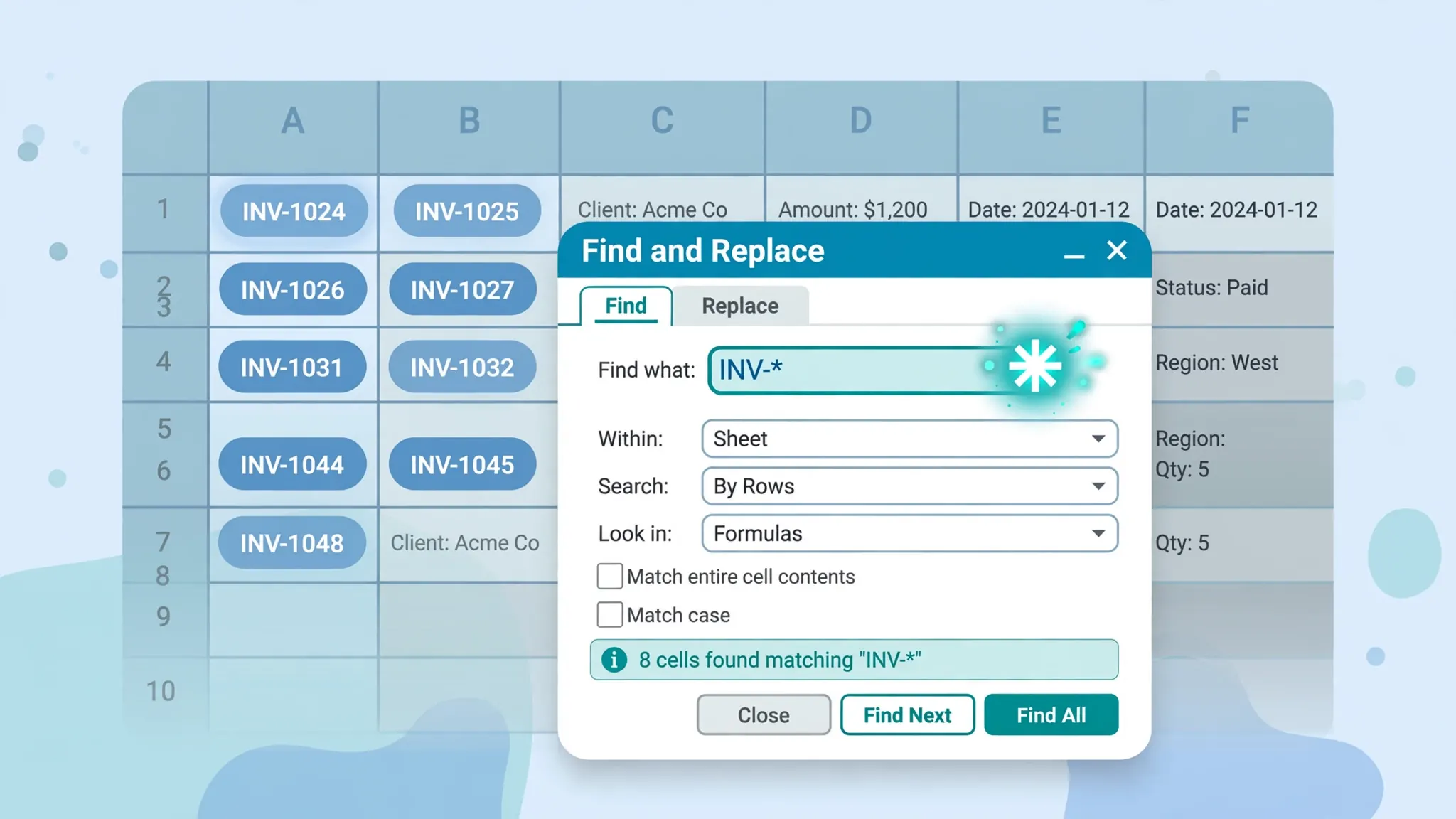
Sometimes you don’t want helper columns — you want the spaces gone, now, in place. Ctrl+H delivers:
- Delete ALL spaces: Find what:
(one space)› Replace with:(nothing)› Replace All. Use for codes, SKUs, phone numbers — anywhere inner spaces are never legitimate. - Collapse double spaces: Find what:
(two spaces)› Replace with:(one space)› Replace All. Click Replace All repeatedly until Excel reports 0 replacements — each pass halves the runs. - Kill non-breaking spaces: copy a CHAR(160) from a cell (or type Alt+0160 on the numeric keypad in the Find box) › Replace with:
(one normal space)› Replace All, then run TRIM or step 2.
Caution: Replace All is instant and workbook-wide if you select the whole sheet — restrict the selection to the target column first. And unlike TRIM, Find & Replace can’t distinguish leading from inner spaces, so for “leading/trailing only” cleanup, TRIM remains the precision tool. Our wildcards in Find & Replace guide extends these techniques to pattern-based cleanup.
The Text to Columns trick
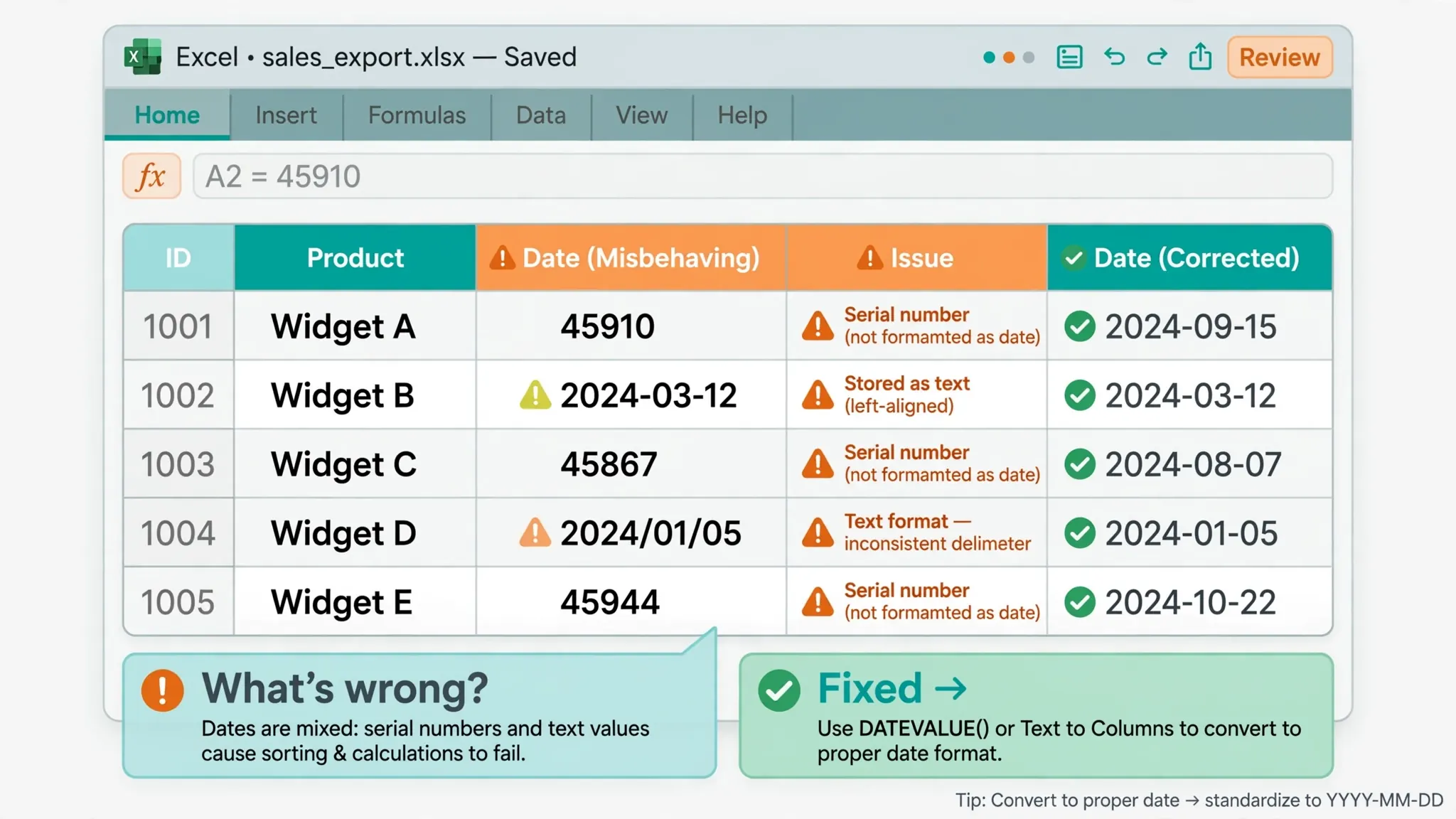
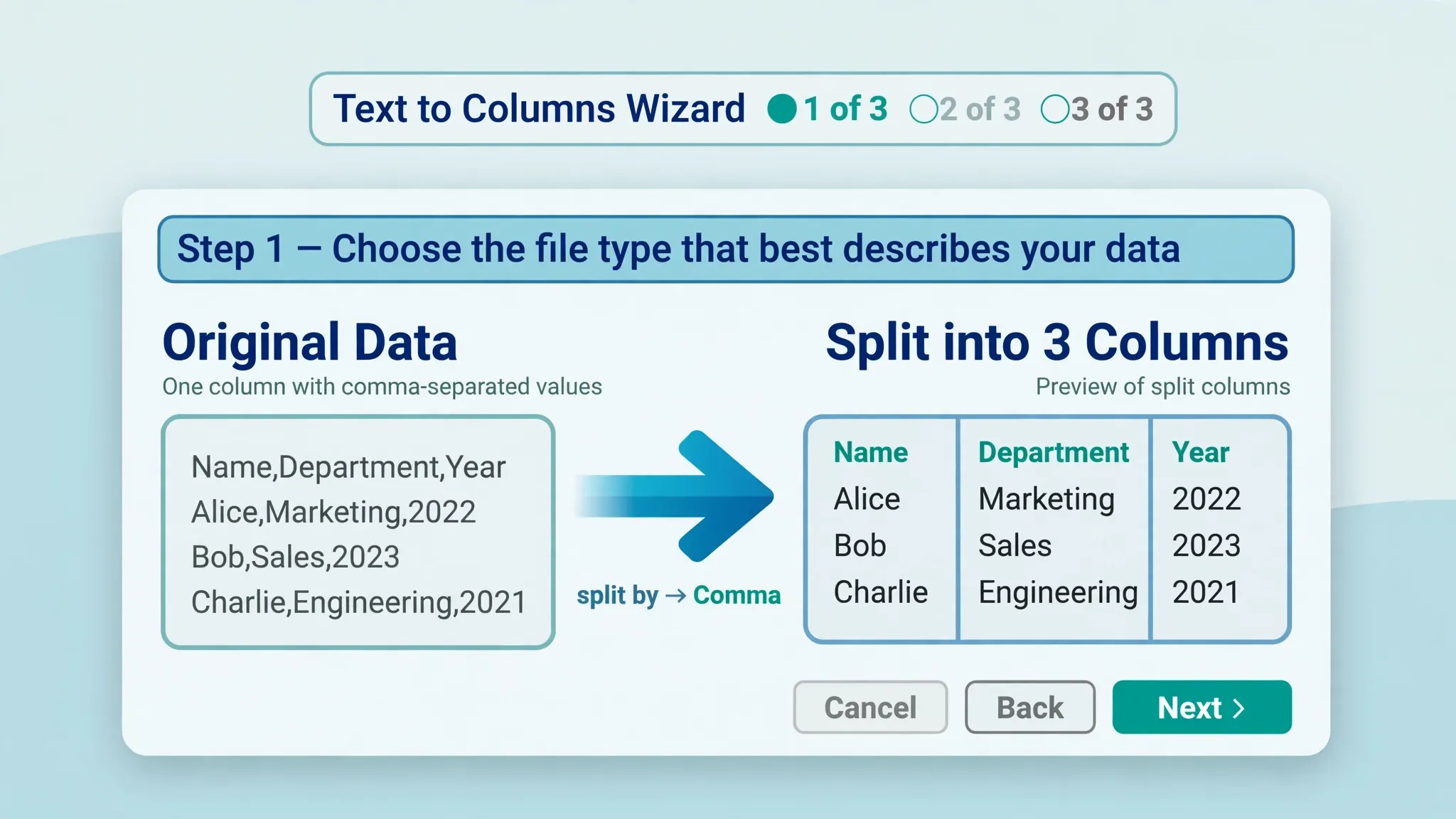
Here’s a lesser-known gem: Data › Text to Columns › Delimited › Next › Next › Finish (accepting all defaults) forces Excel to re-parse each cell’s content — and as a side effect, it converts numbers stored as text to real numbers and strips leading/trailing spaces from numeric-looking entries. It won’t fix text columns’ inner spacing, but for a column of ” 123 ” values that refuse to sum, it’s a two-second miracle. The same trick rescues dates stored as text when you set the column type in step 3 of the wizard — see our date format fix guide for the full technique.
Spaces hiding inside numbers and dates
Spaces do special damage to numeric data. ” 1,234 ” stored as text won’t sum, and the green triangle’s “Convert to Number” sometimes fails when spaces are embedded. The reliable sequence: TRIM the column, then select it and use Text to Columns (defaults) or multiply by 1 in a helper column (=TRIM(A2)*1) to force numeric conversion. For dates, spaces turn “2026-01-15” into text that won’t sort chronologically — trim first, then apply the DATEVALUE or Text-to-Columns date reinterpretation from our date fix guide. The principle: whitespace cleanup always precedes type conversion, because every conversion function chokes on dirty strings.
Trimming in Power Query and Google Sheets
For recurring imports, automate: in Power Query (Data › From Table/Range), select columns › right-click › Transform › Trim (and Clean for non-printing characters). The step is recorded and replays on every refresh — set it once, never think about spaces again. In Google Sheets, the equivalent is =TRIM(A2) (same behavior, same CHAR(160) blind spot — pair with SUBSTITUTE(A2,CHAR(160)," ")) or the Data › Trim whitespace menu command, which trims leading/trailing spaces in place across a selection. Whatever the platform, the workflow is identical: detect with LEN(), convert the exotic spaces, trim the ordinary ones, paste as values, verify.
TRIM vs SUBSTITUTE vs REPLACE: picking the right function
Three functions remove characters, but they solve different problems — using the wrong one is a classic time-waster. TRIM normalizes spacing: leading/trailing gone, inner runs collapsed to one space. It never deletes all spaces (“New York” keeps its space) and never touches other characters. SUBSTITUTE(text, old, new) swaps specific text: =SUBSTITUTE(A2," ","") deletes every space including inner ones (“New York” → “NewYork”), and =SUBSTITUTE(A2,CHAR(160)," ") converts non-breaking spaces. It can’t do pattern or positional logic. REPLACE(text, start, count, new) operates by position: =REPLACE(A2,1,3,"") deletes the first three characters regardless of what they are. The decision tree: spacing normalized? TRIM. Specific characters removed/converted? SUBSTITUTE. Fixed-position surgery? REPLACE. And remember they compose — =TRIM(SUBSTITUTE(A2,CHAR(160)," ")) is two tools doing their own jobs in sequence.
Case study: cleaning a 10,000-row customer import in 15 minutes
A real-world pass, start to finish, on a customer CSV exported from a web store — the kind of file where every name has random spacing. Minutes 0–2: import with Data › From Text/CSV, then add a helper column with =LEN(A2) next to the Name column and filter for suspicious lengths. Minutes 2–5: helper column with the full formula =TRIM(CLEAN(SUBSTITUTE(A2,CHAR(160)," "))), fill down (double-click the fill handle), spot-check with LEN comparisons. Minutes 5–8: copy › Paste Special › Values over the original, delete helpers. Minutes 8–11: conditional formatting rule =A2<>TRIM(A2) across the sheet — any cell still lighting up gets individual attention (usually a CHAR(127) or similar exotic). Minutes 11–15: Find & Replace double-spaces → single (repeat to zero), then run Remove Duplicates and verify counts. Fifteen minutes, 10,000 rows, zero manual cell editing. The same file cleaned by hand — clicking into cells and pressing spacebar-delete — would take a full day and miss half the invisible characters.
Keyboard shortcuts for the space-cleaning workflow
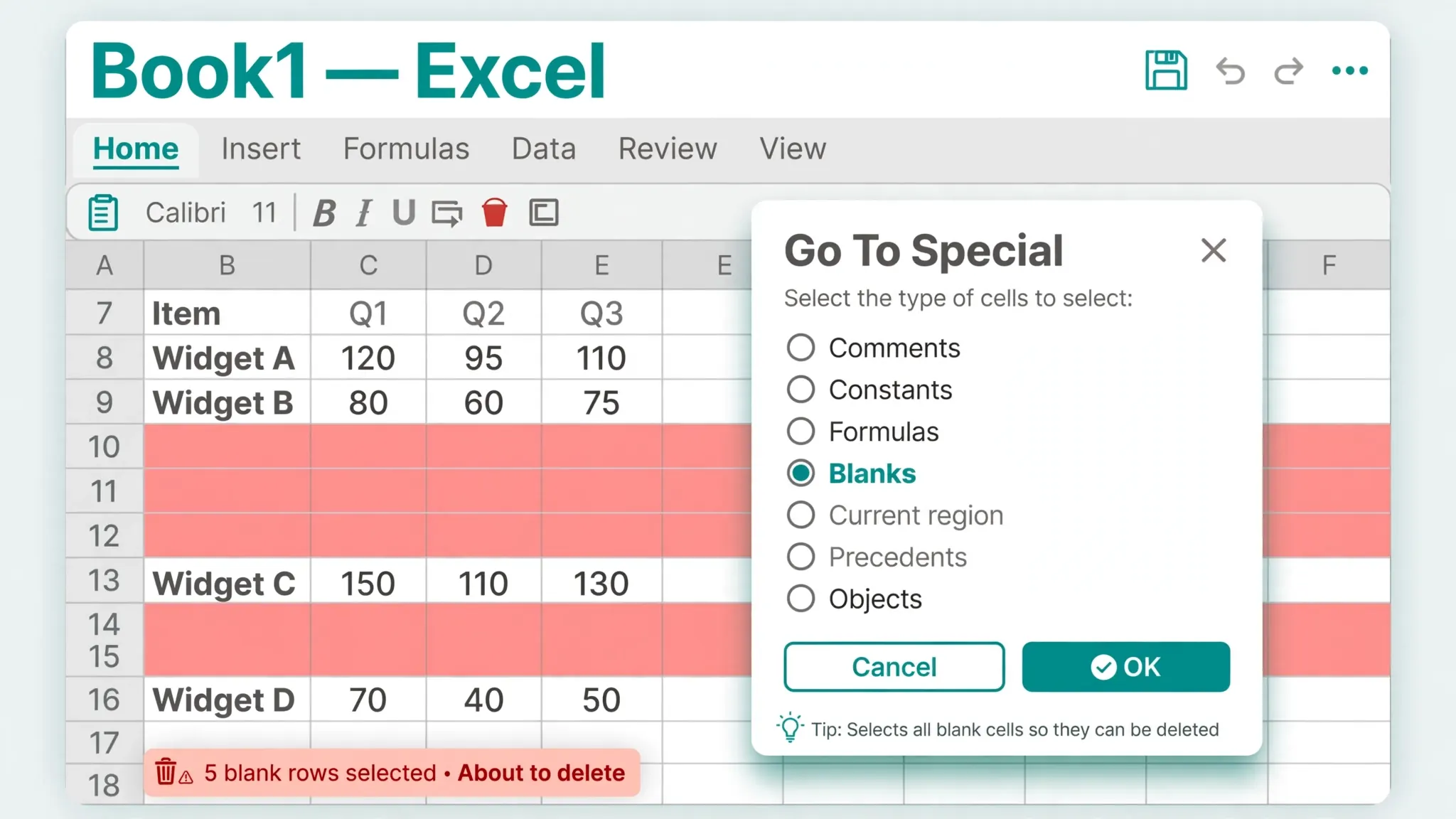
Speed matters when you’re doing this weekly. The essential choreography: Ctrl+H (Find & Replace), Ctrl+C / Ctrl+Alt+V › V (copy, Paste Special Values), Ctrl+Shift+L (filters for inspection), F5 › Special › Blanks (audit gaps), Alt+A+E (Text to Columns for the numeric re-parse trick), Ctrl+E (Flash Fill for pattern cleanup). The paste-as-values step deserves emphasis: after any TRIM helper column, Ctrl+C then Ctrl+Alt+V, V, Enter converts formulas to values in under two seconds — learn it as one fluid motion. String these together and the entire whitespace cleanup becomes a thirty-second ritual per column.
The CLEAN function deep dive: non-printing characters
TRIM handles spaces; CLEAN handles everything else invisible. =CLEAN(text) strips the first 32 non-printing characters of the 7-bit ASCII set — line breaks (CHAR(10)), tabs (CHAR(9)), carriage returns (CHAR(13)), and the control characters that hitchhike in data copied from PDFs, web pages, and legacy databases. The classic symptom: a cell that looks empty or normal but LEN() reports extra characters, or text that wraps mid-cell for no visible reason (a CHAR(10) line break hiding at the end). The tell-tale diagnostic is =CODE(MID(A2,LEN(A2),1)) returning 10, 13, or 9 instead of 32 or 160.
CLEAN has its own blind spots to know: it does not remove CHAR(127) (the DEL character, common in old database exports), CHAR(129), CHAR(141), CHAR(143), CHAR(144), or CHAR(157) — these live outside the 0–31 range it targets. For those, SUBSTITUTE them explicitly: =SUBSTITUTE(A2,CHAR(127),""), stacked as needed. And CLEAN doesn’t touch Unicode oddities like the zero-width space (U+200B) increasingly found in web-scraped data — for that, =SUBSTITUTE(A2,UNICHAR(8203),""). The full decontamination formula for truly hostile data: =TRIM(CLEAN(SUBSTITUTE(SUBSTITUTE(A2,CHAR(160)," "),CHAR(127)," "))). Memorize the shape — SUBSTITUTE the exotics, CLEAN the controls, TRIM the spacing — and no invisible character survives.
Preventing space problems at the source
Cleaning spaces forever is a tax; the real win is stopping them upstream. At import: use Data › From Text/CSV and trim in Power Query (Transform › Trim) as a recorded step — every refresh cleans automatically. At entry: add Data › Data Validation with a custom formula like =A1=TRIM(A1) on input columns — it rejects entries with leading/trailing spaces at the moment of typing (pair with an input message explaining why). At the contract level: if a vendor’s CSV arrives padded every month, send them one annotated example of the damage (a failed VLOOKUP screenshot works wonders) and ask for trimmed exports — most IT teams fix it in one sprint once they see it. In shared workbooks: a conditional formatting rule =A1<>TRIM(A1) applied to input ranges turns space violations red in real time, training the whole team within a week. Cleanup skill matters; prevention compounds.
Spaces and CSV imports: the full journey
Spaces love CSV files — the format’s simplicity means padding and quoting quirks survive the trip into Excel untouched. A typical journey: a vendor CSV with values like " Acme Ltd "," Mumbai " opens in Excel with every space preserved, because CSV stores exactly what’s between the delimiters. If you open the CSV by double-clicking, Excel’s automatic type guessing may also convert some space-padded numbers to numbers (dropping the spaces) while leaving others as text — inconsistent treatment of the same column. The professional import path avoids this: Data › From Text/CSV, set each column’s type explicitly in the preview, then add a Power Query Transform › Trim step before loading. For files already imported the quick way, the rescue is the standard sequence from this guide — helper column with the full TRIM/CLEAN/SUBSTITUTE formula, paste as values, verify with LEN. One more CSV-specific trap: quoted fields with intentional leading spaces (rare, but they exist in address data) — trimming destroys information there, so check with the data owner before bulk-trimming address columns. When in doubt, trim a copy and compare.
Frequently Asked Questions
How do I remove extra spaces between words in Excel?
Use =TRIM(A1) in a helper column — it removes leading and trailing spaces and collapses multiple spaces between words to a single space. Fill down, copy, Paste Special › Values over the original, and delete the helper column.
Why doesn’t TRIM remove all spaces in my Excel data?
TRIM only removes the standard space character (CHAR 32). Data copied from websites or databases often contains non-breaking spaces (CHAR 160), which look identical but which TRIM ignores. Pre-convert them with =SUBSTITUTE(A1,CHAR(160)," ") and then TRIM the result.
How do I remove non-breaking spaces (CHAR 160) in Excel?
The reliable formula is =TRIM(SUBSTITUTE(A1,CHAR(160)," ")): SUBSTITUTE turns every non-breaking space into a regular space, and TRIM cleans up from there. Alternatively, copy the invisible character from the formula bar into Find & Replace and swap it for a normal space.
How can I remove spaces in Excel without using a formula?
Press Ctrl+H: to delete every space, put one space in “Find what” and leave “Replace with” empty, then Replace All. To collapse double spaces, replace two spaces with one repeatedly until Excel reports zero replacements. Always limit the selection to the target column first.
How do I remove only leading and trailing spaces in Excel?
TRIM does exactly this (it also collapses inner double spaces, which is almost always what you want). If you must preserve exact inner spacing, use Find & Replace on leading/trailing positions only, or handle it in Power Query’s Transform › Trim step.
Does Excel TRIM remove double spaces between words?
Yes — TRIM collapses any run of multiple regular spaces between words down to a single space, while stripping all leading and trailing spaces. Single spaces between words are left untouched.