Excel for inventory management is how countless retailers, wholesalers, workshops, and e-commerce sellers keep track of their stock — from the corner shop with 200 products to the online seller with 20,000 SKUs. Inventory is money sitting on shelves, and not knowing exactly what’s there (and what isn’t) is one of the most expensive blind spots a business can have: stockouts lose sales, overstock ties up cash, and mystery shrinkage eats margins silently. This guide builds you a complete inventory system in Excel: the product master, the transaction log, automatic reorder alerts with conditional formatting, SUMIF-powered stock calculations, valuation methods, and a free template structure you can copy today.
No inventory software required, no subscription — just a well-built workbook and the discipline to update it. Let’s build it.
Why Excel works for inventory (and when it doesn’t)
Inventory management is fundamentally record-keeping plus arithmetic — two things spreadsheets do brilliantly. Every stock movement is a row (date, product, in or out, quantity), current stock is a SUMIFS away, and reorder logic is a comparison: is quantity on hand at or below the reorder level? Excel handles tens of thousands of SKUs without breaking a sweat, costs nothing extra, and adapts to any business — the spare-parts dealer, the cosmetics reseller, the craft brewery all track different things, and one flexible grid serves them all.
The honest limits: Excel doesn’t do real-time multi-user updates well (two people adjusting stock simultaneously is asking for conflicts), it has no barcode-scanner-native workflow (though scanners that type into cells work fine), and it won’t scale past very large catalogs or multiple warehouses without getting unwieldy. Our Excel vs Access guide covers the database step up. But for single-location businesses with one or two people managing stock — the overwhelming majority — Excel isn’t a compromise. It’s the right tool, and this guide makes it a complete system.
What your inventory sheet needs: the essential columns
Every inventory system — from a corner shop to Amazon — tracks the same core facts. Here’s your product master, one row per SKU:
- SKU — your unique product code. Never reuse, never change. This is the primary key everything references.
- ProductName — the human-readable name.
- Category — for grouping and analysis (dropdown-validated).
- Supplier — who you buy it from, for reordering.
- CostPrice — what you pay per unit. The basis of valuation and margin math.
- SellingPrice — what customers pay. Margin = (SellingPrice − CostPrice) / SellingPrice.
- QuantityOnHand — current stock. Computed from the transaction log (never typed directly).
- ReorderLevel — the stock level that triggers a reorder. Set per product based on sales velocity and lead time.
- ReorderQuantity — how much to order (economic order quantity, or just your standard pack size).
- Location — shelf/bin location, for finding things in the stockroom.
- LastCounted — date of last physical count, for cycle-counting discipline.
Resist adding columns “just in case” — every unused column is clutter that slows data entry. You can always add later; the fundamentals of inventory haven’t changed in decades, and neither has what you need to track them.
Building the stock tracker, step by step
Here’s the build order that works — resist the urge to start with fancy dashboards.

- Create a workbook “Inventory_Master.xlsx” with three tabs: Products (the master list above), Transactions (the movement log), and Dashboard (summaries and alerts).
- Format Products as an Excel Table (Ctrl+T). Enter every SKU with its static data — supplier, prices, reorder levels, locations. This is the weekend’s big job; get it right once.
- Set up the Transactions tab with columns: Date, SKU (dropdown from the Products list), Type (Purchase / Sale / Adjustment / Return / Damaged), Quantity (positive for stock in, negative for stock out), Reference (invoice or order number), Notes.
- In Products, compute QuantityOnHand with:
=SUMIFS(Transactions[Quantity], Transactions[SKU], [@SKU])plus your opening stock. Never type stock levels directly — the log is the truth. - Add StockValue:
=[@QuantityOnHand]*[@CostPrice]. Sum it at the bottom: that’s cash on shelves. - Build the Dashboard tab: total SKUs, total stock value, items at/below reorder level (COUNTIFS), and top 10 products by stock value.
- Do a full physical count to set opening quantities, enter them as “Opening Stock” transactions dated today, and you’re live.
The transaction-log design is the key insight: stock levels are derived, never typed. That gives you a complete audit trail (every unit accounted for), makes errors findable (filter the log by SKU and date), and means the numbers can never silently drift from reality. If supplier data arrives as CSV exports, convert them with the free CSV to Excel converter and paste them into the log — clean xlsx in, clean data out.
Reorder alerts with conditional formatting
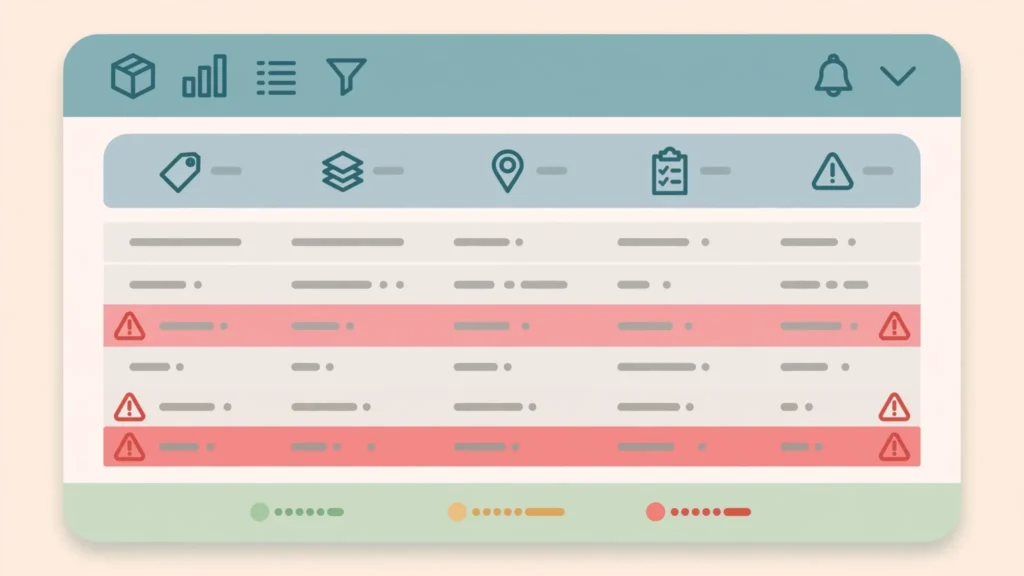
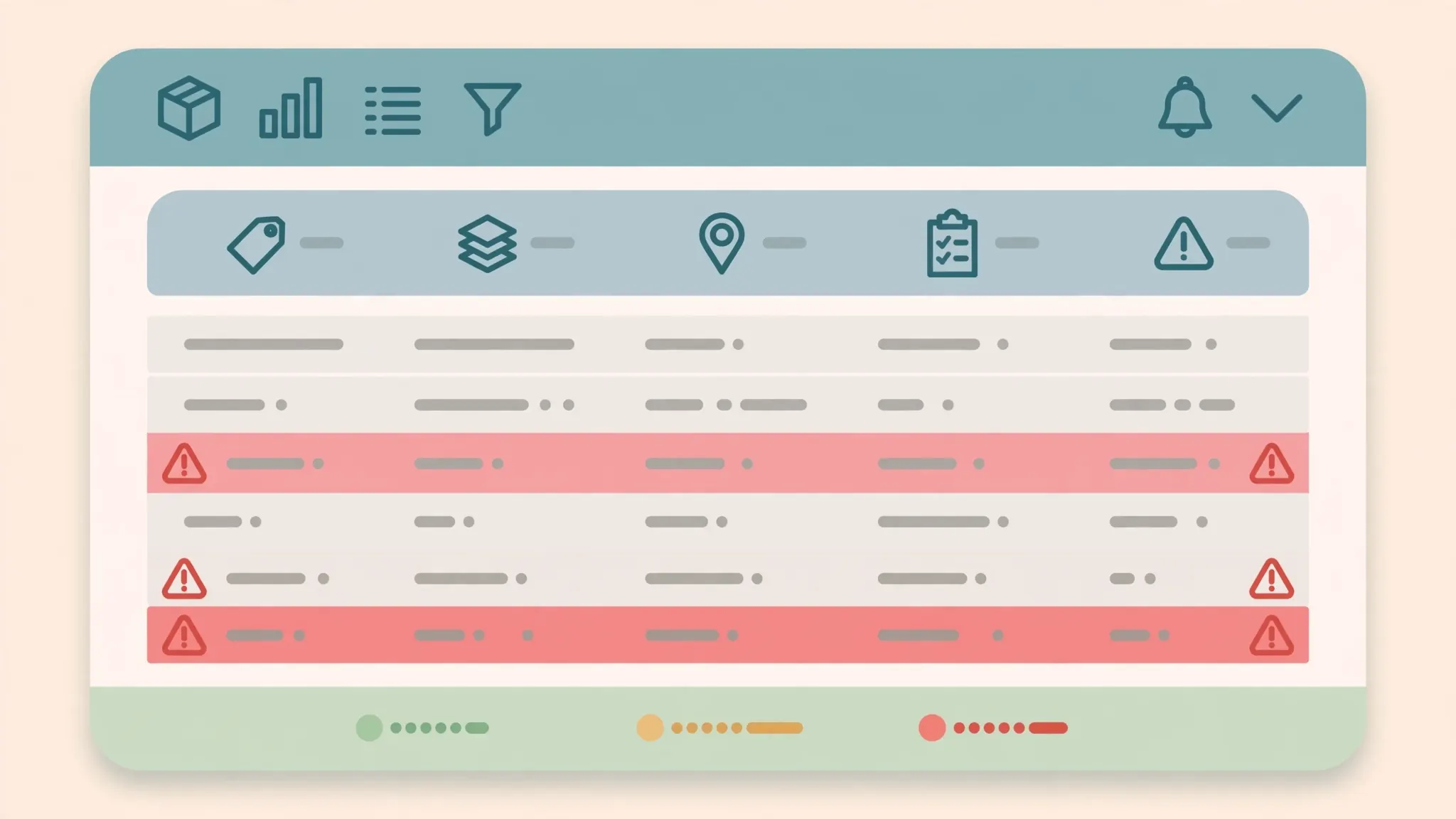
This is the feature that pays for the whole system: never discovering a stockout when a customer is asking. The logic is one comparison — QuantityOnHand ≤ ReorderLevel — surfaced so loudly you can’t miss it.
Step 1: the flag column. In Products, add a Status column: =IF([@QuantityOnHand]<=[@ReorderLevel],"REORDER","OK"). Simple, readable, filterable. Step 2: conditional formatting. Select the Products table, go to Home › Conditional Formatting › New Rule › “Use a formula,” and apply two rules: red fill when =$Status="REORDER" (or directly on QuantityOnHand ≤ ReorderLevel), amber when stock is within 20% above the reorder level (early warning). Now the sheet screams at you appropriately.
Step 3: the reorder dashboard. On the Dashboard tab, list only items needing reorder: SKU, product, supplier, quantity on hand, reorder quantity — filtered or via the FILTER function. This becomes your purchase-order worksheet every Monday morning: one glance, one supplier call list. Step 4 (optional but powerful): lead-time awareness. Add a LeadTimeDays column per product and compute a “days of stock remaining” estimate from average daily sales — reorder when days-remaining ≤ lead time, and you’ve graduated from fixed reorder levels to demand-aware replenishment, the same logic expensive systems use.
To make the reorder point self-adjusting rather than fixed, drive the ReorderLevel column with a formula like =MAX(5, ROUND(AvgDailySales*LeadTimeDays*1.25, 0)) — the threshold then rises automatically when an item starts selling faster, and you never reorder from a stale guess.
SUMIF in action: tracking stock movements without the headache
SUMIFS is the engine of the whole system, so let’s make it concrete. Your Transactions log has hundreds of rows: purchases adding stock, sales removing it, the occasional adjustment. Current stock per SKU is simply everything in minus everything out — which is exactly what SUMIFS computes: =SUMIFS(Transactions[Quantity], Transactions[SKU], [@SKU]). Positive quantities (purchases) add, negative (sales) subtract, and the result is always current. No manual stock-taking in the sheet, no drift.

The same pattern answers every inventory question: units sold this month — SUMIFS with a date condition and negative quantities; purchase value by supplier — SUMIFS on purchase-type rows grouped by supplier; shrinkage — compare SUMIFS-derived stock against physical counts, and the difference (logged as adjustments) is your shrinkage, quantified instead of mysterious. Dead stock — SKUs with no sale-type transactions in 90 days, found with COUNTIFS = 0, are cash begging to be cleared. Learn SUMIFS deeply and the inventory system largely runs itself; it’s the highest-leverage formula in this entire guide.
Inventory management in Excel: best practices
Inventory management in Excel succeeds or fails on discipline, not design. The practices that separate working systems from abandoned ones:
Print this list and tape it to the stockroom wall. Every practice below exists because someone learned it the expensive way — usually by discovering a stockout, a shrinkage mystery, or a corrupted file at the worst possible moment.
- One SKU, one row, forever. Never reuse SKUs, never rename them casually. The SKU is the primary key of your business.
- Log movements daily. End-of-day, five minutes: today’s sales and receipts into the transaction log. Weekly reconstruction is where errors breed.
- Dropdowns everywhere. Type, Category, Supplier, Location — all data-validated lists. Free text is the enemy of analysis.
- Cycle count continuously. Count a different section each week (LastCounted column tracks this) instead of one giant annual count. Small, frequent counts catch problems while they’re small.
- Reconcile monthly. SUMIFS stock vs physical count, investigate every difference, log adjustments honestly. Shrinkage you measure is shrinkage you can reduce.
- Protect the formulas. Lock formula cells and the Products structure; data entry happens in the Transactions log, not by editing computed columns.
- Back up with dated copies. Monthly snapshot (Inventory_2026-10.xlsx) in cloud storage. A corrupted master file must never mean starting over.
Excel inventory tracker: the complete template walkthrough
Let’s walk through the finished Excel inventory tracker as a user would experience it on a Monday morning. You open Inventory_Master.xlsx to the Dashboard: 1,240 SKUs, $84,000 in stock value, 17 items flagged red for reorder, 9 amber as early warnings. The reorder list shows SKUs, suppliers, and quantities — you email purchase orders to three suppliers before 10 AM. A delivery arrives at noon: you log it in Transactions (date, SKU, Purchase, quantity, supplier invoice number) and watch the red flags clear on the Products tab as SUMIFS recalculates. Afternoon sales flow in from your POS or sales tracker — logged as Sale transactions, stock decrements automatically. Friday, you run the dead-stock check (no sales in 90 days) and mark five SKUs for clearance pricing. Month-end, the stock value total goes to your accountant and the shrinkage figure (adjustments) tells you whether security or process needs attention.

Total weekly maintenance: under an hour once the habit forms. The system answers the questions that used to require guesswork — what to order, what’s not selling, what the stock is worth, what’s disappearing — from data you’re already generating. That’s the whole pitch: not software, just structure.
Inventory spreadsheet template: the free structure you can copy
Here’s the complete inventory spreadsheet template structure to replicate — three tabs, no macros, no add-ins:
Tab 1 — Products (Excel Table): SKU | ProductName | Category | Supplier | CostPrice | SellingPrice | QuantityOnHand (formula) | ReorderLevel | ReorderQuantity | Location | LastCounted | Status (formula) | StockValue (formula). Conditional formatting on Status. Protected formula columns.
Tab 2 — Transactions (Excel Table): Date | SKU (dropdown) | Type (dropdown: Opening Stock, Purchase, Sale, Adjustment, Return, Damaged) | Quantity (+in/−out) | UnitCost | Reference | Notes. This is the only tab for daily data entry.
Tab 3 — Dashboard: KPI cards (total SKUs, stock value, items to reorder, dead stock count), the live reorder list (FILTER function), monthly movement summary (PivotTable on Transactions), and a stock-value-by-category chart. Build it once; it updates itself forever.
Copy this structure into a blank workbook and you’re 80% done — the remaining 20% is your product data and your reorder levels. For the broader business context (how inventory connects to sales, expenses, and cash flow), our Excel for small business guide places this tracker inside the complete five-spreadsheet system.
Valuation: FIFO, average cost, and knowing what your stock is worth
Stock value isn’t just quantity × price — because the price you paid changes over time. Three methods dominate, and your accountant (and tax authority) cares which you use. Average cost (simplest, most common for small businesses): track total cost of all units purchased divided by total units — every sale reduces stock value at the average. Implement with a running average in your Products tab, updated on each purchase. FIFO (first in, first out): assumes the oldest stock sells first — required or preferred in many jurisdictions, and more accurate when prices move a lot. Implement by tracking purchase batches in the Transactions log with their unit costs. Specific identification: for high-value serialized items (electronics, machinery), track each unit’s actual cost.
For most small businesses, average cost in Excel is the pragmatic choice: one extra column, honest numbers, accountant-approved in most cases. Ask your accountant which method your jurisdiction expects before you build — switching methods mid-year is painful, but starting with the right one is free. And whatever method you choose, the discipline is the same: every purchase logged with its actual unit cost, because valuation is only as good as the cost data behind it.
When Excel isn’t enough for inventory
Excel carries inventory impressively far, but honest limits exist. Multiple locations: two warehouses double the complexity; five makes a database look attractive. Multiple simultaneous users: the warehouse team and the sales team updating one file is a conflict waiting to happen. Very large catalogs: past 50,000+ SKUs with heavy transaction volume, Excel slows and the file becomes fragile. Real-time needs: e-commerce with live stock levels on the website needs a system, not a spreadsheet. Barcode-native workflows: scanners that type into cells work, but true scan-to-update automation wants dedicated software.

The graduation path: dedicated inventory software (or a database like Access) becomes the system of record, and Excel becomes the analysis layer — export to xlsx, build the reports and forecasts that software’s rigid dashboards can’t. Our Excel vs Access guide walks through that exact transition. Until those limits bite, though, the spreadsheet in this guide is not a stepping stone — it’s a complete, professional inventory system.
Verdict: Excel for inventory management in 2026
Excel for inventory management works because inventory is structured data plus arithmetic — the spreadsheet’s home turf. Three tabs (Products, Transactions, Dashboard), one golden rule (stock levels derived from the log, never typed), SUMIFS doing the math, and conditional formatting shouting about reorders: that’s a system that prevents stockouts, quantifies shrinkage, values your stock, and answers every inventory question in minutes.

Build it this week: set up the three tabs today, enter your products tomorrow, do the physical count this weekend, and log every movement starting Monday. Within a month you’ll wonder how you operated blind — and your cash flow will feel the difference as stockouts disappear and dead stock gets cleared. The spreadsheet is ready; the shelves are waiting. Your future self, calmly answering “how many do we have?” in seconds, will thank you.
Frequently Asked Questions
How do I manage inventory in Excel?
Build a stock tracker with one row per SKU (product code, name, supplier, cost, price, quantity on hand, reorder level), log every stock movement in a transaction sheet, and use SUMIFS formulas plus conditional formatting for automatic reorder alerts.
What is the best inventory template for Excel?
The best template has three parts: a product master list, a transaction log for stock in and out, and a dashboard showing current stock, reorder alerts, and stock value. This guide gives you the complete structure to build it.
How do I set up reorder alerts in Excel?
Add a ReorderLevel column to your stock sheet, then apply conditional formatting that highlights the row red when QuantityOnHand is at or below the reorder level. For extra visibility, add a dashboard that lists only the items needing reorder.
Can Excel handle a large inventory?
Excel comfortably handles tens of thousands of SKUs. Beyond that — or with multiple warehouse locations and users updating simultaneously — consider a database or dedicated inventory system, and keep Excel as the analysis layer.
How do I track stock in and out in Excel?
Keep a transaction log with one row per movement: date, SKU, type (purchase, sale, adjustment, return), and quantity (positive in, negative out). SUMIFS formulas then compute current stock per SKU from the log automatically.
Is Excel good for inventory management?
Yes, for small and mid-sized businesses. Excel handles SKU tracking, reorder alerts, stock valuation, and reporting well. It struggles with real-time multi-user updates and very large catalogs, where dedicated systems take over.