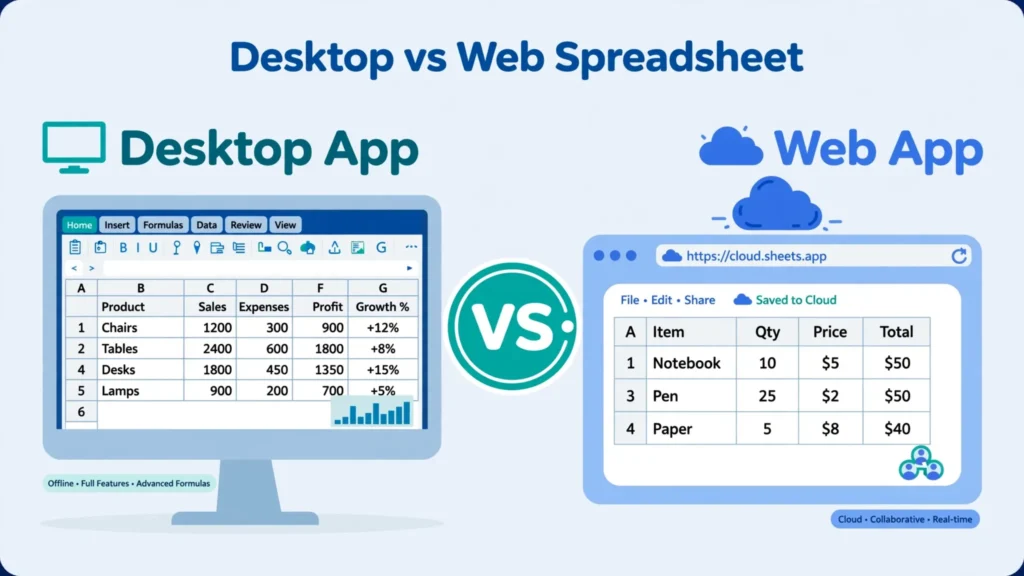
Microsoft (Excel’s history on Wikipedia) gives away a version of Excel for free — in your browser, no install, no subscription. So why does anyone pay for Microsoft 365? The Excel desktop vs Excel online comparison reveals exactly what the free web version drops: VBA macros, Power Query authoring, Power Pivot, and the raw performance for large files, among other things. For many people those gaps never matter; for power users they’re dealbreakers. Knowing which camp you’re in saves you either a subscription fee or a lot of frustration.
This guide maps the difference between Excel desktop and online feature by feature — what works, what’s missing, what’s surprisingly better on the web — plus honest guidance on when the free version suffices and when desktop is worth paying for. Whether you’re a student in Mumbai, a freelancer in Toronto, or an analyst in Chicago wondering if you can ditch the desktop app, here’s the full picture.
What Excel Online (Excel for the web) actually is
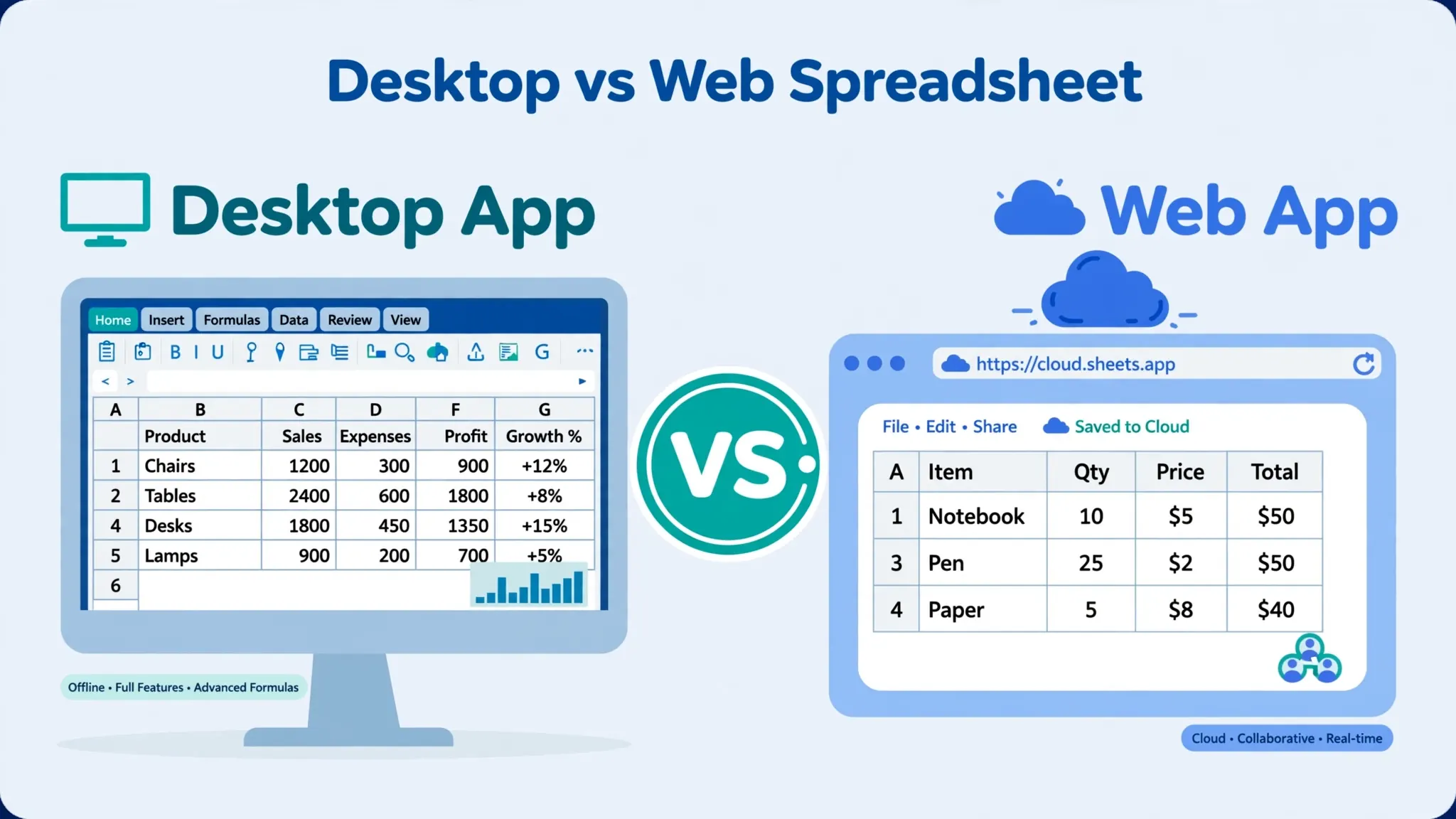
Excel for the web — still widely called Excel Online — is Microsoft’s browser-based spreadsheet, free with any Microsoft account at office.com. Your files live on OneDrive; you edit in Chrome, Edge, Safari, or Firefox; changes save automatically. It’s not a trial or a demo — it’s a real, supported product Microsoft maintains as the entry point to its ecosystem, and it improves steadily.
What you get free is genuinely useful: the core grid, hundreds of functions, formatting, charts, pivot tables (viewing and basic creation), sorting, filtering, data validation, and sharing. For homework, budgets, lists, simple analysis, and collaborative editing, it’s completely sufficient. Microsoft’s strategy is clear: hook users on the free web version, convert the demanding ones to Microsoft 365. Understanding where that conversion pressure comes from — the missing features — is the point of this guide. Microsoft’s own Excel for the web help documents the current capabilities.
Excel desktop vs Excel online: the feature head-to-head
The Excel desktop vs Excel online gap, organized by what matters:
Core spreadsheeting: nearly equal
Formulas, formatting, charts, conditional formatting, data validation, freeze panes, find and replace — the everyday toolkit works in both. If your Excel life is SUMs, VLOOKUPs, and bar charts, you may never notice which version you’re in. Microsoft has closed this gap impressively; the web version handles ~90% of common tasks.
Advanced analysis: desktop dominates
VBA macros don’t run online. Power Query queries refresh but can’t be authored or edited. Power Pivot models don’t work. Solver, Analysis ToolPak, and many add-ins are desktop-only. These are the features that separate casual users from power users — and they’re exactly what the web version omits.

Performance: desktop dominates
Desktop Excel crunches large workbooks with your machine’s full CPU and RAM. The web version runs in a browser tab with stricter memory limits — large files slow down or refuse to open. For files over ~50 MB or complex models, desktop isn’t just better, it’s the only viable option.
Offline access: desktop only
Excel Online needs the internet — no connection, no spreadsheet. Desktop works on planes, in basements, and during outages. (Mobile apps offer a middle ground with offline files, but that’s a separate product.)
The difference between Excel desktop and online in daily use
Beyond the feature list, the difference between Excel desktop and online shows up in workflow feel. The web version autosaves continuously to OneDrive — no more lost work, but also no “don’t save” escape hatch when you mess up (version history is your friend; learn it). Sharing is a link, not an attachment — recipients always see the current version, which eliminates the emailed-copy chaos but requires everyone to have Microsoft accounts for editing.
Interface-wise, the web ribbon is streamlined: fewer tabs, simplified dialogs. Power users miss the depth; casual users appreciate the clarity. Keyboard shortcuts mostly carry over, though some browser-reserved combinations differ. And there’s a subtle psychological difference: desktop Excel feels like your tool on your machine; the web version feels like a service you’re borrowing — because it is. For quick edits and collaboration, the web version’s frictionlessness wins; for deep multi-hour analysis sessions, desktop’s responsiveness and completeness win.
Macros and VBA: the biggest gap
Let’s be blunt about the single biggest Excel for web vs desktop difference: VBA macros. Desktop Excel runs them; Excel Online doesn’t — workbooks containing macros open, but the code sits inert. For the millions of business processes built on VBA over three decades, this is a hard wall. If your job involves macro-enabled workbooks (.xlsm), you need desktop Excel, full stop.
Microsoft’s web-native answer is Office Scripts: TypeScript-based automation that runs in Excel for the web (and desktop), integrates with Power Automate, and works across platforms. It’s genuinely good for new automation — cleaner language, cloud execution, no security warnings. But it doesn’t run your existing VBA, conversion is manual, and it requires a qualifying Microsoft 365 plan (not the free tier). Organizations with heavy VBA investments face a real migration decision: keep desktop Excel indefinitely, or rewrite automation for the web era. Most do the former while experimenting with the latter — a transition measured in years, not months.
Power Query and Power Pivot on the web
Power Query — Excel’s data-transformation engine — exists in a frustrating half-state online: existing queries refresh in Excel for the web, but you can’t create or edit them. So a desktop-built workbook with Power Query connections works online for consumers (refresh the data, see updated results) but not for authors (fix the query, add a step). Teams split naturally: the analyst authors on desktop, stakeholders refresh on the web.
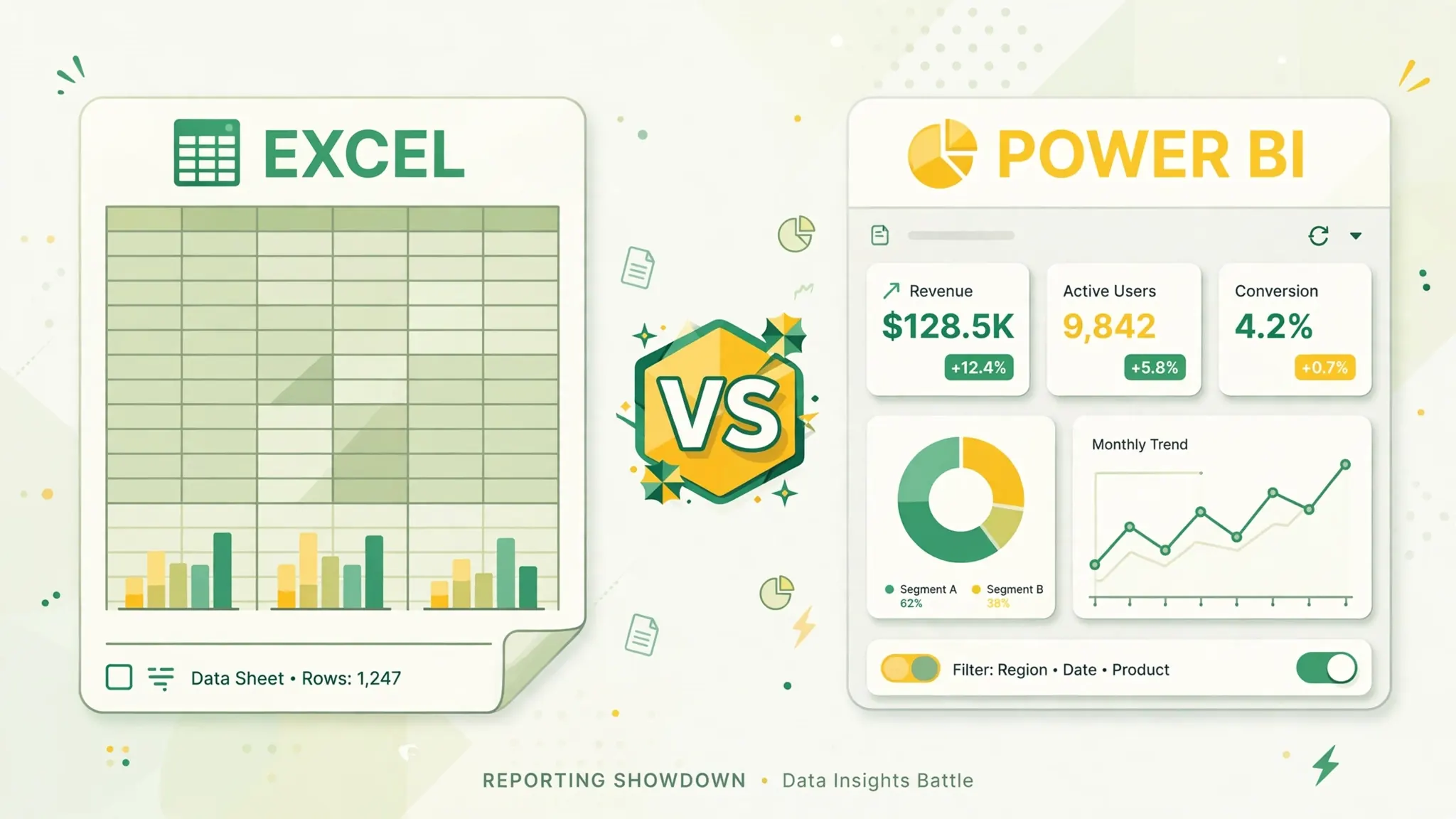
Power Pivot (the in-memory data-modeling engine behind big pivot tables) is effectively desktop-only — models don’t function in the web version. If your reporting relies on Power Pivot or complex Power Query transformations, desktop Excel isn’t optional. This is also why our Excel vs Power BI guide matters: Power BI Desktop (free) covers much of this advanced ground for reporting scenarios, complementing Excel Online’s gaps.
Large files and performance: desktop vs browser
Performance is where physics favors desktop. Desktop Excel uses your machine’s full resources and a mature calculation engine optimized over decades; it handles multi-hundred-MB workbooks, complex volatile formulas, and heavy pivot tables with grace. Excel for the web runs inside a browser’s memory sandbox — practical limits are much lower, large files load slowly or fail, and complex recalculations can time out.
Rule of thumb: under ~10 MB with straightforward formulas, the web version feels fine. Past ~50 MB, or with heavy array formulas and large pivot caches, switch to desktop. And for CSV-sourced work specifically: importing a large CSV through the web version’s limited import is painful — convert to XLSX first with the free CSV to Excel converter or use desktop’s Power Query import, then work with the resulting file wherever you like. Our CSV editors guide covers inspecting monster files before they ever reach Excel.
Excel online vs desktop features: the comparison table
The Excel online vs desktop features at a glance — the quick reference version of everything above:
Works fully in both
Core formulas (hundreds of functions), formatting, charts, conditional formatting, data validation, sorting/filtering, tables, basic pivot tables, comments, find & replace, print setup, and CSV/XLSX open and save. This covers the vast majority of real-world spreadsheet use — which is why the free version satisfies so many people.
Desktop only (or severely limited online)
VBA macros (won’t run online), Power Query authoring (refresh-only online), Power Pivot data models, Solver and Analysis ToolPak, most COM add-ins, advanced data tools (some forecasting and statistical features), full offline access, and maximum performance on large files. If any of these are in your daily workflow, the subscription pays for itself.
Better on the web
Real-time co-authoring (smoother online), autosave with version history, link sharing, access from any device without installs, and automatic updates (no version mismatches). Collaboration-first workflows genuinely prefer the web version — even subscribers often choose it for shared files.
What about Excel for Mac and mobile?
A quick note for completeness: Excel for Mac (desktop) sits between Windows desktop and web — most features, but VBA and Power Query have historically lagged the Windows version (the gap has narrowed). Mobile apps (iOS/Android) are free for basic use with a Microsoft account and handle viewing plus light editing well. The full capability ladder runs: Windows desktop > Mac desktop > web > mobile.
Collaboration: where online beats desktop
Here’s the twist: for teamwork, the free web version beats the paid desktop app. Excel Online was built for co-authoring — multiple cursors, live updates, comments with @mentions, and a share link that always shows the current version. Desktop Excel can co-author via OneDrive, but the experience is smoother in the browser, and version conflicts are rarer.
This creates the common hybrid pattern: author complex workbooks on desktop, share and co-edit them on the web. The analyst builds the model with Power Query and pivot tables on desktop Excel; stakeholders review, comment, and tweak inputs in Excel Online. Everyone uses the version that fits their role. Organizations from startups in Austin to enterprises in London converge on this split — it’s not a compromise, it’s using each version’s strengths. And for teams comparing broader ecosystems, our three-way spreadsheet comparison puts Excel’s collaboration in context against Google Sheets and Apple Numbers.
When Excel Online is enough
You can happily live on the free web version if:
- Your work is formulas, formatting, and charts. Budgets, trackers, lists, reports, homework — the everyday 90%.
- You collaborate more than you calculate. Shared planning docs, team trackers, and review workflows favor the web version’s sharing.
- You work across devices. Home PC, work laptop, library computer — the browser is always there, always current.
- Your files are modest. Under ~10 MB, without macros or data models.
- You’re learning. Students and beginners get the real Excel experience free — skills transfer directly to desktop later.
Honestly, this describes most people most of the time — which is exactly Microsoft’s calculus in giving it away. The free tier isn’t crippled; it’s complete for mainstream use.
When you need Excel desktop
Pay for Microsoft 365 (or keep your perpetual license) when:
- Macros run your workflow. Any .xlsm dependence means desktop — no workaround exists online.
- You build data pipelines in Power Query/Power Pivot. Authoring these is desktop-only.
- Files are large or calculations heavy. Performance and memory limits make desktop mandatory.
- You work offline. Travel, field work, unreliable connectivity — desktop doesn’t care.
- You need add-ins. Specialized industry add-ins (finance, statistics, engineering) are desktop creatures.
- It’s your profession. Analysts, accountants, and financial modelers — the desktop app is a professional tool worth its subscription, like any craft instrument.

Moving between desktop and online: practical tips
Most users don’t choose one version forever — they move between them. These practices keep the transitions smooth:
Keep files on OneDrive
The single habit that unlocks both worlds: save workbooks to OneDrive (or SharePoint) instead of your local drive. OneDrive-stored files open in either version with a click, co-authoring works, and version history protects you. Local-only files strand you on desktop. This one change converts “two separate Excels” into “one Excel, two doors.”
Know your workbook’s web compatibility
Before sharing a desktop-built workbook for online co-editing, open it in Excel for the web yourself and click through the critical parts. Check that pivot tables refresh, charts render, and any data connections behave. Features that don’t translate usually degrade gracefully — but “gracefully” still confuses recipients who expect the buttons to work. A two-minute check prevents a thread of confused emails.
Design for the lowest common denominator
If a workbook will live primarily online with many collaborators, avoid desktop-only features in its design: no macros, no Power Pivot, minimal volatile functions. Build it web-clean from the start and it works everywhere. Reserve the advanced machinery for desktop-only analytical files that collaborators consume as finished outputs rather than co-edit.
Use version history as your safety net
Excel Online’s continuous autosave means there’s no “close without saving” — which panics desktop veterans the first time they delete something important. Relax: File › Info › Version History (or the web equivalent) lets you restore any earlier state. Learn this on day one and the autosave anxiety disappears permanently.
Is Excel Online as good as desktop? The honest answer
So is Excel Online as good as desktop? For the median user — yes, effectively. The free web version handles the formulas, formatting, charts, pivot tables, and collaboration that define everyday spreadsheet work, and it does so from any browser on earth. The subscription buys you the power-user tier: macros, advanced data tools, offline access, and performance headroom. Most individuals overestimate how much of that tier they need; most professionals underestimate how quickly they’d miss it.
The smartest approach is sequential, not either/or: start free with Excel Online. It’s genuinely free, not a trial — there’s no clock ticking. When (and only when) you hit a concrete wall — a macro you need, a query you can’t author, a file that won’t perform — that’s the moment desktop earns its price. And remember the hybrid: even subscribers should use the web version for sharing and co-editing, where it’s actually superior. The two versions aren’t rivals; they’re a team, with the free one playing a much bigger role than Microsoft’s pricing page suggests.
Users in the US, UK, India, Canada, and Australia all get the same free web version — geography doesn’t gate features here, only your Microsoft account does. If free is the priority and Excel’s brand isn’t, our best free Excel alternatives guide compares the wider field, from Google Sheets to LibreOffice. But if you want actual Excel without paying, the web version is the real thing — just the streamlined, collaborative, macro-free edition of it.
Frequently Asked Questions
Is Excel Online as good as Excel desktop?
For everyday tasks — formulas, formatting, charts, collaboration — Excel Online is surprisingly close. For advanced work (VBA macros, Power Query authoring, Power Pivot, very large files), desktop Excel remains far more capable. Most users need desktop only for specific advanced features.
Is Excel Online really free?
Yes — Excel for the web is free with any Microsoft account, with no trial period. You get core spreadsheet features in the browser. The desktop app requires a Microsoft 365 subscription.
Can Excel Online run macros?
No — VBA macros do not run in Excel Online. Workbooks containing macros open, but the macro code won’t execute. Office Scripts (TypeScript-based automation) are the web-native alternative, available with certain Microsoft 365 plans.
Does Excel Online work offline?
No — Excel Online requires an internet connection since it runs in the browser with files stored on OneDrive. For offline work, you need the desktop app or the mobile apps with offline files enabled.
Can I use Power Query in Excel Online?
You can refresh existing Power Query queries in Excel Online, but you cannot create or edit queries there — authoring requires desktop Excel. This is a key limitation for data-transformation workflows.
Which files open in Excel Online vs desktop?
Both open XLSX and CSV files. Very large files, workbooks with macros, and files using advanced features (Power Pivot models, certain add-ins) may open in read-only or reduced-functionality mode online — desktop handles everything.