
Knowing how to convert CSV to XLSM is one of those small Excel skills that separates people who fight their spreadsheets from people who automate them. Most CSV conversions end at XLSX — the plain, macro-free Excel format — and for simple data handoffs that’s exactly right. But the moment your converted file needs to do something on its own — reformat the imported rows, validate the numbers, email the summary, refresh a pivot — XLSX hits a wall: it is physically incapable of storing VBA macros. That is the entire reason the XLSM format exists, and the reason this guide exists too. Converting a CSV into XLSM takes the same ten seconds as converting it to XLSX; the difference is what the file is allowed to become afterward.
In this guide you’ll learn what an XLSM file actually is (and isn’t), how it compares to XLSX and XLSB, the exact situations where converting your CSV to a macro-enabled workbook pays off — and the equally important situations where it just adds security warnings for nothing. Then we’ll walk through three conversion methods: the instant free CSV to Excel converter route, the built-in Excel Save As route, and the Python + openpyxl route for developers and data teams. Finally, we’ll cover what happens after the conversion — adding your macros, dealing with Excel’s security bar, and troubleshooting the mistakes people make when they first meet the XLSM extension.

What exactly is an XLSM file?
An XLSM file is a regular Excel workbook that is permitted to contain VBA (Visual Basic for Applications) macro code. Under the hood it is the same zipped-XML package as an XLSX — Microsoft’s supported Excel file formats documentation lists them side by side — with one structural difference: the XLSM package includes a vbaProject.bin part that holds the compiled macro code, and Excel will only load that part from a file whose extension says macros are expected. That extension is the entire contract. Save a macro-filled workbook as XLSX and Excel silently strips the code on save; save it as XLSM and the code travels with the data.
Here’s the misconception to clear up first, because it trips up almost everyone: converting a CSV into the XLSM format does not create any macros. A CSV file is plain text — rows and commas, no formatting, no formulas, no code — so there is nothing to convert into a macro. The conversion only produces a workbook whose container is macro-capable. Think of it like buying a house with a workshop in the garage: the workshop is empty on move-in day, but you couldn’t build one later without tearing the house apart. If you know (or even suspect) that the workbook will eventually run VBA — to clean the imported CSV rows, to validate totals, to generate a report with one click — starting life as XLSM saves you a re-save and a round of confusion later.
The format dates back to Excel 2007, when Microsoft split the old binary .xls into the XML-based family (XLSX, XLSM, XLTM, XLSB) precisely so that macro-free files could be treated as safe-by-construction. That split is why email filters, SharePoint policies, and corporate IT departments treat XLSM with suspicion: the extension is a promise that code may be inside. Which brings us to the comparison that actually drives the decision.
XLSM vs XLSX vs XLSB: how the three Excel formats compare
Excel’s modern format family has three members that matter for CSV conversions, and picking among them is really a two-question quiz: do I need macros? and is the file huge?
XLSX is the default. XML-based, macro-free, universally compatible with Excel, Google Sheets, LibreOffice, and virtually every data tool on the planet. For a converted CSV that will be read, filtered, pivoted, or emailed, XLSX is the right answer — full stop.
XLSM is XLSX with the macro door open. Same XML packaging, same compatibility for the data itself, but it can carry VBA code, custom ribbon buttons, and form controls. The costs: some email servers and collaboration platforms block or quarantine it, Excel shows a security warning on open, and a few third-party tools (notably Google Sheets’ importer) drop the macro parts when they ingest the file. If you need macros, those costs are worth it; if you don’t, they’re pure friction.
XLSB is the binary cousin — same features as XLSM (macros allowed) but stored in a compressed binary format instead of XML. It opens and saves dramatically faster on very large files and is usually 30–50% smaller. The trade-off is weaker third-party compatibility: fewer tools outside Excel can read it. Our guide to converting CSV to XLSB goes deep on when the binary format wins.

One more comparison worth making explicit: the old .xls format (Excel 97–2003) also supports macros, but it caps you at 65,536 rows and 256 columns, bloats file sizes, and loses modern features. Nobody converting a CSV in 2026 should target .xls unless a legacy system demands it.
When converting a CSV into XLSM is the right call
So when does it make sense to save a CSV as a macro-enabled workbook instead of plain XLSX? The pattern is always the same: the CSV is raw material, and the workbook is a machine that processes it. Here are the scenarios we see most often.
Recurring reports that need the same cleanup every time
This is the number-one reason. A sales export lands every Monday morning as a CSV: same columns, same quirks — dates in US format, a stray totals row at the bottom, product codes that need splitting. Instead of cleaning it by hand weekly, you save the converted file as XLSM once, record a macro that performs the cleanup, and from then on you paste the new CSV data in and run the macro. Analysts across the US, UK, Canada, and Australia run exactly this loop; in India, finance teams do the same with Tally and bank-statement exports. The CSV is disposable; the XLSM is the permanent tool.
One-click report generation for non-technical colleagues
You understand Power Query; your manager doesn’t want to. A macro-enabled workbook converted from the source CSV can carry big friendly buttons — “Refresh Data”, “Build Report”, “Email Summary” — that run VBA behind the scenes. The colleague opens the XLSM, clicks one button, and gets a formatted report. This is why XLSM survives in corporate finance departments despite every IT policy written against it: it turns a data pipeline into an appliance.
Data validation and guardrails on imported data
CSV files arrive with no guarantees: a column that should be numeric contains “N/A”, a date column mixes formats, a required field is blank. A VBA macro in your converted workbook can validate every row on import, highlight problems in red, and refuse to proceed until they’re fixed. Teams handling supplier data, logistics manifests, or healthcare-adjacent records use this pattern to catch garbage at the door instead of discovering it in the quarterly numbers.
Custom functions and automation glue
Sometimes the need is smaller: a user-defined function (UDF) that your formulas rely on, a macro that exports the cleaned data back out to the ERP system, or code that stitches several CSVs into one workbook. Our guide to appending CSV data to an existing workbook pairs naturally with XLSM, because the append step itself is exactly the kind of repetitive job a macro should own.
When a plain XLSX is the smarter choice
Honesty requires the other side of the ledger, because XLSM is genuinely the wrong choice more often than people think.
You’re emailing the file. Many corporate email gateways quarantine or strip macro-enabled attachments. If the recipient only needs the data, send XLSX and skip the “why won’t this open” support thread.
You’re uploading to Google Sheets, a web app, or a data pipeline. Google Sheets drops VBA on import. Most ETL tools and BI platforms (Power BI, Tableau’s Excel connector) read the worksheet data and ignore the macro parts — but some choke on the extension entirely. For pipeline inputs, XLSX is the lingua franca.
You don’t actually have macros yet. Converting to XLSM “just in case” buys you the security warning bar on every open, in exchange for nothing. You can always re-save as XLSM later in two clicks (File › Save As › Excel Macro-Enabled Workbook) the day the first macro arrives. There is no penalty for starting as XLSX and upgrading.
Someone else maintains the file. Macros are code, and code needs an owner. A macro-enabled workbook handed to a team with no VBA skills becomes a black box that nobody dares to touch — and a security exception everyone has to justify annually. If the automation isn’t genuinely needed, the plain workbook is the kinder deliverable.
Method 1: CSV to XLSM online, free — the browser method
The fastest way to turn a CSV into a macro-enabled XLSM workbook online, free, is a browser-based converter: no install, no signup, and for privacy-conscious files the best tools do the whole conversion client-side so your data never leaves your machine. Here’s the flow:
- Open the free CSV to Excel converter in your browser.
- Drop your
.csvfile onto the page and check the preview — columns split, encoding readable, dates sane. - Convert and download the resulting
.xlsxfile. - Open it in Excel, go to File › Save As, choose Excel Macro-Enabled Workbook (*.xlsm) from the format dropdown, and save.
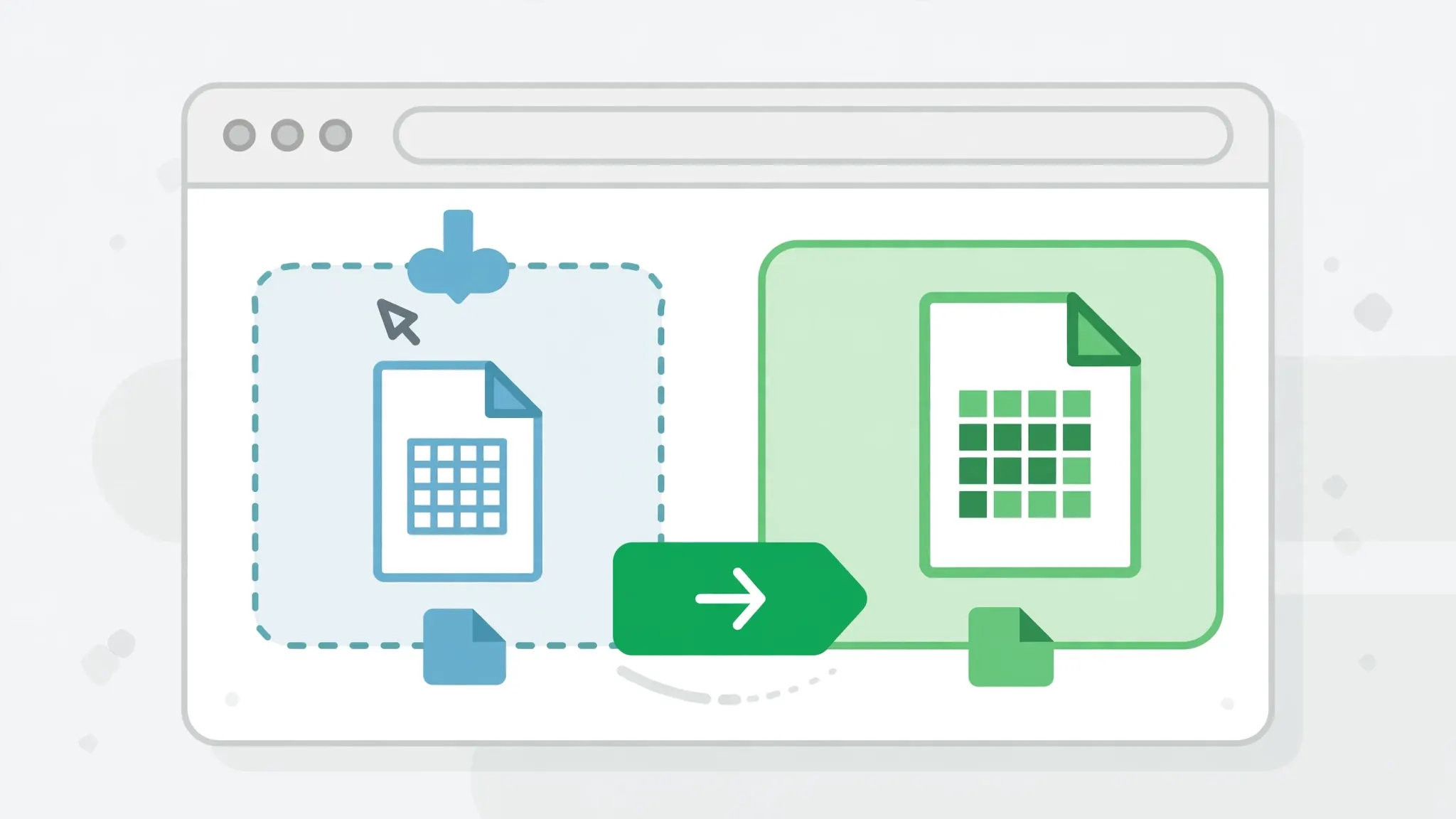
Why the two-step dance instead of downloading XLSM directly? Because a browser converter can’t write meaningful VBA into your file anyway — and shouldn’t try. The XLSM you download from any online tool is an empty macro container, identical in content to its XLSX twin. The honest workflow is: convert the data online, then declare the format in Excel where your macros will actually live. Any site promising “real macros” in a converted file is selling you something you don’t want.
Method 2: Convert CSV to XLSM in Excel with Save As
If Excel is already open, this is the most direct route — and it gives you a chance to fix data types before the file becomes a workbook, which is the step most people skip and later regret.
- In Excel, go to Data › Get Data › From Text/CSV (older versions: Data › From Text) and select your CSV — don’t just double-click the file.
- In the preview, set the delimiter and file origin (encoding). Click Transform Data if you need to set column types — dates as dates, IDs as text.
- Click Load to bring the data into a worksheet.
- Go to File › Save As, pick Excel Macro-Enabled Workbook (*.xlsm), name the file, and save.
- Press Alt + F11 to open the VBA editor and confirm the project is there, ready for your first macro.
The import-first approach matters because CSV-to-Excel conversions have classic failure modes — Excel turning 01-02 into February 1st, or eating the leading zeros off ZIP codes — and it’s far easier to set column types during import than to repair them afterward. (Our guide on how to stop Excel changing dates when opening CSV covers the date problem in depth.) Once the data lands cleanly, the Save As to XLSM is a one-click formality.
Method 3: Build your XLSM from a CSV with Python and openpyxl
For developers and data teams, turning a CSV into a macro-enabled workbook with Python and openpyxl is a five-line job — and it slots neatly into scheduled pipelines (see our guide to scheduling automatic CSV to Excel conversions). The key insight: openpyxl writes the same workbook object regardless of extension; the .xlsm suffix is what declares macro capability.

import csv
from openpyxl import Workbook

wb = Workbook()
ws = wb.active
ws.title = "Data"

with open("sales.csv", newline="", encoding="utf-8") as f:
    for row in csv.reader(f):
        ws.append(row)

# The .xlsm extension is what makes the workbook macro-enabled.
wb.save("sales.xlsm")
That script produces a perfectly valid XLSM — empty of macros, ready for them. But what if your pipeline needs to produce a workbook that already contains VBA, say a standard reporting macro every regional office should run? openpyxl can do that too, with one constraint: it can’t author VBA from scratch. Instead, you keep a template workbook that already holds your macro code, and stamp the data into copies of it:
from openpyxl import load_workbook
import csv

# template.xlsm already contains your VBA macros
wb = load_workbook("template.xlsm", keep_vba=True)
ws = wb["Data"]
ws.delete_rows(1, ws.max_row)  # clear old data, keep headers/macros

with open("sales.csv", newline="", encoding="utf-8") as f:
    reader = csv.reader(f)
    next(reader)  # skip CSV header row; template has its own
    for row in reader:
        ws.append(row)

wb.save("sales_2026-10-08.xlsm")  # keep_vba=True preserves the code
Two details that bite people here. First, keep_vba=True is mandatory when loading — without it, openpyxl silently drops the macro project on save and your “XLSM” is macro-free. Second, if you also need formatting applied at conversion time, openpyxl can do that in the same pass: our guide to conditional formatting when converting CSV to Excel shows the pattern with color scales and rules.
df = pd.read_csv("sales.csv"); df.to_excel("sales.xlsm", index=False) works too, since pandas delegates the writing to openpyxl. Use pandas when you need to clean or reshape the data first; use raw openpyxl when you need template macros preserved.Adding macros after the conversion: what actually works
Your converted XLSM is an empty stage. Here’s how to put the actors on it, from simplest to most powerful.
Record a macro for the repetitive cleanup
The Macro Recorder (Developer tab › Record Macro) watches you clean one CSV import — delete the junk rows, set the date formats, autofit the columns — and writes the VBA for you. Run it on next week’s import and the same steps replay in seconds. The recorded code is verbose and brittle (it hardcodes ranges), but for a stable, same-shaped weekly CSV it’s the fastest possible win. For a gentler introduction to Excel automation concepts, see VBA on Wikipedia.
Write VBA for validation and reporting
Hand-written VBA is where XLSM earns its keep: loop the imported rows, flag anomalies, build the summary sheet, format the output as a proper Excel Table. A typical post-conversion macro is 30–80 lines and pays for itself the second week. Keep the macro in a standard module, name it clearly (CleanWeeklyImport, not Macro1), and add a button on the sheet that runs it — future-you will be grateful.

Design for the next person
A macro-enabled workbook is a small application, so treat it like one: one clearly labeled “RUN” button, a README sheet explaining what the macro does, and no hard-coded file paths that only work on your machine. Workbooks that follow these rules survive employee turnover; the ones that don’t become the mysterious “DO NOT TOUCH — Dave’s file” that everyone is afraid of.
Macro security: warnings, Trusted Locations, and signatures
The price of macro capability is Excel’s security model, and you should understand it before you distribute your first XLSM — because your users will ask why Excel is “blocking” their file.
When Excel opens an XLSM from the internet, an email attachment, or any untrusted location, it shows a yellow Security Warning bar: “Macros have been disabled.” The user must click Enable Content before any code runs. This is by design — it’s the same mechanism that stopped a generation of macro viruses — and your converted file will show it even if it contains zero macros, because the extension is what triggers the check, not the content.
For files you and your team use repeatedly, the clean fix is a Trusted Location: File › Options › Trust Center › Trust Center Settings › Trusted Locations › Add new location. Any XLSM opened from a trusted folder runs its macros without the warning bar. IT departments commonly trust a shared network folder for the team’s reporting workbooks — ask yours before emailing macro files around, because many corporate policies forbid enabling macros from attachments outright.
The heavier-duty answer is digitally signing your VBA project with a code-signing certificate, which lets recipients verify the macros came from you and haven’t been tampered with. Signed macros from a trusted publisher can run without prompts even outside trusted locations. For most small teams the trusted folder is enough; signatures matter when you distribute workbooks to people outside your organization — clients in the US, partners in the UK, vendors in India — who have no reason to trust an unsigned macro file.
Troubleshooting macro-enabled CSV conversions
“Excel removed my macros when I saved.” You saved as XLSX instead of XLSM — Excel strips VBA when the extension doesn’t allow it. Re-open, press Alt+F11 to check your code is still in the editor’s memory, and Save As › Excel Macro-Enabled Workbook (*.xlsm).
The XLSM shows a security warning but has no macros. Normal. The warning keys off the extension, not the content. Either accept the one click, move the file to a Trusted Location, or ask yourself whether you needed XLSM at all — a macro-free conversion belongs in XLSX.
My Python-generated XLSM lost its template macros. You loaded the template without keep_vba=True. Reload with the flag and re-save; openpyxl preserves the VBA project only when explicitly told to.
Dates and numbers mangled during conversion. That’s a CSV import problem, not an XLSM problem — the same mangling would happen targeting XLSX. Fix it at import time with explicit column types (Data › From Text/CSV › Transform Data), not after.
Email blocked my XLSM attachment. Expected on many corporate gateways. Zip the file (some filters still catch it), share via OneDrive/SharePoint link, or — if no macros are actually needed yet — just send the XLSX version instead.
Google Sheets dropped my macros on upload. Also expected: Sheets imports the worksheet data and discards VBA. Keep the XLSM as the system of record for macro users, and treat the Sheets copy as a data mirror.
Frequently Asked Questions
What is the difference between XLSM and XLSX?
XLSM and XLSX are structurally identical Excel workbooks, except that XLSM is allowed to store VBA macros and XLSX is not. If you save a workbook containing macros as XLSX, Excel strips the macro code out. XLSM keeps it, so choose XLSM whenever the workbook needs to automate tasks with VBA.
Can I convert a CSV file directly to XLSM?
Yes. A CSV holds only data, so any converter that produces Excel workbooks can save the result with the .xlsm extension instead of .xlsx. In Excel, open the CSV, then use File > Save As and choose Excel Macro-Enabled Workbook (*.xlsm). With Python, write the workbook with openpyxl and save it as filename.xlsm.
Does converting a CSV into XLSM add macros automatically?
No. Converting only changes the container format so the file is allowed to hold macros later. The converted file contains your data and nothing else until you record or write VBA code in it. Think of XLSM as a workbook with the macro door left open, not a workbook that comes with macros pre-installed.
Will an XLSM file trigger security warnings?
Excel shows a yellow security warning bar for macro-enabled files from the internet or untrusted locations, asking you to enable content. This happens even if the XLSM contains no macros yet. You can avoid the prompt by saving the file in a Trusted Location (File > Options > Trust Center) or by digitally signing your VBA project.
Can I build an XLSM from a CSV with Python and openpyxl?
Yes. Read the CSV with Python’s csv module, append the rows to an openpyxl worksheet, and save the workbook with an .xlsm extension. If you need real VBA code inside, load a macro-enabled template with keep_vba=True instead of starting from a blank workbook.
Is XLSM bigger or slower than XLSX?
For the same data, an XLSM is essentially the same size and speed as an XLSX — the extension alone adds nothing. The file only grows when you actually add VBA code, forms, or ActiveX controls. If you never add macros, XLSM gives you zero benefit over XLSX and a few extra security prompts.