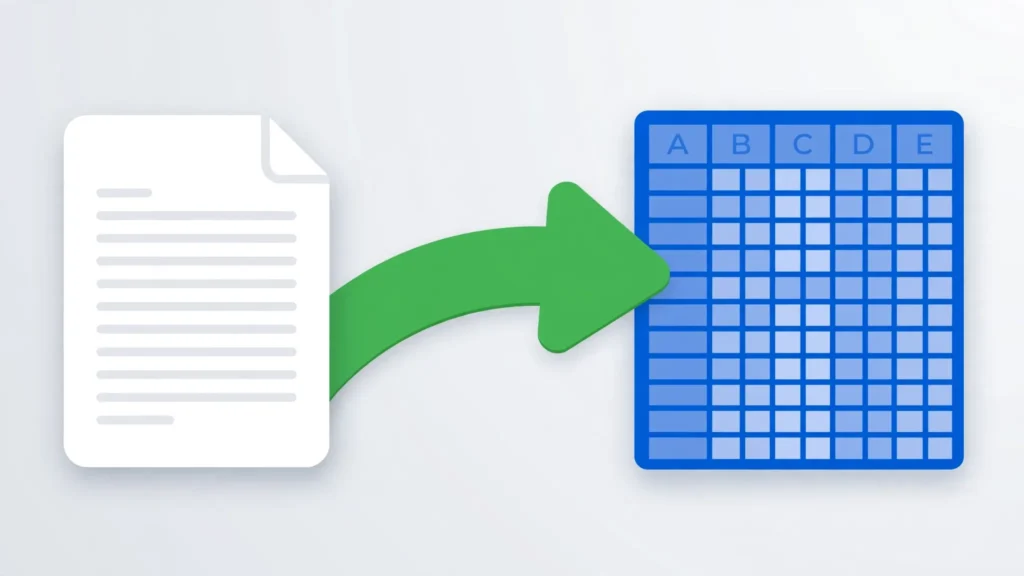
If you’ve ever watched Excel chew through a 200 MB CSV export while the green progress bar crawls and your laptop fan spins up like a jet engine, you already know the pain this guide solves. Converting that CSV to XLSB — Excel’s binary workbook format — is the single highest-leverage change you can make: the same data, stored as compact binary instead of verbose XML, typically opens two to four times faster and lands at roughly half the file size. It takes ten seconds, it costs nothing, and for anyone working with large exports — ecommerce order histories, ad-platform reports, IoT sensor logs, bank transaction dumps — it changes the daily experience of opening the file from dread to non-event.
This guide explains what XLSB actually is and why it’s so much faster than XLSX, shows you real-world numbers on the XLSB vs XLSX file size question, and walks through three ways to convert CSV to Excel binary format: the free online route, the built-in Excel Save As route, and a Python automation route for Windows. You’ll also learn where the format’s limits are — it doesn’t raise Excel’s row ceiling — and which tools refuse to open XLSB files, so you never get surprised at sharing time.
What is XLSB? Excel’s binary workbook format explained
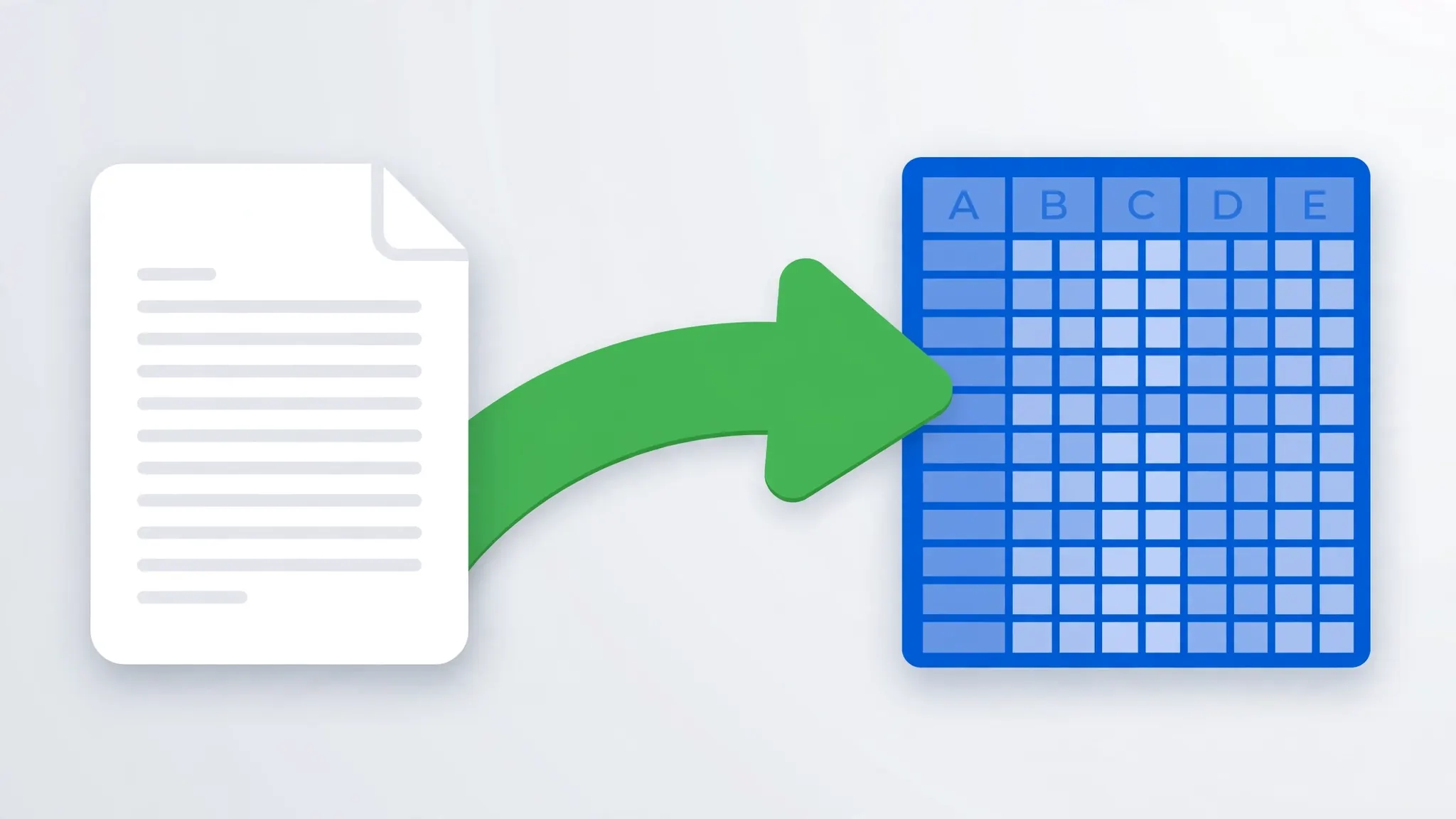
XLSB stands for Excel Binary Workbook, and the name tells you everything: it is a full Excel workbook — worksheets, formulas, charts, pivot tables, even VBA macros — serialized as a compact binary stream instead of the zipped XML that XLSX uses. Microsoft documents it alongside the other Excel file formats, and it has been around since Excel 2007, quietly serving the people whose spreadsheets got too big for comfort.
Why does binary beat XML so decisively? An XLSX file is really a ZIP archive full of XML text files, and XML is spectacularly verbose: every cell carries its address, its data type, and its style as nested text tags. A million-row sheet becomes tens of megabytes of angle brackets. The binary format stores the same information as tight records — numbers as numbers, strings in a shared table — so there’s dramatically less to write, read, and parse. Excel doesn’t have to inflate a ZIP and parse XML on open; it streams binary records straight into memory. That’s the whole trick, and it compounds: smaller files read faster, parse faster, and calculate faster.
One clarification up front, because the extension invites a wrong assumption: XLSB is not a “data-only” format. It supports everything XLSX does — formatting, formulas, charts, conditional formatting, data validation — plus VBA macros (like XLSM, unlike XLSX). Converting your CSV into XLSB loses nothing compared to converting it into XLSX; you keep every capability and gain speed. The only thing you trade away is compatibility with tools outside the Excel ecosystem, which we’ll cover honestly below.

XLSB vs XLSX file size and speed: what the numbers look like
The headline claim — XLSB roughly halves file size and multiplies load speed — deserves real numbers rather than marketing adjectives. Here’s what practitioners consistently report when they convert large CSV exports into both formats and compare:
File size. On large numeric datasets (financial ledgers, sensor readings, transaction logs), the XLSB typically lands at 40–60% of the XLSX size. A 180 MB XLSX built from a chunky CSV export often becomes a 70–90 MB XLSB. Text-heavy data compresses less dramatically — expect 60–80% rather than 40–50% — because strings still have to be stored as strings. Either way, the binary file is always smaller, sometimes dramatically so.
Open and save time. This is where the format shines brightest. Opening that same large workbook from XLSX might take 45–90 seconds of XML parsing; the XLSB version typically opens in 10–25 seconds. Saves show a similar ratio. For a file you open every morning, that’s the difference between making coffee while Excel thinks and just getting to work.
Calculation. Recalculation on very large models runs noticeably faster in XLSB — commonly cited at 1.5–2× — because the in-memory structures are closer to what the calc engine wants. If your converted CSV feeds a workbook full of SUMIFS, VLOOKUPs, or array formulas over hundreds of thousands of rows, you’ll feel this one.
A fair caveat: these ratios describe large files. Convert a 50 KB CSV of a hundred rows and the XLSB might even be a touch bigger than the XLSX, because binary record overhead outweighs XML verbosity at tiny scale. The format earns its keep from the tens-of-megabytes upward — exactly the files people complain about. Analysts in the US working with ad-platform exports, finance teams in the UK with multi-year ledgers, and ops teams in India with logistics data all hit this threshold routinely.
When converting a CSV into XLSB is worth it
The pattern is simple: the bigger and more-often-opened the file, the more XLSB pays. Concretely:
Daily or weekly large exports
A 300,000-row sales export that lands every Monday, opened and filtered every day that week. As XLSX it’s a coffee-break file; as XLSB it’s an instant file. This is the single most common XLSB use case we see — the recurring heavy report.
Workbooks with heavy formulas over imported data
Your CSV becomes the raw-data sheet; the workbook around it carries the analysis — pivot tables, dashboards, hundreds of formulas. Binary storage speeds both the open and every recalculation. Pair it with the KPI treatment in our conditional formatting guide and the whole reporting pack stays snappy.
Files that live on slow storage
Network drives, VPN-mounted shares, and older laptops with spinning disks amplify every megabyte. Halving the file size halves the transfer time before Excel even starts parsing — and then the faster parsing stacks on top. Remote teams feel this disproportionately.
Macro-enabled automation on big data
Need VBA and speed? XLSB supports macros natively, so a converted CSV that will carry automation code gets both benefits in one container — no need to choose between XLSM’s macro support and XLSX’s familiarity.
Archiving years of exports
Teams that must retain historical CSV exports — seven years of transaction logs for audit, five years of sensor data for compliance — quietly love XLSB as an archive format. The files are smaller on disk, they open years later without the XML-parsing fragility that occasionally corrupts ancient XLSX files, and they remain fully functional workbooks rather than dead text dumps. Just remember the compatibility rule: archives are for you, not for sharing. Keep one XLSX or CSV copy of anything an auditor might need to open in their own tools.
When XLSX is still the better choice
XLSB is a specialist, not a default. Reach for XLSX instead when:
You’re sharing the file. XLSX opens everywhere — Excel, Google Sheets, LibreOffice, Apple Numbers, Python’s openpyxl, R, BI tools. XLSB is an Excel-and-friends format; the moment the file leaves your machine, compatibility beats speed.
The file is small. Under a few megabytes, the speed difference is unmeasurable and the size difference is trivial. Don’t add a compatibility tax for zero benefit.
A pipeline consumes it. ETL jobs, Power BI datasets, and data-warehouse loaders overwhelmingly expect XLSX or CSV. Power BI Desktop does read XLSB, but most automated tooling doesn’t — check before you commit a pipeline to binary.
You need version control or diffing. XLSX is zipped XML, so tools can unzip and diff the parts; XLSB is opaque binary. Teams that keep workbooks in git (yes, really) strongly prefer XLSX.
Method 1: CSV to XLSB online, free — the browser route
The quickest path to convert CSV to XLSB online free is a two-step: convert the data in the browser, then flip the container in Excel. No online converter writes true binary XLSB directly (and you shouldn’t trust one that claims to — binary serialization is exactly where subtle corruption hides), so the honest workflow is:
- Open the free CSV to Excel converter and drop in your CSV file.
- Check the preview carefully — with large files, verify the row count and that columns split correctly.
- Download the XLSX, open it in Excel, and go to File › Save As.
- Choose Excel Binary Workbook (*.xlsb) from the format dropdown and save.
For very large CSVs (hundreds of megabytes), browser converters may struggle with memory — that’s a sign to use Method 2’s direct Excel import instead, which streams the file rather than holding it all in a browser tab.
Method 2: Convert CSV to XLSB in Excel with Save As
This is the method for big files, because Excel’s import path handles large CSVs far better than double-clicking them. Double-clicking a 500 MB CSV can hang Excel; importing it gives you progress, control, and a chance to set data types before the data lands.
- In Excel, go to Data › Get Data › From Text/CSV and select your CSV file.
- In the preview, confirm the delimiter and encoding. For huge files, click Load directly; use Transform Data only if you need to fix column types (dates vs text is the classic).
- Once the data is in the sheet, go to File › Save As and select Excel Binary Workbook (*.xlsb).
- Save, close, and reopen — notice the difference in open time immediately.

If this same heavy CSV lands on a schedule — every morning, every Monday — don’t do it by hand forever. Our guide to scheduling automatic CSV to Excel conversions shows how to make Windows run the whole thing while you sleep, and saving the output as XLSB keeps every scheduled run fast.
Method 3: Convert CSV to XLSB with Python on Windows
Here’s an honest technical note most tutorials skip: openpyxl cannot write XLSB files. The popular Python library reads and writes XLSX/XLSM only — binary serialization isn’t in its toolkit, and neither pandas nor any pure-Python library fills the gap. So the reliable way to convert CSV to XLSB with Python is to have Python drive Excel itself through COM automation (Windows only):

import win32com.client as win32

excel = win32.Dispatch("Excel.Application")
excel.Visible = False  # run headless

wb = excel.Workbooks.Open(r"C:\data\orders.csv")
# FileFormat 50 = xlExcel12, the binary XLSB format
wb.SaveAs(r"C:\data\orders.xlsb", FileFormat=50)
wb.Close(SaveChanges=False)
excel.Quit()
print("Saved orders.xlsb")
A few practical notes: this needs Excel installed on the machine running the script, and pywin32 installed (pip install pywin32). Wrap it in try/finally to guarantee excel.Quit() runs — orphaned Excel processes are the classic COM footgun. For multi-file jobs, loop over a folder and convert each CSV, or merge several CSVs into one workbook first (see our append guide) and then save the combined result as XLSB.
The row ceiling: XLSB does not raise Excel’s 1,048,576-row limit
This deserves its own section because it’s the most common XLSB misconception: the binary format does not let you store more rows. XLSB, XLSX, and XLSM all share Excel’s hard grid of 1,048,576 rows × 16,384 columns. A 2-million-row CSV will not fit in any of them, binary or otherwise.
What XLSB does do is make files near the ceiling usable. A 900,000-row XLSX is often a frozen, crashing misery; the same data as XLSB opens and filters with far less drama. But if your CSV genuinely exceeds the row limit, the answer is splitting the file first or moving to a database or Power BI for the heavy lifting. Format choice is optimization; the row ceiling is physics. If your exports routinely approach the limit, our guide to large CSV to Excel conversions covers the split-first workflow in detail.
XLSB compatibility: what opens it and what does not
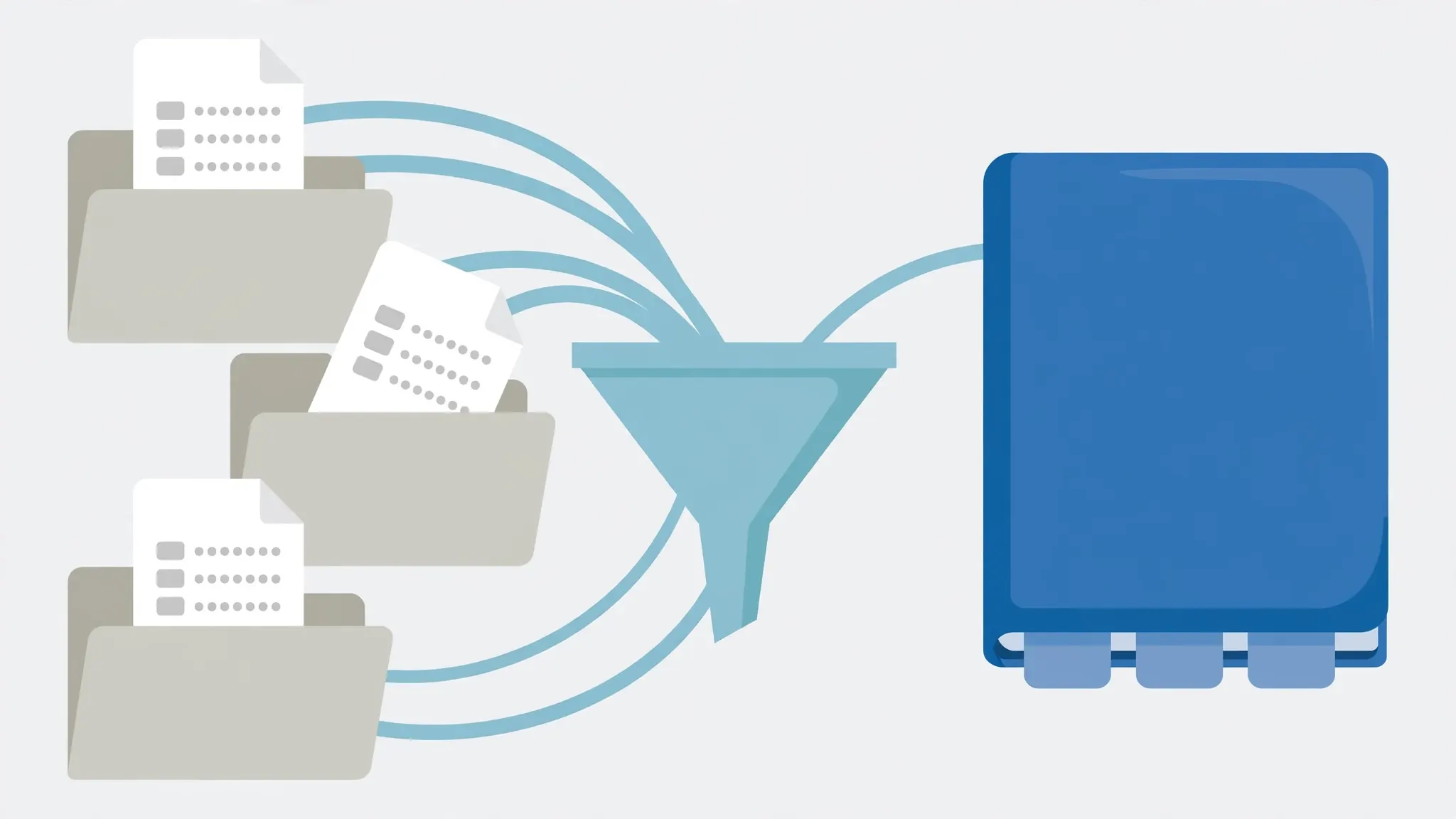
Before you standardize on XLSB, know exactly where the files can go:
Opens XLSB fine: Microsoft Excel (Windows and Mac, 2007+), LibreOffice Calc, and Power BI Desktop’s Excel connector. VBA macros stored in XLSB run in desktop Excel.
Does not open XLSB: Google Sheets (upload rejected — keep an XLSX copy for Sheets collaborators), Excel for the web / Office Online, Apple Numbers, and most Python/R libraries’ default readers. If your workflow touches any of these, XLSB can’t be the only format.
Email and sharing: XLSB attachments sometimes trip the same corporate filters that flag XLSM, since binary workbooks can carry macros. For external sharing, prefer XLSX or a shared OneDrive link.
The pattern that works for teams: XLSB as the internal working format for heavy files, XLSX (or CSV) as the interchange format. Converting between them is a ten-second Save As in either direction, so maintaining both costs nothing but a naming convention — say, report_working.xlsb and report_shared.xlsx.
Troubleshooting binary workbook conversions
Excel says the XLSB is corrupted after a scripted conversion. The usual cause is an interrupted COM save or an Excel process killed mid-write. Re-run the conversion; if it recurs, save to XLSX first and flip to XLSB manually to isolate the step.
My file barely shrank. Small files and text-heavy files gain little. XLSB’s advantage scales with size — recheck on a file over ~20 MB before judging.
Formulas show different results after converting. They shouldn’t — conversion doesn’t touch calculation. What you’re seeing is almost always a CSV import issue (text-that-looks-like-numbers, locale date formats) that was already wrong in the XLSX. Fix column types at import.
Google Sheets / a web tool rejects the upload. Expected — convert back to XLSX (File › Save As) for the upload, and keep the XLSB for local work.
openpyxl throws “not supported” on my .xlsb. Correct behavior: openpyxl doesn’t read or write the binary format. Use Excel itself, LibreOffice, or the COM approach above.
Macro warnings on a macro-free XLSB. Same as XLSM — the warning keys off capability, not content. Trusted Locations (File › Options › Trust Center) silence it for your working folders.
Frequently Asked Questions
What is an XLSB file?
XLSB is Excel’s binary workbook format: it stores the same worksheets, formulas, and charts as XLSX, but in a compact binary structure instead of zipped XML. The result is a file that opens and saves much faster and is typically much smaller, at the cost of weaker support in non-Excel tools.
Is XLSB smaller than XLSX?
Usually yes — often dramatically. For large numeric datasets, XLSB files commonly come out at roughly half the size of the equivalent XLSX, and in extreme cases even smaller. Text-heavy sheets compress less well, so the savings depend on your data.
Can I convert a CSV file to XLSB?
Yes. Open the CSV in Excel and use File > Save As > Excel Binary Workbook (*.xlsb), convert it in a browser and re-save in Excel, or automate it with Python driving Excel through COM on Windows using FileFormat 50 (xlExcel12).
Does XLSB support macros?
Yes. Like XLSM, the XLSB format can store VBA macros, form controls, and ActiveX objects. If your converted CSV needs both macros and maximum speed on large data, XLSB gives you both in one file.
Can Google Sheets open XLSB files?
No. Google Sheets does not support the XLSB format — uploads are rejected. If you need to share the data with Sheets users, keep an XLSX copy alongside the XLSB, or convert back before uploading.
Does XLSB let me exceed Excel’s row limit?
No. XLSB has the same 1,048,576-row and 16,384-column limits as XLSX and XLSM. The binary format makes large files open and calculate faster, but it does not raise the ceiling — a CSV with more rows still needs to be split first.