
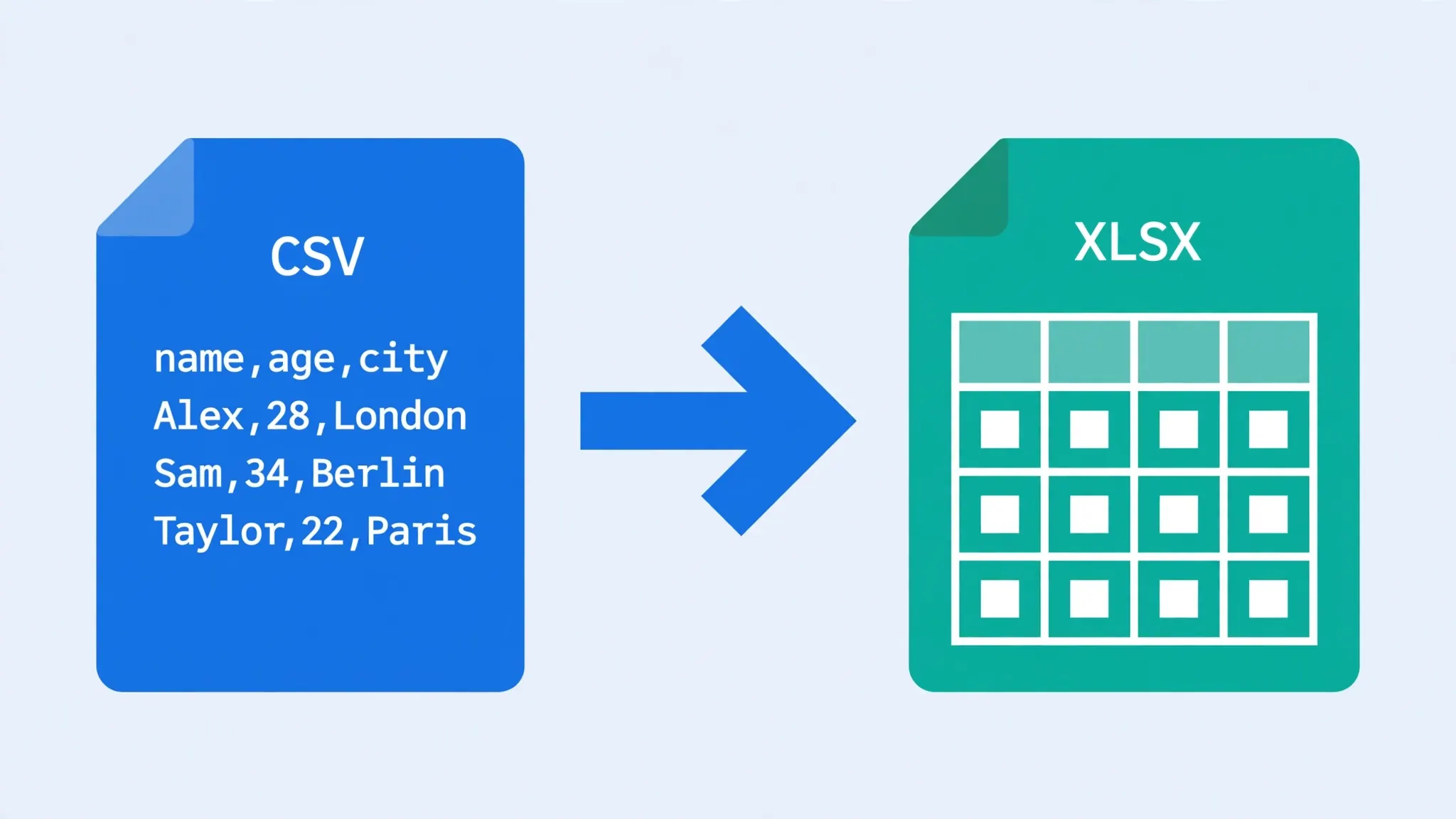
Here is the uncomfortable truth about trying to convert CSV to Excel without losing formatting: a CSV file has no formatting to lose. None. Zero. A CSV is plain text — values separated by commas, rows separated by line breaks, as defined by RFC 4180. There are no bold headers, no date formats, no colors, no formulas hiding inside it. So when your converted spreadsheet looks “wrong,” what actually happened is one of two things: your data got mangled on the way in (leading zeros stripped, dates flipped, characters garbled), or you expected formatting that was never in the file to begin with.
Both problems are fixable. This guide shows you how to preserve csv formatting in excel the right way — meaning how to protect every byte of your data during conversion, then apply real Excel formatting afterward so the result looks professional. You will learn the import-first method with Power Query column types, the Excel template trick that formats recurring reports automatically, paste-special techniques, and the encoding fixes that stop special characters from turning into gibberish.
Whether you are preparing a client report in London, a sales summary in Mumbai, or a financial reconciliation in Toronto, these workarounds turn a fragile text file into a workbook you can trust — and make csv to excel keep formatting a solved problem rather than a recurring headache.
Why CSV Has No Formatting (and What That Means)
Open a CSV in Notepad. What you see — Name,Price,Date followed by rows of values — is everything the file contains. The entire RFC 4180 specification fits on a few pages: fields separated by commas, records separated by line breaks, double quotes around fields that contain commas, quotes, or line breaks, and doubled quotes for a literal quote character. That is the whole format. There is no metadata section, no style table, no type annotations.
Contrast that with XLSX, which is a ZIP package of XML files describing sheets, shared strings, styles, number formats, formulas, and themes. When you convert CSV to XLSX, you are pouring unstructured text into a structured container — and the pouring process has to guess: is 00123 a number or a code? Is 03/04/2026 March 4 or April 3? Is 4.5E+12 a number or a product ID?
Every “lost formatting” complaint traces back to one of these guesses going wrong, or to formatting that lived only in the sender’s spreadsheet and never made it into the CSV export. Understanding this changes your strategy completely: instead of trying to preserve something that is not there, you protect the data during import and apply formatting deliberately afterward. That two-phase approach is what this whole guide is built on.
Convert CSV to Excel Without Losing Formatting: What Gets Lost
Let us inventory the real casualties, from most to least destructive:
1. Leading zeros (data destruction)
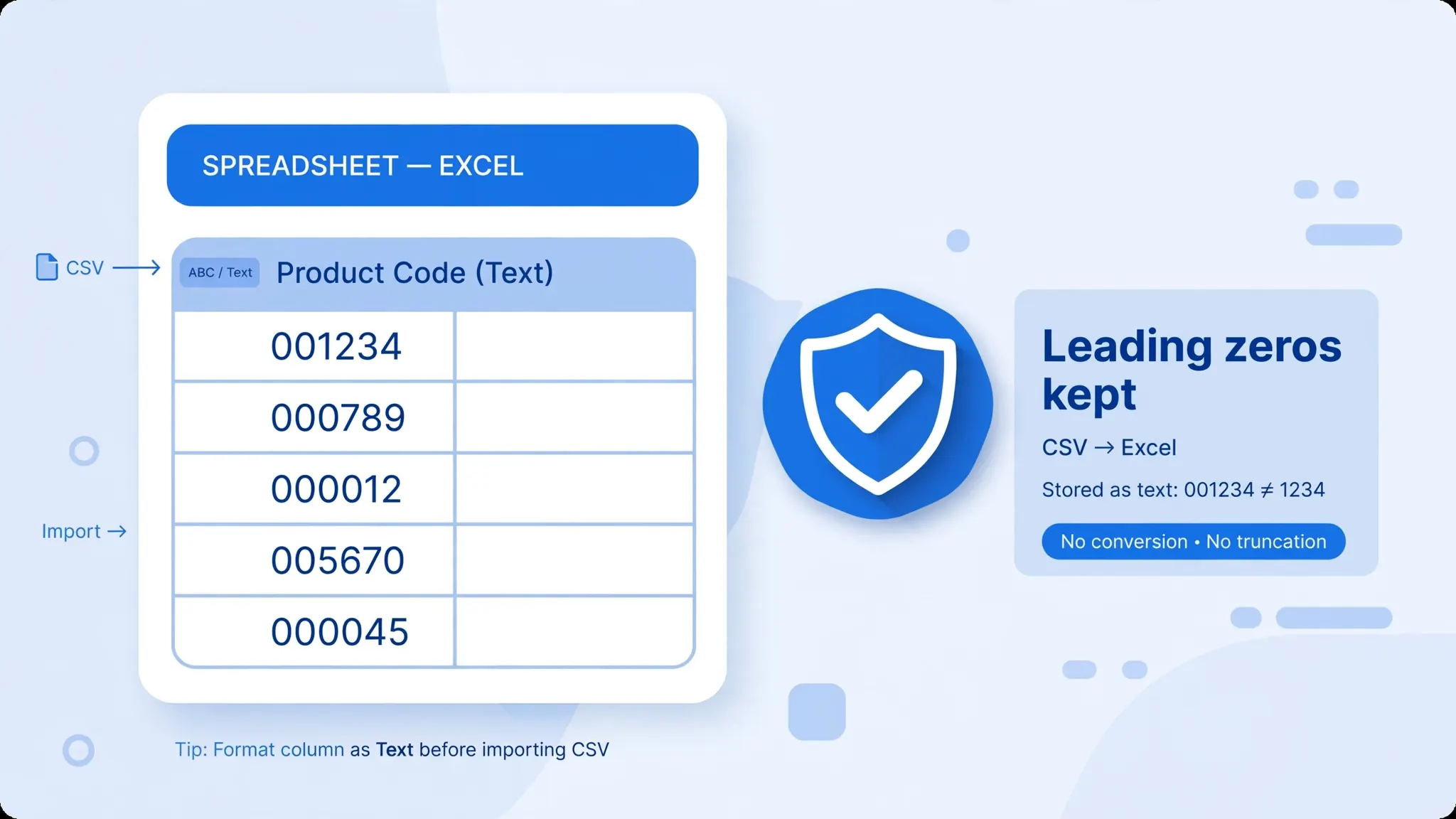
Excel sees 00123, decides it is the number 123, and the zeros are gone. US ZIP codes (00501), UK postcodes with numeric areas, Indian mobile numbers with leading zeros, product SKUs — all victims. The original information is unrecoverable after the fact unless you know the expected width.
2. Long numbers (data destruction)
Excel stores numbers with ~15 digits of precision. A 16-digit credit-card number, IMEI, or bank account number loses its final digit and may display as 4.12346E+15. This silently corrupts data — the most dangerous kind of loss.
3. Dates (data corruption)
03/04/2026 is March 4 in the US and April 3 in the UK, India, and Australia. Excel interprets dates using your system locale, so a file created in one region and opened in another scrambles every ambiguous date. Unambiguous dates like 25/12/2026 may become text instead, breaking sorting.
4. Special characters (data corruption)
UTF-8 files opened as Windows-1252 turn é into é and ₹ into ₹. The bytes are fine; the interpretation is wrong.
5. Formulas (never existed)
A CSV cannot store =SUM(A1:A10) as a formula — it stores the text of it, or more commonly just the calculated value. Formulas must be rebuilt in Excel after conversion.
6. Visual formatting (never existed)
Bold, colors, borders, number formats, conditional formatting — all live in the spreadsheet app, never in the CSV. Reapply after conversion.
Workaround 1: Import First with Power Query Column Types
This is the single most important technique in the guide — the most reliable way to convert CSV to Excel without losing formatting starts here: never double-click a CSV to open it. Instead, import it through Power Query where you declare every column’s type:
- Open a blank workbook in Excel.
- Data → From Text/CSV and select your file.
- In the preview dialog, verify the delimiter and set File Origin to 65001: UTF-8.
- Click Transform Data to open the Power Query Editor.
- For each critical column, set the type explicitly:
- ZIP codes, phone numbers, SKUs, account numbers → Text
- Date columns → Date, then set the locale (e.g. English (United Kingdom) for DD/MM/YYYY)
- True numeric columns → Decimal Number
- Home → Close & Load. Your data lands in the sheet with types locked in.
Why this works: Power Query applies your declared types instead of guessing. A Text column never strips zeros; a Date column with the right locale never flips month and day. Save the query, and next month’s identical export converts with one click on Data → Refresh All — the types are remembered.
1,234 (one thousand vs one point two). When in doubt, ask the sender what locale their system uses — it takes ten seconds and prevents hours of cleanup.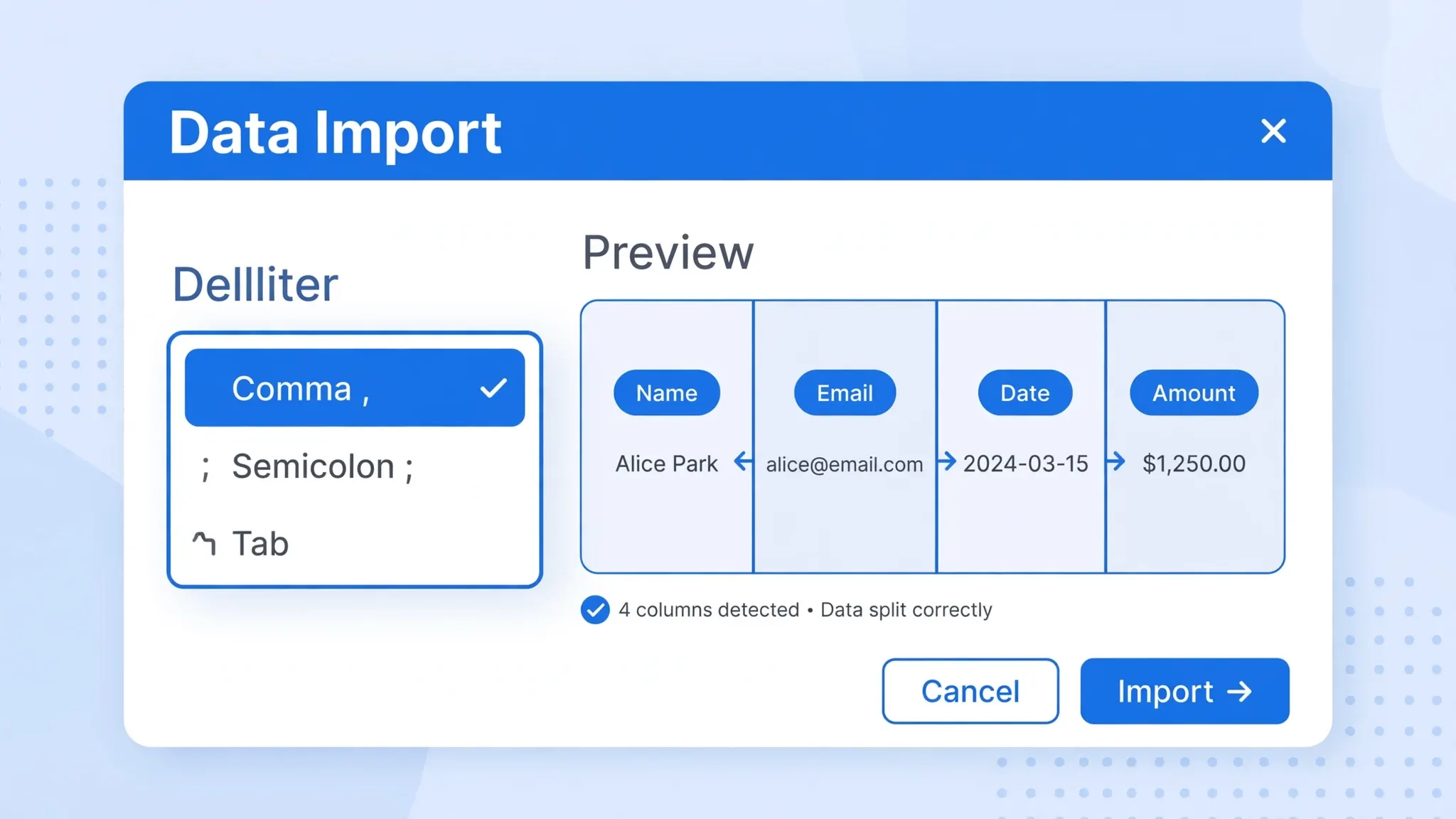
Workaround 2: Excel Templates for Recurring Reports
If you convert the same kind of CSV every week or month — sales exports, bank statements, ad-platform reports — stop formatting from scratch each time. Build an Excel template once:
- Create a workbook with your desired formatting: bold header row, currency number formats, date formats, column widths, filters, your company colors, even a summary sheet with formulas.
- Delete the data rows, keeping the formatted header and structure.
- File → Save As → Excel Template (*.xltx). Save it somewhere memorable.
- Each cycle: open the template (which creates a fresh workbook), import your CSV via Power Query into the data sheet, and everything — formats, formulas, charts — applies automatically.
For the truly lazy (efficient), combine the template with a saved Power Query: the query lives in the template, points at the new CSV each month, and Data → Refresh All rebuilds the entire formatted report in seconds. If you convert CSV to Excel without losing formatting every month, this is the workflow that makes it automatic — and the easiest way to preserve csv formatting excel-style, with your styles and number formats applied on every import. Accountants running monthly reconciliations in the US, UK, and Canada swear by this pattern.

Workaround 3: Paste Special
Sometimes you already have a formatted workbook and just need this month’s CSV data dropped into it. Paste Special is the surgical tool:
- Paste Values: copies the data without bringing along any source formatting — your destination’s fonts, colors, and number formats stay intact. (Home → Paste dropdown → Values, or Ctrl+Alt+V → Values.)
- Paste into pre-formatted cells: format the destination range first (Text for code columns, Date for date columns), then paste values. The cells keep your formats instead of inheriting Excel’s guesses.
- Transpose: if the CSV’s orientation is wrong (records as columns), Paste Special → Transpose flips it in one move.
Workflow: open the CSV in a throwaway workbook (or a text editor for small files), copy the data range, switch to your formatted workbook, select the destination, and Paste Values. The data adopts your formatting instead of fighting it. This is the fastest route when the destination already exists — monthly dashboards, client templates, shared team workbooks.
Workaround 4: Pre-Format, Then Paste
A close cousin of paste special, worth its own mention because it solves the leading-zero problem without Power Query:
- In a blank workbook, select the columns that will receive code-like data.
- Press Ctrl+1 → Text → OK. The columns are now text-locked.
- Open the CSV separately, copy the data, and paste into your pre-formatted sheet.
- Excel respects the existing Text format and keeps every leading zero.
Why does this work when normal pasting does not? Excel only auto-guesses types for unformatted cells. A cell already formatted as Text is left alone. The same trick works for dates: pre-format the column as Date with your locale, and ambiguous dates parse correctly on paste.
Encoding: The Invisible Data Killer
More “lost data” complaints are actually encoding problems than any other cause. The symptoms: é instead of é, ’ instead of ', ₹ instead of ₹, or □ boxes everywhere.
The fix is always the same — tell the importer the truth about the file’s encoding:
- Excel: Data → From Text/CSV → File Origin → 65001: UTF-8.
- LibreOffice Calc: Text Import dialog → Character set → Unicode (UTF-8).
- Google Sheets: File → Import → the encoding selector (Sheets auto-detects well).
- If you create the CSV: save with a UTF-8 BOM (byte order mark). Those three invisible bytes (
EF BB BF) tell Excel “this is UTF-8” and most garbling vanishes. In Python:open('f.csv','w',encoding='utf-8-sig').
How to diagnose: open the CSV in Notepad. If it looks correct there but wrong in Excel, it is 100% an encoding interpretation issue, not file corruption. The bytes are fine — Excel just read them with the wrong decoder.
Formatting After Conversion: The 5-Minute Polish
Your data survived the import intact. Now make it look like it belongs in a boardroom. This five-minute routine works on every converted CSV:
- Format the header row. Select row 1, apply bold, a fill color, and white font. This single change makes any sheet look 80% more professional.
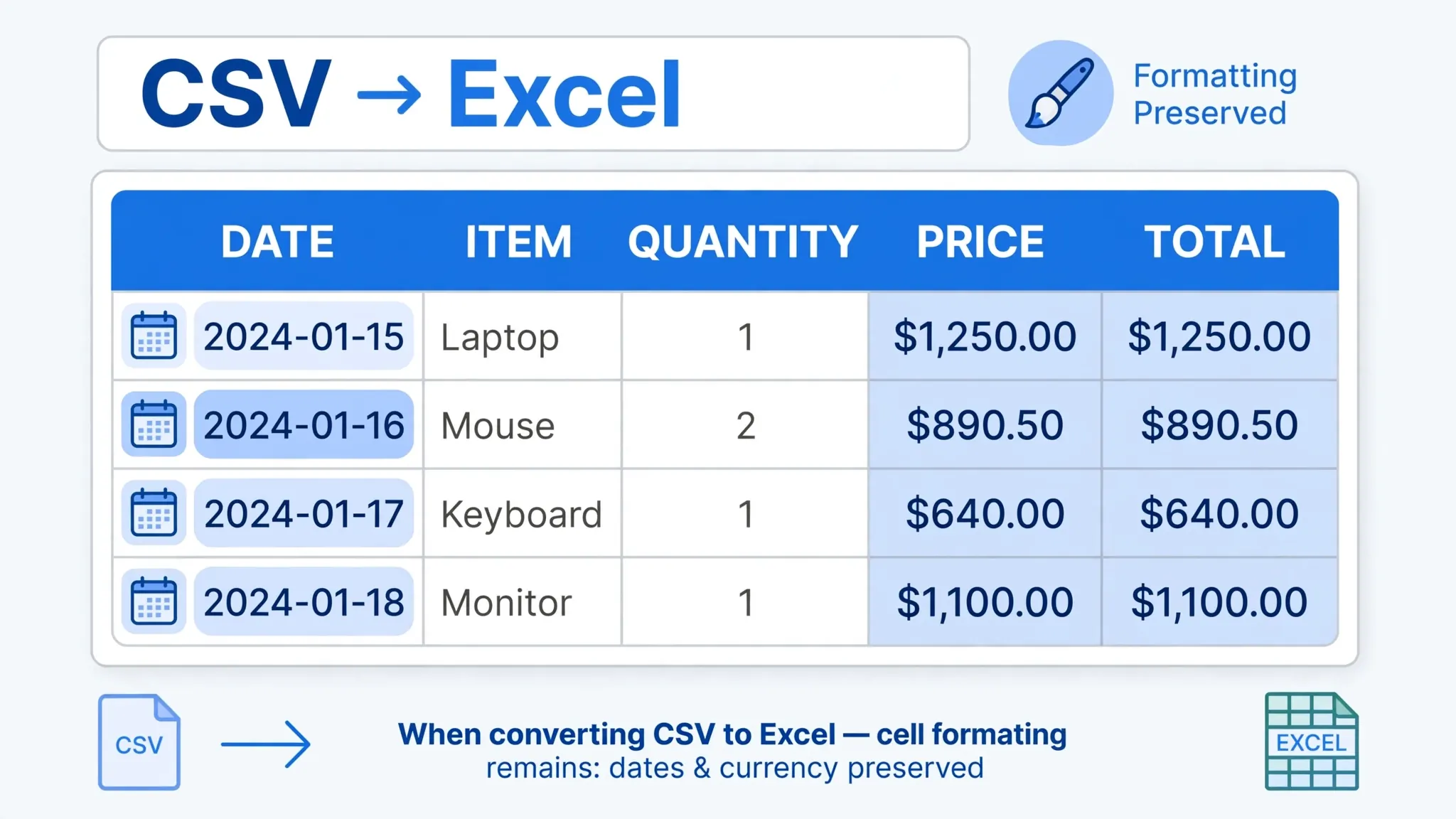
- Set number formats per column. Select each column and press Ctrl+1: currency columns → Currency with the right symbol ($, £, €, ₹); date columns → Date with your locale’s format; percentages → Percentage. Never leave numbers on “General” in a shared report — General is how
0.1displays as0.10000000000000001after a formula touches it. - Freeze the header. Select row 2 → View → Freeze Panes → Freeze Panes. Headers stay visible while scrolling through 50,000 rows.
- Turn on filters. Select the header row → Data → Filter. Instant sorting and filtering with zero formulas.
- Auto-fit columns. Select all (Ctrl+A), then double-click any column boundary. Cramped columns are the visual signature of a raw CSV dump.
- Add conditional formatting for outliers. Select an amount column → Home → Conditional Formatting → Data Bars or Color Scales. Anomalies jump out visually — finance teams in particular love this for reconciliation.
Do this once on your template (Workaround 2), and you never do it again — every future import inherits the polish automatically. That is the real answer to “preserve csv formatting in excel”: not preserving what was never there, but building a formatting layer that every conversion flows into.
Regional Formatting Traps (US, UK, India, and Beyond)
Formatting expectations change by region, and CSVs carry no record of which region produced them. The three big traps:
- Date order. The US writes MM/DD/YYYY; the UK, India, Canada, and Australia write DD/MM/YYYY. Always confirm the source region before converting, and set the Power Query date locale to match. When sending a converted file internationally, use an unambiguous date format like
04-Mar-2026or ISO2026-03-04. - Decimal and thousand separators. The US/UK use
1,234.56; much of Europe and South America use1.234,56. A European CSV opened on US settings turns1.234,56into text or a wildly wrong number. Match the locale at import. - Currency symbols.
$means USD, AUD, CAD, and more depending on context. After converting, apply the explicit currency format (e.g. “English (India)” for ₹ with lakh/crore grouping) so recipients are never guessing.
When in doubt, ask the sender for one sample row with a known value — “what should cell B2 read?” — and verify your conversion reproduces it exactly.
The Post-Conversion Verification Checklist
After every conversion, spend sixty seconds on this checklist. To convert CSV to Excel without losing formatting consistently, run these checks while problems are still cheap to fix:
- Row count: XLSX data rows = CSV lines minus header. Mismatch? The parser choked — usually an unescaped quote.
- Column count: matches the header count on every row? A short row means an embedded line break or missing delimiter.
- Leading zeros: spot-check known codes (first ZIP, first SKU).
- Long numbers: spot-check a 16+ digit value — full digits, no scientific notation.
- Dates: check an ambiguous date (day ≤ 12) against the source.
- Special characters: search for Ã, â, or □ — the telltale signs of encoding damage.
- Totals: if the CSV has a numeric column, compare SUM in Excel against a quick independent count.

What a Clean Result Looks Like
After the import-first method plus deliberate formatting, your workbook should have: a frozen header row, filters enabled, Text-formatted code columns with zeros intact, true date columns that sort chronologically, currency columns with proper symbols (₹, £, $, € as appropriate), and no green triangle warnings. That is what it means to convert CSV to Excel without losing formatting — not magic, just method.
Save this workbook as your template (see Workaround 2), and next month’s conversion is a two-minute refresh instead of a thirty-minute rescue operation.
Dealing with a file that resists every workaround — mixed encodings, shifting delimiters, or dates in three formats at once? join the discussion in our community forum, where readers share battle-tested fixes for the gnarliest CSV-to-Excel conversions.
Frequently Asked Questions
Can you convert CSV to Excel without losing formatting?
CSV files contain no formatting at all — no fonts, colors, bold, or number formats — so there is nothing to preserve during conversion. What you can do is protect your data (leading zeros, dates, long numbers, special characters) with a careful import, then apply formatting afterward using Excel templates, paste special, or cell styles. Think of it as two phases: protect the data, then format deliberately.
Why do leading zeros disappear when I convert CSV to Excel?
Excel guesses column types when opening a CSV and treats digit-only columns as numbers, so 00123 becomes 123. Prevent it by importing via Data → From Text/CSV, clicking Transform Data, and setting the column type to Text before loading. For a quick fix, pre-format the destination column as Text (Ctrl+1 → Text) before pasting.
How do I keep dates correct when converting CSV to Excel?
Set the date column’s locale explicitly during import. In Power Query, change the column type to Date and choose the locale matching your data — English (United Kingdom) for DD/MM/YYYY, English (United States) for MM/DD/YYYY. This stops Excel from flipping month and day on ambiguous dates like 03/04/2026.
Does converting CSV to XLSX change long numbers?
It can, and this one destroys data silently. Excel stores numbers with about 15 digits of precision, so 16+ digit values (credit-card numbers, IMEIs, some account numbers) lose their final digits and may display in scientific notation. Always import such columns as Text to keep every digit intact.
What is paste special and how does it help with CSV data?
Paste Special (Ctrl+Alt+V) controls how copied data lands in Excel. “Values” pastes the data without source formatting, so your destination’s fonts, colors, and number formats survive. Combined with pre-formatted destination cells (Text for codes, Date for dates), it is the fastest way to drop CSV data into an existing formatted workbook without Excel re-guessing types.
Why do special characters break when converting CSV to Excel?
The CSV is usually UTF-8, but Excel opened it as Windows-1252 — a decoder mismatch, not file corruption. Import with Data → From Text/CSV and set File Origin to 65001: UTF-8. If you generate the CSV yourself, save it with a UTF-8 BOM (encoding=’utf-8-sig’ in Python) so Excel detects the encoding automatically.