
The CSV to Excel Python workflow boils down to two calls: read_csv to load the data, to_excel to write the workbook. But the difference between a script that “works on my file” and one that survives real-world CSVs — mangled encodings, semicolon delimiters, 5-million-row monsters, leading zeros — is everything this guide teaches.
You will learn the complete professional pipeline: installing pandas and openpyxl, reading CSVs with full control over encodings, delimiters, dates, and column types, writing clean XLSX files, building multi-sheet workbooks, applying real formatting (styled headers, column widths, number formats) with openpyxl, fixing the encoding and delimiter problems that crash naive scripts, converting huge files in chunks, and automating the whole thing on a schedule. Every code sample is tested and ready to copy-paste.
No Python experience? The basics here need about twenty minutes to learn — and if you just need a one-off conversion right now, our free CSV to Excel converter does it in the browser with zero setup. But for recurring work, Python repays the learning curve a hundred times over.
Why Convert CSV to Excel with Python?
Going from Python CSV to XLSX in code beats clicking through wizards the moment you have more than a handful of files: the script never mis-clicks a delimiter, never forgets a formatting step, and runs on a schedule while you sleep.
Manual conversion breaks down the moment files get big, messy, or recurring. Python fixes all three: it handles multi-gigabyte files via chunking, cleans data programmatically instead of by hand, and runs unattended on a schedule. Unlike Excel COM automation, it needs no Excel installation — scripts run identically on Windows, macOS, Linux, CI servers, and colleagues’ machines.
The two libraries that matter: pandas for data manipulation (read_csv / to_excel) and openpyxl as the Excel engine that writes real .xlsx files with formatting support. A third, xlsxwriter, is worth knowing as a faster write-only alternative when speed matters more than features. Everything below uses pandas + openpyxl unless noted.

CSV to Excel Python: Installation and First Conversion
Install once from any terminal:
pip install pandas openpyxlThen the minimal conversion — this genuinely works:
import pandas as pd

df = pd.read_csv("sales.csv")
df.to_excel("sales.xlsx", index=False, engine="openpyxl")
print(f"Converted {len(df):,} rows, {df.shape[1]} columns")
Two details matter even in this tiny script. index=False stops pandas from writing its row index as a mystery first column — you almost always want this. And engine="openpyxl" is explicit; pandas picks it automatically for .xlsx these days, but explicit beats implicit when scripts move between machines. For a folder of CSVs, wrap it in a loop (see our batch conversion guide).
Before trusting any script on real data, verify the output once: open the XLSX and spot-check the first and last rows, confirm the row count matches the CSV (len(df) versus sum(1 for _ in open("sales.csv")) - 1), and check that dates, currencies, and ID columns survived with their formatting intact. Five minutes of verification now prevents a quietly corrupted report later — a habit worth building into every Python conversion script you write.

Reading CSVs Like a Pro with read_csv
read_csv has over 50 parameters; these are the ones that separate working scripts from fragile ones:
import pandas as pd

df = pd.read_csv(
    "sales.csv",
    encoding="utf-8",          # or "utf-8-sig" (BOM), "cp1252", "latin1"
    sep=",",                   # ";" for European files, "\t" for TSV
    parse_dates=["order_date"], # real datetime column, not text
    dtype={"zip_code": str, "product_sku": str},  # keep leading zeros!
    usecols=["order_id", "order_date", "amount"], # read only what you need
    na_values=["N/A", "n/a", "-", ""],           # normalize missing values
    on_bad_lines="skip",       # skip malformed rows instead of crashing
)
Each parameter solves a real failure mode. dtype with str is the leading-zeros fix — declare ID-like columns as text or pandas converts “00123” to 123 before Excel ever sees it. usecols slashes memory use on wide files. parse_dates gives you a true datetime column that formats correctly in Excel instead of locale-ambiguous text. And on_bad_lines="skip" keeps one ragged row from killing a 2-million-row conversion (log the skips separately if the data matters).
Sniffing unknown files
When you do not know the delimiter, let pandas detect it — but note this needs the slower Python engine:
df = pd.read_csv("mystery.csv", sep=None, engine="python")Use this once to identify the delimiter, then hard-code it and drop engine="python" for full speed on the real run.
Cleaning Data During Import with converters
The converters parameter applies a function to a column as it loads — the cleanest way to fix dirty values before they ever reach your DataFrame:
import pandas as pd

def clean_money(x):
    # "$1,234.56" -> 1234.56 ; handles blanks safely
    if pd.isna(x) or str(x).strip() in ("", "-", "N/A"):
        return None
    return float(str(x).replace("$", "").replace(",", "").strip())

def clean_phone(x):
    # "(555) 123-4567" -> "5551234567", kept as text
    return "".join(c for c in str(x) if c.isdigit())

df = pd.read_csv(
    "sales.csv",
    converters={"amount": clean_money, "phone": clean_phone},
    dtype={"zip_code": str},
)
This beats cleaning after the fact because the DataFrame is correct from birth — dtypes infer properly, and there is no intermediate dirty state to forget about. Common uses: stripping currency symbols, normalizing phone numbers, parsing odd date strings with dateutil, and mapping coded values (“Y”/”N” → True/False). Keep converter functions defensive (handle NaN and blanks) since they run on every value including missing ones. For heavier reshaping — pivots, merges, aggregations — do it in pandas after import; converters are for per-value cleanup.
Writing Excel Files with to_excel
The pandas to_excel method is the workhorse of this whole workflow — one line turns your cleaned DataFrame into a genuine .xlsx workbook, with control over sheet names, index columns, and start rows.
to_excel mirrors read_csv‘s control on the way out:
import pandas as pd

df = pd.read_csv("sales.csv")

df.to_excel(
    "sales.xlsx",
    sheet_name="Sales 2026",  # custom sheet name (max 31 chars)
    index=False,              # no index column
    engine="openpyxl",
    freeze_panes=(1, 0),      # freeze the header row
)
freeze_panes=(1, 0) is a small touch recipients love — the header stays visible while scrolling. Sheet names must stay under 31 characters and avoid :/\?*[]; sanitize programmatically with sheet[:31] when names come from data.
openpyxl vs xlsxwriter: which engine?
Both write genuine .xlsx files, but they differ in ways that matter:
- openpyxl reads and writes, supports modifying existing files, and integrates deeply with pandas. The default choice.
- xlsxwriter is write-only but noticeably faster, with richer chart and conditional-formatting APIs. Choose it for large, write-once reports where speed matters.
You cannot mix engines in one file — pick per workbook. Switching is one word: engine="xlsxwriter" (install with pip install xlsxwriter).
Multiple Sheets in One Workbook
A common pattern is summarizing first, then writing: a pandas groupby collapses millions of raw rows into a tidy summary table, which you then write to its own sheet alongside the raw data.
ExcelWriter as a context manager writes many frames to one file — the standard way to build multi-sheet workbooks:
import pandas as pd

sales = pd.read_csv("sales.csv")
customers = pd.read_csv("customers.csv")
products = pd.read_csv("products.csv")

with pd.ExcelWriter("business_report.xlsx", engine="openpyxl") as writer:
    sales.to_excel(writer, sheet_name="Sales", index=False)
    customers.to_excel(writer, sheet_name="Customers", index=False)
    products.to_excel(writer, sheet_name="Products", index=False)

print("Wrote 3 sheets to business_report.xlsx")
The classic real-world variant splits one dataset across sheets by group — monthly tabs from a year of data:
import pandas as pd

df = pd.read_csv("orders.csv", parse_dates=["order_date"])
df["month"] = df["order_date"].dt.strftime("%Y-%m")

with pd.ExcelWriter("orders_by_month.xlsx", engine="openpyxl") as writer:
    for month, group in df.groupby("month"):
        group.drop(columns="month").to_excel(writer, sheet_name=month, index=False)
For more patterns — including appending to existing workbooks — see our multiple-sheets guide and the merge guide.

Formatting with OpenPyXL
Raw values are only half the job — OpenPyXL formatting adds the professional polish: bold headers, column widths, number formats, and brand colors applied programmatically to every file you generate.
Pandas writes values; openpyxl makes them beautiful. The pattern: write with pandas, then reopen the workbook and style it:
import pandas as pd
from openpyxl import load_workbook
from openpyxl.styles import Font, PatternFill, Alignment, Border, Side
from openpyxl.utils import get_column_letter

df = pd.read_csv("sales.csv")
df.to_excel("styled_report.xlsx", index=False)

wb = load_workbook("styled_report.xlsx")
ws = wb.active

# --- styled header row ---
header_fill = PatternFill("solid", fgColor="1A73E8")
header_font = Font(bold=True, color="FFFFFF", size=11)
thin = Side(style="thin", color="D0D0D0")
border = Border(left=thin, right=thin, top=thin, bottom=thin)

for cell in ws[1]:
    cell.fill = header_fill
    cell.font = header_font
    cell.alignment = Alignment(horizontal="center", vertical="center")
    cell.border = border

# --- auto-fit column widths (capped so one long cell doesn't explode the layout) ---
for col in ws.columns:
    letter = get_column_letter(col[0].column)
    width = min(max(len(str(c.value)) for c in col if c.value) + 2, 40)
    ws.column_dimensions[letter].width = width

# --- number formats: currency on Amount, real dates on OrderDate ---
for row in ws.iter_rows(min_row=2):
    row[3].number_format = '"$"#,##0.00'   # adjust index to your Amount column
    row[1].number_format = "YYYY-MM-DD"    # adjust index to your date column

ws.freeze_panes = "A2"
ws.auto_filter.ref = ws.dimensions  # one-click filters on the header
wb.save("styled_report.xlsx")
print("Styled and saved.")
Key techniques here: PatternFill/Font for the header, capped auto-width so a single 500-character cell does not ruin the layout, number_format for true currency and date display (these are real Excel formats, not text), and auto_filter for instant filters. Adjust the column indexes to your data — better yet, find columns by header name instead of hard-coding positions.

Adding Excel Formulas from Python
Sometimes the XLSX should compute, not just display. Openpyxl writes real formulas that Excel calculates on open — just assign the formula string to the cell:
import pandas as pd
from openpyxl import load_workbook
from openpyxl.styles import Font

df = pd.read_csv("sales.csv")  # columns: Product, Qty, UnitPrice
df.to_excel("with_formulas.xlsx", index=False)

wb = load_workbook("with_formulas.xlsx")
ws = wb.active

# add a Total column header, then a formula per row
ws.cell(row=1, column=4, value="Total")
for r in range(2, ws.max_row + 1):
    ws.cell(row=r, column=4, value=f"=B{r}*C{r}")

# grand total below the data
total_row = ws.max_row + 2
ws.cell(row=total_row, column=3, value="Grand Total").font = Font(bold=True)
ws.cell(row=total_row, column=4, value=f"=SUM(D2:D{ws.max_row})")

wb.save("with_formulas.xlsx")
Two things to know: openpyxl never calculates formulas itself — Excel (or LibreOffice) computes them on open, so the file shows cached blanks until opened in a spreadsheet app. And always write formulas in US/English syntax with comma separators (=SUM(A1:A5)), even for users in semicolon-locale countries — Excel translates the separators on open. For cross-workbook references or volatile functions like TODAY(), the same rule applies: write it, let Excel compute it.
Conditional Formatting and Data Validation
Reports get dramatically more useful with a little conditional formatting — and openpyxl applies it programmatically:
from openpyxl import load_workbook
from openpyxl.formatting.rule import CellIsRule, ColorScaleRule
from openpyxl.styles import PatternFill
from openpyxl.worksheet.datavalidation import DataValidation

wb = load_workbook("styled_report.xlsx")
ws = wb.active
last = ws.max_row

# highlight amounts over 10,000 in light red
red = PatternFill("solid", fgColor="FFC7CE")
ws.conditional_formatting.add(f"D2:D{last}",
    CellIsRule(operator="greaterThan", formula=["10000"], fill=red))

# color scale on quantity column (green -> yellow -> red)
ws.conditional_formatting.add(f"B2:B{last}",
    ColorScaleRule(start_type="min", start_color="63BE7B",
                   end_type="max", end_color="F8696B"))

# dropdown validation on the Status column (say column E)
dv = DataValidation(type="list", formula1='"Open,Shipped,Cancelled"', showDropDown=False)
ws.add_data_validation(dv)
dv.add(f"E2:E{last}")

wb.save("styled_report.xlsx")
These are native Excel features — the rules live in the file and work for every recipient without macros. Combine them with the styled-header pattern from the formatting section and your Python-generated workbooks will look hand-crafted. One caution: conditional formatting over hundreds of thousands of rows slows Excel down; apply it to the used range only (as above with ws.max_row), never to whole columns.
Handling Encoding and Delimiter Problems
Encoding errors are the most common crash in Python conversion scripts, and they always strike mid-file on the biggest dataset. The defensive pattern tries encodings in order:
import pandas as pd

def read_csv_robust(path):
    for enc in ("utf-8-sig", "utf-8", "cp1252", "latin1"):
        try:
            return pd.read_csv(path, encoding=enc, on_bad_lines="skip")
        except (UnicodeDecodeError, UnicodeError):
            continue
    raise ValueError(f"Could not decode {path} with any known encoding")

df = read_csv_robust("messy.csv")
The order matters: utf-8-sig first handles the BOM that Windows tools love to prepend; cp1252 catches Western European smart quotes; latin1 last never fails (it maps every byte) but may misrender — treat it as a last resort and eyeball the output. For delimiters, sniff once with sep=None, engine="python", then hard-code the discovered delimiter for the real run at full C-engine speed. European, Indian, and Latin American exports frequently use semicolons — see our locale delimiter guide for the full story.

Large Files: Chunked Conversion
When a CSV exceeds Excel’s 1,048,576 rows — or just exceeds your RAM — convert in chunks. This is the same technique from our large CSV guide, with the dtype optimizations that make it fast:
import pandas as pd

CHUNK_ROWS = 900_000
dtypes = {"order_id": "int64", "region": "category", "amount": "float64"}

total = 0
for i, chunk in enumerate(
    pd.read_csv("huge.csv", chunksize=CHUNK_ROWS, dtype=dtypes,
                parse_dates=["order_date"], usecols=["order_id", "order_date",
                                                     "region", "amount"]),
    start=1,
):
    chunk.to_excel(f"huge_part{i}.xlsx", index=False, engine="openpyxl")
    total += len(chunk)
    print(f"part {i}: {total:,} rows converted")
Three performance levers: dtype (especially category for repetitive text — often 5–10x memory savings), usecols (skip columns you will never analyze), and chunksize itself. Together they convert multi-gigabyte files on an 8 GB laptop. If even chunking feels slow, the xlsxwriter engine writes significantly faster than openpyxl for plain unformatted output.
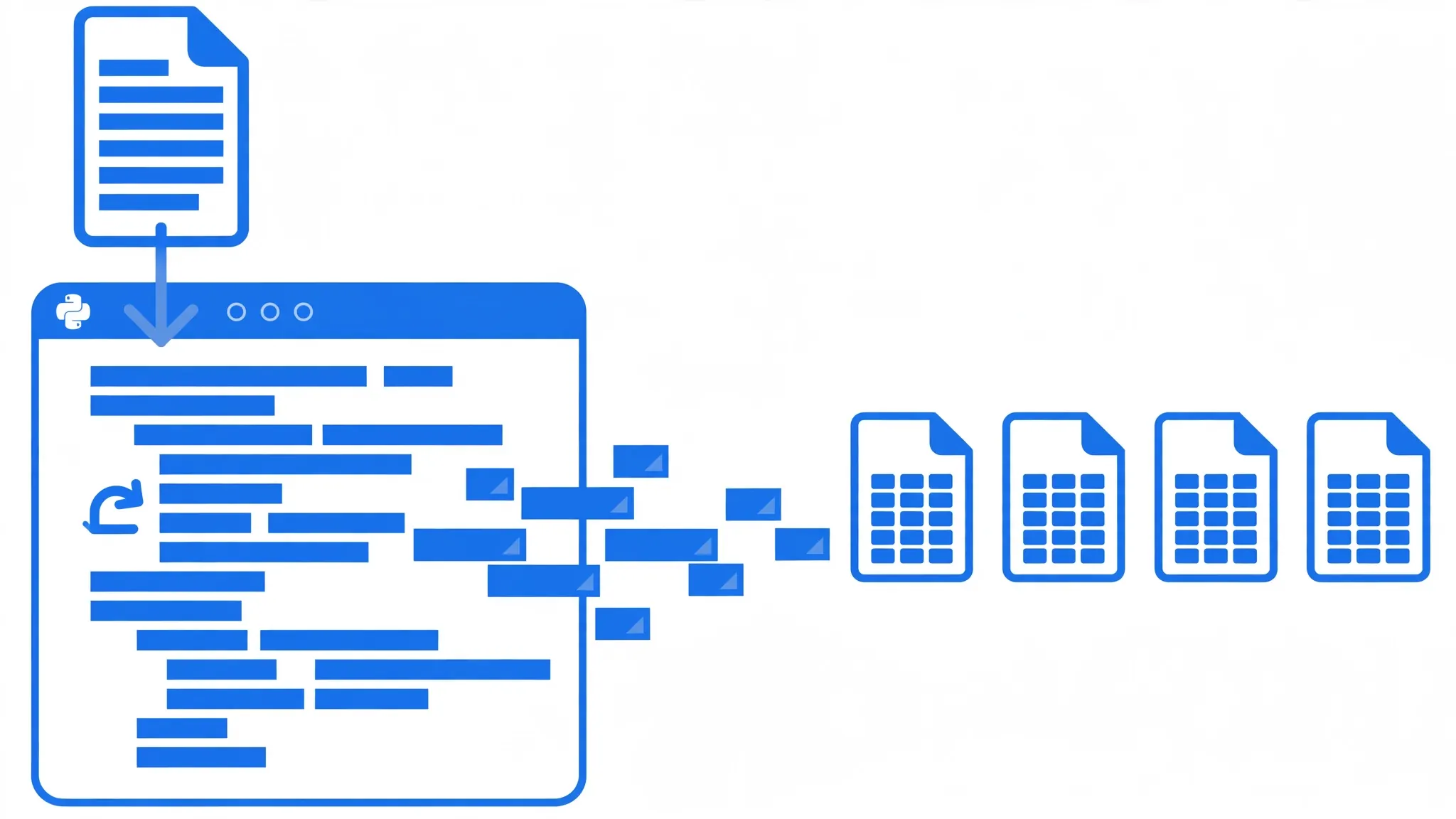
Automating Conversions on a Schedule
The real payoff of the csv to excel python approach is automation: a script that watches a folder and converts everything that appears. Save this as auto_convert.py:
import pandas as pd
from pathlib import Path
import logging

logging.basicConfig(filename="convert.log", level=logging.INFO,
                    format="%(asctime)s %(message)s")

IN, OUT = Path("incoming"), Path("excel_out")
OUT.mkdir(exist_ok=True)

for csv_file in IN.glob("*.csv"):
    try:
        df = pd.read_csv(csv_file, encoding="utf-8-sig", on_bad_lines="skip")
        out = OUT / f"{csv_file.stem}.xlsx"
        df.to_excel(out, index=False, engine="openpyxl")
        logging.info(f"OK {csv_file.name} -> {out.name} ({len(df):,} rows)")
        csv_file.rename(IN / "archive" / csv_file.name)  # don't reconvert
    except Exception as e:
        logging.error(f"FAIL {csv_file.name}: {e}")
Schedule it with Task Scheduler on Windows (python C:\scripts\auto_convert.py as the action), cron on macOS/Linux (0 7 * * * /usr/bin/python3 /home/user/auto_convert.py), or run it on file-arrival with a watcher. The archive move plus the log file gives you an audit trail — which files converted, when, and how many rows each held. Windows teams that prefer native tooling should see our PowerShell automation guide for the COM-based equivalent.
Troubleshooting Python Conversion Errors
UnicodeDecodeError: ‘utf-8’ codec can’t decode byte
The file is not UTF-8 — usually Windows-1252. Use the read_csv_robust fallback chain above, or pass encoding_errors="replace" to substitute bad bytes instead of crashing.
ParserError: Error tokenizing data
Ragged rows — some lines have more fields than the header. on_bad_lines="skip" skips them; if they matter, inspect with on_bad_lines="warn" first, which logs offending line numbers.
MemoryError on large files
You read the whole file at once. Add chunksize, declare dtype, and select usecols — the chunking section’s script shows all three together.
Dates import as text (or US/UK confusion)
Use parse_dates plus dayfirst=True for DD/MM/YYYY sources (UK, India, Australia) — pandas defaults to US-style month-first parsing.
ModuleNotFoundError: No module named ‘openpyxl’
pandas needs an Excel engine installed separately: pip install openpyxl. If you use conda, conda install openpyxl.
Output XLSX opens with a “repair” warning
Almost always caused by mixing engines or writing with a file handle still open — always use ExcelWriter as a context manager (with block) so the file closes cleanly.
Python’s CSV edge cases are endless — embedded newlines, null bytes, thousand-separator quirks — so if your file defeats every fix here, join the discussion in our community forum with the error message and a few sample rows; someone will have the exact incantation.
Frequently Asked Questions
How do I convert CSV to Excel with Python?
Install pandas and openpyxl with pip install pandas openpyxl, then run pd.read_csv("input.csv").to_excel("output.xlsx", index=False). That two-liner handles most conversions; this guide’s sections on formatting, multiple sheets, encodings, and chunking cover everything beyond it.
Which Python library is best for writing Excel files?
openpyxl is the best all-rounder: it reads and writes .xlsx with full formatting support and integrates with pandas. xlsxwriter writes faster but cannot modify existing files. Use openpyxl unless raw write speed is your bottleneck.
How do I convert multiple CSVs to one Excel workbook in Python?
Use pd.ExcelWriter as a context manager and call to_excel once per CSV with a different sheet_name — or pd.concat the frames first for a single combined sheet. Both patterns are shown with code above.
How do I keep leading zeros when converting CSV to Excel with Python?
Read the column as text with dtype={"zip": str} (or the converters parameter), so pandas never converts it to a number. The zeros survive into the XLSX as text values that Excel displays verbatim.
Can Python convert a CSV larger than Excel’s row limit?
Yes — read the CSV in chunks with the chunksize parameter and write each chunk to its own XLSX file, keeping every file under 1,048,576 rows. The chunked conversion section has the complete script with dtype optimizations.
Do I need Excel installed to convert CSV to XLSX with Python?
No. pandas with openpyxl or xlsxwriter writes genuine .xlsx files with no Excel installation — scripts run identically on Windows, macOS, Linux, and headless servers, which is a major advantage over COM automation.