
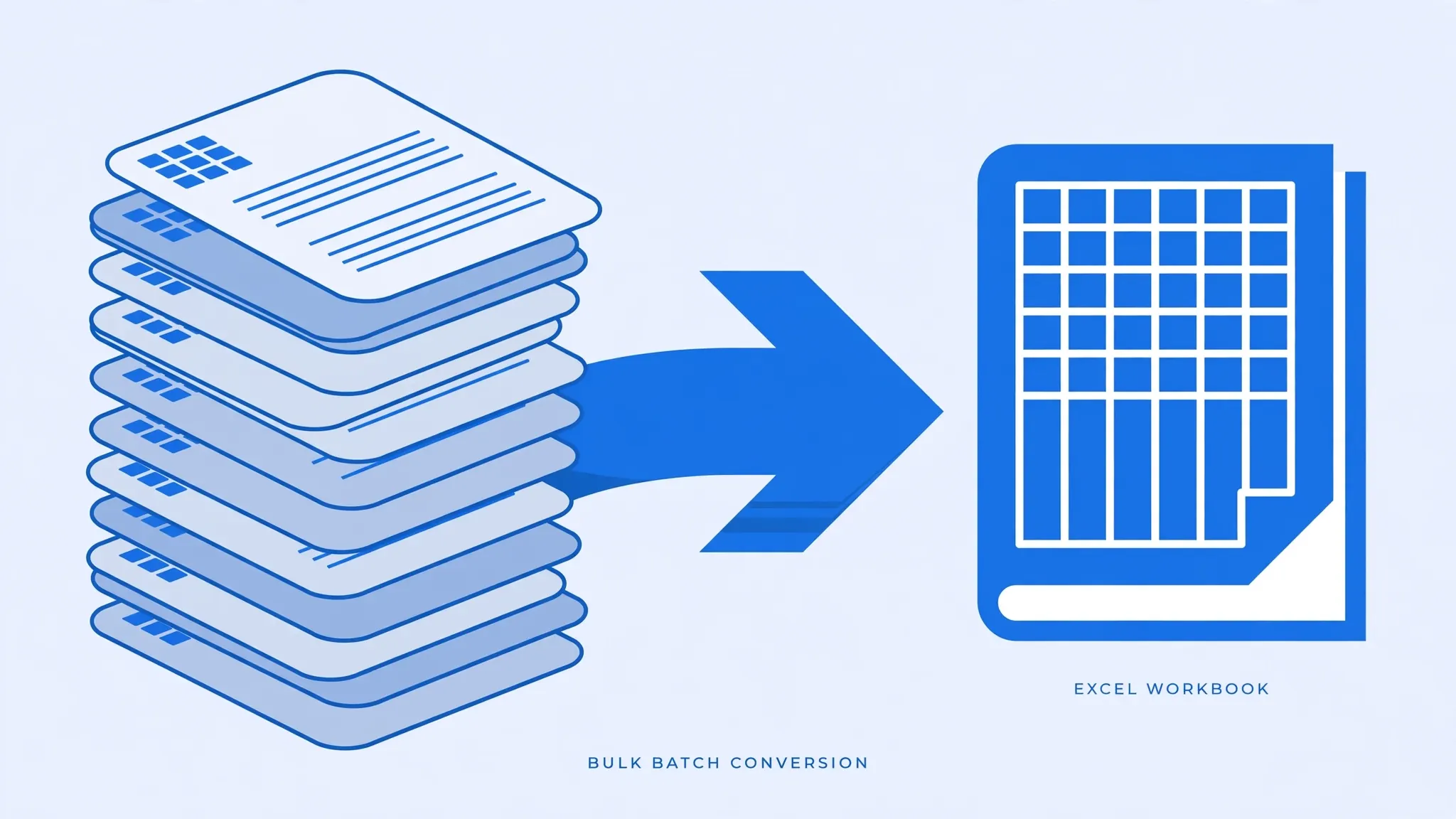
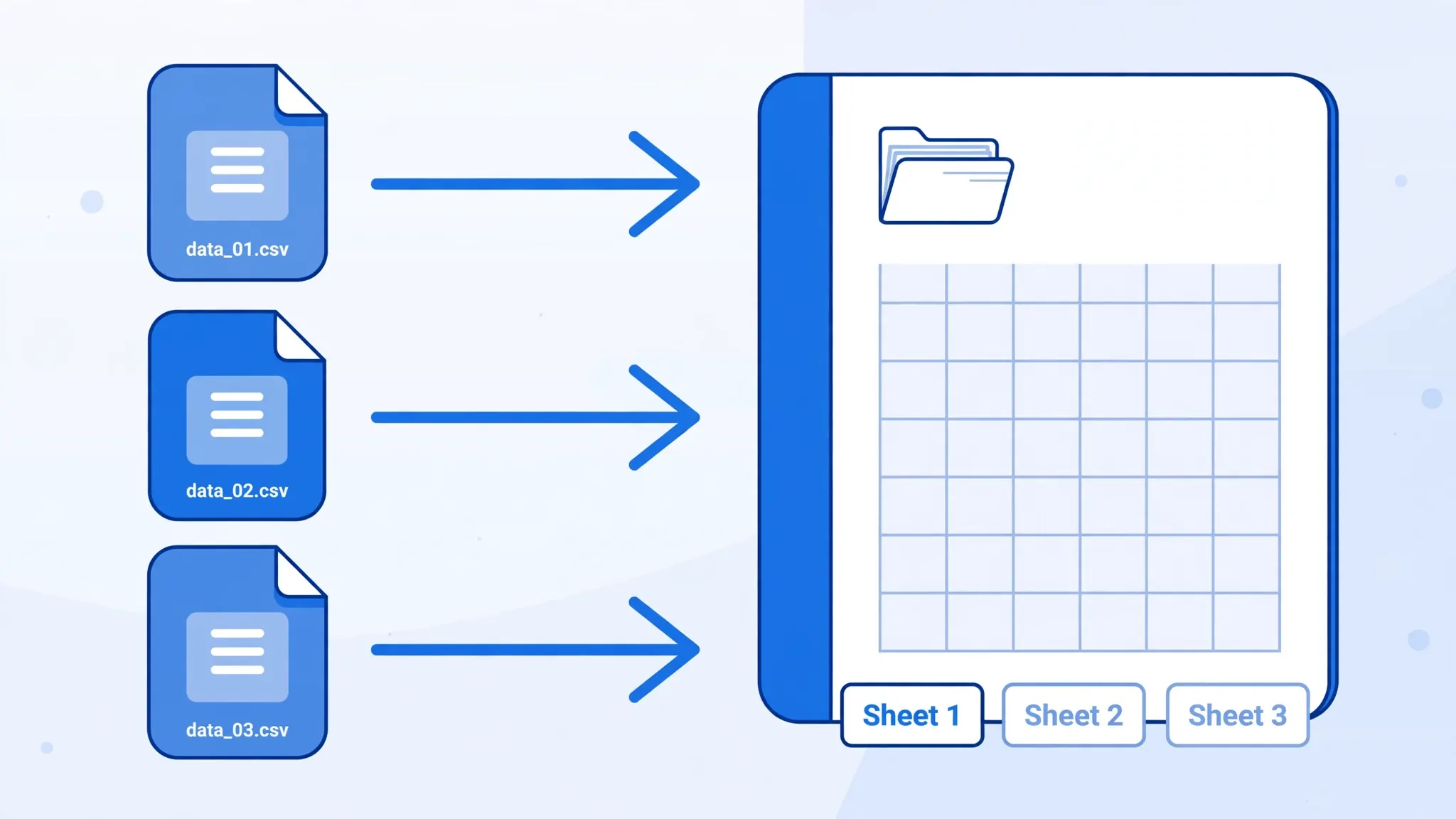
A single CSV becomes a single sheet — that is the nature of the format. But real work rarely lives in one table. When you convert CSV to Excel with multiple sheets, each CSV file gets its own tab inside one workbook: January through December of sales data, one sheet per region, or raw data plus a summary side by side. The result is a single .xlsx file that tells the whole story instead of a scattered folder of twelve disconnected files.
This tutorial shows you three ways to do it: a short Python script using openpyxl (the most powerful and repeatable), the manual method inside Excel itself (no coding, full control), and online batch tools for the occasional job. You will also learn the sheet-naming rules that trip everyone up, how to split one giant CSV across several sheets, and how to style every sheet at once so the workbook looks deliberate instead of assembled.
Whether you are building a year-end pack in London, consolidating branch reports in Delhi, or organizing survey waves in Melbourne, the multiple csv one workbook pattern turns a pile of exports into a document people actually enjoy opening.
What “Multiple Sheets” Means and Why You Want It
An XLSX workbook is a container that can hold many worksheets. The classic multi-sheet conversion takes N CSV files and produces one workbook with N sheets — one csv per sheet, each tab named after its source file. Compare that with the alternatives:
- Separate workbooks: twelve files to attach, twelve files to lose, no easy cross-file formulas.
- One giant merged sheet: works only if every CSV has identical columns; otherwise it is a mess.
- Multi-sheet workbook: one file, organized tabs, cross-sheet formulas like
=SUM(Jan:Dec!B2), and a natural home for a summary sheet.
The pattern shines for time series (months, quarters, years), categories (regions, branches, product lines), and stages (raw data, cleaned data, summary). Anyone who has emailed “final_v7_reallyfinal.xlsx” knows the pain this solves: one authoritative file instead of a folder of maybe-current exports.
A concrete example: a marketing agency exports one CSV per client per month — 20 clients × 12 months = 240 files. The multi-sheet answer is not one 240-tab monster (nobody navigates that); it is twelve workbooks, one per month, each with 20 client sheets, plus a summary tab per workbook rolling up spend. Same pattern, applied at the right granularity. The rule of thumb: if a single person will flip through the tabs in one sitting, it belongs in one workbook.

Planning Your Multi-Sheet Workbook
Before importing anything, sketch the workbook on paper (or in your head). A planned multi-sheet file is a document; an unplanned one is a junk drawer with tabs.
Decide the sheet order first
Readers meet your sheets left to right. The convention that works: README or cover sheet first, then data sheets in logical order (chronological for time series, alphabetical for categories), then summary/analysis sheets last. Never bury the README in the middle — the first tab sets expectations for everything after it.
Design the README sheet
Every multi-sheet workbook deserves a cover tab with: the workbook’s purpose in one sentence, the date it was built, one row per sheet (tab name, source filename, row count, date range of the data), and the name of whoever built it. This takes five minutes and saves hours when someone opens the file six months later — including you.
Plan the summary sheet
If the point of combining sheets is comparison, build the summary deliberately: which metrics, which cross-sheet formulas, which charts. Write the formulas against the planned sheet names before you generate the workbook, so the script can inject them. A summary added as an afterthought is where #REF! errors are born.
Know when NOT to multi-sheet
Multi-sheet is wrong when: the CSVs have wildly different structures and no one will compare them (separate workbooks are cleaner); there are hundreds of files (use a database or a folder of workbooks — no human navigates 300 tabs); or each file has a different owner who needs only their slice (send extracts, not the monster file). The multi-sheet pattern is for related data that one person will read together.
Convert CSV to Excel with Multiple Sheets Using Python (openpyxl)
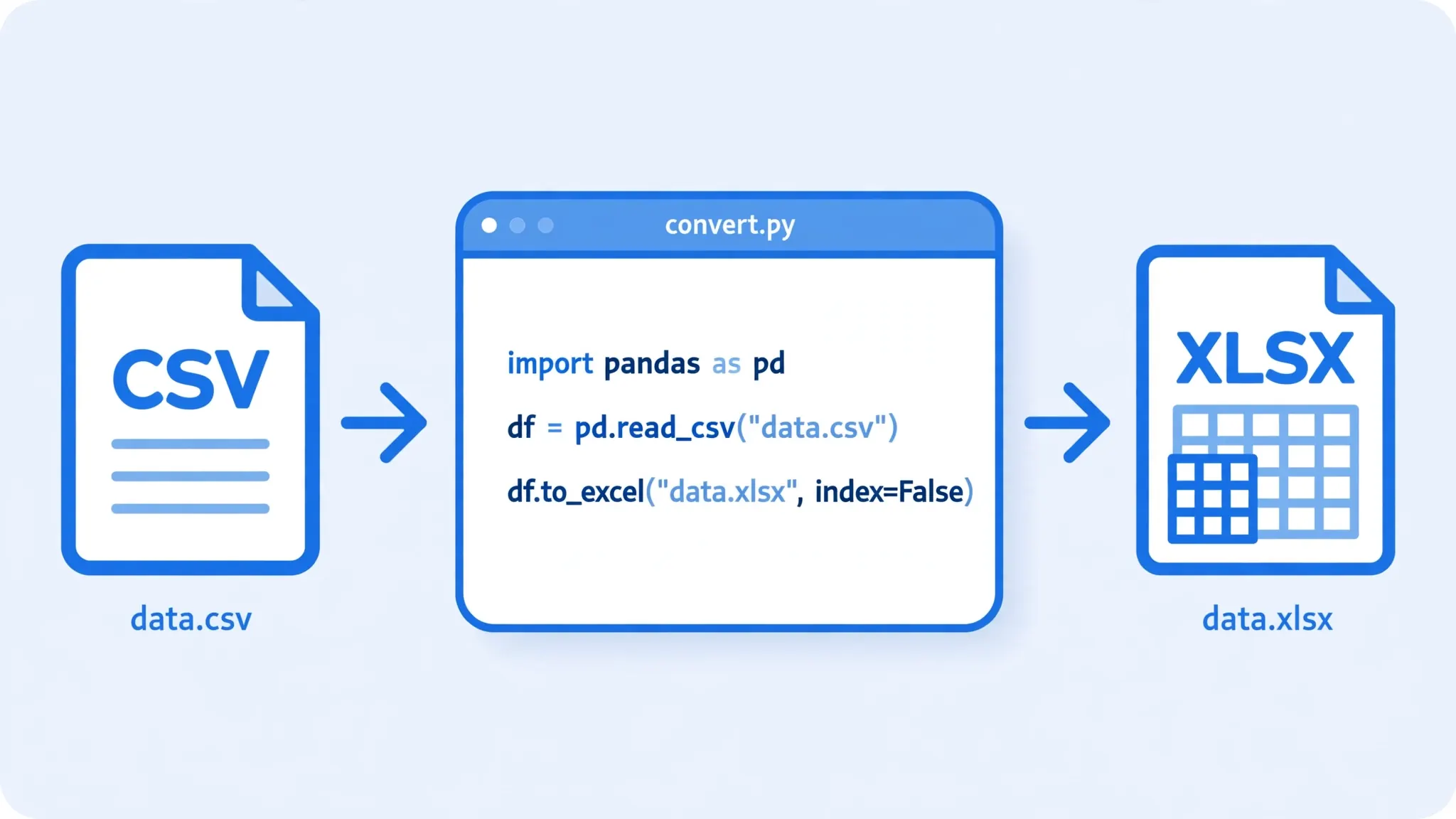
The most reliable way to convert CSV to Excel with multiple sheets is a short Python script. It handles dozens of files identically, sanitizes sheet names automatically, and runs the same way every month. Install the libraries once:
pip install pandas openpyxlimport pandas as pd
from pathlib import Path
def clean_sheet_name(name: str) -> str:
for ch in '/\\?*[]:':
name = name.replace(ch, '_')
return name[:31] or 'Sheet'
with pd.ExcelWriter('combined.xlsx', engine='openpyxl') as writer:
for csv_file in sorted(Path('csv_in').glob('*.csv')):
df = pd.read_csv(csv_file, encoding='utf-8-sig', dtype=str)
sheet = clean_sheet_name(csv_file.stem)
df.to_excel(writer, sheet_name=sheet, index=False)
print(f'{csv_file.name} -> sheet "{sheet}" ({len(df)} rows)')What makes this production-grade:
sorted()guarantees sheets land in filename order — chronological if your files are named2026-01,2026-02, etc.dtype=strkeeps every value as text initially, so leading zeros and long IDs survive across all sheets.- The sheet-name cleaner enforces Excel’s 31-character limit and strips the seven forbidden characters.
utf-8-sighandles the byte-order mark that Excel adds to some CSV exports.
Different column structures per sheet
CSVs from different sources rarely share identical columns. That is fine — each sheet keeps its own header row, and pandas writes whatever columns each file has. If you need alignment (say, every sheet must have a Region column for the summary formulas), standardize in the loop: df = df.reindex(columns=expected_cols) adds missing columns as blanks rather than failing. Log which files were missing columns so you can chase the source.
Adding a cover sheet and a summary
A workbook with forty raw-data sheets and no map is intimidating. Write a cover sheet first:
cover = pd.DataFrame([
    {'Sheet': clean_sheet_name(f.stem), 'Source file': f.name,
     'Rows': len(pd.read_csv(f, encoding='utf-8-sig'))}
    for f in sorted(Path('csv_in').glob('*.csv'))
])
with pd.ExcelWriter('combined.xlsx', engine='openpyxl') as writer:
    cover.to_excel(writer, sheet_name='README', index=False)
    for csv_file in sorted(Path('csv_in').glob('*.csv')):
        pd.read_csv(csv_file, encoding='utf-8-sig', dtype=str).to_excel(
            writer, sheet_name=clean_sheet_name(csv_file.stem), index=False)
Sheets are written in order, so README lands first. For a totals sheet with cross-sheet formulas, add formulas after writing using openpyxl directly — e.g. ws['B2'] = "=SUM('Jan 2026:Dec 2026'!B2)". Test the summary formulas on a small sample before running the full batch.
The Manual Method in Excel
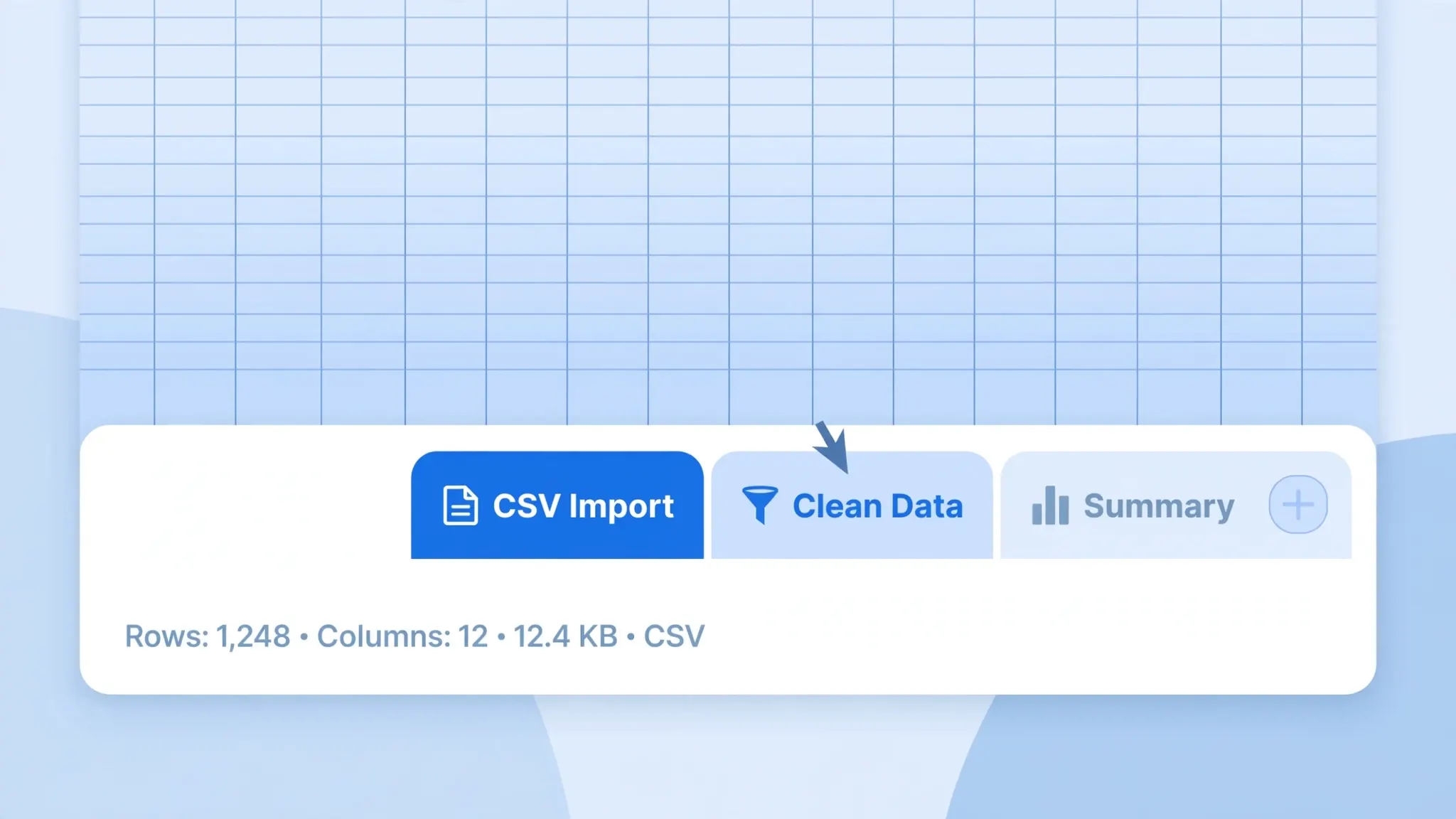
You can also get csv to excel separate sheets entirely by hand — no code, useful for a one-off with five or six files:
- Create a blank workbook and save it as your target .xlsx.
- Import the first CSV: Data → From Text/CSV → select the file → set delimiter and encoding → Transform Data → set column types (Text for codes) → Close & Load.
- Rename the sheet: double-click the Sheet1 tab and give it a meaningful name.
- Repeat for each CSV: each import adds a new sheet (Excel names them after the file or sequentially — rename as you go).
- Reorder the tabs by dragging them into logical order, and delete any leftover blank Sheet1.
- Save. One workbook, many sheets.
Tips for the manual route: import with Power Query (Data → From Text/CSV) rather than opening CSVs directly, so column types stay under your control on every sheet. If two CSVs have identical structures and you would rather stack them, use Data → Get Data → Combine Queries → Append instead — but for the multi-sheet pattern, separate imports are what you want.
Manual multi-sheet in Google Sheets
No Excel? The same pattern works in Google Sheets: upload each CSV to Drive, open each with Sheets (each becomes its own spreadsheet), then copy each sheet into one master spreadsheet via right-click on the tab → Copy to → Existing spreadsheet. Finally, File → Download → Microsoft Excel (.xlsx). It is more clicking than the Excel route, but the result is identical — and free.
Online Tools for Multi-Sheet Conversion
For an occasional batch, you can convert CSV to Excel with multiple sheets without installing anything. The workflow with a batch-capable online converter:
- Multi-select your CSVs in the upload dialog (Ctrl/Cmd-click) or drag the whole set onto the page.
- Set the delimiter and encoding once — good tools apply your settings to every file. Verify on the first file’s preview.
- Choose “merge into one workbook” (wording varies: “combine”, “multi-sheet”, “one file”).
- Download and verify: open the workbook and confirm every file became a sheet with a sensible name.
Online tools are ideal under ~20 files. Beyond that — or when filenames need serious cleaning — the Python script pulls ahead decisively every time. One caution: some converters name sheets Sheet1, Sheet2 regardless of source; if tab names matter to you, check before committing to the tool.
Sheet Names: Rules and Best Practices
Excel enforces hard rules on sheet names, and CSV filenames routinely violate them:
- 31 characters maximum.
sales_report_2026_01_final_CLEANED.csvmust be truncated. - Forbidden characters:
/ \ ? * [ ] :— common in exported filenames, illegal in sheet names. - Cannot be blank, and duplicates get auto-renamed (Sheet1, Sheet1 (2)) by Excel.
Best practices for readable multi-sheet workbooks:
- Short and chronological:
2026-01,2026-02beatsJanuary Sales Data Final. ISO date prefixes sort correctly as text. - Consistent casing: pick
Jan_2026orjan-2026and stick with it across all sheets. - No version noise: strip
_final_v2_CLEANfrom tab names; that metadata belongs in the README sheet, not the tab. - Keep a mapping: your README sheet should list each tab alongside its source filename, so nobody wonders where
2026-03came from.
Splitting One Large CSV Across Multiple Sheets
Sometimes the job is inverted: one enormous CSV that must become many sheets — because it approaches Excel’s 1,048,576-row per-sheet ceiling, or because you want it chunked by category for different teams. Chunked reading keeps memory usage flat no matter how large the file: only one chunk is in RAM at a time, so a 5 GB CSV converts on an ordinary laptop without breaking a sweat. Read in chunks and write each chunk to its own sheet:
import pandas as pd

writer = pd.ExcelWriter('chunked.xlsx', engine='openpyxl')
for i, chunk in enumerate(pd.read_csv('huge.csv', chunksize=500_000, dtype=str)):
    chunk.to_excel(writer, sheet_name=f'Rows_{i+1}', index=False)
    print(f'Wrote sheet Rows_{i+1}: {len(chunk)} rows')
writer.close()
More useful in practice: split by a column value instead of arbitrary row counts — one sheet per region, per year, per category:
df = pd.read_csv('sales.csv', dtype=str)
with pd.ExcelWriter('by_region.xlsx', engine='openpyxl') as writer:
    for region, group in df.groupby('Region'):
        group.to_excel(writer, sheet_name=str(region)[:31], index=False)
Each region’s team gets its own tab, and the groupby guarantees no row is duplicated or dropped. Verify with a row-count sum across sheets afterward.
Styling Every Sheet at Once
Raw multi-sheet workbooks look assembled, not designed. After conversion, polish all sheets in seconds:
- Group the sheets: click the first tab, Shift-click the last — now every action applies to all grouped sheets.
- Format headers: select row 1 on the visible sheet, apply bold and a fill color — it replicates across the group.
- Auto-fit columns and freeze the top row while grouped.
- Click any single tab to ungroup (critical — forgetting this means later edits hit every sheet).
For scripted styling, openpyxl can apply fonts, fills, and column widths per sheet in the same loop that writes the data — worth it for monthly reports that must look board-ready without manual touch-ups.
Set up printing once
Multi-sheet workbooks get printed more than you would expect — the year-end pack always ends up on paper. While sheets are grouped, set Page Layout → Orientation, Fit Sheet on One Page, and add repeating header rows (Page Layout → Print Titles → Rows to repeat at top). Do it grouped once instead of forty times individually.
Multi-Sheet Workbooks vs the Alternatives
Multi-sheet is one point on a spectrum. Here is how to choose:
| Approach | Best when | Watch out for |
|---|---|---|
| Multi-sheet workbook | Related tables one person compares; under ~50 sheets | File bloat; sheet-name limits; navigation |
| Separate workbooks | Unrelated datasets; different owners; different destinations | No cross-file formulas; attachment sprawl |
| One appended master sheet | Identical columns; you want one big filterable table | Loses per-file identity unless you add a source column |
| Database + pivot | Millions of rows; many files; repeated analysis | Setup overhead; overkill for a one-off |
A pragmatic hybrid many teams use: the multi-sheet workbook as the human-readable deliverable, plus one appended master CSV as the machine-readable archive. The workbook is what gets emailed; the master file is what gets loaded into the data warehouse next quarter. Both come from the same script run.
Troubleshooting Multi-Sheet Workbooks
Some sheets are empty
The source CSV was empty or had only a header row. Your script should log row counts per file so empties are visible rather than mysterious.
Sheet names got mangled
Forbidden characters or >31 characters. Apply the cleaner function from the Python section — or rename tabs manually afterward.
The workbook is enormous and slow
Dozens of large sheets make a heavy file. Consider separate workbooks per group, or keep the combined file as an archive and distribute per-sheet extracts.
Dates differ between sheets
Mixed locales across source files. Standardize dates per file at import (explicit dayfirst/locale) before combining — inconsistent date parsing across sheets is a classic multi-source bug.
Cross-sheet formulas show #REF!
A referenced sheet was renamed after the formula was written. Rename sheets first, write formulas last.
Numbers formatted differently on each sheet
Each CSV imported with its own guesses. Group all sheets (Shift-click the tabs) and apply number formats once — or better, enforce types in the import script so every sheet arrives consistent.
The file will not open on a colleague’s older Excel
XLSX works back to Excel 2007, but very wide multi-sheet files can strain old machines. If a recipient reports crashes, send them per-sheet extracts or a PDF of the summary alongside the workbook.
Building a tricky multi-sheet pack — forty tabs, mixed sources, cross-sheet summaries? join the discussion in our community forum, where readers share scripts and patterns for complex multi-sheet conversions.
Frequently Asked Questions
Can I convert CSV to Excel with multiple sheets for free?
Yes. Python with pandas and openpyxl is free and does it in a few lines — loop over your CSVs and write each to its own sheet. You can also do it manually in Excel or Google Sheets at no cost: import each CSV onto its own sheet, rename the tabs, and save as XLSX.
How many sheets can an XLSX workbook hold?
Modern Excel is limited by available memory rather than a fixed sheet count (older versions capped visible sheets at 255). In practice, dozens of sheets work fine; once you pass a hundred, navigation becomes painful and you should consider splitting into multiple workbooks or a database.
What are Excel’s sheet name rules?
Sheet names can be at most 31 characters, cannot contain / \ ? * [ ] or :, and cannot be blank. When converting multiple CSVs, sanitize each filename: truncate to 31 characters and replace forbidden characters with underscores or dashes.
Can I put one CSV per sheet automatically?
Yes — that is the standard pattern. A five-line Python loop reads every CSV in a folder and writes each to its own sheet, using the cleaned filename as the sheet name. Several online batch converters also offer a “merge into one workbook” option that does the same thing.
How do I split one huge CSV across multiple sheets?
Read the CSV in chunks with pandas read_csv(chunksize=…) and write each chunk to a new sheet, or split by a column value with groupby so each category gets its own sheet. This is the standard approach when a file nears Excel’s 1,048,576-row per-sheet limit.
Will formulas work across sheets from different CSVs?
Yes. Once each CSV lives on its own sheet, cross-sheet references work normally — e.g. =SUM(‘Jan 2026:Dec 2026’!B2) totals a cell across a sheet range. Add your summary sheet after all data sheets are in place, and rename sheets before writing formulas to avoid #REF! errors.