Learning to convert CSV to Excel on Android is a genuine superpower for anyone who works away from a desk. Whether you’re a sales rep in Mumbai checking a price list on a Samsung phone, a market-stall owner in Manchester reviewing stock on a Pixel, or a student in Sydney who just downloaded assignment data — CSV files land on Android phones constantly, and Android’s default reaction is to open them as plain, unformatted text. No grid, no columns, no save-as-Excel button. Frustrating, but fixable in about a minute. Searching for “csv to excel android” usually means you need this done fast — the browser method below takes under a minute.
This guide shows you every free way to turn a CSV into a proper Excel (.xlsx) file on Android: the fastest method (a browser-based converter that needs no app at all), the Google Sheets app (already on most phones), WPS Office (popular across Asia and Africa), and the Microsoft Excel Android app. You’ll also learn where Android hides your downloaded files, how to fix the classic “everything in one column” problem, and how to keep phone numbers and leading zeros from getting mangled during conversion.
CSV to Excel Android: Why Files Open as Plain Text
Unlike a Windows PC (which usually has Excel or a spreadsheet viewer) or an iPhone (which hands CSVs to Numbers), Android ships with no default spreadsheet application. When you tap a CSV file in your Downloads folder, Gmail attachment, or WhatsApp document, Android looks for an app that claims the .csv extension — and if you haven’t installed a spreadsheet app, the only claimant is a plain-text viewer. So you see your data as raw text with commas, like Name,Phone,City, instead of a neat grid.
This is purely a viewer problem, not a data problem. Your CSV is perfectly fine; Android just doesn’t know how to render it as a table yet. The moment you route it through a spreadsheet app — or better, convert it to XLSX — everything snaps into columns. There are two philosophies here: install an app once and handle CSVs forever (Google Sheets, WPS Office, or Excel for Android are all free for basic use), or convert in the browser whenever you need it and skip the install entirely.
The browser route deserves emphasis because it sidesteps the biggest Android annoyance: storage. Budget phones in India, Nigeria, Brazil, and the Philippines — some of the largest Android markets in the world — often run tight on space, and every app install is a negotiation. A browser-based converter like csvtoexcel.site/ runs entirely in Chrome, processes the file on your phone itself, and leaves nothing behind except the finished XLSX in your Downloads folder. For a one-off conversion, it’s objectively the fastest path.
Method 1: Browser converter — free, no app needed
This is the headline method for a reason: it works on every Android phone ever made, needs zero installs, and finishes in under a minute.
- Find your CSV. It’s usually in Downloads (open the Files or My Files app), or as an attachment in Gmail/WhatsApp.
- Open Chrome and go to the free CSV to Excel converter.
- Tap the upload button and choose your CSV from the file picker (navigate to Downloads or wherever it’s saved).
- Glance at the preview — confirm your data splits into proper columns.
- Tap convert/download. Chrome saves the
.xlsxfile to your Download folder — you’ll get a notification when it’s done.
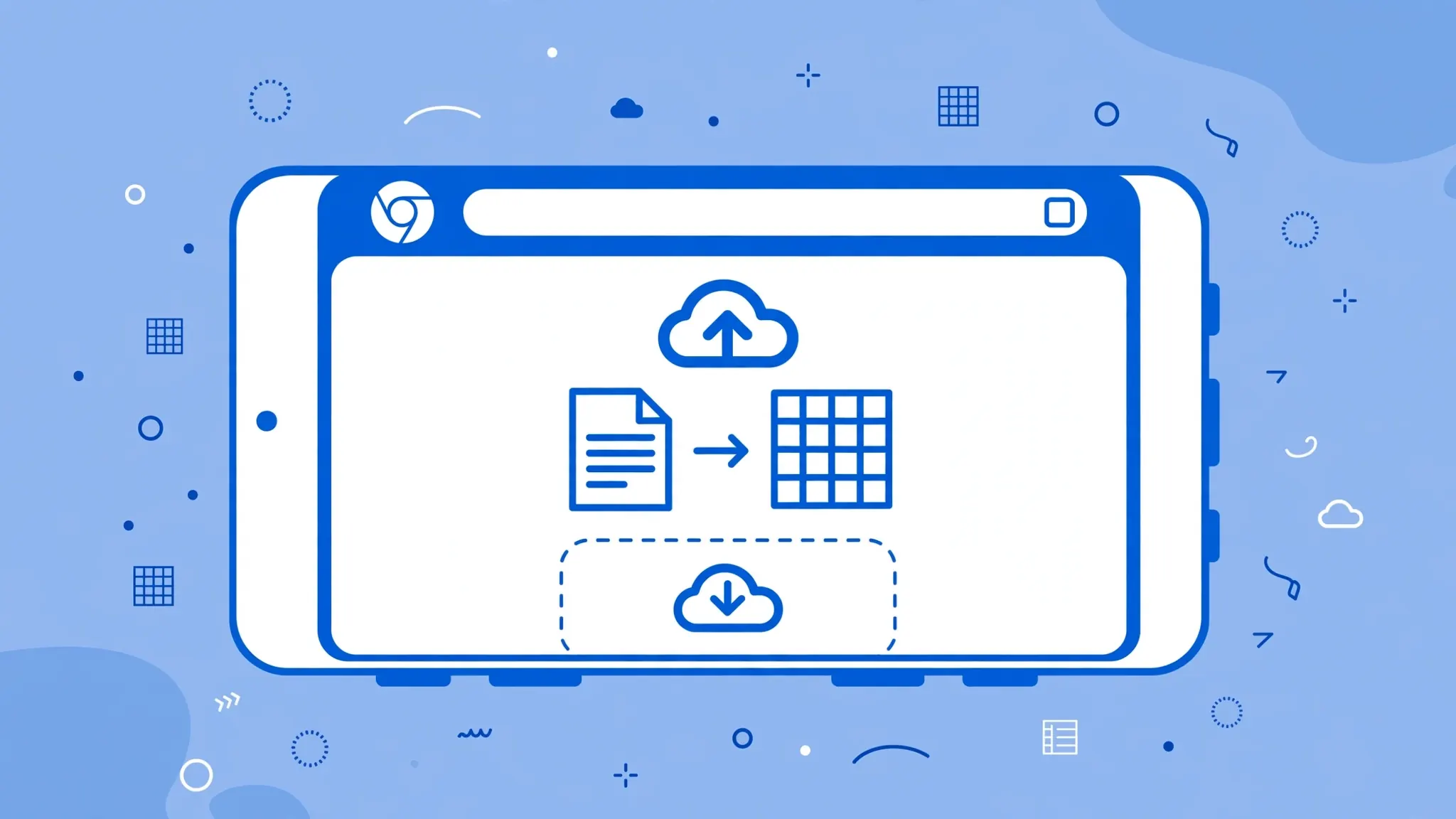
Because the conversion happens on your phone inside the browser, your data never travels to a server. That’s worth knowing if the CSV contains anything sensitive, like payroll figures or customer phone numbers.
Method 2: Convert with the Google Sheets app
Google Sheets comes pre-installed on the vast majority of Android phones (it’s part of the standard Google app bundle), which makes it the most available free option after the browser.
- Open the Google Sheets app.
- Tap the + to create a new spreadsheet, or open sheets.google.com in Chrome’s desktop mode.
- To import: in the mobile app, tap the folder icon to open a file and select your CSV — or in the browser version, go to File › Import › Upload and pick the CSV, choosing Replace spreadsheet.
- Once the data is in, go to File › Download › Microsoft Excel (.xlsx) (in Chrome; in the app, use Share & export › Save as).
- The XLSX downloads to your device, ready to open in any Excel-compatible app.
Method 3: Convert with WPS Office
WPS Office is hugely popular in India, Southeast Asia, Africa, and Latin America — it’s free, lightweight, and opens both CSV and XLSX natively. If you already have it, conversion is two taps.
- Open WPS Office and find your CSV in its file browser (or tap the CSV in your Downloads and choose WPS when asked).
- The CSV opens as a spreadsheet.
- Tap the Tools/Menu button, choose Save As, and pick the .xlsx format.
- Save to your phone storage — done.
WPS’s free tier includes ads, which some people find annoying, but for a quick conversion it’s perfectly serviceable. The paid tier removes ads if you convert files daily.
Method 4: Microsoft Excel app for Android
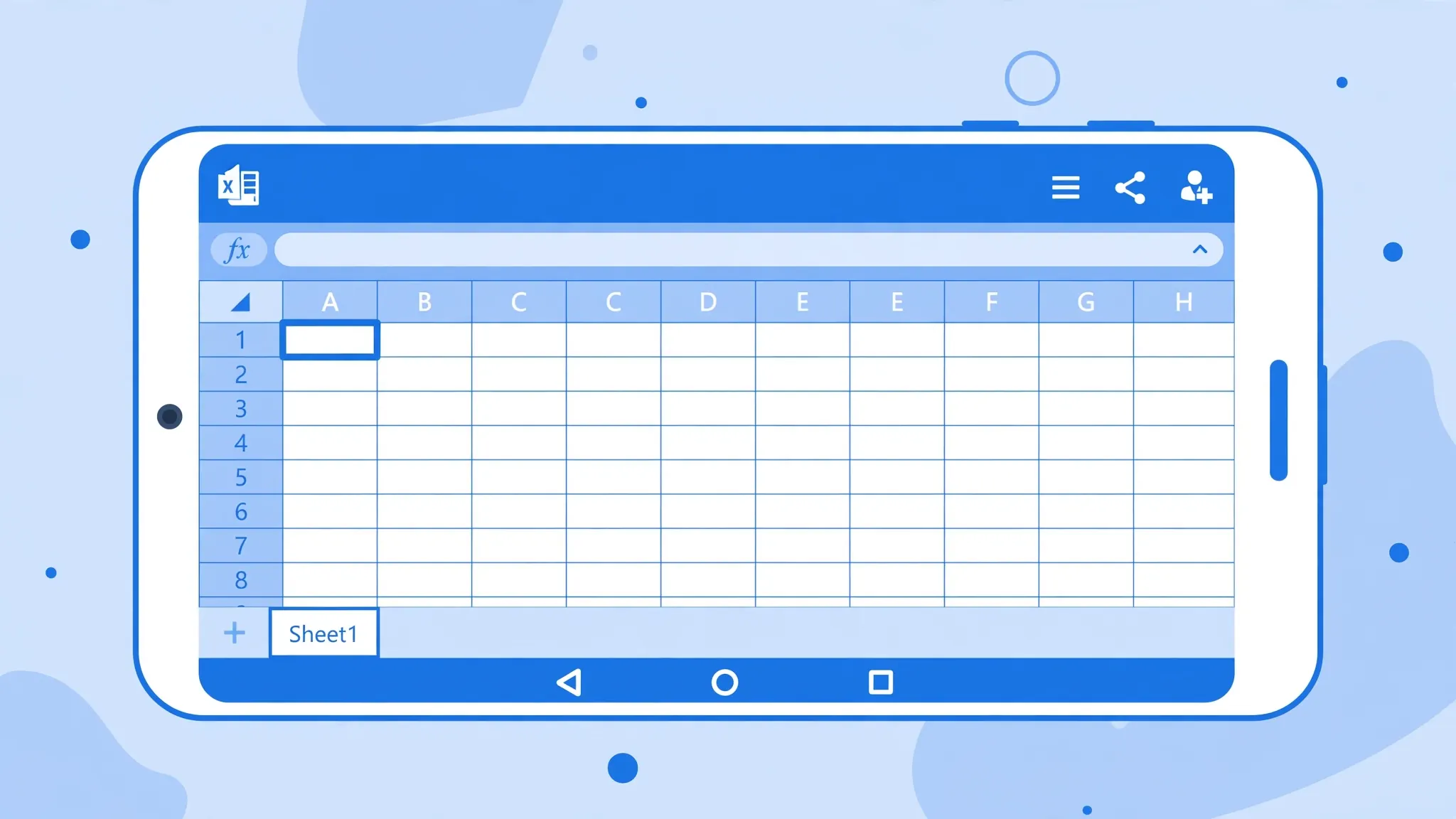
The official Microsoft Excel app is free to install and handles CSV-to-XLSX conversion cleanly, with the bonus that the result is a genuine Microsoft-format file.
- Install Microsoft Excel from the Google Play Store and sign in (a free Microsoft account works).
- Tap Open and browse to your CSV file.
- Once it opens, tap the ⋮ menu (or the file name) and choose Save As.
- Select Excel Workbook (.xlsx) and choose where to save — on the device or OneDrive.
Finding your CSV and XLSX files on Android
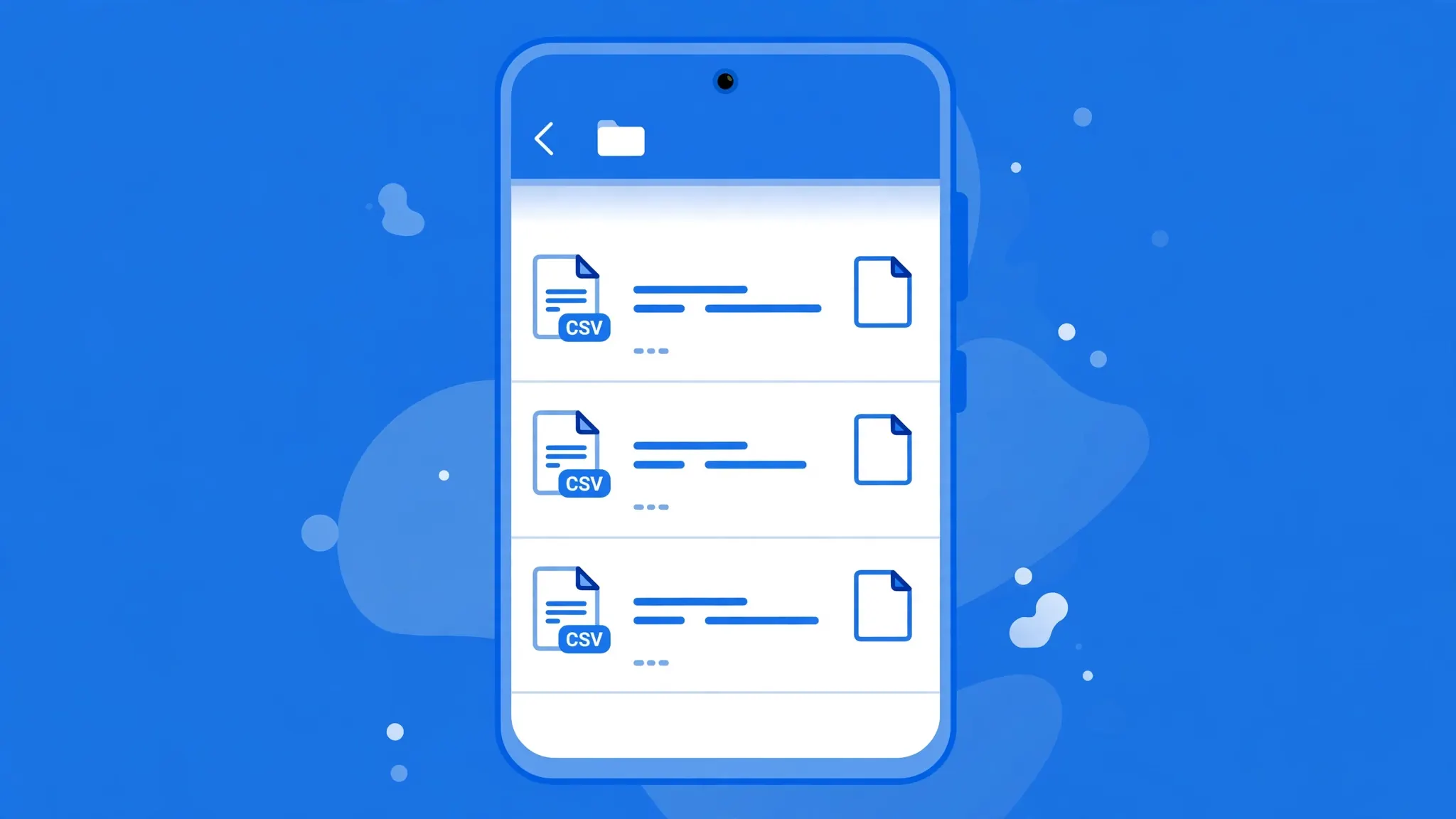
Half of all “Android CSV” frustration is really “where did my file go?” Here’s the map. Downloads: files from Chrome, Gmail attachments you tapped “Download” on, and most converter outputs land in the Download folder — open the Files app (Google’s) or My Files (Samsung’s) and tap Downloads. WhatsApp: documents live in WhatsApp › Media › WhatsApp Documents inside your internal storage. Email attachments: Gmail saves to Downloads; Samsung Email may use its own folder.
- Open Files (or My Files on Samsung).
- Use the search bar at the top and type
.csv— this surfaces every CSV on the phone regardless of folder. - Tap and hold a result to see its full path, or tap to open/share it.
Pro tip: after converting, rename the XLSX immediately (tap and hold › Rename) from something like download(1).xlsx to march-expenses.xlsx. Future you will be grateful. And if you convert the same report monthly, keep a dedicated folder — “Spreadsheets” in your internal storage or Google Drive — so nothing gets lost among camera photos and memes.
Fixing the “one column” problem on Android
You converted the file, opened it proudly, and every row is crammed into column A. This is the delimiter mismatch: the CSV uses semicolons (or tabs) but the importer expected commas. It’s especially common with files from European accounting systems, and with exports from Indian software configured for certain locales.
The fix depends on your method. In Google Sheets: re-import via File › Import › Upload, and in the import dialog set Separator type to Semicolon (or Tab) explicitly instead of “Detect automatically”. In the browser converter: check the preview before downloading — if columns are merged, the file needs a desktop pass or a Sheets import with the right separator. In WPS/Excel app: these usually auto-detect, but if they fail, route the file through Sheets once with the manual separator setting.
If you receive semicolon-delimited files regularly, the permanent fix is upstream: ask the sender to export with commas, or save yourself a preset. In Google Sheets on desktop, the import dialog remembers nothing between sessions — but a tiny Apps Script or a saved Power Query in Excel desktop can re-apply the right separator to each new file in one click.
Sharing your Excel file: WhatsApp, Gmail, Drive
Converting is only half the job — now get the XLSX where it needs to go. WhatsApp: open the chat, tap attach › Document › browse to your XLSX in Downloads, and send. Gmail: compose, tap the paperclip, attach the file from Downloads or Files. Google Drive: open Drive, tap + › Upload, pick the XLSX — now it’s backed up and shareable via link, and you can open it in Sheets any time.
One etiquette note for business sharing: XLSX beats CSV for recipients. A CSV forwarded to a colleague opens as text on their phone too, restarting the whole cycle. The converted Excel file opens as a proper spreadsheet in every app — Gmail preview, Drive, WhatsApp viewer, Excel mobile. Convert once, and everyone downstream benefits.
For sensitive files — salary sheets, customer data — prefer Drive links with restricted sharing over WhatsApp forwards, and remember that the browser converter used in Method 1 processes everything on-device, so the conversion step itself never exposes your data.
Troubleshooting on Android
Chrome won’t upload the CSV. Make sure you’re picking the file through the system file picker (not a third-party file manager that returns odd URIs). If the picker shows no files, the CSV may be in an app-private folder — move it to Downloads first.
The download never starts. Check Chrome’s download settings and storage permission (Settings › Apps › Chrome › Permissions › Files and media). On some Xiaomi/Oppo phones, battery optimization kills background downloads — keep Chrome in the foreground until it finishes.
Special characters look wrong (é → é). Encoding mismatch. Re-import through Google Sheets and try different separator/encoding combinations, or run the file through the UTF-8 encoding fix on a computer.
Numbers lost their leading zeros. Set the column to Text format in Sheets before downloading as XLSX (select column › Format › Number › Plain text).
The XLSX won’t open in the Excel app. Update the app from the Play Store — very old versions occasionally choke on files with many rows. As a fallback, open it in Google Sheets, which is more forgiving.
Out of storage. Converter outputs are small, but app installs aren’t. If space is tight, stick to the browser method (Method 1) and clear Chrome’s cache periodically.
Hit a problem this list doesn’t cover? join the discussion in our community forum — mention your phone model and Android version and you’ll get a targeted answer fast.
Android Pro Tips: Convert CSVs Effortlessly
If you convert CSVs on Android more than once in a while, a little setup turns the whole process from a chore into a reflex. Start with access: in Chrome, open the converter page, tap the menu, and choose Add to Home screen. Now conversion is one tap away, living next to WhatsApp and Gmail where the CSVs arrive. Do the same pinning for the Files app if your launcher buries it.
Next, standardize your folders. Create a “Spreadsheets” folder in internal storage (or in Google Drive) with two subfolders: “CSV In” and “Excel Out”. Every conversion follows the same path — file lands in CSV In, converted file goes to Excel Out with a dated name like stock-2026-10-08.xlsx. This sounds fussy, but after a month you’ll find any file in seconds, and you’ll never again email someone a file named download(3).xlsx.
Learn your senders’ habits. If your supplier in Germany always sends semicolon-delimited files, or your logistics partner’s exports always need the encoding fixed, note the two-tap fix somewhere you’ll see it — or better, ask them once for comma-delimited UTF-8 exports. Most export tools (Shopify, Stripe, Tally, bank portals) let the sender choose the format; one polite request upstream saves you a hundred manual fixes downstream. This single habit separates people who dread CSVs from people who barely notice them.
For recurring reports, consider whether the phone should be in the loop at all. If the same sales export arrives every Monday, a simple routine — a scheduled script on an office PC, or even a colleague who converts and drops the XLSX into a shared Drive folder — means your phone just receives the finished file. And when you are the converter, verify before forwarding: open the XLSX in Sheets or Excel mobile and scroll through it. Phone screens hide sins — a merged column or a mangled date is much cheaper to catch before your manager sees it.
Finally, mind your storage. Budget Android phones fill up fast, and a phone gasping for space converts files slowly and kills background downloads. Keep the browser method as your default (zero installed footprint), clear Chrome’s cache monthly, and move finished spreadsheets to Google Drive rather than hoarding them in Downloads. Your phone — and your future self hunting for last quarter’s file — will thank you.
When to Use a Computer Instead
Your Android phone handles everyday CSV conversion beautifully — but knowing its limits saves you from painful edge cases. Reach for a computer when: the file exceeds ~50MB (mobile browsers and apps get flaky), you need precise control over encodings and delimiters across dozens of files, the CSV feeds a recurring report that should be automated, or the data is sensitive enough that you want a full audit trail of the conversion.
The good news: “use a computer” doesn’t mean abandoning your phone workflow. The hybrid pattern works brilliantly — convert and verify on the PC, then move the finished XLSX to Google Drive or email it to yourself for phone access. Tools like PowerShell automation (Windows) or Python scripts (any OS) can even watch a cloud folder and convert new CSVs automatically, so your phone simply receives finished Excel files. Think of it as division of labor: the computer does the heavy, fiddly, repeatable work; the phone does the viewing, sharing, and quick checks. Most professionals end up here naturally — phone-first for speed, computer-backed for substance — and it’s the most sustainable setup long-term.
One more scenario for the computer: data cleaning. If the CSV needs deduplication, column merging, or format standardization before it becomes a respectable spreadsheet, doing that surgery on a 6-inch screen is masochism. Clean on desktop (Excel’s Power Query or Google Sheets in a desktop browser), convert, then carry the polished file on your phone with pride.
Frequently Asked Questions
How do I convert CSV to Excel on Android without installing an app?
Open Chrome on your phone, visit a free browser-based CSV to Excel converter, upload the CSV from your Downloads or Files app, and download the XLSX. Nothing is installed and the file stays on your device.
Can Google Sheets on Android convert CSV to Excel?
Yes. Open the Sheets app, import the CSV (via File › Import in a browser, or open the CSV in the app), then use File › Download › Microsoft Excel (.xlsx) in the mobile browser version, or share/export from the app.
Why does my CSV open as plain text on Android?
Android has no default spreadsheet app for CSV files, so they open in a text viewer. Install or open the file in Google Sheets, WPS Office, or Microsoft Excel for Android to view it as a proper spreadsheet.
How do I open a CSV file on a Samsung phone?
Tap the CSV in My Files or your email app. If it opens as text, tap Share or Open with and choose Google Sheets, WPS Office, or the Microsoft Excel app to see it as a spreadsheet.
Is converting CSV to Excel on Android free?
Yes. The Google Sheets app is free, browser-based converters are free, and the Microsoft Excel Android app lets you open and save files for free (editing advanced features needs a subscription on larger screens).
Where do converted Excel files save on Android?
Browser downloads go to the Download folder (visible in the Files or My Files app). Files saved from the Sheets or Excel app can be stored on the device or in Google Drive / OneDrive.