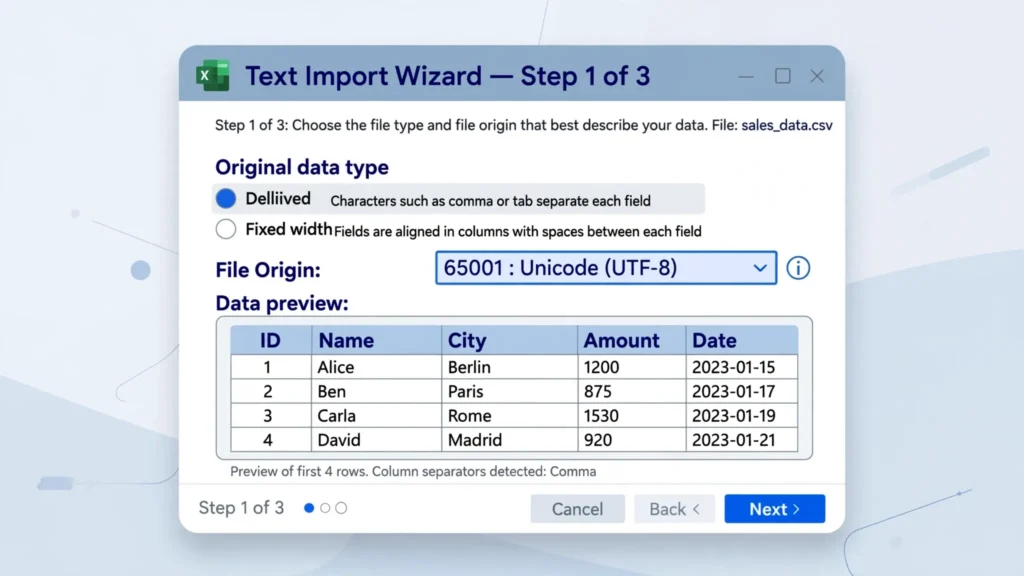
The CSV file origin Excel shows in its Text Import Wizard is the single most powerful — and most mysterious — dropdown in the entire import process. It is the control that decides whether your French accents, German umlauts, Chinese product names, or Arabic customer addresses survive the journey from text file to spreadsheet, or dissolve into the dreaded mojibake. Most people either ignore it (and get garbage) or change it at random (and sometimes get lucky). Neither approach is necessary: File Origin is simply Excel’s name for character encoding, and once you know what the handful of values you will actually meet mean, the dropdown becomes a precision instrument instead of a slot machine.
This guide explains the CSV file origin Excel displays from first principles: what “file origin” means and why Microsoft called it that, the two values that cover 95% of real files (65001 for UTF-8 and 1252 for Western European), the other code pages you will encounter from specific countries, exactly how to set File Origin in both the legacy Text Import Wizard and modern Power Query, and what to do when even the right setting shows garbage. Whether you are in the US, UK, India, Canada, or Australia — or receiving files from all five — this is the reference that makes the dropdown finally make sense.
CSV file origin Excel: what the dropdown actually is
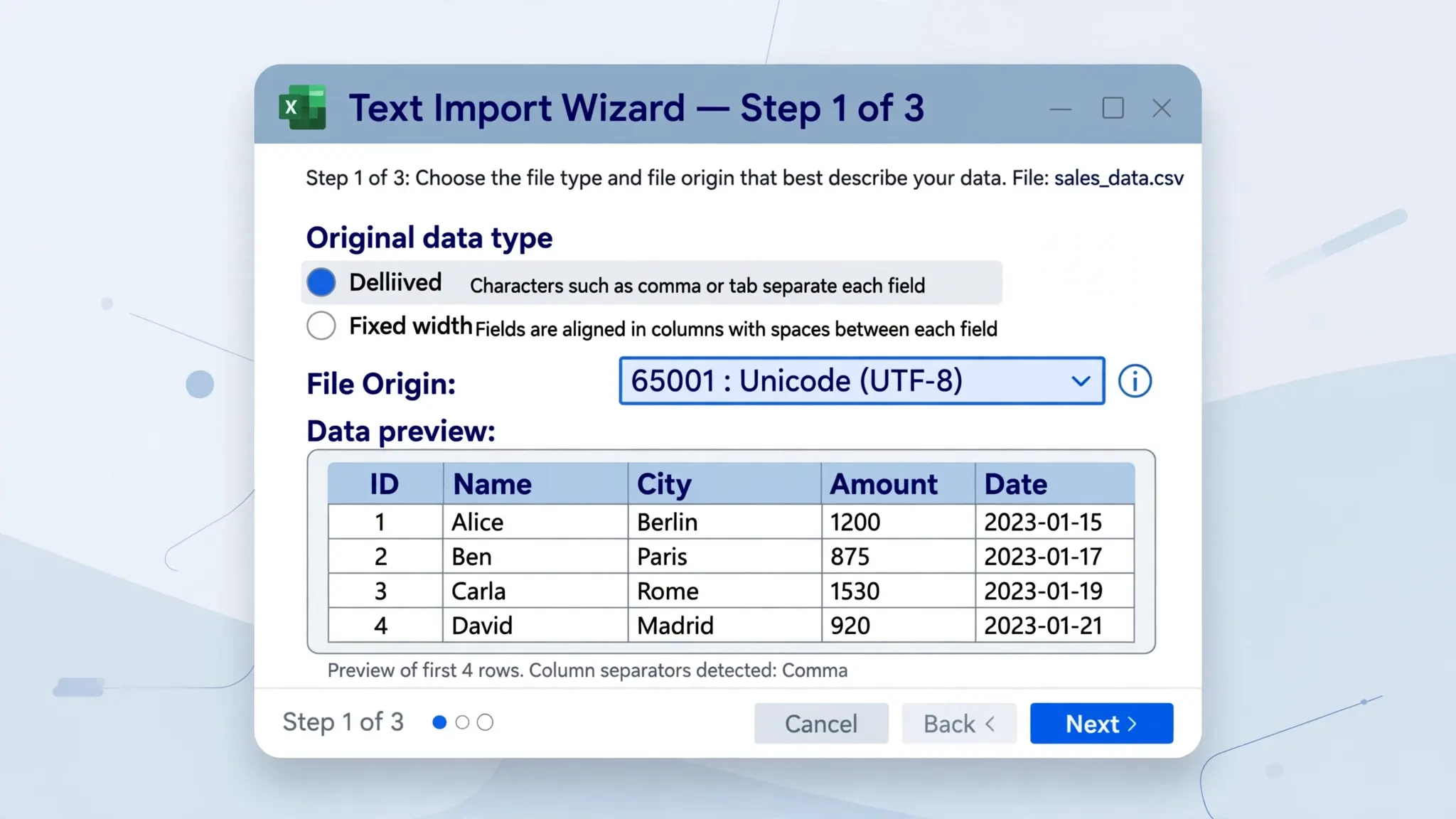
“File origin” is Microsoft’s 1990s-era term for character encoding — the rulebook that turns the file’s raw bytes into characters. A CSV file is just bytes; without knowing the encoding, Excel cannot know whether the byte E9 means é (Windows-1252), the first half of a two-byte UTF-8 character, or something else entirely. The File Origin dropdown is where you tell Excel which rulebook to use. Get it right and text decodes perfectly; get it wrong and you get mojibake — systematically wrong characters, not random corruption.
The values in the dropdown are Windows code page numbers with friendly names: 65001 : Unicode (UTF-8), 1252 : Western European (Windows), 932 : Japanese (Shift-JIS), and dozens more. The number is the precise identifier; the name is a hint. Microsoft’s documentation for importing and exporting text files describes the wizard flow, though it understandably glosses over the encoding archaeology. That archaeology matters because the naming is historical: “file origin” made sense when files literally originated from different systems (a Mac, a DOS PC, a mainframe), each with its own encoding. Today it is just “encoding,” wearing a vintage label.
One critical fact about the CSV file origin Excel offers: it only affects decoding, nothing else. It does not change delimiters, date formats, or number parsing — those live on steps 2 and 3 of the wizard. If your columns are splitting wrong, File Origin is not your problem; if your characters are wrong, File Origin is almost certainly your problem. Keeping those two failure modes separate saves enormous debugging time.
File Origin 65001: Unicode (UTF-8) — the one you’ll use most
65001 is the Windows code page number for UTF-8. When the dropdown says 65001 : Unicode (UTF-8), it means “decode these bytes as UTF-8.” This is the correct choice for the overwhelming majority of CSV files created in the last decade: exports from modern SaaS tools, web applications, Python scripts, Google Sheets downloads, and anything containing international text. If you remember exactly one File Origin value, make it this one.
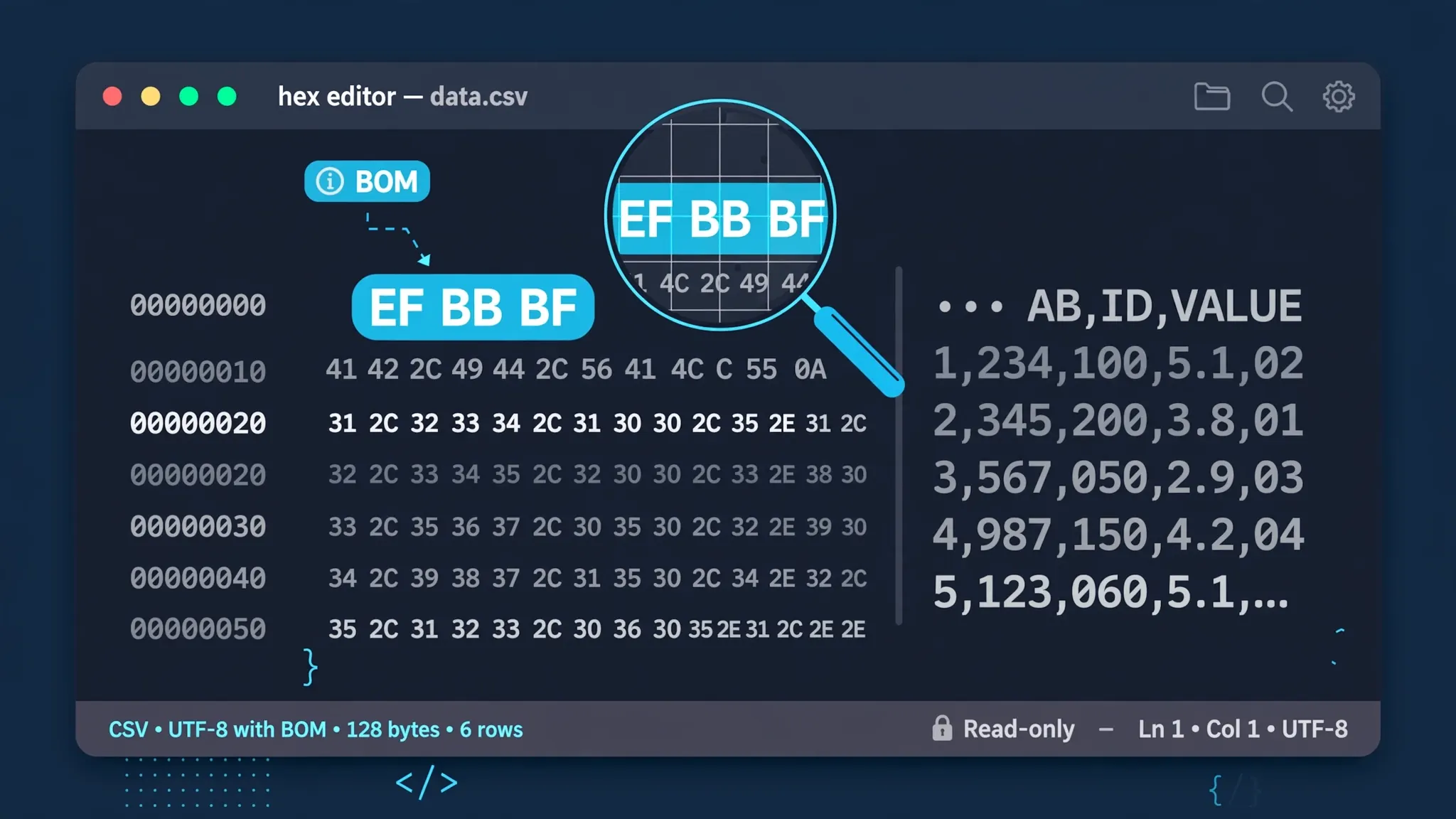
Choose 65001 when: the file contains any non-English characters (accents, CJK, Arabic, Devanagari, emoji); the file was generated by a web app or modern system; the file starts with the UTF-8 BOM bytes EF BB BF; or a previous import with the default origin produced é-style mojibake (the classic sign of UTF-8 bytes read as Windows-1252). Our CSV BOM explained guide covers how the BOM interacts with Excel’s encoding detection.
A useful diagnostic: if you are not sure about a file’s encoding, try 65001 first and look at the preview pane. Correctly decoded UTF-8 is immediately obvious — accented characters, CJK text, and symbols all render properly. If instead you see � replacement characters or the preview fails, the file is probably a legacy single-byte encoding, and 1252 (next section) is your next try. The preview pane is the whole point of the wizard: it lets you test hypotheses about the encoding before committing.
File Origin 1252: Western European (Windows) — the legacy default
1252 is Windows-1252, the legacy single-byte encoding for Western European languages — and the “ANSI” code page on US, UK, Canadian, and Australian Windows systems. The dropdown labels it 1252 : Western European (Windows). Choose it when the CSV was produced by older Windows software: legacy accounting packages, old CRMs, VB6-era export tools, and anything from the 2000s that “just saves CSV.”
The signature symptom calling for 1252: a file that shows � or fails under 65001, but whose bytes include values in the 80–9F range (curly quotes, em-dashes, the euro sign € as byte 80) — bytes that are invalid in UTF-8 but meaningful in Windows-1252. This is extremely common with exports from Indian Tally installations and older European ERP systems, where the generating software predates UTF-8 adoption.
Two warnings. First, 1252 is locale-specific: it only covers Western European characters. A file from Russia needs 1251, from Greece 1253 — picking 1252 for those produces confident-looking garbage. Second, 1252 cannot represent characters outside its 256 slots: if the original data contained Chinese or Arabic text and was saved as 1252, those characters were replaced with ? at save time and are gone forever. No File Origin setting recovers them. The full story of this trap is in our CSV ANSI vs Unicode in Excel guide.
Other File Origin values you’ll meet
Beyond the big two, the dropdown holds a world tour of encodings. You will rarely need most of them — but when you do, nothing else substitutes.
1200 : Unicode and 1201 : Unicode (Big-Endian) — UTF-16 little-endian and big-endian. You will meet these in files from older .NET/Java systems and some SQL Server exports. They are always paired with a BOM (FF FE / FE FF); without it, guess the endianness from the file’s origin system (Windows = little-endian, 1200). Our UTF-8 vs UTF-16 CSV comparison explains when UTF-16 shows up and why UTF-8 usually replaces it.
932 : Japanese (Shift-JIS), 936 : Chinese Simplified (GB2312), 950 : Chinese Traditional (Big5), 949 : Korean — East Asian legacy encodings. Files from Japanese and Chinese enterprise systems very commonly use these; the garbled Chinese characters in Excel problem is frequently a 936-vs-65001 mix-up. If the sender is in Japan, try 932 before anything else.
1250–1258 : the regional Windows code pages — Central European (1250), Cyrillic (1251), Greek (1253), Turkish (1254), Hebrew (1255), Arabic (1256), Baltic (1257), Vietnamese (1258). Match the number to the sender’s country, as described in our ANSI code page reference.
28591 : Western European (ISO-8859-1) — “Latin-1,” the international standard that Windows-1252 extends. Nearly interchangeable with 1252 for most text; the difference is 27 characters in the 80–9F range (1252 has curly quotes and the euro sign there; strict Latin-1 has control codes). If 1252 renders almost everything but mangles the euro sign, try 28591 — or rather, suspect the file was mislabeled and try 1252 first.
437 : OEM United States — the old DOS code page, with box-drawing characters. You will see it only in files from truly ancient DOS-era systems or terminal exports. It is in the list for completeness; if you are reading this guide, you probably do not need it, but now you know what it is.
How to use File Origin: the Text Import Wizard walkthrough
Setting the CSV file origin Excel uses is a two-minute job once you know where to look. The exact clicks differ slightly by Excel version, but the logic is identical.
- Start from a blank workbook — not by double-clicking the CSV. Double-clicking bypasses the wizard entirely and uses Excel’s default encoding guess.
- Go to Data › From Text/CSV (Excel 2016 and later; in Excel 2013 and earlier, Data › From Text). Select your CSV file.
- Step 1 of 3: set File Origin. Open the dropdown and choose your encoding —
65001 : Unicode (UTF-8)for modern files,1252(or the sender’s code page) for legacy files. Watch the preview pane: correct decoding is instantly recognizable. - Still on step 1, confirm the preview shows proper characters in the first few rows, especially any accented or non-Latin text. If it does not, try the next most likely code page before moving on.
- Step 2: set delimiters (usually Tab/Comma as appropriate) and the text qualifier. These are independent of File Origin — get the characters right first, then the structure.
- Step 3: set column data formats (Text for IDs and codes with leading zeros, Date with the right locale order). Click Finish, choose where to put the data, and done.
The single most common mistake is doing steps out of order — fiddling with delimiters while the encoding is still wrong. Always fix File Origin first. Delimiter debugging on misdecoded text is wasted effort, because the preview cannot show you correct structure until the bytes decode into correct characters.
File Origin in Power Query and Get Data
Modern Excel (2016+) routes Data › From Text/CSV through Power Query, which presents the same encoding choice with a friendlier face. Microsoft’s guide to importing data from a CSV, HTML, or text file covers the dialog. In the preview dialog, look for the File Origin (or “Encoding”) dropdown above the data preview — it offers the same code page list, including 65001 and 1252, with a live preview that updates as you change it.
Power Query has two advantages over the legacy wizard here. First, the encoding choice becomes a recorded, replayable step in the query — refresh the query next week against a new file from the same system and the encoding is applied automatically. Second, Power Query’s preview handles edge cases (mixed line endings, inconsistent quoting) more gracefully while you diagnose. For recurring imports from a system with a known encoding, a saved Power Query is strictly better than repeating the wizard.
One Power Query quirk to know: its encoding dropdown sometimes labels UTF-8 as just “UTF-8” and groups the code pages under their numbers. If you cannot find 65001, look for the plain “UTF-8” entry — it is the same thing. And if a query that worked for months suddenly shows mojibake, check whether the source system changed its export encoding (a system upgrade flipping from 1252 to UTF-8 is a classic) before rebuilding anything.
File Origin equivalents in code: Python, R, and the command line
Everything the File Origin dropdown does, code does with an encoding parameter — and for automated pipelines, code is where the setting actually lives.
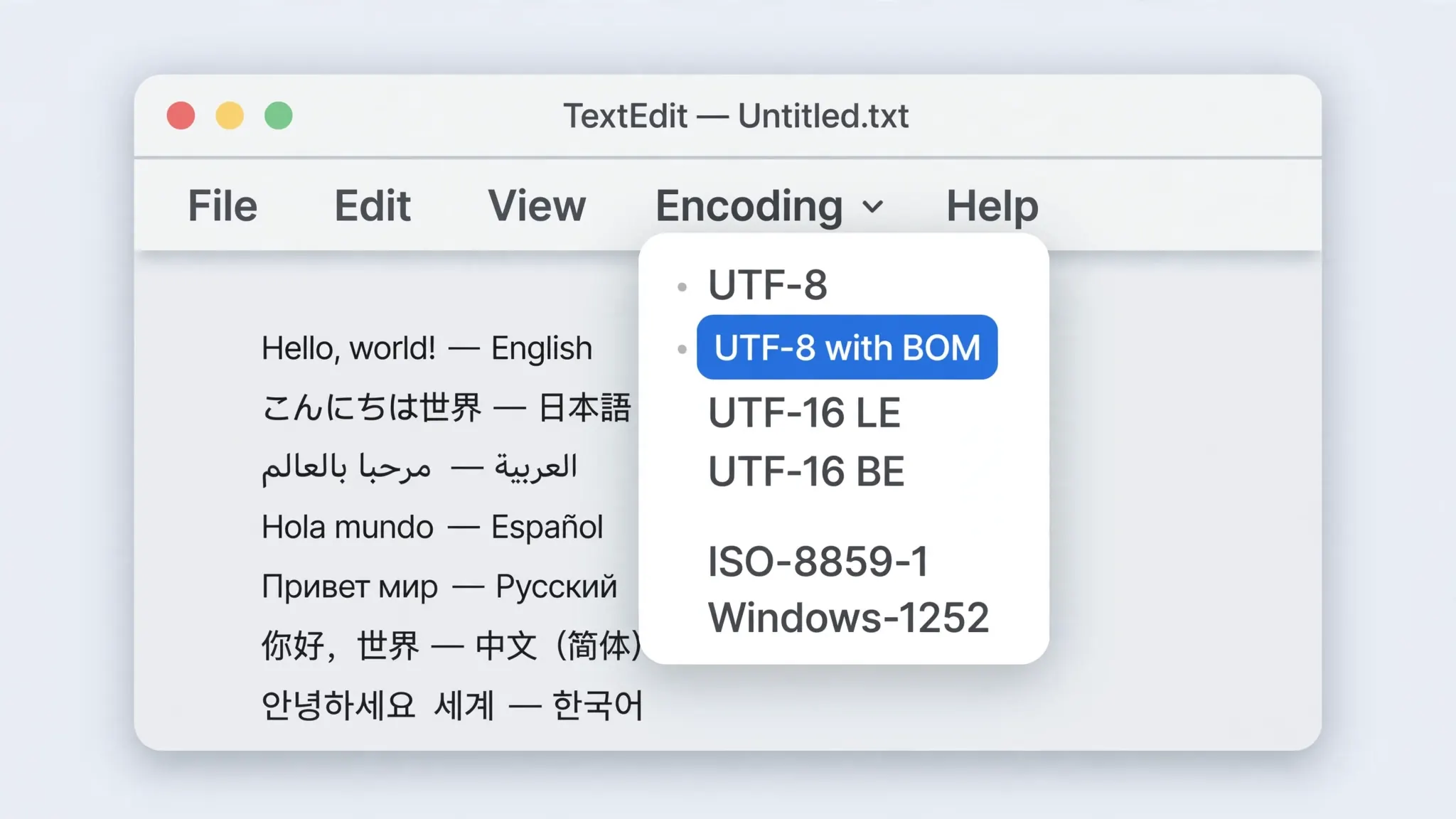
Python / pandas: pd.read_csv("data.csv", encoding="utf-8-sig") is the File Origin 65001 equivalent (the -sig variant also strips a BOM); encoding="cp1252" is File Origin 1252; encoding="utf-16" with BOM auto-detection covers 1200/1201; encoding="shift_jis" covers 932. Pandas’ encoding_errors="replace" mimics Excel’s lenient decoding when you would rather get � than an exception.
R: read.csv("data.csv", fileEncoding = "UTF-8-BOM") or "Windows-1252" — R’s fileEncoding argument is the direct File Origin counterpart. Note that R’s default read.csv assumes the native encoding, which is the same trap as Excel’s double-click open.
Command line: iconv -f WINDOWS-1252 -t UTF-8//TRANSLIT in.csv > out.csv converts between any two code pages; the //TRANSLIT suffix approximates unconvertible characters instead of failing. Pair it with file -i in.csv for a quick encoding guess before converting.
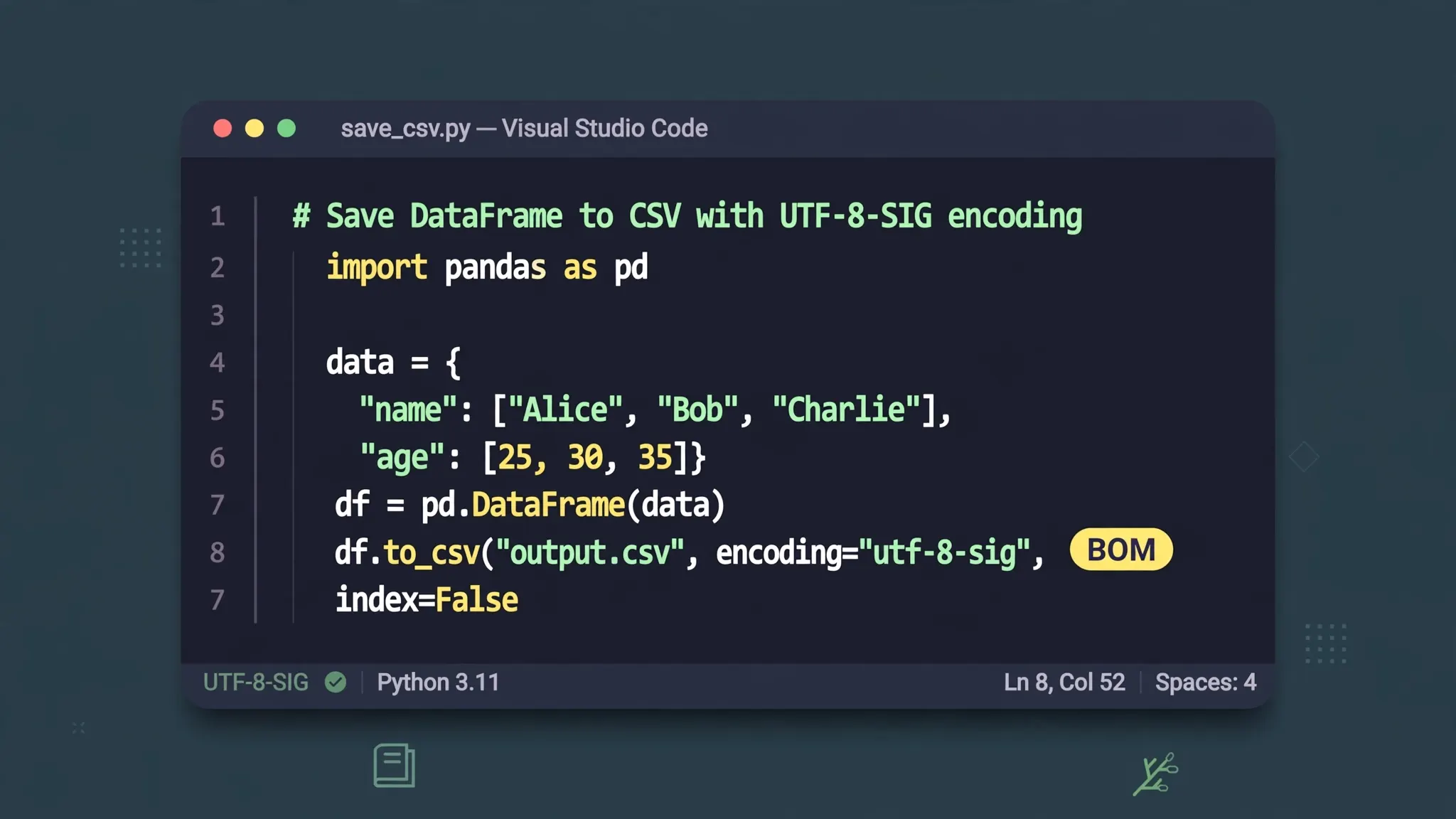
The deeper lesson: File Origin is a manual override for a guess Excel would otherwise make. In automated pipelines, never rely on guessing — declare the encoding explicitly at every read and every write, document the source system’s code page in the pipeline README, and add a validation step that fails loudly if the bytes don’t match expectations. That is the programmatic version of “always fix File Origin first.”
Troubleshooting: when the right File Origin still shows garbage
Sometimes you set the CSV file origin Excel needs and the preview still looks wrong. That means the problem is not the decoding — it is the file itself, or a different setting.
The file was corrupted at save time. If Unicode text was saved as ANSI, unrepresentable characters became ? permanently. No File Origin recovers them — you need the original source re-exported. Diagnose: open the raw file in a text editor; literal ? characters where text should be mean save-time destruction.
Double encoding. A file decoded as Windows-1252 and then re-saved as UTF-8 bakes the mojibake in: é becomes literal characters rather than a decoding artifact. Undo it by reversing the trip — read the file as UTF-8, encode those (wrong) characters back to Windows-1252 to recover the original bytes, then decode as UTF-8. In Python: open('f.csv', encoding='utf-8').read().encode('cp1252').decode('utf-8'). Test on a copy first.
Wrong code page guess. 1252 vs 1250 vs 1251 produce different confident-looking garbage. If the sender’s country suggests a different code page, try it — the preview pane makes each attempt cost five seconds.
Mixed encodings in one file. Rare but real: concatenated exports where different sections used different encodings. No single File Origin fixes this; split the file at the boundary, import each part with its own encoding, and combine in Excel.
It is not an encoding problem at all. Box glyphs (□) with otherwise correct structure usually mean a font issue — install a font covering the script (e.g., a CJK font pack). Single-column pile-ups are delimiter issues. Rule out encoding with the hex-editor check (bytes 80–FF present but decoding wrong = encoding; pure ASCII = look elsewhere).

And that is the complete picture of CSV file origin in Excel: a dropdown that names the file’s encoding, two values that cover nearly everything (65001 for UTF-8, 1252 for legacy Western), a world tour of code pages for the rest, and a troubleshooting ladder for when the obvious answer fails. Master this one dropdown and an entire category of “Excel broke my CSV” complaints disappears — which, for anyone who handles other people’s files for a living, is a genuine quality-of-life upgrade.
.xlsx without touching File Origin at all.Frequently Asked Questions
What is the CSV file origin Excel setting?
File Origin is the Text Import Wizard’s encoding selector. It tells Excel which character encoding the text file uses, so bytes are decoded into the correct characters. The two most important values are 65001 (UTF-8) and 1252 (Western European Windows).
What does File Origin 65001 mean?
65001 is the Windows code page number for UTF-8. Selecting ‘65001 : Unicode (UTF-8)’ tells Excel to decode the file as UTF-8, which correctly renders international characters like accented letters, Chinese, Arabic, and Hindi text.
When should I use File Origin 1252?
Use 1252 (Western European Windows) when the CSV was saved in the legacy ANSI encoding — typically files exported from older Windows software in the US, UK, Canada, or Australia. If 65001 produces mojibake with é sequences, try 1252.
Where is the File Origin dropdown in modern Excel?
In the legacy Text Import Wizard, File Origin appears on step 1. In modern Excel’s Power Query ‘From Text/CSV’ dialog, the same choice appears as the ‘File Origin’ or encoding dropdown above the preview. Both control the same thing: how bytes become characters.
Why does my CSV still show garbage with the right File Origin?
The file may have been corrupted at save time (e.g. Unicode text saved as ANSI, replacing characters with ?), or it may use a different code page than you guessed. Check the raw bytes in a hex editor, or try neighboring code pages like 1250, 1251, or 932 depending on the file’s country of origin.
Does File Origin affect delimiters or number formats?
No. File Origin only controls character encoding (bytes to characters). Delimiters, text qualifiers, and column data types are set on later wizard steps. Encoding problems and delimiter problems are independent — fix them separately.