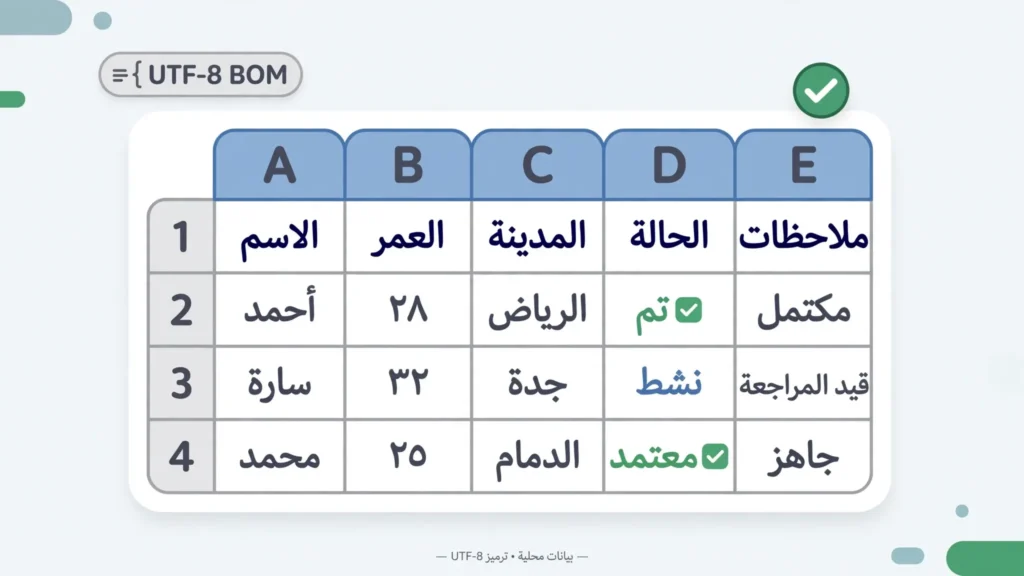
Getting CSV Arabic text in Excel to display correctly involves two separate battles, and most guides only fight one of them. The first battle is encoding: Arabic’s UTF-8 bytes misread as Windows-1252 produce the familiar mojibake, just like Chinese or Hindi text. The second battle is direction: Arabic is written right-to-left, and even perfectly decoded text can look wrong — numbers jumping to the wrong end, mixed Arabic-English phrases reordering themselves — if Excel’s cell direction and the Unicode bidirectional algorithm are not on your side. Fix the encoding but ignore direction, and your data is correct but unreadable; fix direction but not encoding, and there is nothing readable to display.
This guide covers both. You will learn why Arabic garbles in Excel (UTF-8 vs Windows-1256, the missing BOM), how to open CSV files with Arabic characters correctly via the Text Import Wizard, how the BOM question applies to Arabic specifically, the Python codecs for Arabic CSVs, how to export Arabic CSVs that work for recipients from Riyadh to London to Toronto, and how to tame bidirectional text when Arabic and English share a cell. Whether your data comes from the Gulf, North Africa, or the Levant, this is the complete playbook.
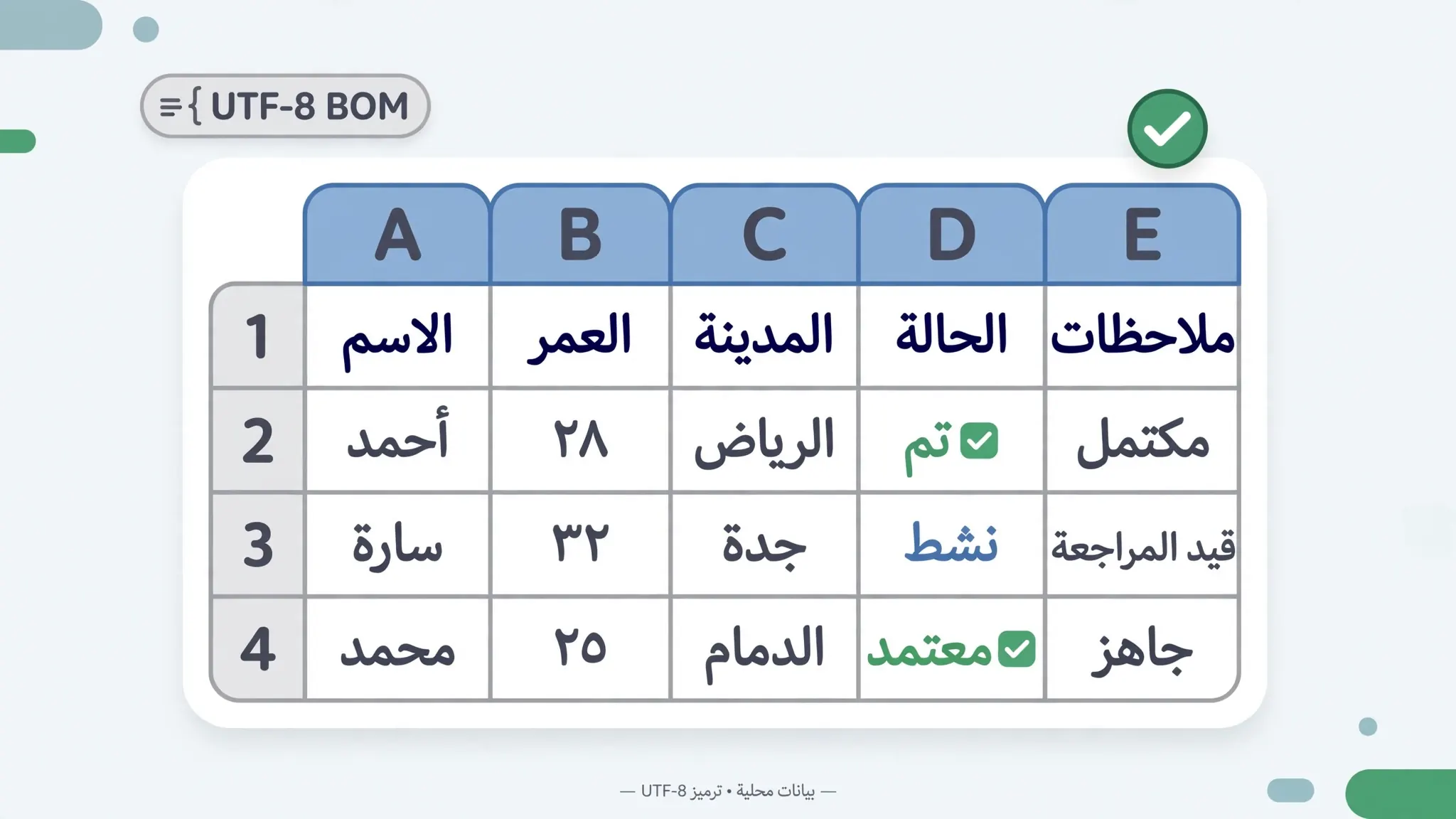
CSV Arabic text Excel: why it garbles
CSV Arabic text in Excel garbles for the same root reason as any non-Latin script: the file’s bytes are decoded with the wrong encoding. Arabic CSVs in the wild come in two encodings. UTF-8 is the modern standard — each Arabic letter takes 2 bytes — used by web apps, modern systems, and international teams. Windows-1256 (code page 1256) is the legacy single-byte encoding of Arabic Windows installations, still produced by older accounting and government systems across the Middle East and North Africa. (UTF-8 now covers over 99% of the web, but legacy encodings persist in enterprise exports.)
When Excel on a Western system double-click-opens either file, it defaults to Windows-1252 — which has no Arabic characters at all. UTF-8 Arabic bytes misread as 1252 become pairs of European gibberish (السعودية for السعودية); Windows-1256 bytes misread as 1252 become different European gibberish (single wrong characters, since 1256 is single-byte). The two failure modes look different, which is actually useful: paired gibberish means “UTF-8 file, wrong decoding” (fix: File Origin 65001); single-character gibberish means “1256 file, wrong decoding” (fix: File Origin 1256).
There is a third, rarer cause specific to Arabic: presentation forms. Unicode includes compatibility characters for Arabic letter shapes (isolated, initial, medial, final forms, U+FExx range), mostly from legacy systems. Modern text uses the standard Arabic block (U+0600–U+06FF) and lets the renderer shape the letters; files containing presentation forms can search and sort incorrectly even when they display fine. If Arabic looks right but Find, VLOOKUP, or sorting fails, suspect presentation forms and normalize with Python’s unicodedata.normalize("NFKC", text).
Right-to-left text in Excel: the display settings that matter
Once Arabic decodes correctly, it must display right-to-left. Excel handles this at two levels.
Cell direction: select the Arabic cells, then set right-to-left paragraph direction. In modern Excel this lives on the Home tab’s Paragraph group (the right-to-left text direction button); in some versions it is under Page Layout › Sheet Right-to-Left, which flips the entire sheet including column order. For a single Arabic column in an otherwise English sheet, set direction on those cells only — flipping the whole sheet confuses English columns.
Fonts: the font must contain Arabic glyphs. Calibri and Arial (Excel’s defaults) both do, as do Times New Roman and most system fonts. If Arabic shows as boxes (□) despite correct decoding, the font is the culprit, not the encoding — switch fonts before touching anything else.
Alignment vs direction: right-aligning a cell is not the same as right-to-left direction. Alignment moves the text block; direction changes how the characters flow and where the cursor starts. For pure Arabic text, right-to-left direction with default alignment looks natural; for mixed content, you may need both direction and explicit alignment. Do not be surprised if the first attempt looks slightly off — bidi text has genuine subtleties, covered in the troubleshooting section below.
How to open CSV with Arabic characters correctly
The procedure for how to open CSV with Arabic characters is the same reliable import-wizard flow used for every script — with Arabic-specific File Origin choices.
- Open Excel to a blank workbook. Do not double-click the CSV.
- Go to Data › From Text/CSV and select the file.
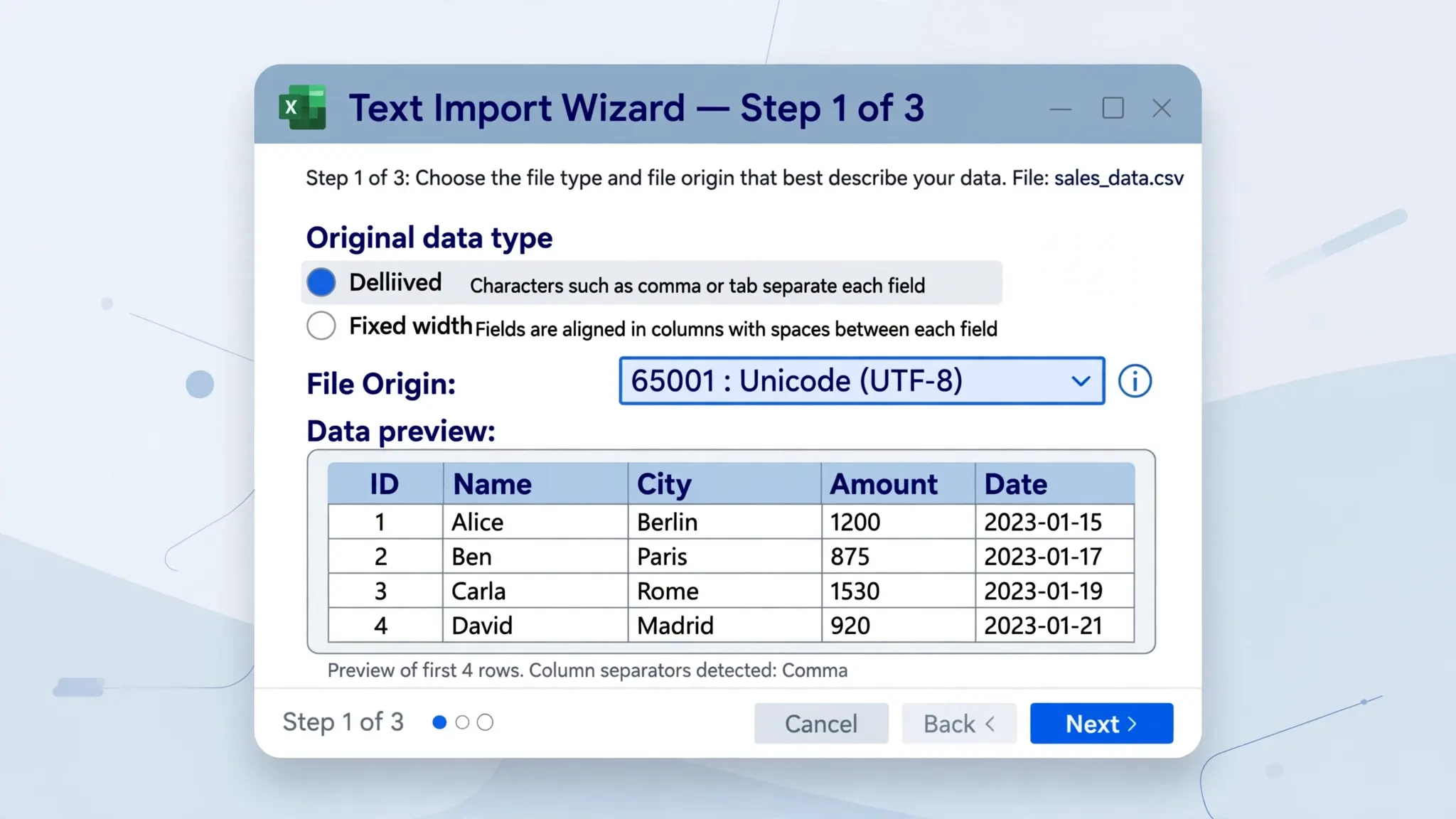
- Set File Origin to
65001 : Unicode (UTF-8)first. Check the preview: if Arabic renders correctly, this was a UTF-8 file — the most common case for modern exports. - If 65001 shows garbage, try
1256 : Arabic (Windows). Files from legacy Arabic Windows systems (older accounting software, government portals) very commonly use this code page. - Confirm the delimiter and text qualifier on the next wizard step, set column types (Text for IDs, phone numbers, and anything with leading zeros), and click Load.
- Select the Arabic columns and set right-to-left direction plus an Arabic-capable font.
- Save as
.xlsxto preserve everything, or as CSV UTF-8 if a CSV must go back out.
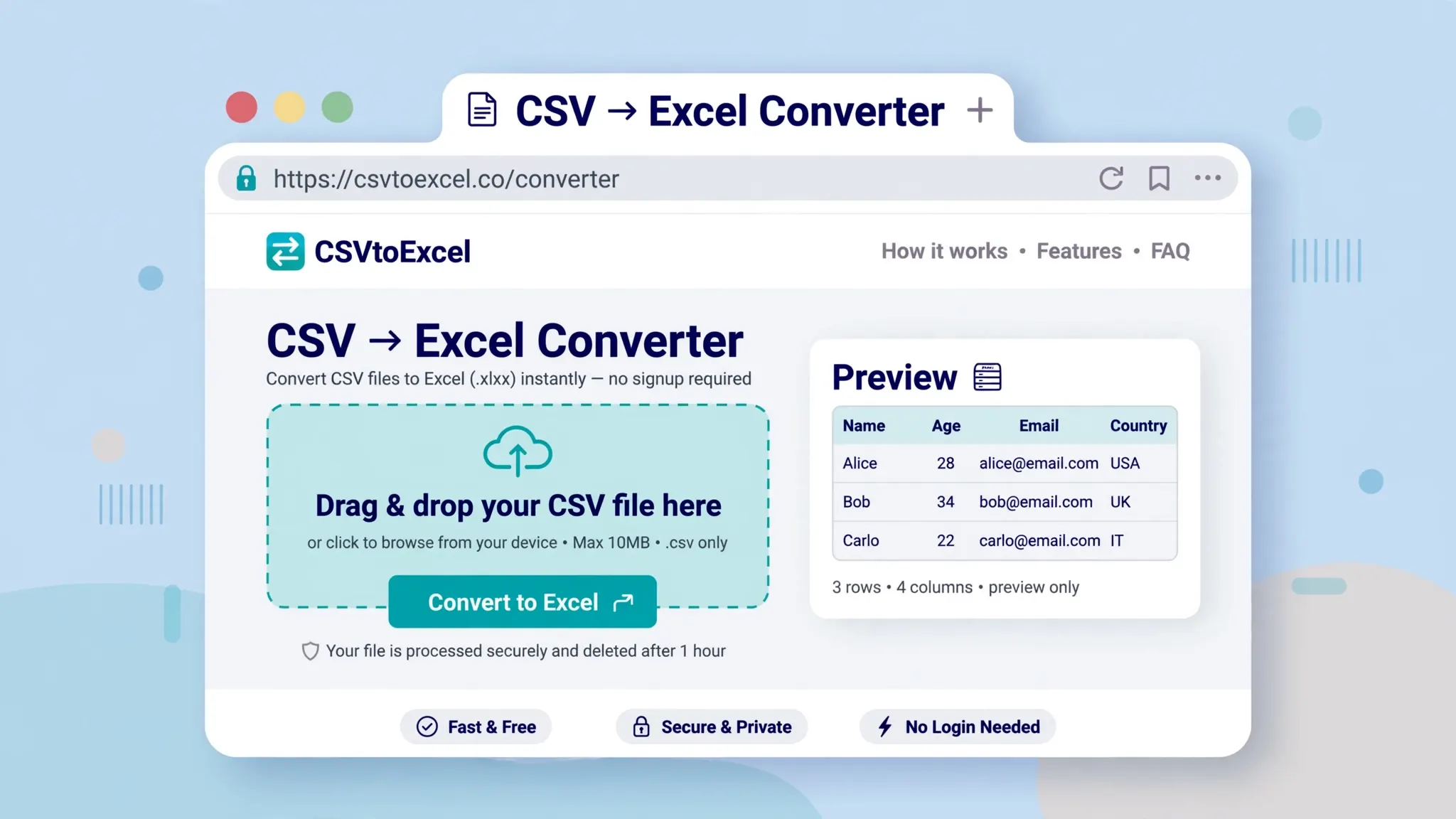
For a recurring Arabic report — say, a weekly sales export from a Gulf distributor — save the import as a Power Query so the File Origin and direction choices replay automatically. Microsoft’s text file import documentation covers the wizard behind it. And when the file needs to become a shareable workbook rather than a raw CSV, the free CSV to Excel converter handles the encoding detection for you; you only need to set the RTL direction afterward.
The BOM’s role in Arabic CSVs
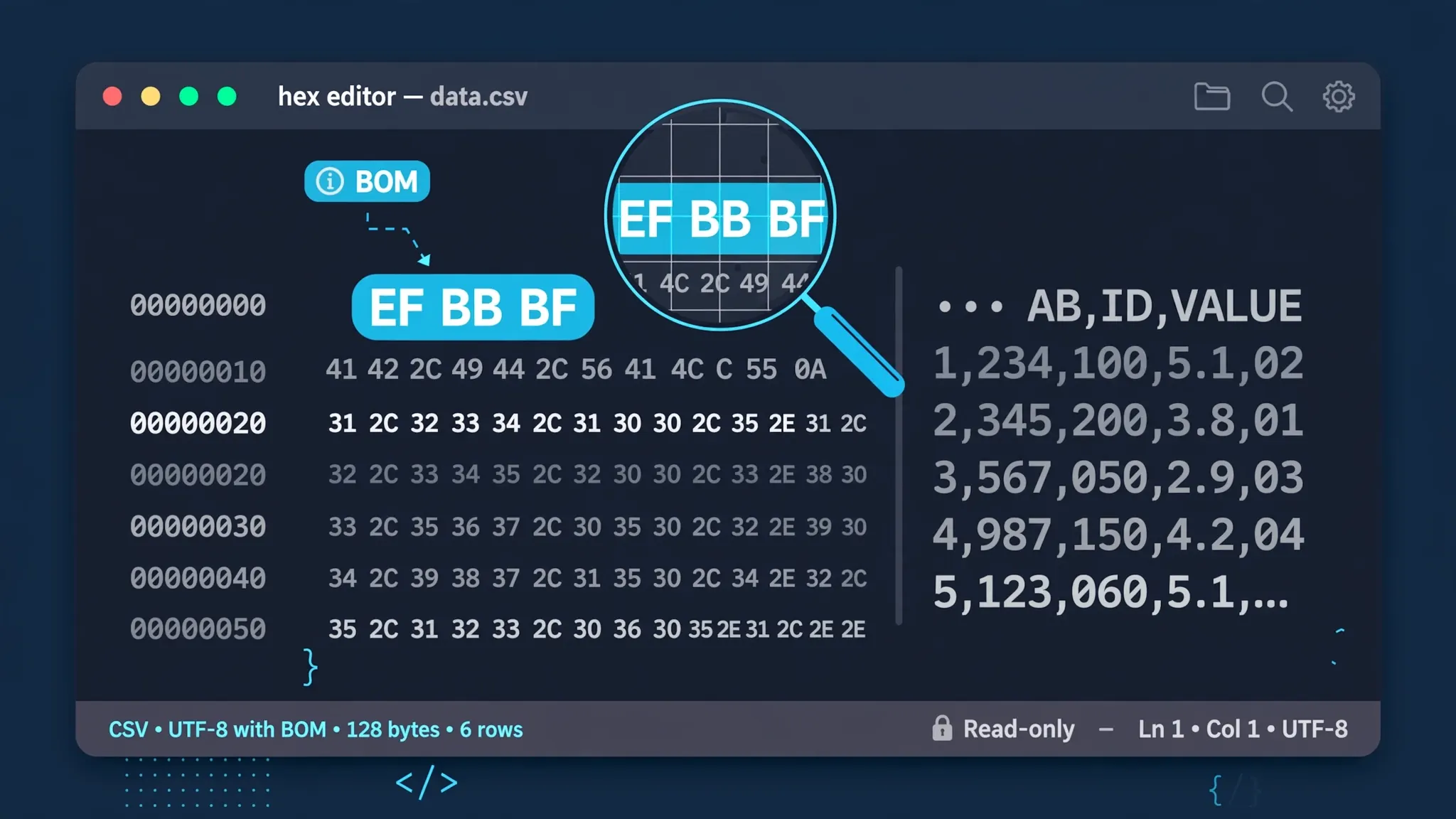
The BOM question for Arabic is identical to the general case, with one Arabic-specific wrinkle. Include the UTF-8 BOM (EF BB BF) when humans will double-click-open the file in Excel on Windows — it is the only thing that makes Excel’s default open path detect UTF-8, and without it Arabic becomes mojibake. Omit the BOM when the CSV feeds databases, APIs, or scripts, where it can corrupt the first header. Our CSV BOM explained guide covers the mechanics; the Arabic wrinkle is this:
Legacy Windows-1256 files never carry a BOM — BOMs are a Unicode concept, and 1256 is not Unicode. So a BOM’s presence is itself diagnostic: if the file starts with EF BB BF, it is UTF-8, full stop — do not try File Origin 1256 on it. Conversely, a BOM-less file with Arabic-looking single-byte patterns is probably 1256. The file command on macOS/Linux reports “UTF-8 Unicode (with BOM) text” explicitly, which settles the question in one step.
Arabic CSVs in Python: the right codecs
Python’s explicit codecs remove the guessing:
pd.read_csv("sales.csv", encoding="utf-8-sig") — UTF-8 with or without BOM. Start here.
pd.read_csv("sales.csv", encoding="cp1256") — legacy Arabic Windows files. If utf-8-sig produces mojibake, this is the next try, and it is right the large majority of the time for files from older Middle Eastern systems.
pd.read_csv("sales.csv", encoding="cp720") — the DOS Arabic code page, for truly ancient exports. Rare, but it exists in the wild.
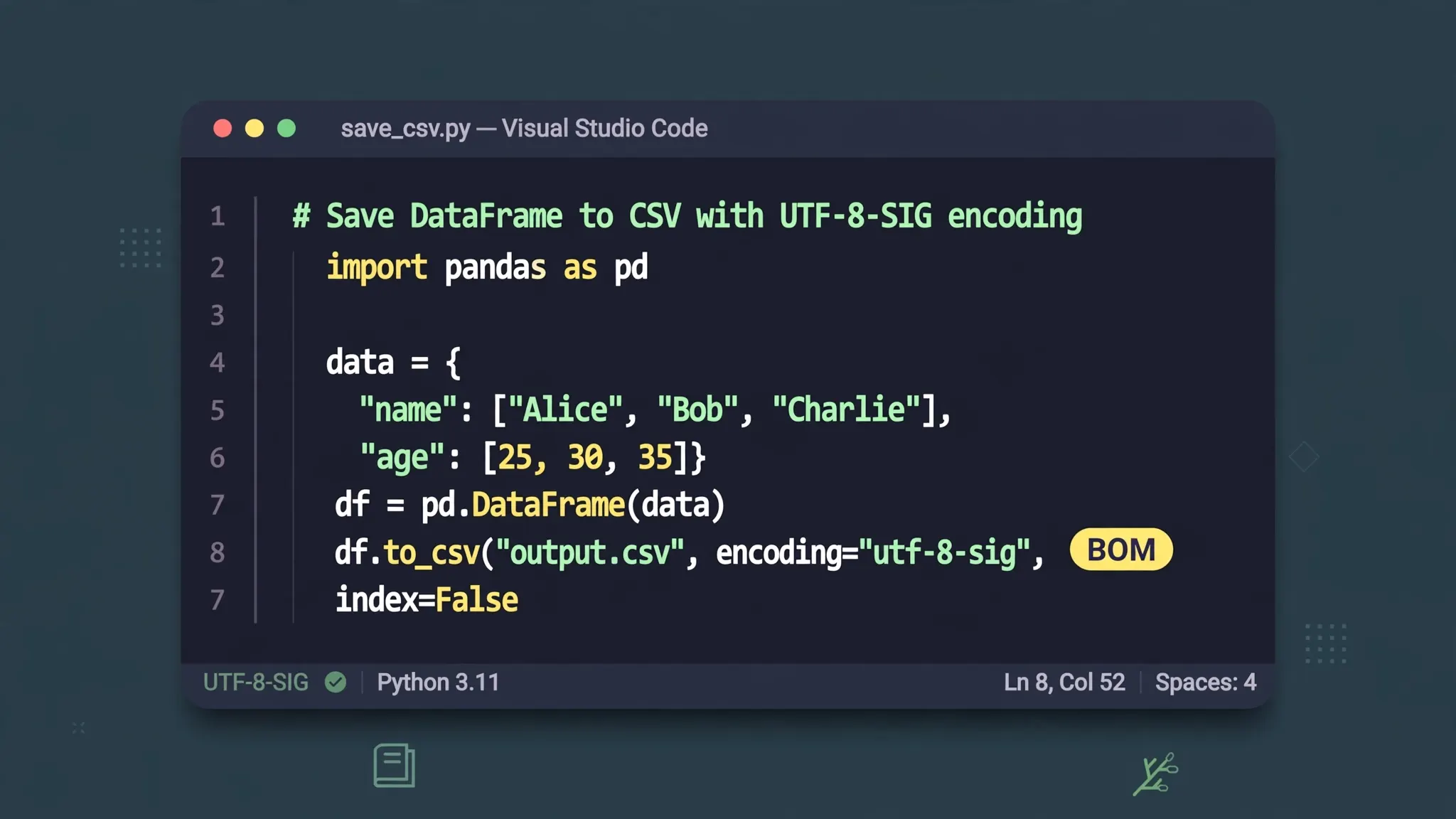
When writing Arabic CSVs for Excel users: df.to_csv("out.csv", encoding="utf-8-sig", index=False). The BOM triggers Excel’s UTF-8 detection; without it, your recipients get mojibake and you get support tickets. For Arabic text processing, two more tools earn their keep: arabic_reshaper plus python-bidi for rendering Arabic correctly in matplotlib charts and other LTR-assuming libraries, and unicodedata.normalize("NFKC", ...) for collapsing presentation forms to standard characters before matching or deduplication.
Exporting Arabic CSVs that work for every recipient
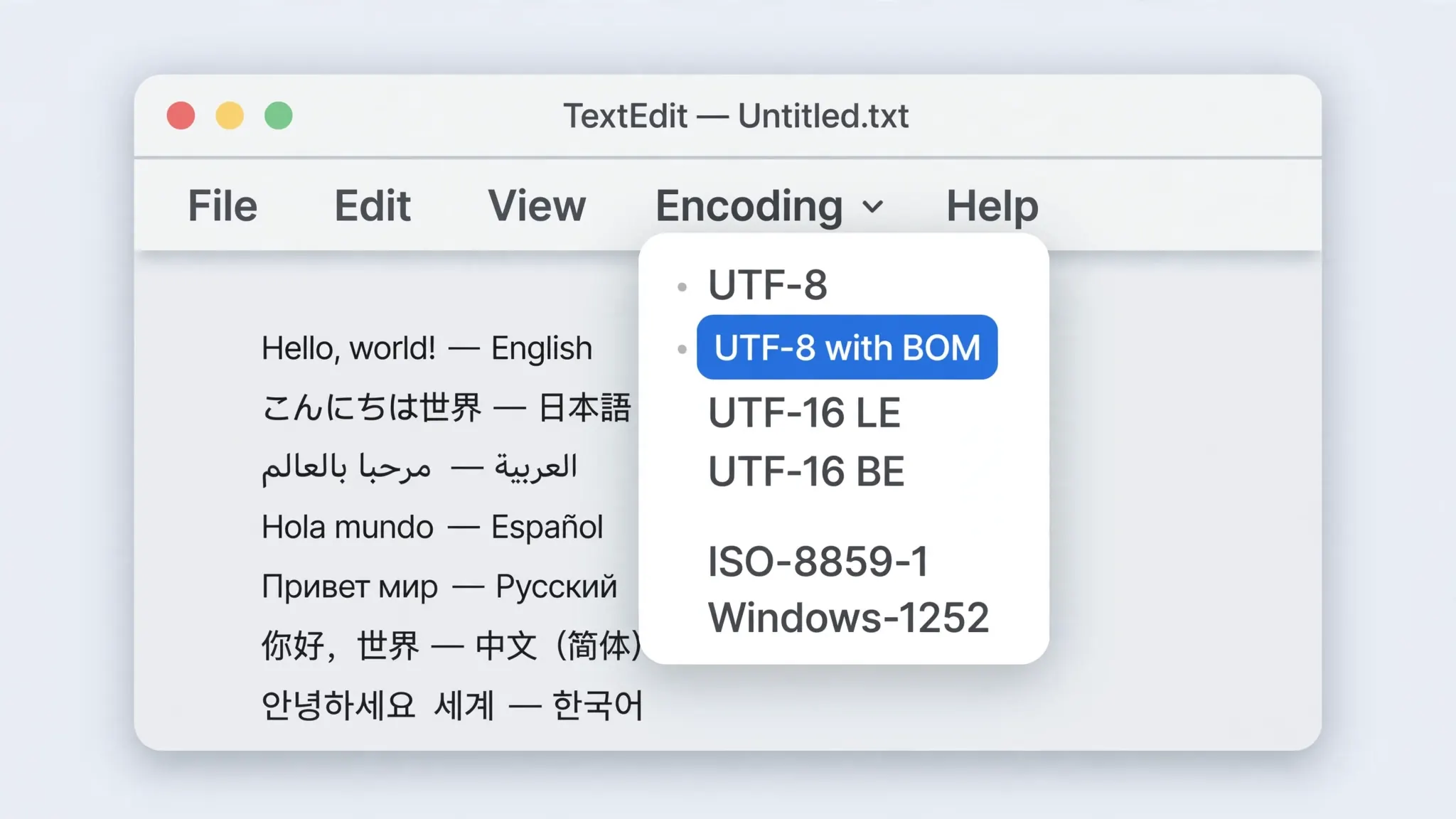
If you produce Arabic CSVs, standardize on UTF-8 with BOM and document it. From Excel: File › Save As › CSV UTF-8 (Comma delimited) — never the plain CSV option, which writes your local ANSI code page and destroys Arabic on Western systems. From Google Sheets: download the CSV, then add the BOM in Notepad++ (Encoding › Convert to UTF-8-BOM) before sending to Excel-on-Windows recipients. From Python: encoding="utf-8-sig".
Include a one-line open instruction with the file: “Open via Data › From Text/CSV with File Origin 65001, or just double-click — the file carries a UTF-8 BOM.” Recipients in Saudi Arabia, the UAE, Egypt, the UK, or Canada all get the same correct result. If a specific legacy recipient requires Windows-1256, generate it as a separate disposable export — never as your master copy — and verify no character was lost in the down-conversion (1256 covers Arabic plus basic Latin; anything else becomes ?).
CSV Arabic text Excel: the 10-point pre-flight checklist
Run through this list before any important CSV Arabic text Excel import and you will catch every common failure before it reaches your spreadsheet.
- Confirm the file’s encoding. Check for the UTF-8 BOM (
EF BB BF) with a hex view or thefilecommand. BOM present = UTF-8, use File Origin 65001. No BOM + Arabic content = probably UTF-8 anyway (modern export) or Windows-1256 (legacy system) — check the sender. - Ask the sender what system exported it. A Gulf ERP from 2008 screams Windows-1256; a Shopify-style SaaS export screams UTF-8. One question replaces ten minutes of guessing.
- Import — never double-click. Data › From Text/CSV, set File Origin explicitly. Every CSV Arabic text Excel horror story starts with a double-click.
- Verify the preview before loading. Scroll through several rows of Arabic text in the preview pane. Correct rendering there means correct rendering in the sheet.
- Set text qualifiers and delimiters after encoding. Encoding first, structure second — always.
- Type ID and phone columns as Text. Arabic-region phone numbers with leading zeros (05x mobiles in Saudi Arabia, 01x in Egypt) lose their zeros if Excel types the column as numeric.
- Apply right-to-left direction to Arabic columns. Do this right after loading, before you start reading the data — misordered display causes misreading.
- Check for presentation forms. If VLOOKUP or deduplication fails on visually identical Arabic, normalize with
unicodedata.normalize("NFKC", …). - Save the result as .xlsx for working copies; export CSV UTF-8 (with BOM) only when a CSV must go downstream.
- Document the encoding in the file name or a README (
sales_2026_utf8-bom.csv) so the next person skips this entire checklist.
Arabic CSV error messages, translated
When a CSV Arabic text Excel import goes wrong, the screen shows symptoms, not explanations. Here is the translation table:
السعودية (paired European gibberish): UTF-8 decoded as Windows-1252. Re-import with File Origin 65001. Data is intact.
ÇáÓÚæÏíÉ (single wrong characters): Windows-1256 decoded as Windows-1252. Re-import with File Origin 1256. Data is intact.
??? everywhere: destroyed at save time — get a re-export; nothing recovers this file.
□□□ boxes: font lacks Arabic glyphs — change the font, not the encoding.
Text runs the wrong way / numbers jump ends: cell direction is LTR — set right-to-left direction on the column.
First header reads name: a BOM was read as data by a non-Excel tool — strip it or read with utf-8-sig.
Print this list and tape it to the monitor of whoever handles the Arabic imports. Six patterns cover nearly every real-world failure, and each one points directly at its fix.
Testing your Arabic CSV across Excel versions and locales
An Arabic CSV that opens perfectly on your machine can still break on a colleague’s — because Excel’s default encoding guess follows the Windows locale. A file without a BOM double-clicked on a US-English Windows box decodes as Windows-1252; on an Arabic Windows box it decodes as Windows-1256 and may look fine. This is why “it works on my machine” is the most dangerous sentence in CSV handling.
The professional test matrix is small: open the file by double-click on (1) a Western-locale Windows machine, (2) an Arabic-locale Windows machine if you have access to one, and (3) via the import wizard with File Origin 65001. If it renders correctly in all three, ship it. If it only works via the wizard, add the BOM and retest the double-click case. If it only works on the Arabic-locale machine, the file is Windows-1256 — convert to UTF-8 with BOM and retest.
For files distributed widely — customer data exports, public datasets — consider shipping an .xlsx alongside the CSV. Workbooks store text as Unicode internally with no encoding ambiguity, eliminating the entire test matrix for recipients who just need to view or analyze the data. Reserve the raw CSV for the recipients who specifically need it (developers, data pipelines), and give them the BOM-less UTF-8 variant their tools expect.
Troubleshooting mixed Arabic-English (bidirectional) text
Mixed-direction text follows the Unicode bidirectional (bidi) algorithm, and its surprises are logical once you know the rules. The core rule: strongly-directional characters (Arabic letters = RTL, Latin letters = LTR) set the direction of their run; neutral characters (spaces, punctuation) and numbers take the direction of their surroundings.
Numbers jumping ends: in الطلب 12345 تم, the digits sit between RTL runs and display right-to-left — which can look “wrong” to someone expecting LTR number order. The digits themselves are in the right order (1-2-3-4-5); only their position follows RTL flow. This is correct Unicode behavior, not a bug. If a downstream system needs LTR number display, isolate numbers in their own cells.
Parentheses and brackets mirroring: ( in RTL context renders as ) — again correct per Unicode, but startling the first time. Mixed text like خصم (10%) can look scrambled when the bidi algorithm reorders the neutrals. Keeping each language in its own column avoids the entire class of problems.
Sorting and filtering surprises: Excel sorts by code point order, which for Arabic is the logical (typing) order — generally what you want. But mixed columns sort Arabic and Latin blocks separately, which can look random. For critical sorts, add a helper column with a transliterated or coded key.
CSV structural risk: bidi reordering is purely display — the underlying bytes keep logical order, so CSV parsing is unaffected. The danger is human: someone reads a reordered cell and “fixes” the data to match the display, corrupting the logical order. When in doubt, check the formula bar (which shows logical order) rather than the cell.
Getting CSV Arabic text Excel imports right is fully solvable: decode with the right File Origin (65001 for UTF-8, 1256 for legacy), carry a BOM for Excel-on-Windows recipients, set right-to-left cell direction, and keep mixed-direction content in separate cells where it matters. The same encoding foundations apply to every script — our CSV Hindi text in Excel guide covers Devanagari’s version of this story, and CSV BOM explained goes deeper on the byte order mark.
Frequently Asked Questions
How do I open a CSV with Arabic characters in Excel?
Use Data › From Text/CSV (not double-click), set File Origin to 65001 (UTF-8) — or 1256 for legacy Arabic Windows files — verify the preview shows correct Arabic, then load. Save as XLSX or CSV UTF-8 afterward.
Why is Arabic text garbled in Excel?
Excel decoded the file with the wrong encoding — usually Windows-1252 instead of UTF-8 or Windows-1256. Arabic’s multi-byte UTF-8 sequences become mojibake. Re-import with the correct File Origin and the text recovers, since the bytes are intact.
How do I make Excel display Arabic right-to-left?
Select the cells, then use the right-to-left direction button (Home tab, Paragraph group in newer Excel, or Page Layout › Sheet Right-to-Left for the whole sheet). Also set an Arabic-capable font like Arial or Calibri, which both support Arabic glyphs.
Does an Arabic CSV need a BOM?
For recipients opening the file in Excel on Windows, yes — the UTF-8 BOM triggers correct encoding detection on double-click. For databases and scripts, omit it. The rule is the same as for any UTF-8 CSV: BOM for humans on Excel, no BOM for machines.
What encoding do Arabic CSV files use?
Modern files use UTF-8. Legacy files from Arabic Windows systems use Windows-1256 (code page 1256). If UTF-8 import produces garbage, try File Origin 1256 before anything else.
Why do numbers appear on the wrong side of Arabic text?
That is the Unicode bidirectional algorithm at work: digits are direction-neutral and take the surrounding text’s direction. Set the cell to right-to-left direction for consistent display, and keep numbers in separate cells from Arabic text where possible.