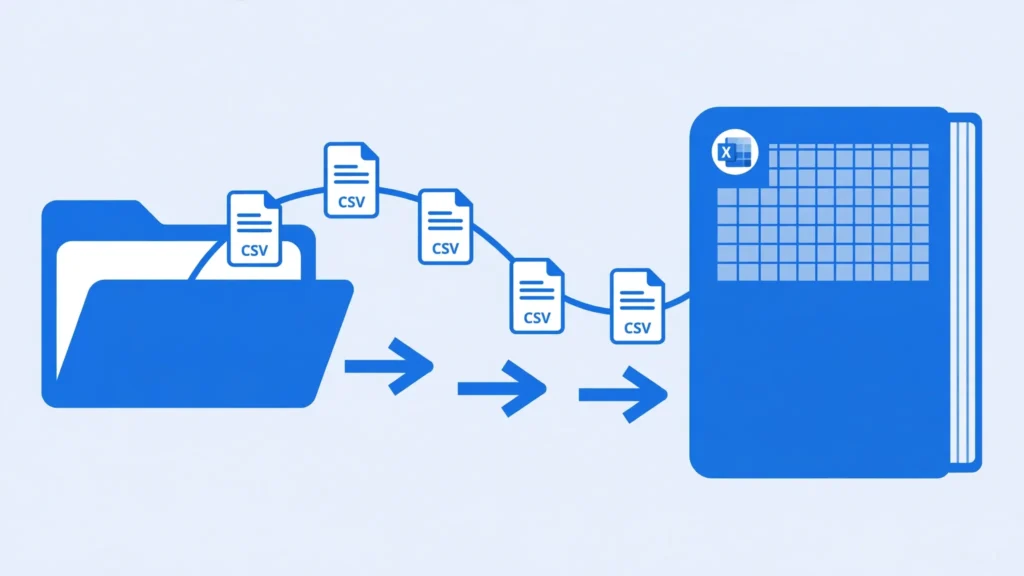
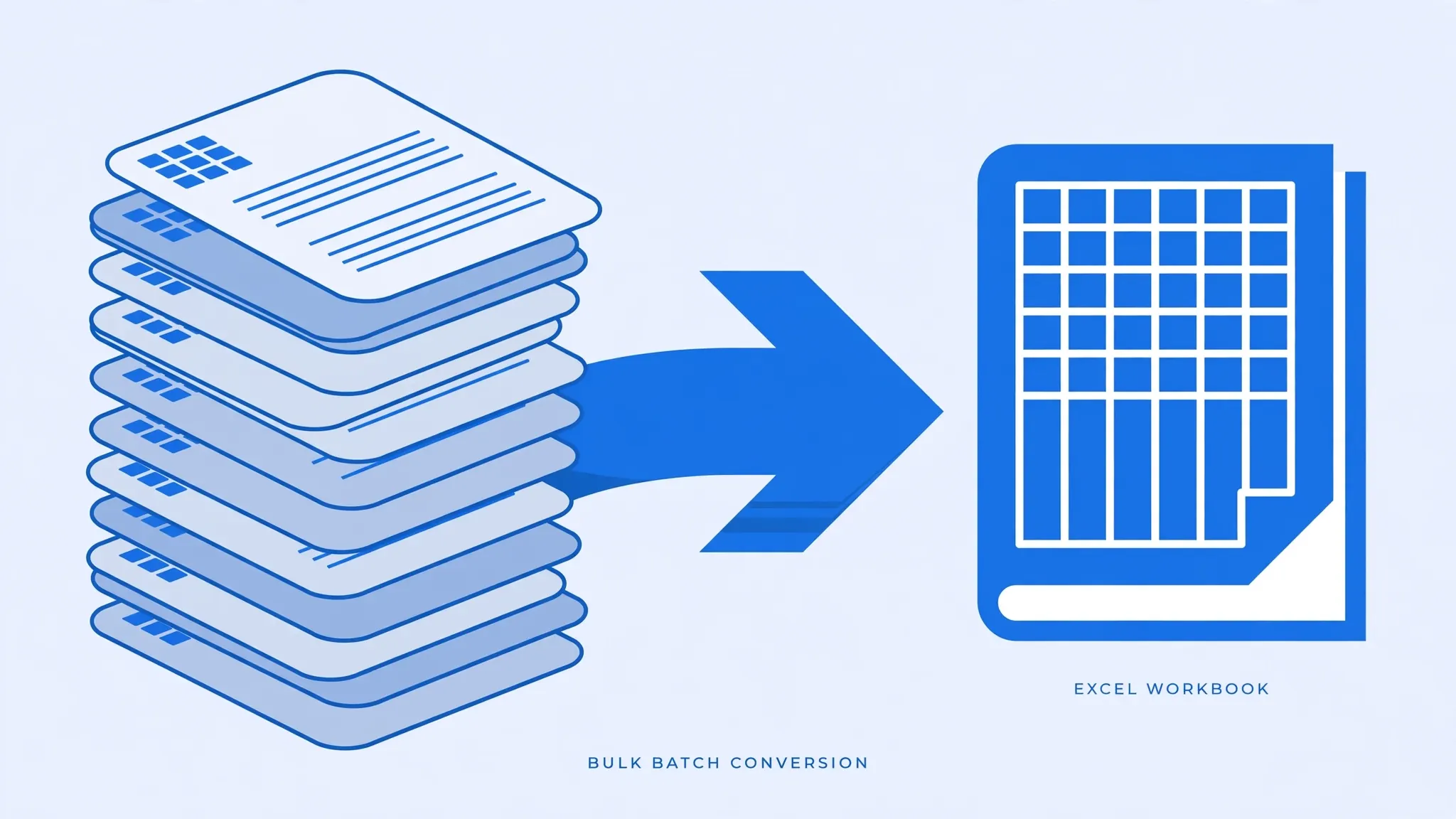
Converting one CSV to Excel is a thirty-second job. Converting forty of them — every single month — is how accountants, analysts, and operations teams lose entire afternoons. If you need to batch convert CSV to Excel, stop opening files one by one. There are methods that convert multiple CSV files to Excel in a single pass, whether you want forty separate workbooks or one workbook with forty sheets.
This guide covers the full spectrum: quick online batch tools for the occasional pile-up, a Python script that chews through hundreds of files with exact control over encodings and column types, and a PowerShell loop for Windows shops. You will learn the two batch strategies (one workbook vs many files), how to handle messy real-world batches with mixed delimiters and encodings, and how to schedule the whole thing so next month’s files convert themselves.
Whether you are consolidating twelve monthly sales exports in Mumbai, processing weekly ad-platform dumps in London, or wrangling sensor logs in Sydney, bulk csv to xlsx conversion is a solved problem — you just need the right recipe. The methods below scale from five files to five thousand, and every one of them is free.
Two Batch Strategies: One Workbook or Many Files
Before touching any tool, decide what the output should look like. There are two fundamental shapes:
- Strategy A — one XLSX per CSV. Forty CSVs become forty workbooks (
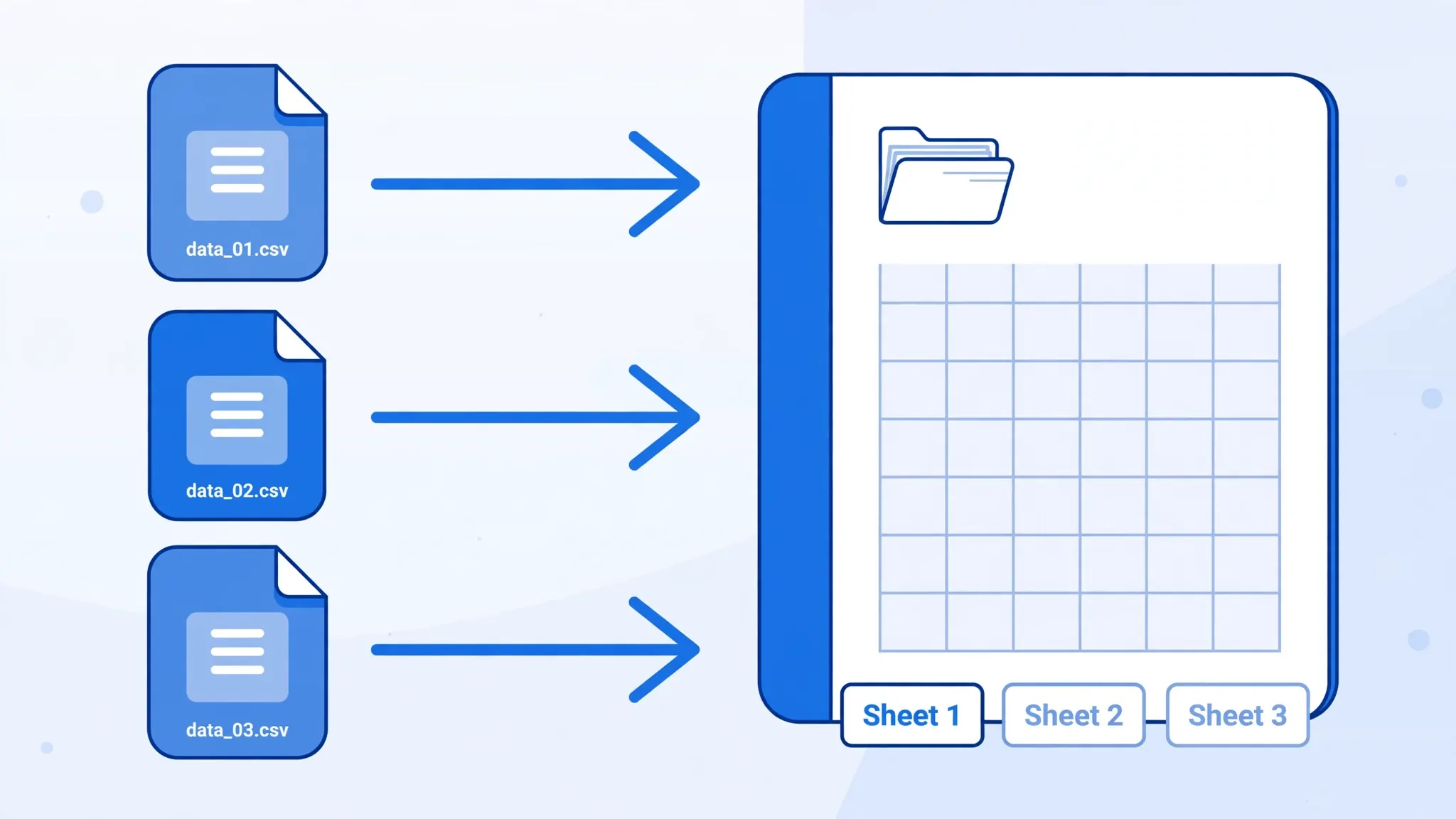
january.xlsx,february.xlsx, …). Best when each file goes to a different person, or when files are unrelated datasets that just happen to arrive together. - Strategy B — many CSVs into one workbook. Forty CSVs become one workbook with forty sheets. Best for monthly reports, regional breakdowns, or any case where someone will compare across the files. See our deep dive on converting CSV to Excel with multiple sheets.
A useful rule: if a human will flip between the files to compare them, merge into one workbook. If the files have different owners or different destinations, keep them separate. You can also do both — many teams generate individual workbooks and a combined summary workbook from the same batch run.
Batch Convert CSV to Excel Online: Quickest for Small Batches
For a one-off pile of five to twenty files, an online batch converter is the path of least resistance. The workflow:
- Select all your CSVs in the file picker (hold Ctrl/Cmd to multi-select) or drag the whole batch onto the page.
- Check the preview of the first file. Set the delimiter and encoding once — most batch tools apply your settings to every file.
- Choose the output shape: separate XLSX files (usually delivered as a ZIP download) or one merged workbook.
- Download. Unzip if needed, spot-check two or three files, done.
Our converter at csvtoexcel.site/ handles multi-file selection with client-side processing, so even a batch of sensitive files never leaves your browser. Caveats: browser batch tools are best under ~50 files and moderate sizes; and always verify that a “merged” download actually contains all your files — count the sheets or the ZIP entries before you delete the originals. When evaluating any batch tool, check three things: whether it lets you set the delimiter once for the whole batch, whether merged output preserves your filenames as sheet names, and whether there is a per-batch file cap on the free tier.
Method 2: Python Script (The Power Option)
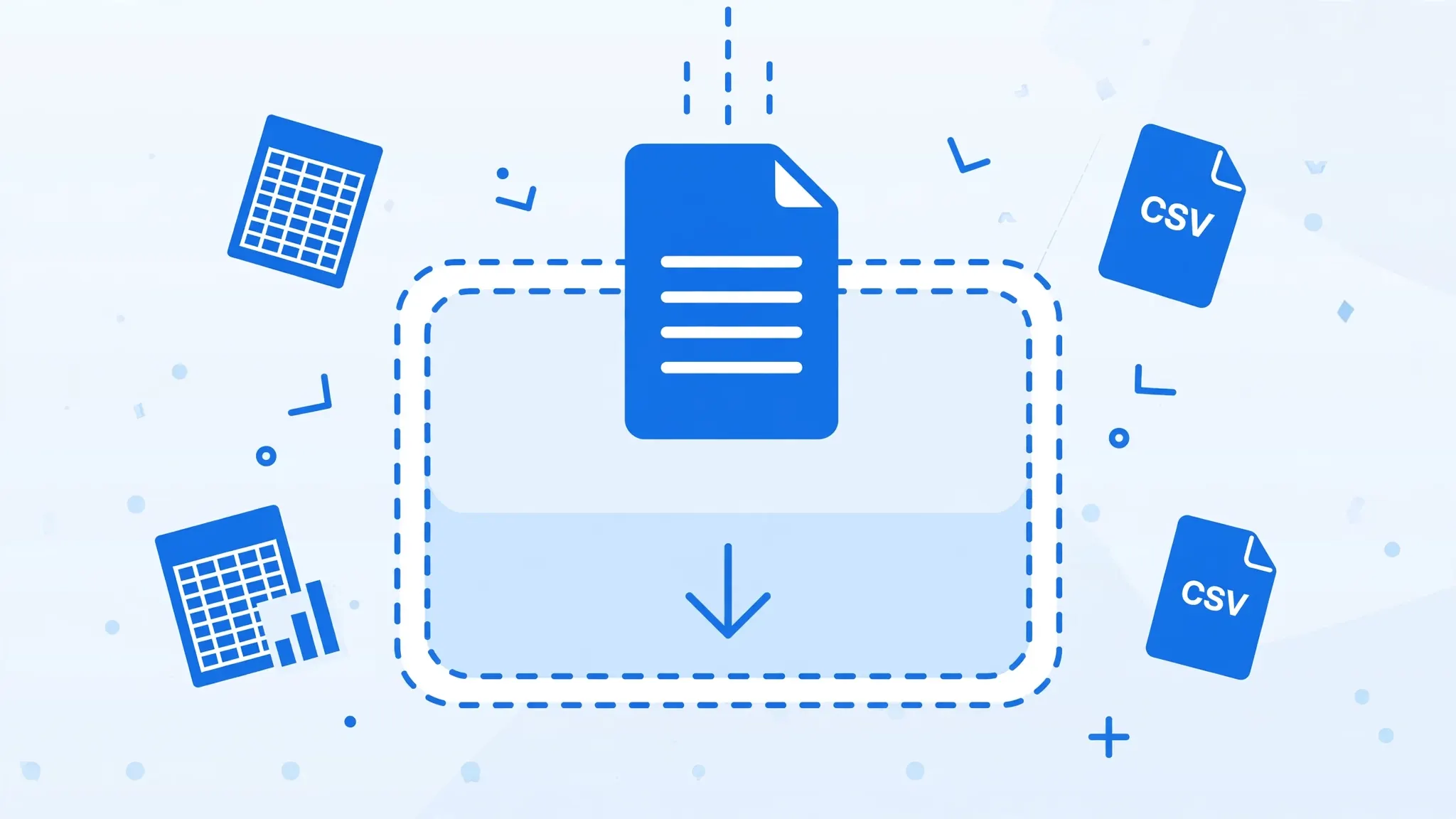
For recurring batches, large file counts, or precise control, Python is unbeatable — and the most flexible way to batch convert CSV to Excel with per-file control over encodings, delimiters, and column types. Install once (pip install pandas openpyxl), then reuse forever. Scripts that convert multiple csv to excel workbooks in one pass are the backbone of most data teams’ monthly routines.
Batch: one XLSX per CSV
import pandas as pd
from pathlib import Path

src = Path("csv_in")
out = Path("xlsx_out")
out.mkdir(exist_ok=True)

for csv_file in src.glob("*.csv"):
    df = pd.read_csv(csv_file, encoding="utf-8-sig", dtype=str)  # keep everything as text first
    xlsx_file = out / (csv_file.stem + ".xlsx")
    df.to_excel(xlsx_file, index=False, sheet_name="Data")
    print(f"Converted {csv_file.name} -> {xlsx_file.name} ({len(df)} rows)")
Batch: all CSVs into one multi-sheet workbook
import pandas as pd
from pathlib import Path

with pd.ExcelWriter("combined.xlsx", engine="openpyxl") as writer:
    for csv_file in sorted(Path("csv_in").glob("*.csv")):
        df = pd.read_csv(csv_file, encoding="utf-8-sig", dtype=str)
        sheet = csv_file.stem[:31].replace("/", "_")  # Excel sheet-name limit
        df.to_excel(writer, sheet_name=sheet, index=False)
        print(f"Added {csv_file.name} as sheet '{sheet}'")
Notes for production use:
dtype=strreads everything as text — the safest default for a batch, since it prevents leading-zero stripping and scientific-notation damage across all files. Convert specific columns to numbers/dates afterward if needed.encoding="utf-8-sig"handles the BOM that Excel adds to some exports; add a fallback tolatin-1in a try/except for mixed-encoding folders.- Sheet names are limited to 31 characters and cannot contain
/ \ ? * [ ] :— sanitize filenames as shown. - For semicolon-delimited batches, add
sep=";"; for mixed batches, sniff each file’s delimiter withcsv.Snifferbefore parsing.
Method 3: PowerShell Loop on Windows
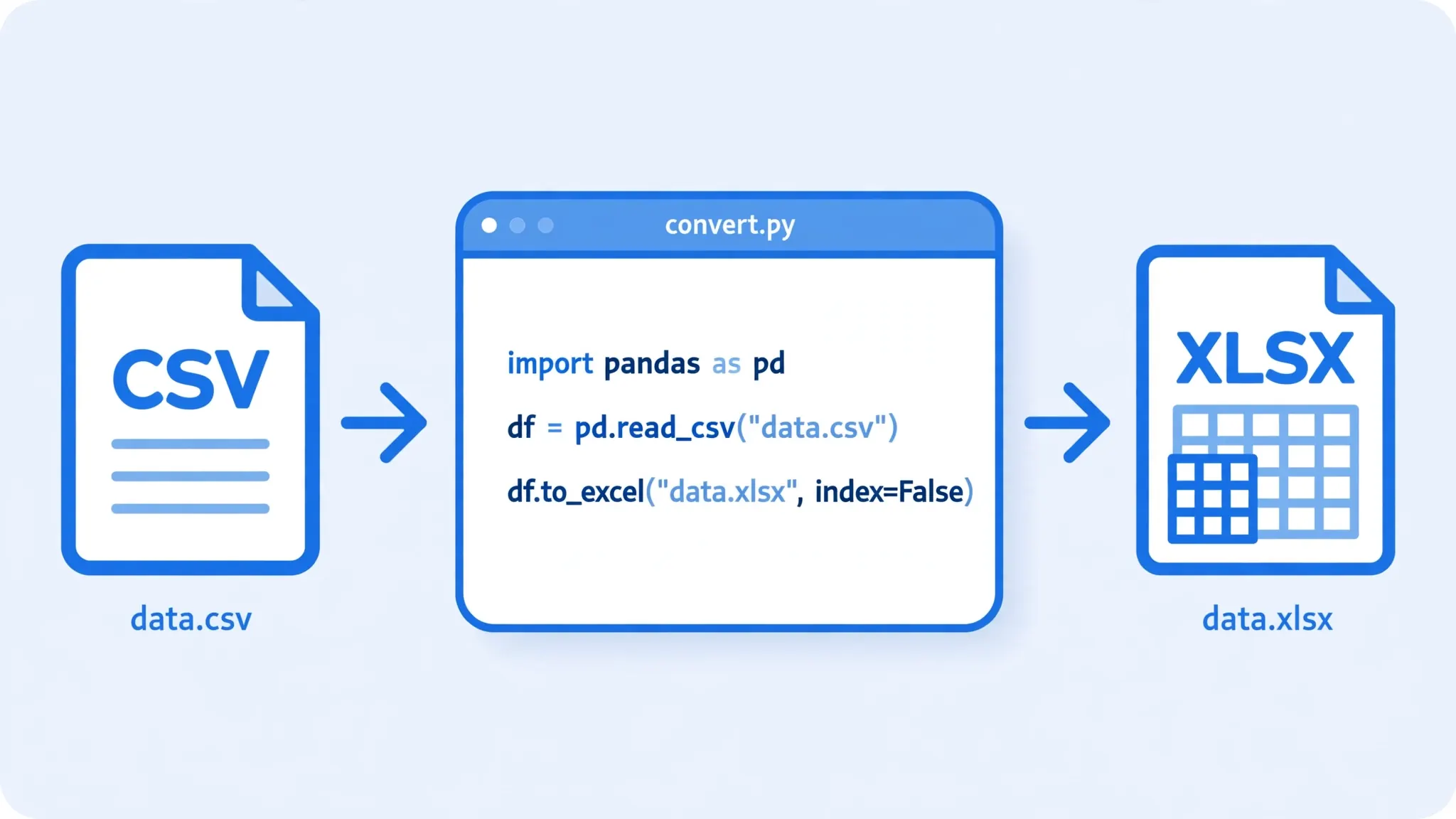
On Windows machines where Python is not available, PowerShell can batch convert using Excel’s automation engine (Excel must be installed) or the free ImportExcel module (no Excel needed).
Option A: Excel COM automation
$excel = New-Object -ComObject Excel.Application
$excel.Visible = $false
$excel.DisplayAlerts = $false

Get-ChildItem "C:\data\*.csv" | ForEach-Object {
    $wb = $excel.Workbooks.Open($_.FullName)
    $xlsx = [System.IO.Path]::ChangeExtension($_.FullName, ".xlsx")
    $wb.SaveAs($xlsx, 51)  # 51 = xlOpenXMLWorkbook
    $wb.Close()
    Write-Host "Converted $($_.Name)"
}

$excel.Quit()
[System.Runtime.Interopservices.Marshal]::ReleaseComObject($excel) | Out-Null
Option B: ImportExcel module (no Excel required)
Install-Module ImportExcel -Scope CurrentUser

Get-ChildItem "C:\data\*.csv" | ForEach-Object {
    $xlsx = [System.IO.Path]::ChangeExtension($_.FullName, ".xlsx")
    Import-Csv $_.FullName | Export-Excel $xlsx -AutoSize -FreezeTopRow
    Write-Host "Converted $($_.Name)"
}
Option B is generally better: it is faster (no Excel GUI spinning up per file), works on servers without Office, and -AutoSize -FreezeTopRow gives you a polished workbook automatically. The COM route inherits Excel’s import guessing per file, so prefer it only when you need Excel’s exact parsing behavior.
Combining Many CSVs into Multi-Sheet Workbooks
The multi-sheet batch deserves special attention because it is the most requested shape: twelve monthly CSVs → one workbook with sheets Jan…Dec. Beyond the Python snippet above, a few refinements matter:
- Order the sheets deliberately. Sort filenames before the loop (
sorted()in Python) so sheets land in chronological order, not filesystem-random order. - Add a cover sheet. Write a small “README” sheet first with the batch date, source folder, and row counts per sheet. Future you — or your auditor — will be grateful.
- Watch the size. Twelve sheets of 500,000 rows each is a 200+ MB workbook that Excel will struggle to open. For very large batches, prefer separate files or a database.
- Name sheets for humans.
sales_2026_01_final_v2_CLEAN.csvbecomes sheetsales_2026_01_final_v2_CLEAN— truncated and ugly. Map filenames to clean sheet names in your script.
For the full technique — including styling each sheet and handling the 31-character limit gracefully — see our guide to converting CSV to Excel with multiple sheets.
Handling Messy Batches: Headers, Encodings, Sheet Names
Real batches are never as clean as tutorials — and when you batch convert CSV to Excel at any real scale, defensive parsing is what separates a script that works from a script that works every time. Here is how to survive the common messes:
- Mixed delimiters. Some files comma, some semicolon (common when exports come from different regional systems). Sniff each file individually — Python’s
csv.Sniffer().sniff(open(f).read(2048))detects the delimiter per file — instead of assuming one for the batch. - Mixed encodings. Wrap your read in try/except: try
utf-8-sig, fall back tolatin-1(which never fails, though it may misrender). Log which files needed the fallback so you can inspect them. - Inconsistent headers. Some exports include a header row, some do not; some have extra title rows at the top. Standardize with
header=0vsheader=Noneper file pattern, orskiprows=nfor title-row files. - Duplicate sheet names.
sales.csvandsales (1).csvboth want to be sheet “sales”. Deduplicate programmatically:sales,sales_2. - Empty or corrupt files. A zero-byte CSV or one with a single broken row should not kill the batch. Catch
pd.errors.EmptyDataError, log the filename, and continue. - Byte-order marks. Some Windows exports start with a UTF-8 BOM; some do not. Reading everything with
encoding="utf-8-sig"handles both cases transparently — the BOM is stripped when present and nothing breaks when it is absent. - Mixed date formats. One region’s
DD/MM/YYYYalongside another’sMM/DD/YYYYwill corrupt silently. Parse dates per file with an explicitdayfirstsetting based on the file’s origin, or keep dates as text in the workbook and convert them deliberately afterward.
Golden rule of batch work: log everything. Filename, rows in, rows out, encoding used, delimiter detected, any fallback applied. When someone questions the numbers three months later, the log is your defense.
Batch Convert CSV to Excel: Three Real-World Scenarios
Abstract advice only goes so far. Here is how teams handle three common situations — steal the pattern that matches yours. Each scenario names the output shape, the right method, and the one refinement that matters most, so you can adapt it to your own folder of CSVs with minimal changes.
Scenario 1: Twelve monthly sales reports → one workbook
A retail chain in Mumbai exports sales_2026_01.csv through sales_2026_12.csv, one per month. The finance team wants a single workbook with twelve sheets for year-end review. The Python multi-sheet script above does it, with three refinements: sort filenames so sheets land January-to-December, map ugly filenames to clean sheet names (Jan 2026, Feb 2026…), and prepend a cover sheet listing each sheet’s row count and the conversion date. Total runtime for twelve 80,000-row files: under a minute. The output goes straight to the auditors — no manual assembly, no copy-paste errors.
Scenario 2: Hundreds of sensor logs → separate workbooks
An IoT deployment in Sydney generates one small CSV per device per day — 300+ files a week. Nobody wants a 300-sheet workbook; each file belongs to a different device owner. Here the one-XLSX-per-CSV script is right, with archiving built in: after conversion, move each processed CSV to an archive/ folder so the next run only picks up new files. Idempotency matters at this scale — the script checks whether the matching XLSX already exists before converting, so re-runs are safe.
Scenario 3: Multi-region exports with mixed delimiters
A company with offices in the US, Germany, and Brazil receives the “same” report in three dialects: comma-delimited from the US, semicolon-delimited from Germany, tab-delimited from Brazil. A naive batch assumes one delimiter and silently mangles two-thirds of the files. The fix is per-file sniffing: read the first 2 KB of each CSV, detect the delimiter with csv.Sniffer, then parse accordingly — all inside the same loop. The log records which delimiter each file used, so the one Brazilian file that arrives comma-delimited next quarter gets flagged instead of corrupting the batch.
The common thread: the conversion is the easy part. Naming, ordering, logging, and idempotency are what make a batch process production-ready instead of a script that works once on your laptop. Start with the simplest method that fits your batch size today, and graduate to scripting the moment the task repeats — the second run is where automation pays for itself.
Automating It: Scheduled Batch Conversions
The endgame of batch conversion is never thinking about it. To run conversions on autopilot, set up a watched folder and a schedule:
- Windows: Task Scheduler → run your PowerShell script nightly at 2 AM against
C:\incoming\*.csv, output toC:\converted\, then move processed CSVs to an archive folder. - Mac/Linux: a cron job running your Python script:
0 2 * * * /usr/bin/python3 /home/user/batch_convert.py. - Cloud: a scheduled GitHub Action or a small AWS Lambda that converts files landing in an S3 bucket. On Linux servers, the cron entry looks like
0 2 * * * /usr/bin/python3 /opt/scripts/batch_convert.py >> /var/log/csv2xlsx.log 2>&1— logging both output and errors so silent failures are impossible.
Design the script idempotently: skip files already converted (check for the matching XLSX), never overwrite without versioning, and email or log a summary. A finance team in Toronto running this pattern processes 300+ nightly exports with zero human touches — the morning routine is just checking the log. Add failure alerting (a simple email or Slack webhook when a file fails to parse) and you have a pipeline that runs for years: after the nightly run finishes, the only manual step is glancing at the summary. Treat the log as part of the deliverable — when someone asks “did all the files convert?” six months from now, the log answers in seconds.
Batch Verification Checklist
After any batch run — by any method — execute these checks before deleting or archiving the source files. Catching a bad batch now is a five-minute fix; catching it after the reports go out is a very different conversation:
- Count in = count out. 40 CSVs in → 40 XLSX files (or 40 sheets). Any mismatch is a silent failure.
- Row counts per file. Your log should show rows parsed per file; spot-check the largest and smallest.
- Open two random outputs fully. Not just the first — random sampling catches the weird file in the middle of the batch.
- Check sheet names in merged workbooks for truncation or duplicates.
- Verify a known value — one cell you know from the source — in each output shape.
- Check file sizes are sane. An XLSX dramatically smaller than its CSV (or suspiciously identical across files) signals a parse failure worth investigating.
- Confirm encodings survived. Open one output per distinct source region and search for garbled characters — a single mis-decoded batch can poison downstream reports.

Batch-converting hundreds of files with mixed encodings or delimiter chaos? join the discussion in our community forum — readers share production-ready scripts and troubleshooting war stories for gnarly batches.
Frequently Asked Questions
How do I batch convert multiple CSV files to Excel at once?
For a handful of files, use an online batch converter: multi-select the CSVs, set the delimiter once, and download the results. For recurring or large batches, use a Python script with pandas that loops over every CSV in a folder, or a PowerShell loop on Windows. Both approaches let you choose between one-XLSX-per-CSV and all-CSVs-in-one-workbook output shapes.
Can I convert multiple CSV files into one Excel workbook?
Yes — this is the most popular batch shape. Each CSV becomes its own sheet, named after the file. Python’s ExcelWriter with openpyxl does it in a few lines; several online batch tools offer a merge option too. Remember Excel’s 31-character sheet-name limit and sanitize long filenames.
How do I convert CSV to Excel in bulk without losing leading zeros?
Declare text columns explicitly in your batch script. In pandas, use dtype={‘zip_code’: str} (or dtype=str for everything as the safe default). In PowerShell’s ImportExcel module, set column types accordingly. The rule is the same as single-file conversion: types must be locked at parse time, before anything guesses.
Is there a free tool to bulk convert CSV to XLSX?
Yes. Python with pandas and openpyxl is free, open-source, and the most capable option. PowerShell is free on every Windows machine. Online batch converters handle small batches free in the browser, though some impose file-count limits on the free tier.
Can PowerShell convert multiple CSV files to Excel?
Yes. Loop with Get-ChildItem “*.csv” | ForEach-Object and convert each file — either via Excel COM automation (Workbooks.Open, then SaveAs with format 51) or via the free ImportExcel module (Import-Csv | Export-Excel), which is faster and needs no Excel installed.
How do I schedule automatic CSV to Excel conversion?
Save your batch script and trigger it on a schedule: Windows Task Scheduler, cron on Mac/Linux, or a scheduled cloud job. Point the script at a watched folder, make it skip already-converted files, archive processed CSVs, and log a summary each run. That is a complete lights-out pipeline.