
Raw CSV data tells you nothing at a glance — a thousand rows of sales figures is just a wall of numbers. But turn those rows into a chart and the story jumps out: the seasonal spike, the underperforming region, the trend that changed in March. This guide to CSV to Excel charts takes you from a flat downloaded file to polished, presentation-ready Excel charts from CSV data: importing cleanly so numbers actually plot as numbers, building bar, line, and pie charts step by step, choosing the right visualization for your message, formatting like a professional, and finishing with pivot charts that update themselves when the data refreshes.
Most chart tutorials skip the part that matters most for CSV-sourced data: the import. A chart is only as honest as its underlying table, and CSV files arrive with text where numbers should be, dates Excel misreads, blank rows, and duplicate headers — every one of which produces a subtly (or wildly) wrong chart. We will fix the data first, in about ten minutes, and then the charting itself becomes the easy, fun part. Whether you are visualizing survey results in London, sales data in New York, website traffic in Sydney, or expense reports in Mumbai, the workflow below works the same.
Why CSV to Excel Charts Start With a Clean Import
Excel charts are literal-minded: they plot exactly what the cells contain, including the problems. When a CSV column of amounts imports as text (left-aligned, with a green triangle warning), a bar chart will either skip those values or treat them as zero — silently. When dates import as text, a line chart spaces them evenly instead of by actual time elapsed, turning a two-month gap into the same visual distance as a two-day gap. When a stray blank row sits in the middle of the data, some chart types stop reading at the blank and plot half the series.
The professional habit is therefore: import deliberately, verify types, then chart. Convert the CSV with a proper converter or Excel’s Data > From Text/CSV, explicitly setting numeric columns to Number/Decimal, date columns to Date with the correct order (DMY vs MDY), and ID/code columns to Text. After import, do the 30-second audit: are numbers right-aligned? Do dates sort chronologically? Does SUM() work on the amount column? If yes, your CSV data visualization will be built on truth. If no, fix the import now — every minute spent here prevents an embarrassing chart later.

Preparing Your Data: The 10-Minute Cleanup
Even a good import usually needs light tidying before charting. Work through this checklist on a copy of the imported sheet:
- One header row, no merged cells. Charts need a single row of clear labels. Unmerge anything, and give every column a short descriptive name (“Revenue_USD”, not “Column D”).
- Remove blank rows and total rows. A “TOTAL” row at the bottom of the data will become a giant bar dwarfing everything else. Move summaries to a separate sheet.
- Convert to an Excel Table (Ctrl+T). This is the single best charting habit: tables auto-expand when you add rows, keep formatting consistent, and give charts structured references that survive sorting and filtering.
- Standardize categories. “New York”, “new york”, and “NY” are three different bars. Use find-and-replace or a mapping column to unify labels before charting.
- Handle missing values consciously. Decide: treat gaps as zero, interpolate, or leave them blank (line charts can bridge gaps via “Connect data points with line”). Whatever you choose, be consistent — and mention it in the chart’s footnote if the audience matters.
- Aggregate if the data is too granular. Ten thousand daily transactions make a noisy line; a monthly pivot summary makes a clear one. Chart the aggregation, keep the detail available underneath.
Building Your First Chart: Bar, Line, and Pie Walkthrough
With clean data in an Excel Table, creating Excel charts from CSV data takes under a minute each. Here are the three workhorses, step by step.
Bar chart: comparing categories
Say your CSV holds sales by region. Select the region column and the sales column (including headers) → Insert → Charts → Clustered Bar (or Column for vertical bars). Excel plots one bar per region. Immediately do three things: click the chart title and write what it shows (“Q3 Sales by Region, USD thousands”), right-click the value axis → Format Axis → set sensible bounds (starting at zero for bars — always), and delete the legend if there is only one series (it adds nothing).
Line chart: showing trends over time
For monthly revenue from a CSV: select the date and revenue columns → Insert → Line → Line with Markers. Then right-click the date axis → Format Axis → Axis Type: Date axis (not Text axis) — this single setting makes Excel space points by actual elapsed time, fixing the most common line-chart distortion. Add data labels only for the peaks and troughs that matter; labeling every point is clutter.
Pie chart: showing parts of a whole
For expense breakdowns: select category and amount → Insert → Pie → 2-D Pie. Keep slices to six or fewer — combine small ones into “Other”. Right-click a slice → Add Data Labels → format as percentage. If any slice is under ~5%, consider a bar chart instead: humans compare bar lengths far more accurately than pie angles.


Choosing the Right Chart Type for Your Data
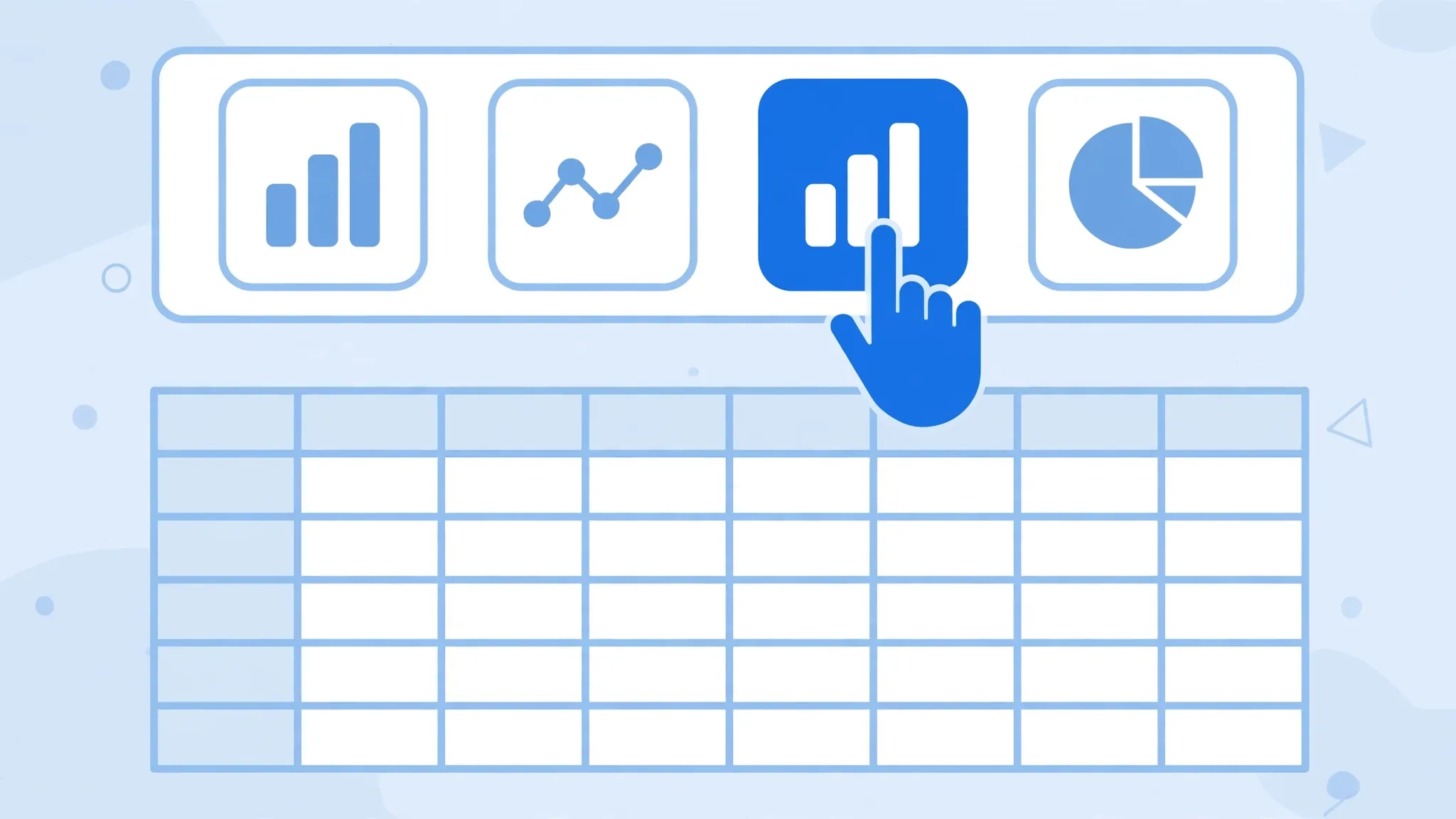
The most important charting decision is not formatting — it is type. Match the chart to the question, and when you are torn between two types, build both: it takes thirty seconds, and seeing the same data two ways often reveals which telling is honest and which is merely pretty. The wrong chart type with perfect formatting still misleads; the right type with plain formatting still informs.
- Comparison across categories (sales by region, expenses by department) → bar/column chart. The universal default; hard to misuse.
- Change over time (revenue by month, traffic by week) → line chart. Use bars instead if there are few time points and you want each value emphasized.
- Part of a whole (market share, budget split) → pie or donut chart, max ~6 slices. Beyond that, use a bar chart sorted descending.
- Relationship between two variables (ad spend vs sales, temperature vs ice-cream revenue) → scatter (XY) plot. Add a trendline (right-click series → Add Trendline) to quantify the relationship.
- Distribution (ages of customers, sizes of orders) → histogram (Insert → Statistic Chart → Histogram). Reveals skew and outliers that averages hide.
- Multiple series over time (this year vs last year) → line chart with two series, or a combo chart (bars for one series, line for another) when the scales differ — with a secondary axis.
When in doubt, use Excel’s Recommended Charts (Insert → Recommended Charts): it analyzes your selection and suggests suitable types. Treat its suggestions as a starting shortlist, not gospel — it cannot know your audience or your message.
Formatting Charts Like a Pro
Default Excel charts look amateur. Fifteen minutes of formatting is the difference between “spreadsheet dump” and “boardroom ready”:
- Declutter ruthlessly. Remove gridlines (or fade them to light grey), delete chart borders, kill the legend when there is one series, and drop decimal places the audience does not need. Every element must earn its place.
- Write real titles. “Chart 1” says nothing. “Revenue grew 34% after the March relaunch” tells the story — put the conclusion in the title, not just the topic.
- Label directly. Data labels on the bars beat a legend the eye must bounce to. For lines, label the final value at the right edge instead of using a legend.
- Use color with intent. One neutral color for all bars, one accent color for the bar you want noticed (the winner, the problem). Never use a rainbow “for variety” — it implies meaning where there is none. Keep enough contrast for projectors and color-blind viewers (blue/orange beats red/green).
- Fix the axes. Bars start at zero (truncating exaggerates differences); lines do not have to. Format large numbers as “1.2M” or “$45k” rather than 1200000. Rotate crowded date labels 45 degrees instead of letting them overlap.
- Add context, not decoration. A reference line for target, an annotation arrow on the anomaly (“supply disruption”), a footnote for the data source — these make charts trustworthy. 3-D effects, shadows, and gradient fills make them look like 2003.

Pivot Charts: Visualizations That Update Themselves
Static charts go stale the moment the CSV refreshes. Pivot charts solve this: they are charts bound to a pivot table, so filtering, grouping, or refreshing the data redraws the chart automatically. For recurring CSV to Excel charts — monthly sales packs, weekly KPI dashboards — this is the workflow that scales:
- Select your clean Excel Table → Insert → PivotChart → choose a chart type and OK. Excel creates a pivot table and a linked chart together.
- Build the pivot as usual: e.g. Month in Axis, Region in Legend, Revenue in Values.
- Add slicers (PivotChart Analyze → Insert Slicer) for Region or Product — clicking a slicer button filters both table and chart instantly. This is what makes dashboards feel alive in meetings.
- When next month’s CSV arrives, paste it into the table (or refresh the Power Query import) → right-click the pivot → Refresh. The chart updates itself — no rebuilding.
- For a standing dashboard, keep one workbook per metric area with the pivot chart on a dedicated “Dashboard” sheet, slicers arranged neatly, and the raw data hidden on another sheet.

Five Chart Mistakes That Mislead Readers
- Truncated bar axes. Starting bars at 47 instead of 0 makes a 5% difference look like a 5× difference. Bars must start at zero; if the story needs a zoomed view, use a line chart or annotate honestly.
- Text-axis dates. Plotting dates as categories spaces January 1 and January 2 the same as January and June — hiding the true shape of the trend. Always set a Date axis for time series.
- Too many pie slices. Twelve indistinguishable slivers communicate nothing. Aggregate the tail into “Other” or switch to a sorted bar chart.
- Dual axes without labeling. A combo chart with two unmarked scales invites misreading. Label each axis clearly, or normalize both series to an index (base = 100) on one axis.
- Charting dirty data. Text-numbers, duplicate categories, and hidden total rows produce confident-looking nonsense. The cleanup section above exists precisely to prevent this.
From Chart to Report: Exporting and Sharing
A great chart locked in your workbook helps no one. Getting it in front of people:
- Copy as picture: select the chart → copy → in PowerPoint/Word use Paste Special → Picture. This freezes the visual exactly as designed, immune to font and theme differences on the recipient’s machine.
- Link it live: paste-special as a link into PowerPoint, and the slide updates when the workbook refreshes — ideal for recurring decks. Keep the workbook path stable or the link breaks.
- Export the dashboard sheet as PDF: File → Export → Create PDF, with the dashboard sheet’s print area set. PDFs preserve formatting everywhere and are the safest “final” artifact.
- Share the workbook itself when the audience wants to explore: protect the data sheets, leave slicers active, and add a one-line “how to use” note on the dashboard.
- Mind the data behind the chart. If the underlying CSV contains sensitive rows, a chart can leak them (hovering shows values; “Other” slices hide detail but the workbook still contains it). Share pictures or PDFs — not the raw workbook — when confidentiality matters.
That is the complete journey: clean import, tidy table, right chart type, pro formatting, and — for recurring data — a self-updating pivot chart. Master this loop and every CSV that lands in your inbox becomes a story you can tell in one picture. And if you hit a stubborn dataset or a chart that will not behave, join the discussion in our community forum — bring the (anonymized) data and we will sort it out together.
Worked Example: Sales CSV to Dashboard in 20 Minutes
Let us put the whole workflow together. You have just downloaded sales_2026.csv from your ecommerce platform: 8,400 rows with columns for order date, region, product category, units, and revenue. The goal: a one-page dashboard for Monday’s team meeting.
- Minutes 0–3: import and audit. Convert the CSV via the browser converter or Data > From Text/CSV, setting the date column to Date (YMD) and revenue to Decimal. Audit: revenue right-aligned and summable, dates sorting chronologically, 8,400 rows matching the platform’s export count.
- Minutes 3–8: clean. Ctrl+T to make it a Table. Unify region labels (“USA” vs “United States”), drop the internal test-order rows flagged in the notes column, and remove the platform’s summary footer rows at the bottom. Add a Month helper column with =TEXT([@Date],”yyyy-mm”).
- Minutes 8–13: pivot. Insert → PivotChart. Put Month in Axis, Region in Legend, Revenue in Values. You instantly see the seasonal curve and which regions drive it. Add a slicer for product category.
- Minutes 13–17: format. Title it with the conclusion (“Revenue up 22% YoY, West region leading”). One accent color on the current-year line, neutrals elsewhere. Date axis, $k formatting, footnote with the source and date range.
- Minutes 17–20: share. Export the dashboard sheet as PDF for the meeting pack, and paste-special the chart as a linked picture into the slide deck so next month’s refresh updates the slides automatically.
Twenty minutes, one polished dashboard, and a reusable template: next month you drop the new CSV into the same table, hit Refresh, and the entire dashboard — pivot, chart, slicers — updates itself. That is the real payoff of doing CSV to Excel charts properly: the first one takes twenty minutes, and every one after takes two.
Frequently Asked Questions
How do I create a chart in Excel from CSV data?
Convert the CSV to Excel with the correct delimiter and data types (numbers as Number, dates as Date), tidy it into a clean table with one header row, select the data, then use Insert → Charts and choose bar, line, or pie. Verify the import first — text-formatted numbers and misread dates are the top causes of wrong-looking charts.
Which chart type is best for CSV data?
It depends on the question: bar charts for comparisons across categories, line charts for trends over time (on a true date axis), pie or donut charts for part-of-whole with few categories, scatter plots for relationships between two variables, and histograms for distributions. Match the type to the message.
Why does my Excel chart look wrong after importing a CSV?
Almost always a data-type problem: amounts imported as text, dates imported as text, blank or total rows inside the data, or duplicate category labels. Re-import with explicit column types, clean the table (Ctrl+T), remove totals, and rebuild the chart on the clean range.
What is a pivot chart and when should I use one?
A pivot chart is a chart linked to a pivot table — filtering or refreshing the pivot redraws the chart automatically. Use one for dashboards and recurring reports where the underlying CSV refreshes monthly or weekly, combined with slicers for interactivity.
Can I make charts from CSV data without Excel?
Yes. Google Sheets (Insert → Chart), LibreOffice Calc, and Apple Numbers all build charts from CSV data with similar workflows, and free online chart builders accept pasted CSV directly. The clean-import-first principle applies everywhere.
How do I keep an Excel chart updated when the CSV changes?
Build the chart on an Excel Table (Ctrl+T) so new rows extend the chart range automatically, or use Power Query for a refreshable import feeding a pivot chart. Avoid hard-coded ranges that go stale when rows are added.