
Need to split CSV into Excel files because one giant file will not cooperate? Whether your CSV has smashed through Excel’s 1,048,576 row limit, is too big to email, or simply needs to be divided by region, month, or department, splitting is the fix. Instead of wrestling with a single unmanageable file, you end up with a tidy set of smaller workbooks — each one fast to open, easy to share, and fully functional.
This guide covers four proven ways to split a large CSV into multiple Excel files: by row count with Python (the workhorse method), by column value with pandas groupby (one file per category), without writing any code at all (manual and free-tool options), and with PowerShell on Windows. You will get copy-paste scripts that preserve your header row in every file, guidance on choosing chunk sizes, and troubleshooting for the errors that trip people up — like broken quoted fields and encoding crashes halfway through a 2 GB file.
By the end, you will be able to take any oversized CSV — a CRM export, a transaction log, scraped data — and turn it into a clean set of Excel files in minutes. And if your file is already small enough after splitting, our free CSV to Excel converter turns each piece into a polished XLSX right in your browser.
Why Split a CSV into Multiple Excel Files?
People reach for a CSV splitter for four main reasons. The first is Excel’s row limit: a worksheet holds exactly 1,048,576 rows, so anything bigger must be divided before it becomes usable workbooks — our large CSV to Excel guide covers the full picture. The second is sharing: most email systems cap attachments at 20–25 MB, and a split set of small files sails through where one monster file bounces. The third is organization: one file per sales region, per month, or per store is far easier to distribute to the people who own each slice. The fourth is performance: a 50,000-row workbook opens instantly and filters smoothly, while a million-row one makes Excel wheeze.
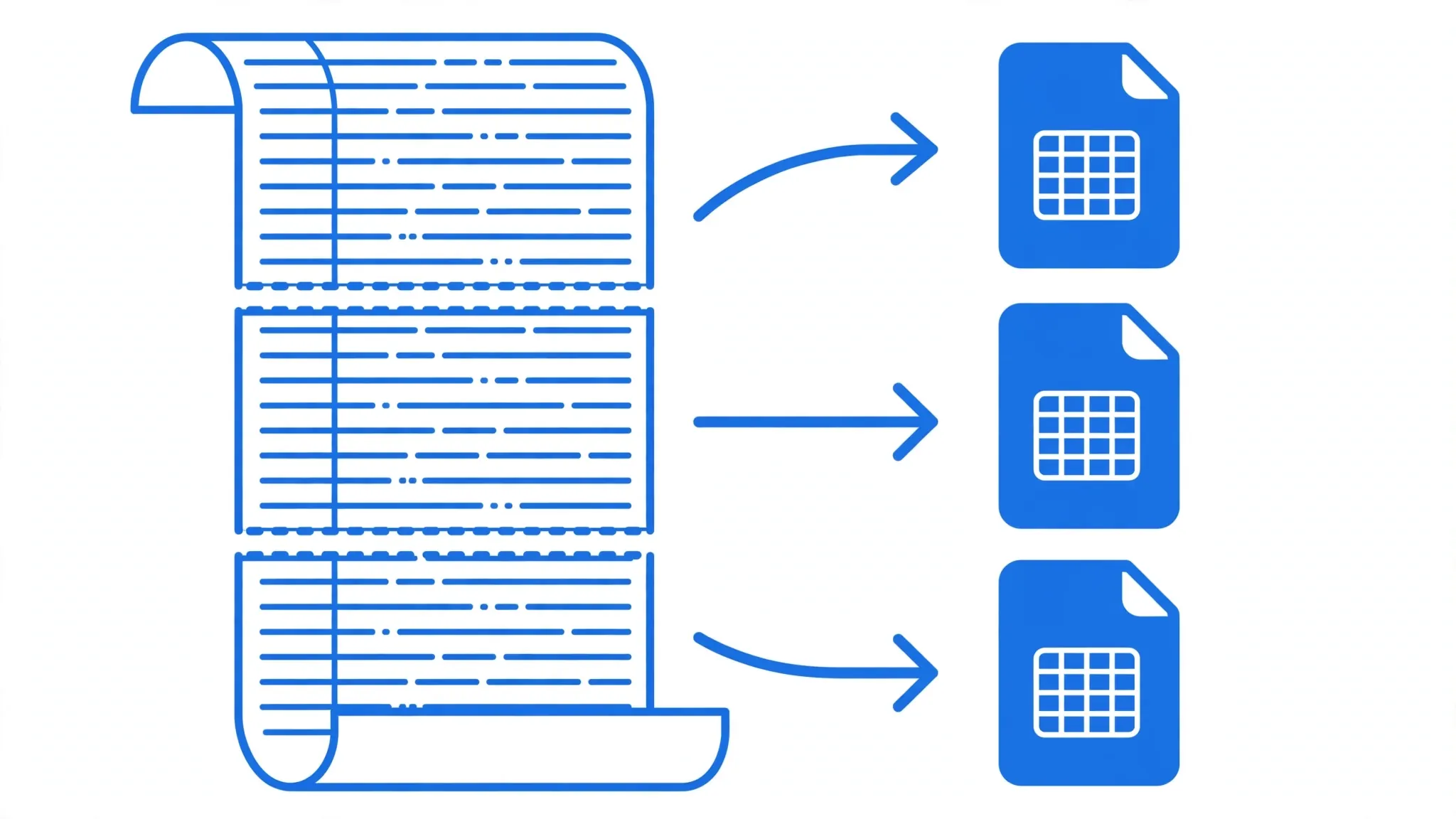
Splitting by row count is the right choice when the goal is simply making the file fit — divide 3 million rows into four files of 750,000. Splitting by column value is the right choice when the data has a natural grouping — twelve monthly files from a year of transactions, or one file per country for a regional team. Both approaches keep every output file self-contained with its own header row, so recipients never need the original.
Sharing limits deserve a closer look because they surprise people. Gmail caps attachments at 25 MB, Outlook.com at 20 MB, and many corporate Exchange servers at 10–35 MB depending on admin policy. A single 200 MB XLSX is undead-on-arrival in all of them, but eight 25 MB files — or better, a shared cloud link to a folder of split files — work everywhere. When you split for sharing, aim each file comfortably under 20 MB and use descriptive names (sales_2026-01.xlsx beats part3.xlsx), so recipients can find their slice without opening everything. For files that must stay whole for compliance or audit reasons, share the original CSV via cloud storage and split only your working copies.

Split CSV into Excel Files by Row Count (Python)
This is the workhorse method: fast, free, and able to split CSV files of any size without loading the whole thing into memory. Install the two libraries once with pip install pandas openpyxl, then run this script:
import pandas as pd

CHUNK_ROWS = 750_000  # comfortably under Excel's 1,048,576 limit

for i, chunk in enumerate(pd.read_csv("bigfile.csv", chunksize=CHUNK_ROWS), start=1):
    out = f"bigfile_part{i}.xlsx"
    chunk.to_excel(out, index=False, engine="openpyxl")
    print(f"Wrote {out}: {len(chunk):,} rows")
The chunksize parameter is the key: pandas reads 750,000 rows at a time, writes one XLSX, then moves on. Memory usage stays flat no matter how big the source file is — a 10 GB CSV splits just as happily as a 100 MB one. Every output file gets the full header row automatically, and index=False keeps pandas from adding a useless extra index column.
Naming chunks meaningfully
Numbered parts work, but descriptive names save confusion later. If your CSV has a date column, name chunks by their date range:
import pandas as pd

for i, chunk in enumerate(pd.read_csv("orders.csv", chunksize=750_000,
                                       parse_dates=["order_date"]), start=1):
    start = chunk["order_date"].min().strftime("%Y-%m-%d")
    end = chunk["order_date"].max().strftime("%Y-%m-%d")
    out = f"orders_{start}_to_{end}.xlsx"
    chunk.to_excel(out, index=False)
    print(f"Wrote {out}")
Verify nothing was lost
Always confirm the split is complete — count rows in the source and across all outputs:
import pandas as pd, glob

source_rows = sum(1 for _ in open("bigfile.csv")) - 1  # minus header
out_rows = sum(len(pd.read_excel(f)) for f in glob.glob("bigfile_part*.xlsx"))
print(f"Source: {source_rows:,} rows | Split files: {out_rows:,} rows")
assert source_rows == out_rows, "Row mismatch — investigate!"
Speed tip: writing XLSX is the slowest step. If you only need the split as CSVs first (to inspect or share), write .csv instead — it is roughly 5x faster — then convert the pieces with our free converter.
Split by Column Value with Pandas GroupBy
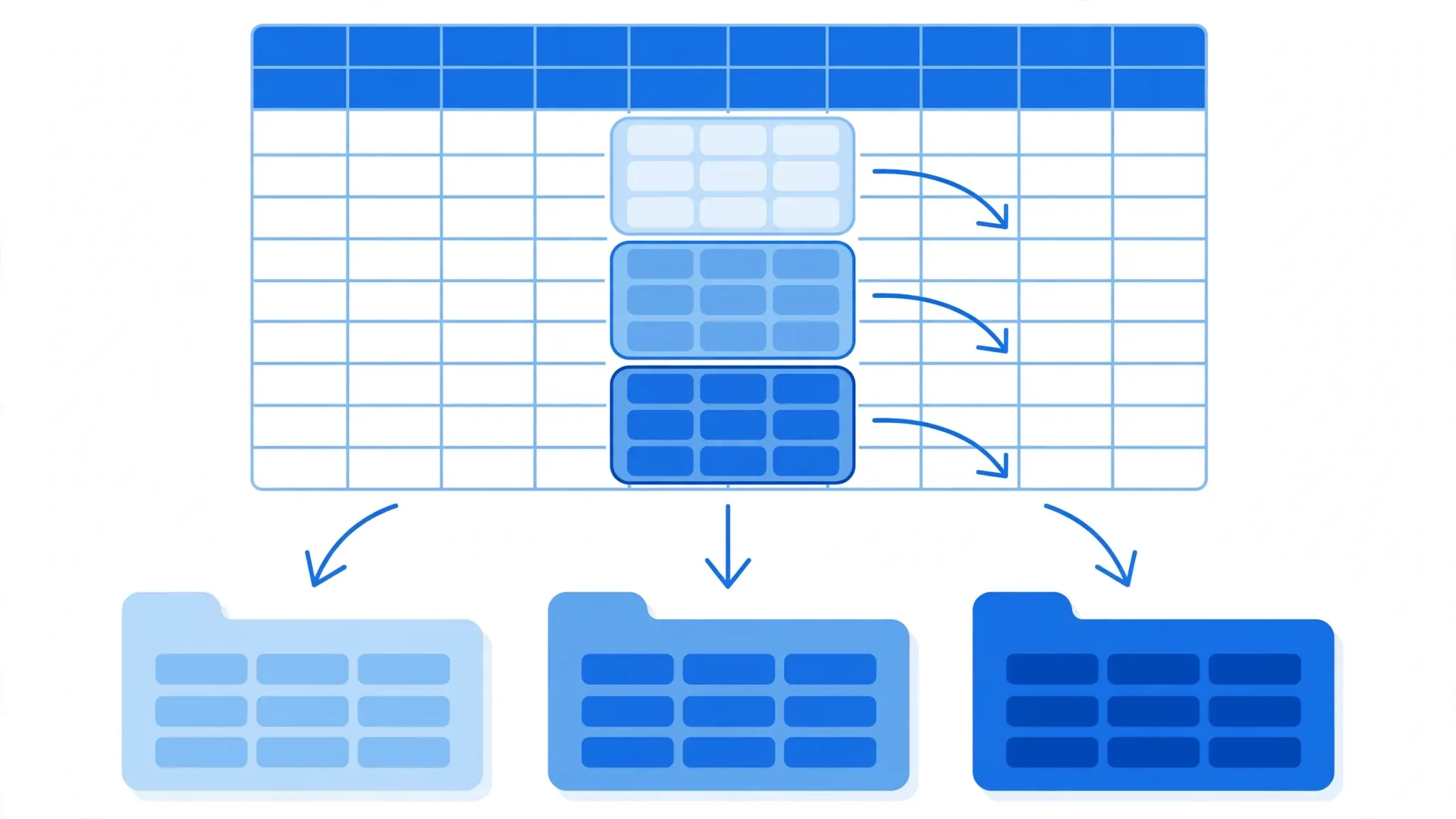
When your data has a natural grouping — regions, months, departments, product categories — splitting by column value produces files people actually want: sales_north.xlsx, sales_south.xlsx, instead of part1.xlsx, part2.xlsx. Pandas groupby does this elegantly:
import pandas as pd
import re

df = pd.read_csv("sales.csv")

for region, group in df.groupby("region"):
    # sanitize the value so it is a safe filename
    safe = re.sub(r"[^\w\-]+", "_", str(region)).strip("_").lower()
    out = f"sales_{safe}.xlsx"
    group.to_excel(out, index=False)
    print(f"Wrote {out}: {len(group):,} rows")
A few practical notes. First, sanitize group values before using them as filenames — a region called “North America (US)” would otherwise create an illegal or confusing filename. Second, watch out for high-cardinality columns: grouping by a column with 10,000 unique values creates 10,000 tiny files, which is rarely what you want — group by month, quarter, or region instead of by individual IDs. Third, this loads the whole CSV into memory, so for multi-gigabyte files combine both techniques: read in chunks, and within each chunk append rows to per-group files.
One workbook, many sheets — the alternative
Sometimes separate files are overkill and one workbook with a sheet per group is better for sharing. The same groupby loop writes sheets instead of files:
import pandas as pd

df = pd.read_csv("sales.csv")

with pd.ExcelWriter("sales_by_region.xlsx", engine="openpyxl") as writer:
    for region, group in df.groupby("region"):
        sheet = str(region)[:31]  # Excel sheet names max out at 31 chars
        group.to_excel(writer, sheet_name=sheet, index=False)
Remember Excel’s 31-character sheet-name limit and that sheet names cannot contain :/\?*[]. Our guide to CSV to Excel with multiple sheets goes deeper on building multi-sheet workbooks.

Split a CSV Without Writing Code
No Python? No problem. You have three solid options depending on your platform and file size.
Option 1: The manual method (small files only)
For a CSV under the row limit that you simply want divided — say 200,000 rows into four files of 50,000 — the manual route works fine:
- Open the CSV in Excel (or convert it first if it will not open cleanly).
- Select the header row plus the first block of data rows, copy them.
- Paste into a new workbook and save as
part1.xlsx. - Repeat for each block. Keep a checklist so no rows are skipped or duplicated.
This is tedious beyond ~500,000 rows and error-prone — a missed row in the middle is easy to overlook. For anything bigger, use a tool.
Option 2: csvkit / xsv (free, command line)
On macOS or Linux (or Windows with WSL), these free tools split while correctly handling quoted fields — unlike a naive split -l, which can sever a row that contains a newline inside quotes:
# xsv is the fastest option (install via cargo or package manager)
xsv split -s 750000 bigfile.csv chunk_

# csvkit alternative (slower but more flexible)
pip install csvkit
# csvkit has no direct splitter; use it to inspect, then split with xsv
The -s flag sets rows per chunk and each output keeps the header. Convert the resulting CSV chunks with our free converter or the batch methods in our batch conversion guide.
Option 3: Spreadsheet + Power Query (Windows Excel)
If the file opens in Excel but you want it divided by a column value, load it with Power Query (Data > Get Data > From Text/CSV), duplicate the query per group, add a filter step to each, and load each to its own sheet. It is click-heavy for many groups, but requires zero code. Our Power Query import guide walks through the interface.
Split CSV into Excel Files with PowerShell
On Windows with no Python installed, PowerShell splits CSVs quickly using .NET’s StreamReader — much faster than Import-Csv, which parses every row into an object first. This script splits by row count and preserves the header in each part:
$reader = [System.IO.File]::OpenText("C:\data\bigfile.csv")
$header = $reader.ReadLine()
$part = 1; $count = 0; $maxRows = 750000
$writer = [System.IO.StreamWriter]::new("C:\data\bigfile_part$part.csv")

while (($line = $reader.ReadLine()) -ne $null) {
    $writer.WriteLine($line); $count++
    if ($count -ge $maxRows) {
        $writer.Close()
        $part++; $count = 0
        $writer = [System.IO.StreamWriter]::new("C:\data\bigfile_part$part.csv")
        $writer.WriteLine($header)
    }
}
$writer.Close(); $reader.Close()
Write-Host "Split into $part files."
This produces split CSVs; convert each to XLSX with our free converter, or extend the script into a full CSV-to-XLSX pipeline using the COM automation method in our PowerShell conversion guide. For splitting by column value in PowerShell, Import-Csv | Group-Object region | ForEach-Object { $_.Group | Export-Csv "sales_$($_.Name).csv" } works on files that fit in memory.

Choosing Chunk Sizes That Actually Work
The right chunk size balances three things: staying under the 1,048,576 row ceiling, keeping files fast to open, and keeping the file count manageable. Here is what works in practice:
- 750,000 rows — the sweet spot for most data. Well under the limit, opens in a few seconds, and a 3-million-row file becomes just 4 parts.
- 500,000 rows — choose this for wide files (100+ columns) or when recipients have older, slower machines. Wide rows eat memory fast.
- 250,000 rows or fewer — best when files travel by email or when each chunk goes to a different person who only needs their slice.
- 900,000–1,000,000 rows — acceptable when you will add no more columns and want the fewest files, but leave no room for error; one extra column of formulas later and you are flirting with the ceiling.
Also consider file size, not just rows: a 750,000-row file with 200 text-heavy columns can still be a 400 MB XLSX that opens slowly. If your columns are wide, drop the ones you do not need with usecols in pandas before splitting — it shrinks every output file at once. Teams in the US, UK, India, Canada, and Australia dealing with locale-specific exports should also watch for delimiter quirks: a semicolon-delimited file misread as comma-delimited will produce garbage chunks, so confirm the delimiter first (see our delimiter fix guide).
When in doubt, test on a sample first: split off the first 100,000 rows into a single file, open it, and check that dates, currencies, and special characters survived. Indian exports with lakh/crore formatting, European files with comma decimals, and US files with MM/DD/YYYY dates all have quirks that are cheaper to discover on a sample than on a 5-million-row run. Our guides on CSV dates and locale delimiters cover the common traps.

Automate Recurring Splits
If a fresh oversized CSV lands in your inbox every day or every week — a nightly export, a weekly report — splitting it by hand gets old fast. Wrap the Python script in a reusable function and schedule it. Here is a complete script that splits every CSV dropped into a folder:
import pandas as pd
from pathlib import Path

WATCH = Path("incoming")
DONE = Path("split_output")
DONE.mkdir(exist_ok=True)

def split_csv(path: Path, chunk_rows: int = 750_000):
    stem = path.stem
    for i, chunk in enumerate(pd.read_csv(path, chunksize=chunk_rows), start=1):
        out = DONE / f"{stem}_part{i}.xlsx"
        chunk.to_excel(out, index=False, engine="openpyxl")
        print(f"Wrote {out.name}: {len(chunk):,} rows")

for csv_file in WATCH.glob("*.csv"):
    print(f"Splitting {csv_file.name}...")
    split_csv(csv_file)
print("All done.")
On Windows, run it on a schedule with Task Scheduler pointing at python C:\scripts\split_watch.py; on macOS or Linux, a cron entry like 0 6 * * * /usr/bin/python3 /home/user/split_watch.py runs it every morning at 6. Add a step that moves processed CSVs to an archive folder so they are not split twice, and have the script write a small log file with row counts — the verification habit from earlier, automated. For a full Windows automation setup including COM-based conversion, see our PowerShell guide; for heavier data work, the Python conversion guide covers formatting and multi-sheet output.
Troubleshooting Split Problems
Rows break in the middle (split inside quoted fields)
If you split with a plain line-based tool (split -l, naive PowerShell), a row containing a newline inside a quoted field gets torn in half and both chunks corrupt. Always use a CSV-aware splitter — pandas, xsv, or csvkit — which understands quotes and keeps multi-line fields intact.
Encoding crash halfway through
A file that is mostly UTF-8 with a few Windows-1252 characters (smart quotes, em dashes) will crash pandas mid-split with a UnicodeDecodeError. Read defensively: pd.read_csv("f.csv", chunksize=750_000, encoding="utf-8", encoding_errors="replace"). The replace fallback substitutes bad bytes instead of dying — check the affected rows afterward.
Output files have no headers
You wrote chunks without carrying the header into each file. In pandas, to_excel writes headers by default — this usually means the source itself lacked a header row and pandas treated the first data row as headers. Pass header=None when reading and assign column names manually.
MemoryError on groupby splits
Group-by-value splitting loads the whole file into RAM. For huge files, do a two-pass approach: first split by row count into chunks, then group each chunk and append groups into per-value files. Or filter to the columns you need with usecols before grouping.
Filenames collide or are invalid
Group values like “Q1/2026” contain characters illegal in filenames. Always sanitize with a regex (as in the groupby script above) and, for very long values, truncate. On Windows, the full path must also stay under 260 characters unless long paths are enabled.
Splitting problems come in endless flavors — odd delimiters, ragged rows, mixed encodings — so if you hit a stubborn one, join the discussion in our community forum and describe your file; the community has seen nearly every malformed CSV out there.
Frequently Asked Questions
How do I split a CSV file into multiple Excel files?
The most reliable method is Python with pandas: read the CSV in chunks with the chunksize parameter and write each chunk to its own XLSX file with to_excel. This handles files of any size without loading everything into memory, and every output keeps the header row.
Can I split a CSV by column value into separate Excel files?
Yes. With pandas groupby you can split one CSV into Excel files based on any column — for example one file per region, per month, or per sales rep. Each output file keeps the header row and contains only that group’s rows. Remember to sanitize group values before using them as filenames.
How many rows should each split Excel file have?
Stay safely under Excel’s 1,048,576 row limit: 500,000 to 900,000 rows per file is ideal. Smaller chunks open faster and are easier to email; larger chunks mean fewer files to manage. For very wide files with 100+ columns, drop to 250,000–500,000 rows.
Is there a free CSV splitter for Excel?
Yes. Python with pandas is free and the most capable CSV splitter. csvkit and xsv are free command-line tools, and PowerShell splits files on Windows with nothing to install. After splitting, our free browser converter turns each piece into XLSX.
Will splitting a CSV lose my header row?
Not if you do it right. The pandas and PowerShell scripts in this guide write the header row into every output file, so each split Excel file is self-contained with proper column names. CSV-aware tools like xsv preserve headers automatically too.
Can Excel split a CSV file by itself?
Excel has no built-in split feature, but Power Query can filter a CSV into separate queries that load to different sheets. For true multi-file splitting by row count or column value, Python or PowerShell is faster and more reliable.