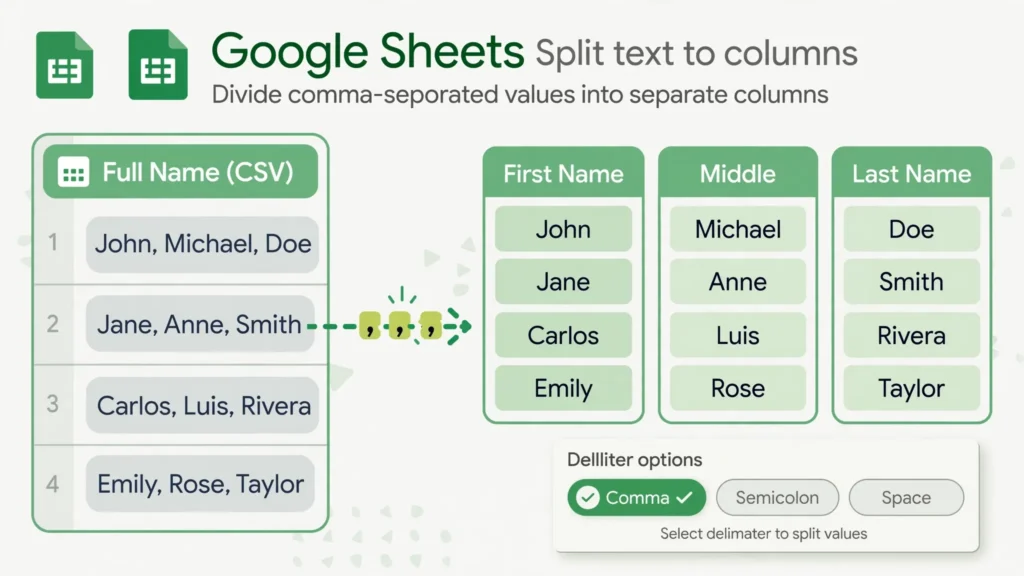
If you have ever needed to split text to columns in Google Sheets — turning “Smith, John” into two cells, or breaking a jammed address line into street, city, and ZIP — this guide is for you. Splitting is one of the most common cleanup jobs in spreadsheet work, because real-world data rarely arrives neatly divided. CSV exports glue fields together, CRM systems dump full names into one column, and copy-pasted web tables mash everything into a single cell. Knowing how to split cells in Google Sheets quickly is the difference between a ten-second fix and a half-hour of manual retyping.
This guide covers three ways to split: the built-in Data › Split text to columns menu command (fastest for one-off jobs), the google sheets split formula SPLIT() (dynamic, non-destructive, and reusable), and formula approaches like REGEXEXTRACT() for messy or irregular text. You will learn how to pick the right google sheets split text to columns delimiter — comma, semicolon, space, period, or a custom character — how to split without overwriting your data (the number-one beginner mistake), and how to handle real cases like names, addresses, and dates. Whether your data came from a CSV import, a web copy-paste, or a colleague’s spreadsheet in the US, UK, India, Canada, or Australia, you will know exactly which method to reach for.
Why your data lands in one column (and why it is not broken)
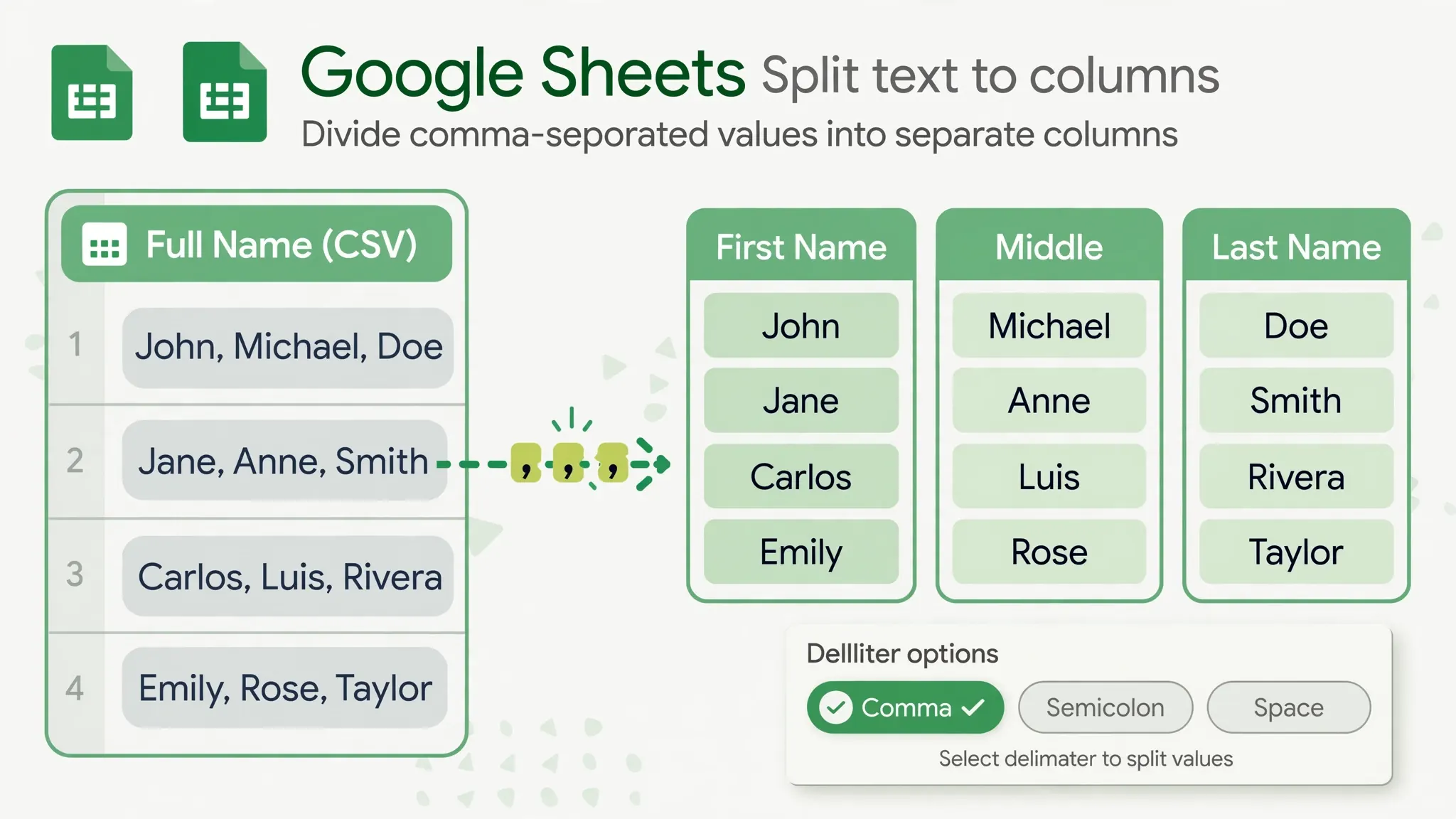
Before splitting anything, it helps to understand why the data is jammed together in the first place — because the cause tells you which split method will work. The most common cause is a CSV import where the delimiter was misdetected: a semicolon-separated file opened as comma-separated collapses every row into column A. The data is all there; it just was not divided. In that case you have two fixes: re-import with the right separator, or split the single column now with the correct delimiter. Both work, but splitting in place is faster when you have already done other work on the sheet.
The second common cause is source-system formatting. Many exports deliberately combine fields: “Last name, First name” in one column, full addresses in one field, timestamps like “2026-10-08 14:30:00” in a single cell. The exporting system is not wrong — it is just optimized for its own display, not yours. Splitting is the standard, expected cleanup step, and every data analyst does it routinely.
The third cause is copy-paste from the web. Tables copied from a browser often paste as one column of text, especially from sites that use line breaks instead of table markup. Here the separator is usually a space or a line break rather than a comma, which changes your delimiter choice (more on that below).
A useful habit: before you split, look at five or six rows and identify the exact character doing the separating. Commas, semicolons, spaces, pipes (|), colons, hyphens — pick wrong and you get garbage; pick right and the split is perfect on the first try. When the separator is inconsistent (sometimes comma-space, sometimes just comma), reach for the formula methods instead of the menu command.
Method 1: Split text to columns from the Data menu
The menu command is the fastest way to split text to columns in Google Sheets when the job is a one-off and you are happy to transform the data in place:
- Select the cells you want to split — click the column letter to select the whole column.
- Go to Data › Split text to columns.
- A small Separator box appears near the selection. Open it and choose the right option: Detect automatically, Comma, Semicolon, Period, Space, or Custom.
- Sheets immediately divides each cell at the separator, writing the pieces into the original column and the columns to its right.
That is the whole method — three clicks. Detect automatically is surprisingly good and worth trying first; it usually nails comma- and tab-separated data. But verify the result on a few rows before scrolling on, because auto-detect can be fooled by text that contains the separator character inside quoted phrases (like addresses with commas).
Google Sheets split text to columns delimiter: picking the right separator
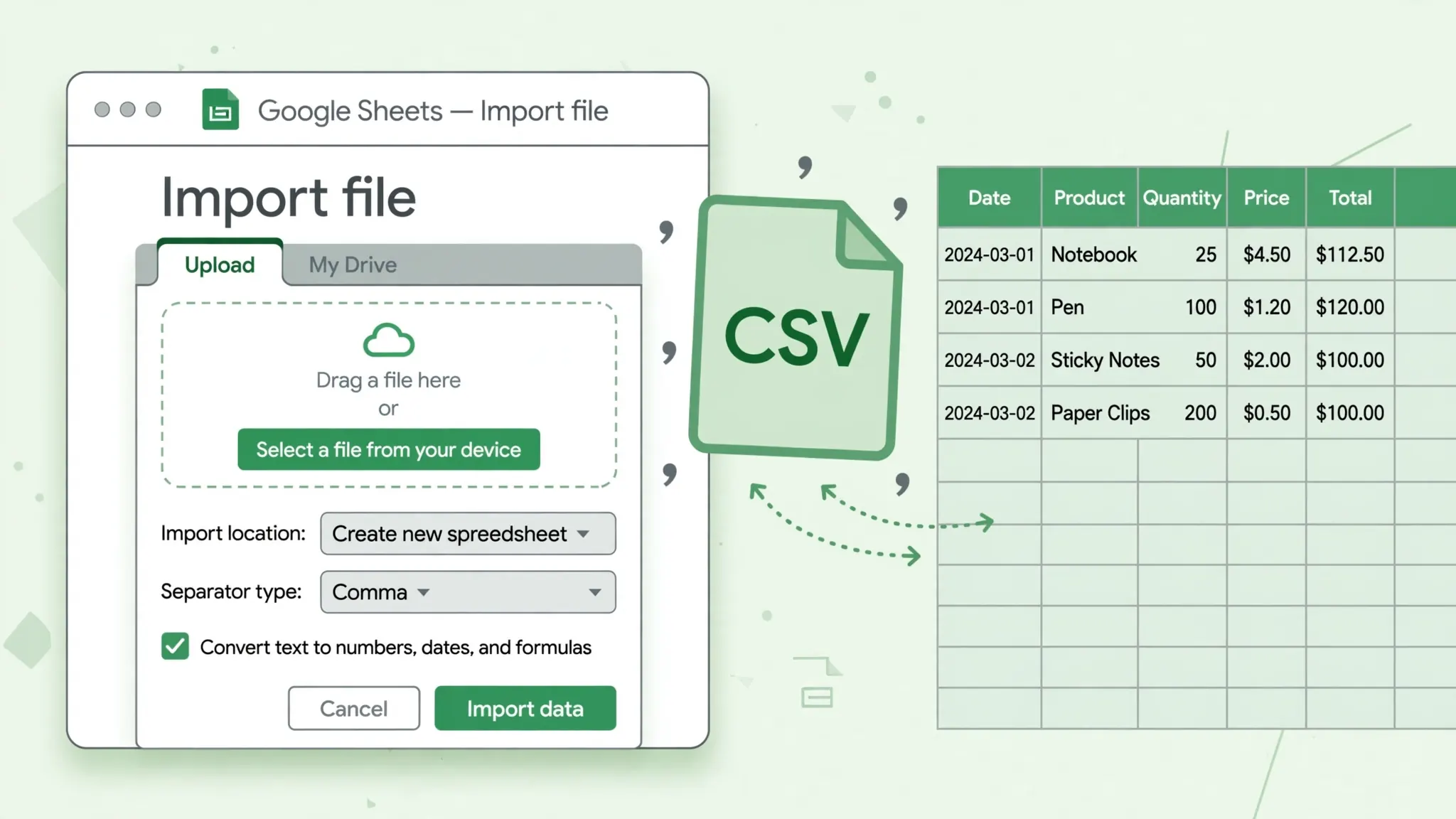
The google sheets split text to columns delimiter choice is where splits succeed or fail, so it deserves its own section. Here is how to read your data and pick correctly:
Comma. The default for most CSV-style data and “Last, First” name fields. Watch out for commas inside the data — “Springfield, IL 62701” contains a comma that is part of the address, not a separator. If some rows split into more pieces than others, stray in-data commas are the usual culprit.
Semicolon. Common in European exports (Germany, France, Spain) where the comma is the decimal separator, so files use semicolons between fields. If your data came from a European system and comma-splitting produces one unsplit column, try semicolon.
Space. The choice for full names (“Priya Sharma” → “Priya” | “Sharma”). The danger: middle names and double-barrelled surnames create extra pieces (“Mary Jane Watson” → three columns). Decide in advance how to handle them — often by splitting then re-joining the extras.
Custom. For anything else: pipe | (common in logs and pipe-delimited exports), colon (time values), hyphen (phone numbers, SKUs), or even multi-character separators. Type the exact character into the Custom box.
Detect automatically. Good first guess for clean data; verify on messy data. Note that it picks one separator for the whole selection — if your data mixes separators (some rows comma, some semicolon), no single menu choice will work, and you need the formula methods below.
Regional note: teams in the US typically see comma-delimited files, while much of continental Europe, Brazil, and parts of India working with European clients see semicolons. If you regularly receive files from both, make the separator check a habit rather than assuming.
Method 2: the SPLIT formula (dynamic and non-destructive)
The google sheets split formula is SPLIT(), and it is the better choice whenever the source data might change or you want to keep the original intact. Syntax:
=SPLIT(text, delimiter, [split_by_each], [remove_empty_text])
The basics: =SPLIT(A2, ",") divides A2 at every comma. =SPLIT(A2, " ") divides at every space. The result spills across the row — one formula in B2 fills B2, C2, D2, and as many columns as the text has pieces. This spilling behavior is the key thing to internalize: every column the result needs must be empty, or you get a #REF! error.
The two optional arguments handle the tricky cases. split_by_each (default TRUE) means each character in the delimiter string splits separately — =SPLIT(A2, ", ") splits at every comma and every space. Set it to FALSE to split only at the exact multi-character sequence. remove_empty_text (default TRUE) drops empty pieces, so “a,,b” gives two pieces, not three — set FALSE when position matters (like fixed-column data where an empty middle field must stay empty).
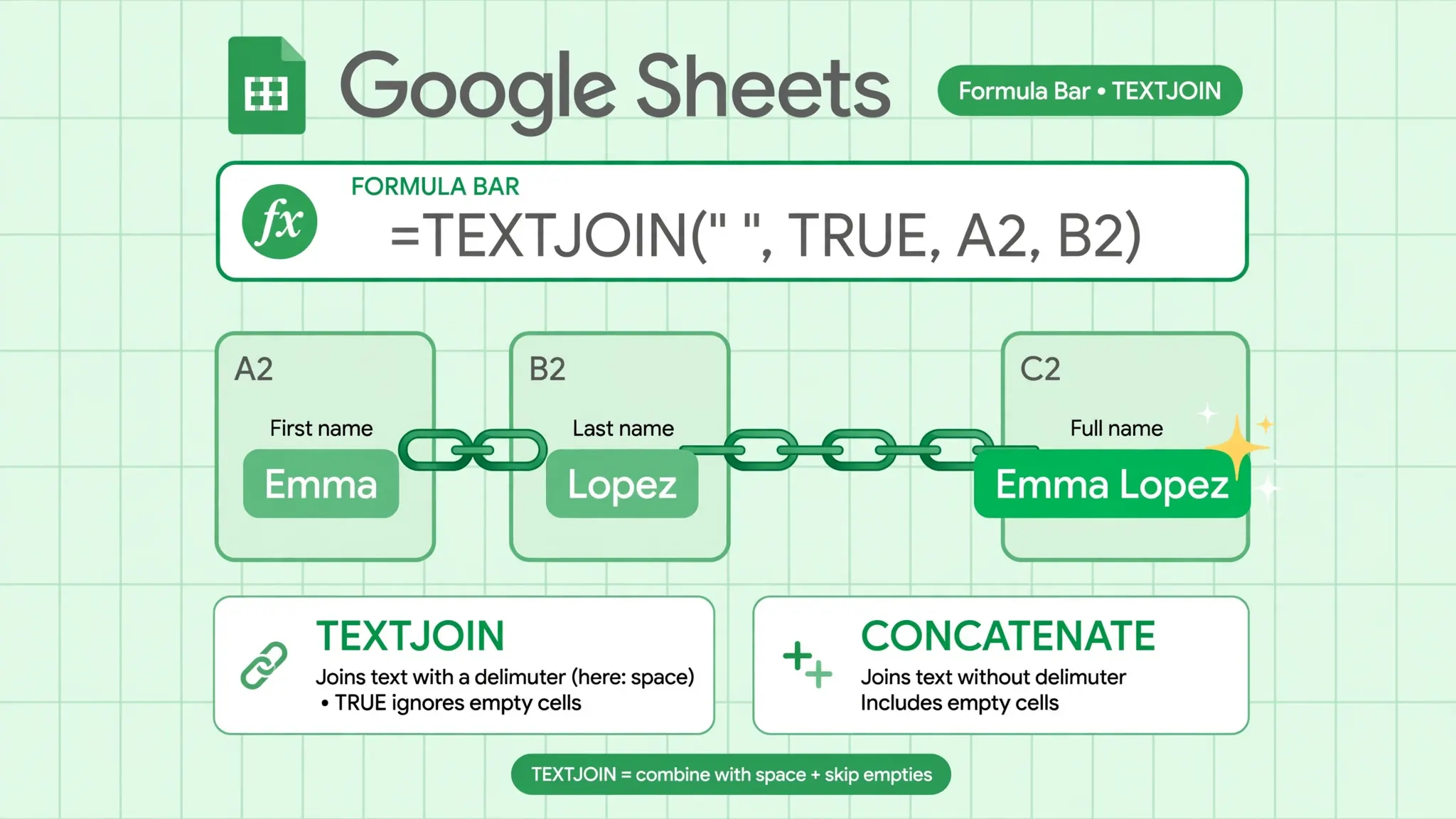
Why prefer the formula? Three reasons. First, it is non-destructive: the original column stays untouched, so you can compare before and after. Second, it is dynamic: edit A2 and the split updates instantly; add rows and copy the formula down. Third, it composes with other functions — =SPLIT() feeds directly into INDEX() (grab just the second piece: =INDEX(SPLIT(A2,","),1,2)), TRANSPOSE(), or QUERY(). For recurring reports, a column of SPLIT() formulas beats re-running the menu command every week. (And when you need the reverse — gluing pieces back together — our guide to combining cells in Google Sheets covers TEXTJOIN in depth.)
SPLIT into rows with TRANSPOSE
Sometimes you want the pieces stacked vertically, not spread horizontally — a cell containing “apple,banana,cherry” becoming three rows. Wrap it: =TRANSPOSE(SPLIT(A2, ",")). The pieces spill downward instead. Just make sure the cells below are empty.
Method 3: REGEXEXTRACT and other formula approaches
When the text is irregular — mixed separators, variable formats, pieces you want to skip — regular expressions give you surgical control. The workhorse is REGEXEXTRACT(), which pulls out the part of the text matching a pattern.
Example: pull the ZIP code out of “Springfield, IL 62701”. =REGEXEXTRACT(A2, "\d{5}") grabs the five-digit number wherever it sits. No delimiter choice needed.
Example: split “2026-10-08” into year, month, day without relying on hyphens alone. =REGEXEXTRACT(A2, "(\d+)-(\d+)-(\d+)") captures three groups — but note it returns only the first match in one cell; to spill all three groups across columns, wrap each in its own formula or use =SPLIT(A2, "-"), which is simpler here. Regex earns its keep when the separator varies: =SPLIT(A2, ",|;")… actually SPLIT does not take regex. For mixed separators, use =SPLIT(REGEXREPLACE(A2, "[,;|]", ","), ",") — first normalize every separator to a comma, then split normally. That two-step pattern handles almost any messy column.
Fixed-width data (old mainframe exports where columns are positional, not delimited) needs LEFT(), MID(), and RIGHT() instead: =MID(A2, 1, 10) grabs characters 1–10, =MID(A2, 11, 20) the next chunk. No delimiter involved at all.
Grabbing one specific piece without spilling is a daily need: =INDEX(SPLIT(A2, ","), 1, 2) returns just the second comma-separated piece. It is cleaner than splitting across helper columns when you only need one field — say, extracting the domain from a column of email addresses.
How to split cells in Google Sheets without overwriting your data
This section exists because the overwrite problem from Method 1 bites almost everyone once. Here is the full defensive playbook for how to split cells in Google Sheets safely:
- Count the pieces first. Eyeball the longest cell — how many separators does it contain? Pieces = separators + 1. You need at least that many empty columns to the right.
- Insert blank columns. Right-click the column letter to the right of your data › Insert 1 column right (repeat, or insert several at once by selecting multiple columns first).
- Or duplicate the tab. Right-click the sheet tab › Duplicate. Work on the copy; the original is your undo button.
- Or use the formula method on a fresh area of the sheet — zero overwrite risk by construction.
- After splitting, verify before deleting the original column: spot-check five rows, confirm piece counts match, then hide (do not delete) the original for a week.

A related cleanup step: normalize the separators before you split. If some rows use “, ” and others use “,”, run Edit › Find and replace first — find , (comma-space), replace with ,, Replace all — and now one delimiter handles every row. Our find and replace guide covers the regex options that make this kind of normalization fast.
Real examples: names, addresses, and dates
Names: “Sharma, Priya” → two columns. Menu method with comma separator, or =SPLIT(A2, ", ") with split_by_each FALSE so the comma-space pair counts as one cut. Trim the results — imported names often carry leading spaces, and =TRIM() around the split (or a Trim whitespace pass after the menu method) keeps them clean.
Names: “Priya Sharma” (space-separated) → two columns. Space separator. For middle names, split then rejoin: if C2:E2 hold the pieces, =TEXTJOIN(" ", TRUE, C2:E2) rebuilds everything after the first name into the surname field.
Addresses: “221B Baker Street, London, NW1 6XE”. Comma split gives three pieces; the postal code rides along with the city in piece three for UK addresses (the space inside “NW1 6XE” is not a comma). For US addresses “1600 Amphitheatre Parkway, Mountain View, CA 94043”, the state+ZIP share the last piece — split that piece by space to separate them.
Dates and times: “2026-10-08 14:30:00”. Split by space to separate date from time. Then format each piece: the date part as Date, the time part as Time. If the date piece arrives as text, =DATEVALUE() converts it to a real date — see our date format guide for the full locale-safe workflow.

Troubleshooting: when splitting goes wrong
Nothing happened. The separator you chose does not occur in the data — often a comma vs. semicolon mix-up, or invisible characters (non-breaking spaces from web copy-paste). Try Detect automatically, and check for stray spaces with =LEN().
#REF! with the SPLIT formula. The spill range is blocked — something sits in a cell the result needs. Clear the columns to the right (or below, with TRANSPOSE) and the formula resolves itself.
Too many pieces. The separator character appears inside the data (commas in addresses, spaces in double-barrelled names). Either clean those first, use a custom multi-character delimiter, or switch to REGEXEXTRACT for the specific piece you need.
Numbers turned into dates. Splitting “10-08” by hyphen can yield “10” and “08” — but if a piece looks like a date, Sheets may auto-format it. Format the result columns as Plain text (Format › Number › Plain text) before splitting when the pieces are codes, not values.
Leading zeros vanished. “02134” split from a ZIP+4 becomes 2134. Same fix: pre-format the destination as Plain text.
The split worked but formulas show the delimiter. You probably split with split_by_each TRUE on a multi-character delimiter. Set it to FALSE: =SPLIT(A2, ", ", FALSE).
After splitting: turn the pieces into something useful
Splitting is rarely the finish line — it is the setup. Once you know how to split text to columns in Google Sheets, the pieces become building blocks for everything else. Here are the moves that turn a successful split into genuinely useful data.
Grab just one piece. You often need only the surname, or only the ZIP, not the full fan-out. =INDEX(SPLIT(A2, ","), 1, 2) returns the second comma-separated piece directly — no helper columns, no clutter. Change the final 2 to pick any position. For the last piece when counts vary (like the state in “City, State”), count first: =INDEX(SPLIT(A2, ","), 1, COLUMNS(SPLIT(A2, ","))).
Clean the pieces immediately. Splits inherit the source’s mess — leading spaces, random casing, trailing punctuation. The fastest cleanup: run the split, select the result columns, and apply Data › Data cleanup › Trim whitespace, plus a =PROPER() pass for names or =UPPER() for codes. Clean pieces sort and match correctly; dirty ones silently break VLOOKUPs later.
Rejoin selectively. Sometimes the split reveals you wanted a different grouping — first name plus last initial, or city plus state without the street. =TEXTJOIN() is the reverse gear: split “221B Baker Street, London, NW1 6XE” by comma, then =TEXTJOIN(", ", TRUE, B2:C2) rebuilds just “London, NW1 6XE”. Split-then-rejoin sounds roundabout, but it is the standard way to restructure messy text without retyping.

Feed the pieces into dropdowns. This is the power combo: split a jammed “Tags” or “Categories” column, run =SORT(UNIQUE(...)) over the pieces to get the distinct values, and point a data validation dropdown at that list. Next month’s data entry uses the clean list instead of re-creating the mess — the split was a one-time rescue, the dropdown is the permanent fix.
Sort and filter on the new columns. Split dates into year/month/day columns and you can pivot by month; split names and you can sort by surname properly. The split columns are first-class data now — freeze the header row, add filters, and work with them like any other fields.
Frequently Asked Questions
How do I split text to columns in Google Sheets?
Select the column, go to Data › Split text to columns, then choose the separator (comma, space, semicolon, or custom) from the box that appears. Sheets divides each cell at that character into neighboring columns.
What is the Google Sheets split formula?
The SPLIT formula is =SPLIT(text, delimiter). For example, =SPLIT(A2, “,”) divides the contents of A2 at every comma, spilling the pieces across the row. Unlike the menu command, it is dynamic and leaves the original cell untouched.
How do I split cells in Google Sheets by space to separate first and last names?
Select the name column, choose Data › Split text to columns, and set the separator to Space. Or use =SPLIT(A2, ” “) in an adjacent column. Insert blank columns to the right first so the split does not overwrite existing data.
Why did Split text to columns overwrite my data?
The menu command writes results into the original column and the columns immediately to its right, overwriting whatever is there without asking. Insert enough blank columns to the right before running it, or use the SPLIT formula on a fresh area instead.
Can I split text to columns in Google Sheets using a custom delimiter?
Yes. After choosing Data › Split text to columns, open the Separator box and pick Custom, then type any character — a pipe |, a colon, a hyphen. With the SPLIT formula, just put the character in quotes: =SPLIT(A2, “|”).
How do I split text into rows instead of columns in Google Sheets?
Wrap SPLIT in TRANSPOSE: =TRANSPOSE(SPLIT(A2, “,”)). The pieces spill downward into rows instead of across columns. Make sure the cells below are empty or you will get a #REF! error.