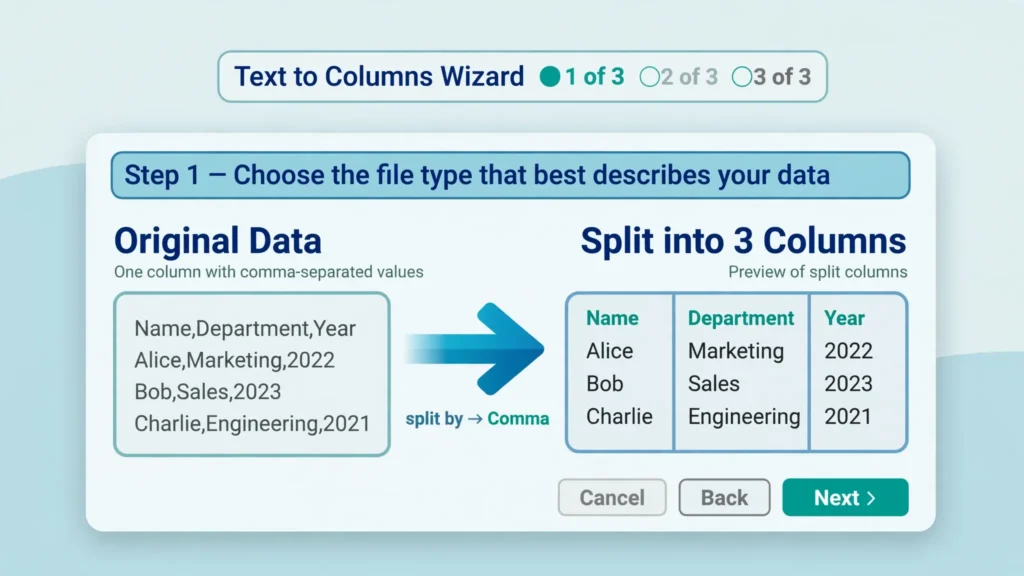
Some of the most useful data in the world arrives jammed into a single column: “Sharma, Priya” in a name field, “Mumbai, Maharashtra, 400001” in an address, “2026-01-15 | Shipped | Express” in a status log. The Excel feature that unpacks these is Text to Columns — a three-step wizard that has been quietly doing this job since the 1990s, and still does it better than most modern alternatives for one-off jobs. If you only learn one Data-tab tool this year, make it this one.
This guide walks through text to columns in Excel from first principles: the Delimited mode (splitting on commas, tabs, semicolons, spaces, or any custom character), the Fixed Width mode (splitting legacy reports at character positions), and the underused step 3 where you control data formats, skip junk columns, and fix dates on the way through. You’ll also learn the destination trick that prevents overwritten data, real-world split recipes for names and addresses, and when to graduate to TEXTSPLIT or Flash Fill instead. Starting from a raw CSV? Our free online CSV to Excel converter handles the file import — then Text to Columns finishes the unpacking inside the workbook.
What Text to Columns does (and when to use it)
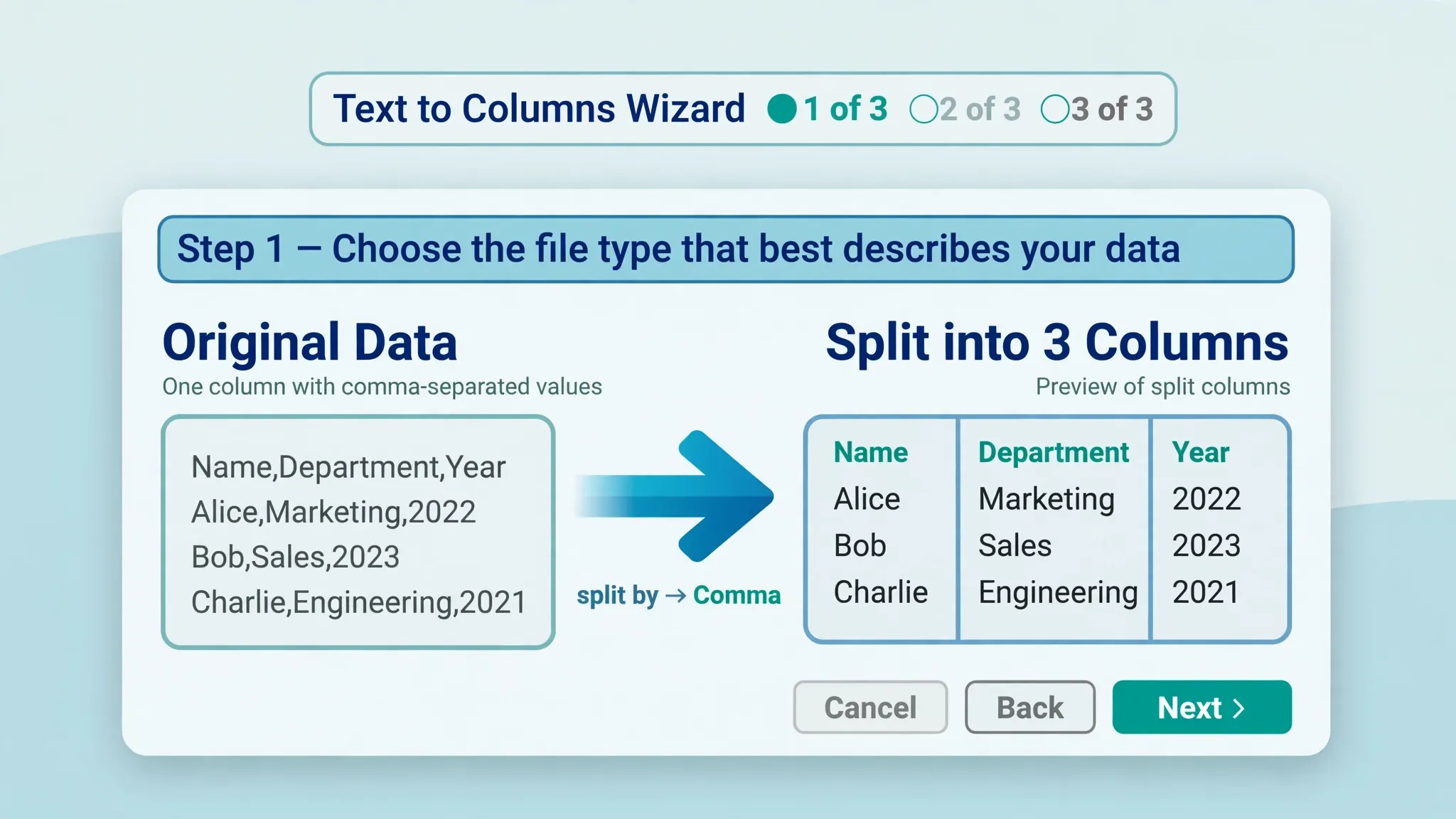
Text to Columns takes the text in one column and distributes it across multiple columns, splitting at points you define. It’s the inverse of CONCATENATE: instead of joining cells, it explodes one cell into many. Reach for it whenever a single cell contains multiple facts separated by a consistent marker — commas in “Last, First”, pipes in exported logs, tabs pasted from a web page, spaces in “City PIN” pairs, or fixed character positions in mainframe reports.
What it’s not: it won’t split one cell into multiple rows (that’s TEXTSPLIT’s job in modern Excel), it won’t merge anything, and it operates on the selected column in place — which is why the destination setting matters so much. Microsoft’s official walkthrough of the Convert Text to Columns Wizard covers the same three steps we’ll detail here, with the same emphasis on the Data preview window — watch it, because it shows exactly what you’ll get before you commit.
Text to Columns in Excel: Delimited mode step by step
Delimited mode is the 90% case: your data has a separator character, and you want to split wherever it appears. The classic example is the Excel Text to Columns comma split.
- Select the column containing the packed text (click the column letter).
- Go to Data › Text to Columns (or press Alt+A+E). The wizard opens at Step 1 of 3.
- Choose Delimited (“characters such as commas or tabs separate each field”) and click Next.
- In Step 2, tick the delimiter your data uses: Tab, Semicolon, Comma, Space, or Other (type any character, e.g.
|or:). Watch the Data preview — vertical lines show exactly where splits will occur. Tick “Treat consecutive delimiters as one” if double commas/spaces should collapse. - Click Next to reach Step 3 (formats and destination — details below), then Finish.
Example: “Sharma, Priya” with Comma ticked splits into “Sharma” and ” Priya” — note the leading space on the second piece, which is why a TRIM pass afterward is standard practice. For “2026-01-15|Shipped|Express”, tick Other and type |. The preview is your safety net: if the vertical lines land in the wrong places, your delimiter choice is wrong — go back before finishing.
Fixed Width mode: splitting without delimiters
Some data has no separator at all — legacy system reports, bank statements, and government exports where fields occupy fixed character positions (“PRIYASHARMA MUMBAI 400001”). That’s Fixed Width mode.
- Select the column and open the wizard (Data › Text to Columns), but choose Fixed width in Step 1.
- In Step 2’s ruler, click where each break should go — a vertical line appears. Drag lines to adjust, double-click a line to delete it.
- Click Next, set formats in Step 3 if needed, and Finish.
Fixed Width demands consistent positions — if one row is a character short, everything after it shifts. Preview carefully, and for ragged data consider a different approach (Flash Fill or formulas). Where it shines: mainframe dumps, fixed-format log files, and old bank exports where the layout never varies. Pro tip: use a monospaced mental model — paste the data into a text editor with a fixed-width font first to verify the columns truly align.
Step 3 secrets: data formats, skipping columns, and dates
Most users click Finish at Step 2 and never discover Step 3 — which is where Text to Columns becomes a data conversion tool, not just a splitter. Click any column in the Data preview, then set its format:
General (default) converts numeric-looking text to numbers and dates to dates — usually what you want. Text forces the column to stay text: essential for ZIP codes, phone numbers, and IDs with leading zeros (“00123” stays “00123” instead of becoming 123). Date (MDY/DMY/YMD) tells Excel how to interpret ambiguous dates — the single most reliable fix for US-vs-EU date confusion, covered fully in our date format guide. “Do not import column (skip)” drops junk columns mid-split — the filler column of dashes, the legacy code nobody needs — without a second cleanup pass.
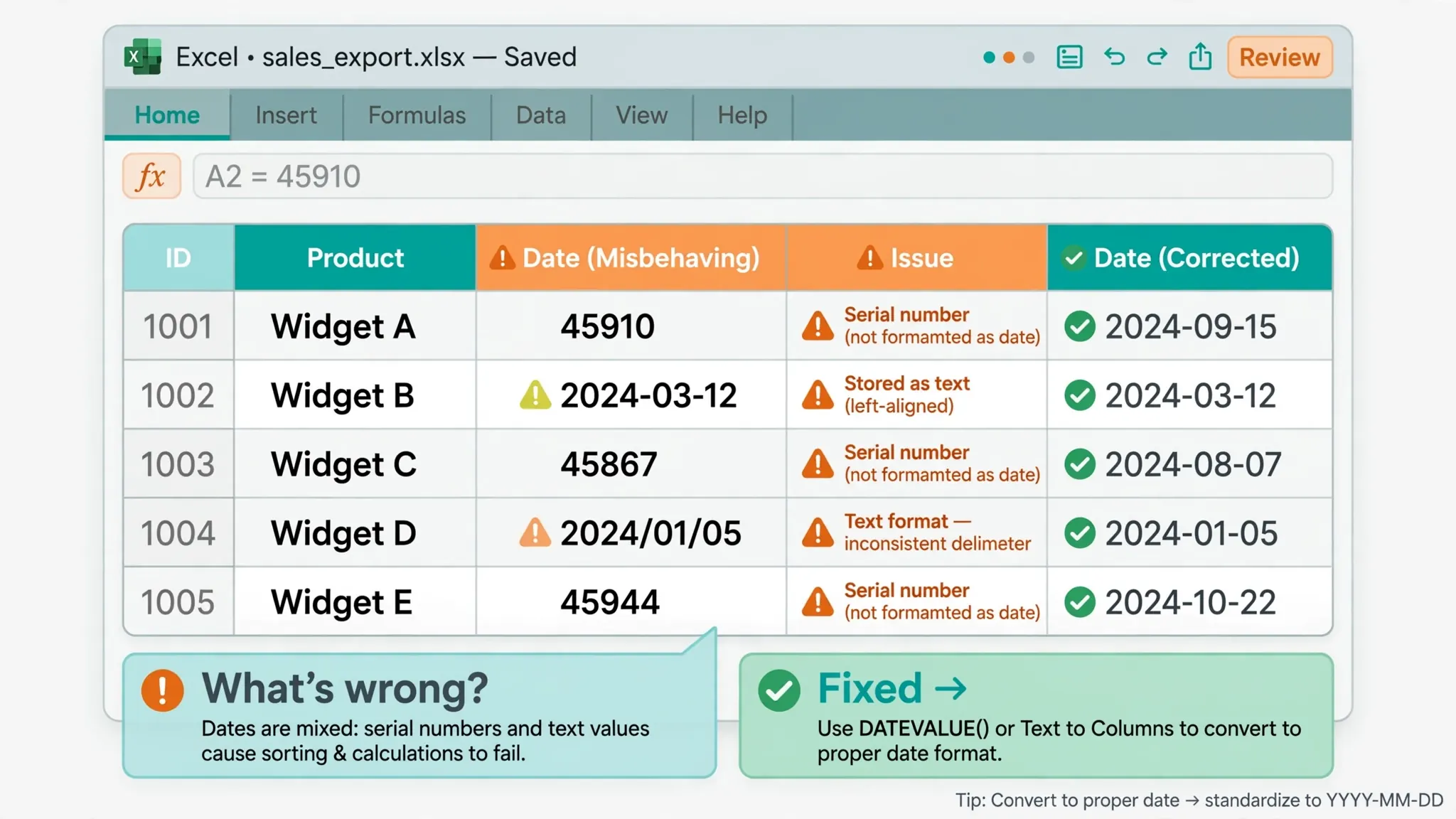
Real power move: splitting “03/04/2026” while telling Step 3 the column is Date: DMY converts European-format text dates to real Excel dates in one move. This alone justifies learning the wizard properly.

The destination trap: don’t overwrite your data
By default, Text to Columns writes the split pieces starting at the selected column — overwriting whatever sits to its right. Excel does warn you (“There’s already data here. Do you want to replace it?”), but warnings get clicked through. Two safe habits: insert blank columns to the right of your source column before starting (right-click column letter › Insert, as many as you need), or set the Destination field in Step 3 to an empty cell elsewhere (e.g., $E$1). The destination approach is cleaner: your source column stays intact as an audit trail, and the split lands in fresh territory. For name-splitting specifically, our first/last name guide compares this wizard against Flash Fill and TEXTSPLIT.
Real-world splits: names, addresses, and codes
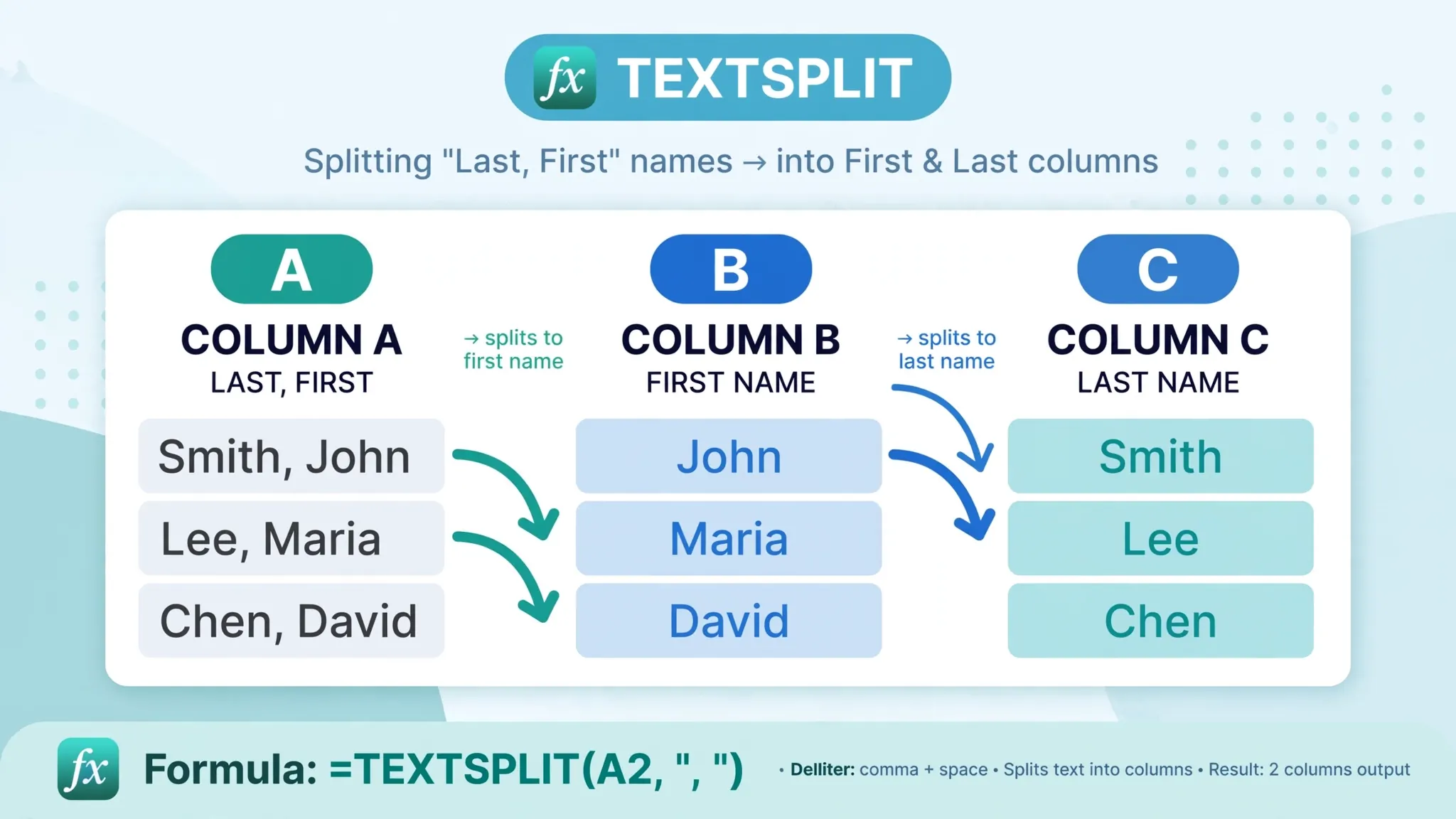
“Last, First” names: Delimited › Comma › destination two empty columns right. Result: “Sharma” | ” Priya” — TRIM the second column. For middle names and suffixes (“Smith, John A. Jr”), expect 3+ pieces and recombine as needed.
City, State PIN (“Mumbai, Maharashtra 400001”): two-stage: first split on comma (City | “Maharashtra 400001”), then split the second piece on space. Or use Other with a custom approach — sometimes two quick wizard passes beat one clever one.
Product codes (“ELEC-TV-42-2026”): Delimited › Other › - gives four clean columns: category, type, size, year. Perfect for pivot-table analysis by segment.
Dates glued to text (“Shipped: 2026-01-15”): split on the colon or space, then set the date piece to Date format in Step 3.
After every recipe: TRIM the outputs, check data types, and eyeball the last rows — ragged source rows produce ragged splits, and the preview only shows the first few lines.
The modern alternatives: TEXTSPLIT and Flash Fill
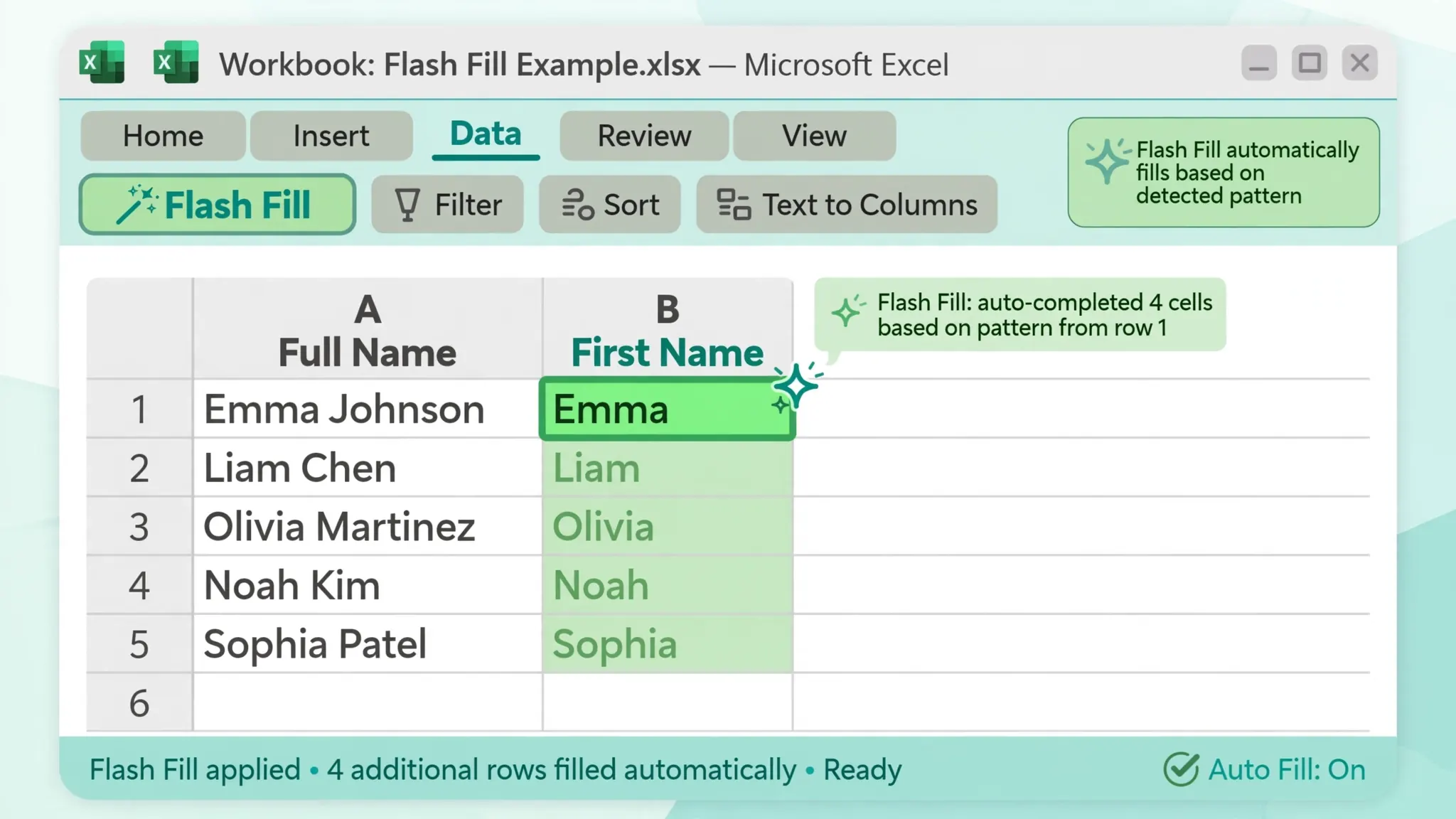
Text to Columns is a one-time, in-place operation. When you need something dynamic or pattern-based, Excel’s newer tools take over. TEXTSPLIT (Excel 365/2024) is the wizard as a formula: =TEXTSPLIT(A2,",") spills the pieces live, updates when the source changes, and — unlike the wizard — can split into rows too: =TEXTSPLIT(A2,",",";"). Microsoft documents the full syntax on its TEXTSPLIT function reference. Flash Fill (Ctrl+E) handles splits with no consistent delimiter at all — type the desired output for one or two rows and it infers the pattern; our Flash Fill examples show it splitting names and reformatting phones. Rule of thumb: wizard for one-off deterministic splits, TEXTSPLIT for live dashboards, Flash Fill for messy human-typed data.
Troubleshooting Text to Columns
Everything landed in one column: wrong delimiter — reopen and check the preview lines. For tab-separated data pasted from the web, tick Tab, not Comma.
Leading zeros vanished (“00123” → 123): rerun with Step 3 set to Text for that column.
Dates flipped month/day: rerun with Step 3 set to Date with the correct order (DMY for most of the world, MDY for US data).
Extra empty columns appeared: consecutive delimiters (“a,,b”) create empty pieces — tick “Treat consecutive delimiters as one” in Step 2.
Numbers became text or vice versa: Step 3’s General vs Text choice controls this; rerun with the right setting rather than fixing afterward.
Wizard is greyed out: you’re editing a cell (press Esc), the sheet is protected, or it’s a shared workbook with restrictions.
Splitting on multiple delimiters at once
Real data rarely uses one separator consistently — “Smith, John | Manager” mixes commas, spaces, and pipes. The wizard lets you tick multiple delimiters in Step 2 (Comma + Space + Other:|), splitting at every one of them. The cost: each delimiter creates its own split point, so “Smith, John” with comma+space ticked yields “Smith” | “” | “John” — an empty column from the space after the comma. Fix it by ticking “Treat consecutive delimiters as one”, which collapses “, ” into a single split. For truly chaotic separators, the modern alternative wins: =TEXTSPLIT(A2,{",","|",";"}) accepts an array of delimiters in one formula. Rule of thumb: wizard with “treat consecutive as one” for one-off jobs; TEXTSPLIT arrays for recurring or formula-driven splits.
CSV repair: the one-column paste problem
The most common Text to Columns rescue mission: you pasted CSV text into Excel and everything landed in column A — “Name,Email,City” stacked in single cells. Select column A, run the wizard with Comma ticked, and the paste unpacks into proper columns instantly. The same fix applies to tab-separated text copied from web pages (tick Tab) and pipe-separated log lines (Other: |). This is also the cure when a CSV opened in one column because of a delimiter mismatch — rather than re-importing, one wizard pass repairs it. After the split, immediately set text-type columns (ZIP codes, IDs) via Step 3’s Text format, because the default General will strip leading zeros on the way through.
Combining Text to Columns with Flash Fill in one workflow
The two tools are complements, not competitors — use the wizard for the rigid part and Flash Fill for the messy remainder. Example: an address column “123 Main St, Springfield 62701”. Step 1: Text to Columns on the comma → “123 Main St” | ” Springfield 62701″. Step 2: Flash Fill on the second piece: type “Springfield” once, Ctrl+E — it learns to take the city and drop the PIN; another column with “62701” extracts the PINs. The wizard did the deterministic split; Flash Fill handled the variable-length remainder no delimiter could cleanly separate. This two-stage pattern — deterministic first, inferred second — resolves a huge class of “almost structured” data that defeats either tool alone. Verify the Flash Fill column by sorting; inferred patterns deserve a skeptical eye.
Fixed Width deep dive: mainframe reports and bank files
Fixed Width mode deserves a deeper look because its data sources — mainframe dumps, bank statements, government exports — are unforgiving. The defining trait: every field occupies an exact character range, e.g., positions 1–10 for account, 11–30 for name, 31–40 for amount. Before splitting, verify alignment: paste the raw text into a monospaced editor (Notepad with a fixed-width font, VS Code) and check that columns truly line up — one ragged row shifts every field after it. Setting breaks: in Step 2’s ruler, click to create break lines; drag to nudge; double-click to delete. Place breaks between fields with one spare character of margin where possible. Amounts need care: fixed-width amounts often come as “0000123450” (implied decimals, no point) — split first, then divide by 100 in a helper column, or set the column to Text and post-process. Signed amounts (“12345-” trailing minus, or “{“/”}” overpunch characters from COBOL systems) need SUBSTITUTE cleanup after the split. The reward for the fussiness: fixed-width splits are 100% deterministic — same positions, same result, every row — which makes them ideal for Power Query automation of recurring legacy files.
When the wizard isn’t enough: knowing its limits
Text to Columns is a one-shot, in-place, columns-only tool — and recognizing its boundaries saves hours. It can’t split into rows (use TEXTSPLIT with a row delimiter). It can’t be undone selectively — one Ctrl+Z rolls back the whole split, so for experimental splits work on a copied column. It can’t handle variable multi-delimiter chaos gracefully (that’s Flash Fill or Power Query’s “Split Column” with custom logic). It doesn’t record steps — for monthly files, rebuild the split in Power Query (Home › Split Column › By Delimiter) where it becomes a replayable, documented step. And it maxes out at the sheet’s column limit — a row with 300 comma-separated values will silently truncate at column XFD… in practice you’ll hit usability limits long before that; for such data, Power Query’s unpivot or a proper ETL tool is the honest answer. The wizard is the fastest tool for the 90% case — knowing the other 10% is what separates users from professionals.
Split Column in Power Query: the recurring-file answer
When the same packed column arrives every week, rebuild the split once in Power Query and never repeat it manually. Select the column › Home › Split Column › By Delimiter › choose your delimiter (comma, space, custom) › decide split into rows vs columns and at each occurrence vs left-most/right-most › OK. The step appears in Applied Steps, fully editable — change the delimiter next month without redoing anything. Power Query’s splitter also handles the wizard’s weak spots: splitting into rows (one option click), quoting-aware CSV splitting, and a “number of columns to split into” limiter that prevents runaway splits on ragged rows. Pair it with a Trim step right after (Transform › Trim) and your weekly file lands clean, split, and trimmed on every refresh. The ten minutes to build the query pays for itself the second week.
Frequently Asked Questions
Where is Text to Columns in Excel?
Select the column, then go to the Data tab and click Text to Columns in the Data Tools group — or press Alt+A+E. The Convert Text to Columns Wizard opens with three steps: choose Delimited or Fixed Width, set delimiters or break positions, then set formats and destination.
How do I split text to columns by comma in Excel?
Select the column, go to Data › Text to Columns, choose Delimited, click Next, tick Comma (untick the others), click Next, optionally set a destination cell, and click Finish. Each comma-separated value lands in its own column — remember to TRIM the results afterward.
What is the difference between Delimited and Fixed Width in Text to Columns?
Delimited splits wherever a separator character appears (comma, tab, semicolon, space, or a custom character you type). Fixed Width splits at character positions you set by clicking on a ruler — designed for legacy reports where fields line up in columns with no separator at all.
How do I use Text to Columns without overwriting existing data?
In Step 3 of the wizard, change the Destination to an empty cell away from your data — or insert blank columns to the right of the source column before you start. Setting the destination explicitly keeps your source column intact as an audit trail.
Can Text to Columns split data into rows instead of columns?
No — the wizard only splits across columns. For row splits, use TEXTSPLIT with a row delimiter (e.g., =TEXTSPLIT(A1,",",";")) in Excel 365, or split to columns first and then copy › Paste Special › Transpose.
Why is Text to Columns greyed out in Excel?
You’re likely editing a cell (press Enter or Esc to exit edit mode), the sheet is protected, or you’re in a restricted shared workbook. Resolve that state and the button reactivates.