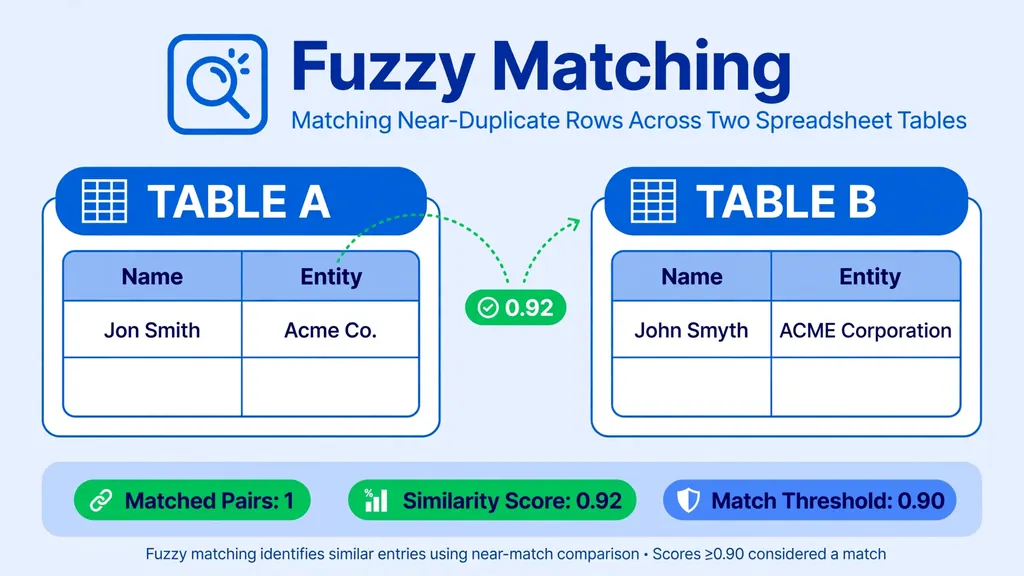
Excel fuzzy lookup is the answer to one of data work’s most tedious problems: two lists that describe the same things in slightly different words. “Jon Smith” vs “John Smyth”. “Acme Corp.” vs “ACME Corporation”. A human sees the match instantly; VLOOKUP and XLOOKUP see nothing, because they demand exact equality. Fuzzy lookup scores similarity instead — and Microsoft’s free Fuzzy Lookup add-in for Excel has been doing exactly that for years.
The add-in compares two tables and finds rows that are approximately the same, returning a similarity score for each match. It’s a lifesaver for deduplicating customer lists, reconciling vendor reports against your books, merging CRM exports, and cleaning survey data where every respondent spelled the company name a little differently.
This guide covers the complete Excel fuzzy lookup workflow: what fuzzy matching is and how the add-in scores it, how to get the Fuzzy Lookup add-in for Excel, how to prepare and clean your tables (the step everyone skips), running your first match step by step, tuning the similarity threshold, reading the results, and the modern built-in alternative — Power Query’s fuzzy merge — for when the add-in isn’t available. One honest note up front: Microsoft has been winding down the add-in’s download page in some regions, so we cover both paths and tell you which to choose.
What Excel fuzzy lookup actually does
Exact lookup asks “which rows are identical?” Fuzzy lookup asks “which rows are close enough?” Under the hood, Microsoft’s add-in tokenizes your text — breaking “Andrew Hill” into tokens like “andrew” and “hill” — and compares token sets using a similarity measure based on the Jaccard index, a classic approximate-string-matching technique. The result is a similarity score between 0 and 1 for each candidate pair: 1.0 means identical, 0.85 means very close, 0.4 means barely related.
This token-based approach is why fuzzy lookup handles the errors humans actually make: misspellings (“Smyth” vs “Smith”), abbreviations (“Corp.” vs “Corporation”), word-order swaps (“Hill, Andrew R.” vs “Andrew Hill”), and missing words (“Andy Hill” vs “Andrew Hill”). It’s robust in a way that wildcard matching never is — wildcards need the matching part to be an intact substring, while fuzzy matching tolerates differences scattered anywhere in the string.
The key mindset shift: fuzzy lookup doesn’t give you the answer, it gives you ranked candidates with scores. You set a similarity threshold, review the borderline cases, and decide. Used that way — as an 80%-automation tool with human review on the edges — it’s enormously powerful. Used blindly, it will confidently merge two different “John Smith”s.
Getting the Fuzzy Lookup add-in for Excel
The Fuzzy Lookup Add-In for Excel was developed by Microsoft Research and released as a free download. Installation is straightforward:
- Download the add-in from the Microsoft Download Center (Fuzzy Lookup Add-In for Excel).
- Run the installer and follow the prompts — it requires .NET and works with desktop Excel on Windows.
- Open Excel: a new Fuzzy Lookup tab appears at the end of the ribbon, with a “Fuzzy Lookup” button.
- Verify: the button opens a task pane where you’ll configure left/right tables and match columns.
An honest caveat: Microsoft has retired the add-in’s download page in some regions (it was reported unavailable in multiple regions in 2026), and it was only ever built for Windows desktop Excel — Mac and Excel for the web never got it. If you can’t install it, skip to the Power Query fuzzy merge section: it’s built into modern Excel, works on both platforms’ desktop apps, and handles genuine misspellings with a tunable threshold. The concepts in this guide — preparation, thresholds, reviewing scores — apply identically.
Preparing your tables: clean first, match second
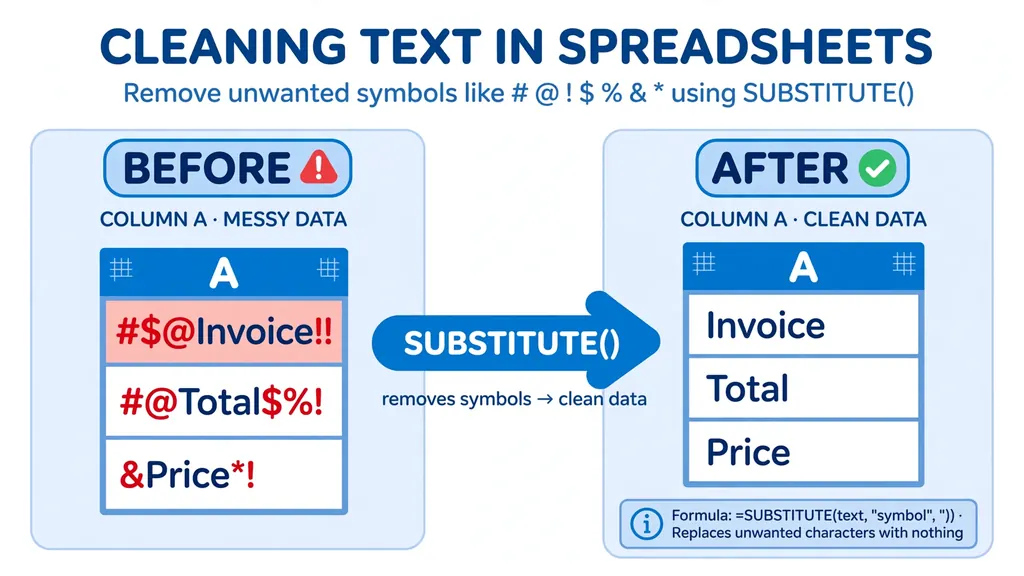
The single biggest determinant of fuzzy-match quality isn’t the threshold — it’s how clean the inputs are. The add-in compares tokens, so “ACME Corp.” and “Acme Corp” tokenize almost identically, but “ACME Corp.” and “#ACME!! Corp” don’t. Every junk character is noise the algorithm must see past.
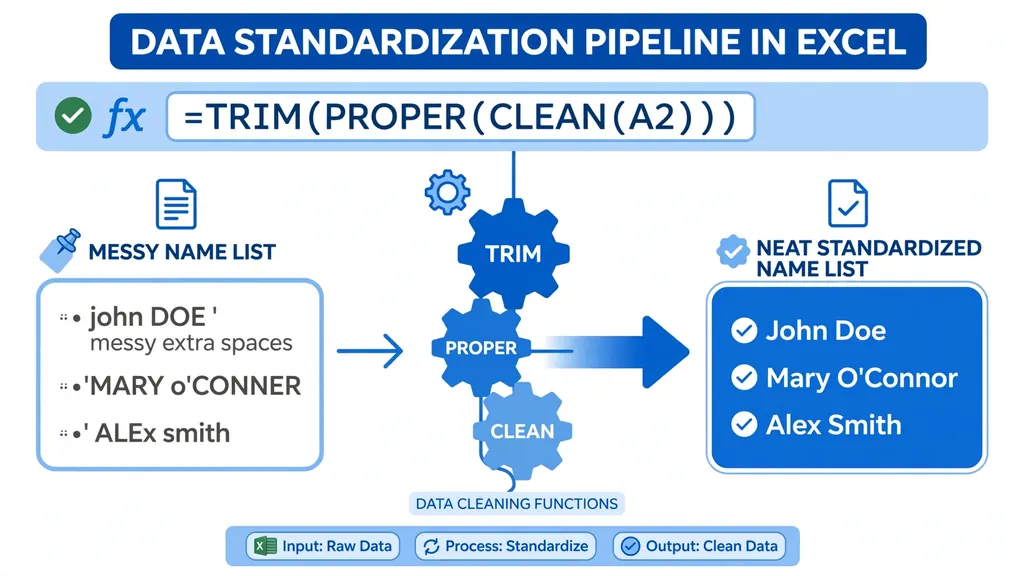
Before matching, run both tables through the same normalization:
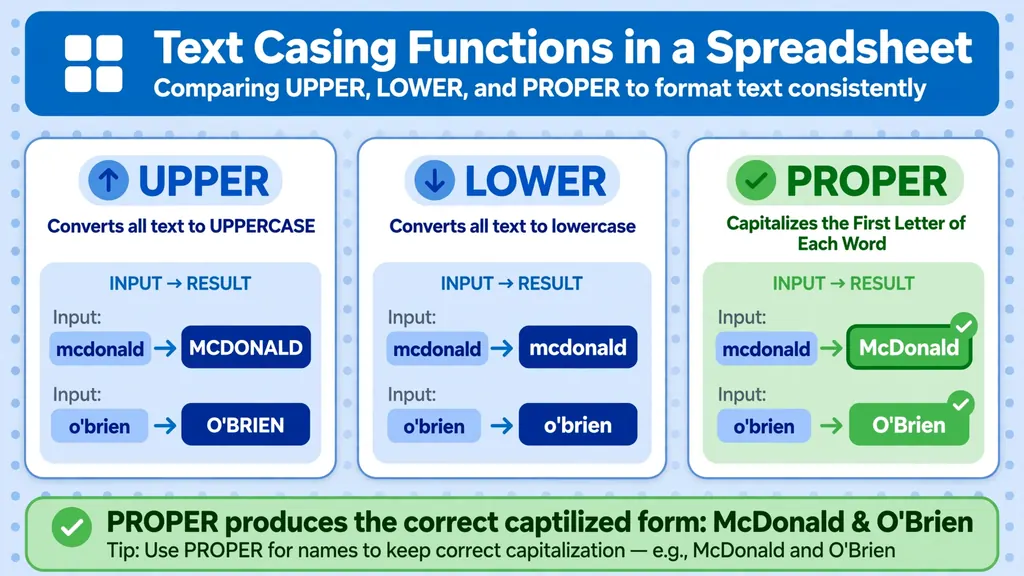
- Same casing on both sides — UPPER or PROPER everywhere, never mixed.
- Trimmed spaces — leading, trailing, and double spaces removed.
- Symbols stripped or normalized — decide per column whether “.” and “,” stay or go, then apply identically.
- One concept per column — “Name” in one column, not “Name (ID)” mashed together.
This is the standardize-data-in-Excel routine applied as match preparation, and it routinely matters more than any threshold tweak. Two dirty tables at threshold 0.9 match worse than two clean tables at 0.7.

Running your first fuzzy match, step by step
With the add-in installed and tables cleaned, the actual matching takes minutes:
- Format both ranges as Excel Tables (Ctrl+T) with clear header names — the add-in works with tables.
- Open the Fuzzy Lookup pane from the ribbon tab.
- Select the left table (your primary list) and the right table (the list to match against).
- Map the match columns: click the column in the left table, then the corresponding column in the right table. You can map multiple column pairs (name + city matches far better than name alone).
- Set the similarity threshold — start at 0.80, the conventional default.
- Choose the number of matches per left row (usually 1) and click Go.
- Review the output table: each left row paired with its best right-table match, plus Similarity and Confidence scores.
Mapping multiple columns is the underused superpower: name-only matching confuses every “John Smith”, but name + postcode + city is nearly unambiguous. When in doubt, add columns rather than lowering the threshold.
Tuning similarity: thresholds and match columns
The similarity threshold is the dial between recall (finding all true matches) and precision (avoiding false ones). Practical guidance:
| Threshold | Behavior | When to use |
|---|---|---|
| 0.90+ | Near-exact only | Dedupe within one clean list; low tolerance for false merges |
| 0.80 | Balanced default | First pass on most matching tasks |
| 0.65–0.75 | Aggressive | Very dirty data; plan to review every match manually |
| Below 0.60 | Noise | Rarely useful — clean the data instead |
The professional routine: run at 0.80, filter the output for blank or low-confidence rows, investigate — was it a missed true match or genuinely unmatchable? — then lower the threshold only if real matches were missed. Threshold is a scalpel for the last 10%, not a substitute for clean inputs.
Reading the results: Similarity and Confidence
The output table gives two scores per match. Similarity measures how alike the strings are (the Jaccard-style token score). Confidence reflects how much better the best match is than the runner-up — high confidence means a clear winner. A row with similarity 0.95 but low confidence has a near-twin in the right table competing for the match: exactly the case a human should adjudicate.
Build a review habit: filter for similarity below 0.85 or low confidence, eyeball those rows, and mark decisions in a “Verified” column. For customer and vendor data, this review step is non-negotiable — auto-merging the wrong “Maria Garcia” with another is worse than not matching at all.
Normalize before you match: casing, symbols, spaces
Worth repeating as its own section because it decides outcomes: run identical normalization on both tables. The usual pre-match recipe:
=TRIM(UPPER(SUBSTITUTE(SUBSTITUTE(A2,".",""),",","")))
Uppercase everything (casing differences add pure noise), strip the period/comma variants, trim spaces. Apply the same formula to the same column in both tables. Our special-characters guide covers the symbol side, and PROPER vs UPPER vs LOWER covers casing choices — for matching, UPPER usually wins because it eliminates an entire dimension of variation.
The modern alternative: Power Query fuzzy merge
If the add-in won’t install — Mac, web, locked-down corporate laptop, or a retired download page — Power Query’s fuzzy merge does the same job natively. It’s the route Microsoft itself now points to (see this Microsoft Q&A discussion), and it works wherever modern Excel does.
- Load both tables as queries (Data > From Table/Range for each).
- Home > Merge Queries: select the left query, then the right query.
- Select the key columns in each, then tick “Use fuzzy matching to perform the merge”.
- Open Fuzzy matching options: set the similarity threshold (start 0.80), and optionally ignore case or match by combining text parts.
- OK, then expand the merged column to bring in the matched fields.
Fuzzy merge has real advantages: it’s refreshable (new data re-matches automatically), it lives in the workbook (no add-in to install on every machine), and its transformation options — ignore case, combine text parts — cover common needs without pre-cleaning. Its limitation versus the add-in: it works on text columns only, and tuning is slightly less granular. For most teams in 2026, it’s the default choice; the add-in is the legacy specialist tool.
Real-world uses: dedupe, reconciliation, list cleanup
Where fuzzy lookup earns its keep:
- Customer dedupe: find “Acme Corp” / “ACME Corporation” / “Acme Corp.” rows referring to one account before merging CRM exports.
- Reconciliation: match vendor invoices against your PO list when descriptions were typed differently on each side.
- Survey cleanup: normalize free-text “employer” fields where every respondent invented their own spelling.
- List enrichment: join a purchased prospect list to your database on company name despite formatting differences.
Fold matching into a broader routine: our data cleaning checklist places dedupe and matching in the standard pre-analysis sequence, so nothing gets skipped.

Troubleshooting: why matches fail
Everything matches everything (or nothing matches)
Threshold too low (noise) or too high (silence) — or the key column is too generic. “John Smith” alone can’t disambiguate; add city, postcode, or email as additional match columns.
Scores tank on clean-looking data
Junk characters are the usual cause: non-breaking spaces, smart quotes, or symbols invisible to the eye. Run the CODE() diagnostic and the clean-then-match recipe from the normalize section.
The add-in tab disappeared
Check File > Options > Add-ins > Manage: COM Add-ins, and re-tick “Fuzzy Lookup Add-In for Excel”. If it won’t stay enabled, consider migrating the workflow to Power Query fuzzy merge.
Results don’t update when source data changes
The add-in’s output is a static snapshot — re-run the match after edits. (Another reason Power Query’s refreshable merge wins for living datasets.)
Fuzzy lookup in Google Sheets (and other alternatives)
Google Sheets has no fuzzy lookup add-in and no Power Query — but the need is identical when two Sheets tabs describe the same customers differently. Workarounds, from simplest to most capable:
- Normalize + exact match: apply the same UPPER/TRIM/SUBSTITUTE normalization to both columns, then VLOOKUP. This resolves the large majority of “near-duplicate” cases, which are really just casing and spacing differences.
- Helper-key matching: build a simplified key from each name — first 5 letters + postcode, say — with
=UPPER(LEFT(SUBSTITUTE(A2," ",""),5))&B2, and match on keys. Crude but surprisingly effective for dedupe. - Apps Script Levenshtein: a short script implementing edit distance gives true fuzzy scoring in Sheets. It requires comfort with code, but it’s the genuine article — similarity as a number you can threshold.
- Do it in Excel: export both tabs, fuzzy-merge in Excel Power Query, and bring the matched result back. For a monthly reconciliation, this round-trip is often faster than fighting Sheets’ limitations.
The pattern across every platform is the same: normalize first (cheap, exact), fuzzy second (for what normalization can’t fix), human review on the borderline. Excel fuzzy lookup via the add-in or Power Query just happens to package all three steps best.
Combining fuzzy matching with exact keys
The strongest matching pipelines are hybrid: exact where you can, fuzzy where you must. A typical customer reconciliation runs in passes:
- Pass 1 — exact: match on the strongest key available (email, account ID, phone). These are certain; accept them automatically.
- Pass 2 — normalized exact: UPPER/TRIM both name columns and match again. Catches the trivially-different rows.
- Pass 3 — fuzzy: run the fuzzy match only on the still-unmatched rows, at 0.80, with name + city as key columns.
- Pass 4 — human: review everything below 0.85 similarity or with low confidence. Mark decisions; feed corrections back into the normalization rules.
Each pass shrinks the ambiguous pile, so expensive human attention goes only where it’s needed. Log the match rate per pass — “92% exact, 6% fuzzy, 2% manual” — and you’ve got a quality metric for the whole exercise. When the manual pile grows month over month, it’s a signal the source data is degrading, not that the matching failed.
Measuring fuzzy match quality: precision and recall
“It matched most of them” isn’t a metric. For any serious fuzzy-matching exercise — especially customer dedupe or financial reconciliation — measure two numbers on a hand-verified sample of a few hundred rows. Precision: of the pairs the matcher claimed match, what fraction truly do? (False merges are the dangerous error.) Recall: of the true matches in the sample, what fraction did the matcher find? (Missed matches are the expensive error.)
The threshold trades them off: raising it boosts precision at recall’s expense, lowering it does the reverse. For dedupe-then-merge workflows, favor precision — a missed duplicate is a minor annoyance, a wrong merge corrupts records. For investigative matching (“find every transaction possibly linked to this entity”), favor recall and review the extras. Record both numbers with the threshold used; when the next dataset arrives, you have a baseline to beat instead of a gut feeling. This measurement habit is what turns fuzzy lookup from a clever trick into a defensible process — and it’s the same discipline our data cleaning checklist asks of every quality step.
When not to use fuzzy matching
Fuzzy lookup is the wrong tool when exact keys exist (use them — they’re certain), when the data is too dirty to score meaningfully (clean first), when false merges carry high cost and review capacity is zero (a wrong auto-merge is worse than no merge), and when the lists are huge — fuzzy comparison is computationally expensive, so normalize aggressively to shrink the candidate pool before matching. Fuzzy matching is a precision instrument for the ambiguous middle, not a substitute for clean keys.
Frequently Asked Questions
Is there a fuzzy lookup function built into Excel?
No — Excel has no native FUZZYMATCH or FUZZYLOOKUP worksheet function. Your options are Microsoft’s free Fuzzy Lookup add-in (Windows desktop), Power Query’s fuzzy merge (built into modern Excel), or wildcard-based XLOOKUP for simple substring cases.
How do I install the Fuzzy Lookup add-in for Excel?
Download it from the Microsoft Download Center (Fuzzy Lookup Add-In for Excel), run the installer, and a Fuzzy Lookup tab appears on the ribbon. Note it’s Windows-desktop only, and Microsoft has retired the download page in some regions — Power Query fuzzy merge is the built-in alternative.
What similarity threshold should I use for fuzzy matching?
Start at 0.80, the conventional default. Review which rows came back blank or low-confidence, then lower the threshold only if genuine matches were missed. 1.00 means exact matches only; going below 0.60 usually produces noise.
Can Excel fuzzy match two columns with different spellings?
Yes — that’s exactly what fuzzy lookup is for. It tokenizes text and scores similarity, so “Jon Smith” matches “John Smyth” and “Acme Corp.” matches “ACME Corporation”, each with a similarity score you can threshold and review.
How do I find near-duplicate rows in one Excel table?
Run a fuzzy self-match: use the same table as both left and right in the add-in, or duplicate the query and fuzzy-merge it to itself in Power Query. Then filter for high-similarity pairs and decide which rows to merge or delete.
Does fuzzy matching work on numbers or dates?
No — fuzzy matching compares text. Convert numbers or dates to a consistent text representation first if you must match on them, but better: match on text keys (names, addresses) and compare numbers exactly.