Plain Find and Replace handles exact text beautifully — but real cleanup jobs are never exact. You need to delete every parenthetical note from a product list, standardize hundreds of invoice numbers that share a prefix, or strip area codes from a phone column where each entry is formatted slightly differently. That’s where Excel find and replace wildcards come in: three tiny symbols — *, ?, and ~ — that turn the Find box into a pattern-matching engine capable of bulk edits no formula can do as fast.
In this guide you’ll learn exactly what each wildcard does, the practical patterns professionals use daily (starts-with, ends-with, contains, fixed-length codes), how to escape wildcards with the tilde when your data contains literal asterisks, surgical techniques for replacing part of a cell’s contents, and how the same wildcards supercharge COUNTIF, SUMIF, and VLOOKUP formulas. We’ll also cover the dialog options — scope, Match entire cell contents, Look in — that determine whether a wildcard replace is a precision strike or a carpet bombing. Starting from a messy CSV? Our free online CSV to Excel converter imports it cleanly; the wildcard techniques below do the heavy cleanup inside the workbook.
What wildcards do in Find and Replace
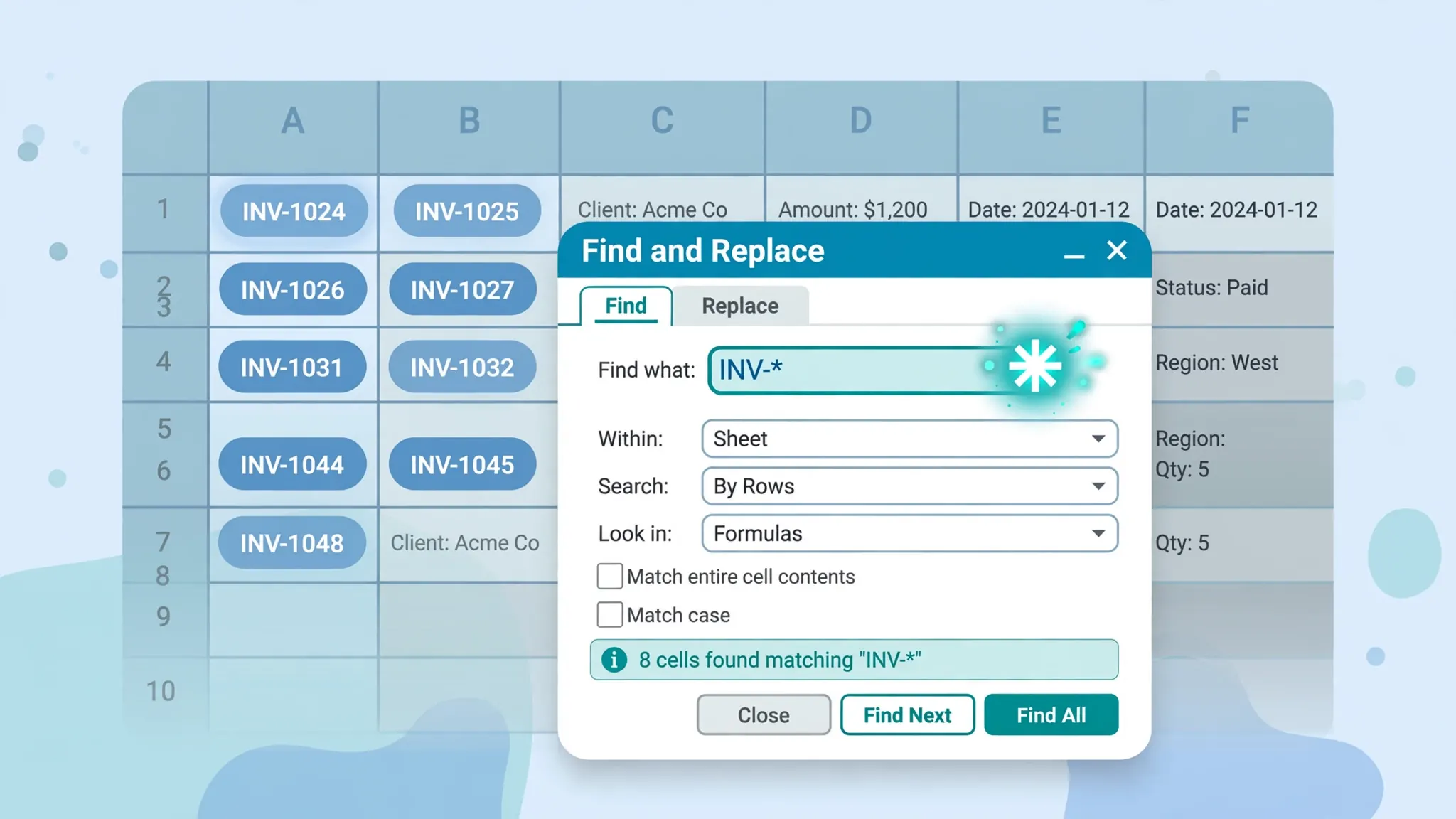
Open Find and Replace with Ctrl+H (or Ctrl+F for find-only). The “Find what” box accepts more than literal text: certain characters act as wildcards — placeholders that match variable text. Instead of finding the exact string “discount,” you can find “disc*” and catch “discount,” “discounted,” “discontinued,” and “disc.” in one pass. Microsoft documents the behavior on its wildcard characters in searches reference page, and the same three symbols work in filters and several worksheet functions.
The mental model: a wildcard pattern describes a shape of text. * means “any text of any length here (including nothing),” ? means “exactly one character here,” and ~ means “treat the next character literally.” Three shapes compose into surprisingly expressive patterns — enough for perhaps 80% of real-world bulk text cleanup, with none of the learning curve of regular expressions (which Excel doesn’t support natively).
Excel Find and Replace Wildcards: the three symbols
Asterisk (*) — any number of characters
The workhorse. * matches zero or more characters in that position. sales* finds “sales,” “salesperson,” “sales report Q3” — anything beginning with “sales.” *.xlsx finds any text ending in “.xlsx”. *east* finds “Northeast,” “Southeast,” “Beast,” anything containing “east.” In a Replace operation, the asterisk’s matched text is discarded unless you reconstruct it — replacing “sales*” with “SALES” turns “salesperson” into just “SALES” (the “person” part is gone). Remember this: Replace with a wildcard pattern replaces the entire match, not just the literal part.
Question mark (?) — exactly one character
The precision instrument. ? matches exactly one character — no more, no less. 202?-??-?? finds date-like strings with any digits. sm?th finds “smith” and “smyth” but not “smooth.” ???-??? finds any two 3-character groups joined by a hyphen — perfect for validating fixed-format codes. Where * is a net, ? is a scalpel: use it when the length of the text matters.
Tilde (~) — the escape character
The tilde doesn’t match text itself; it defuses the next character. ~* finds a literal asterisk, ~? a literal question mark, ~~ a literal tilde. Essential when your data contains these characters for real — star ratings (“4* hotel”), footnotes, mathematical expressions, or file-name patterns. Without the tilde, searching for “*” matches every non-empty cell in the sheet — a classic panic moment for first-timers.

Practical patterns: starts with, ends with, contains, exact length
Here are the patterns that cover most daily work. In each case, press Ctrl+H, put the pattern in “Find what,” and choose your replacement:
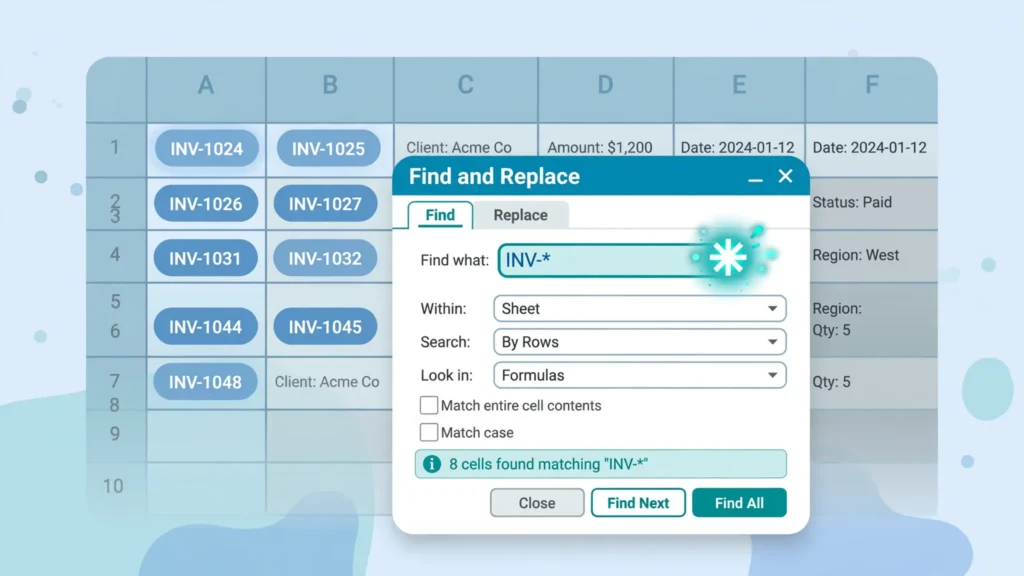
Starts with: INV-* — finds all invoice codes beginning “INV-“. Replace with INV- itself to normalize variants like “inv -” or “Inv-” (combine with Match case off).
Ends with: *.tmp or * (old) — finds anything ending with that suffix. Handy for stripping “(old)” tags from product names: Find (old)… actually Find * (old) with “Match entire cell contents” replaces the whole cell; without it, Find (old) literally (no wildcard needed) and replace with nothing.
Contains: *refurbished* — finds the word anywhere. Use in COUNTIF for quick tallies: =COUNTIF(A:A,"*refurbished*").
Exact length codes: ???-???? — matches “ABC-1234” shaped entries. Combine with Find All (Ctrl+F › Find All) to list every match and jump between them for inspection before replacing.
Anything at all: * alone matches every non-empty cell — the nuclear option for clearing a column’s contents while leaving formulas… careful: it also matches formula results as displayed. Always scope the selection first.
The tilde (~): finding literal asterisks and question marks
Data containing real * and ? characters is more common than you’d think: ratings (“5*”), uncertainty markers (“pending?”), multiplication in text (“3*4”), glob patterns in file lists. To find or remove them, prefix with tilde:
- Press Ctrl+H. In “Find what,” type
~*(tilde, then asterisk). - Leave “Replace with” empty to delete every literal asterisk, or type the replacement character.
- Click Replace All — only true asterisk characters are affected; normal text is untouched.
Same logic for ~? (literal question marks) and ~~ (literal tildes — yes, the escape character needs escaping too). Diagnostic tip: if a Find for “*” highlights the entire sheet, you forgot the tilde — Esc out, add it, and breathe.

Replace part of a cell: surgical text surgery
The most valuable wildcard skill is removing or replacing part of cell contents while keeping the rest. The pattern is always: literal anchor + * swallowing the variable part.
Remove parenthetical notes: Find (*) (space, open-paren, asterisk, close-paren), Replace with nothing. “Widget Pro (2024 model)” → “Widget Pro”. “Gadget (old) (2023)” → “Gadget” — the asterisk swallows across both pairs in one pass.
Strip email domains: Find @*, Replace with nothing. “priya@company.com” → “priya”. (Keep a backup column — this destroys information.)
Remove leading codes: Find *-, Replace with nothing. “ELEC-TV42” → “TV42” — the asterisk eats everything through the first hyphen.
Normalize trailing variants: Find Ltd*, Replace with Ltd. “Acme Ltd.”, “Acme Ltd – UK”, “Acme Ltd,” all become “Acme Ltd”.
Always test on a copy column first, or use Find All to preview matches before Replace All. These patterns are powerful precisely because they’re broad — broad is what makes them dangerous on the original data.
Wildcards in formulas: COUNTIF, SUMIF, MATCH, VLOOKUP
Wildcards aren’t confined to the dialog — they work inside several functions, turning them into pattern-aware tools:
=COUNTIF(A:A,"*@gmail.com") — counts Gmail addresses. =SUMIF(B:B,"North*") — sums the Amount column for regions starting “North” (with the sum range as third argument). =COUNTIF(C:C,"???-????") — counts entries matching a code shape. =MATCH("*-Q4",D:D,0) — finds the first row ending “-Q4”. Even VLOOKUP accepts them: =VLOOKUP("Acme*",A:B,2,FALSE) finds the first “Acme…” row.
Two caveats: FIND does not support wildcards (use SEARCH, which does), and to count literal asterisks in COUNTIF you still need the tilde: =COUNTIF(A:A,"*~**"). For case-sensitive pattern work, wildcards won’t help — they’re always case-insensitive; use EXACT or helper columns instead.
The options that change everything: scope, match case, Look in
Click Options ›› in the Find and Replace dialog and four settings decide what your wildcards actually touch:
Within (Sheet vs Workbook): Sheet is the default and usually right. Workbook replaces across every tab — use deliberately, never accidentally.
Search (By Rows vs By Columns): affects Find Next navigation order only, not Replace All results.
Look in (Formulas vs Values vs Comments): critical. Searching Formulas matches the formula text (=VLOOKUP(*) would match the asterisk inside formulas!); searching Values matches displayed results. For data cleanup you almost always want Values.
Match case: off by default — “sales*” matches “SALES” too. Turn it on when case distinguishes meaning.
Match entire cell contents: the precision switch. Off, sales* matches inside longer strings; on, the whole cell must fit the pattern. For “cells that start with X,” you want this ON with pattern X* — otherwise “wholesale*” cells match too.
Bulk cleanup workflows with wildcards
Put it together for the classic messy-import rescue — say, a product list from three suppliers with inconsistent naming:
- Scope: select only the product-name column. Never wildcard-replace a whole sheet.
- Strip annotations: Find
(*)› Replace with nothing › Replace All. Parenthetical notes gone. - Normalize prefixes: Find
prod-*› Replace withPROD-› Replace All (with Match case off, variants collapse). - Kill double spaces: Find two spaces › Replace with one › Replace All, repeat until zero replacements.
- Verify: filter the column and scan unique values; run
=LEN()spot checks. Then continue with the full data cleaning workflow — wildcards are one pass within it.
This five-minute sequence routinely replaces an hour of manual editing — and because each step is a Replace All on a scoped selection, it’s fully repeatable next month on the next messy export.
Pitfalls: when wildcards bite back
The unanchored asterisk. *old* matches “golden,” “folder,” “scolded” — not just “old.” Anchor with literals on both sides or enable “Match entire cell contents.”
Replace All on formulas. With “Look in: Formulas,” a pattern like * can rewrite formula text itself, breaking calculations silently. Set Look in to Values for data cleanup.
Undo limits. Replace All is a single undo step (Ctrl+Z) — but only until you save and close. For big wildcard jobs, duplicate the sheet first; the copy is your insurance.
Hidden matches. Find also matches hidden rows, filtered-out rows, and very-hidden sheets when Within is Workbook. Unhide or accept that hidden data changes too.
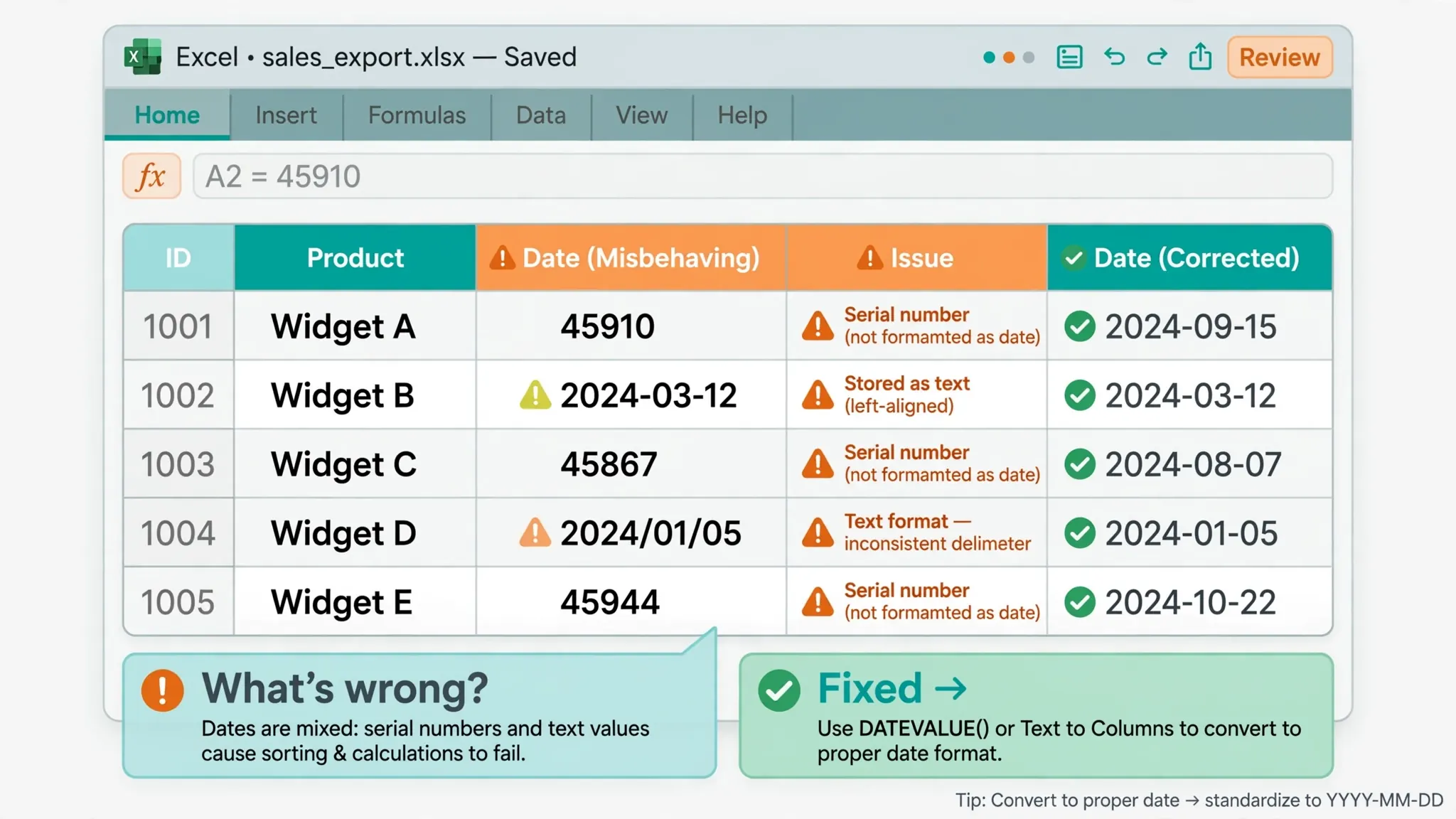
Dates and numbers. Wildcards are text tools. A pattern like 2026* won’t match the date value behind a formatted date cell when looking in Values — it matches the displayed text, which depends on the number format. Convert to text first if you must pattern-match dates.
12 copy-paste wildcard recipes
Keep this list handy — these patterns solve the bulk of real cleanup jobs. In each, press Ctrl+H, put the pattern in “Find what,” set the replacement, and Replace All on a scoped selection:
1. Remove parenthetical notes: Find (*) → Replace: (nothing). 2. Strip email domains: Find @* → (nothing). 3. Delete leading codes: Find *- → (nothing). 4. Normalize company suffixes: Find Ltd* → Replace: Ltd. 5. Find all Gmail addresses (for COUNTIF): *@gmail.com. 6. Match fixed-format codes: ???-????. 7. Remove trailing ” – OLD” tags: Find - OLD → (nothing) (no wildcard needed, but pairs with the others). 8. Find cells starting with digits: use Find All with #*… careful — # isn’t a wildcard; instead filter or use a helper formula. 9. Delete literal asterisks: Find ~* → (nothing). 10. Standardize “St” variants: Find St* with Match entire cell contents → Replace: Street. 11. Find year-like numbers in text: *20??*. 12. Clear a column’s contents but keep formulas: select column, Find *, Look in: Values, Replace All with (nothing) — values vanish, formulas stay.
Three cleanup stories from real CSVs
Patterns stick better with stories. The stale-suffix purge: a supplier CSV arrived with product codes like “SKU-00412-OLD” mixed among clean ones — Find *-OLD with Match entire cell contents, Replace with nothing, and every stale suffix vanished in one pass. The parenthetical notes: customer names arrived as “Acme Ltd (priority account)” — Find (*) and replace with nothing to strip every trailing note while keeping the names. The year-prefixed invoices: numbers like “2024-INV-1187” needed to become “INV-1187” — Find ????- (four question marks eat exactly the year plus the dash) and Replace with nothing. Three different messes, three one-pass fixes, zero manual editing.
Find & Replace vs FILTER vs formulas: choosing the weapon
Wildcards appear in three places — the dialog, AutoFilter, and functions — and each suits different jobs. The dialog (Ctrl+H) is for changing data in bulk: surgical, immediate, permanent. AutoFilter with wildcards (filter dropdown › Text Filters › Contains/Begins With, or type *pattern* in the search box) is for viewing subsets without changing anything — audit first, then decide. Formulas (COUNTIF/SUMIF with *) are for measuring patterns: how many, how much, which rows. The professional rhythm: filter to see the pattern’s reach, COUNTIF to measure it, then Ctrl+H to change it. Skipping the first two steps is how “Replace All” becomes “Regret All.”
Wildcards in Advanced Filter criteria ranges
Few users know that Advanced Filter criteria ranges accept wildcards — unlocking pattern-based extraction. Set up headers matching your table (say “Product”), and under it put Widget* as the criterion. Data › Advanced › Copy to another location › set List range, Criteria range, Copy to › OK — and every row whose product starts with “Widget” is extracted, in one step, without formulas or manual filtering. Combine criteria: Widget* under Product and >100 under Quantity extracts Widget-orders over 100 units. OR logic goes on separate criteria rows. This is the closest Excel gets to a SQL LIKE query without Power Query: pattern-matched, extracted, auditable. For monthly reporting (all “Q1-*” invoices, all “*@gmail.com” signups), save the criteria range next to the data and re-run the filter each month — five seconds for what used to be a manual hunt.
The regex-shaped hole: what wildcards can’t do
Honest limits: Excel wildcards are not regular expressions. You can’t match “exactly 3–5 digits” (? is exactly-one, * is any-count — nothing in between), can’t do alternation (“cat OR dog” needs two passes), can’t match character classes (“any digit” — ? matches letters too), and can’t capture groups for rearrangement (replacing “Smith, John” with “John Smith” needs Flash Fill or formulas). When patterns get that sophisticated, the escape hatches are: Power Query (its M language has Text functions and proper pattern splitting), VBA with RegExp (createObject(“VBScript.RegExp”) — full regex in a macro), or formulas (TEXTBEFORE/AFTER, MID/FIND constructions). The pragmatic rule: wildcards handle the 80% of cleanup that’s simple shapes; the moment you catch yourself wishing for “one or more digits here,” graduate to Power Query instead of fighting the dialog.
Auditing a wildcard replace: the 60-second safety ritual
Before any Replace All with wildcards, run this ritual — it takes a minute and has saved countless datasets. 1) Duplicate the sheet (right-click tab › Move or Copy › Create a copy) — your instant rollback. 2) Scope the selection to the target column only. 3) Press Ctrl+F (not H), enter your pattern, click Find All — the results pane lists every match; scroll it and sanity-check the count against your expectation. 4) Only then press Ctrl+H and Replace All. 5) Immediately verify: filter the column, compare a COUNTIF before/after, and spot-check ten random rows. The Find All preview is the step everyone skips and everyone needs — it’s the difference between “I replaced the pattern” and “I replaced the pattern and confirmed the blast radius.” Make it muscle memory and wildcard replaces become boring instead of terrifying.
Frequently Asked Questions
What are wildcards in Excel Find and Replace?
Wildcards are placeholder characters in the “Find what” box: the asterisk (*) matches any number of characters, the question mark (?) matches exactly one character, and the tilde (~) marks the next character as literal. They let you find and replace text patterns instead of exact strings.
How do I find and replace text that starts with certain letters in Excel?
Press Ctrl+H, type the prefix followed by an asterisk (e.g., disc*) in “Find what,” and enter your replacement text. The asterisk matches everything after the prefix. For whole-cell matches only, also tick “Match entire cell contents” under Options.
How do I find a literal asterisk (*) in Excel?
Type a tilde before it: ~* in the “Find what” box. The tilde escapes the wildcard, so Excel searches for a real asterisk character. Use ~? for a literal question mark and ~~ for a literal tilde.
Can I use wildcards to delete part of a cell’s contents in Excel?
Yes — anchor the pattern with literal text around an asterisk. To remove parenthetical notes: Find (*), Replace with nothing, Replace All. To strip email domains: Find @*, Replace with nothing. Always test on a copy column first.
Do wildcards work in Excel formulas?
Yes — in COUNTIF, COUNTIFS, SUMIF, SUMIFS, AVERAGEIF, MATCH, VLOOKUP, HLOOKUP, and SEARCH. Example: =COUNTIF(A:A,"*@gmail.com"). Note that FIND does not support wildcards, and matching is always case-insensitive.
Why is Excel Find and Replace matching too many cells?
An unanchored asterisk matches inside longer strings. Fix it by ticking “Match entire cell contents,” scoping the selection to one column, and checking Options › Look in — searching Formulas instead of Values is a common cause of surprise matches.