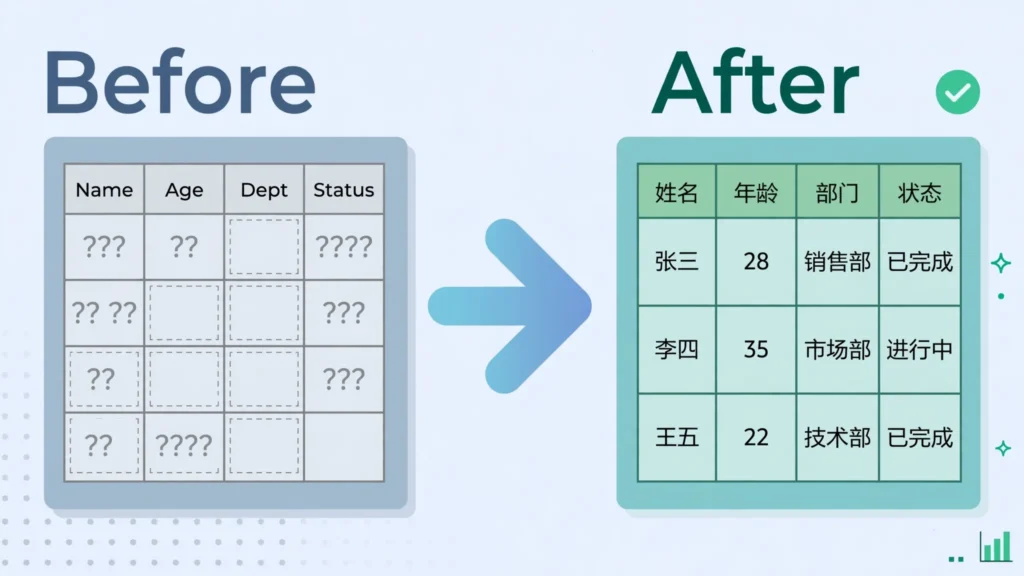
Excel CSV Chinese characters garbled into question marks, boxes, or strings of European gibberish is one of the most-searched spreadsheet problems in the world — and one of the most fixable. The scenario is always the same: a supplier in Shenzhen, a colleague in Shanghai, or an export from a Chinese e-commerce platform sends you a CSV; you double-click it; and where product names and addresses should be, Excel shows ???, 深圳, or neat rows of empty boxes. Your first instinct — that the file is broken — is almost always wrong. The file is fine. Excel simply decoded it with the wrong character encoding, and Chinese text is where wrong guesses become spectacularly visible.
This guide explains exactly why it happens and how to fix it for good. You will learn the three causes (wrong encoding detection, the missing BOM, and save-time destruction), a 60-second diagnosis that tells you which one you have, the step-by-step CSV Chinese garbled Excel fix using the Text Import Wizard, the Python one-liners for utf-8 and gbk files, and how to export Chinese CSVs that open correctly for your recipients — whether they are in the US, UK, India, Canada, Australia, or China itself. Let’s turn the gibberish back into Chinese.
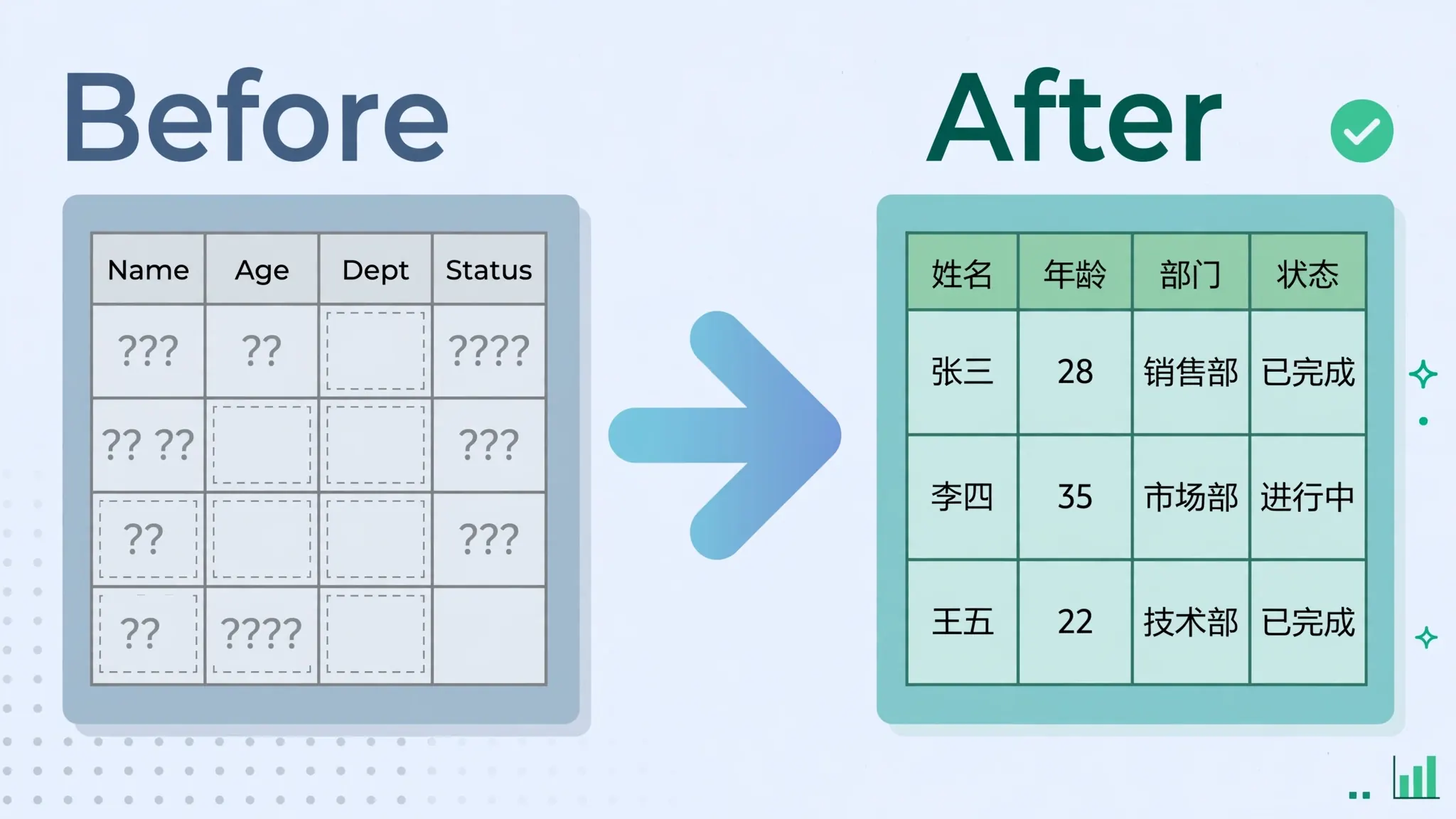
Why Excel CSV Chinese characters garbled happens: the three causes
The most common reason for Excel CSV Chinese characters garbled is wrong encoding detection on open. Chinese CSVs in the wild use two main encodings: UTF-8 (the global standard, 3 bytes per Chinese character) and GBK/GB2312 (mainland China’s legacy encoding, 2 bytes per character, Windows code page 936). When you double-click a CSV, Excel on a Western Windows system defaults to Windows-1252 — a single-byte encoding with no Chinese characters at all. Every multi-byte Chinese character gets shredded into 2–3 wrong European characters each. The result looks like 深圳市 — which is actually the UTF-8 bytes of 深圳市 (Shenzhen City) misread as Windows-1252. The data is intact; only the decoding is wrong.
The second cause is the missing BOM. Excel can detect UTF-8 automatically — but only if the file carries the UTF-8 byte order mark (EF BB BF). Files exported from many Chinese systems, Python scripts using plain utf-8, and Google Sheets downloads have no BOM, so Excel falls back to its ANSI default and garbles everything. This is why the same file opens perfectly in Google Sheets or VS Code (which default to UTF-8) but breaks in Excel. Our CSV BOM explained guide covers this mechanism in depth.
The third cause is the nastiest: save-time destruction. If someone opened a Chinese CSV and saved it via Excel’s plain “CSV (Comma delimited)” option, Excel wrote the file in the ANSI code page — and every Chinese character became a literal ?. When a CSV’s Chinese text shows question marks even in Notepad, the characters are gone: no import setting, no converter, no trick recovers them. You need the original data re-exported. Learning to distinguish this case (??? everywhere, even in a text editor) from decoding problems (gibberish in Excel, fine in Notepad) saves hours of futile fixing.
Diagnose in 60 seconds: which cause is yours
Open the CSV in a plain text editor (Notepad, VS Code, TextEdit) — not Excel — and look at the Chinese text:
Chinese looks correct in the editor, garbled in Excel. This is a decoding problem (cause 1 or 2). The bytes are fine; Excel guessed the encoding wrong. Fix it with the import wizard — next section. This is the outcome in roughly 80% of cases.
Chinese looks garbled in the editor too. Check the editor’s encoding indicator. If the editor auto-detected UTF-8 and the text is still wrong, the file is probably GBK — switch the editor to GBK/GB2312 and watch it snap into focus. If it snaps into focus, import into Excel with File Origin 936.
Question marks in the editor. Save-time destruction (cause 3). Stop troubleshooting the open and go back to the source for a re-export — preferably as UTF-8 with BOM, which is the most Excel-friendly format.
Boxes (□) in Excel but correct elsewhere. Not an encoding problem at all — your Excel font lacks Chinese glyphs. Install a CJK font (Microsoft YaHei on Windows, PingFang on Mac) and the boxes become characters.
The Chinese encoding lineup: UTF-8 vs GBK vs GB2312 vs Big5
Chinese text has lived through several encodings, and knowing which is which turns the fix from guesswork into a lookup.
UTF-8 is the modern global standard: every Chinese character takes 3 bytes, and the encoding handles all languages at once — which is why a CSV mixing Chinese, English, and emoji must be UTF-8. In Excel’s File Origin list it is 65001 : Unicode (UTF-8); in Python, utf-8 or utf-8-sig. Files from web apps, modern SaaS, and international teams are UTF-8 by default.
GBK and GB2312 are mainland China’s legacy encodings: 2 bytes per Chinese character, ASCII-compatible for English text. GB2312 (1980) covered ~7,000 common characters; GBK (1995) extended it to ~21,000, and is a superset — GBK decoders read GB2312 files fine. In Excel’s File Origin list: 936 : Chinese Simplified (GB2312); in Python: gbk (which handles both). Exports from older mainland-Chinese Windows software, and many government and banking systems, still use GBK today.
Big5 is Traditional Chinese’s legacy encoding (Taiwan, Hong Kong, Macau), also 2 bytes per character but mutually unintelligible with GBK — a GBK file read as Big5 (or vice versa) produces confident-looking garbage. File Origin 950 : Chinese Traditional (Big5); Python big5. When the sender is in Taiwan or Hong Kong and 936 fails, 950 is the answer.
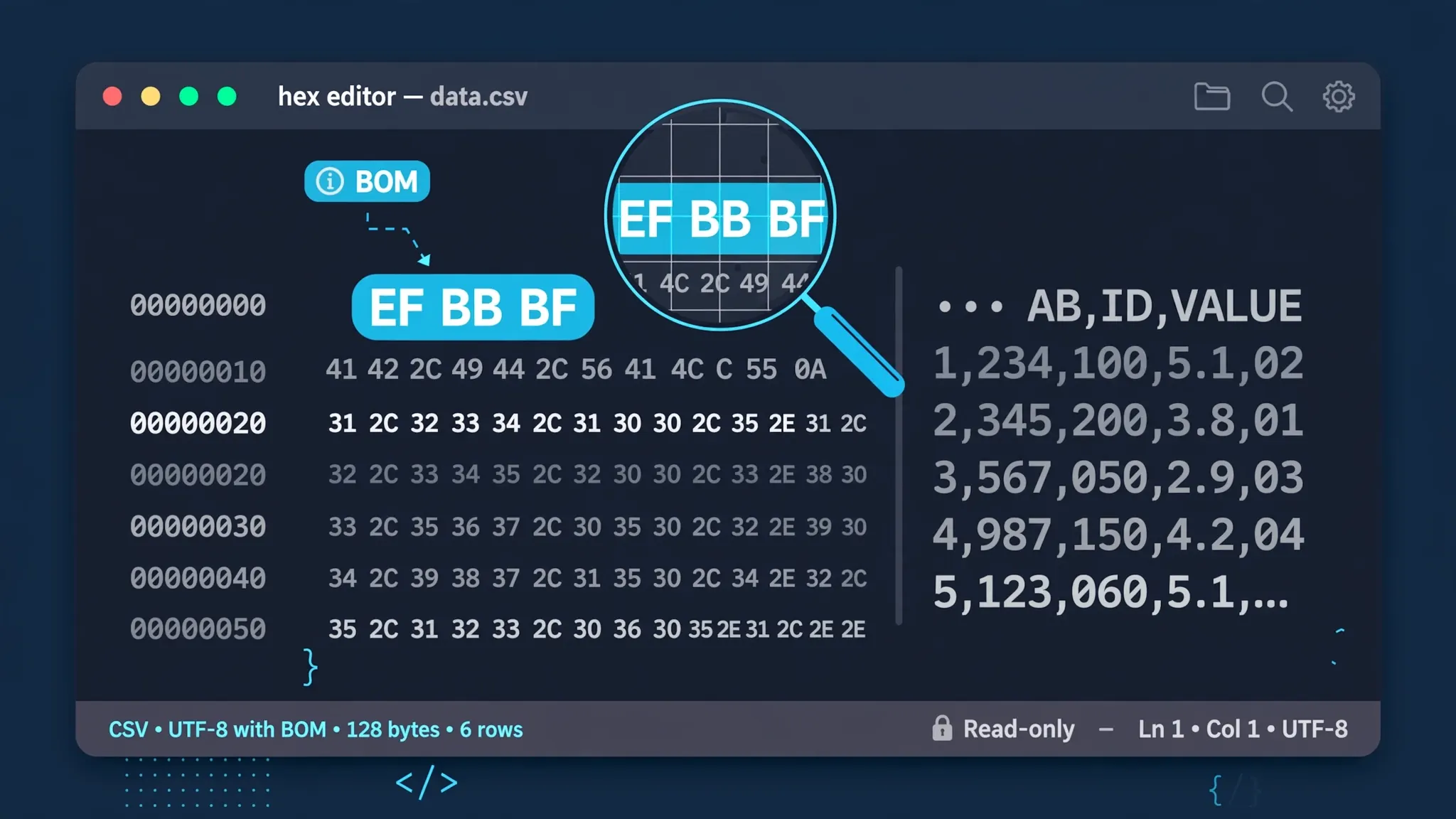
How to tell them apart: UTF-8 Chinese bytes follow a strict pattern (lead bytes E4–E9 followed by two continuation bytes 80–BF); GBK lead bytes are 81–FE followed by 40–FE; Big5 lead bytes are A1–FE with a different trail-byte range. You do not need to memorize this — but knowing that the patterns exist explains why auto-detection tools like chardet are so reliable for Chinese text, and why a human glancing at a hex dump can often call it.
Reading the mojibake: what each garbage pattern reveals
Experienced data wranglers read mojibake like a diagnostic readout. Here is the phrasebook for Chinese CSVs:
深圳-style text with lots of æ, å, ç: UTF-8 bytes decoded as Windows-1252. Each 3-byte Chinese character became 3 European characters. This is the single most common pattern — fix with File Origin 65001.
Streams of  before every special character (like ·): UTF-8 decoded as Latin-1/ISO-8859-1 specifically (code page 28591 rather than 1252). Same fix — 65001 — but the  tells you the guesser was Latin-1, useful when configuring the source system.
Every Chinese character replaced by ?: save-time destruction, as discussed — the characters are gone from this file. Get a re-export.
Chinese-looking characters but the wrong Chinese (plausible glyphs, nonsense words): GBK decoded as Big5, or Big5 as GBK. The byte patterns are valid in both encodings but map to different characters. Switch 936 ↔ 950 and watch real words appear.
Half the file correct, half garbage: concatenated exports with mixed encodings — split and import separately.
Learning these five patterns means you will often diagnose a Chinese CSV before it finishes downloading. And the same skill transfers: Arabic, Hindi, and every other script has its own mojibake phrasebook, all stemming from the same root cause — bytes read with the wrong rulebook.
CSV Chinese garbled Excel fix, step by step
Here is the reliable CSV Chinese garbled Excel fix. It works because it bypasses Excel’s encoding guess entirely and tells Excel exactly how to decode the file.
- Do not double-click the CSV. Close it if it is open. Double-clicking is what triggered the wrong guess.
- Open Excel to a blank workbook.
- Go to Data › From Text/CSV (older Excel: Data › From Text) and select the CSV file.
- Set File Origin to
65001 : Unicode (UTF-8). Watch the preview pane — if the Chinese characters snap into focus, you are done diagnosing: it was a UTF-8 file all along. - If 65001 still shows garbage, try
936 : Chinese Simplified (GB2312)— the file is likely GBK from a mainland-Chinese system. For files from Taiwan or Hong Kong, try950 : Chinese Traditional (Big5). - Once the preview looks right, set your delimiter (usually Comma) on the next step, set column types (Text for IDs and phone numbers), and click Load.
- Save the workbook as
.xlsx— or, if you must produce a CSV for others, use CSV UTF-8 (Comma delimited) so the next person does not repeat your ordeal.
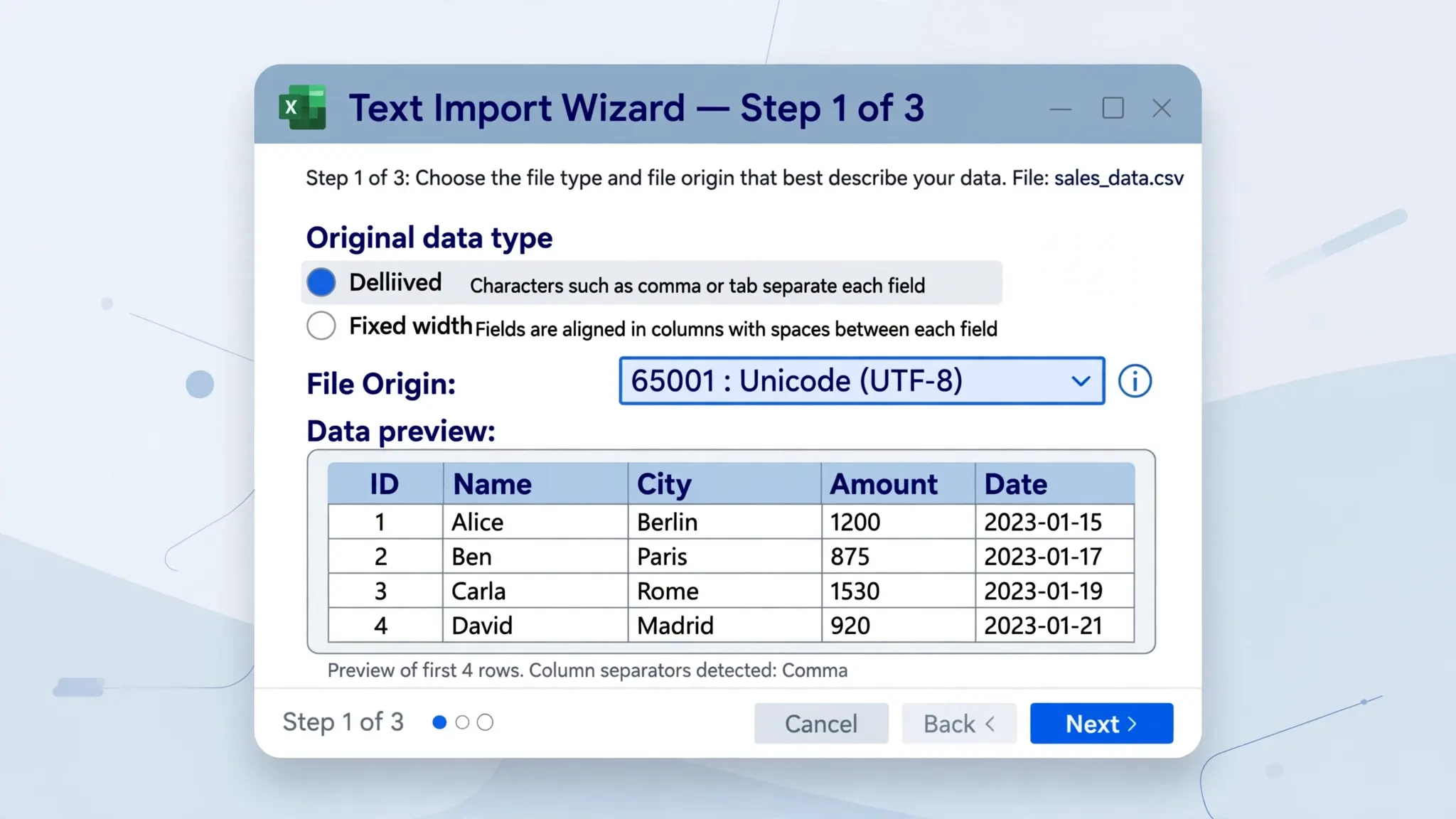
Two details that matter. First, check the whole file, not just the first rows — some exports mix encodings or have a corrupted row midway; scroll the preview. Second, this is a per-import setting: if the same supplier sends a Chinese CSV every week, save the import as a Power Query (Data › From Text/CSV › Transform Data › Close & Load) so the File Origin choice replays automatically. Microsoft documents the text import process, and our CSV file origin in Excel guide documents every value in that dropdown for other languages too.
The Python fix: reading Chinese CSVs correctly
For analysts and developers, Python removes all guesswork — you declare the encoding explicitly and move on. The pattern is try-UTF-8-first, fall back to GBK:
pd.read_csv("suppliers.csv", encoding="utf-8-sig") — handles UTF-8 with or without BOM, the most common case for modern exports.
If that raises UnicodeDecodeError or produces mojibake, the file is almost certainly GBK:
pd.read_csv("suppliers.csv", encoding="gbk") — Python’s gbk codec covers GB2312 and GBK, the encodings of mainland-Chinese Windows systems. For Traditional Chinese (Taiwan, Hong Kong), use encoding="big5".
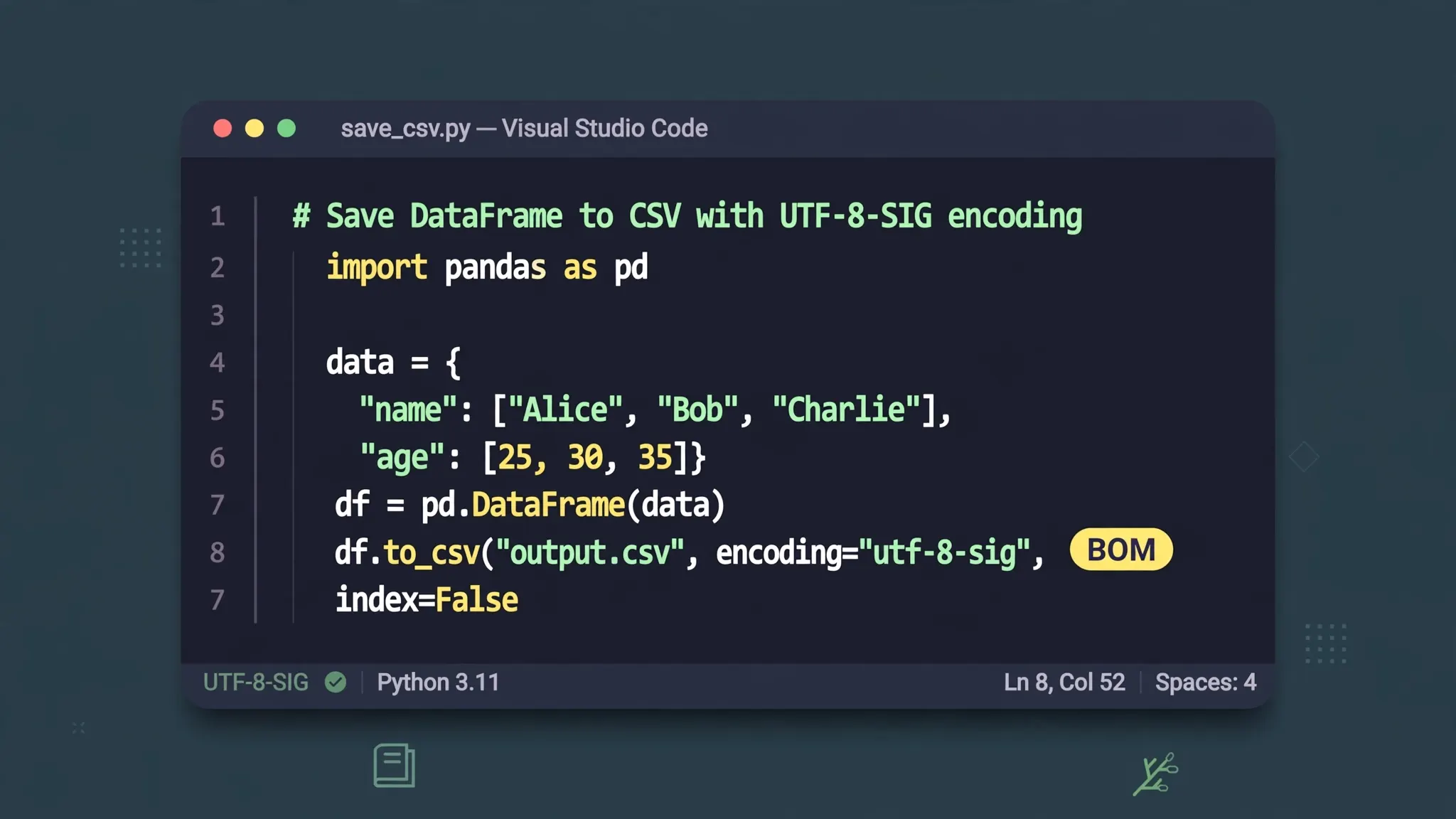
When writing Chinese CSVs for Excel users, always use encoding="utf-8-sig" — the BOM triggers Excel’s UTF-8 detection on double-click, which is what your recipients will do no matter what instructions you send. And when a file’s encoding is truly unknown, the chardet or charset-normalizer libraries guess from byte patterns; they are right about Chinese encodings the vast majority of the time, though a quick visual check of the decoded output is still wise.
utf-8-sig — always. The three BOM bytes are the difference between “it just opened correctly” and a support ticket.Preventing it: exporting Chinese CSVs that open correctly
Fixing garbled files is good; never producing them is better. If you are the one sending Chinese CSVs, follow these rules and your recipients — in China, the US, India, or anywhere — will open them without drama.
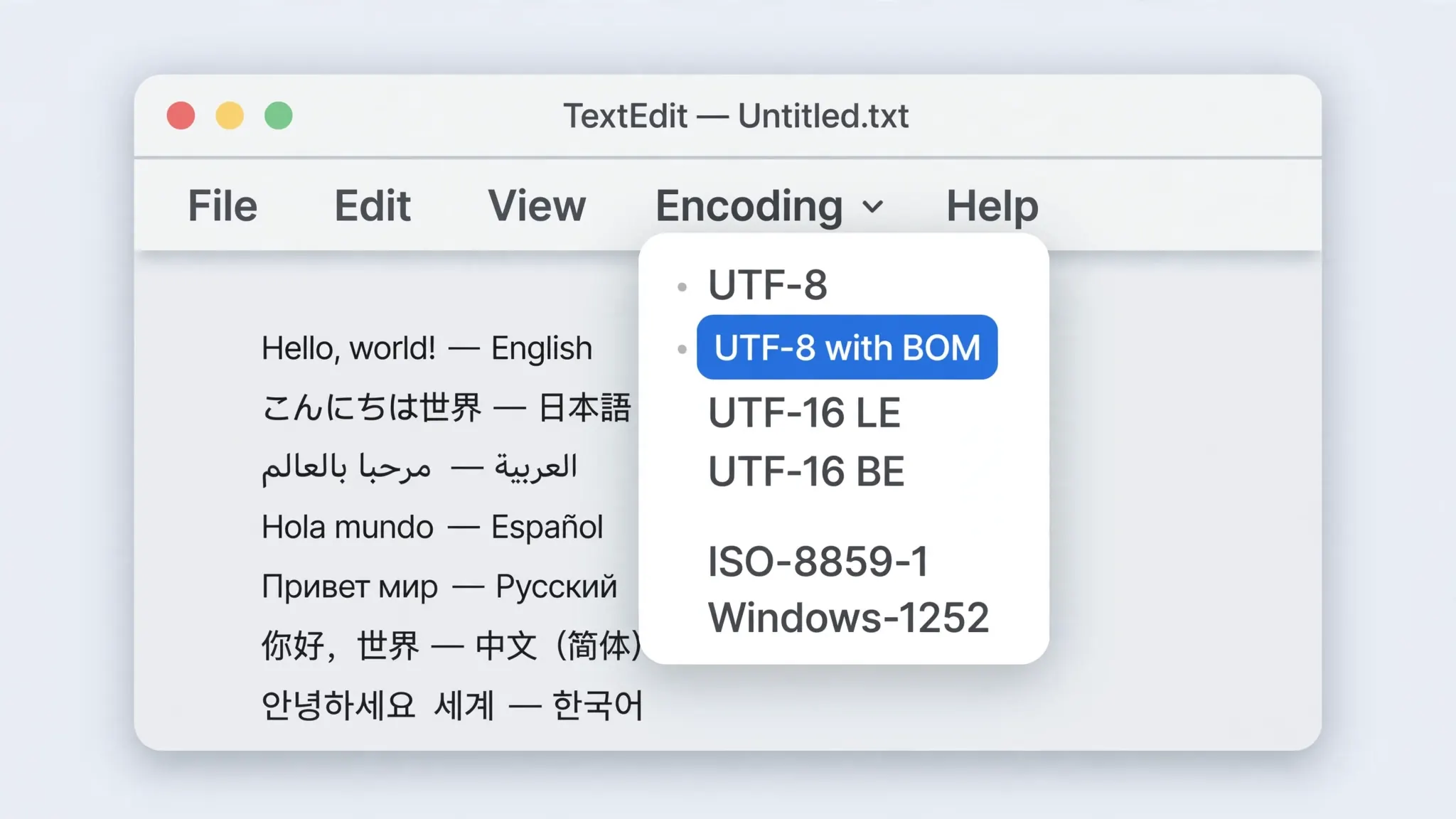
From Excel: always use File › Save As › CSV UTF-8 (Comma delimited), never the plain “CSV (Comma delimited)” option. The UTF-8 variant writes the BOM that triggers correct detection; the plain variant silently converts everything to your local ANSI code page and destroys Chinese characters. This single choice is the difference between a working file and a corrupted one.
From Google Sheets: File › Download › CSV produces UTF-8 without a BOM. It opens fine in Sheets and in Excel via the import wizard, but double-click opening in Excel may garble. If your recipients double-click, add the BOM afterward in Notepad++ (Encoding › Convert to UTF-8-BOM) or with Python before sending.
From Python/pandas: df.to_csv("out.csv", encoding="utf-8-sig", index=False). From databases and ETL tools, set the export encoding to UTF-8 explicitly and verify the first bytes are EF BB BF with a hex check.
Tell recipients how to open it. A one-line note — “please open via Data › From Text/CSV with File Origin 65001” — prevents most support requests. Better yet, send an .xlsx instead of a CSV when the recipient just needs to view the data: workbooks carry their encoding internally and never have this problem. The free CSV to Excel converter turns your CSV into an .xlsx in seconds, sidestepping the encoding question for the recipient entirely.
Special cases: Traditional Chinese, mixed-language files, and Macs
Traditional Chinese (Taiwan, Hong Kong, Macau) often arrives as Big5 (code page 950) rather than GBK. The symptoms are identical to the GBK case, but File Origin 936 will not fix a Big5 file — you need 950 : Chinese Traditional (Big5) in the import wizard, or encoding="big5" in Python. When the sender’s region is Taiwan or Hong Kong, reach for Big5 first.
Mixed Chinese-English files sometimes carry an extra quirk: ASCII punctuation (commas, quotes) alongside full-width Chinese punctuation (,、。). Excel handles this fine once the encoding is right, but downstream parsing can stumble — full-width commas do not split columns. If a mixed file splits incorrectly after the encoding fix, check for full-width delimiters before suspecting anything else.
CSVs from Macs occasionally use old Mac encodings, but modern macOS exports UTF-8 — the issue there is usually the missing BOM rather than an exotic encoding. Apple Numbers exports CSV as UTF-8 without BOM; add the BOM if Windows Excel users will double-click it.
Files that are “half fixed” — Chinese correct in some rows, garbage in others — usually indicate concatenated exports from two systems with different encodings. Split at the boundary, import each part with its encoding, and combine. No single File Origin can decode two encodings at once.
Excel CSV Chinese characters garbled is a solved problem: diagnose with a text editor, fix with File Origin 65001 or 936, prevent with UTF-8 BOM exports. The gibberish was never broken data — it was correct data read with the wrong rulebook. Swap the rulebook and the Chinese comes back, every row and every character exactly as the sender intended. For the general encoding principles behind this fix, see CSV ANSI vs Unicode in Excel and CSV BOM explained.
Frequently Asked Questions
Why are my Excel CSV Chinese characters garbled?
Excel decoded the file with the wrong character encoding. Chinese CSVs are usually UTF-8 or GBK/GB2312; when Excel guesses Windows-1252 instead, every Chinese character becomes mojibake. Import via the Text Import Wizard with File Origin 65001 (UTF-8) or 936 (GBK) to fix it.
Why does my CSV show question marks instead of Chinese?
Question marks mean the characters were destroyed when the file was saved — typically Unicode text saved as ANSI, where Excel substituted ? for every unrepresentable character. This damage is permanent; you need the original file re-exported as UTF-8.
How do I open a Chinese CSV in Excel correctly?
Don’t double-click it. Open a blank workbook, go to Data › From Text/CSV, select the file, set File Origin to 65001 (Unicode UTF-8) — or 936 for files from mainland-Chinese systems using GBK — check the preview, then load.
How do I read a Chinese CSV in Python without garbled text?
Try encoding=’utf-8-sig’ first; if that produces mojibake, try encoding=’gbk’. Pandas: pd.read_csv(‘f.csv’, encoding=’gbk’). The gbk codec handles GB2312/GBK files from mainland China; big5 handles Traditional Chinese from Taiwan and Hong Kong.
Will saving as CSV UTF-8 fix Chinese characters?
Saving as ‘CSV UTF-8’ in Excel writes the file with a BOM that triggers correct detection, so recipients opening it in Excel see proper Chinese. But it cannot restore characters already destroyed by an earlier ANSI save — fix the source first.
Why do Chinese characters look right in Notepad but wrong in Excel?
Notepad auto-detects UTF-8 reliably while Excel’s double-click open defaults to your system’s ANSI code page. The file is fine; Excel is guessing wrong. Use the Text Import Wizard with File Origin 65001 instead of double-clicking.