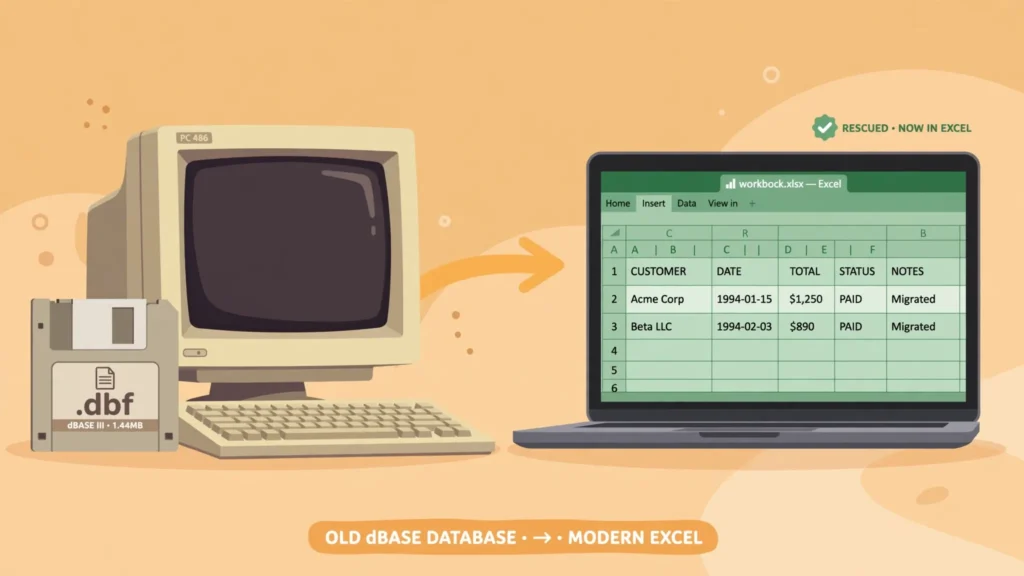
Somewhere in a back office, on an old server, or on a USB stick in a drawer, there’s a .dbf file holding twenty years of business history — customer records from a dBase III system, inventory from FoxPro, membership lists from Clipper. Learning how to convert DBF to Excel is data archaeology: rescuing valuable information from a format that peaked in the 1990s and moving it into a spreadsheet anyone can use today. The good news is that the DBF format is simple, well-documented, and readable by free tools — you don’t need the original software, and you certainly don’t need to keep a Windows 98 machine alive.
This guide covers four rescue methods: opening DBF files directly (and why modern Excel makes this tricky), free DBF viewer tools, a Python script that handles every DBF variant including memo fields, and the CSV intermediate route. You’ll also learn the two classic DBF traps — legacy text encodings that turn names into gibberish, and “deleted” records that aren’t actually gone — plus how to verify your converted data before you trust it. Whether you’re an IT consultant in the US migrating a client, an accountant in the UK, or a developer in India modernizing a legacy system, the playbook is the same.
What DBF files are — a quick history of dBase and FoxPro
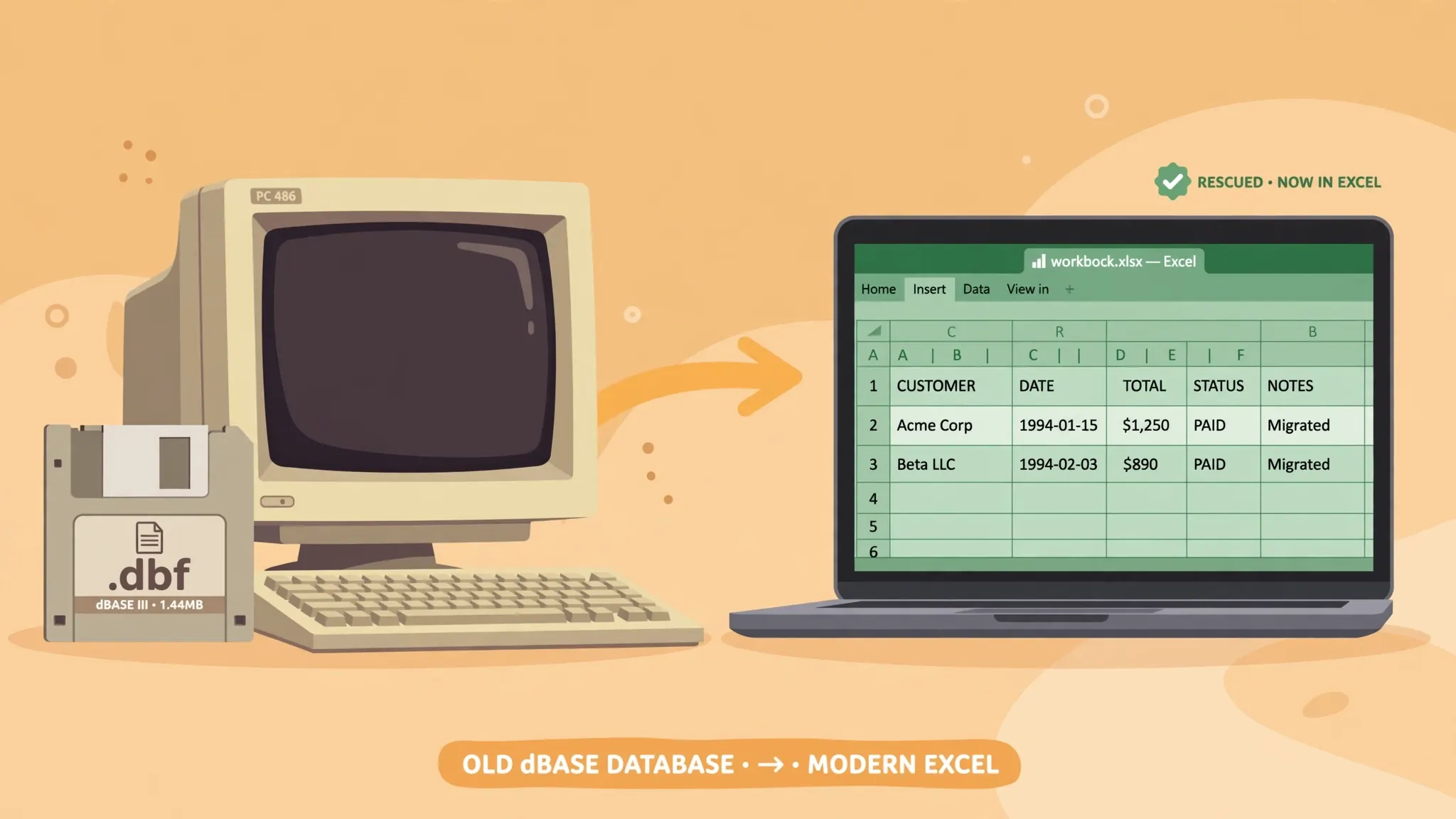
The .dbf format was born with dBase II in the early 1980s and became the de facto standard for PC databases through the dBase III, dBase IV, FoxPro, and Clipper era. If a small or medium business computerized between roughly 1985 and 2000, there’s a strong chance its data lived in DBF files. The format is beautifully simple by modern standards: a header describing the fields (name, type, length), followed by fixed-length records, one after another. No server, no indexes required, no complexity — just a table in a file.
That simplicity is why DBF files refuse to die. They’re still produced by some GIS software (the shapefile format stores attributes in DBF), legacy accounting packages, and industrial systems nobody dares to touch. And it’s why conversion is so reliable: the format has been reverse-engineered completely, every variant is understood, and free tools read all of them. You don’t need dBase or FoxPro installed — in fact, hunting down a working copy of 1990s software would be the hard way to do this.
A few DBF quirks worth knowing before you convert. Field names max out at 10 characters (so CUSTOMER_NAME became CUSTOMER_N — keep a translation list). Records can be marked deleted without being removed, so a DBF with 10,000 records might contain 9,200 live ones. Long text lives in separate memo files (.dbt for dBase, .fpt for FoxPro) that must sit next to the DBF. And text encoding is whatever code page the original system used — usually fine, occasionally a puzzle. The methods below handle all of it.
DBF to Excel: four rescue methods compared
Open directly in Excel. Older Excel versions (2003 and earlier) imported dBase files natively; Excel 2007–2013 needed workarounds; Excel 2016+ dropped it. Worth one try, but don’t count on it.
Free DBF viewer. Tools like DBF Viewer Plus open any DBF variant visually and export to XLSX or CSV. Best for one-off rescues where you want to eyeball the data first. Windows-focused, though some run under Wine on Mac/Linux.
Python (dbfread + pandas). The most reliable method across all DBF variants, encodings, and memo files — and the only sane choice for batches of files. Free, cross-platform, scriptable.
DBF → CSV → Excel. Convert to CSV with any of the above tools, then use Excel’s From Text/CSV import for full control over encoding and column types. The universal fallback.
.dbf file (and any .dbt/.fpt memo files beside it) to a working folder. Never convert the only copy of legacy data in place — archaeology rule number one is don’t disturb the site.
Method 1: Open a DBF file in Excel directly
Let’s get the disappointing news out of the way first: if you try to open a DBF file in Excel 2016 or later (including Microsoft 365), it won’t work — Microsoft removed the dBase import filter (Microsoft’s Excel support pages document the current import options). Double-clicking a .dbf gives you an error or a gibberish text import. If you’re on Excel 2003 or earlier (some offices still run them for legacy compatibility), File › Open with “dBase files” in the file-type dropdown works fine.
For everyone else, the closest “direct” path is LibreOffice Calc — free, open-source, and still ships with a dBase/DBF import filter. Open the DBF in Calc, then File › Save As › Excel 2007–365 (.xlsx). Calc’s DBF support is genuinely good: it reads dBase III through FoxPro variants, handles memo files, and lets you pick the encoding on import. If the file opens cleanly in Calc, you’re two clicks from a workbook. This is the method to try first when someone emails you a single DBF and you just need it in Excel today — no Python, no new tools beyond a free office suite many people already have.
Method 2: Convert DBF to XLSX with a free DBF viewer
When you want to see the data before committing — checking which tables matter, spotting encoding issues, finding the deleted-record situation — a dedicated DBF viewer is the right tool. DBF Viewer Plus (free for Windows) is the most capable: it opens dBase III/IV, FoxPro, and Clipper files, displays memo fields, and exports directly to XLSX, CSV, or SQL.
- Download and install DBF Viewer Plus (portable version available — no admin rights needed).
- Open your
.dbffile. Browse the records; check the status bar for the record count. - If text looks garbled, try different encodings in the view options until names read correctly (see the encoding section below).
- Go to File › Export, choose Excel (.xlsx) or CSV, and save.
- Open the result in Excel and verify row counts match the viewer’s count.
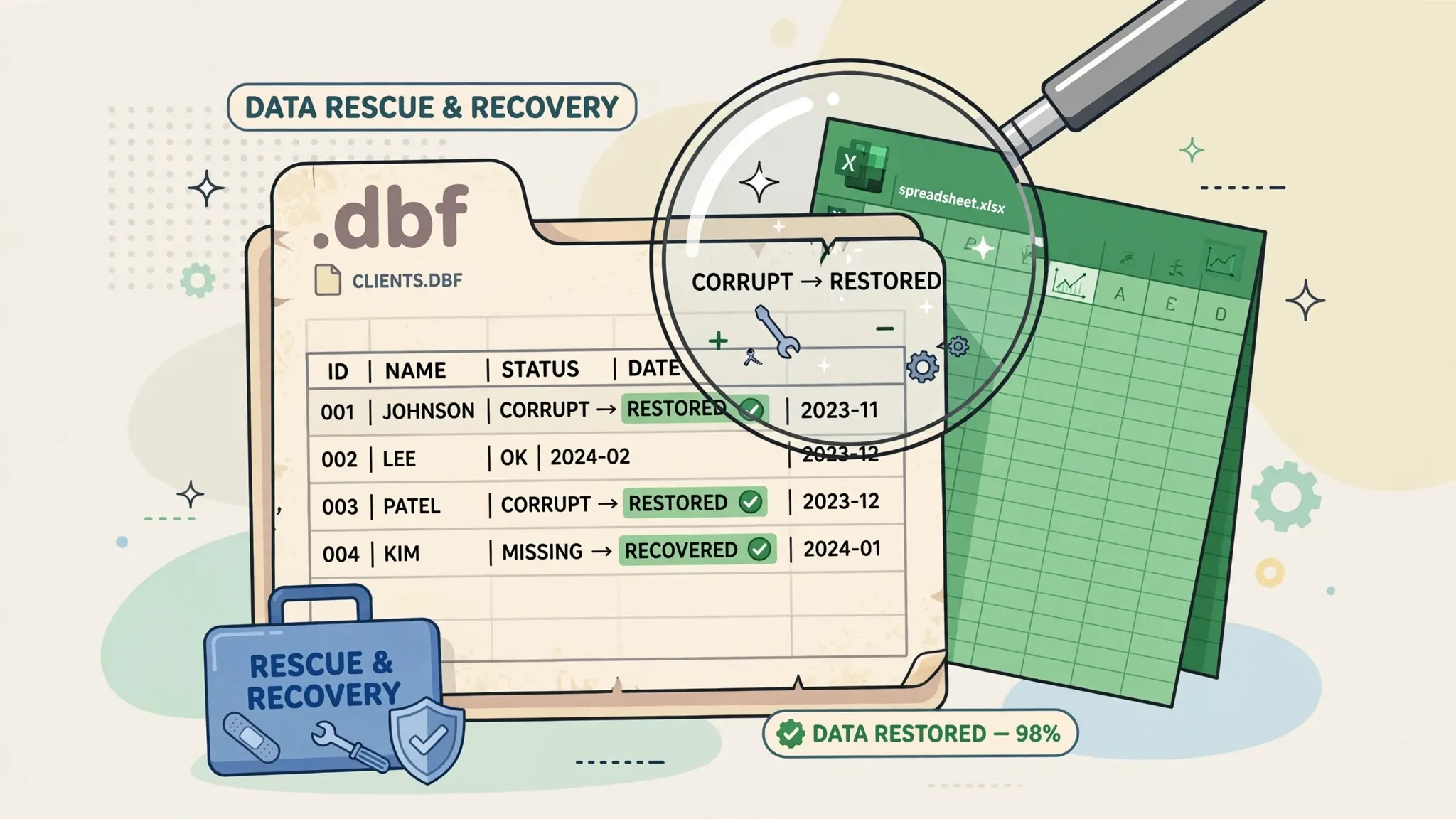
Other solid options: DBFView and OpenOffice/LibreOffice Base (which can treat a folder of DBFs as a database). The viewer route is ideal for the “someone handed me a USB stick with twelve DBF files” scenario — open each, glance at the contents, export the ones that matter. Where it falls short is automation: if this migration involves hundreds of files or needs to repeat monthly, skip to the Python method.
Method 3: Convert DBF to Excel with Python (dbfread + pandas)
For reliability across every DBF variant — and for batch conversions — Python is unmatched. The dbfread library understands dBase III through Visual FoxPro, reads memo files automatically, and exposes deleted-record flags; pandas turns the records into a DataFrame that writes a clean workbook.
pip install dbfread pandas openpyxl

from dbfread import DBF
import pandas as pd

# encoding: try 'cp1252' (Western), 'cp1251' (Cyrillic),
# 'cp936' (Chinese), or 'latin1' as a last resort
table = DBF("customers.dbf", encoding="cp1252", load=True)

df = pd.DataFrame(iter(table))

# Drop records marked as deleted in the DBF
df = df[~df["_deleted"]].drop(columns=["_deleted"]) \
    if "_deleted" in df.columns else df

df.to_excel("customers.xlsx", index=False)
print(f"Wrote {len(df)} live records")
Three details make this production-grade. First, encoding: DBF files rarely declare their code page reliably, so if the text looks wrong, loop through candidate encodings until the preview reads correctly — the encoding section below lists the usual suspects by region. Second, memo fields: keep the .fpt/.dbt file in the same folder as the DBF and dbfread picks it up automatically; memo contents arrive as ordinary text columns. Third, batches: wrap the snippet in a loop over glob.glob("*.dbf") and write each file to its own workbook (or each to a worksheet via pd.ExcelWriter) — a folder of fifty DBFs converts in seconds.
For the Excel-writing refinements — header formatting, column widths, frozen panes — the patterns in our Python Excel guide drop straight in. And if your legacy data also includes other odd formats, our SQLite to Excel and TXT to Excel guides cover the neighboring rescue operations.
Method 4: Go through CSV: DBF to CSV to Excel
The CSV intermediate step earns its place when the DBF contains dates in odd formats, numeric fields with leading zeros (account codes, old part numbers), or text in a tricky encoding. Exporting DBF to CSV first — from a viewer or with df.to_csv() in Python — lets you wield Excel’s Data › From Text/CSV import dialog: encoding selector, delimiter preview, and per-column type assignment.
- Export the DBF to CSV from your viewer, or via Python:
df.to_csv("customers.csv", index=False, encoding="utf-8-sig")(the-sigadds a BOM that helps Excel detect UTF-8). - In Excel, use Data › From Text/CSV — not double-click — to import.
- Set File Origin to match your export encoding, confirm the comma delimiter, and set account-code/ID columns to Text.
- Load, verify, and Save As › .xlsx.
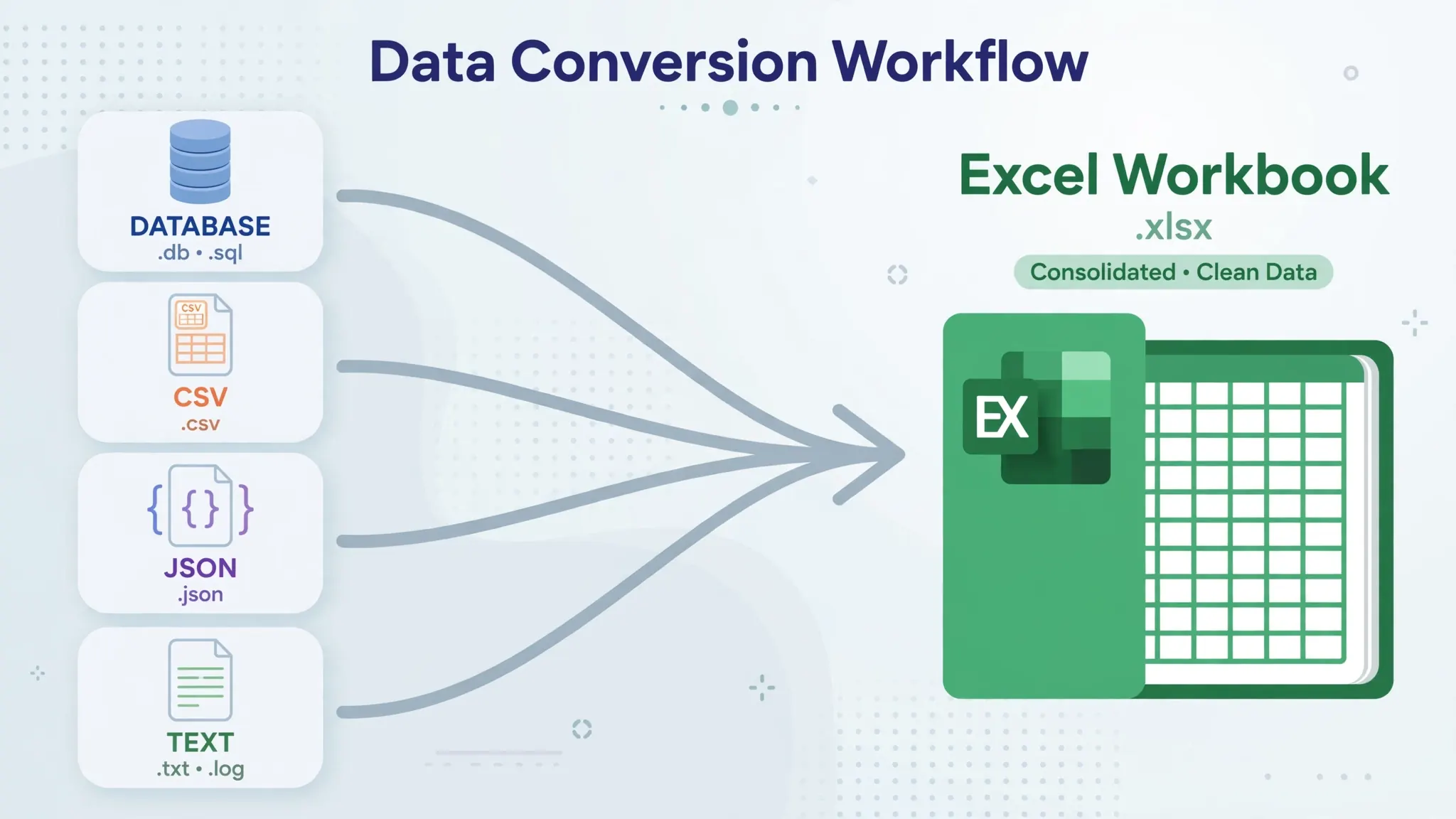
One more shortcut in this family: if the DBF is small and non-sensitive, an online file converter can take the .dbf directly in the browser and hand back an XLSX. It’s the fastest option on a machine where you can’t install anything — just remember the usual rule about not uploading data you wouldn’t email.
Encoding and data-type pitfalls in legacy DBF files
DBF files predate Unicode, and this is where most conversions go sideways. The file header may contain a language-driver byte, but it’s often missing or wrong — the reliable approach is knowing which code page the original system used and telling your tool explicitly.
Common code pages by region. US/UK/Western Europe: cp1252 (Windows Latin-1). Central Europe: cp1250. Cyrillic (Russia, Ukraine): cp1251 or cp866 (DOS-era). Greek: cp1253. Turkish: cp1254. Chinese Simplified: cp936. Chinese Traditional: cp950. Japanese: cp932. Indian systems of the era typically used cp1252 or plain ASCII. When in doubt, try them in this order and check whether names render correctly — you’ll know the right one instantly.
Field types. DBF fields come in flavors Excel maps cleanly: Character → Text, Numeric/Float → Number, Date (YYYYMMDD) → Date, Logical (T/F/Y/N) → TRUE/FALSE, Memo → Text. Two gotchas: numeric fields are stored as text in the DBF (so leading zeros survive if you import the column as Text), and dates before 1900 or malformed dates (like 00000000) need cleaning — convert empties to blank cells rather than letting Excel guess.
Deleted records. DBF doesn’t remove deleted rows; it flags them. Viewers usually hide flagged rows by default, but raw readers (including dbfread) expose them — filter on the deleted flag as shown in the Python snippet, or you’ll resurrect records someone deliberately removed. (Whether those records should stay deleted is a business decision; just make it consciously.)
Field names. Ten characters max, often cryptic (CUST_NO, INV_DT). Rename columns to human labels in the workbook and keep a mapping table on a second sheet — future-you will be grateful, and so will anyone who inherits the file.
Verifying the converted workbook
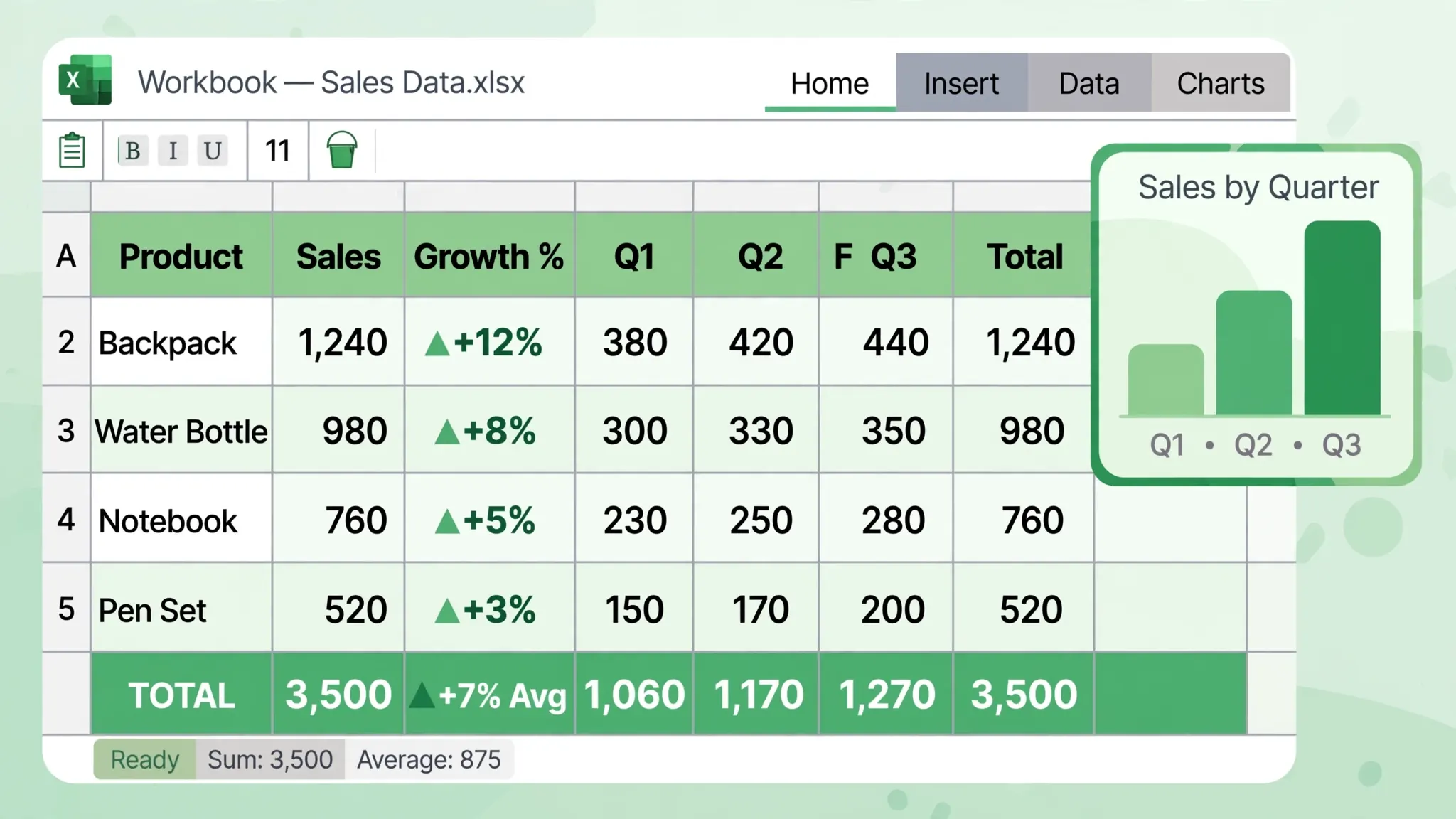
Legacy data deserves a verification pass before anyone relies on it, because the source system is often long gone and there’s no second copy to compare against. Start with the basics: the workbook’s row count should equal the DBF’s live record count (total records minus deleted-flagged ones), and the column count should match the field list. Then spot-check a dozen rows spread across the file — first rows, last rows, and a random middle sample — against what the DBF viewer shows. Pay special attention to the fields that historically cause trouble: dates (do they fall in plausible ranges, or did two-digit years land in the wrong century?), money (do a few totals match the old system’s reports, if any survive?), and text (scan for the telltale à and ? characters of an encoding miss).
One more check that pays off: sort each key column and look at the extremes. Sorting a customer-name column surfaces encoding damage instantly (garbled names cluster at the top or bottom); sorting a date column surfaces the 00000000 placeholders and far-future typos. Fix what you find in the source data or the script — not by hand-editing the workbook — so the conversion stays reproducible. When the numbers reconcile and the names read correctly, save the workbook, archive the original DBF files somewhere safe, and document what you did: the encoding used, the deleted-record policy, and any date fixes. Whoever opens this migration in 2046 will thank you.
Troubleshooting: when the DBF won’t cooperate
“Not a valid DBF file” / header errors. The file may be corrupted or a non-standard variant. Try opening it in a different viewer — tolerance varies — or use dbfread, which is lenient about header quirks. As a last resort, the dbf Python library can repair some header damage.
Memo fields show as gibberish or empty. The .fpt/.dbt memo file is missing from the folder, or it’s from a different FoxPro version. Find the matching memo file (same base name, same folder) and the text appears.
Text is garbled. Wrong code page — work through the encoding list in the section above. This fixes 95% of “weird characters” reports.
Row count mismatch. Deleted-record flags (see above), or the viewer applied a filter. Compare the raw record count against your export and account for every row.
Dates are wrong by a century. Two-digit years in old data (e.g., 98 meaning 1998) get misinterpreted. Fix with an explicit rule in Python (if year < 50: year += 2000 else: year += 1900) before writing.
The file is actually a different format. Some systems renamed non-DBF files to .dbf. Open the file in a text editor: a real DBF starts with a version byte and mostly-binary content with readable field names near the top. If it’s plain text with commas, it’s a CSV in disguise — import it as one.
Which DBF-to-Excel method should you use?
Single file, need it today? Try LibreOffice Calc first (Method 1) — two clicks to XLSX. Want to inspect before exporting? DBF Viewer Plus (Method 2). Many files, odd variants, memo fields, or repeat migrations? Python with dbfread (Method 3) — it’s the only method that handles everything. Tricky types or encodings? Route through CSV (Method 4) for Excel’s import preview.
And the final, most important step regardless of method: verify. Compare record counts, spot-check a dozen rows against the source viewer, eyeball the weird characters, and confirm dates fall in sane ranges. Legacy data is valuable precisely because it’s irreplaceable — a careful migration preserves it for the next twenty years. For more format rescues, see our guides to SQLite to Excel and ODS to XLSX.
Frequently Asked Questions
Can Excel open a DBF file directly?
Modern Excel versions (2016 and later) removed the built-in dBase/DBF import, so double-clicking a .dbf usually fails. Use a free DBF viewer to export it, convert it with Python, or open it in LibreOffice Calc and save as XLSX.
What is the best free tool to convert DBF to Excel?
For a visual tool, DBF Viewer Plus (free, Windows) opens DBF files and exports to XLSX/CSV. For automation, Python’s dbfread library plus pandas converts any DBF reliably, including old dBase III and FoxPro variants.
How do I convert DBF files with Python?
Install dbfread and pandas, then run: from dbfread import DBF; df = pd.DataFrame(iter(DBF(‘data.dbf’))); df.to_excel(‘data.xlsx’, index=False). Specify the encoding (e.g. encoding=’cp1252′ or ‘cp866’) if text looks garbled.
Why does my DBF file show garbled text after conversion?
DBF files store text in legacy code pages (like Windows-1252 or CP866) with no reliable encoding marker. Tell your converter the correct code page — try cp1252 for Western European data, cp1251 for Cyrillic, or cp936 for Chinese — until the preview reads correctly.
Can I convert a FoxPro DBF with memo fields to Excel?
Yes, but keep the .fpt memo file next to the .dbf file — memo text lives there, not in the DBF itself. Python’s dbfread reads memos automatically when the .fpt is present; most GUI viewers do too.
Is DBF to Excel conversion lossless?
For standard fields (character, numeric, date, logical), yes — values carry over exactly. Watch deleted-record flags (DBF marks rather than removes deleted rows), memo fields, and field-name truncation, all covered in this guide.