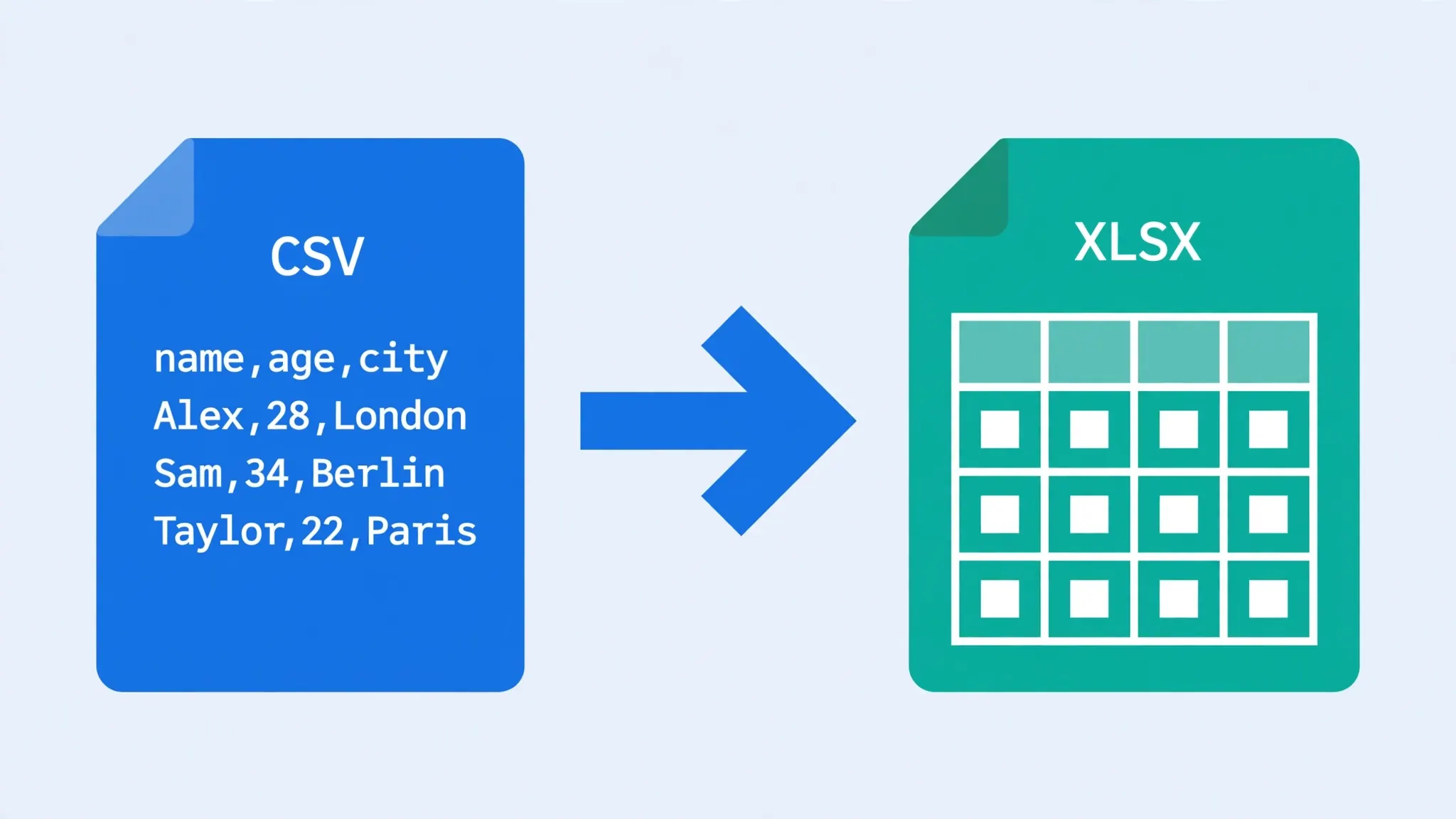
Need to convert CSV to Excel online? You are thirty seconds away — no downloads, no installs, no admin password, no signup forms. A browser-based online csv converter takes the CSV sitting in your downloads folder and hands you back a proper .xlsx workbook, all inside the tab you already have open.
This is the method for the real world: the work laptop where IT locked down software installs, the Chromebook that cannot run desktop Excel, the library computer, the phone in your pocket. If you can open a website, you can convert csv online free.
But not every online converter works the same way, and the difference matters. Some process your file entirely inside your browser (your data never leaves your device); others upload it to a server somewhere. In this guide I will show you exactly how browser-based conversion works, how to tell the safe tools from the sketchy ones, the step-by-step for a perfect conversion, and the honest limits of doing it online — so you can convert with confidence every time.
How Online CSV to Excel Conversion Actually Works
When you drop a file into a modern converter, no magic happens — just well-engineered JavaScript. Understanding the pipeline helps you trust the good tools and spot the bad ones.
- Reading the file. Your browser’s FileReader API reads the CSV from your disk into memory. At this point the file has not gone anywhere — it is sitting in your browser tab’s private memory.
- Parsing the text. A parsing library (the most common is Papa Parse) splits the text into rows and columns according to RFC 4180 rules: commas separate fields, double quotes wrap fields containing commas or line breaks, doubled quotes represent a literal quote. A good parser also auto-detects the delimiter.
- Building the workbook. A library like SheetJS (xlsx) constructs a real Office Open XML workbook in memory — the same ZIP-of-XML structure that Excel writes — with typed cells, a sheet name, and column structure.
- Downloading the result. The browser generates the .xlsx as a blob and triggers a download. The file lands in your Downloads folder. Nothing was ever sent anywhere.
That entire pipeline runs in milliseconds to seconds for typical files. The key insight: everything above can happen without a server. The website you loaded is just HTML, CSS, and JavaScript — once loaded, your browser does all the work locally. Converters built this way are called client-side, and they are the safest kind.
The other kind — server-side converters — upload your file to the operator’s infrastructure, convert it there, and give you a download link. This was necessary fifteen years ago when browsers were weak; today it is mostly a choice, and often a choice that serves the operator (analytics, upsells, data retention) more than you.
Client-Side vs Server Upload: The Privacy Divide
This is the single most important thing to understand about doing it online. Here is how to tell which kind you are using:
| Signal | Client-side (safe) | Server-side (caution) |
|---|---|---|
| Works with Wi-Fi off after page load | Yes — try it | No — upload fails |
| Conversion speed | Instant, no upload bar | Upload progress bar, then waiting |
| Account required | Never | Often, for “your files” history |
| Your data’s location | Your device only | Their servers (retention policy?) |
| File-size limits | Your browser’s memory | Their arbitrary cap (often 10–100 MB) |
For a public dataset or a product catalog, either kind works. For a bank statement, a payroll export, a client list with emails, or medical data — use client-side only. The converter at csvtoexcel.site/ is client-side: disconnect your internet after the page loads and it still converts, which is the proof.
Convert CSV to Excel Online in 3 Steps
Here is the actual workflow, using our free converter as the example. Any good online csv converter follows the same shape:
- Drop in your CSV. Open csvtoexcel.site/ and drag your .csv file onto the page — or click to browse. Files from bank exports, Shopify, WooCommerce, Google Analytics, or any spreadsheet export all work.
- Check the preview and set options. The tool shows a live grid preview. This is your quality-control moment:
- If all data is crammed into one column, change the delimiter (try semicolon or tab — common in European exports).
- If characters look garbled, switch the encoding to UTF-8.
- Scan the first few rows: headers in row one, sensible columns, no merged mess.
- Download the XLSX. One click, and the workbook is in your Downloads folder. Open it in Excel, Google Sheets, LibreOffice, or Numbers to verify.
Total elapsed time for a typical 10,000-row file: under ten seconds, most of it spent on your own preview check. That preview step is what separates a clean conversion from a “why is everything in column A” mystery — never skip it.
What a Good Online CSV Converter Should Offer
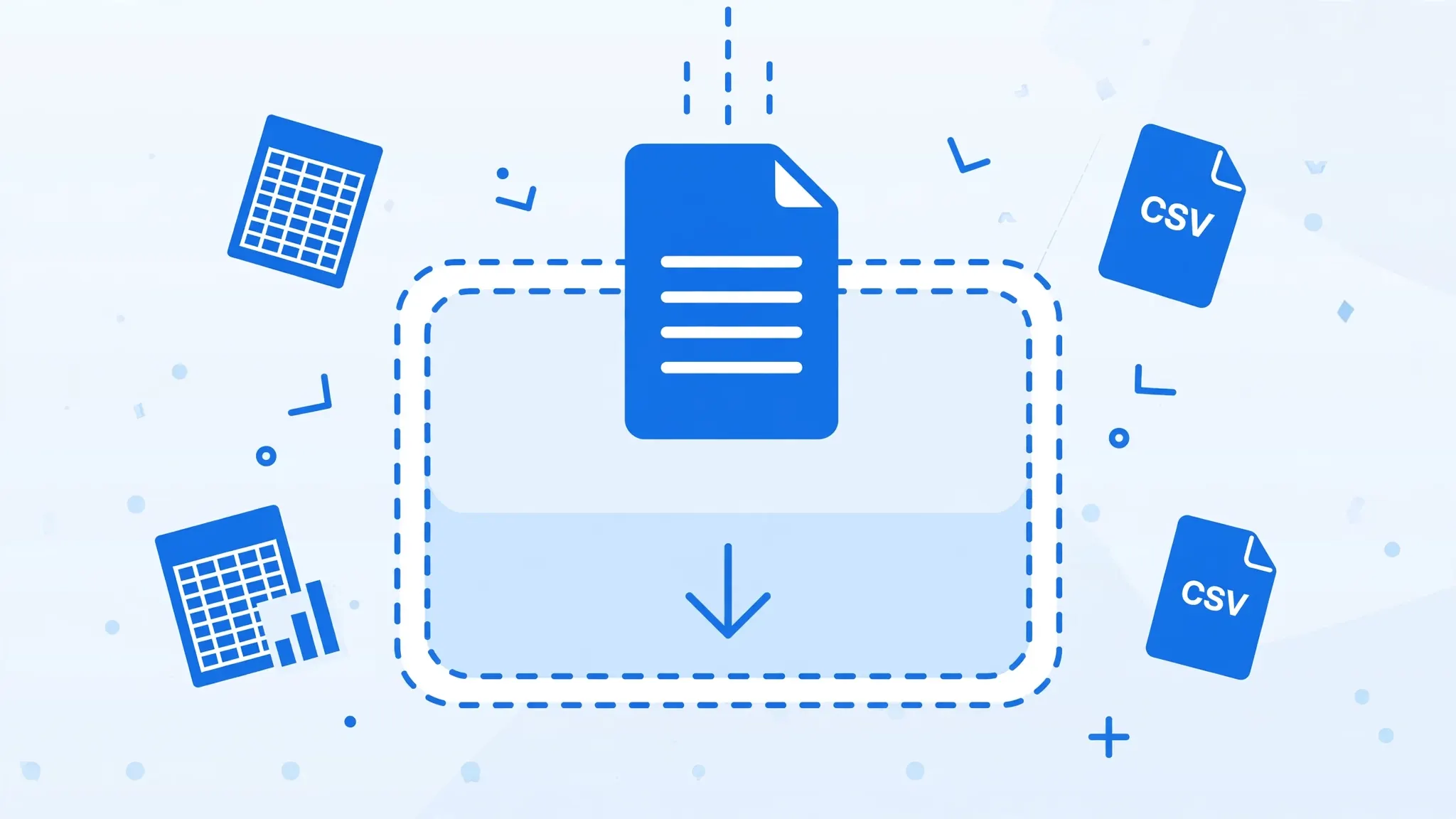
All converters are not equal. When you convert csv online free, look for these features — they are the difference between a tool and a trap:
- Delimiter selection. Comma, semicolon, tab, pipe, and auto-detect. Without this, European semicolon-CSVs are unconvertible.
- Encoding control. At minimum UTF-8 and auto-detect. Bonus: Windows-1252 and UTF-16 options for legacy exports.
- Live preview. A grid showing how your data will look before you download. This is non-negotiable for quality.
- Header handling. Option to treat the first row as headers (or not).
- No signup, no email gate. The download should start immediately. Email gates exist to harvest addresses, not to help you.
- No watermarks or row limits on the free tier that silently truncate your data. A truncated download that looks complete is worse than an honest error.
- Client-side processing statement. The site should say plainly that conversion happens in your browser.
Red flags: countdown timers before download, “premium” badges on basic features like choosing a delimiter, popups demanding an account, and converted files that arrive with the converter’s branding stamped into your data.
The Honest Limits of Browser Conversion
Online conversion is wonderful for everyday files, but browsers have boundaries. Here is where they are:
- Very large files. A browser tab typically gets a few hundred megabytes of working memory. Files up to ~50 MB (a few hundred thousand rows) convert fine; approaching a million rows, tabs can slow down or crash. For files near Excel’s 1,048,576-row ceiling, use LibreOffice Calc or Python on the desktop.
- Complex multi-file jobs. Need forty CSVs merged into one workbook with specific sheet names? A browser tool can do the basics, but a five-line Python script does it better and repeatably. See our batch conversion guide.
- Advanced formatting. Online converters produce clean, unstyled workbooks. If you need corporate-branded templates applied automatically, do that step in Excel afterward.
- Old browsers. Anything from the last five years works. Internet Explorer does not — but if you are still on IE, conversion is the least of your worries.
None of these are dealbreakers for the common case: a CSV from your bank, store, or analytics tool, converted to a clean XLSX you can actually work with. That is 95% of real-world conversions, and the browser handles them effortlessly.
Online Alternatives: Google Sheets and Excel for the Web
Browser converters are not the only way to get a spreadsheet online. Two heavyweights offer it as a side effect of being online spreadsheets:
Google Sheets
Upload the CSV to Google Drive → right-click → Open with Google Sheets → File → Download → Microsoft Excel (.xlsx). Free with any Google account, excellent UTF-8 handling, works on every device. Downsides: your file lives on Google’s servers, and Sheets gets sluggish with very large files. Great for personal and non-sensitive work.
Excel for the Web
With a free Microsoft account, office.com gives you Excel in the browser. Upload the CSV to OneDrive, open it, then File → Save As → Download a Copy as .xlsx. The import handling is decent, and the output is as genuine as it gets. Downside: same server-side privacy consideration, plus Microsoft’s upsell nudges toward paid 365.
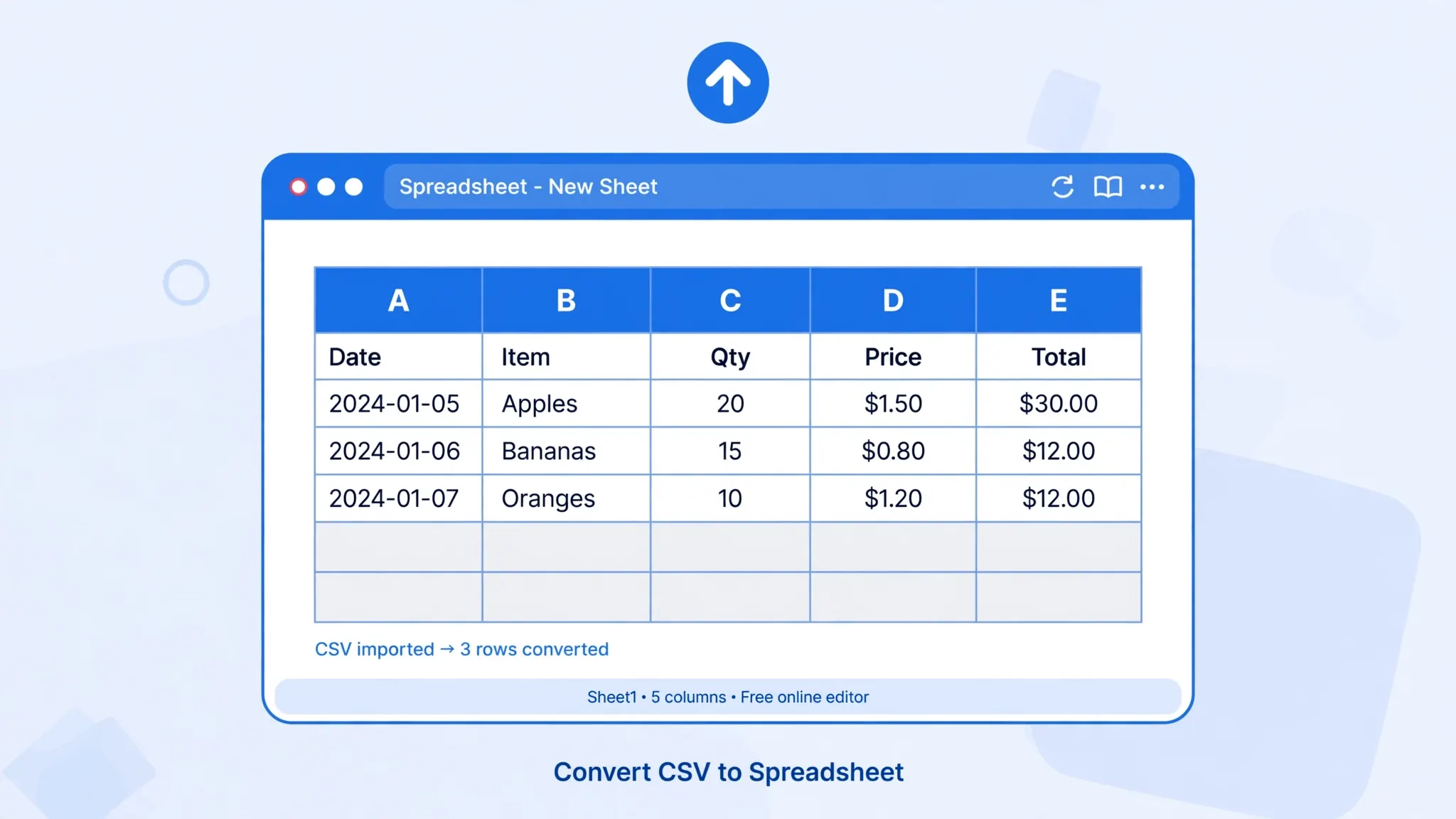
When to choose what: for speed and privacy, a client-side converter wins. For files you want to keep editing collaboratively afterward, Sheets or Excel for the Web make sense — convert and continue working in the same place.
Converting on a Mobile Browser
Phones are first-class citizens for online conversion. The workflow is identical: open the converter in Chrome (Android) or Safari (iPhone), tap to upload the CSV from your Files app or an email attachment, check the preview, and download.
Two mobile-specific tips:
- Finding the download: Android → Files → Downloads; iPhone → Files app → Downloads (or iCloud Drive). Then open with Google Sheets, WPS Office, or Numbers.
- Preview on a small screen: pinch-zoom the preview grid and scroll horizontally. If columns look wrong, it is far easier to fix the delimiter now than to discover it later on a desktop.
Mobile browsers handle typical files (bank statements, order exports) without breaking a sweat. Save the million-row monsters for a desktop. Pro tip: bookmark the converter on your phone’s home screen for one-tap access next time.
No Install, No Admin Rights, No Trace
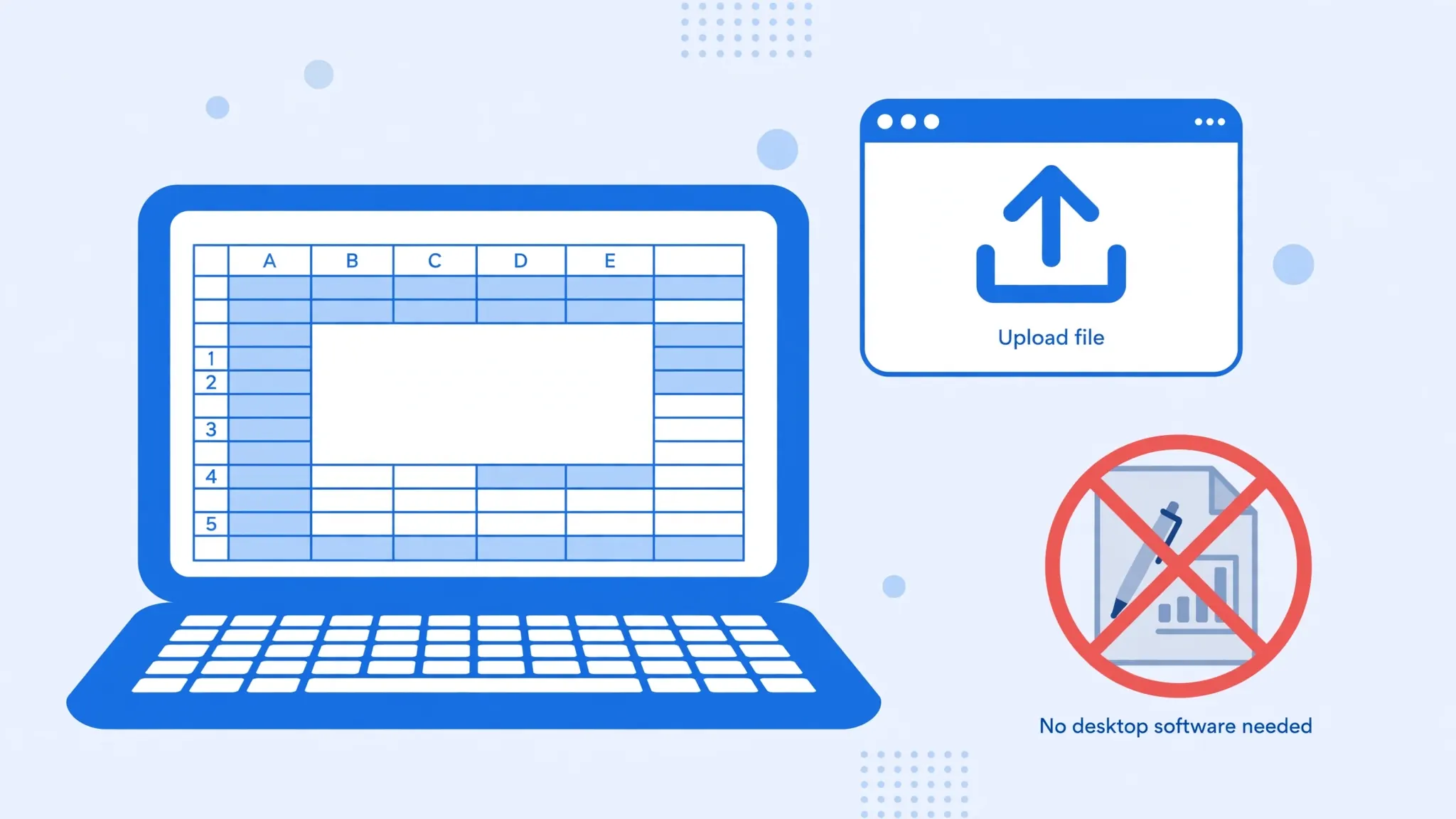
There is an underappreciated superpower to the browser-based approach: it works where nothing else can. Corporate laptops with locked-down software policies, school Chromebooks, public library PCs, a friend’s Mac you are borrowing for five minutes — none of them need new software for this.
It also leaves no trace on the machine (beyond the downloaded file, which you control). No registry entries, no background updaters, no “we noticed you installed something” email from IT. For contractors and freelancers working on client machines, that cleanliness matters.
And for everyone else, it is simply the path of least resistance. Installing a 2 GB office suite to convert one bank statement is like buying a car to cross the street. The browser is already there; use it.
Three Real-World Online Conversions, Step by Step
Theory is nice; here is what it looks like with actual files people convert every day.
Example 1: A US bank statement
You download statement.csv from Chase. It is comma-delimited, UTF-8, with headers Date, Description, Amount. Drop it into the converter — the preview shows three clean columns. One catch: amounts like (42.10) for debits. That is fine as text, but if you want to sum the column, convert those to negative numbers in Excel afterward with Find & Replace (replace ( with - and ) with nothing). Download the XLSX, and you have a workable ledger.
Example 2: A Shopify order export
Shopify’s orders_export.csv is comma-delimited but contains quoted fields with embedded commas — addresses like "221B Baker Street, London". A proper RFC 4180 parser handles these correctly, keeping the address in one cell. The preview is your friend here: scroll right and confirm address fields did not spill into extra columns. Financial columns (Total, Tax) import as numbers; phone numbers should stay text. Sixty seconds of preview checking saves an hour of cleanup.
Example 3: A semicolon CSV from a German supplier
The file uses ; as the delimiter and , as the decimal separator: Artikel;Preis;Menge with values like 12,99. Dropped into a converter with comma default, everything lands in one column. Switch the delimiter to semicolon — the preview snaps into three columns. Note the prices: 12,99 will import as text (correct for now). In Excel afterward, use Find & Replace to swap , for . in that column, then format as number. Trying to fix this during a blind conversion is how decimals get silently destroyed.
Notice the pattern across all three: the conversion itself is trivial — the skill is in the thirty-second preview check. Delimiter, encoding, column sanity. Every time.
Troubleshooting Online Conversions
Everything lands in one column
Wrong delimiter. Switch to semicolon, tab, or pipe in the converter’s options until the preview grid splits correctly. This affects a huge share of European and Latin American exports.
Weird characters (é instead of é)
Encoding mismatch — set UTF-8 explicitly. If the converter lacks an encoding option, run the file through Google Sheets once (it auto-detects well) or pick a better converter.
The download never starts
Check your browser’s popup/download blocker — some browsers block automatic downloads from unfamiliar sites. Also check the Downloads folder; the file may have downloaded silently.
The page freezes on a huge file
You have hit the browser’s memory comfort zone. Split the CSV into smaller chunks (under ~200,000 rows each) and convert them separately, or switch to LibreOffice Calc on a desktop.
Numbers lost their leading zeros
Use a converter or import path that supports Text column types, or convert and then fix with =TEXT(A2,"00000") in Excel. Better: import via Excel’s From Text/CSV with the column set to Text before saving. See our leading-zeros guide for the full fix.
My converted dates are wrong
Your CSV uses DD/MM/YYYY (UK, India, Australia style) but the converter or Excel interpreted it as MM/DD/YYYY. Ambiguous dates like 03/04/2026 flip silently. Fix it after conversion: select the date column in Excel, use Data → Text to Columns → Delimited → Next → Next, then set the column data format to Date with the correct DMY order. For future files, note your source’s date style before converting.
Hit a strange edge case with an online tool? join the discussion in our community forum — readers troubleshoot delimiter puzzles, encoding mysteries, and browser quirks together.
Frequently Asked Questions
How can I convert CSV to Excel online for free?
Open a browser-based converter like csvtoexcel.site/, drag in your CSV, check the preview grid, and download the XLSX. No install and no signup are needed. Google Sheets is another free online route: upload the CSV to Drive, open with Sheets, then File → Download → Microsoft Excel (.xlsx).
Is it safe to convert CSV to Excel online?
Client-side converters are safe because your file never leaves your browser — the conversion runs in the page’s JavaScript and no upload happens at all. Server-side converters upload your file to a third party, so avoid them for bank statements, payroll, or customer data. A quick test: load the page, enable airplane mode, and try converting. If it works, nothing is uploaded.
Can I do this on my phone?
Yes. Mobile browsers on Android and iPhone run online converters just like desktops. Open the converter, upload the CSV from your files or an email attachment, verify the preview, and download the XLSX. Find it afterward in Files → Downloads (Android) or the Files app (iPhone).
What is the maximum file size for online CSV to Excel conversion?
Client-side converters typically handle files up to tens of megabytes — a few hundred thousand rows — comfortably. Beyond that, browser tab memory limits can cause slowdowns. For files approaching Excel’s 1,048,576-row limit, use desktop software like LibreOffice Calc or a Python script instead.
Do online converters keep my CSV formatting?
CSV files contain no formatting to keep — they are plain text as defined by RFC 4180, with no fonts, colors, or styles. A good online converter preserves your values exactly, lets you set the delimiter and encoding, and produces a clean XLSX that you can format afterward in Excel, Sheets, or LibreOffice.
Can I convert CSV to Excel online without creating an account?
Yes. Reputable converters need no account, no email, and no signup — the download starts immediately. If a site demands registration before releasing your own converted file, that is a lead-generation funnel, not a free tool. Close it and use a no-signup converter.