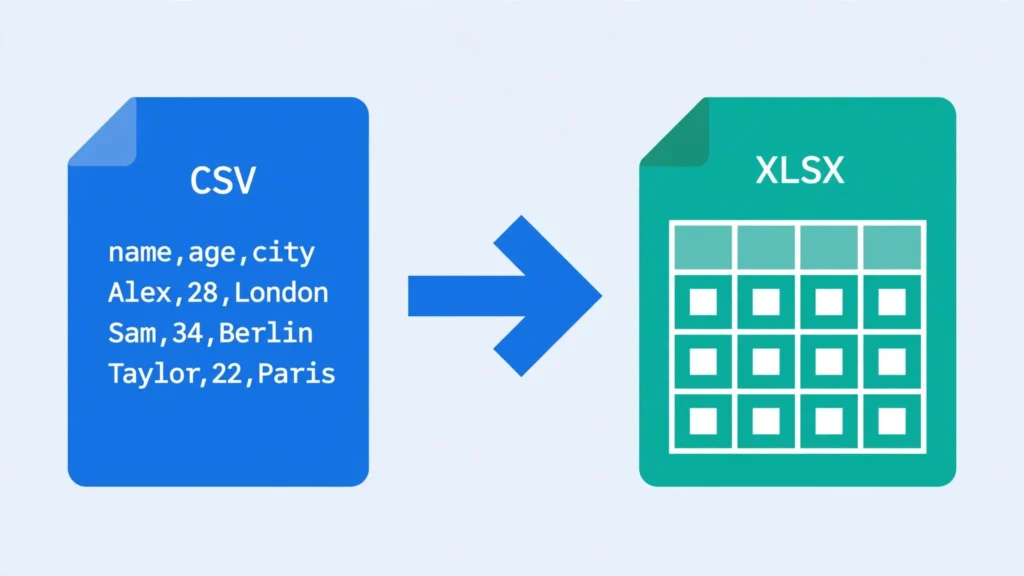
Learning how to convert CSV to XLSX is one of those small skills that quietly saves you hours. CSV files are everywhere: bank and credit-card statements, Shopify and WooCommerce order exports, Google Analytics downloads, CRM contact lists, survey results, and payroll reports. They open fast and work with almost everything, but they are also fragile — plain text with no formatting, no formulas, and a long list of ways your data can get mangled the moment Excel touches it.
Converting that CSV to XLSX — the modern Excel workbook format — gives you a proper spreadsheet: typed data, formatting that sticks, formulas, filters, multiple sheets, and a file that opens the same way on every computer. The good news is you never need to pay for this. Whether you have Excel installed or not, whether you are on Windows, Mac, a Chromebook, or a phone, there is a free method that fits.
In this pillar guide, I walk you through the five free methods that actually work in 2026: a free online csv to xlsx converter that needs no signup, Excel’s built-in Save As, Google Sheets, a short Python script, and a PowerShell one-liner for Windows. I will also show you how to change CSV to XLSX without the classic traps — stripped leading zeros, garbled characters, dates that flip month and day — and finish with a comparison table so you can pick the right method in ten seconds flat.
What Is XLSX, and Why Convert CSV to XLSX?
XLSX is the default workbook format of Microsoft Excel since Excel 2007. Technically it is an Office Open XML package — a ZIP archive containing XML files that describe your sheets, styles, formulas, and metadata. That sounds dry, but it is the reason an XLSX file can hold things a CSV never could.
A CSV (comma-separated values) file, defined by RFC 4180, is plain text: rows separated by line breaks, values separated by commas, with double quotes used to wrap fields that contain commas or quotes themselves. That is the entire specification. There is no way to store bold text, a formula, a date format, a second sheet, or even the knowledge that a column contains dates rather than text. Everything is a string until some program guesses otherwise.
When you make the switch, you move your data into a container that understands types and presentation. Here is what you gain in practice:
- Formatting that survives. Number formats, date formats, fonts, colors, borders, and conditional formatting can all be stored. A CSV forgets them the instant you close it.
- Real data types. Dates stay dates, currency stays currency. Excel no longer has to guess on every open.
- Multiple sheets. One workbook can hold your raw data, a summary, and a pivot table side by side.
- Formulas and features. VLOOKUP, XLOOKUP, pivot tables, charts, data validation — none of these exist in CSV-land.
- Bigger capacity. XLSX worksheets support 1,048,576 rows and 16,384 columns, and the zipped XML format is far more compact than the legacy binary .xls.
- Safer sharing. Your recipient sees exactly what you see, regardless of their regional list separator or default encoding.
There are also hard reasons to convert. Many accounting tools, tax portals, and data pipelines in the US, UK, India, Canada, and Australia accept XLSX uploads but reject CSV — or accept CSV but silently misread it. If you have ever submitted a financial report and had the portal scramble your columns, converting to a well-formed XLSX first is the fix.
Method 1: Convert CSV to XLSX with a Free Online Tool (No Signup)
The fastest way to convert CSV to XLSX is a browser-based csv to xlsx converter. No installs, no accounts, no watermarks. Our own converter at csvtoexcel.site/ is free and — importantly — processes your file entirely inside your browser (client-side), so your data never travels to a server. That matters when your CSV contains customer emails, transaction amounts, or anything you would not email to a stranger.
- Open the converter. Go to csvtoexcel.site/ on any device — Windows, Mac, Chromebook, Android, or iPhone.
- Drop in your CSV. Drag the file onto the page or tap to browse. Files with .csv, .txt, or .tsv extensions work.
- Check the preview. The tool parses the file and shows a preview grid. If columns look merged into one, switch the delimiter (comma, semicolon, tab, or pipe) until the grid looks right.
- Download the XLSX. Hit convert and save the resulting .xlsx file. Open it in Excel, Google Sheets, or LibreOffice to confirm everything landed correctly.
This method shines for one-off conversions and for people without Excel. A bank statement of 20,000 rows converts in seconds. Because the work happens locally in your browser, there is no upload queue, no file-size surprise on a server, and no account nagging you afterward. If you are hunting for a csv to xlsx free method with no signup, this is it.
Method 2: Change CSV to XLSX Using Excel’s Save As
If Microsoft Excel is already on your computer, the built-in Save As is the most obvious route — but the order of operations matters enormously. Double-clicking a CSV to open it in Excel and then saving is the single biggest source of corrupted conversions, because Excel guesses the delimiter, encoding, and column types with no input from you.
The safe way: import first, then save
- Start with a blank workbook. Open Excel and create a new empty workbook. Do not open the CSV directly.
- Import the CSV. Go to the Data tab → From Text/CSV. Select your file. Excel shows a preview dialog.
- Set the delimiter and encoding. In the preview, confirm the delimiter (comma for most US/UK exports, semicolon for many European and Latin American exports) and the file origin. Choose 65001: UTF-8 if you see garbled characters like é instead of é.
- Fix column types. Click Transform Data (Power Query opens). Set columns that must stay text — ZIP codes, phone numbers, product SKUs — to Text type. This is the step that prevents leading zeros from vanishing.
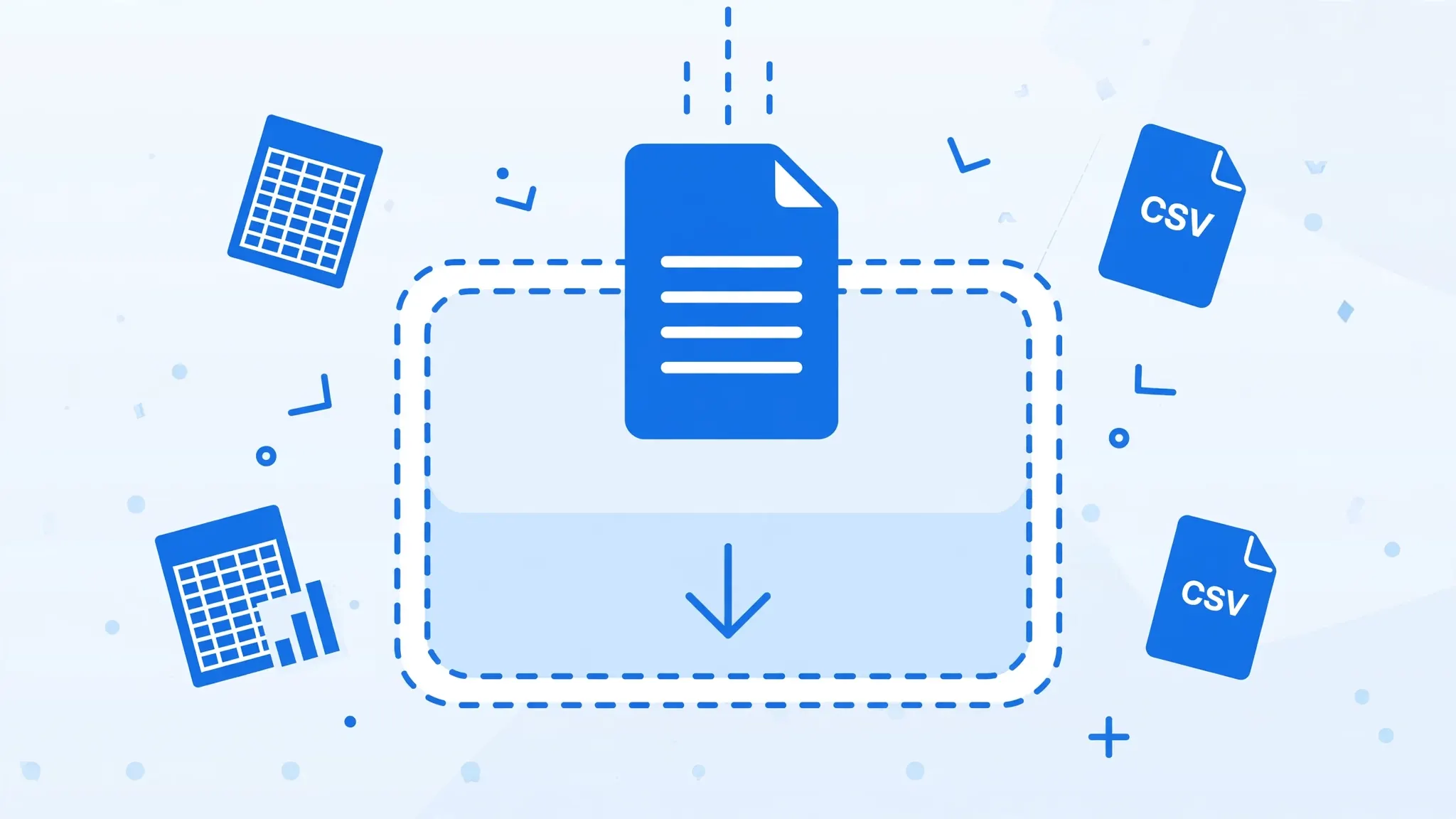
- Load and save. Click Close & Load, then File → Save As and choose Excel Workbook (*.xlsx).
The quick way (and its risks)
If your CSV is simple — plain ASCII text, comma-delimited, no leading zeros — you can just open it and press F12 (Save As), then pick XLSX. It takes five seconds. But know what you are risking: Excel may reinterpret dates (is 03/04/2026 March 4 or April 3? it depends on your Windows region), strip leading zeros from codes, convert long IDs to scientific notation, and mangle non-English characters if the file lacks a UTF-8 BOM. For anything important, use the import-first method above.
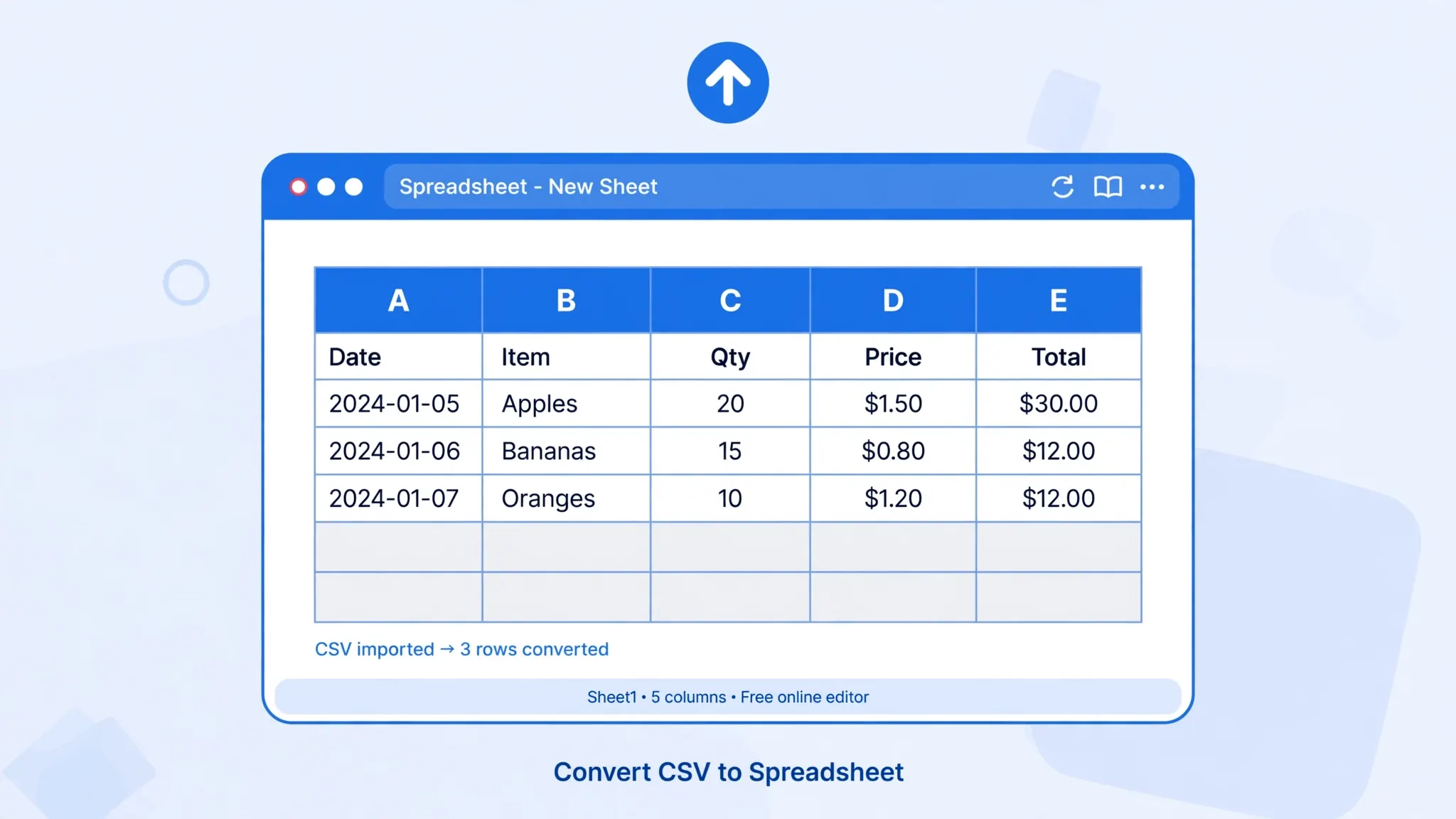
Method 3: Turn CSV into XLSX with Google Sheets
No Excel? No problem. Google Sheets is free with any Google account and converts CSV to XLSX cleanly, with the added bonus of working identically on Windows, Mac, ChromeOS, Android, and iOS.
- Upload the CSV. Go to Google Drive, click New → File upload, and select your CSV.
- Open with Sheets. Right-click the uploaded file → Open with → Google Sheets. Drive converts it to a Sheets document on the fly.
- Check the import. If columns merged, use File → Import instead: upload the CSV, set the separator character and encoding explicitly, then import.
- Download as XLSX. Go to File → Download → Microsoft Excel (.xlsx). Done.
Sheets handles UTF-8 well, which makes it a great choice for CSVs with accented names, Hindi or Arabic script, or emoji. One limitation: Google Sheets caps out at 10 million cells per spreadsheet, and the web interface gets sluggish well before that — for files above a few hundred thousand rows, use Python or Excel desktop instead. Also note that Sheets’ import guesses column types, so apply the same leading-zero vigilance as with Excel.
Method 4: Python for Scripted Conversions
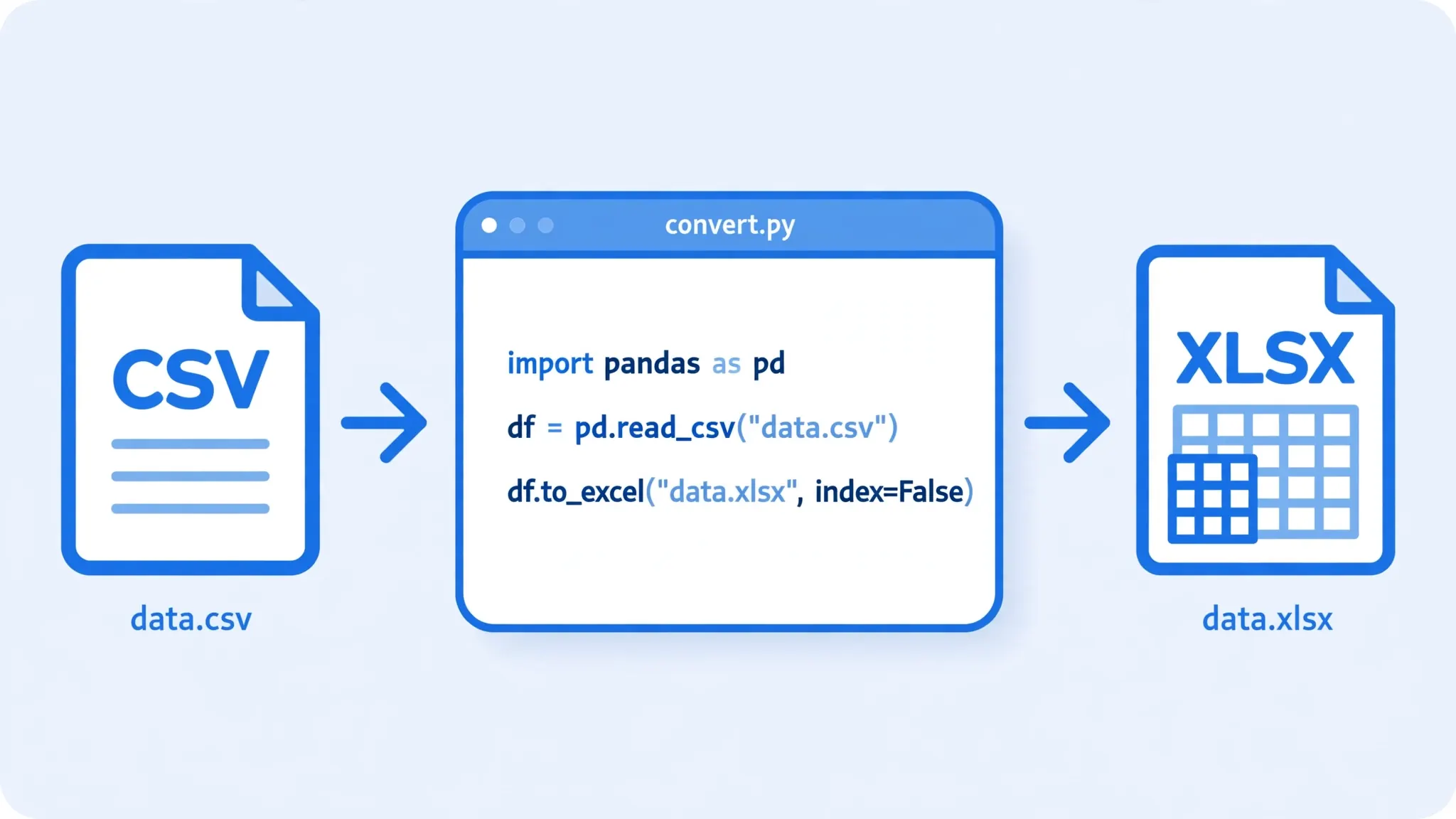
For developers, analysts, and anyone who converts CSVs repeatedly, Python is the most powerful free method. The pandas library reads CSVs with fine-grained control over encoding, delimiters, and dtypes, and writes polished XLSX files via openpyxl. Once the script exists, converting the next hundred files is a one-command job.
First, install the libraries (once):
pip install pandas openpyxlThen a basic conversion:
import pandas as pd

# utf-8-sig handles the BOM that Excel adds to some CSV exports
df = pd.read_csv("sales.csv", encoding="utf-8-sig")

# Keep codes as text so leading zeros survive
df = pd.read_csv("sales.csv", encoding="utf-8-sig",
                 dtype={"zip_code": str, "sku": str})

df.to_excel("sales.xlsx", index=False, sheet_name="Sales")
print("Done:", df.shape)
A few practical upgrades worth knowing:
- Semicolon-delimited files: add
sep=";"toread_csv. - Parse dates properly:
parse_dates=["order_date"], dayfirst=Truefor UK/India/Australia date styles (DD/MM/YYYY). - Multiple CSVs to one workbook: loop over files and write each to its own sheet (see our guide on converting CSV to Excel with multiple sheets).
- Column widths: openpyxl lets you auto-size columns afterward so the output looks professional, not cramped.
Python also sidesteps Excel’s row guessing entirely — pandas reads exactly what is in the file. For a 500,000-row export, pandas will typically finish in seconds where Excel’s import wizard feels like wading through mud.
Method 5: PowerShell on Windows
On Windows, PowerShell can handle the conversion without installing anything — handy on locked-down office machines where you cannot install Python and do not want to upload files anywhere. This approach uses Excel’s own automation engine, so Excel must be installed, but no extra software is needed.
$excel = New-Object -ComObject Excel.Application
$excel.Visible = $false
$excel.DisplayAlerts = $false

$wb = $excel.Workbooks.Open("C:\data\sales.csv")
# 51 = xlOpenXMLWorkbook (the .xlsx format)
$wb.SaveAs("C:\data\sales.xlsx", 51)

$wb.Close()
$excel.Quit()
[System.Runtime.Interopservices.Marshal]::ReleaseComObject($excel) | Out-Null
Save that as convert.ps1 and run it from an elevated PowerShell prompt (you may need Set-ExecutionPolicy -Scope CurrentUser RemoteSigned first). The script opens the CSV in Excel silently and saves it as XLSX.
ImportExcel PowerShell module (by Doug Finke) is excellent: Install-Module ImportExcel, then Import-Csv sales.csv | Export-Excel sales.xlsx. No Excel required at all.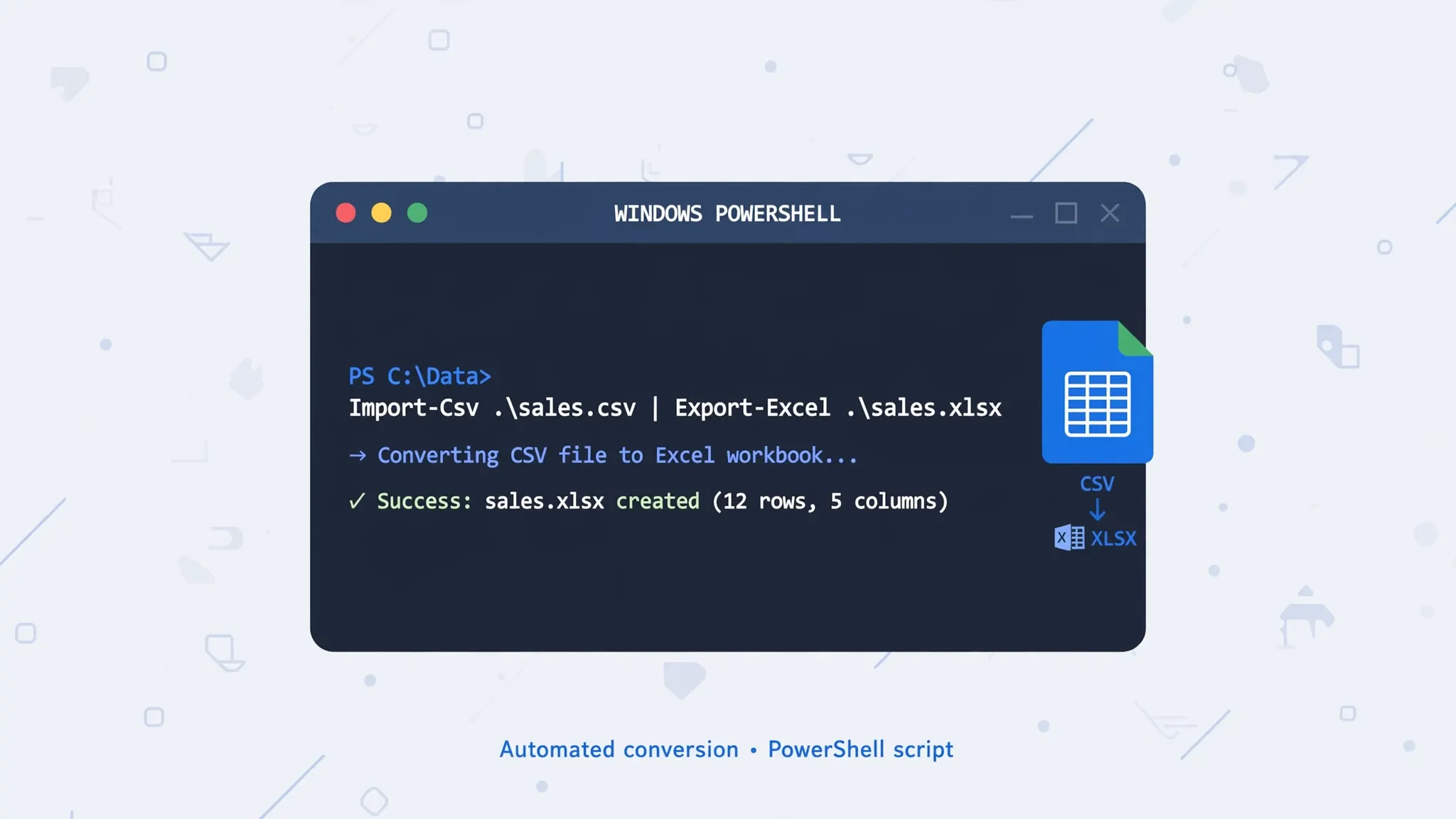
CSV to XLSX Converter Methods Compared
Five methods is a lot to choose from. Here is the honest breakdown:
| Method | Cost | Excel needed? | Best for | Watch out for |
|---|---|---|---|---|
| Online converter (client-side) | Free | No | Quick one-off conversions on any device | Very large files; avoid server-upload tools for sensitive data |
| Excel Save As (import-first) | Free if you own Excel | Yes | Full control over types and formatting | Double-click opening guesses everything |
| Google Sheets | Free | No | No-install conversion, great UTF-8 handling | Slow on huge files; 10M cell cap |
| Python (pandas) | Free | No | Repeatable, scriptable, huge files, batch jobs | Requires basic coding comfort |
| PowerShell | Free | Usually yes | Windows automation without new installs | Inherits Excel’s import guessing |
My rule of thumb: if you convert CSVs less than weekly, use the free online converter. If it is a daily chore, invest twenty minutes in the Python script — it pays for itself by Friday. And if the data is sensitive and you have Excel, the import-first Save As keeps everything on your machine with maximum control.
Troubleshooting Conversion Problems
Most conversion pain comes from the import, not the XLSX format itself. Here are the failures I see most often, with fixes.
All data lands in a single column
Your CSV uses a delimiter Excel did not expect — semicolons, tabs, or pipes. Re-import via Data → From Text/CSV and select the right delimiter, or pre-convert with an online tool where you can set the delimiter explicitly. This is extremely common with exports from European accounting software (DATEV, Sage) and with tab-separated .txt exports.
Special characters turn into gibberish (é, ’, □)
Encoding mismatch. Your file is UTF-8 but Excel opened it as Windows-1252 (or vice versa). In the import dialog, set File Origin to 65001: UTF-8. If you are generating the CSV yourself, write it with a UTF-8 BOM (encoding="utf-8-sig" in Python) — the BOM is a three-byte signature that tells Excel “this is UTF-8” and fixes most cases automatically.
Leading zeros disappear (00123 → 123)
Excel saw digits and decided the column was numeric. The fix must happen at import: set the column type to Text in Power Query before loading. After the fact, you can sometimes recover with =TEXT(A2,"00000"), but prevention is cleaner. US ZIP codes (00501), UK postcodes with leading areas, Indian mobile numbers exported with a leading zero, and product SKUs are the usual victims.
Long numbers become scientific notation
Excel stores numbers with ~15 digits of precision. A 16-digit credit-card or IMEI number will lose its last digit and display as 4.12346E+15. Same fix: import the column as Text. This one actually destroys data, so take it seriously.
Dates flip month and day
03/04/2026 means March 4 in the US and April 3 in the UK, India, and Australia. Excel interprets dates using your system locale, so a US-exported CSV opened on a UK machine (or vice versa) silently scrambles ambiguous dates. In Power Query, set the column type to Date with the correct locale, or use Python with dayfirst=True.
The file is too big
One XLSX sheet maxes out at 1,048,576 rows. Beyond that, split the CSV into chunks (Python: pd.read_csv(..., chunksize=900_000)), or load it into Power Query / a database instead of a worksheet. Also note that XLSX files with a million rows can be hundreds of megabytes — fine on desktop Excel, painful in a browser tab.
Pro Tips for a Clean CSV to XLSX Conversion
- Never edit the CSV in Excel and re-save as CSV. Excel rewrites the whole file on save — quoting, delimiters, and encoding can all change silently. Convert to XLSX first, then edit the workbook.
- Keep the original CSV. Treat the CSV as your source of truth and the XLSX as a working copy. If something looks wrong later, you can always reconvert.
- Name sheets and freeze panes. After converting, rename Sheet1 to something meaningful, freeze the header row (View → Freeze Panes), and turn on filters. Thirty seconds of polish makes the file ten times more usable.
- Validate row counts. After any conversion, compare the row count of the XLSX against the CSV (line count minus header). A mismatch means the parser choked — usually on an unescaped quote or an embedded line break inside a quoted field, per RFC 4180 edge cases.
- Automate recurring conversions. Weekly sales export? A five-line Python script or a PowerShell scheduled task beats manual clicking forever. See our batch conversion guide for the multi-file version.
- Check your locale once. If you regularly handle both US (MM/DD/YYYY, comma) and European (DD/MM/YYYY, semicolon) files, set up two Power Query import templates. Future you will be grateful.
Still wrestling with a stubborn file — a semicolon CSV that will not split, or dates that keep flipping month and day? join the discussion in our community forum, where readers share their own CSV-to-XLSX fixes and edge cases.
Frequently Asked Questions
Is it safe to convert CSV to XLSX with a free online tool?
It depends on the tool. Client-side converters like the one at csvtoexcel.site/ process your file entirely inside your browser, so your data never leaves your device and nothing is uploaded to a server. Server-side converters upload your file to a third party, which is riskier for sensitive data like bank statements or payroll exports. For confidential CSVs, prefer a client-side tool, Excel, Google Sheets, or a local script. As a rule, never upload a file to a converter you would not be comfortable emailing to a stranger.
Will converting CSV to XLSX keep my formulas?
No — and this surprises people. A CSV file stores plain text values only: no formulas, no formatting, no charts, no multiple sheets. That is the whole RFC 4180 specification. When the conversion finishes, you get a workbook containing the raw values — beautifully typed and formatted if you imported carefully — but any formulas must be added afterward in Excel or your spreadsheet app of choice.
How do I do this on a Mac without Excel?
You have three good options. Apple Numbers comes free on every Mac: open the CSV, then File → Export To → Excel. Google Sheets works in any browser: upload the CSV to Drive, open with Sheets, then File → Download → Microsoft Excel (.xlsx). Or use the free browser converter at csvtoexcel.site/, which needs no account and works on Mac, iPad, and iPhone alike.
Why does my converted file show all data in one column?
Excel split the file using a different delimiter than the one your CSV actually uses. If your CSV uses semicolons, tabs, or pipes, Excel’s default comma parsing dumps everything into column A. Fix it by importing properly: Data tab → From Text/CSV, then select the correct delimiter in the preview dialog before loading. Then save as XLSX.
Can I convert a CSV that is bigger than Excel’s row limit?
A single XLSX worksheet holds at most 1,048,576 rows and 16,384 columns — that is a hard limit of the format. If your CSV exceeds it, Excel physically cannot fit the data on one sheet. Your options: split the CSV into chunks under one million rows each and convert each to its own sheet or file, use Python/pandas to process it in chunks, or load it into Power Query or a database instead of a worksheet.
Does converting CSV to XLSX change my data?
The conversion itself preserves values, but opening a CSV in Excel before converting can alter data silently: leading zeros get stripped, long numbers flip to scientific notation (losing precision past 15 digits), ambiguous dates get reinterpreted per your system locale, and special characters garble if the encoding is wrong. The import-first method — Data → From Text/CSV with explicit delimiter, UTF-8 encoding, and Text column types where needed — keeps your data intact.