Double-click a 2 GB CSV and Excel either refuses to open it, truncates it silently at 1,048,576 rows, or “helpfully” converts your ID numbers into scientific notation. The best CSV editors exist precisely because Excel — wonderful as it is for analysis — is a genuinely bad tool for inspecting and editing raw CSV files. Dedicated CSV editors open massive files in seconds, show you the data exactly as it exists in the file, and let you fix delimiters, encodings, and malformed rows without the silent reinterpretation that makes Excel dangerous for precious data.
This guide reviews the top dedicated CSV editors in 2026 — Modern CSV, Tad, CSVpad, EmEditor, and the VS Code route — covering free and paid options for Windows, Mac, and Linux. You’ll learn when a CSV editor vs Excel is the right call, how to handle files too big for any spreadsheet, and which free CSV editor fits your platform. Whether you’re a data engineer in Seattle, an analyst in London, or a researcher in Sydney staring at a 5-million-row export, there’s a tool here that opens it without breaking a sweat.
Why Excel is a terrible CSV editor
Excel doesn’t open CSVs — it imports them, and the distinction matters. On import, Excel guesses data types for every column: that guess strips leading zeros from ZIP codes, converts long ID numbers to scientific notation (destroying precision past 15 digits), and reinterprets dates according to your locale. Save the file and those guesses become permanent — the original data is gone. For analysis this is usually fine; for editing the source file, it’s data corruption with a friendly face.
Then there’s the hard ceiling: 1,048,576 rows. Open a 3-million-row export and Excel loads the first million rows and silently discards the rest — no warning, no error. Analysts have made real decisions on truncated data without knowing it. Add slow performance on files over ~100 MB, the single-column collapse when delimiters mismatch, and encoding mangling, and you have a tool that’s actively hostile to raw CSV work. Excel is for analyzing data; editing the file itself demands a tool that respects the bytes.
What makes a great CSV editor
The best CSV editors share a set of non-negotiable traits. No silent reinterpretation: the editor shows values exactly as stored — 02134 stays 02134, long numbers stay intact, dates stay as text until you say otherwise. Large-file handling: streaming or virtualized loading that opens gigabyte files without loading everything into RAM. Delimiter and encoding control: explicit settings for comma/semicolon/tab/pipe delimiters and UTF-8/legacy encodings, with the raw bytes visible when needed. The RFC 4180 spec defines the standard CSV format these editors implement.
Beyond the basics, look for: column operations (reorder, hide, filter, sort) that work on the file’s structure; find and replace across the whole file; malformed-row highlighting that flags rows with wrong column counts; read-only preview modes for safe inspection; and multi-platform support if you work across Windows, Mac, and Linux. Speed matters too — an editor that takes a minute to open a 500 MB file will train you not to inspect files, which defeats the purpose.

CSV editor vs Excel: when to switch tools
The CSV editor vs Excel decision is really about which question you’re asking. Reach for the CSV editor when: the file won’t open in Excel (too big); you need to see the raw values without type guessing; you’re diagnosing import problems (wrong delimiters, bad quoting, encoding issues); you’re cleaning the file before analysis; or the data is precious and must not be altered. Reach for Excel when: you’re analyzing, charting, pivoting, or modeling — everything downstream of having clean data.
The professional workflow uses both in sequence: inspect and repair in the editor, analyze in Excel. A data analyst in Toronto receiving a 2-million-row export opens it in Modern CSV first — checks the delimiter, scans for malformed rows, verifies the row count — then loads the clean file into Excel or Power Query for analysis. Ten minutes of editor time prevents hours of “why don’t my totals match” debugging. Think of the editor as the loading dock and Excel as the factory floor.
1. Modern CSV — the gold standard
Modern CSV is the closest thing the CSV world has to a purpose-built IDE: a fast, keyboard-driven editor designed specifically for delimited files, available on Windows, Mac, and Linux. It opens multi-gigabyte files quickly via efficient loading, handles delimiters/encodings/quoting with explicit controls, and offers the column operations (filter, sort, hide, reorder) that make large files navigable. Find-and-replace works across massive files, and it highlights malformed rows so you can spot the one broken line in a million.
What sets it apart is that every design decision serves CSV work: cell editing that respects quoting, transpose operations, duplicate detection, and a clean interface that stays out of the way. There’s a free tier with generous capabilities and a paid premium version for power features — the free tier alone outperforms most alternatives. If you work with CSVs weekly and want one tool to standardize on, this is it.
Best for: anyone who edits CSVs regularly and wants the definitive tool. Price: free tier available; premium is a modest one-time/annual cost. Platforms: Windows, Mac, Linux.
2. Tad — the free big-data viewer
Tad (from the makers of the Topcat data analysis tool) is a free, open-source CSV viewer built for one job: opening enormous files instantly. It uses a columnar storage engine that lets it handle files with tens of millions of rows while staying responsive — filtering, sorting, and pivoting happen at remarkable speed. It’s read-focused rather than a full editor (viewing and light transformation over heavy editing), but for the “just let me see this 4 GB file” problem, nothing free beats it.
Tad’s pivot-table-like aggregations on huge files are genuinely impressive: group 20 million rows and get instant summaries. The interface is utilitarian rather than beautiful, and editing capabilities are limited compared to Modern CSV — but as a free big-file viewer, it’s essential kit. Data engineers and analysts dealing with exports that make Excel weep should install it today.
Best for: viewing and summarizing massive CSVs free. Price: free and open source. Platforms: Windows, Mac, Linux.
3. CSVpad — the lightweight Windows editor
CSVpad is a small, fast, no-nonsense CSV editor for Windows that does the basics excellently: open delimited files, edit cells in a grid, handle encodings and delimiters explicitly, and save back cleanly. It won’t win feature comparisons with Modern CSV, but it launches instantly, uses minimal resources, and handles files far larger than Excel tolerates. For Windows users who want a simple “Notepad, but for CSVs” — something that opens when you double-click and just works — CSVpad is a lovely fit.
Its simplicity is the feature: no learning curve, no configuration rabbit holes, no subscription. Open, inspect, fix the obvious problems, save. It pairs well with Excel — do the quick raw-file check in CSVpad, then analyze in Excel proper. Think of it as the tool you recommend to colleagues who find Modern CSV intimidating.
Best for: Windows users wanting a simple, fast, free CSV editor. Price: free. Platforms: Windows.
4. EmEditor — the heavyweight text champion
EmEditor isn’t a CSV editor per se — it’s a professional text editor that happens to handle enormous files better than almost anything else, with a dedicated CSV mode (cell selection, column sorting, TSV/CSV conversions) layered on top. Its party trick is opening truly gigantic files — tens of gigabytes — that crash every other editor, thanks to its optimized large-file architecture. If your “CSV” is 30 GB of log data, EmEditor is one of the few tools that won’t flinch.
Beyond size, it offers powerful regex find-and-replace, macro recording, encoding conversion (including detection of legacy encodings), and CSV-specific features like quoting control and delimiter conversion. The free version is capable; the paid professional version unlocks the full feature set. It’s Windows-only, which limits its audience, but Windows power users dealing with extreme files swear by it.
Best for: gigantic files (multi-GB) and heavy text manipulation on Windows. Price: free version; paid Pro. Platforms: Windows.
5. VS Code with CSV extensions — the developer’s choice
If you already live in Visual Studio Code, you don’t need another app — extensions turn it into a capable CSV editor. Rainbow CSV color-codes columns so you can visually track which value belongs to which header (a revelation for wide files), and provides column alignment, querying with a SQL-like syntax (RBQL), and linting that flags malformed rows. EditCsv adds a proper spreadsheet-like grid editor inside VS Code for cell-level editing.
The advantages: zero new tools to learn, Git integration for version-controlled data, and the full power of VS Code’s search, regex, and multi-cursor editing on the raw text. The disadvantages: large-file performance is merely good (not Tad/EmEditor class), and the experience is assembled from extensions rather than designed as a whole. For developers and analysts who already have VS Code open all day, though, it’s the path of least resistance — and it’s completely free.

Best for: developers and anyone already using VS Code daily. Price: free. Platforms: Windows, Mac, Linux.
Free CSV editor options worth knowing
Beyond the headline picks, several free CSV editor options deserve mention. LibreOffice Calc — the free office suite’s spreadsheet — opens CSVs with an excellent import dialog (explicit delimiter, encoding, and per-column type control), making it a surprisingly good inspection tool, though it shares Excel’s reinterpretation risks if you save back carelessly. Google Sheets handles moderate CSVs in the browser with good auto-detection — fine for files under ~50k rows when you can’t install anything.
CSV Explorer / online viewers fill the no-install niche: upload a file, browse it in a grid, check structure. They’re handy for quick peeks but mind the privacy implications of uploading sensitive data — prefer tools that process files locally. Notepad++ with CSV plugins (Windows) gives text-editor power users column editing and sorting. And for the command line, csvkit (csvstat, csvlook, csvclean) inspects, validates, and repairs CSVs from a terminal — beloved by data engineers from San Francisco to Singapore.
CSV editor Windows roundup: which runs where
Platform support matters, so here’s the CSV editor Windows landscape plus Mac and Linux coverage at a glance. Windows: all five picks run — Modern CSV, Tad, CSVpad, EmEditor, and VS Code — giving Windows users the richest choice. Mac: Modern CSV, Tad, and VS Code are the strong options (plus Numbers/Sheets for light work). Linux: Modern CSV, Tad, VS Code, and LibreOffice Calc cover the bases.
If you’re standardizing across a mixed-OS team — say, analysts on Windows laptops and engineers on Macs in offices from New York to London to Mumbai — pick tools with cross-platform parity: Modern CSV or Tad for dedicated editing, VS Code for the developer crowd. Consistent tooling means consistent file handling, which means fewer “it worked on my machine” data mysteries.
Handling large CSV files: a practical workflow
When a large CSV file editor meets a file Excel can’t touch, here’s the workflow that works:
- Inspect first. Open in Tad or Modern CSV. Check the row count, column count, delimiter, and encoding. Scroll through the head and tail — problems cluster at file boundaries.
- Validate structure. Look for rows with mismatched column counts (the classic sign of broken quoting or embedded line breaks). Most dedicated editors flag these automatically.
- Fix what’s fixable. Correct delimiters, strip BOM issues, repair or remove malformed rows, standardize encodings to UTF-8. Do this in the editor, on a copy.
- Decide the analysis path. Under ~1M rows and headed for Excel? Convert to XLSX with the free CSV to Excel converter. Millions of rows? Load into pandas, a database, or Power BI. Need a sample? Most editors export filtered subsets.
- Keep the original. Archive the untouched source file. Every transformation should be reproducible from the original — future-you will be grateful.
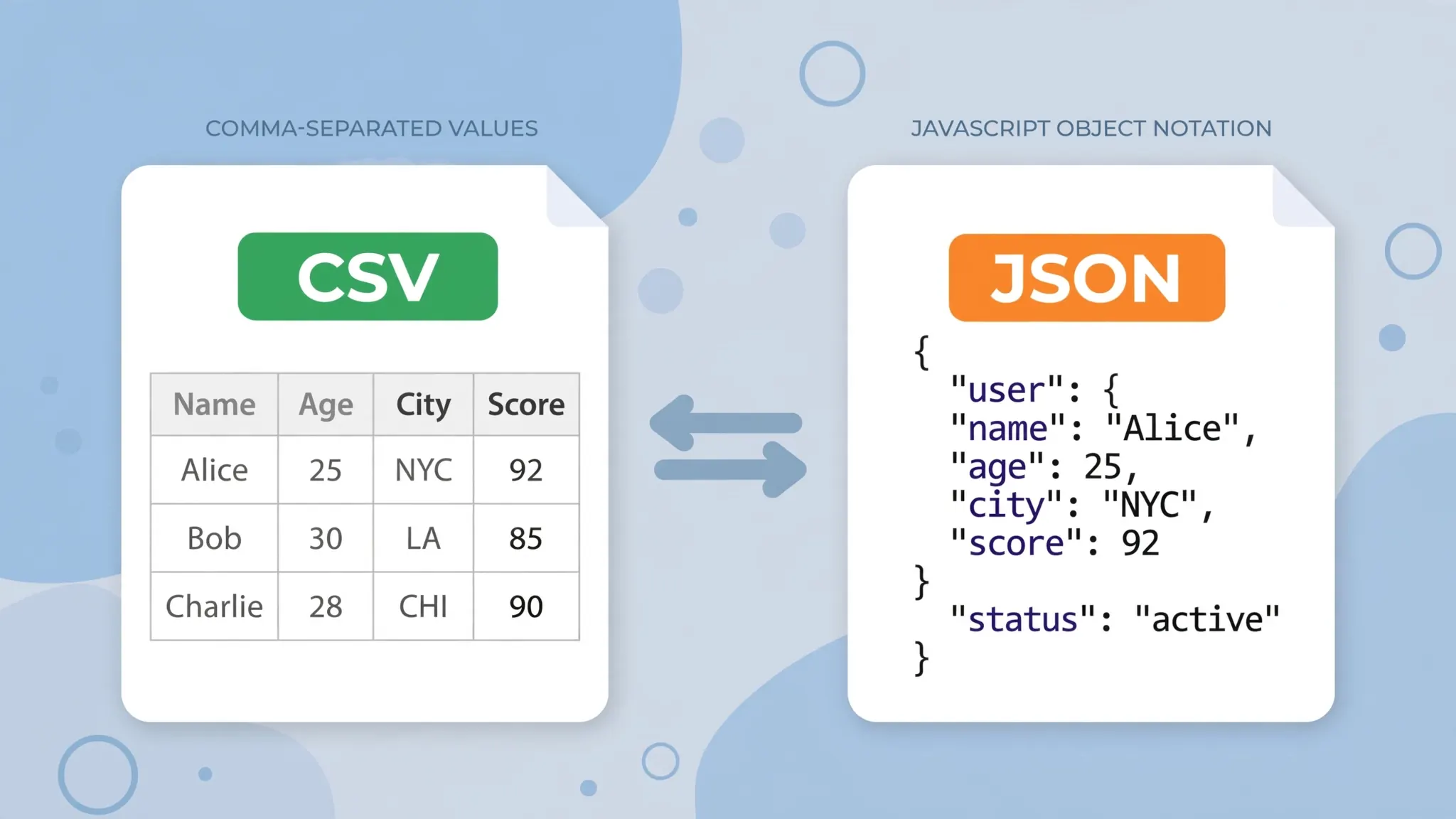
For recurring large files, automate: a scheduled script that validates, cleans, and converts each new export removes the manual inspection burden while keeping the safety checks. And if your “large file” problem is really a “wrong format” problem — deeply nested data flattened awkwardly into CSV — our CSV vs JSON comparison may change your approach entirely.
How to choose among the best CSV editors
Cut through the options with three questions. How big are your files? Under 100 MB: any editor works — pick by comfort. Hundreds of MB to a few GB: Modern CSV or Tad. Multi-GB: EmEditor (Windows) or Tad. Do you edit or just view? Real editing (fixing cells, restructuring): Modern CSV, CSVpad, or VS Code + EditCsv. Viewing, filtering, and summarizing: Tad shines. What’s your budget and platform? Free and cross-platform: Tad or VS Code. Willing to pay a little for the best tool: Modern CSV premium. Windows-only power: EmEditor.
Most professionals end up with two: a dedicated editor for serious work plus VS Code extensions for quick peeks during development. The investment is tiny — an afternoon of setup — and the payoff is never again wondering whether your data survived the import. Pair your editor with a reliable conversion step (the free CSV to Excel converter for Excel-bound files, or our converter roundup for batch workflows), and the entire CSV lifecycle — inspect, repair, convert, analyze — becomes smooth and trustworthy.

One last thought: the best CSV editor is the one you’ll actually open before importing. Build the habit — thirty seconds of inspection on every unfamiliar file — and you’ll join the ranks of analysts whose numbers always reconcile. In data work, paranoia about inputs isn’t a character flaw; it’s a professional skill.
Frequently Asked Questions
What is the best CSV editor?
Modern CSV is the best dedicated CSV editor overall — fast, multi-platform, and built specifically for editing large delimited files. Tad is the best free option for viewing huge files, and VS Code with the Rainbow CSV extension is best for developers.
Is there a free CSV editor for Windows?
Yes — several. Tad is free and handles massive files, CSVpad is a lightweight free editor, and VS Code with free CSV extensions works well. LibreOffice Calc is also free and opens CSVs with good delimiter control.
Can Excel edit large CSV files?
Only up to 1,048,576 rows, and Excel silently truncates anything beyond that — plus it mangles leading zeros, long numbers, and dates on import. For large or precious CSVs, a dedicated editor that doesn’t reinterpret your data is far safer.
How do I open a CSV file that is too big for Excel?
Use a dedicated CSV editor like Modern CSV or Tad, which stream large files instead of loading everything into memory. Alternatively, split the file into chunks, use Python’s pandas, or import via Power Query — but for inspection and editing, a proper editor is simplest.
What’s the difference between a CSV editor and Excel?
A CSV editor treats the file as text with structure: it won’t reinterpret data types, truncate rows, or reformat values. Excel treats CSV as a spreadsheet to calculate on, which causes silent data changes. Editors are for inspecting and fixing files; Excel is for analyzing them.
Can I edit CSV files without installing software?
Yes — browser-based tools let you view and convert CSVs without installs, and Google Sheets handles moderate files. But for very large files or precise editing, a desktop CSV editor is worth the one-time install.